

Object Storage - Use Object Storage with WinSCP
805 Views
 25.08.2025
  Cloud / Object Storage S3
Objective
WinSCP is a free, open-source SFTP, FTP, WebDAV, S31, and SCP client and file manager for Windows.
This guide explains how to configure WinSCP to manage your buckets and objects.
Requirements
- A bucket
- A user with the required access rights on the bucket
- Your Object Storage credentials (
access_keyandsecret_access_key)
See our Getting started with Object Storage guide.
Instructions
Start WinSCP. The login dialog will appear. Fill in the fields as follows:
1. Make sure the New Site node is selected.
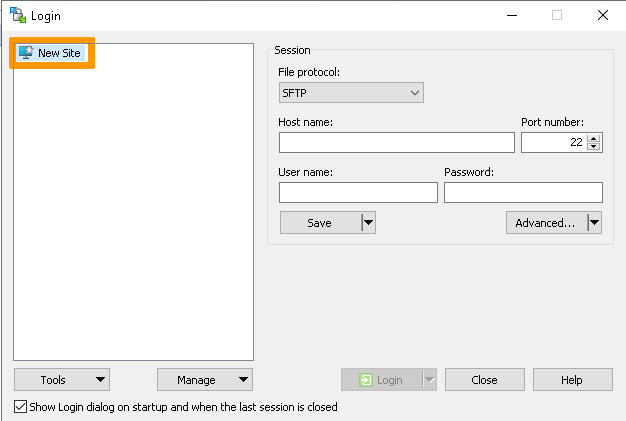
2. On the New Site node, select Amazon S3 protocol.
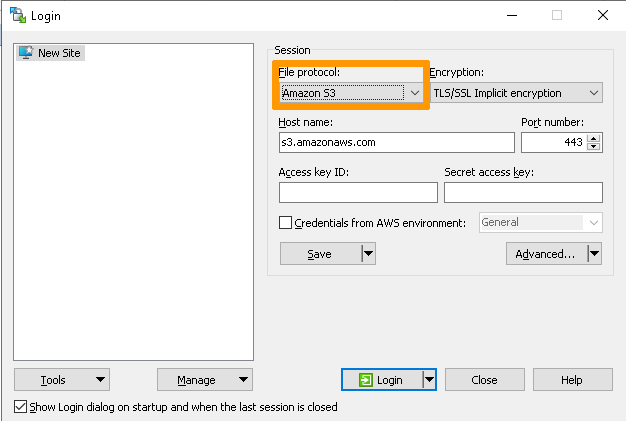
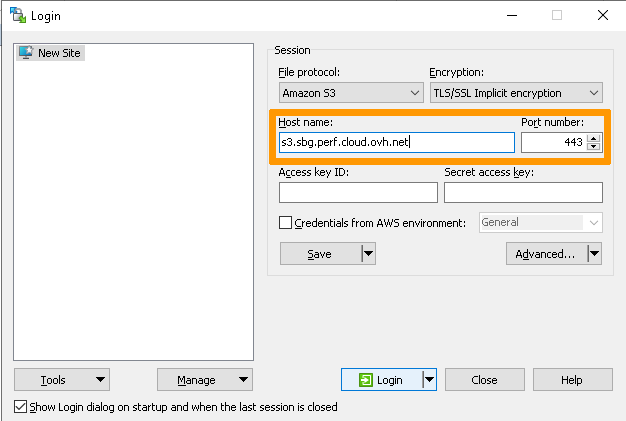
3. Enter your endpoint (without https://) corresponding to your storage class, and set the Port number field to 443.
To identify the endpoint corresponding to your storage class, see: Object Storage - Endpoints and Object Storage geoavailability.
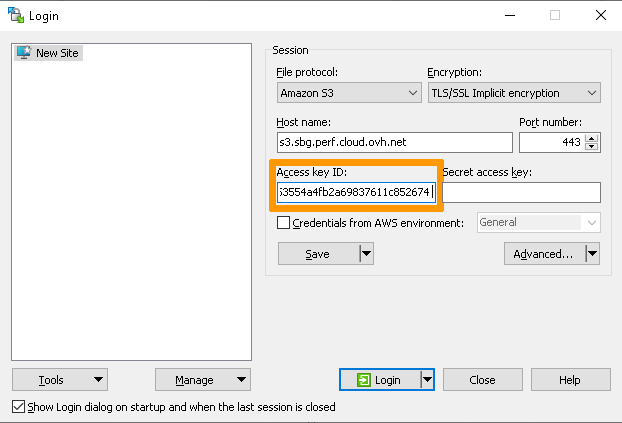
4. Enter your user's access_key.
In order to respect best practices, please fill in only the Access key ID field at this stage.
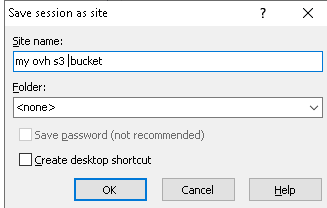
5. Save your site settings using the Save button.
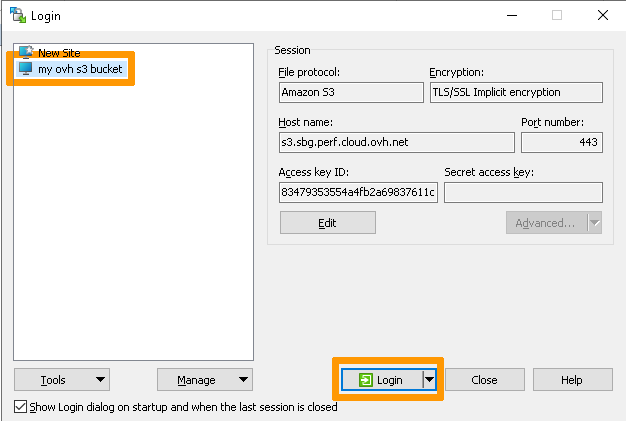
6. Log in using the Login button.
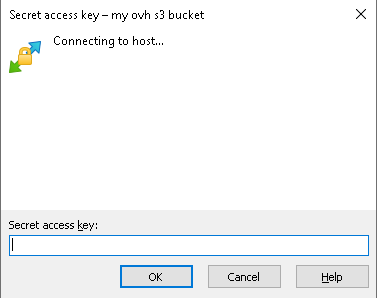
Then enter your secret_access_key.
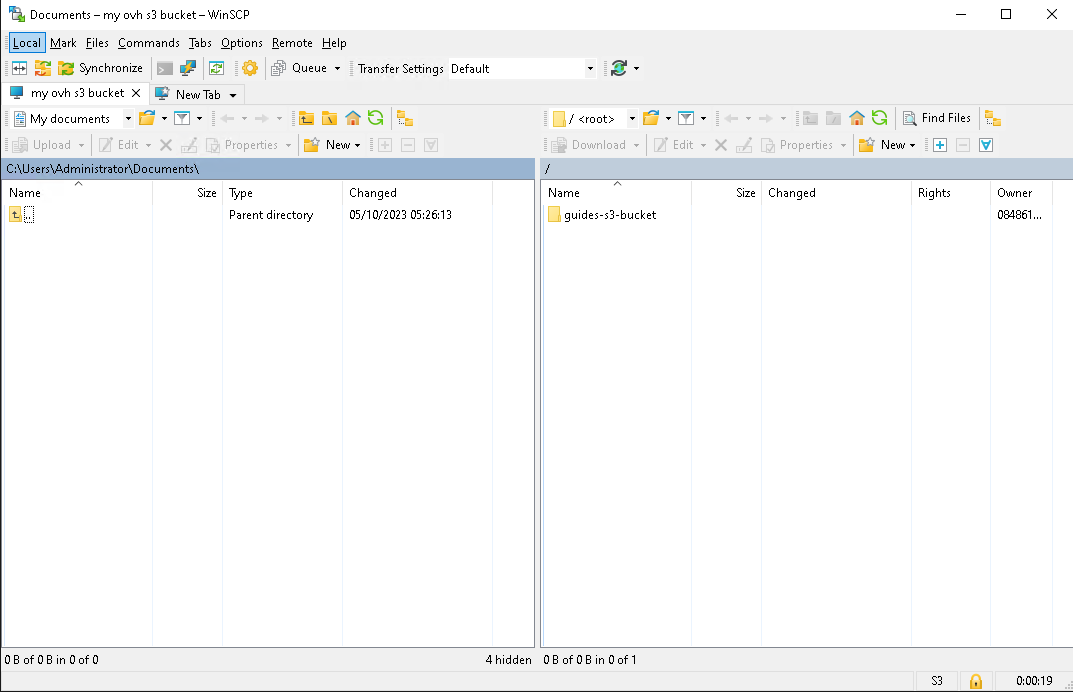
7. Once you are connected, you will see a list of your S3 buckets as folders in the root folder.
The Create directory command in the root folder creates a new bucket.
Go further
Join our community of users.
1: S3 is a trademark of Amazon Technologies, Inc. OVHcloud's service is not sponsored by, endorsed by, or otherwise affiliated with Amazon Technologies, Inc.


 Object Storage - Use Object Storage with Rclone
 2062
2062