

Enterprise File Storage - Getting started with Trident CSI
151 Views
 18.02.2026
  Cloud / Enterprise File Storage
Objective
The guide will provide a clear, step-by-step reference for deploying and configuring NetApp Trident CSI on OVHcloud Managed Kubernetes (MKS), enabling seamless access to Enterprise File Storage through the vRack. This guide consolidates best practices, prerequisites, IAM setup, backend configuration, and advanced features such as snapshots and volume management.
Requirements
- An Enterprise File Storage service in your OVHcloud account
- An OVHcloud Managed Kubernetes cluster
- A vRack with vRack Services configured
- Familiarity with the OVHcloud APIs and/or the OVHcloud CLI
Before beginning, ensure your environment meets the following criteria:
vRack
- Public Cloud Project and vRack Services belong to the same vRack
Region
- vRack Services and EFS are inside the same region
Network
- Same VLAN ID is used for the vRack Services subnet and the MKS Private Network
- Same CIDR is used for vRack Services subnet and MKS Private network subnet
- MKS Private network Allocation Pool IPs do not overlap with the vRack Services Service Range
Connectivity
- A Gateway is required for MKS nodes to reach the OVHcloud API
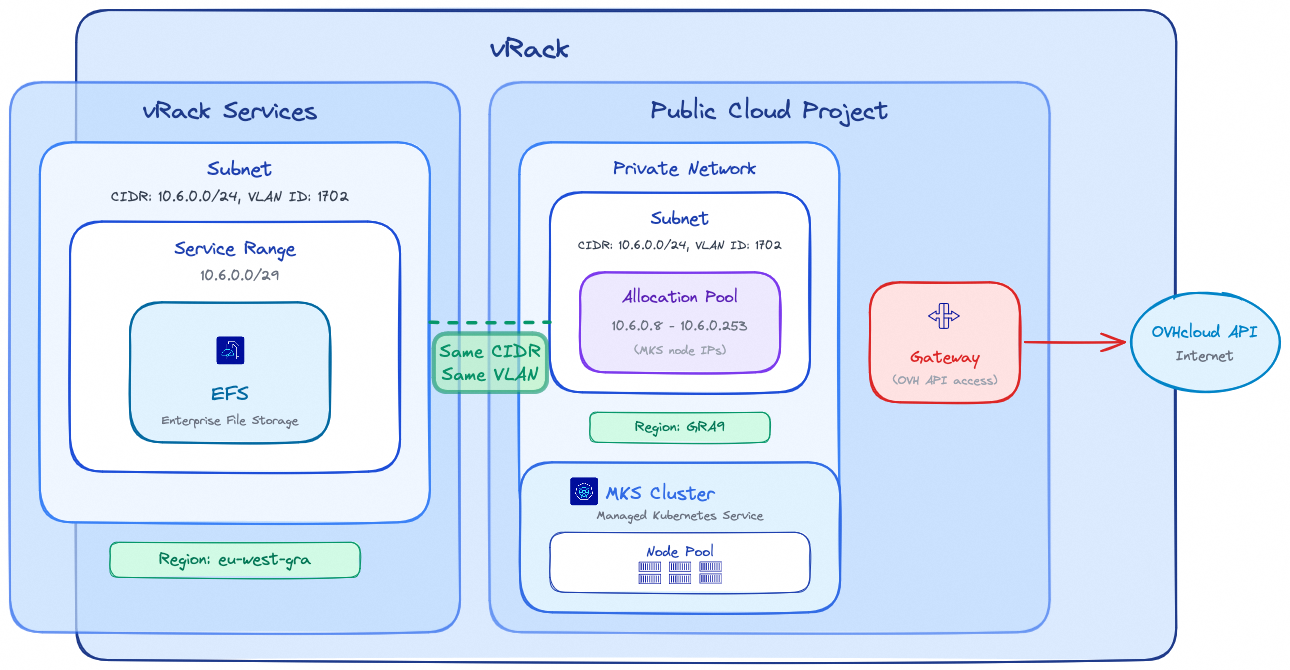
Note: EFS and MKS regions may differ; be aware that latency between different regions may impact your storage workloads performance.
It's highly recommended to keep your storage and compute as close as possible.
Instructions
IAM Configuration (Identity and Access Management)
Trident requires a dedicated service account to interact with the OVHcloud API and manage Enterprise File Storage volumes. Follow these steps to configure IAM properly.
1. Service Account Creation (OAuth2)
Create an OAuth2 client with the OVHcloud API or CLI using the CLIENT_CREDENTIALS flow.
Use the following API call:
With the following request body:
The API will respond with:
The Service account can be created with the OVHcloud CLI and the following command (complete it with your values):
The CLI will respond with the client ID and client secret values:
Note: Save the clientId and clientSecret securely, they are required for backend configuration.
2. IAM Policy Creation
Configure an IAM policy that must contain the following elements: the service account to authorize, the Enterprise File Storage service(s) to include, and the actions to grant, which are summarized in the table below:
| Action | Description |
|---|---|
| storageNetApp:apiovh:get | List services |
| storageNetApp:apiovh:serviceInfos/get | Get service information |
| storageNetApp:apiovh:share/accessPath/get | Get NFS mount point for a share |
| storageNetApp:apiovh:share/acl/create | Create ACL |
| storageNetApp:apiovh:share/acl/delete | Delete ACL |
| storageNetApp:apiovh:share/acl/get | List ACL for a share |
| storageNetApp:apiovh:share/create | Create a share |
| storageNetApp:apiovh:share/delete | Delete a share |
| storageNetApp:apiovh:share/edit | Update a share |
| storageNetApp:apiovh:share/extend | Extend a share |
| storageNetApp:apiovh:share/get | List shares |
| storageNetApp:apiovh:share/revertToSnapshot | Restore a snapshot |
| storageNetApp:apiovh:share/snapshot/create | Create a snapshot |
| storageNetApp:apiovh:share/snapshot/delete | Delete a snapshot |
| storageNetApp:apiovh:share/snapshot/edit | Update a snapshot |
| storageNetApp:apiovh:share/snapshot/get | List snapshots |
Use the following API call to create the IAM policy:
With the following request body:
In the identities field, replace xx11111-ovh with your OVHcloud account ID (NIC handle) and EU.xxxxxxxxxxxxxxxx with the clientId obtained in step 1.
The API will respond with the created policy details:
The IAM policy can be created with the OVHcloud CLI and the following command (complete it with your values):
In the identities field, replace xx11111-ovh with your OVHcloud account ID (NIC handle) and EU.xxxxxxxxxxxxxxxx with the clientId obtained in step 1.
The CLI will respond with the following output:
Trident CSI Installation
The installation uses Helm with custom images hosted on Docker Hub. These images include an additional storage driver that enables consumption of persistent storage from OVHcloud Enterprise File Storage.
Create a trident-values.yaml file to reference the OVHcloud-hosted images:
Run the installation:
The output should show that the Helm chart was deployed:
Once the installation is complete, verify that all Trident pods are in Running state in the trident namespace before proceeding:
The output should show all pods in Running state:
Trident Backend Creation
The Trident backend connects NetApp Trident to the OVHcloud Enterprise File Storage service using the IAM credentials previously created.
1. Secret Creation
Create a secret containing the connection information that allows Trident to access the OVHcloud API.
Replace clientID and clientSecret values with the credentials obtained in step 1.
The output will confirm the secret creation:
2. Trident Backend Creation
Create your backend with the command below:
The ovh-efs storage driver must be used. Replace exportRule, location, and other parameters with values matching your environment.
The output will confirm the backend creation:
Verify that the backend has been created correctly with the command below:
The output should show the backend in Bound state:
StorageClass and Usage
This section describes how to expose Enterprise File Storage to Kubernetes workloads using Trident.
1. StorageClass
Define a StorageClass to enable dynamic provisioning via the Trident CSI driver:
The output will confirm the StorageClass creation:
This StorageClass allows volumes to be provisioned on demand and expanded dynamically.
2. Volume Creation (PVC)
Create a PersistentVolumeClaim with ReadWriteMany (RWX) access mode:
The output will confirm the PVC creation:
Verify that the PVC has been created with the command below:
The output should show the PVC in Bound state:
Once a Pod uses this PVC, the volume will be automatically mounted via the NFS protocol.
Advanced Features
Snapshot Management
NetApp Trident supports on-demand volume snapshots for Enterprise File Storage.
- Define a
VolumeSnapshotClassto manage snapshot lifecycle:
The output will confirm the VolumeSnapshotClass creation:
- Create a
VolumeSnapshotin the same namespace as the sourcePersistentVolumeClaim:
The output will confirm the VolumeSnapshot creation:
Verify that the VolumeSnapshot has been created with the command below:
The output should show the VolumeSnapshot in READYTOUSE=true state:
The snapshot is created on the Enterprise File Storage service and can be used for backup or restore workflows.
Troubleshooting
- Backend not bound: Verify that the IAM credentials (clientId/clientSecret) are correct and the IAM policy grants all required permissions.
- PVC stuck in Pending: Check that all Trident pods are in
Runningstate, the backend is inBoundstate and theStorageClassreferences the correct backend type. Review errors inside Trident pods logs withkubectl logs -n trident <pod-name>. - Network connectivity issues: Verify that the MKS cluster can reach the Enterprise File Storage service through the vRack.
Go further
Enterprise File Storage - Private network configuration
Enterprise File Storage - Connect a Public Cloud instance to an EFS Volume via vRack Private Network
Managing OVHcloud service accounts via the API
If you need training or technical assistance to implement our solutions, contact your sales representative or click on this link to get a quote and ask our Professional Services experts for assisting you on your specific use case of your project.
Join our community of users.


 Managing Enterprise File Storage from the OVHcloud Control Panel
 1356
1356