

Cold Archive - Getting started with Cold Archive
1781 Views
 06.03.2026
  Cloud / Object Storage S3
This page is only for existing customers of the OVHcloud standalone bucket-granular Cold Archive introduced in 2023.
You're looking for S31-compatible archiving solutions?
OVHcloud Object Storage now offers individual objects archiving feature rather than archiving the entire container thanks to the addition of the Cold Archive class in the Object Storage lifecycle. Indeed, the feature is now directly available in your Object Storage dashboard, from your existing Object Storage containers:
- Upload your objects in the Cold Archive class,
- or use lifecycle transitions to move data to Cold Archive class.
To learn more about this storage class, see our guide "Choosing the right storage class for your needs".
Moreover, the standalone bucket-granular Cold Archive won't be available from the Control Panel for new customers, with no impact to existing customers. APIs will continue to work and data will of course remain secure and available at any moment: we only modify the way users will access and manage objects.
Objective
Cold Archive provides long-term data storage by archiving bucket objects onto physical tapes. Restoration may take some time since data is read from tapes.
As explained in detail in the Cold Archive FAQ, there are two ways of consuming Cold Archive:
- Cold Archive v1, a standalone bucket-granular Cold Archive solution (legacy offering).
- Cold Archive v2, an Object Storage class/tier that allows archiving individual objects within a container.
Although there are two underlying ways of consuming Cold Archive, we continue to refer to the solution as 'Cold Archive' in all customer-facing materials, including the product page and customer experience, without explicitly mentioning 'v1' or 'v2'.
This guide explains how to set up and manage storage on tapes with Cold Archive v1 (legacy offering), in coexistence with your Object Storage.
Requirements
- Getting started with Object Storage
awscliversion >= 1.16.62
Instructions
You can find the Cold Archive v1 presentation and workflow here.
This section explains the step-by-step process to configure, archive, restore, and delete buckets with Cold Archive v1, in coexistence with your Object Storage.
In this tutorial, awscli aliases are used to simplify the commands.
Initial Setup: create AWS CLI Aliases
To simplify commands, create or edit the ~/.aws/cli/alias file:
Add the following content:
-
Idis a string used to identify the S31 Intelligent-Tiering configuration. Its value is arbitrary and up to you. It will be necessary for further PUT, GET and DELETE operations on the intelligent-tiering configuration. -
StatusandDaysare mandatory but not used.Daysis only meaningful with certain access tiers.
Check for Incomplete Multipart Uploads Before Archiving
Run this command to ensure there are no incomplete multipart uploads on your bucket:
Upload your objects
To add objects to the bucket you wish to archive, use the following command:
This operation is not currently available via the OVHcloud Control Panel. It must be performed on the command line via the S3 API.
Archive a bucket
Before archiving a bucket, make sure there are no incomplete multipart uploads.
Click the ⋮ button then select Archive
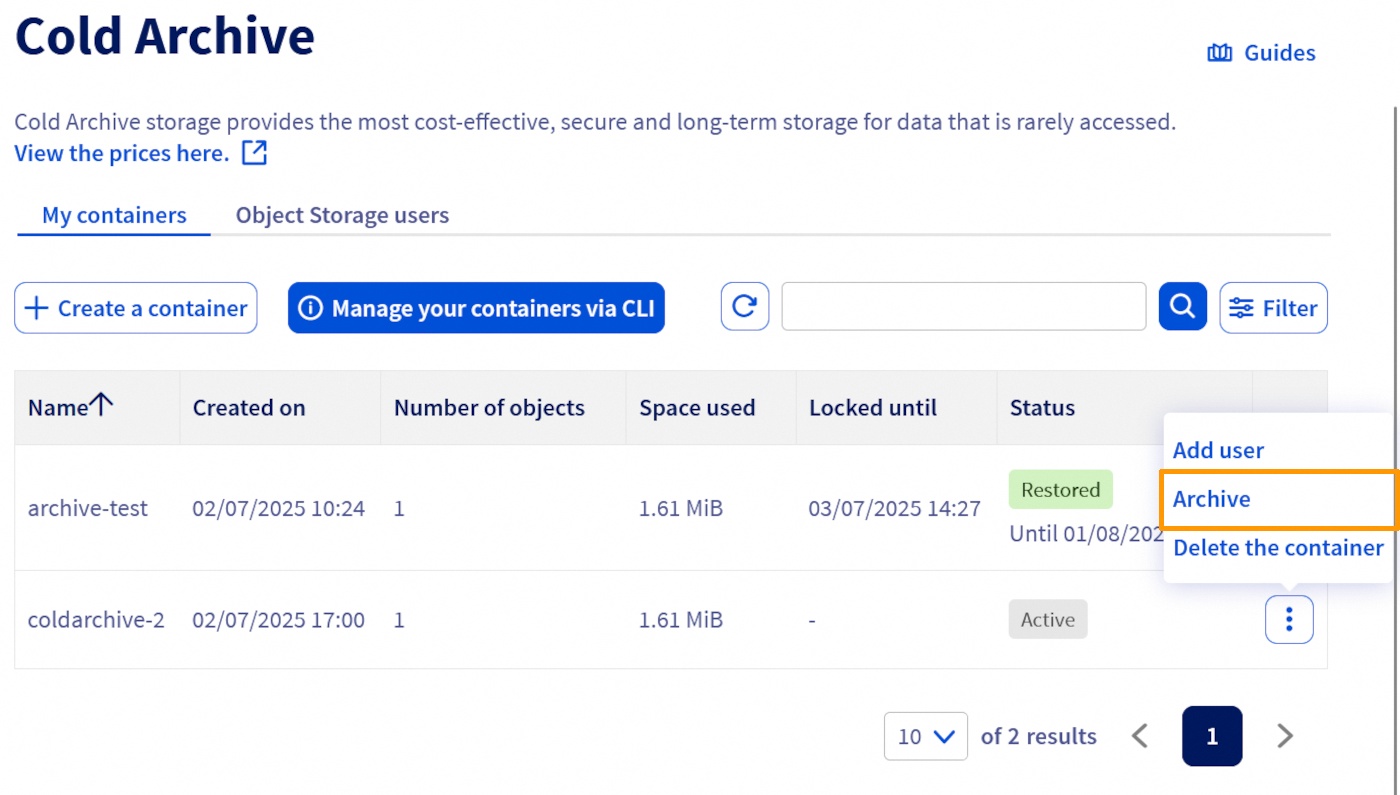
- The bucket status changes to "Archiving".
- Objects cannot be read or written during this process; only listing is allowed.
- Archiving to tapes takes some time.
Archive a bucket with retention lock (WORM Compliance)
By default, an archive is not locked i.e., you can still delete an archive after it has been written to tapes. To ensure your archive follows the WORM (Write Once, Read Many) model, you can set a retention period in your intelligent tiering configuration using the OVH_ARCHIVE_LOCK access tier and a number of days. The archive is then locked until the current date + the number of days specified.
With the default OVH_ARCHIVE access tier, the Days attribute has no effect.
Unlike the previous intelligent tiering configuration, by using the OVH_ARCHIVE_LOCK access tier, the Days attribute will be taken into account in calculating the lock duration and must be a positive integer.
Replace 30 with the number of days you want to lock the archive for.
You cannot have multiple intelligent tiering configurations on your archive.
Similarly, you cannot have multiple access tiers in your intelligent tiering configuration i.e., either you use the OVH_ARCHIVE access tier or you use the OVH_ARCHIVE_LOCK access tier but not both.
Lock an already archived bucket
If you have buckets that have been previously archived without using the OVH_ARCHIVE_LOCK access tier, you can still lock them by re-applying an intelligent tiering configuration to your bucket using the OVH_ARCHIVE_LOCK access tier and specifying a retention duration in days.
In order to lock an already archived bucket, it must be in the "Archived" or "Restored" status. You must also use the same intelligent tiering configuration "Id".
If you want to edit the retention period, similarly, re-apply the intelligent tiering configuration using the same "Id".
You cannot reduce a previously set retention period i.e., the new retention period (current date + number of days) must be higher than the previous retention period. Example:
- On 2024-02-22 you have set up a 10 days lock, the retention period will be until the 2024-03-03.
- On 2024-02-23, you change your mind and decide to set the lock duration to 5 days.
- OVHcloud Cold Archive will return an error because 2024-02-23 + 5 days < 2024-03-03.
Restore a bucket
Restore a bucket :
Click the ⋮ button then select Restore.
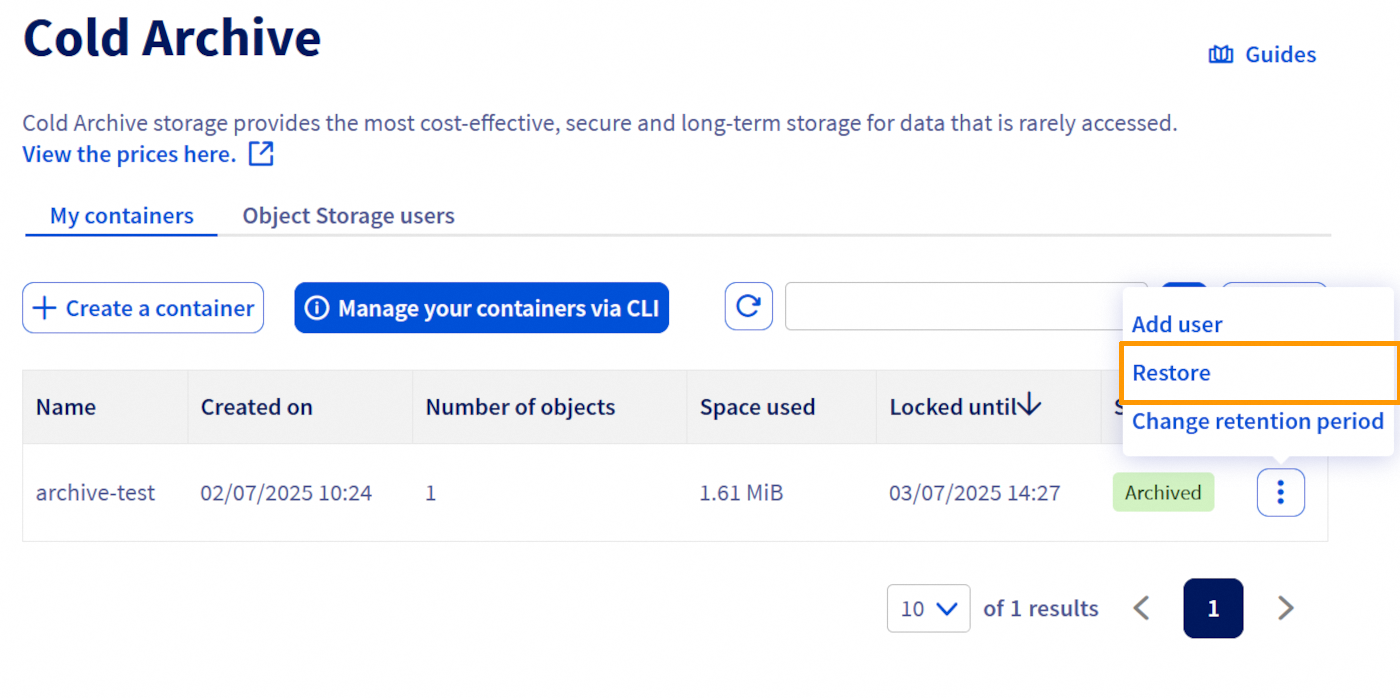
- Bucket status changes to "Restoring".
- Once the restoration is complete, objects become accessible in read-only mode for 30 days. After this period, a new restoration operation must be launched to access the archived objects.
- Objects in the archived bucket can still be listed at any time.
Delete an archive
If the bucket is locked, deletion before the retention period expires will fail.
An error occurred (BadRequest) when calling the DeleteBucketIntelligentTieringConfiguration operation: Archive deletion is locked until 2124-01-19T15:24:56.000Z
Delete an intelligent-tiering configuration and objects of a bucket
Click on the ⋮, then select Delete.
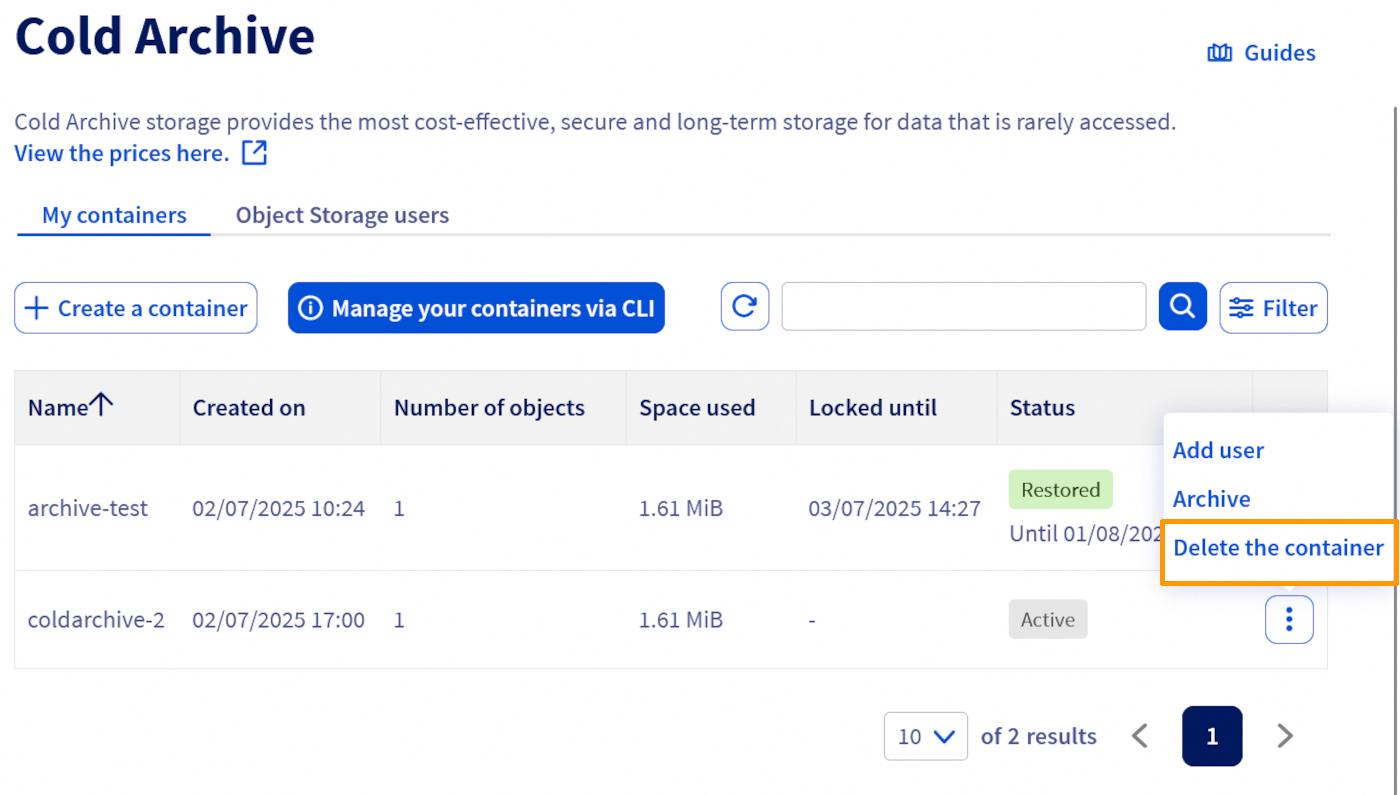
After this request, the objects of the bucket are not deleted yet as the deletion is done asynchronously.
The operation will delete everything (on tapes and all objects if restored) and the bucket status will be in a "Deleting" status.
Although data deletion is done asynchronously, billing is stopped as soon as you submit the request!
Deletion is done on a best effort basis and there is no committed duration.
In the "Deleting" status, the bucket is locked and cannot be accessed.
Once the deletion is completed:
- The bucket status will be "Flushed".
- In this state, the bucket still exists (but is empty and does not contain any objects) and data has been removed from the tapes.
- The bucket can be released and you can remove your bucket:
Check the bucket status and retention tags
Once an intelligent-tiering configuration has been pushed (via a put-bucket-intelligent-tiering-configuration operation) and until it is removed (via a delete-bucket-intelligent-tiering-configuration operation), the status of a bucket is readable through:
If you have locked your archive, you can check the retention period using the get-bucket-tagging command.
- Example:
You can check the status of your bucket by looking at the value in the Status column, as well as its retention period in the Locked until column.
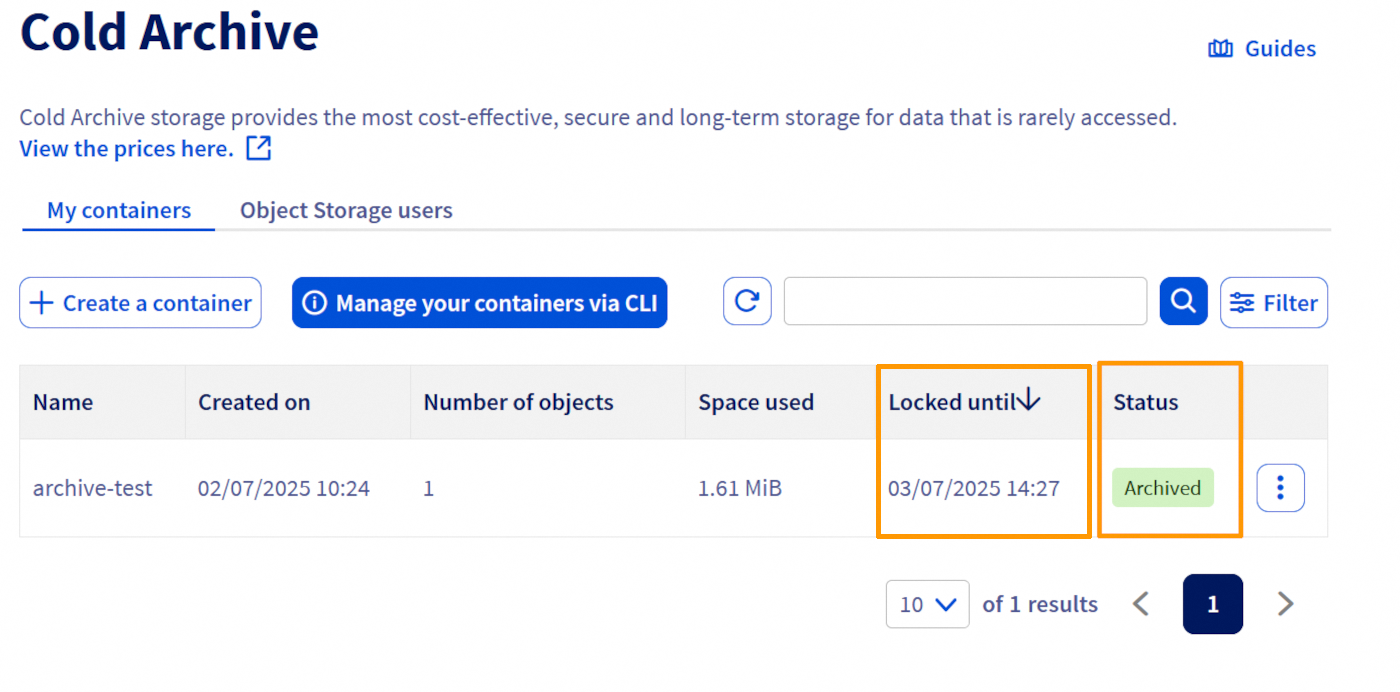
List of bucket statuses
| Status | Description | Objects permissions |
|---|---|---|
None | No Intelligent-Tiering configuration pushed on the bucket yet. | All |
Archiving | Archiving in progress on tapes. | Listing |
Archived | Objects archived on tapes only. | Listing |
Restoring | Restoration in progress from tapes. | Listing |
Restored | Objects restored and accessible. | Read-only + Listing |
Deleting | Objects deletion from tapes (and disks if restored) in progress. | Listing |
Flushed | Bucket is empty and can safely be removed. | Listing (empty bucket) |
Advanced Verification: Inspect Intelligent Tiering Configuration
To retrieve the full intelligent-tiering configuration JSON applied to your bucket:
This command returns detailed configuration info which can be useful for debugging or verification.
Go further
Check out our dedicated Discord channel: https://discord.gg/ovhcloud. Ask questions, share feedback, and interact directly with the team behind our storage and backup services.
If you need training or technical assistance to implement our solutions, contact your sales representative or click on this link to get a quote and ask our Professional Services experts for assisting you on your specific use case of your project.
Join our community of users.
1: S3 is a trademark of Amazon Technologies, Inc. OVHcloud’s service is not sponsored by, endorsed by, or otherwise affiliated with Amazon Technologies, Inc.


 Object Storage - Getting started
 5411
5411