

Creating a private registry with Pulumi
417 Views
 25.02.2026
  Cloud / Managed Private Registry
Objective
You can create an OVHcloud Managed Private Registry via the OVHcloud Control Panel, but you can also deploy a registry programmatically with Infrastructure as Code (IaC) tools. This can be done via Terraform thanks to our OVHcloud provider, and now also with Pulumi.
Pulumi

Pulumi is an Infrastructure as Code (IasC) tool that allows you to build your infrastructures with a programming language, in Golang for example. Users define the desired state in Pulumi programs and Pulumi creates the desired resources.
Pulumi offers an intuitive command line interface (CLI), to provision, update or delete your infrastructure. If you are familiar with Docker Compose CLI and Terraform CLI, you will adopt Pulumi CLI too.
Requirements
- A Public Cloud project in your OVHcloud account
- Installing the Pulumi CLI
- An account in Pulumi
- A Pulumi access token
- Installing the kubectl CLI
OVHcloud Control Panel Access
- Direct link: Public Cloud Projects
- Navigation path:
Public Cloud> Select your project
Before you begin
You should have installed the Pulumi CLI on your machine. Verify the Pulumi CLI is successfully installed in your machine with the pulumi version command.
You should have a result like this:
OVHcloud Pulumi provider
In order to create a Private Registry (Harbor instance) and other resources, you will use the OVHcloud Pulumi provider. This provider is a bridge to our official Terraform provider.
All available Pulumi resources have their definition and documentation.
In this guide, we will create several resources:
- a capabilities datasource that represents the configuration of the registry
- a registry resource that represents an OVHcloud Managed Private Registry
- a registry user resource that represents a user in the private registry
You will also use the Harbor Pulumi provider to create a project inside the private registry (harbor).
Getting your registry/API tokens information
The “OVH provider” needs to be configured with a set of credentials, which can be set using Pulumi stack configuration or environment variables:
ovh:endpoint(environment variable:OVH_ENDPOINT)ovh:applicationKey(environment variable:OVH_APPLICATION_KEY)ovh:applicationSecret(secret) (environment variable:OVH_APPLICATION_SECRET)ovh:consumerKey(environment variable:OVH_CONSUMER_KEY)
Why?
Behind the scenes, the provider is doing requests to OVHcloud APIs.
In order to retrieve this necessary information, please follow our first steps with the OVHcloud APIs guide.
In concrete terms, you have to generate these credentials via the OVH token generation page with the following rights:
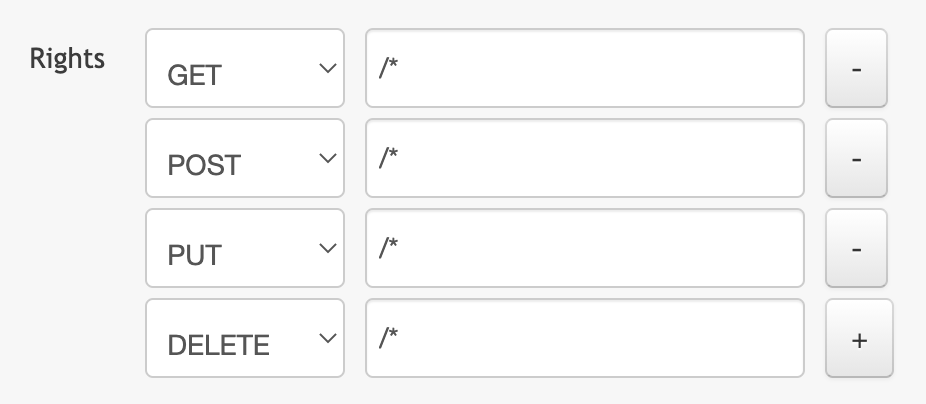
When you have successfully generated your OVH tokens, please save them as you will have to use them in the coming minutes.
The last needed information is the serviceName: it is the ID of your Public Cloud project.
How to get it?
In the Public Cloud section, you can retrieve your service name ID thanks to the Copy to clipboard button.
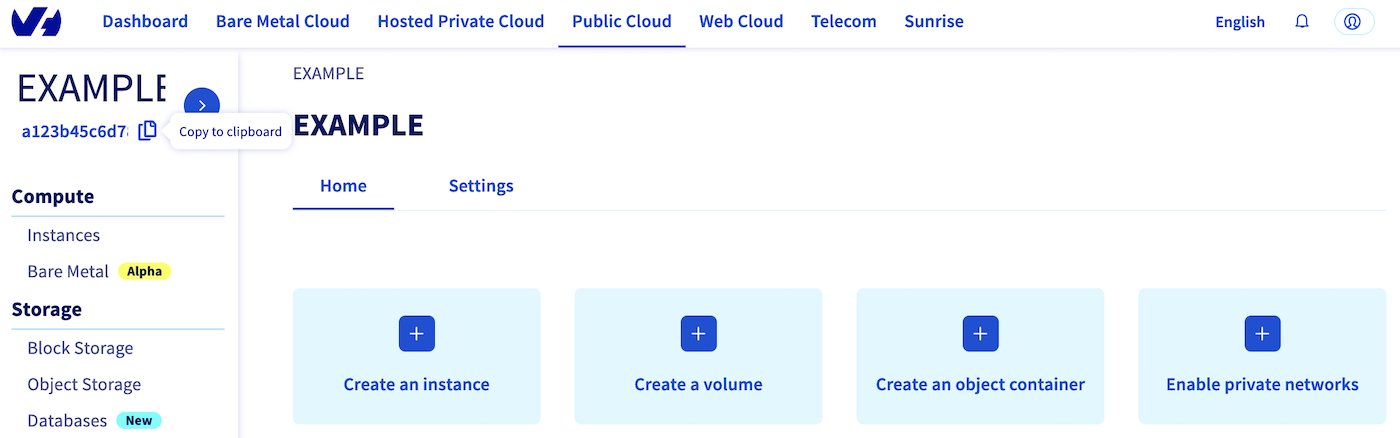
Define the secret keys as environment variables:
Replace xxx by the correct values and ovh-eu with the correct endpoint.
Instructions
One advantage of Pulumi is that it allows you to build your infrastructures with the programming language of your choice. It supports a variety of programming languages.
In this tutorial you will be able to deploy your private registry (harbor) with a user and its project in the Go/Golang programming language. For your information, our OVH Pulumi provider currently supports Go but also Python, Node.js/Typescript and C#/Dotnet.
Examples:
Deploy your Managed Private Registry (MPR) in Go / Golang
Pulumi project creation and initialization
In Pulumi, the infrastructure is organized into projects. In the Pulumi ecosystem, a project represents a Pulumi program which, when run, declares the desired infrastructure for Pulumi to manage.
First, create a folder named ovh-registry-go which represents our project and go into it.
Initialize your project:
The output should be like this:
The command creates a dev stack and the code organization of your project:
Now you need to install the Pulumi OVH provider.
And the Pulumi Harbor provider:
In order to create an OVHcloud Managed Private Registry, you need to define the serviceName.
Or you can edit the Pulumi.yaml file with the following content:
Replace <your-service-name> by your Public Cloud project.
Then, edit the main.go file and replace the content with the following:
This Go program will create an OVHcloud Managed Private registry:
- named
my-registry-followed by a random ID - in the
GRAregion - with a
SMALLplan - in your Public Cloud project (depending on the
serviceNameyou defined)
A registry user:
- named
myuser - with
myuser@ovh.comemail address
And a project inside the created registry:
- named
my-new-project - with
Publicvisibility
Then, run the go mod tidy command to ask Go to download and install the necessary Go providers and dependencies.
Create your Private Registry (Harbor) through Pulumi
Now you can deploy your registry. To do that, just execute the pulumi up command.
This will display the plan/the preview of the desired state. You will be prompted to choose the stack (dev by default) and to confirm that you want to perform/apply the changes.
Go to the Managed Private Registry section. Your registry has been successfully created:
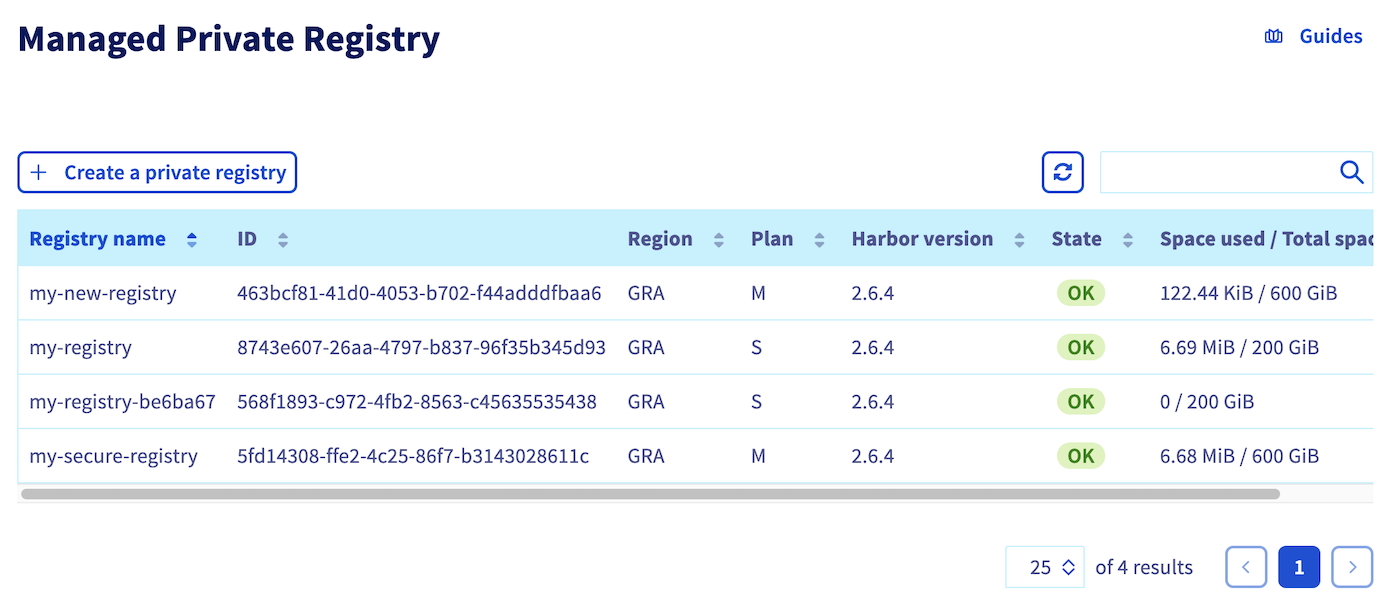
Connect to the registry
Your registry is created with a user, so you have all the information to connect to it.
In order to do this, retrieve the registry URL, login and password from the dev Pulumi stack:
Connect to the Managed Private Registry with the login and password:
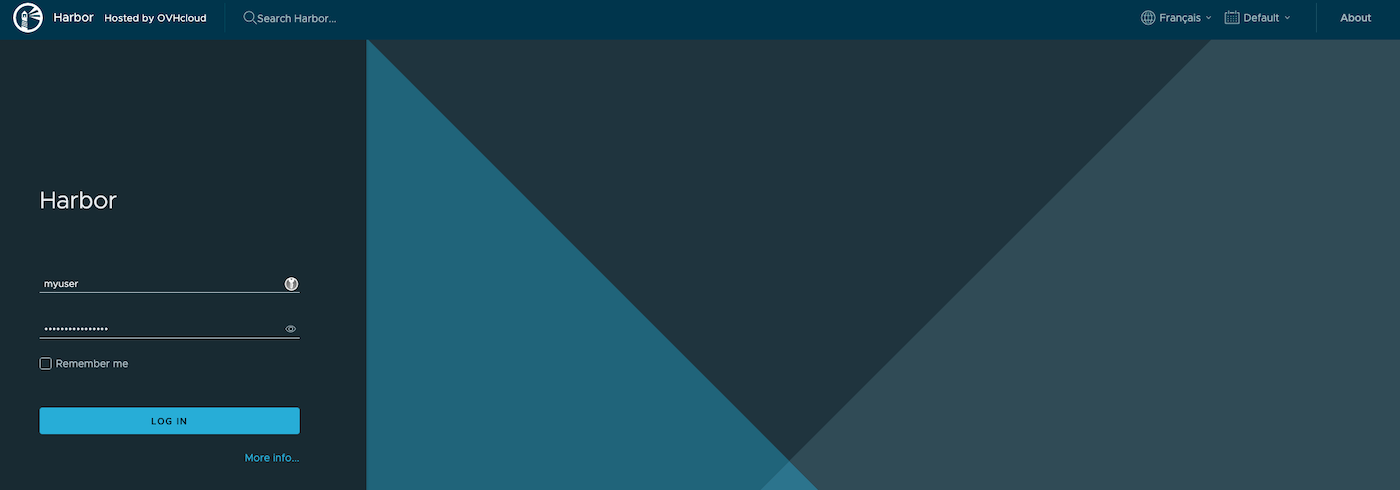
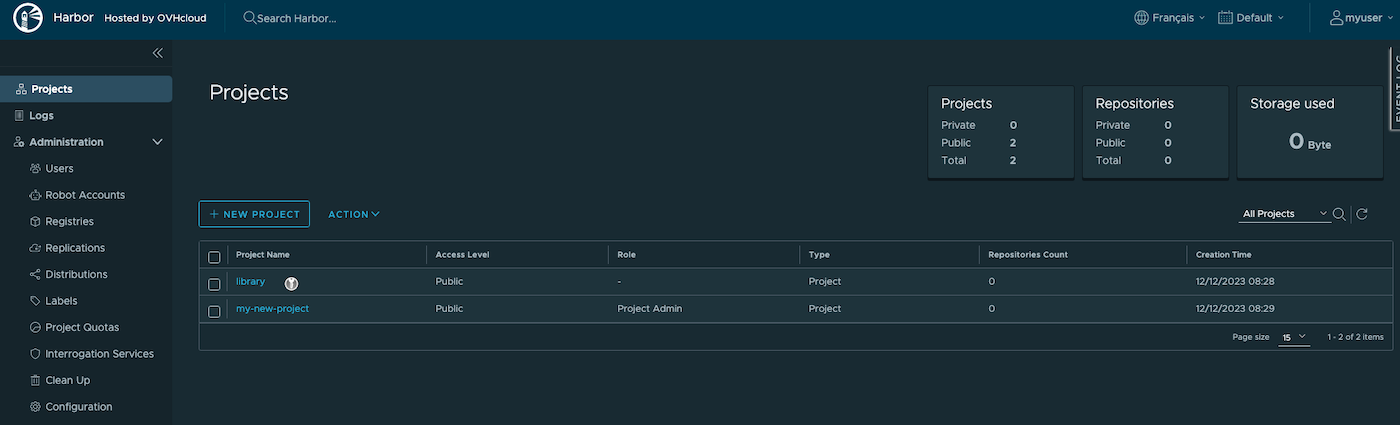
Then click on the created project:
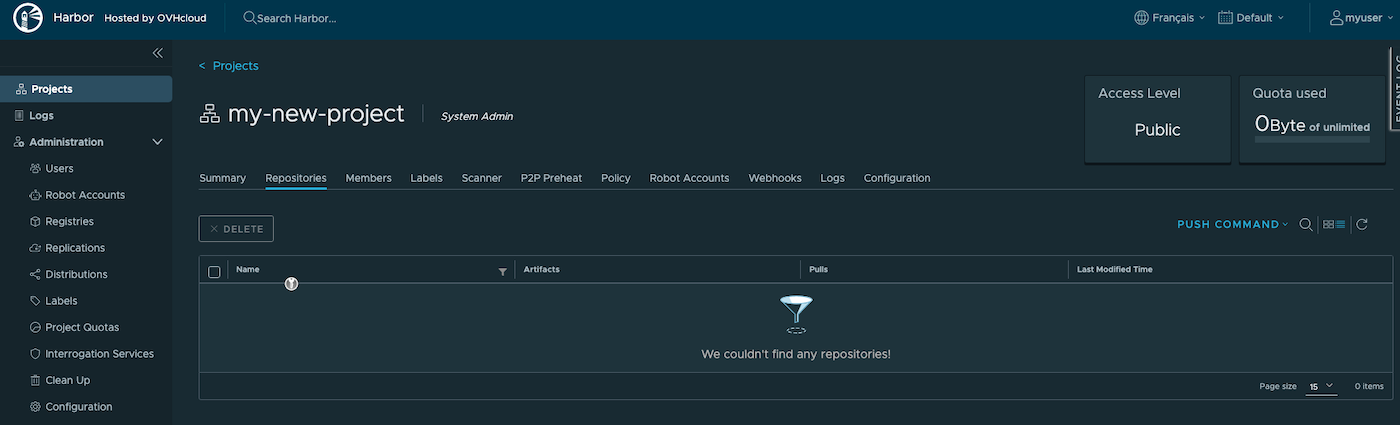
You can now deploy your applications and/or create new clusters through Pulumi.
Known issues
"Provider is missing a required configuration key"
If you encounter the following error, it means you forgot to export the needed OVHcloud environment variables.
The solution is to export the missing required configuration:
Replace xxx by the correct values and ovh-eu with the correct endpoint.
Destroy (cleanup)
If you want to easily destroy created resources, you can use the pulumi destroy command.
Your OVHcloud Managed registry, the user and the project have been correctly destroyed.
Go further
Join our community of users on https://community.ovh.com/en/.


 Creating and using a Docker image stored in an OVHcloud Managed Private Registry
 4310
4310