

Configuring the OIDC provider on an OVHcloud Managed Kubernetes cluster
540 Views
 14.02.2023
  Cloud / Managed Kubernetes Service
Objective
The OVHcloud Managed Kubernetes service provides you Kubernetes clusters without the hassle of installing or operating them.
This guide will cover the feature that allows you to secure your OVHcloud Managed Kubernetes cluster with OpenID Connect (OIDC).
In this guide you will be able to configure your OIDC provider through the OVHcloud Control Panel, OVHcloud API and Terraform.
Requirements
- A Public Cloud project in your OVHcloud account
- An OVHcloud Managed Kubernetes cluster
OVHcloud Control Panel Access
- Direct link: Public Cloud Projects
- Navigation path:
Public Cloud> Select your project
Warning
Several elementary validations are made (e.g. on provider URL, CA content and required claims) but if you misconfigure your OIDC provider, errors will be logged by the Kubernetes API Server, and thus only visible through the cluster's audit logs in the OVHcloud Control Panel.
Instructions
Configure OIDC provider through the OVHcloud Control Panel
Access the administration UI for your OVHcloud Managed Kubernetes clusters by clicking on Managed Kubernetes Service in the left-hand menu.
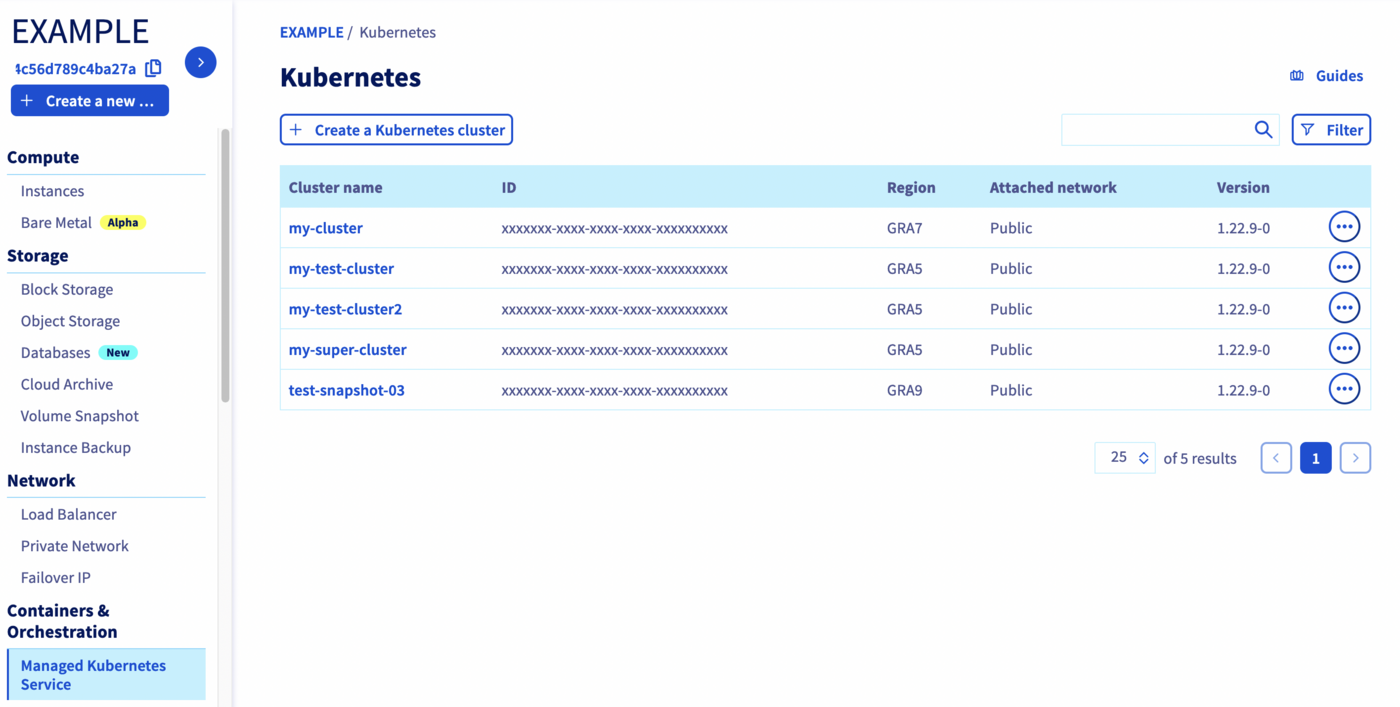
Click on your Kubernetes cluster.
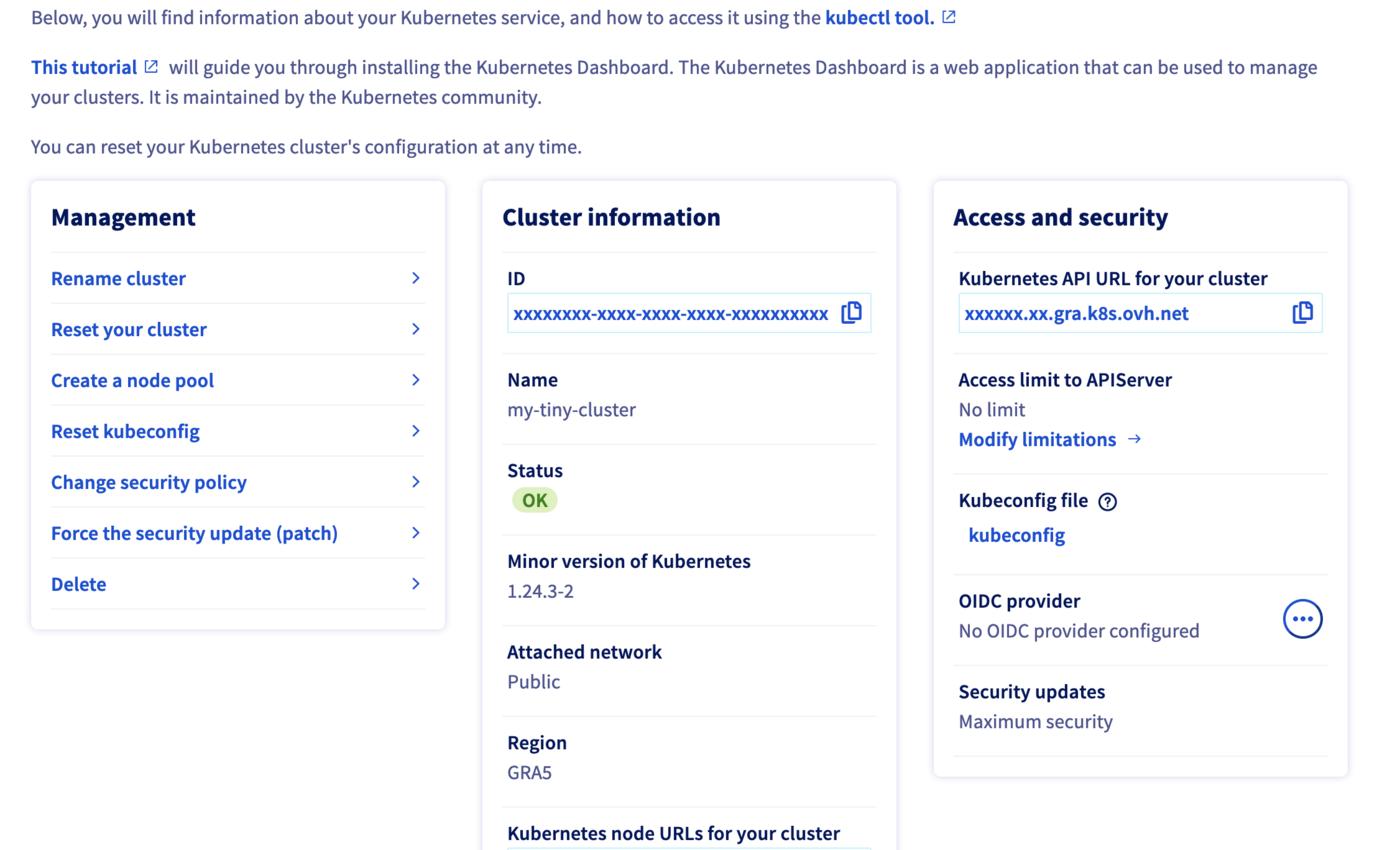
Click on the ... button in the OIDC provider section.
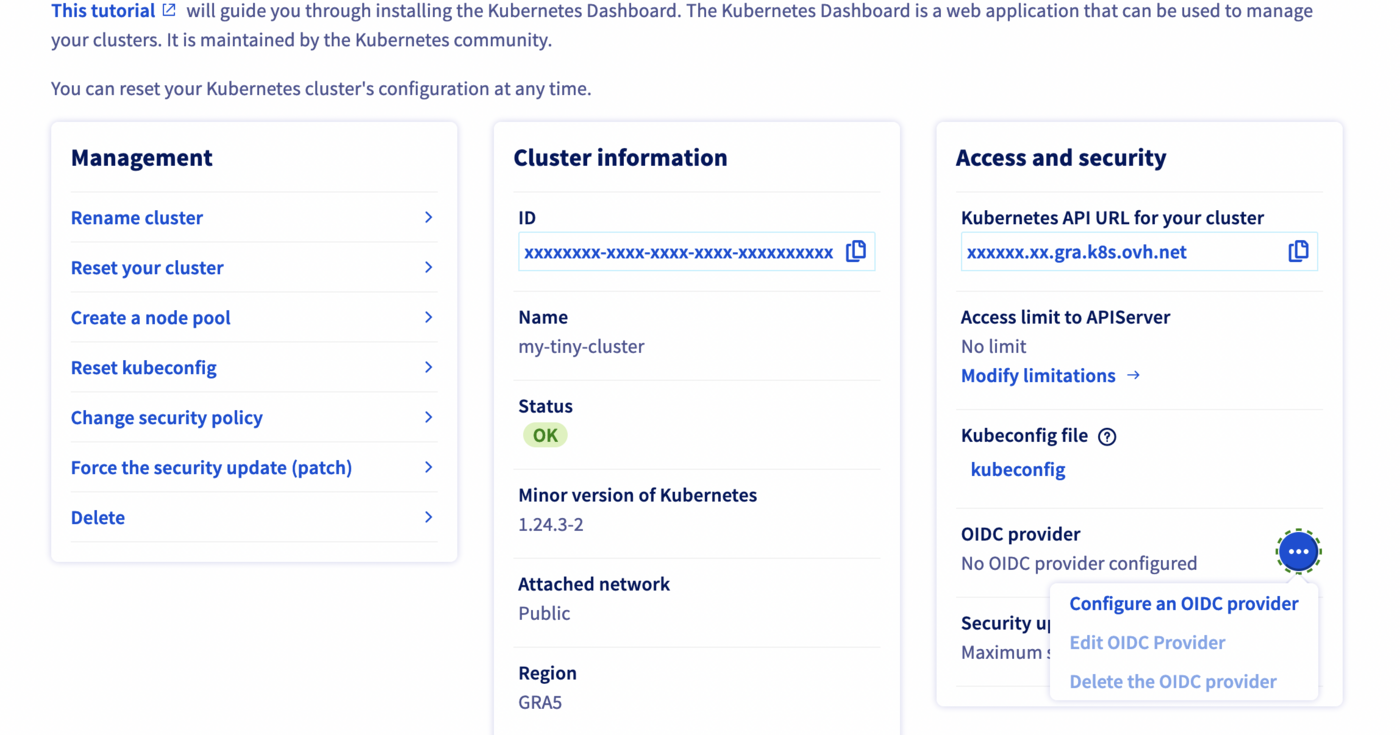
Fill the needed information in the popup (note: each field corresponds to a flag from the API Server configuration documentation:
Provider URL: The OIDC issuer URL.Client ID: The OIDC client ID.OIDC Username Claim: JWT claim to use as the user name. By default sub, which is expected to be a unique identifier of the end user. Admins can choose other claims, such as email or name, depending on their provider. However, claims other than email will be prefixed with the issuer URL to prevent naming clashes with other plugins.OIDC Username Prefix: Prefix prepended to username claims to prevent clashes with existing names (such assystem:users). For example, the valueoidc:will create usernames likeoidc:jane.doe. If this field isn't set andoidcUsernameClaimis a value other than email, the prefix defaults toissuer_urlwhereissuer_urlis the value ofoidcIssuerUrl.The value-can be used to disable all prefixing.OIDC Groups Claim: Array of JWT claim to use as the user's group. If the claim is present it must be an array of strings.OIDC Groups Prefix: Prefix prepended to group claims to prevent clashes with existing names (such assystem:groups). For example, the valueoidc:will create group names likeoidc:engineeringandoidc:infra.OIDC Required Claim: Array ofkey=valuepairs that describe required claims in the ID Token. If set, the claims are verified to be present in the ID Token with a matching value."OIDC Signing Algs: Array of signing algorithms accepted. Default isRS256.OIDC CA content: Content of the certificate for the CA, in Base64 format, that signed your identity provider's web certificate. Defaults to the host's root CAs.
Click on the Add button to validate the form and configure the OIDC provider on your Kubernetes cluster.
Configure OIDC provider through the API
The API Explorer
To simplify things, we are using the API Explorer which allows to explore, learn and interact with the API in an interactive way.
Log in to the API Explorer using your OVHcloud NIC handle.
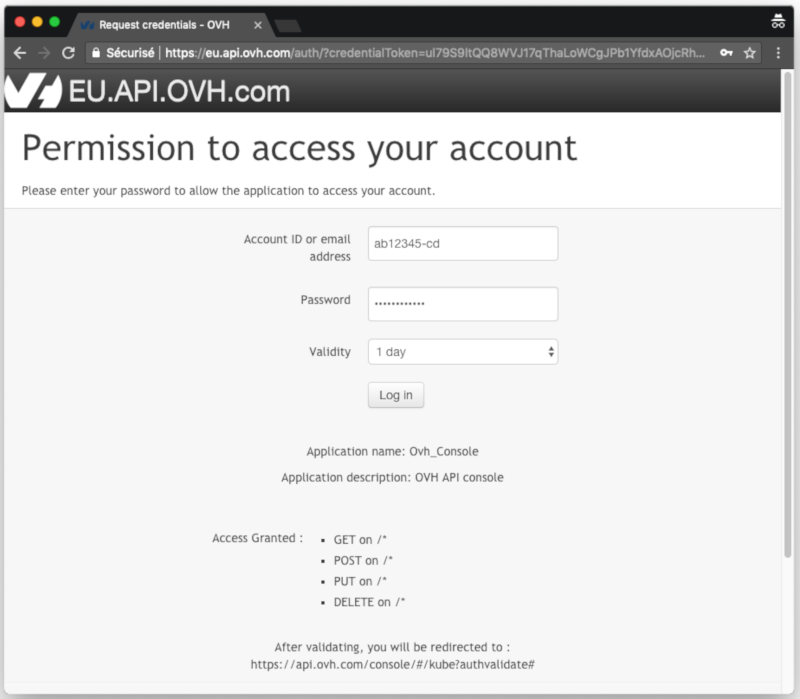
If you go to the Kubernetes section of the API Explorer, you will see the available endpoints:
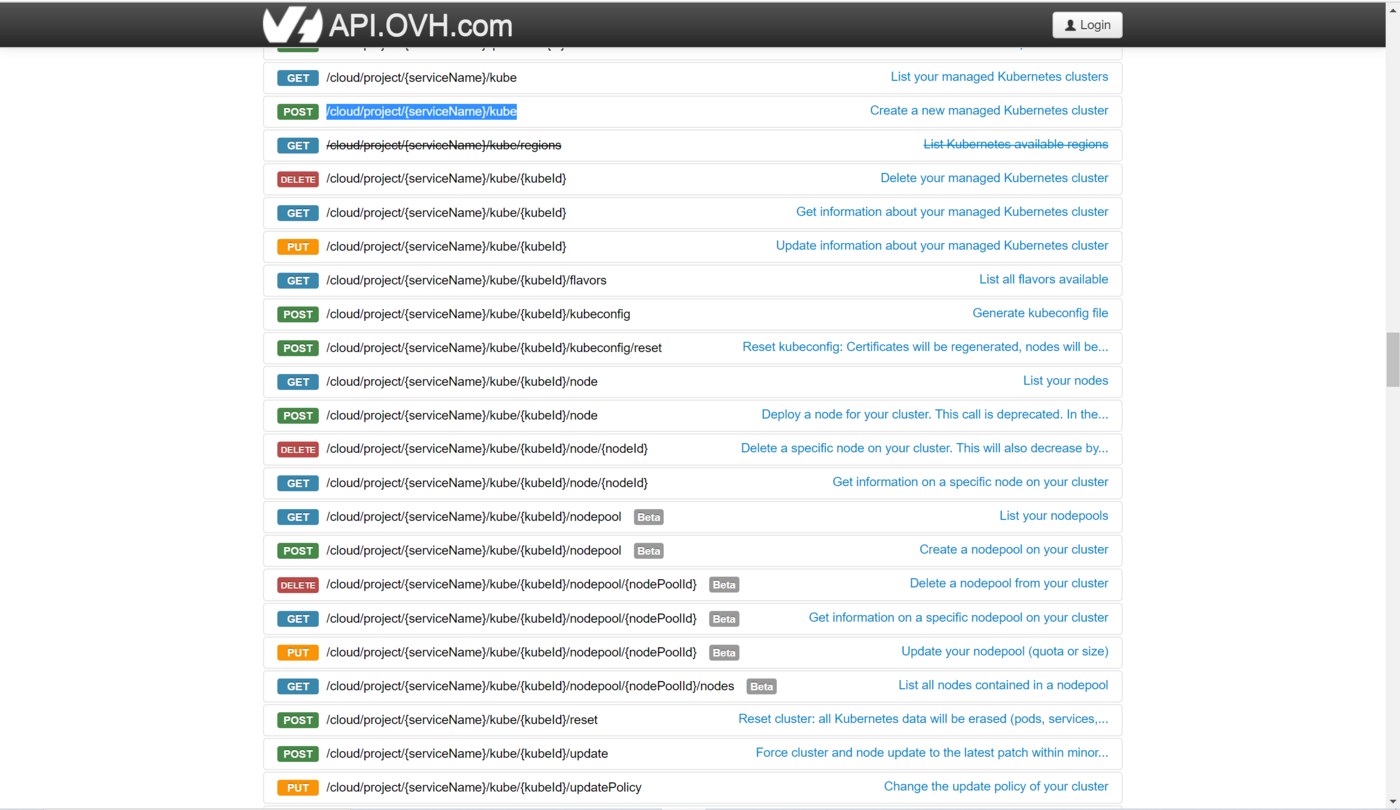
API endpoints
- Get an existing cluster's OIDC configuration:
Result:
- Update an existing cluster's OIDC provider to change username and groups prefix:
- Configure an OIDC provider for your OVHcloud Managed Kubernetes cluster:
- Delete an existing cluster's OIDC configuration:
Configure OIDC provider through Terraform
Since the version 0.23+ of our OVH Terraform provider you can add IP restrictions also through Terraform.
Getting your cluster/API tokens information
The "OVH provider" needs to be configured with a set of credentials:
- an
application_key - an
application_secret - a
consumer_key
Why?
Because, behind the scenes, the "OVH Terraform provider" is doing requests to OVHcloud APIs.
In order to retrieve this necessary information, please follow our First steps with the OVHcloud APIs tutorial.
Specifically, you have to generate these credentials via the OVHcloud token generation page with the following rights:
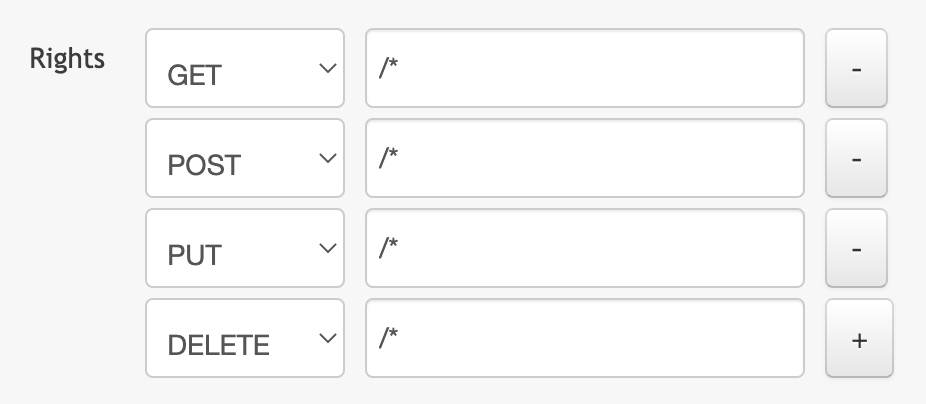
When you have successfully generated your OVHcloud tokens, please save them as you will have to use them very soon.
The last needed information is the service_name: it is the ID of your Public Cloud project.
How to get it?
In the Public Cloud section, you can retrieve your service name ID thanks to the Copy to clipboard button.
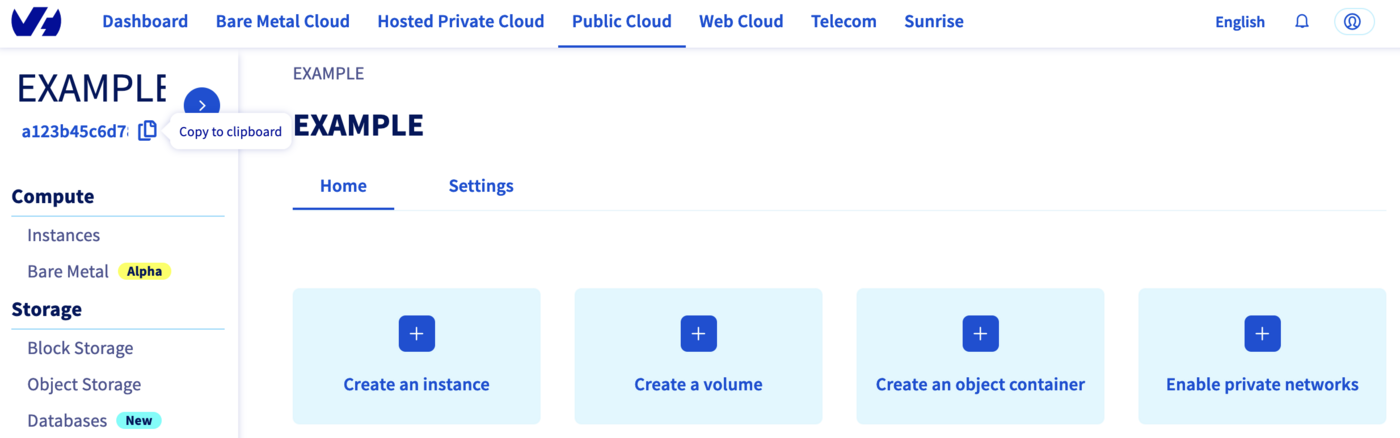
You will also use this information in Terraform resources definition files.
Terraform instructions
First, create a provider.tf file with the minimum version, european endpoint ("ovh-eu") and the keys previously retrieved in this guide.
Terraform 0.13 and later:
Terraform 0.12 and earlier:
Alternatively the secret keys can be retrieved from your environment.
OVH_ENDPOINTOVH_APPLICATION_KEYOVH_APPLICATION_SECRETOVH_CONSUMER_KEY
This latter method (or a similar alternative) is recommended to avoid storing secret data in a source repository.
Here, we defined the ovh-eu endpoint because we want to call the OVHcloud Europe API, but other endpoints exist, depending on your needs:
ovh-eufor OVHcloud Europe APIovh-usfor OVHcloud US APIovh-cafor OVHcloud North-America API
Then, define the resources you want to create in a new file called ovh_kube_cluster_oidc.tf:
Don't forget to replace <service_name>, <cluster_id> and all the other information by the real data.
In this resources configuration, we ask Terraform to configure the OIDC provider to your Kubernetes cluster.
Now we need to initialise Terraform, generate a plan, and apply it.
The init command will initialize your working directory which contains .tf configuration files.
It’s the first command to execute for a new configuration, or after doing a checkout of an existing configuration in a given git repository for example.
The init command will:
- Download and install Terraform providers/plugins
- Initialise backend (if defined)
- Download and install modules (if defined)
Now, we can generate our plan:
Thanks to the plan command, we can check what Terraform wants to create, modify or remove.
The plan is OK for us, so let's apply it:
Destroy
If you want to delete the OIDC provider you configured through Terraform, you have to execute the terraform destroy command:
Go further
To have an overview of OVHcloud Managed Kubernetes service, you can go to the OVHcloud Managed Kubernetes page.
-
If you need training or technical assistance to implement our solutions, contact your sales representative or click on this link to get a quote and ask our Professional Services experts for assisting you on your specific use case of your project.
-
Join our community of users on https://community.ovh.com/en/.


 Configuring kubectl on an OVHcloud Managed Kubernetes cluster
 7243
7243