

How to manage a Savings Plan
213 Views
 28.04.2025
  Configuration
Objective
This guide aims at providing a clear and detailed method for creating and updating Savings Plans for your resources. You will discover how to manage your Savings Plans using the OVHcloud Control Panel, the OVHcloud API and Terraform. By following this guide, you will be able to:
- Create a Savings Plan for your resources.
- Modify a Savings Plan.
- Automate the management of Savings Plans via the API or Terraform for greater efficiency and flexibility.
Requirements
- A Public Cloud project in your OVHcloud account.
- Access to the OVHcloud API (create your credentials using this guide)
- Being familiar with Terraform if you intend using it.
- Being familiar with the principles of Savings Plans
Instructions
OVHcloud Control Panel Access
- Direct link: Public Cloud Projects
- Navigation path:
Public Cloud> Select your project
Click on Savings Plans in the left-hand navigation bar under Settings.
Create a Savings Plan
You can create your Savings Plan for the type of resource you want by following these steps:
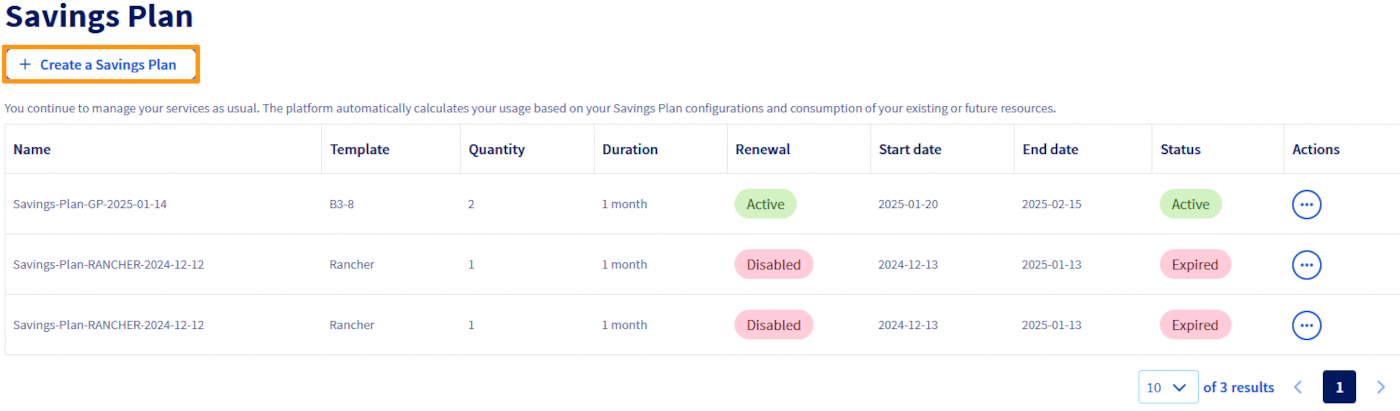
Click the Create a Savings Plan button.
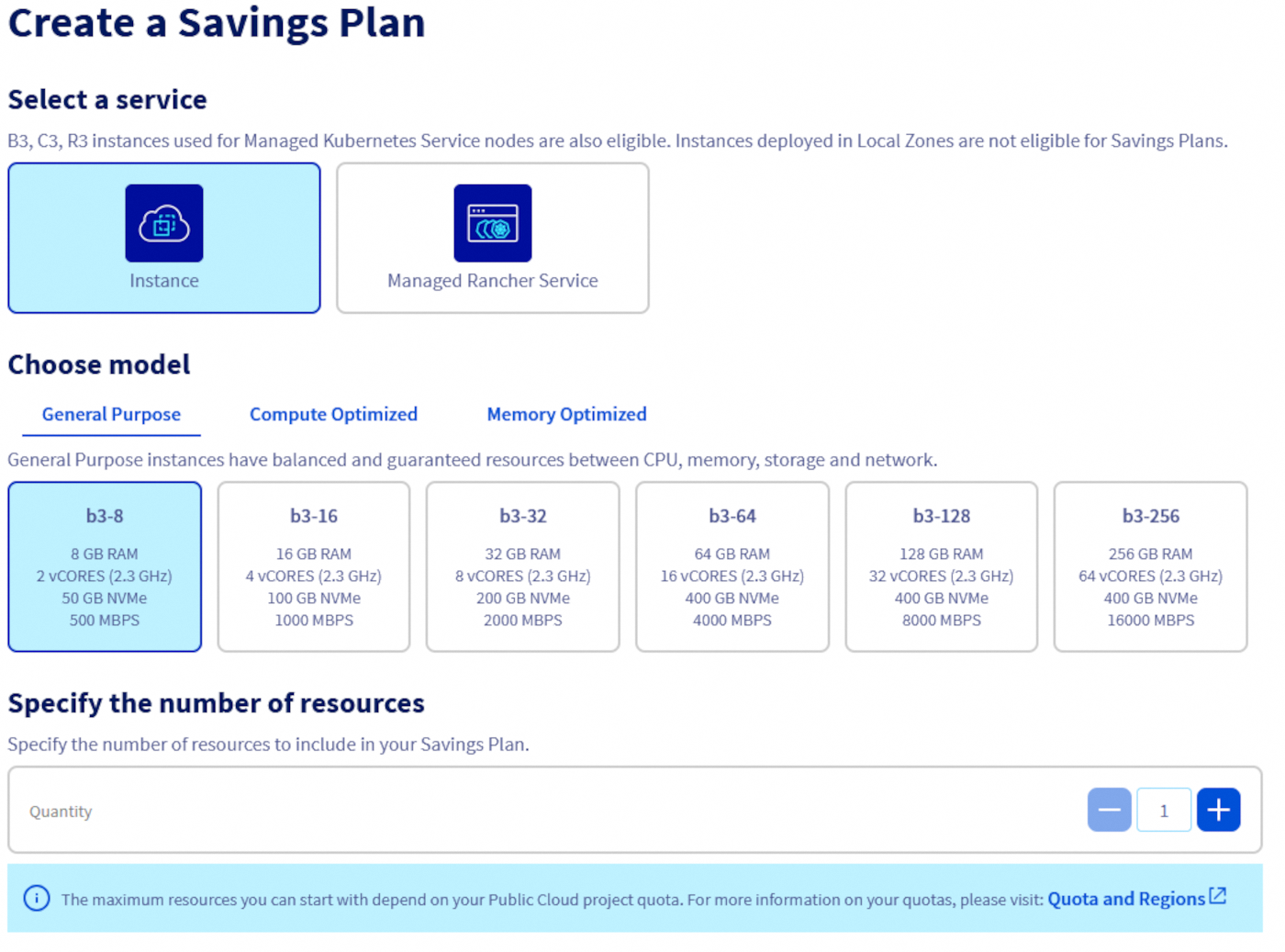
Select the type of resource for which the Savings Plan will apply, define the specific resource model and specify the number of resources affected by this plan.
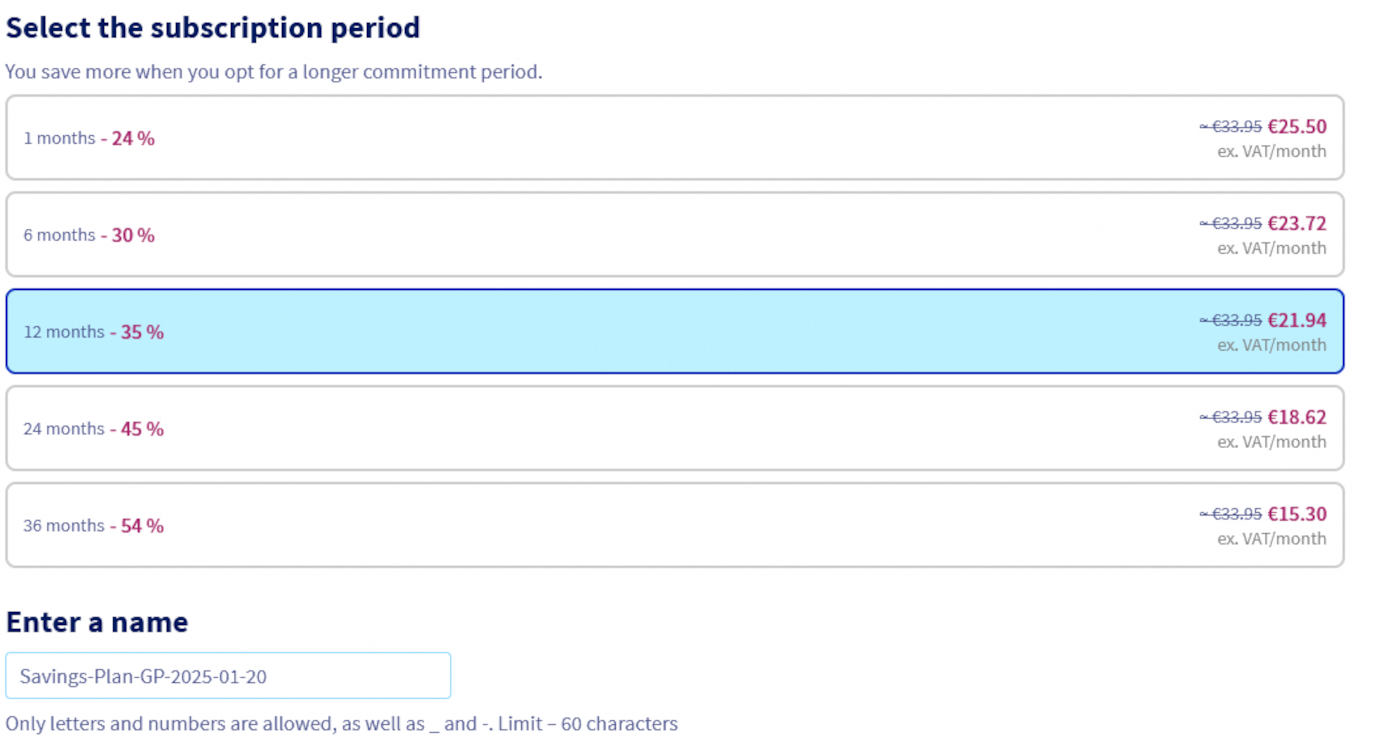
Choose the duration of your Savings Plan from the available durations and give it a name.
Read the Terms and Conditions carefully, then tick the box to confirm you accept them. Once all the parameters have been configured, click the Create a Savings Plan button to finalise the creation.

To create a Savings Plan, you will need at least 5 elements:
- The ID of your Public Cloud project.
- The flavour concerned by your Savings Plan
- The duration of your Savings Plan (in standard ISO 8601 format)
- The number of resources concerned.
- The name of your Savings Plan
In our example, we are going to create a Savings Plan for 10 instances of type b3-8, for a duration of 1 month. Add the following lines to a file named savings_plan.tf :
You can create your Savings Plan by entering the following command in your console:
Modifying a Savings plan
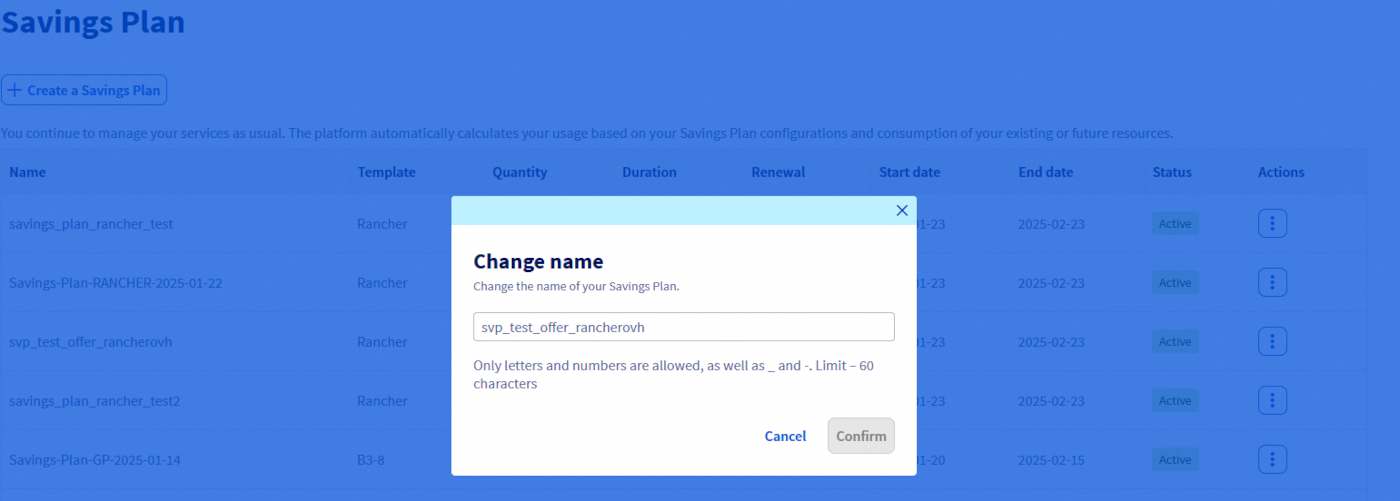
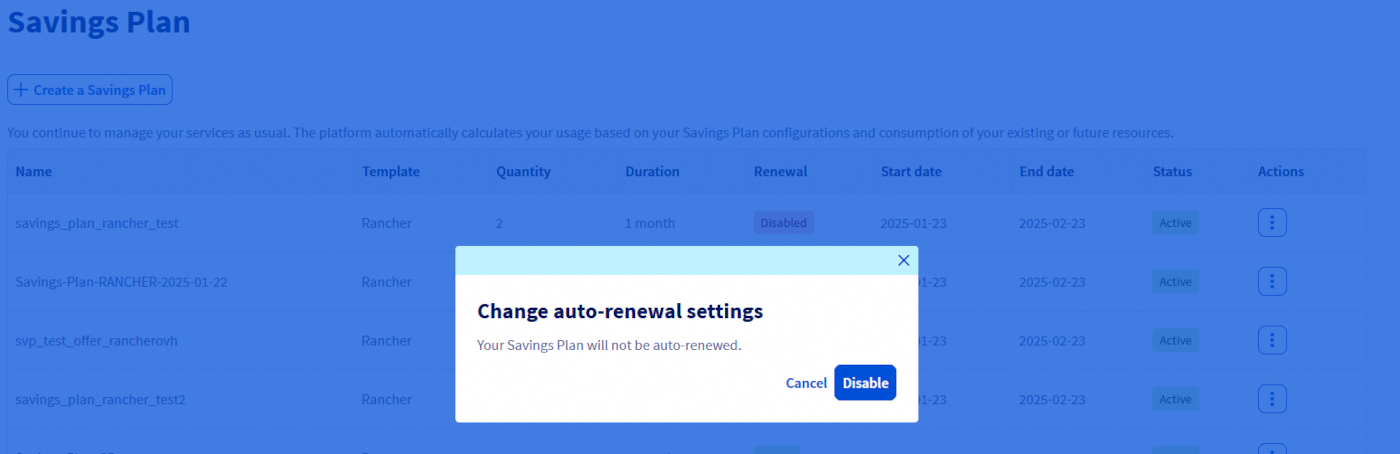
Using the OVHcloud Control Panel, you can only edit the name of the Savings Plan and activate/deactivate its automatic renewal.
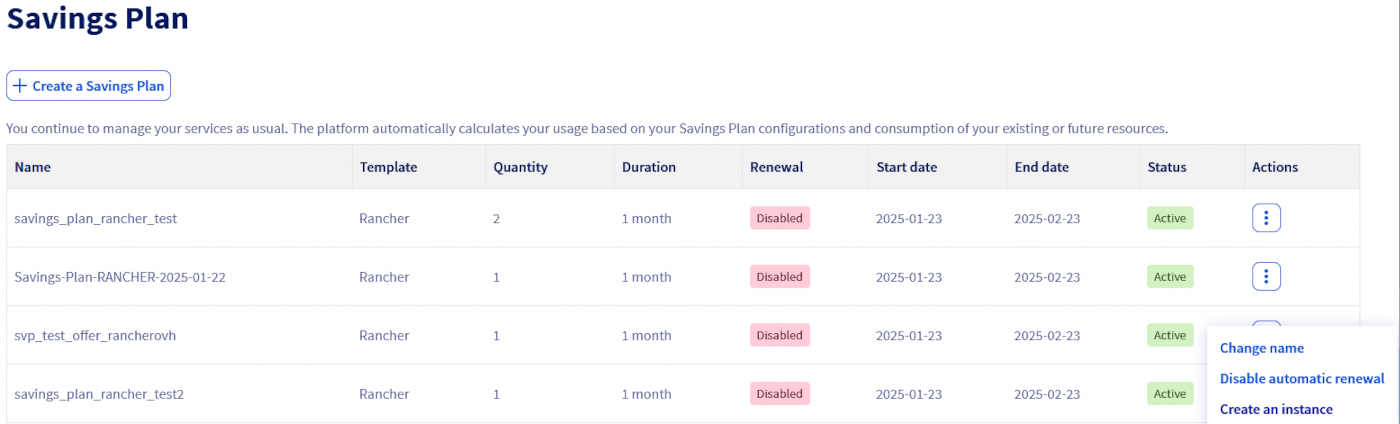
If you wish to change the name, click the Change name button, change the name and then click Confirm.
If you wish to activate/deactivate the automatic renewal of your Savings Plan, click on the Activate/Disable automatic renewal button and then on the Activate / Disable button as appropriate.
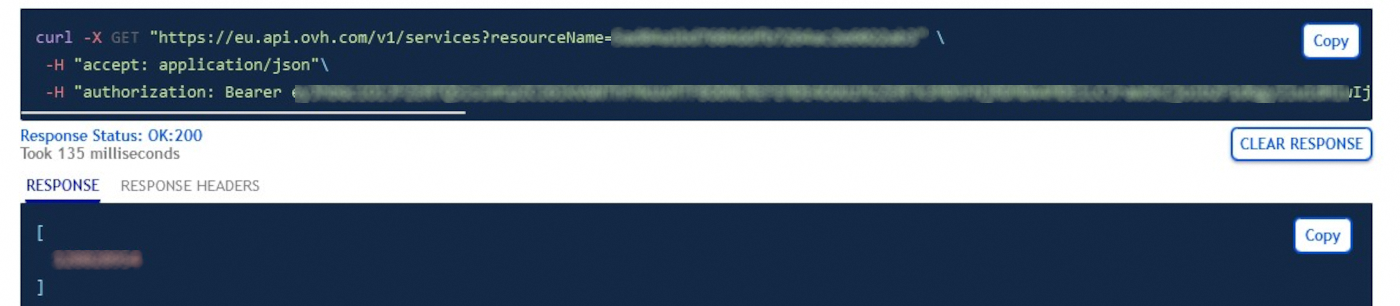
First find the id of your service in the list of your services, which can be obtained via the following endpoint:
You will obtain a list containing the id of your services as follows:
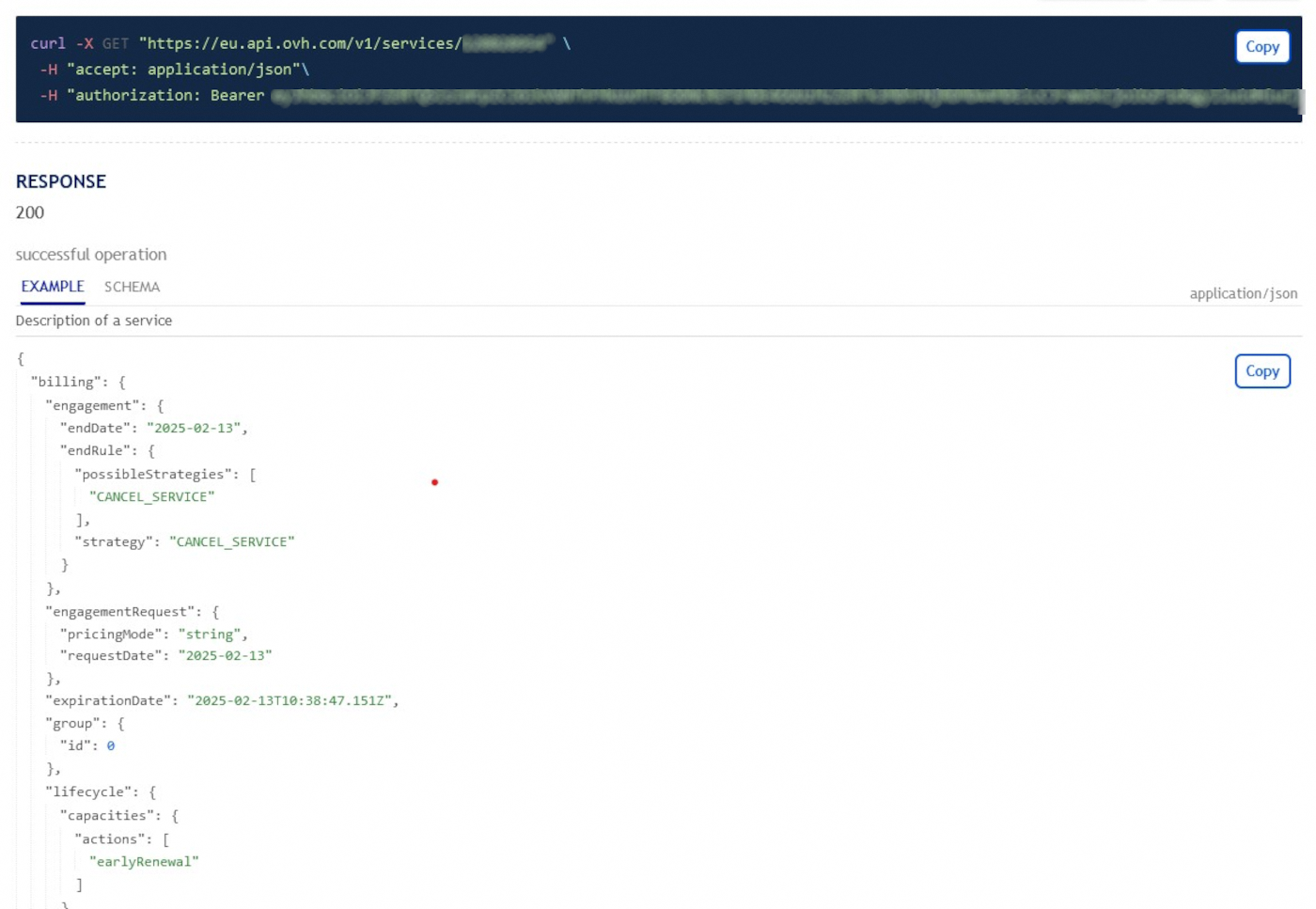
You can use this route to check whether the service corresponds to the Public Cloud project concerned:
You'll get a list containing the details of your service as follows. Check that it's the right project, using the vars.value field:
You can find the id of your Savings Plan in the list of your Savings Plans obtained via this endpoint:
You get a list of Savings Plan as follows:
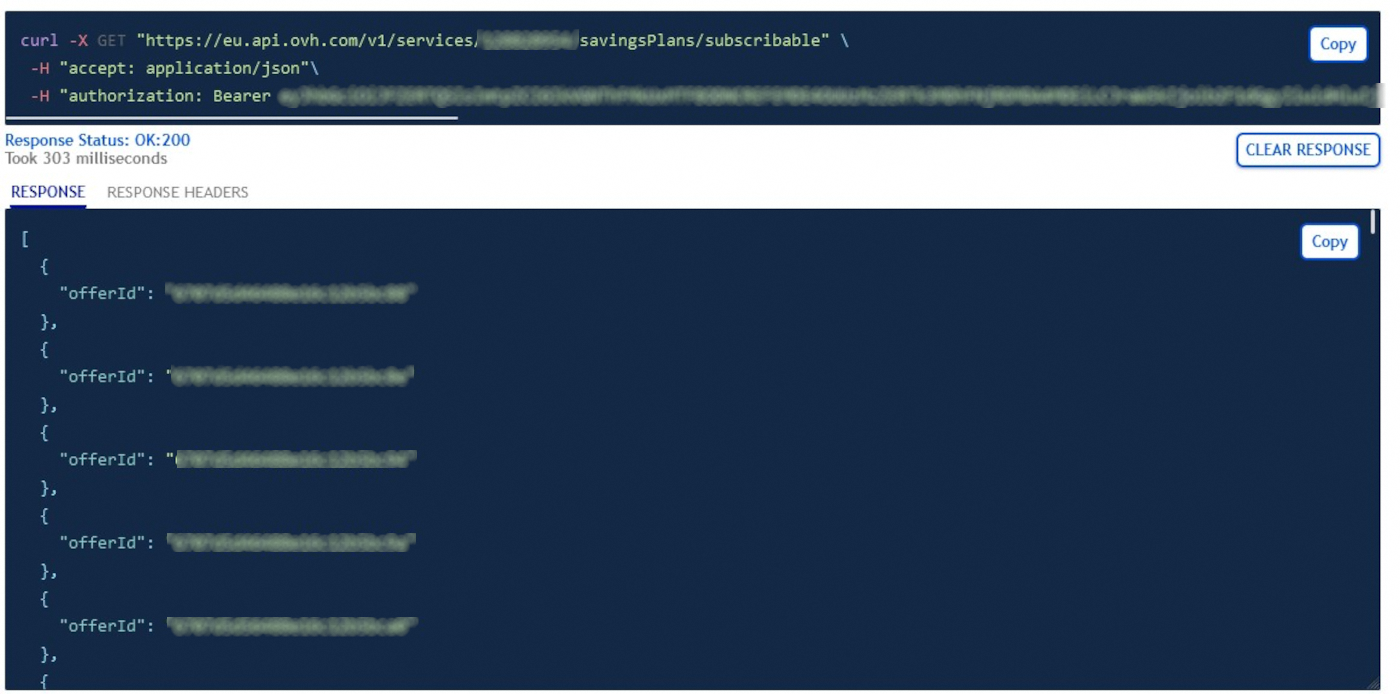
Then look for the Savings Plan concerned in the list and copy its id.
Changing the name of a Savings Plan
To change the name of a Savings Plan, use the following endpoint:
The savingsPlanId corresponds to the id of your previously copied Savings Plan.
Activate/deactivate automatic renewal of a Savings Plan
To activate/disable the automatic renewal of the Savings Plan, use the following endpoint:
Increase the number of Savings Plan resources
To increase the number of resources subscribed by your Savings Plan, use this route:
The number of resources can only be increased.
Modify your resource in the savings_plan.tf Terraform file created earlier.
Note that only the service_name, size and auto_renewal fields can be modified. The size can only be increased.
Go further
Join our community of users.


 How to increase Public Cloud quotas
 3776
3776