

Resize an instance via the OVHcloud Control Panel
646 Views
 04.03.2026
  Configuration
Objective
If your instance lacks resources due to increased activity or new needs, you can increase its resources in just a few clicks with the Public Cloud.
This guide explains how to resize your instance from the OVHcloud Control Panel.
Only upscaling is possible for classic models. In addition, this manipulation causes the instance to be shut down for the time of the operation.
Flex instances allow resizing to higher or lower models due to a locked single disk size.
Requirements
- A Public Cloud instance in your OVHcloud account
OVHcloud Control Panel Access
- Direct link: Public Cloud Projects
- Navigation path:
Public Cloud> Select your project
Instructions
Click on Instances in the left-hand menu.
Click on ... to the right of the instance, and select Edit. You can also access this action from the instance details by clicking on its name, then on Modify model.
In the new tab, scroll down to the Template section to select the model of your choice.
For classic models, you can switch to any flavor that has a similar or bigger disk. You can't switch to a model with a smaller disk.
Only Flexible instances can be upgraded and downgraded while maintaining a fixed disk size of 50GB.
If your disk is equal to or smaller than 50GB, you can switch to a Flexible instance if desired.
If you are editing a flex instance, you cannot revert to a classic instance via the Control Panel. For more information, consult the guide on Revert a flex instance.
Once the selection has been made, click on Modify template to confirm your choice.
Resizing a disk in Windows
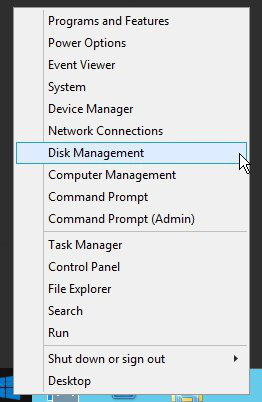
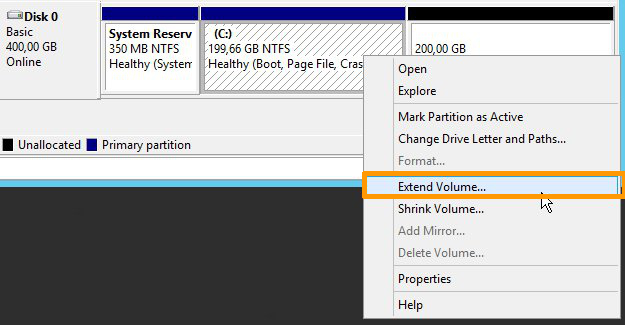
When performing a resize for a Windows Instance, the partition size is not automatically updated. You must extend it using the disk manager:
- Right-click on the
Startmenu and launch the disk manager by clicking onDisk Management:
- Right-click on the main partition, then click on
Extend Volume.
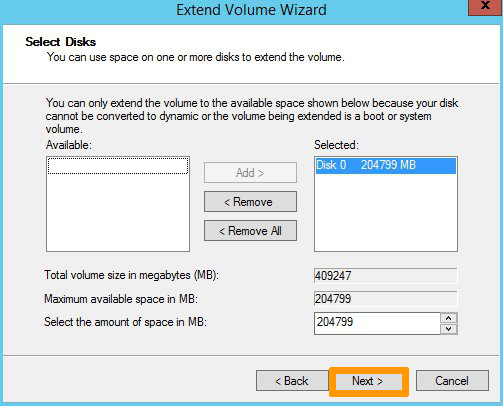
- In the
Extend Volume Wizardmenu, click onNextto proceed. In the next tab, choose the disk resources to extend and click onNext.
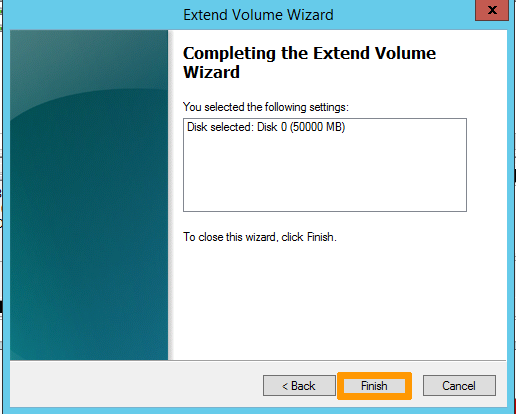
Once done, click on Finish to confirm your choice.
- The new disk size will then be displayed in the disk manager.

Go further
Join our community of users.


 How to replace an SSH key pair on a Public Cloud instance
 2398
2398