

Activating a Windows licence for an instance in private mode
848 Views
 25.01.2023
  Cloud / Instances
Objective
Unlike Windows instances created in the public network, Windows instances created with private network mode (vRack) do not have their Windows licences automatically enabled. In this case, you must activate the licence manually to access all Windows services.
This guide is designed to help you configure the public interface for your Public Cloud instances within your vRack.
Requirements
- A Public Cloud project in your OVHcloud account
- An OpenStack user account
We recommend that you read our guide on Accessing the Horizon interface to familiarise yourself with Horizon.
OVHcloud Control Panel Access
- Direct link: Public Cloud Projects
- Navigation path:
Public Cloud> Select your project
Instructions
Attach an "Ext-Net" public port to an instance
Via Horizon
Log in to the Horizon interface using the method listed in the first part of this guide.
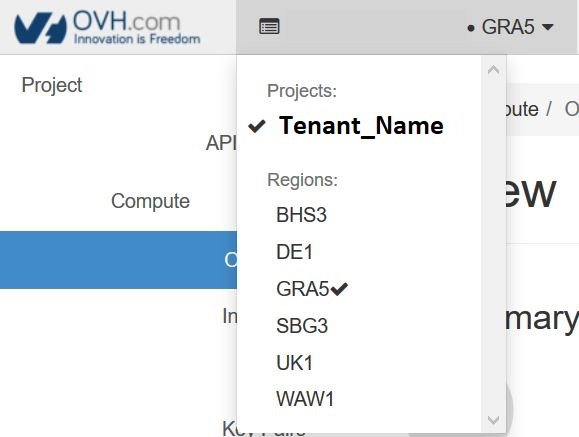
Choose the proper work zone.
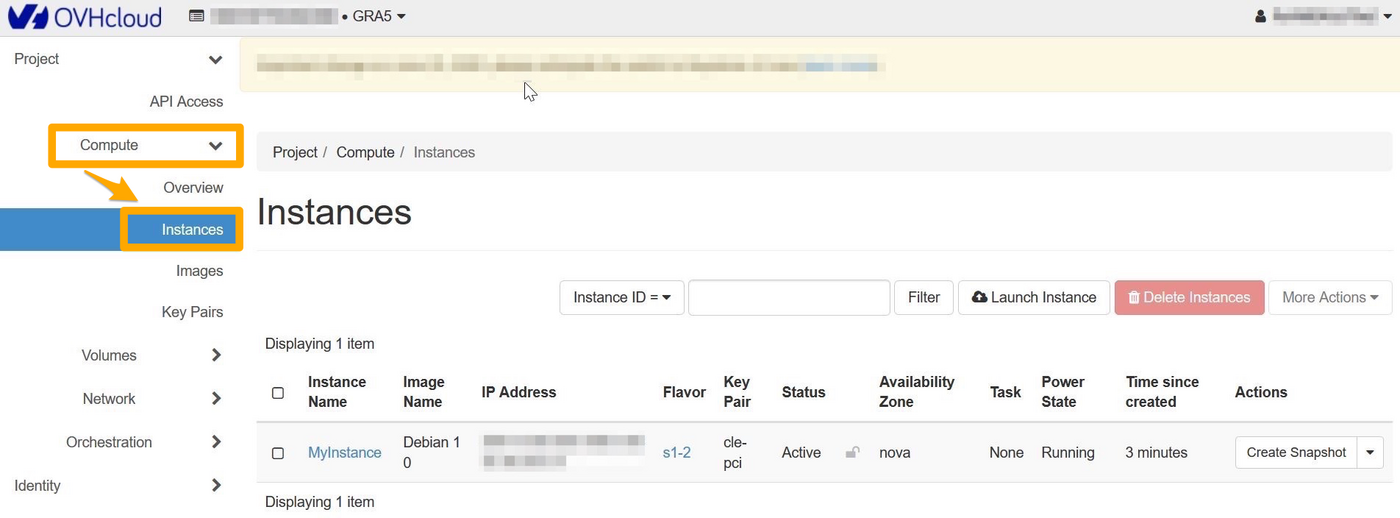
Select Compute and then Instances from the menu.
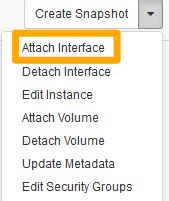
To add an interface, click on the arrow in the “Actions” column to access the possible actions on the instance. Select Attach Interface:
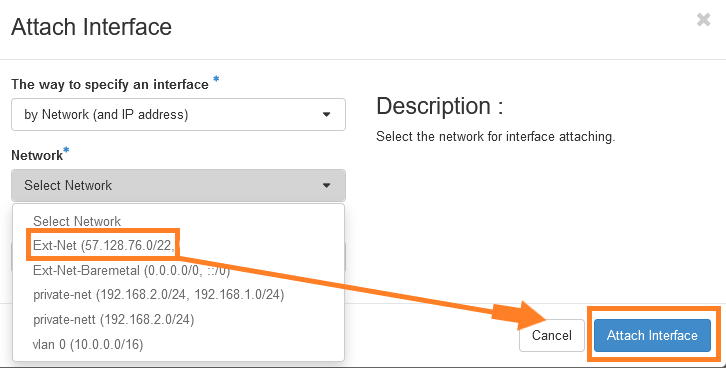
Select your interface and confirm.
Via the OpenStack API
Before continuing, we recommend reading these guides:
First, retrieve all the necessary information:
- ID of your instances
- ID of public and private networks
With the previously retrieved items, you can create a public port named "Ext-Net" on the subnet "Ext-Net" and attach it to the instance:
Retrieve the UUID of the "Ext-Net" port:
Attach the port to the instance:
Activate your Windows licence
To activate Windows, you must go through Powershell.
Once you have logged in to your Windows instance, right click on the Start menu and select Windows PowerShell.
Enter the following command:
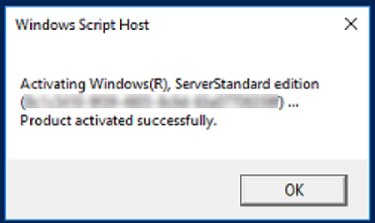
The Windows licence will be activated for 180 days.
You will need to repeat this operation every 180 days.
In the meantime, if you want to isolate your instance from the public network, you can disable the public port you have created via Horizon or the OpenStack API. You can also disable the network port directly via Windows.
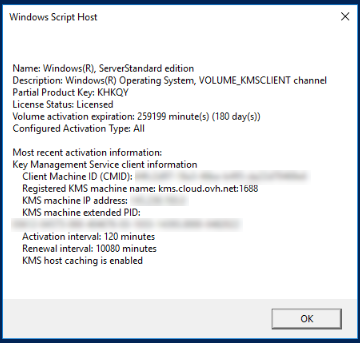
To check the licence status and expiration date, use the following command:
Go further
Find out how to change the activation key of your Windows Server.
If you need training or technical assistance to implement our solutions, contact your sales representative or click on this link to get a quote and ask our Professional Services experts for assisting you on your specific use case of your project.
Join our community of users.


 How to create a Public Cloud instance and connect to it
 31561
31561