Setting up NCM Self Service (CALM)

Knowledge Base

Setting up NCM Self Service (CALM)


Icons/System/eye-open Created with Sketch. 390 Views 13.05.2024 Cloud / Nutanix on OVHcloud

Objectif

Find out how to set up NCM Self-Service (Calm) on your Prism Central.

This tutorial will show you how to use one or more OVHcloud solutions with external tools, and will describe the actions to be carried out in a specific context. You may need to adapt the instructions according to your situation.

If you encounter any difficulties performing these actions, please contact a specialist service provider and/or discuss the issue with our community. You can find more information in the Go further section of this tutorial.

Requirements

  • A Nutanix cluster in your OVHcloud account
  • Access to the OVHcloud Control Panel
  • You must be connected to the cluster via Prism Central
  • Have Self Service (CALM) licences. These licences are available with the Nutanix on OVHcloud packaged service (with limitations for Starter pack)
  • An additional VLAN in your cluster that distributes IPAM IP addresses and has internet access

Overview

NCM Self Service (CALM) is a heterogeneous orchestration solution that allows the automation and management of deployments, it runs on Prism Central and grants the administration of various environments (Nutanix Cluster, bare metal server, etc...).

Instructions

We will enable CALM, create two applications for our Nutanix cluster and publish them on the application portals which are:

  • An Nginx Web server with Linux Ubuntu.
  • An IIS Web server on Windows server.

Activating CALM

Before deploying CALM, check the IP address for the ISCSI Data Services IP.

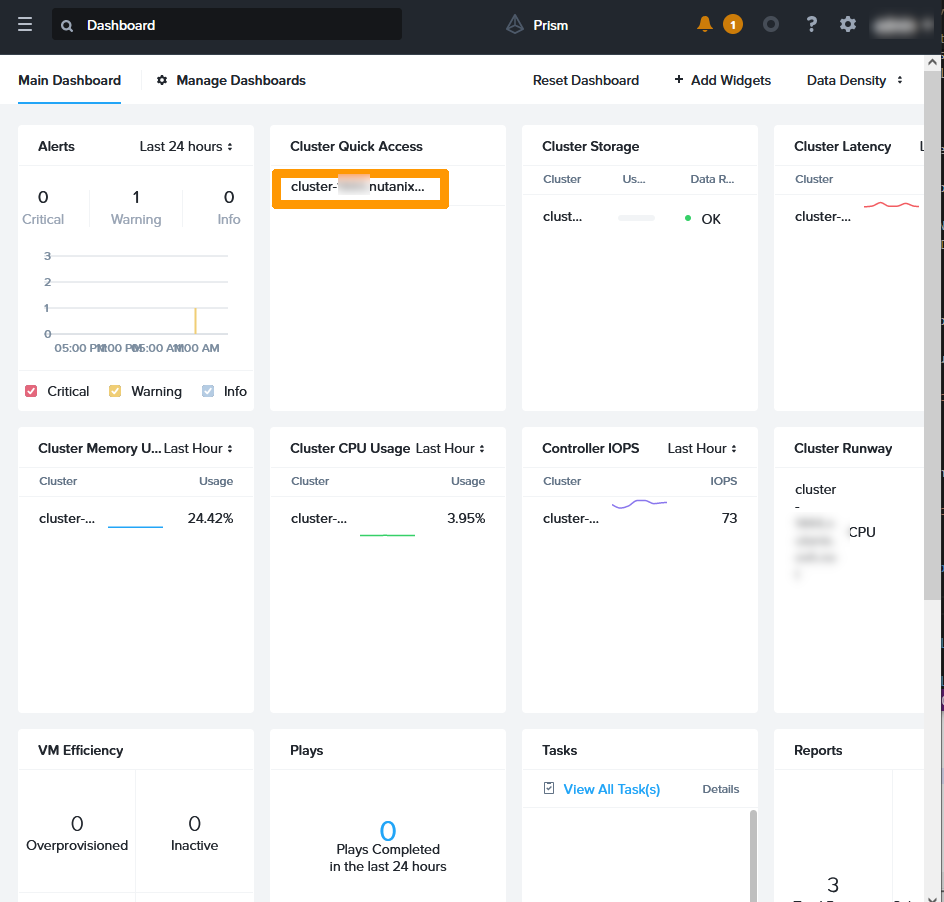
From the Prism Central dashboard, click on your Cluster in the Cluster Quick Access section.
00 Activate CALM 01

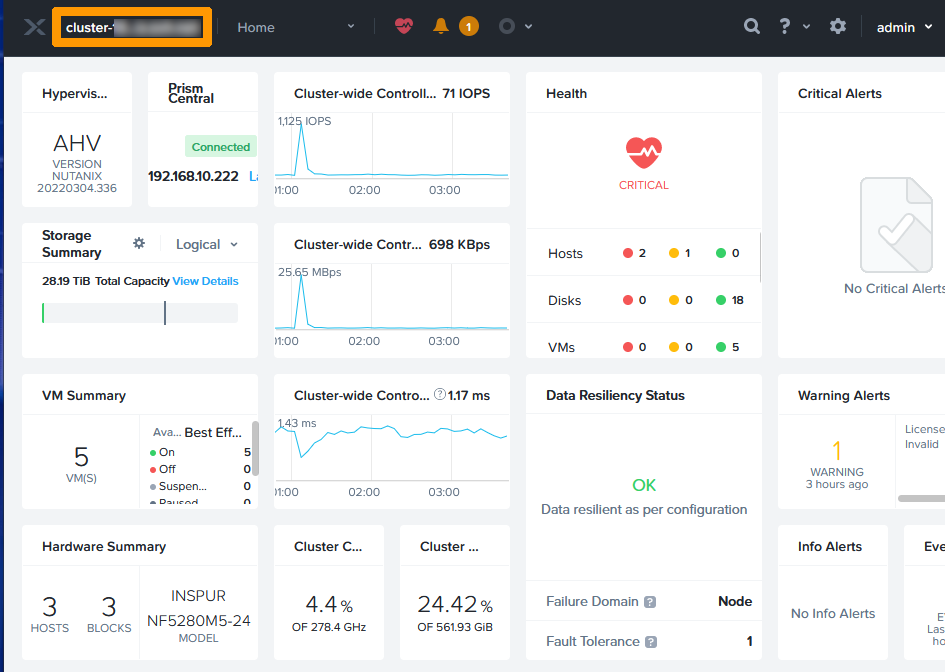
In the Prism Element, click on the cluster settings in the top left-hand corner.
00 Activate CALM 02

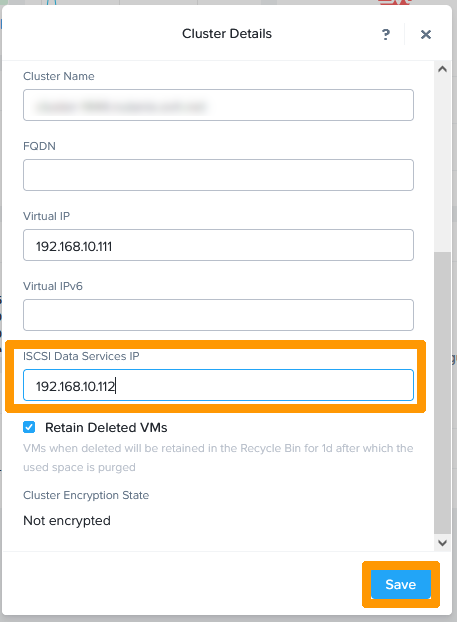
Check the IP address in ISCSI Data Services IP.
00 Activate CALM 03

Go back to Prism Central, go to the main menu on the left and click on Calm in the Services section
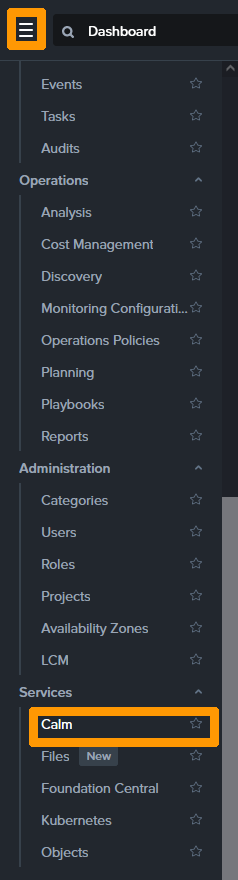
00 Activate CALM 04

Click Enable App. Orchestration(Calm).
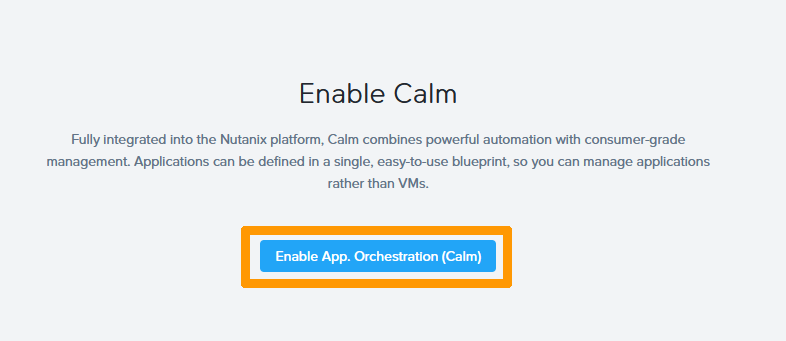
00 Activate CALM 05

Select the Enable App Management check box and click Save.
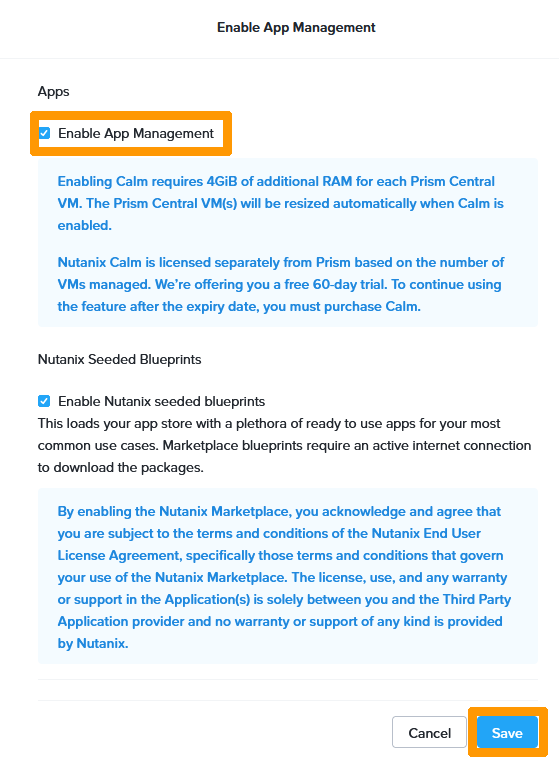
00 Activate CALM 06

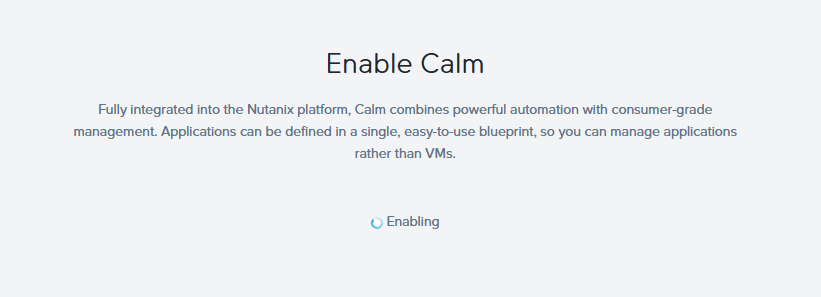
CALM is being activated.

00 Activate CALM 07

An error message appears during CALM deployment, ignore it, exit the window and wait until the installation is complete.
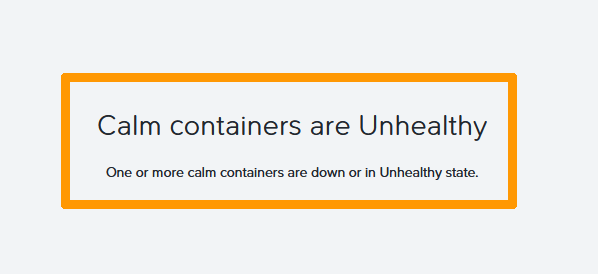
00 Activate CALM 08

Creating a project

You need to create a project to deploy applications.

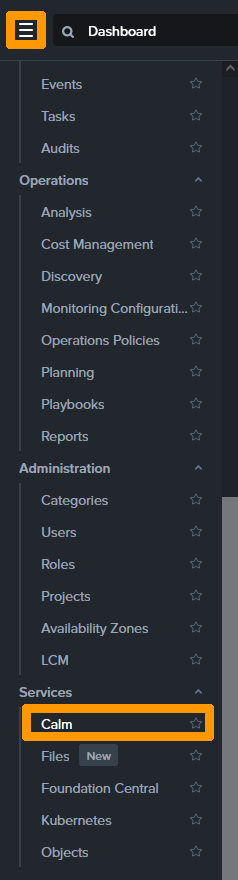
From the Prism Central menu, click on Calm in the Services section.
01 create Project 01

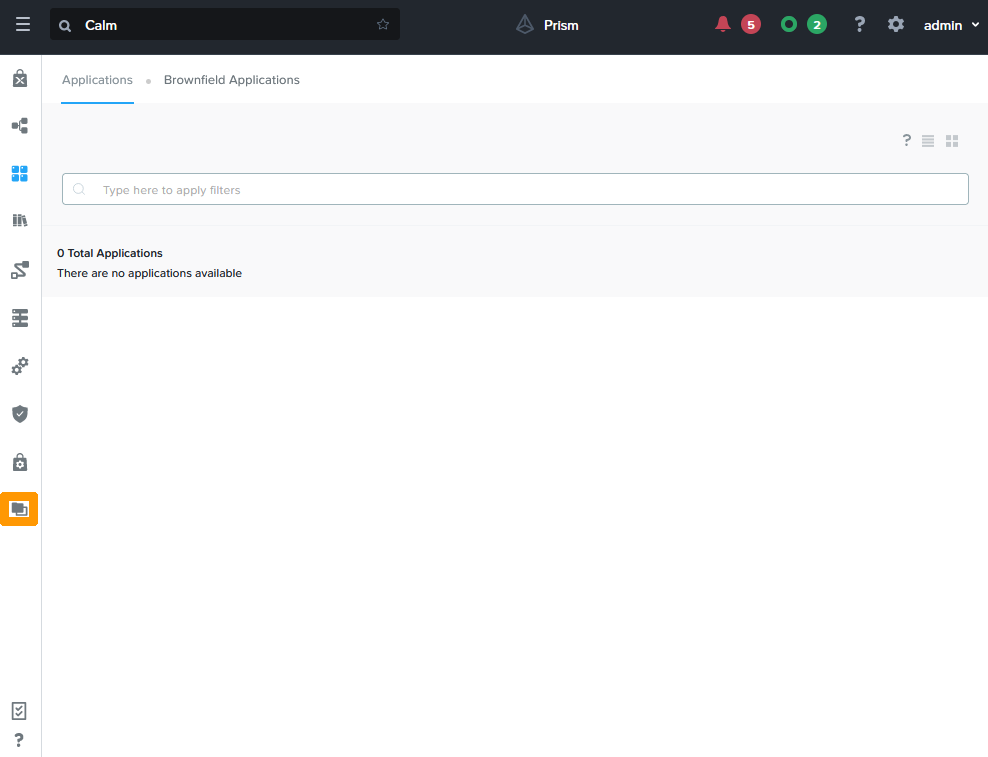
Click the Projects icon in the vertical menu bar.
01 create Project 02

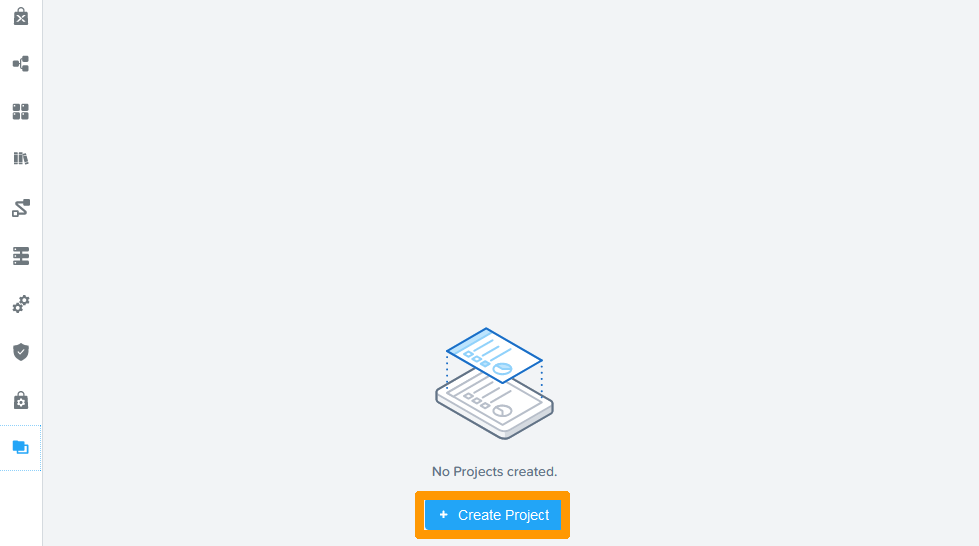
Click the + Create Project button.

01 create Project 03

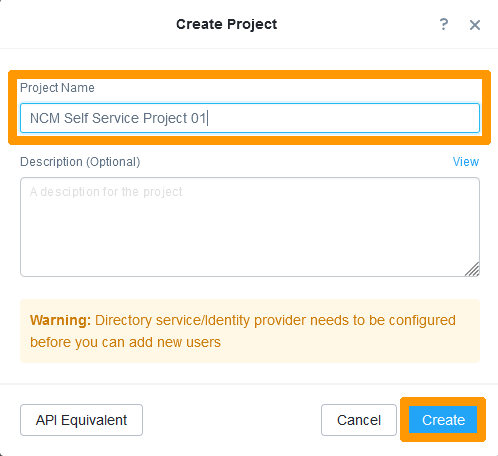
Type the project name in Project Name field and click Create
01 create Project 04

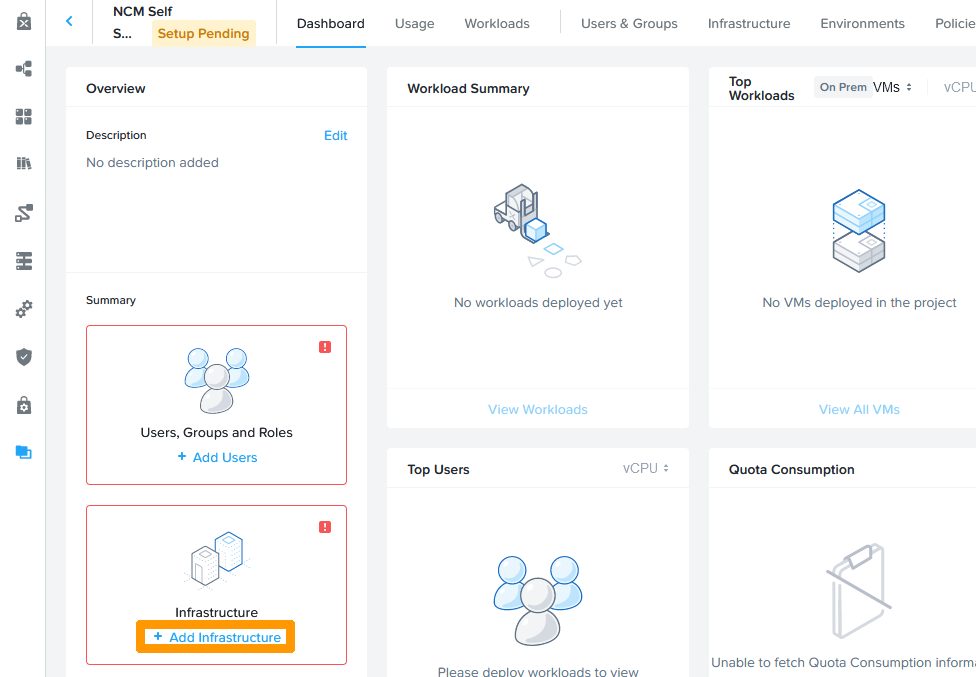
click + Add infrastructure.

01 create Project 05

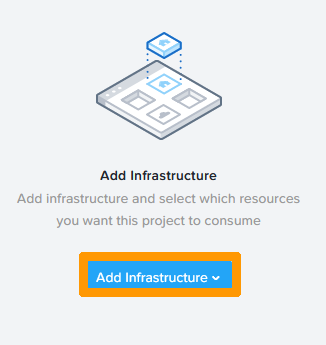
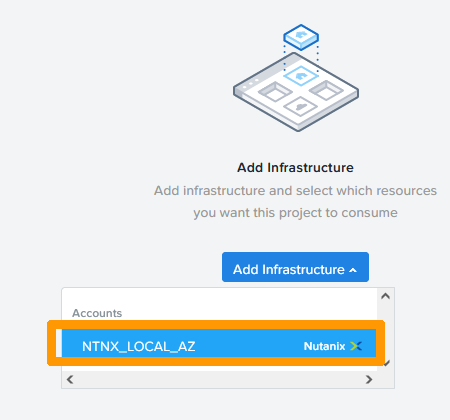
Click Add infrastructure.

01 create Project 06

Select NTNX_LOCAL_AZ from accounts.

01 create Project 07

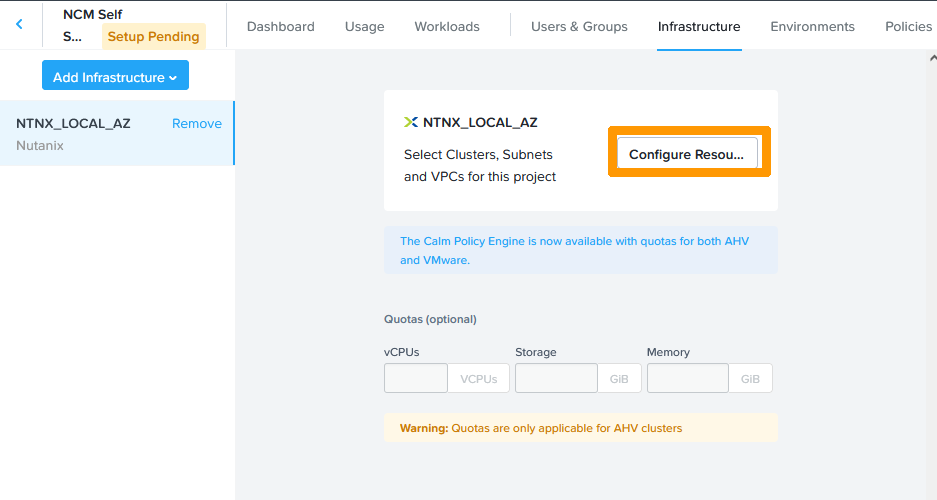
Click Configure Resources.

01 create Project 08

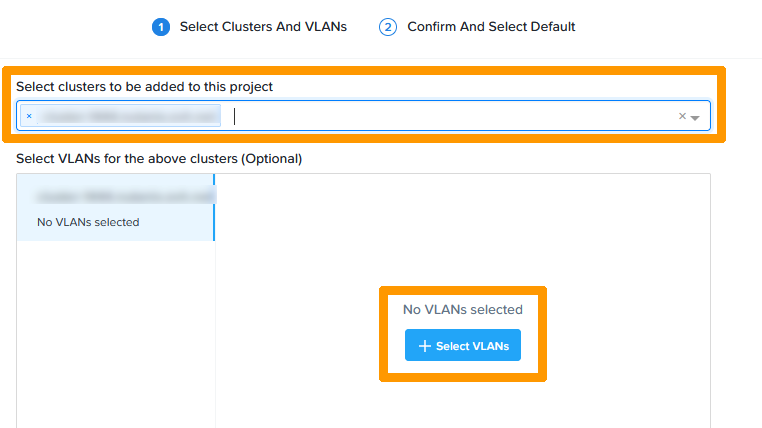
Select your Cluster from Select clusters to be added to this project and click + Select VLANs.
01 create Project 09

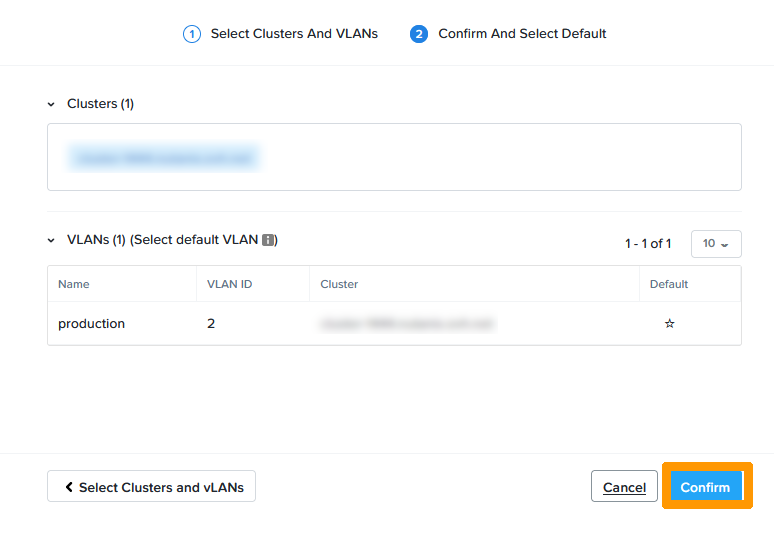
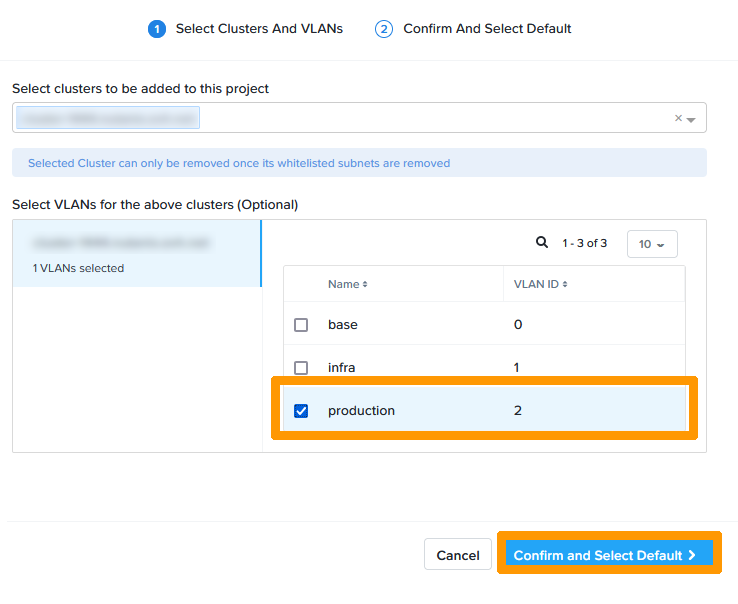
Check the production VLAN box and click Confirm and Select Default.
01 create Project 10

Click Confirm.

01 create Project 11

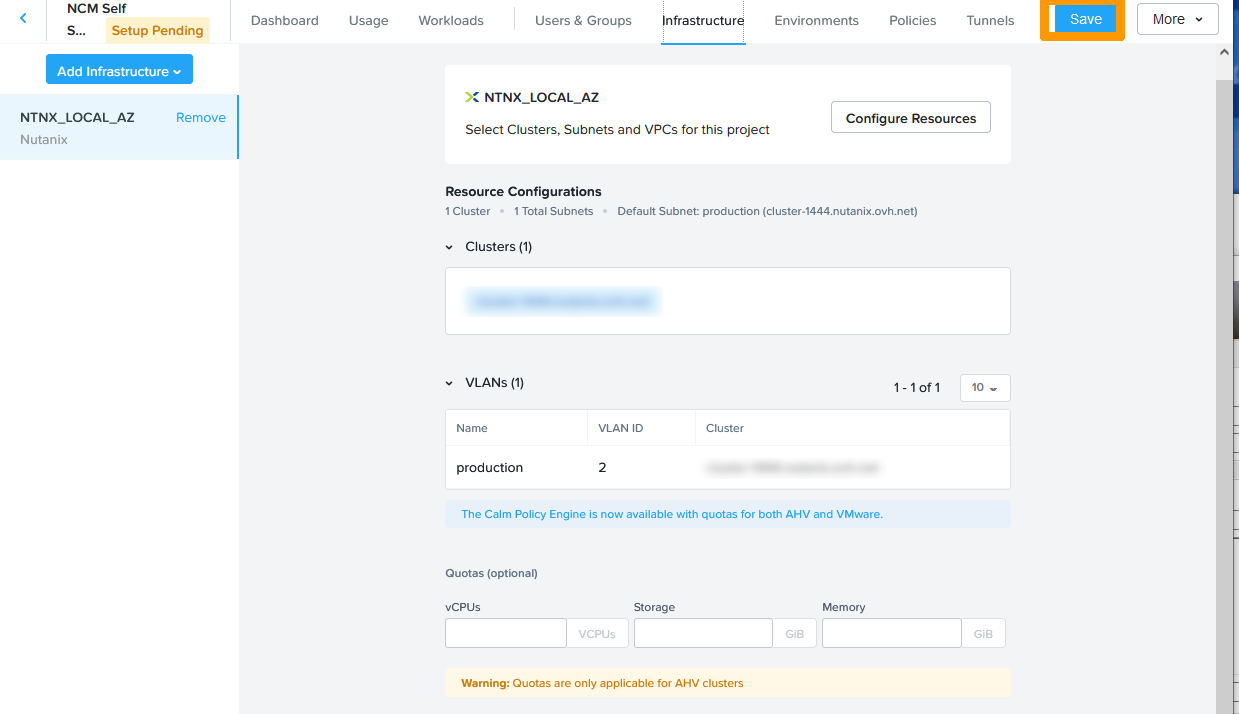
Click Save.

01 create Project 12

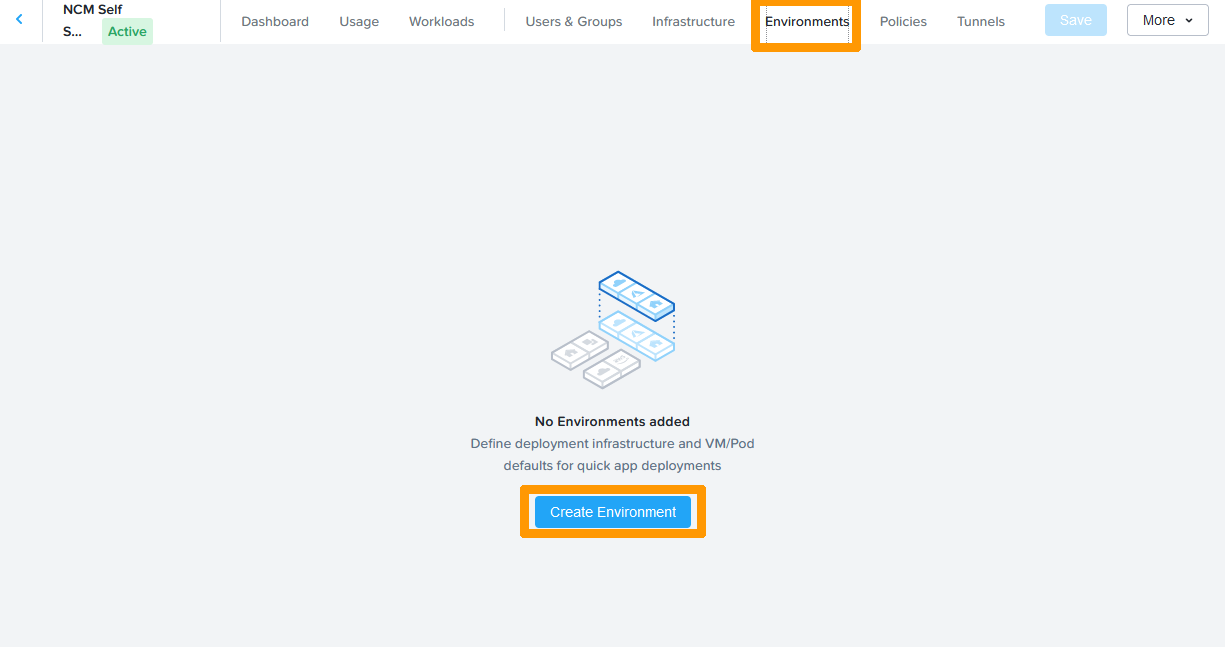
In the tab bar go to Environments and click Create Environment.
01 create Project 13

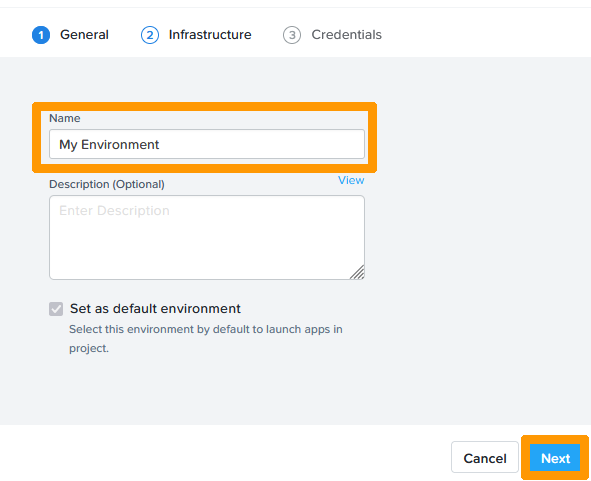
Type a Name in the Name field and click Next.
01 create Project 14

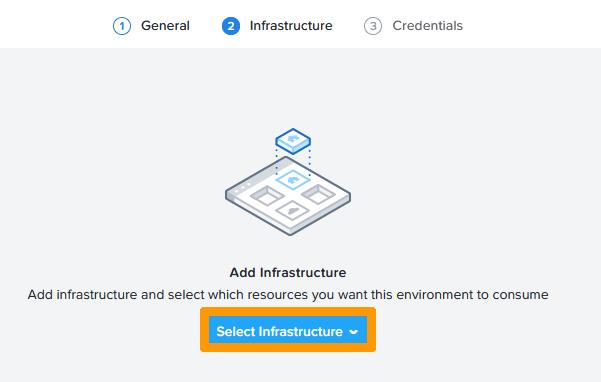
Click Select Infrastructure.

01 create Project 15

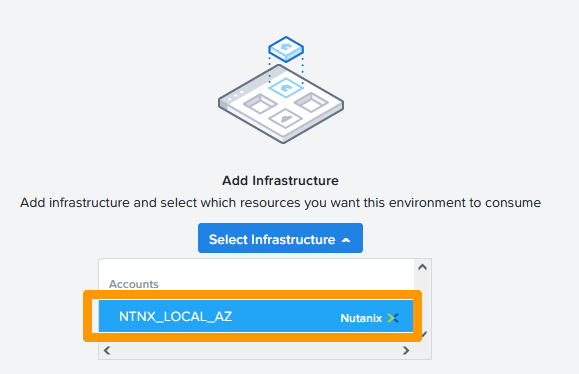
Click NTNX_LOCAL_AZ.

01 create Project 16

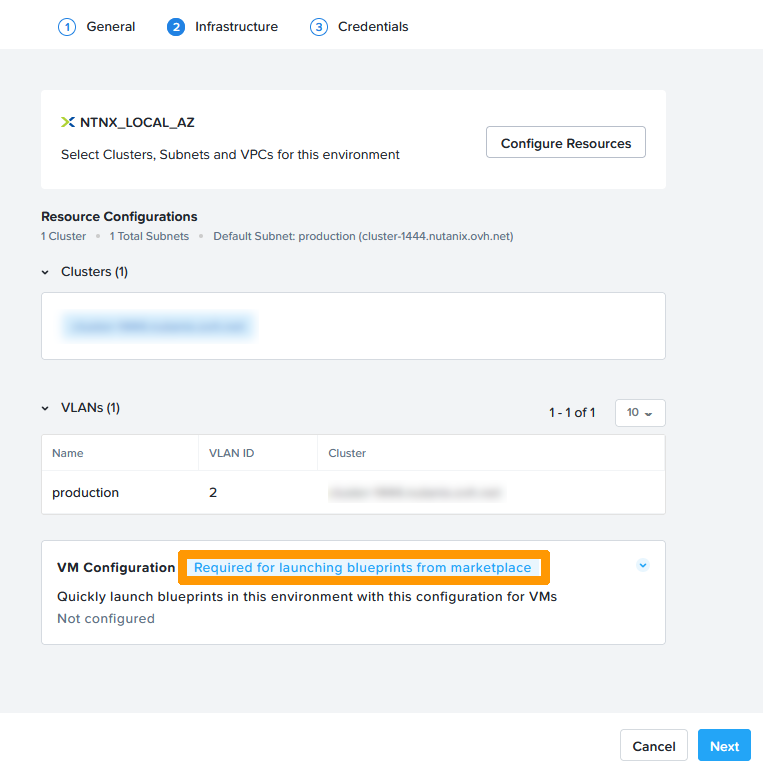
Click Required for lauching blueprints from marketplace to the right of VM Configuration
01 create Project 17

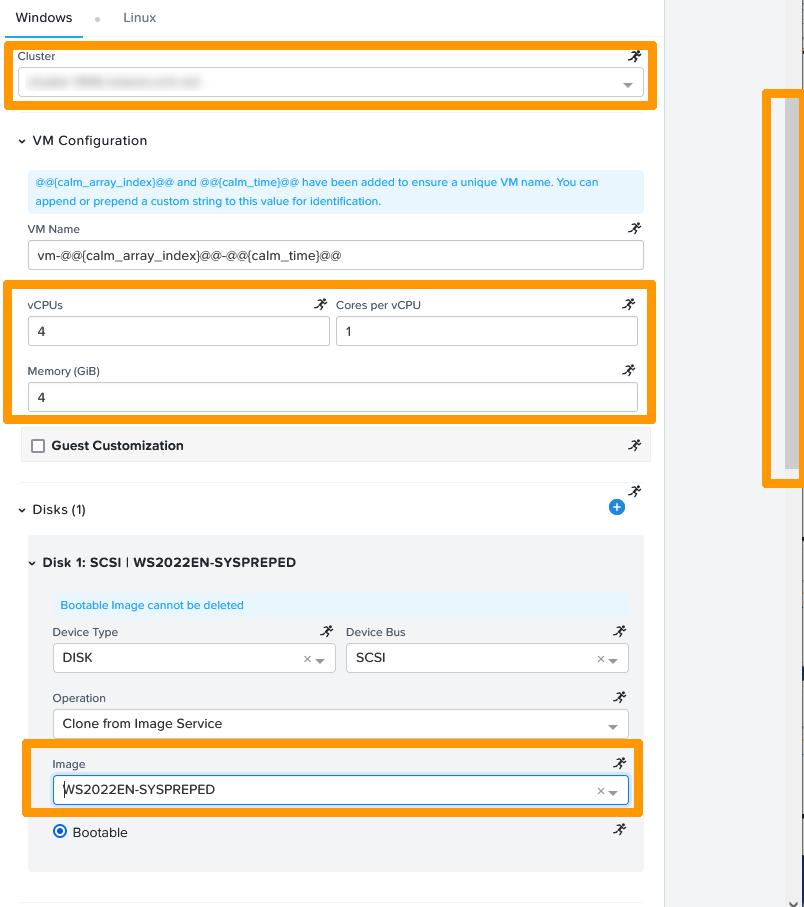
Enter this information:

  • Cluster: choose your cluster
  • vCPUs: 4
  • Core per vCPU: 1
  • Memory (GiB): 4
  • Image : WS2022EN-SYSPREPED

The image is generated from a VM WINDOWS Server 2022 on which a sysprep was applied to reset the default configuration. When used with CALM, it is possible to automate the installation of a Windows OS from this type of image and apply settings stored in an XML file to it.

Then, scroll down the window.
01 create Project 18

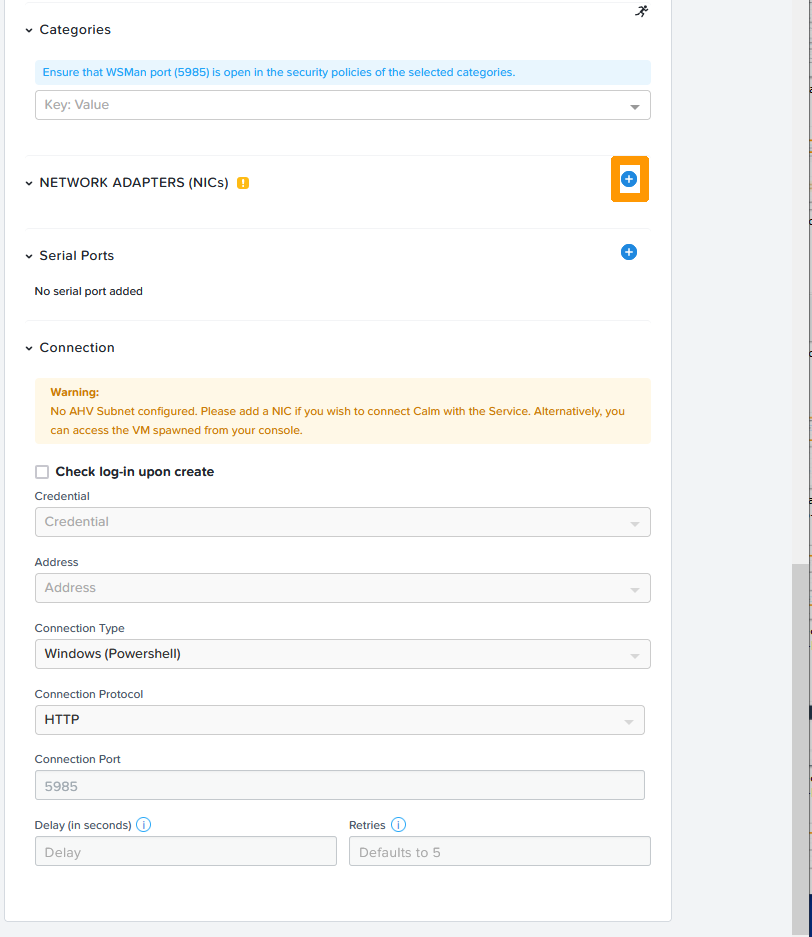
Click the + button to the right of NETWORK ADAPTERS (NICs).
01 create Project 19

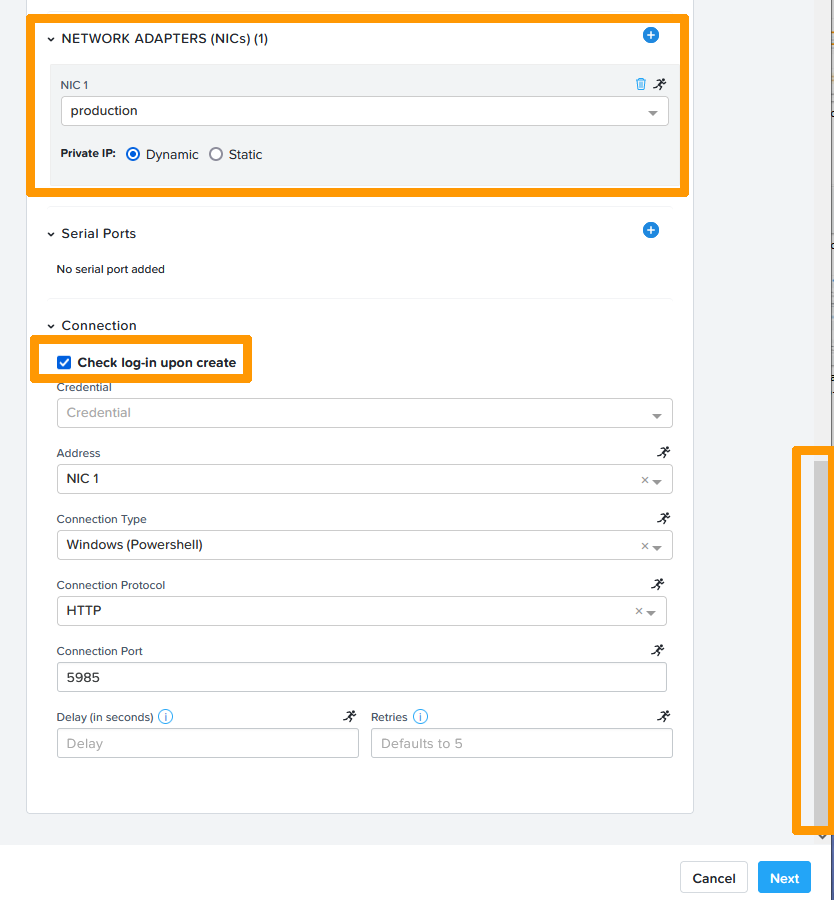
Choose the network adapter in the production VLAN, check the Check log-in upon create box and scroll up in the window.
01 create Project 20

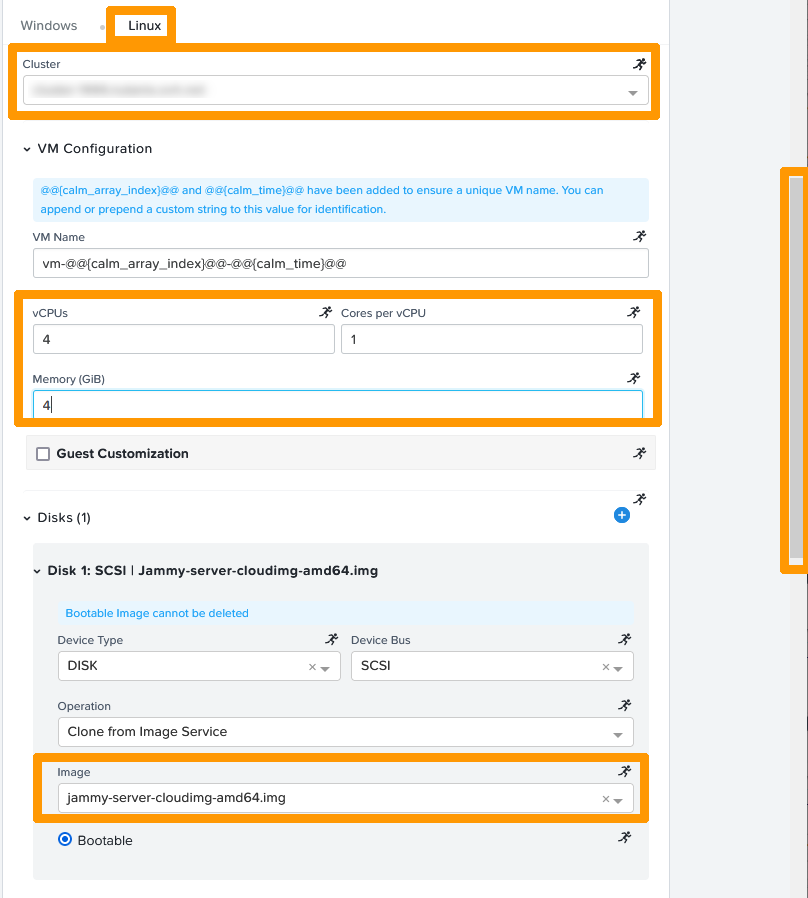
Go to the Linux tab, enter this information:

  • Cluster: choose your cluster
  • vCPUs: 4
  • Core per vCPU: 1
  • Memory (GiB): 4
  • Image: jammy-server-cloudimg-amd64.img

The image is pre-configured for UBUNTU Cloud-init use and can be downloaded from the Internet at Ubuntu Cloud Images. CALM allows the automation and customisation of a Linux installation through these types of images and YAML configuration files.

Then scroll down the window.
01 create Project 21

Click the + button to the right of NETWORK ADAPTERS (NICs).
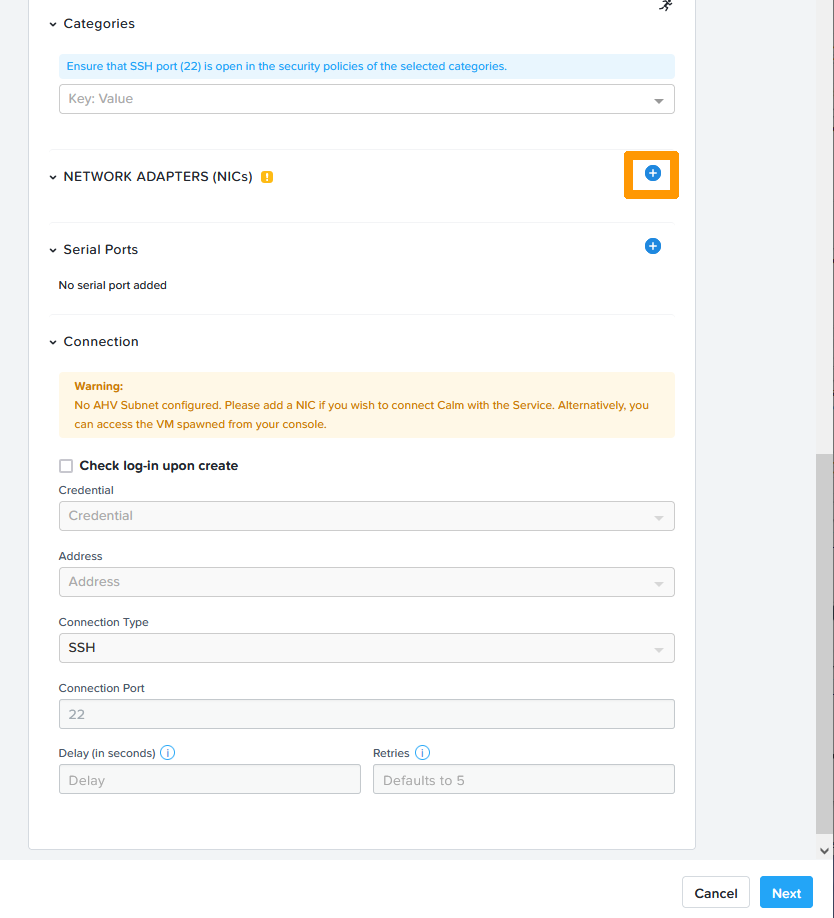
01 create Project 22

Choose the network adapter in the production VLAN, check the Check log-in upon create box and click Next.
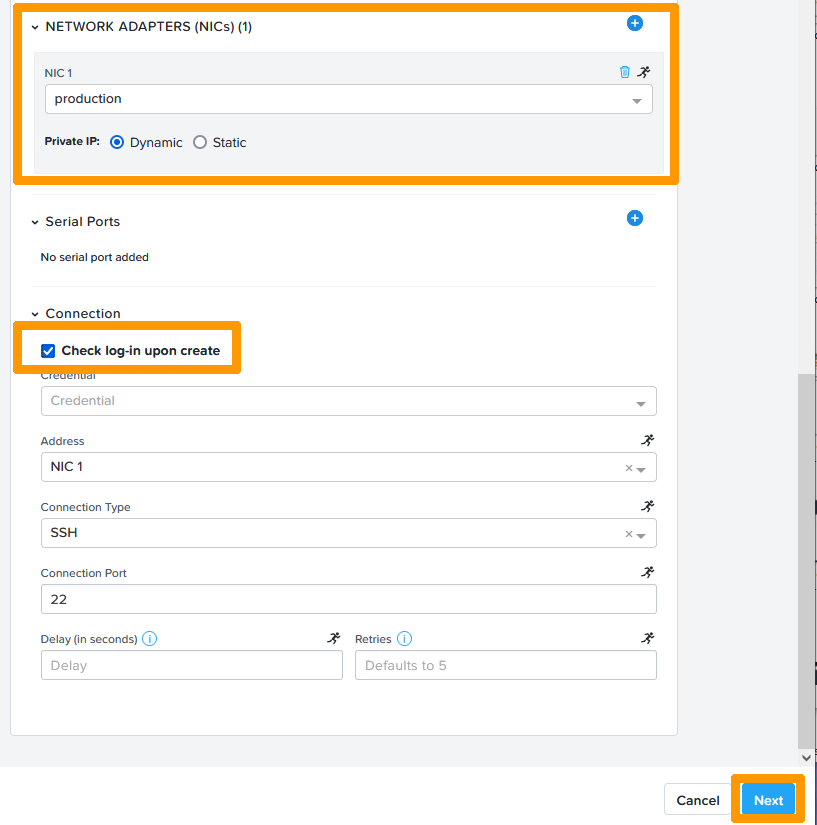
01 create Project 23

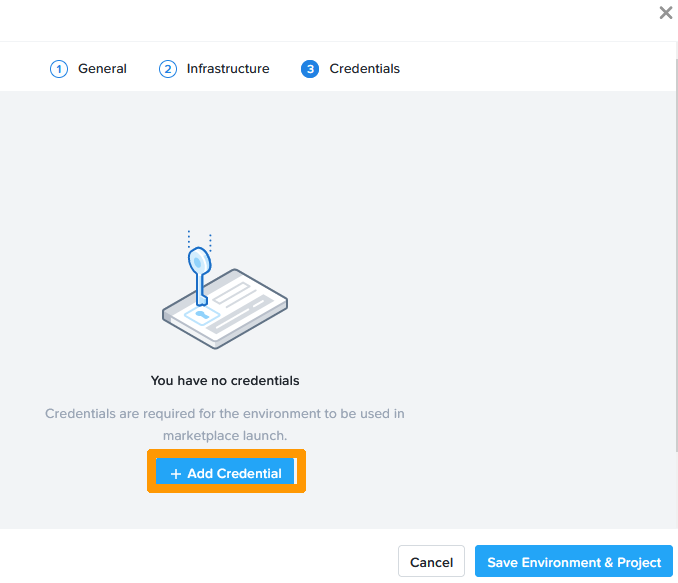
Click + Add Credential.

01 create Project 24

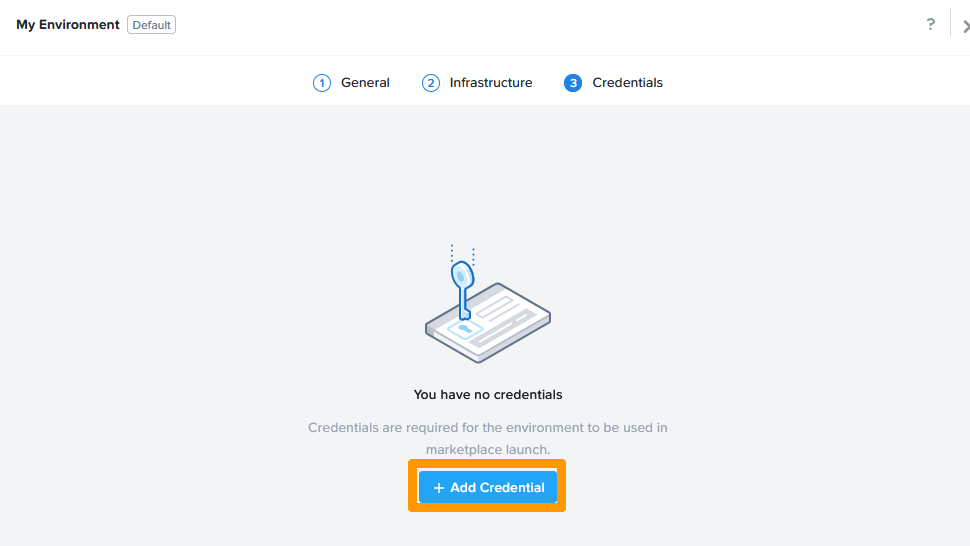
Click + Add Credential.

01 create Project 25

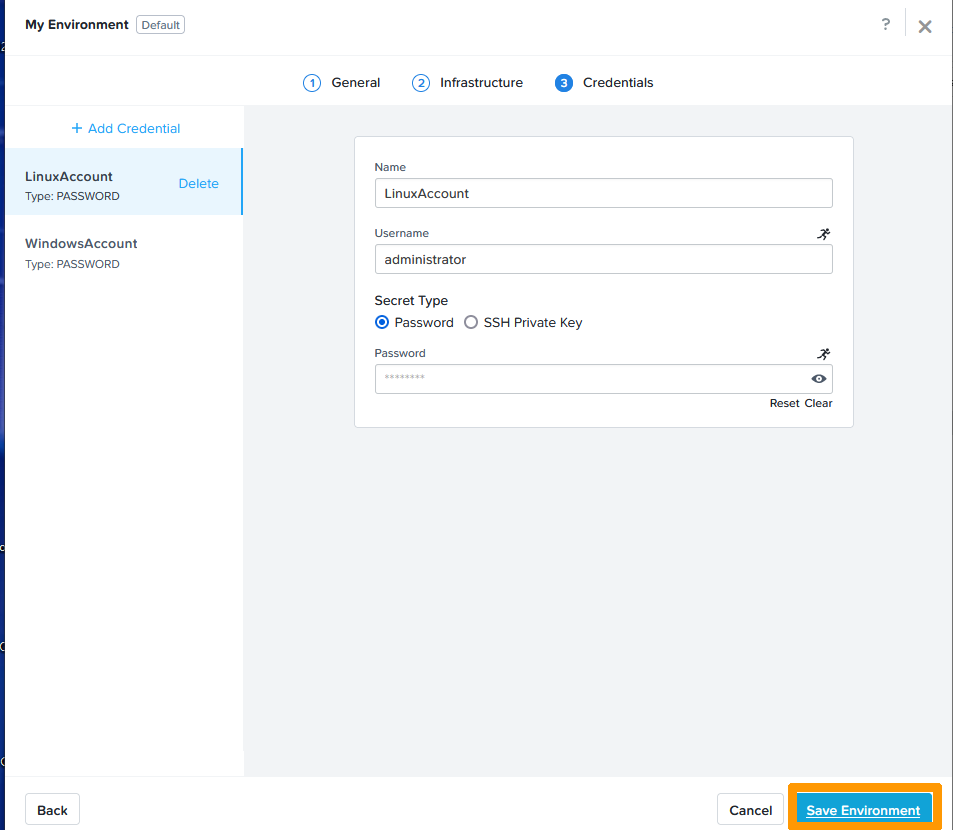
Enter this information:

  • Name: WindowsAccount
  • Username: administrator
  • Password: administrator account password

Then, click + Add Credential.
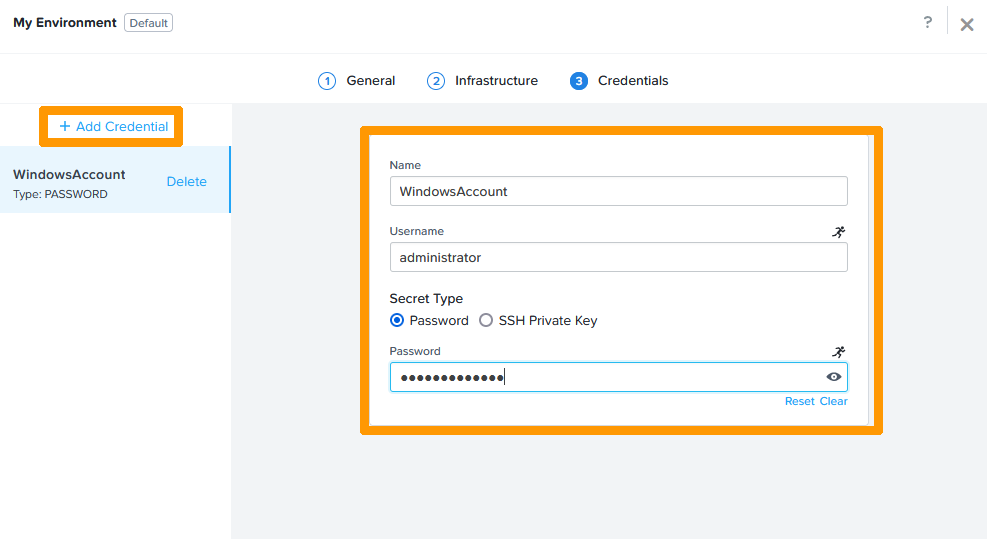
01 create Project 26

Enter this information:

  • Name: LinuxAccount
  • Username: administrator
  • Password: administrator account password

Then, click Save Environment.
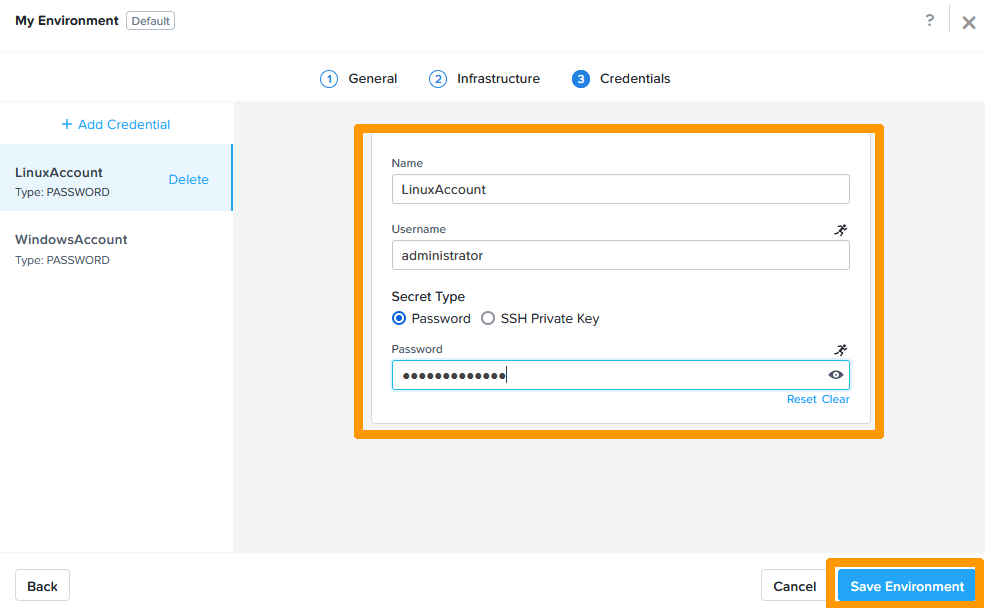
01 create Project 27

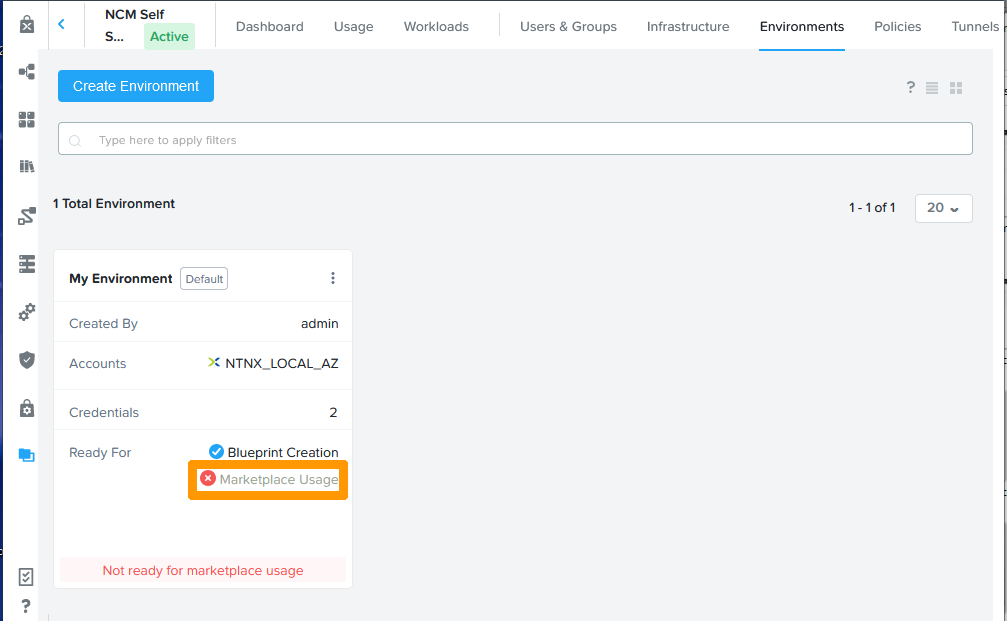
Click Marketplace Usage.

02 add credential to environment 01

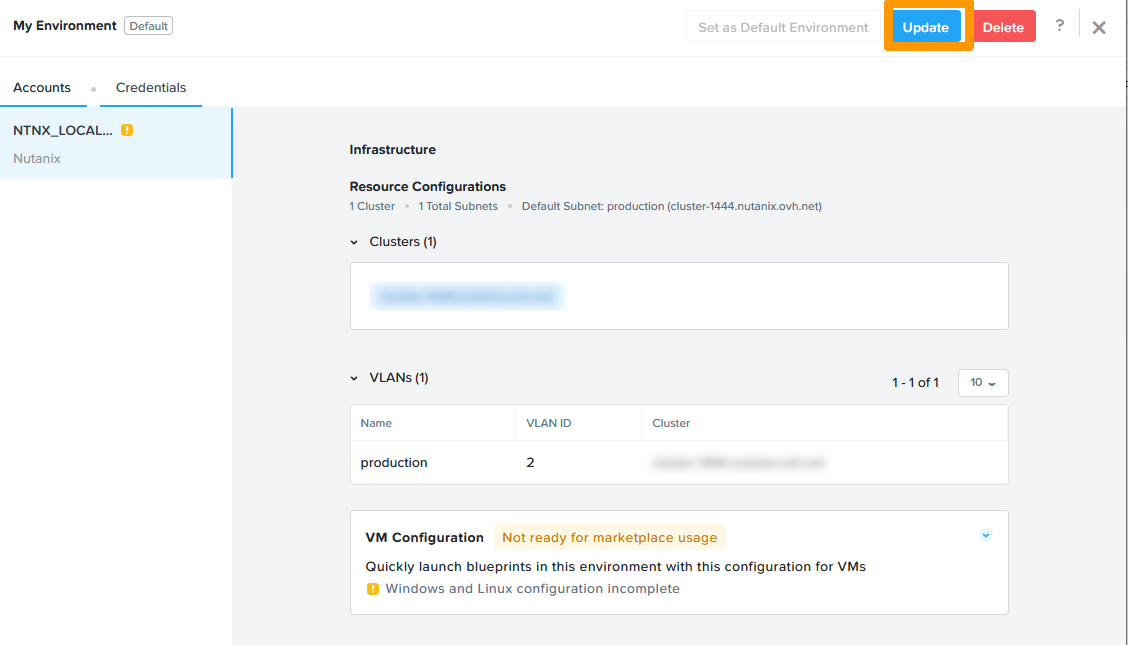
Click Update.

02 add credential to environment 02

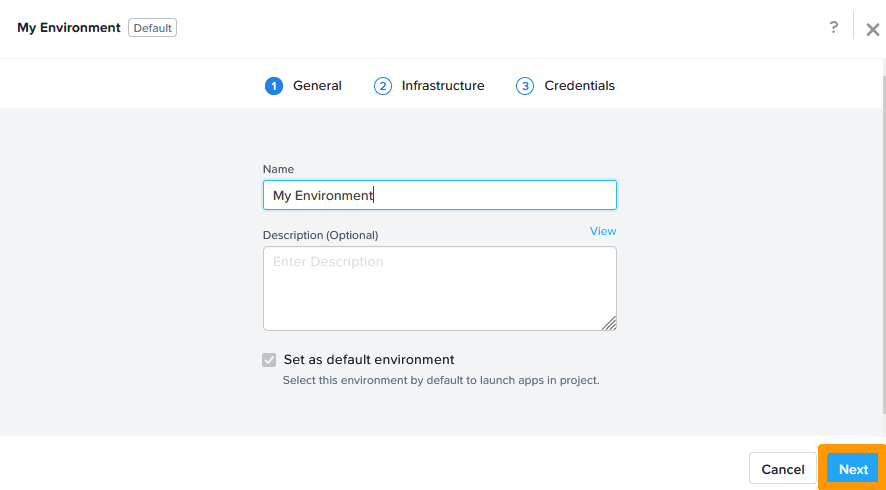
Click Next.

02 add credential to environment 03

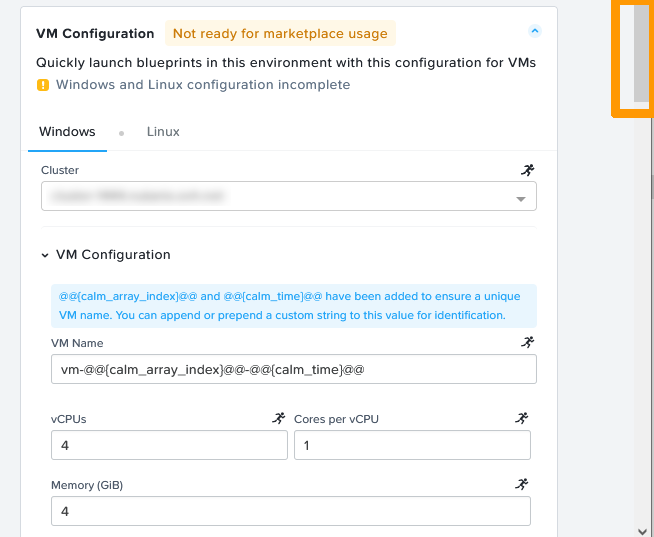
Click Not ready for marketplace usage to the right of VM Configuration.
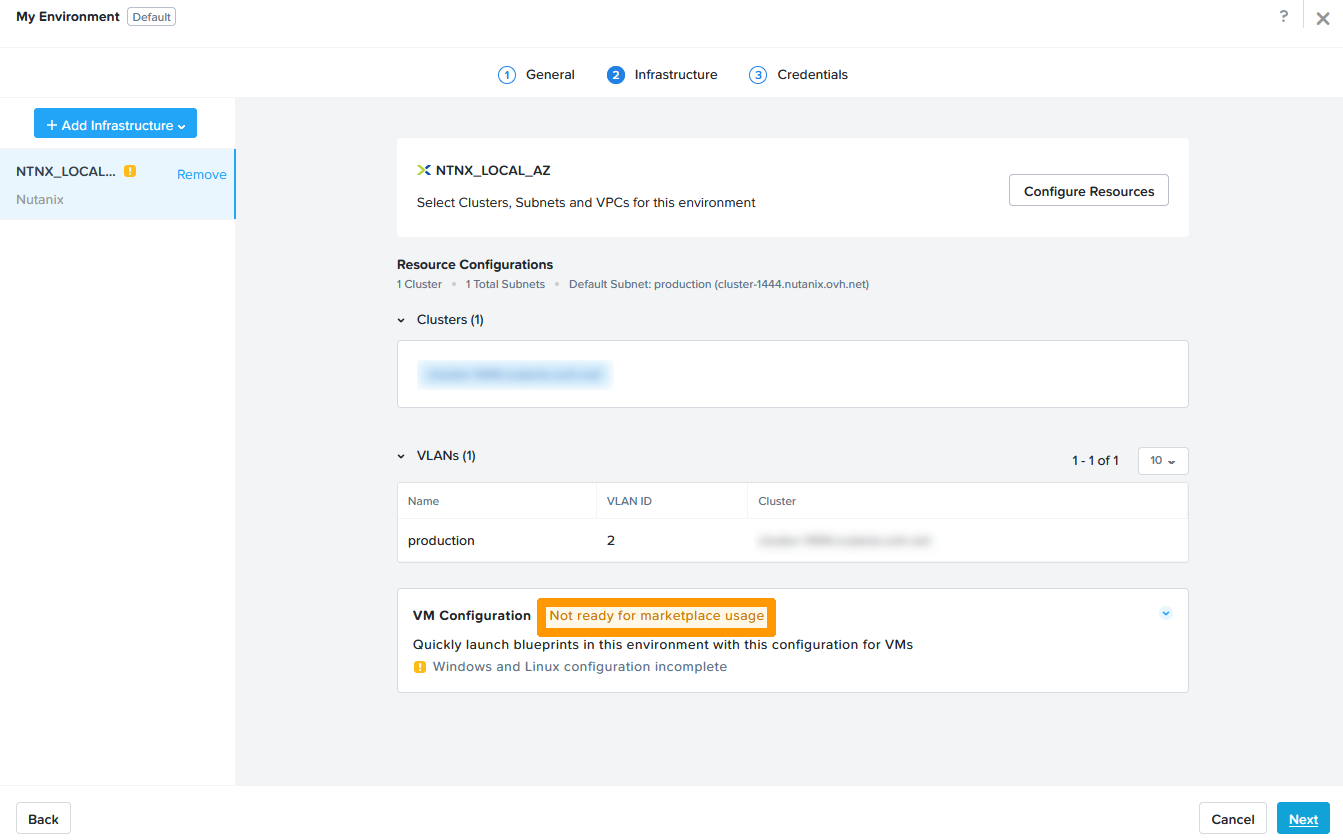
02 add credential to environment 04

Scroll down the window.

02 add credential to environment 05

Choose WindowsAccount from Credential and scroll up the window.
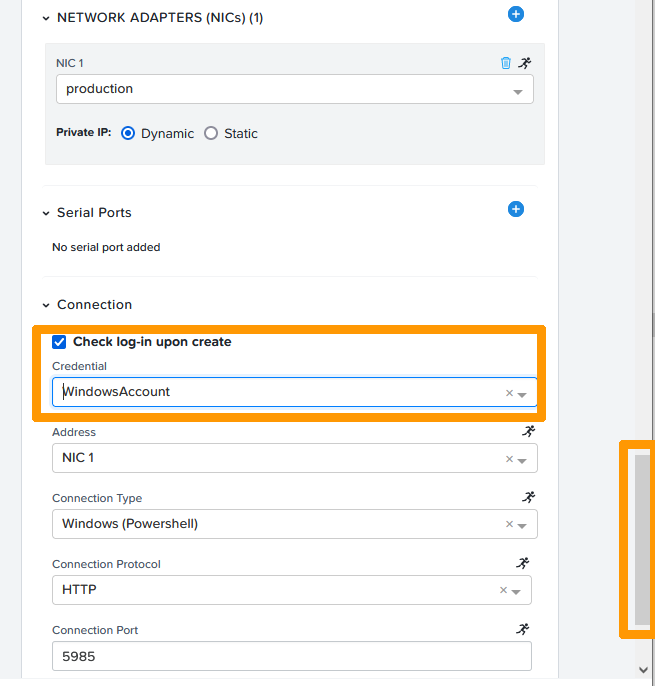
02 add credential to environment 06

Click the Linux tab in Credential and scroll down the window.
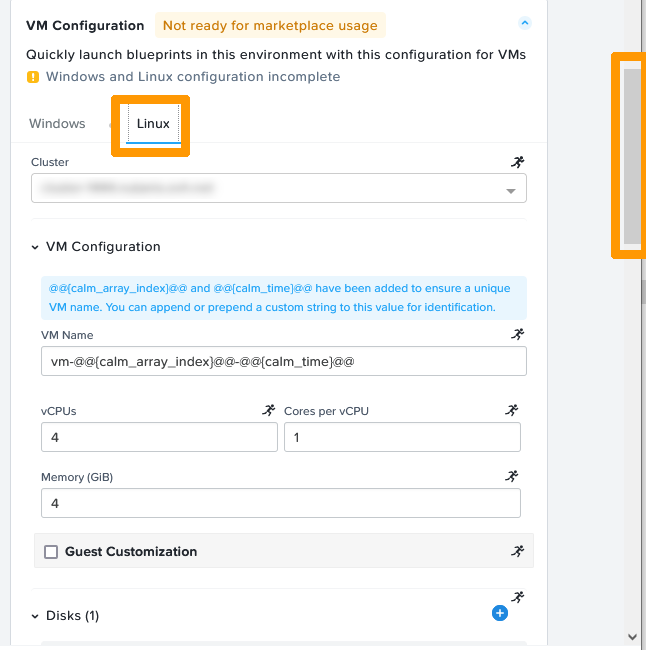
02 add credential to environment 07

Choose LinuxAccount from Credential and click Next.
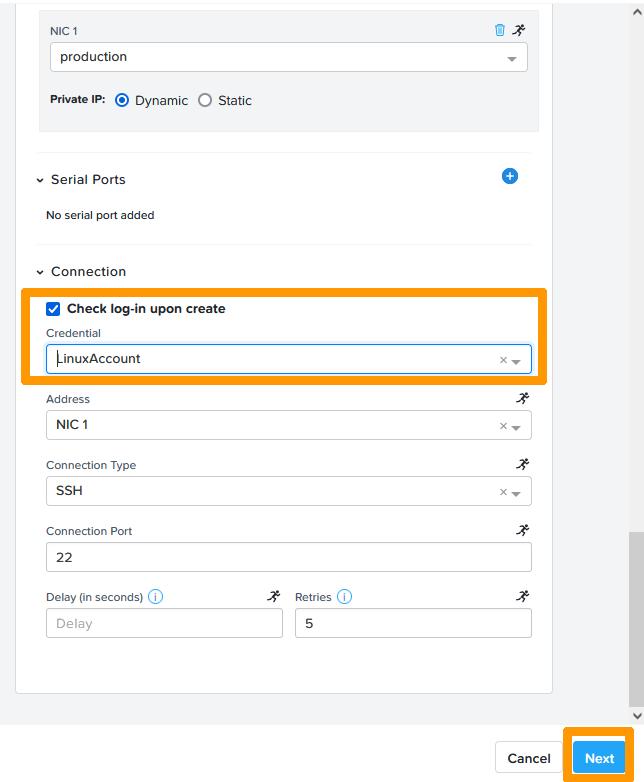
02 add credential to environment 08

Click Save Environment.

02 add credential to environment 09

Your environment is ready for application creation and distribution.
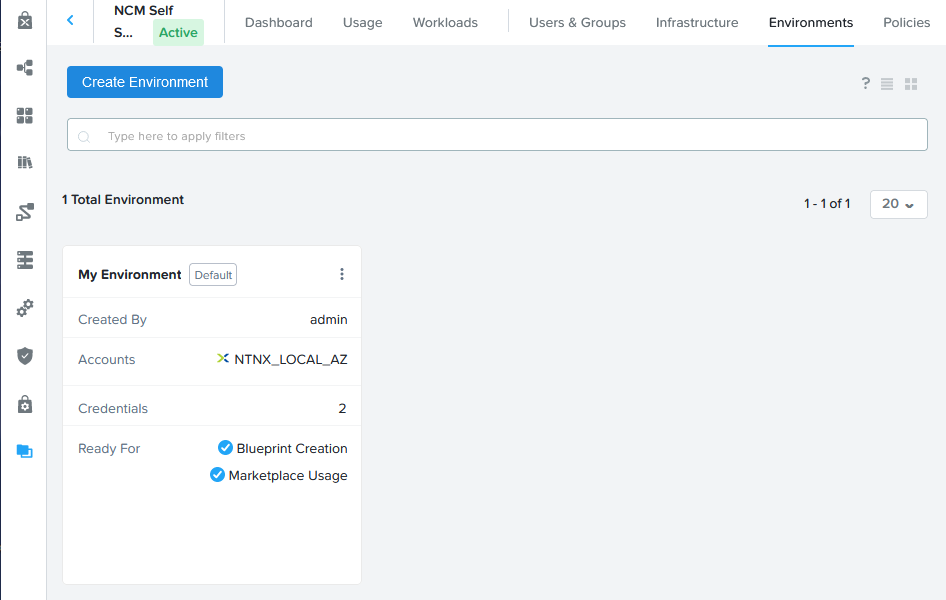
02 add credential to environment 10

Creating applications

We will create two applications, test how they work, and publish them to the cluster marketplace.

Creating IIS Web Application on Windows

In the vertical bar ,choose Blueprints, scroll to the Create Blueprint menu and click on Multi VM/Pod Blueprint.
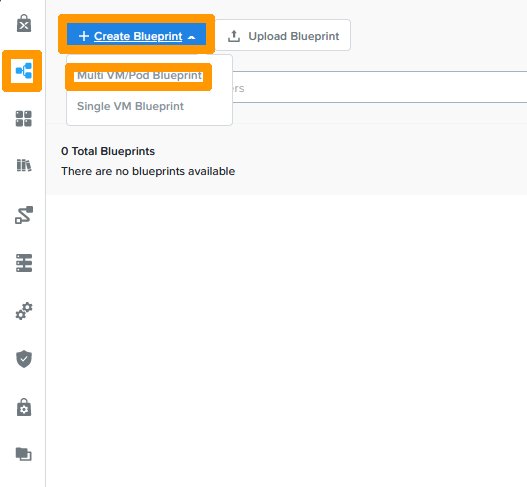
03 Create Windows Blueprint 01

Choose the name of your blueprint from Name and click on Proceed.
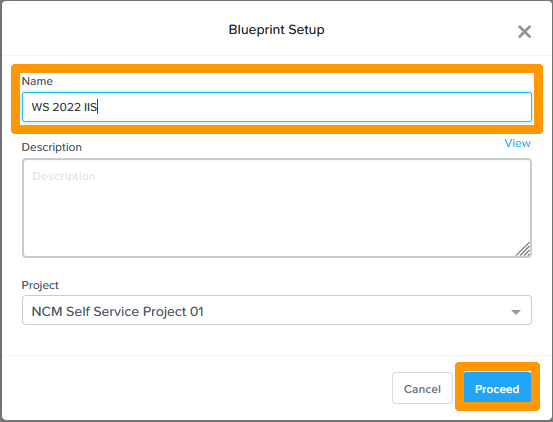
03 Create Windows Blueprint 02

Type the name in Application Profile Name and click on Credentials at the top.
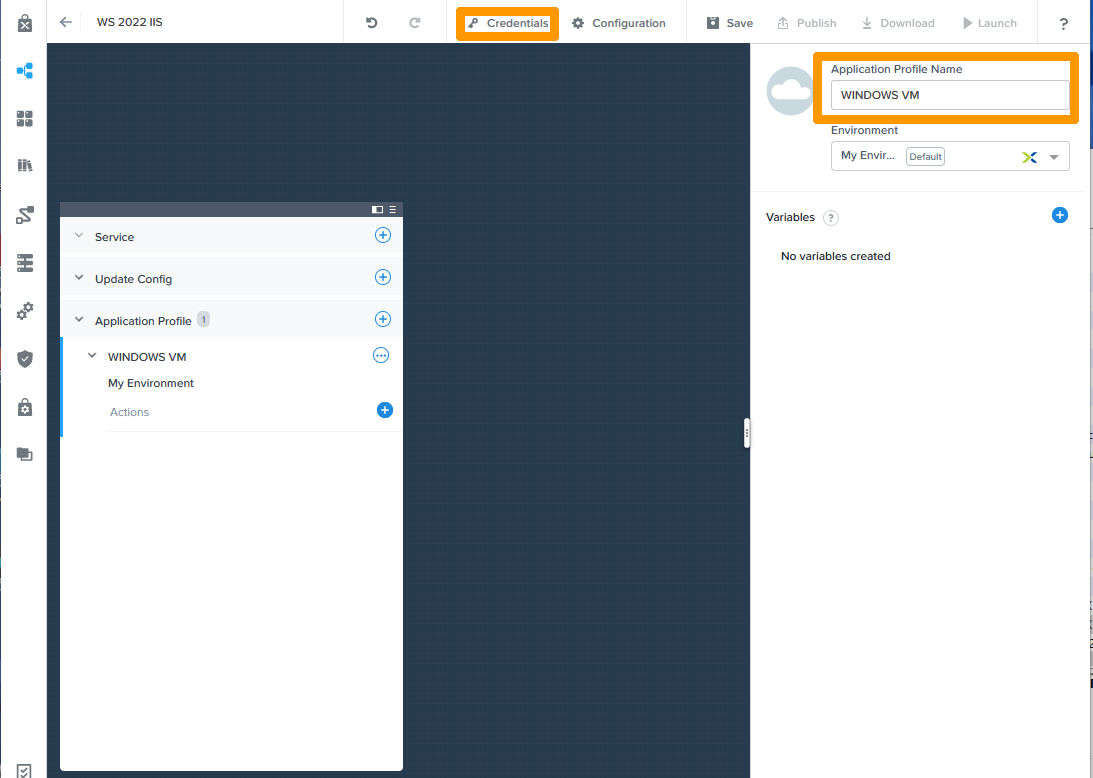
03 Create Windows Blueprint 03

We will create the Windows account, it will be used inside sysprep as variable, in the configuration of the blueprint installation tasks and for the remote connection test.

Click on the + button next to Credentials.
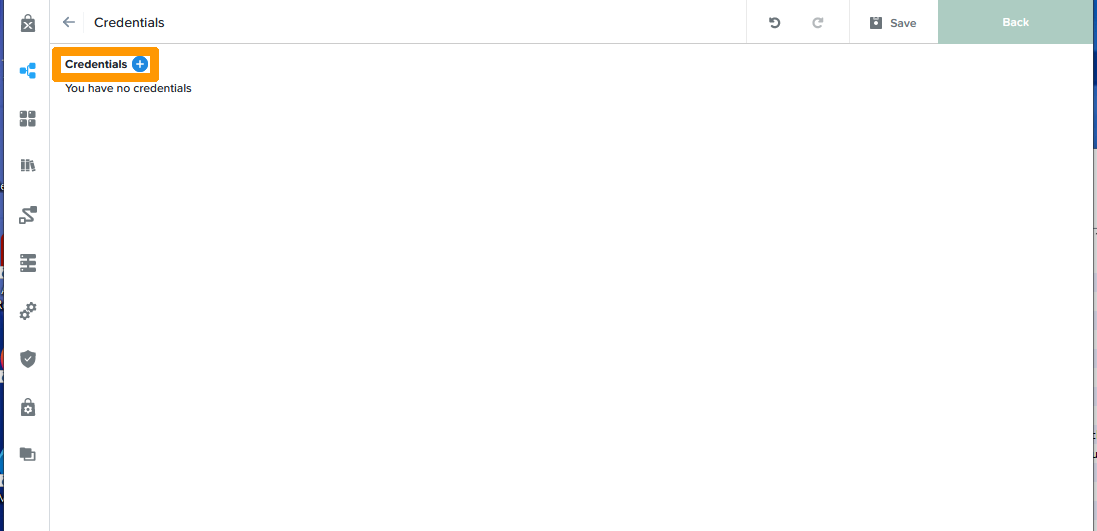
03 Create Windows Blueprint 04

Enter this information:

  • Name: WindowsAccount
  • Username: administrator
  • Password: Administrator account password

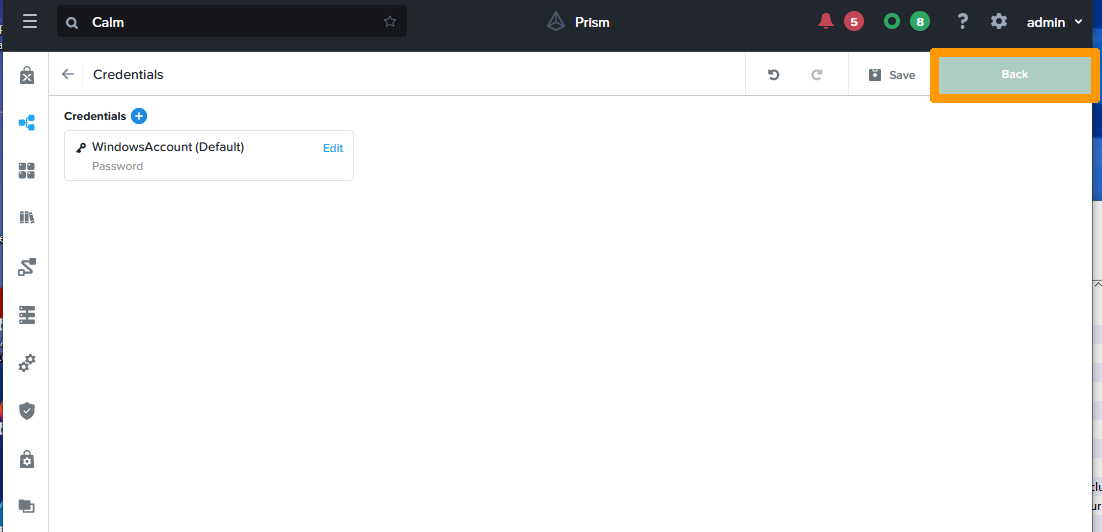
And click on Done.
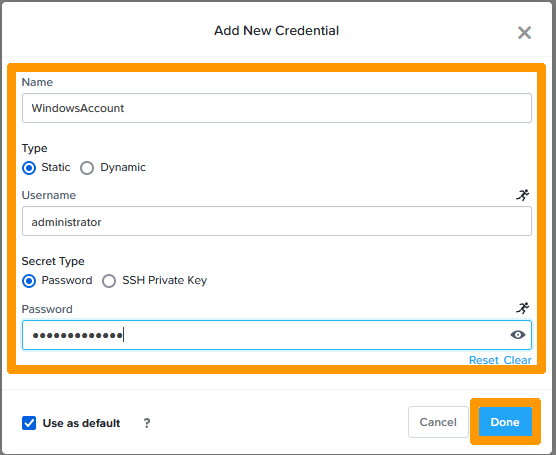
03 Create Windows Blueprint 05

Click Back.

03 Create Windows Blueprint 06

Click the + button in the left window next to Service.
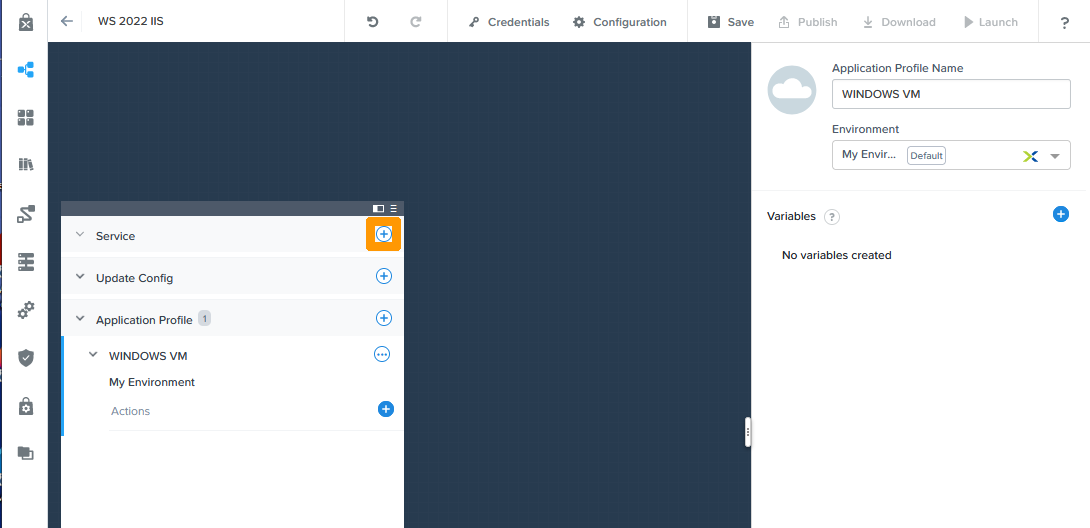
03 Create Windows Blueprint 07

Enter this information:

  • Name: VM IIS
  • Operation System: Windows

And click on Clone from environment.
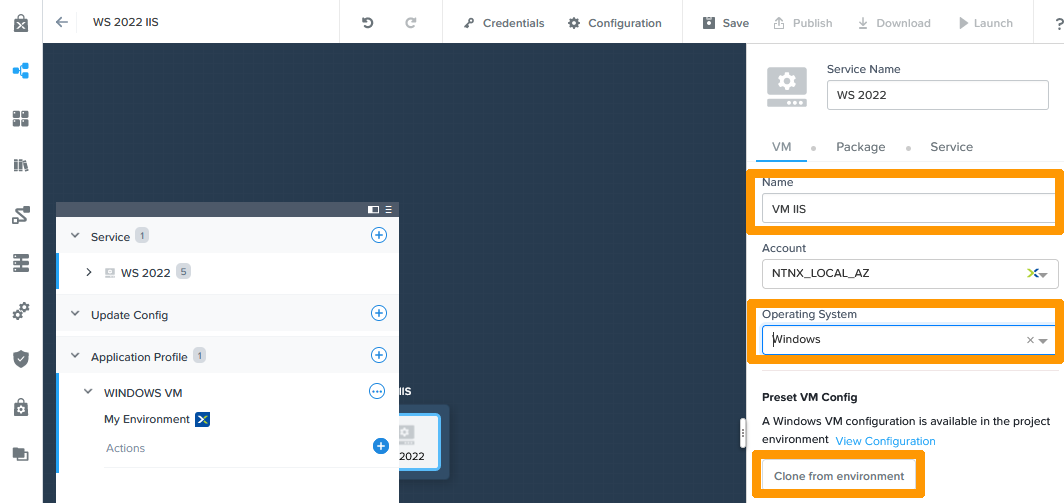
03 Create Windows Blueprint 08

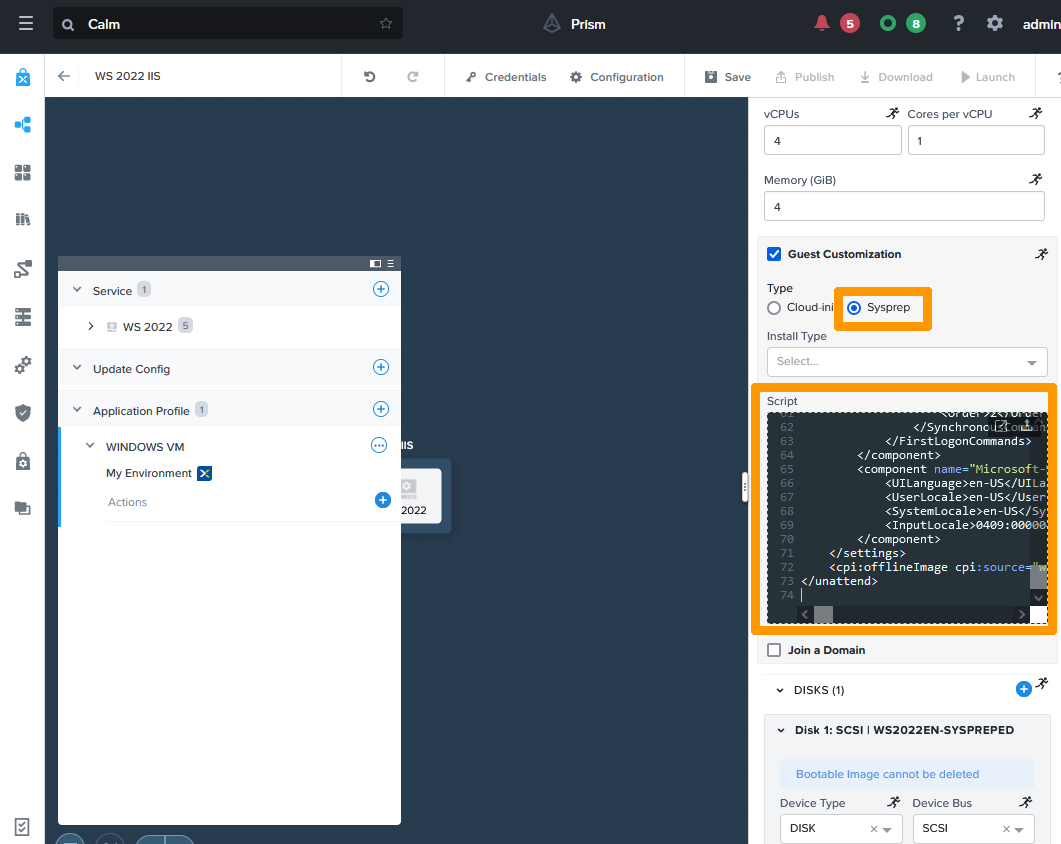
Scroll down the window on the right and check the Guest Customisation box. Next, click Sysprep and then copy the contents of the sysprep file below to Script:

This file is generated from the Windows ADK tools downloadable via this link and has been adapted by adding variables from Nutanix CALM such as '@@{WindowsAccount.secret}@@' that represents the password of the WindowsAccount.
<?xml version="1.0" encoding="utf-8"?>
<unattend xmlns="urn:schemas-microsoft-com:unattend">
    <settings pass="windowsPE">
        <component name="Microsoft-Windows-International-Core-WinPE" processorArchitecture="amd64" publicKeyToken="31bf3856ad364e35" language="neutral" versionScope="nonSxS" xmlns:wcm="http://schemas.microsoft.com/WMIConfig/2002/State" xmlns:xsi="http://www.w3.org/2001/XMLSchema-instance">
            <SetupUILanguage>
                <UILanguage>en-US</UILanguage>
                <WillShowUI>Never</WillShowUI>
            </SetupUILanguage>
            <InputLocale>0409:00000409</InputLocale>
            <SystemLocale>en-US</SystemLocale>
            <UILanguage>en-US</UILanguage>
            <UserLocale>en-US</UserLocale>
        </component>
        <component name="Microsoft-Windows-Setup" processorArchitecture="amd64" publicKeyToken="31bf3856ad364e35" language="neutral" versionScope="nonSxS" xmlns:wcm="http://schemas.microsoft.com/WMIConfig/2002/State" xmlns:xsi="http://www.w3.org/2001/XMLSchema-instance">
            <UserData>
                <AcceptEula>true</AcceptEula>
                <FullName>Nutanix Doc</FullName>
                <Organization>Nutanix Doc</Organization>
            </UserData>
            <EnableFirewall>true</EnableFirewall>
            <EnableNetwork>true</EnableNetwork>
        </component>
    </settings>
    <settings pass="specialize">
        <component name="Microsoft-Windows-Shell-Setup" processorArchitecture="amd64" publicKeyToken="31bf3856ad364e35" language="neutral" versionScope="nonSxS" xmlns:wcm="http://schemas.microsoft.com/WMIConfig/2002/State" xmlns:xsi="http://www.w3.org/2001/XMLSchema-instance">
            <TimeZone>Central Standard Time</TimeZone>
            <AutoLogon>
                <Password>
                    <Value>@@{WindowsAccount.secret}@@</Value>
                    <PlainText>true</PlainText>
                </Password>
                <Enabled>true</Enabled>
                <Username>administrator</Username>
                <LogonCount>1</LogonCount>
            </AutoLogon>
        </component>
    </settings>
    <settings pass="oobeSystem">
        <component name="Microsoft-Windows-Shell-Setup" processorArchitecture="amd64" publicKeyToken="31bf3856ad364e35" language="neutral" versionScope="nonSxS" xmlns:wcm="http://schemas.microsoft.com/WMIConfig/2002/State" xmlns:xsi="http://www.w3.org/2001/XMLSchema-instance">
            <UserAccounts>
                <AdministratorPassword>
                    <Value>@@{WindowsAccount.secret}@@</Value>
                    <PlainText>true</PlainText>
                </AdministratorPassword>
            </UserAccounts>
            <OOBE>
                <HideEULAPage>true</HideEULAPage>
                <HideOEMRegistrationScreen>true</HideOEMRegistrationScreen>
                <HideOnlineAccountScreens>true</HideOnlineAccountScreens>
                <HideWirelessSetupInOOBE>true</HideWirelessSetupInOOBE>
                <ProtectYourPC>1</ProtectYourPC>
                <HideLocalAccountScreen>true</HideLocalAccountScreen>
            </OOBE>
            <FirstLogonCommands>
                <SynchronousCommand wcm:action="add">
                    <CommandLine>powershell Set-NetConnectionProfile -NetworkCategory Private</CommandLine>
                    <Order>1</Order>
                </SynchronousCommand>
                <SynchronousCommand wcm:action="add">
                    <CommandLine>powershell Set-WSManQuickConfig -Force</CommandLine>
                    <Order>2</Order>
                </SynchronousCommand>
            </FirstLogonCommands>
        </component>
        <component name="Microsoft-Windows-International-Core" processorArchitecture="wow64" publicKeyToken="31bf3856ad364e35" language="neutral" versionScope="nonSxS" xmlns:wcm="http://schemas.microsoft.com/WMIConfig/2002/State" xmlns:xsi="http://www.w3.org/2001/XMLSchema-instance">
            <UILanguage>en-US</UILanguage>
            <UserLocale>en-US</UserLocale>
            <SystemLocale>en-US</SystemLocale>
            <InputLocale>0409:00000409</InputLocale>
        </component>
    </settings>
    <cpi:offlineImage cpi:source="wim:c:/w2022/sources/install.wim#Windows Server 2022 SERVERSTANDARD" xmlns:cpi="urn:schemas-microsoft-com:cpi" />
</unattend>

03 Create Windows Blueprint 09

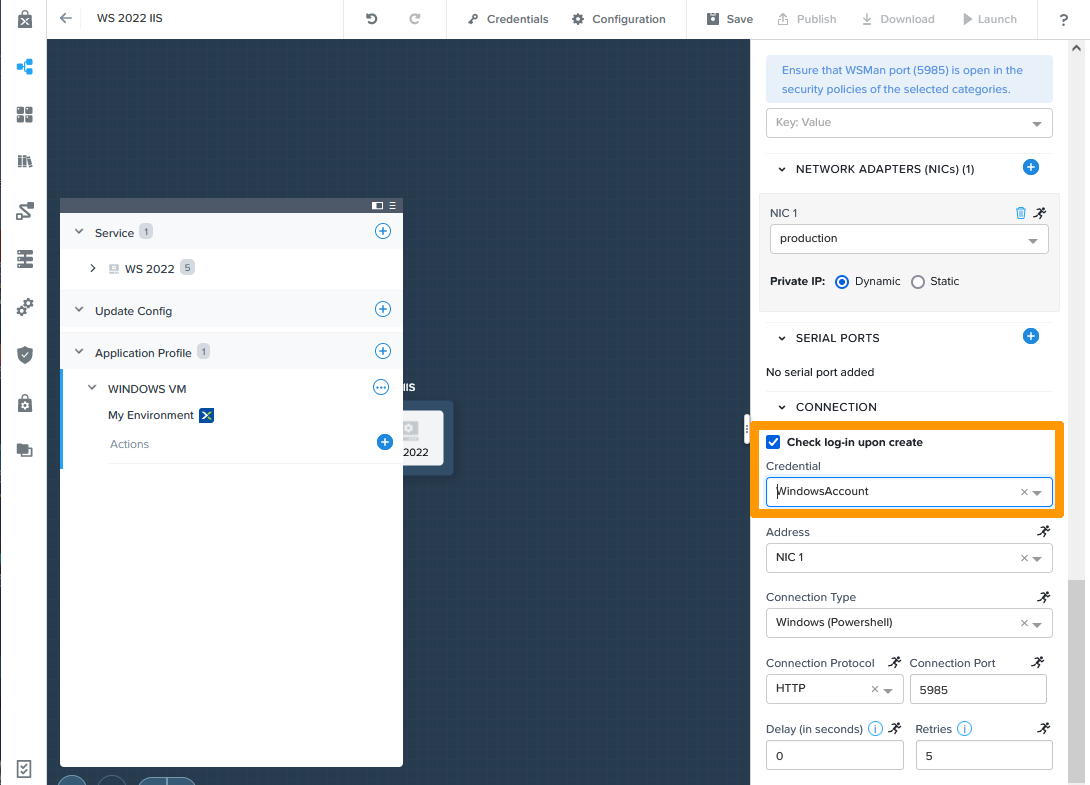
Continue to scroll through the window and check that Check log-in upon create is checked and choose WindowsAccount from Credential.
03 Create Windows Blueprint 10

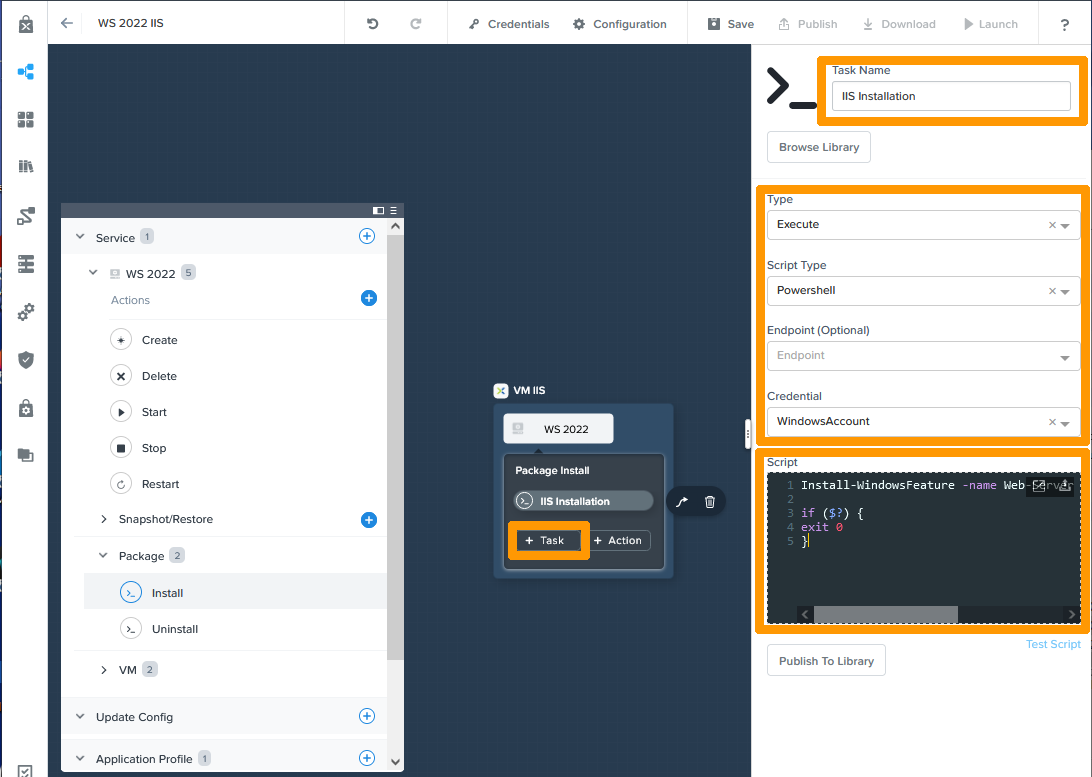
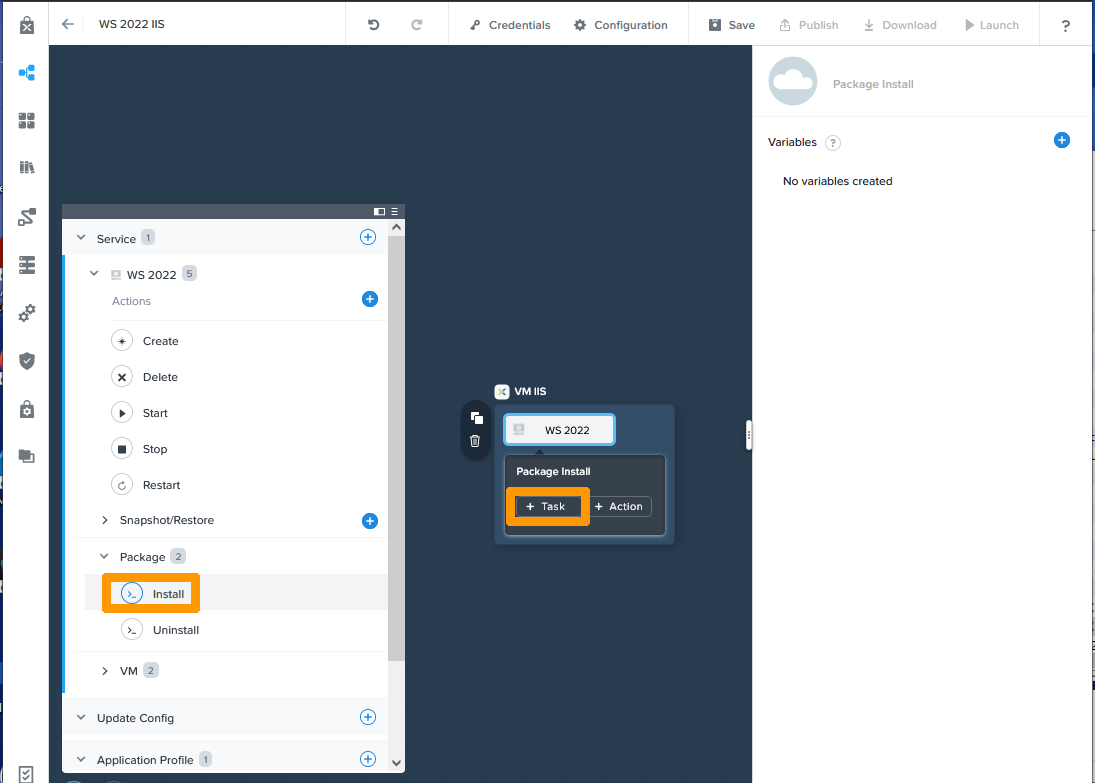
We will now create tasks in Powershell that will run after Windows installation and customisation. Each of these tasks runs in sequence.

In the left-hand window, go to Install below the Package category and click on + Task.
03 Create Windows Blueprint 11

Enter this information:

  • Task Name: IIS Installation
  • Type: Execute
  • Script Type: Powershell
  • Credential: WindowsAccount

Copy this content to Script:

Install-WindowsFeature -name Web-Server -IncludeManagementTools

if ($?) {
exit 0
}

Click + Task.

03 Create Windows Blueprint 12

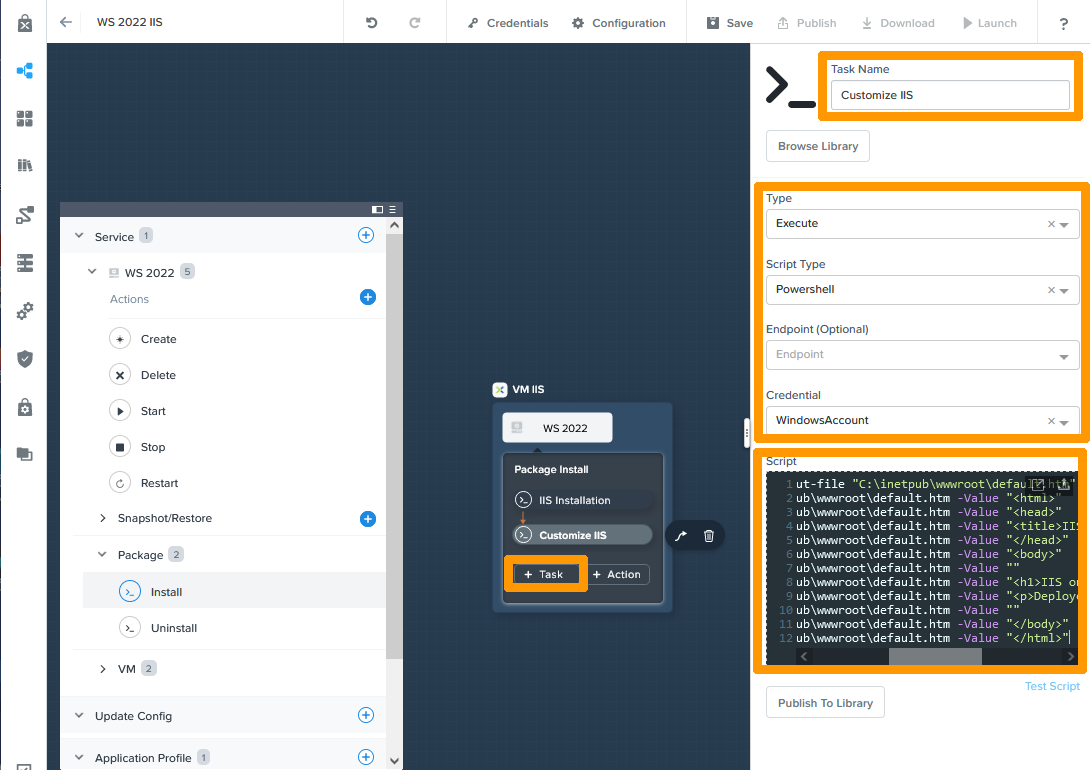
Fill in this information:

Task Name: Customize IIS Type: Execute Script Type: Powershell Credential: WindowsAccount

Copy this content to Script:

echo "<!DOCTYPE html>" | out-file "C:\inetpub\wwwroot\default.htm"
Add-Content -Path C:\inetpub\wwwroot\default.htm -Value "<html>"
Add-Content -Path C:\inetpub\wwwroot\default.htm -Value "<head>"
Add-Content -Path C:\inetpub\wwwroot\default.htm -Value "<title>IIS on Windows AHV VM</title>"
Add-Content -Path C:\inetpub\wwwroot\default.htm -Value "</head>"
Add-Content -Path C:\inetpub\wwwroot\default.htm -Value "<body>"
Add-Content -Path C:\inetpub\wwwroot\default.htm -Value ""
Add-Content -Path C:\inetpub\wwwroot\default.htm -Value "<h1>IIS on Windows AHV VM</h1>"
Add-Content -Path C:\inetpub\wwwroot\default.htm -Value "<p>Deployed with CALM</p>"
Add-Content -Path C:\inetpub\wwwroot\default.htm -Value ""
Add-Content -Path C:\inetpub\wwwroot\default.htm -Value "</body>"
Add-Content -Path C:\inetpub\wwwroot\default.htm -Value "</html>"

Then click + Task.

03 Create Windows Blueprint 13

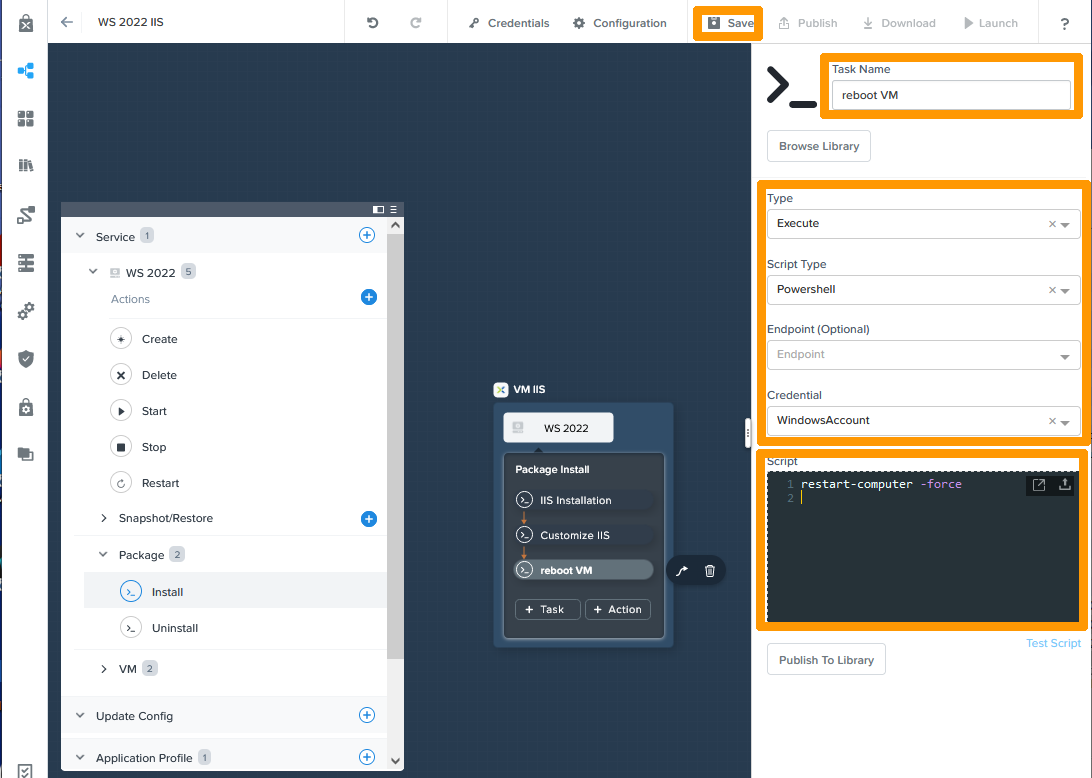
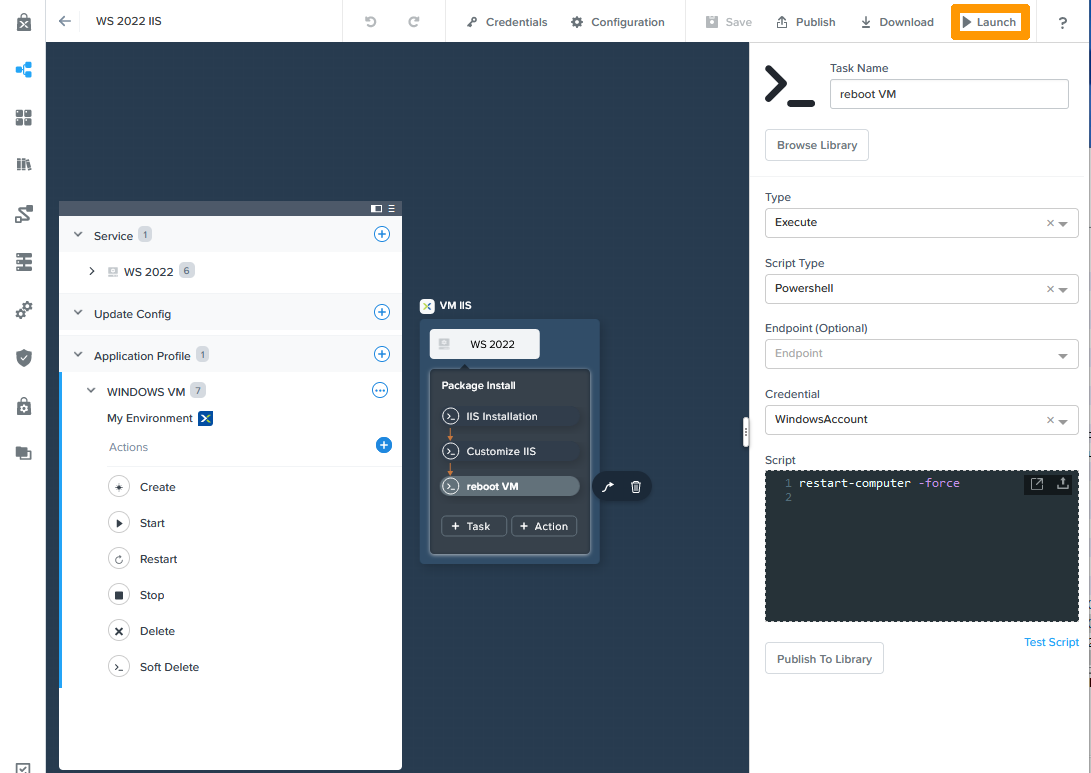
Enter this information:

Task Name: reboot VM Type: Execute Script Type: Powershell Credential: WindowsAccount

Copy this content to Script:

restart-computer -force

Click Save at the top of the window.

03 Create Windows Blueprint 14

The application is created, click Launch to test your application.
03 Create Windows Blueprint 15

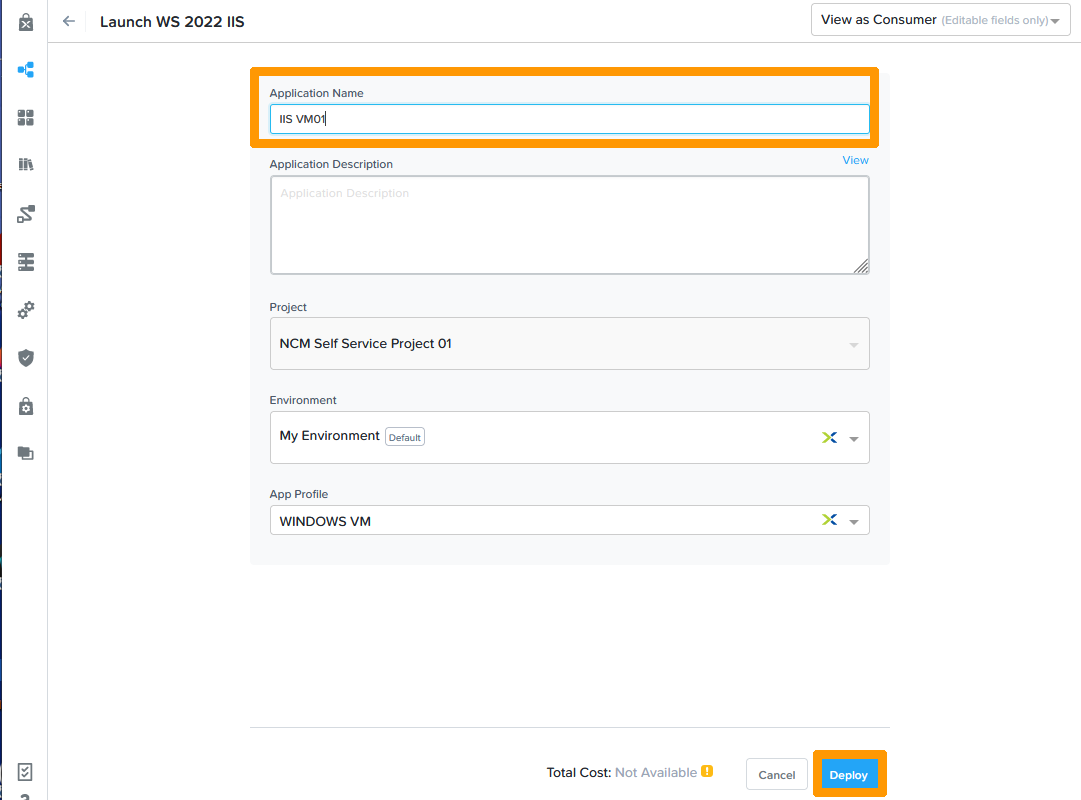
Type a Name in Application Name and click Deploy.
03 Create Windows Blueprint 16

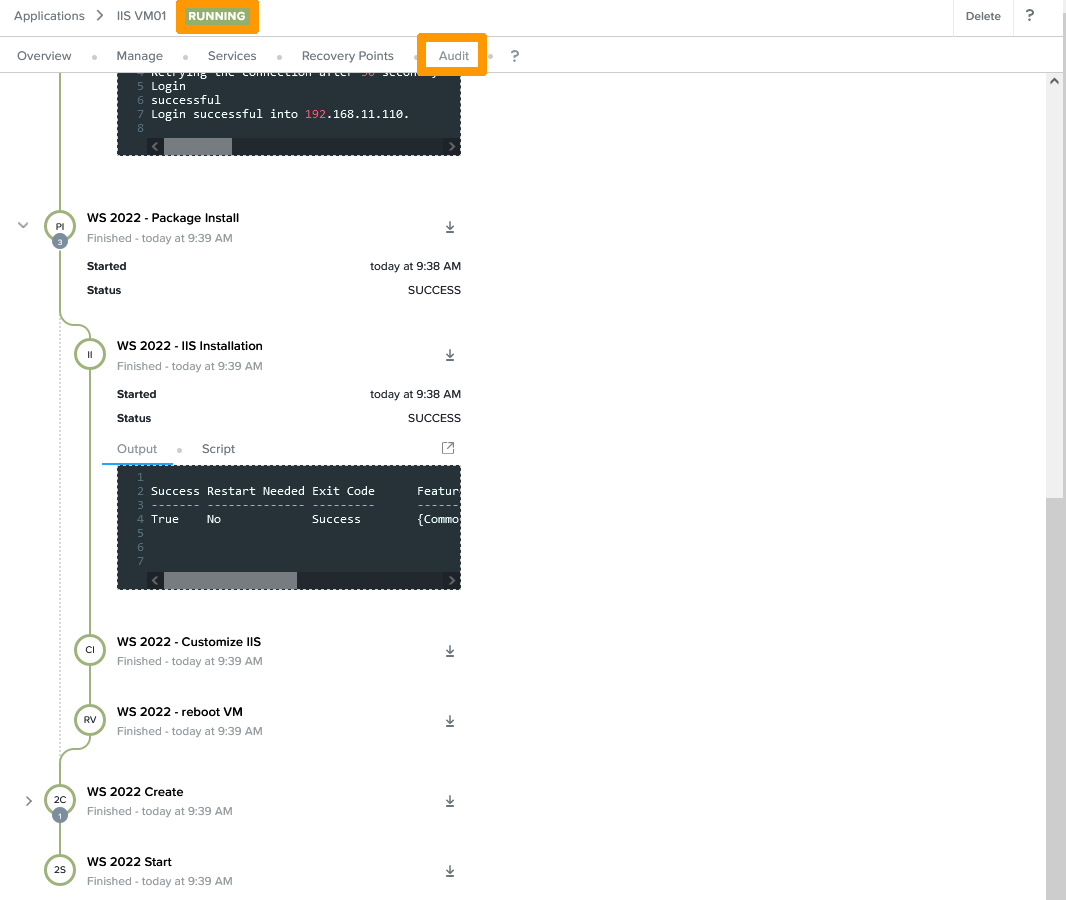
A new window will appear, click on Audit to see the steps for deploying your application. When the deployment is complete you can see at the top of the window the RUNNING indication that the application is deployed and active.
03 Create Windows Blueprint 17

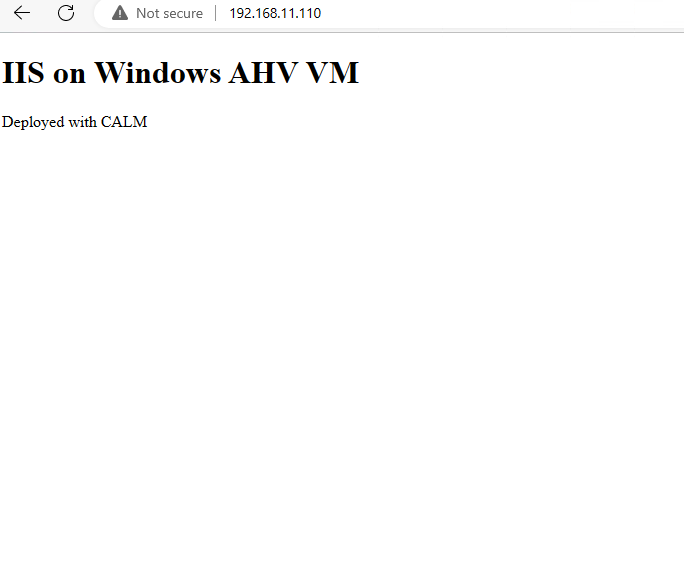
In our case, the IIS server is active and displays a message on the IP address of the virtual machine in HTTP.
03 Create Windows Blueprint 18

Creating the Nginx web application on Linux Ubuntu

We will create another application under Linux Ubuntu with Nginx installed as a WEB server.

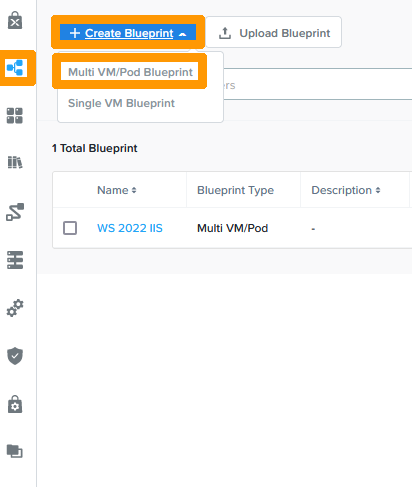
Go to the Blueprints icon in the CALM vertical menu bar, click on Multi VM/Pod Blueprint from the Create Blueprint menu.
04 create Linux blueprint 01

Type the Name in Name and click Proceed.
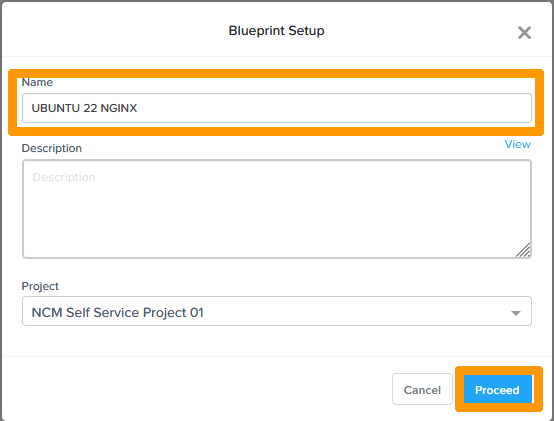
04 create Linux blueprint 02

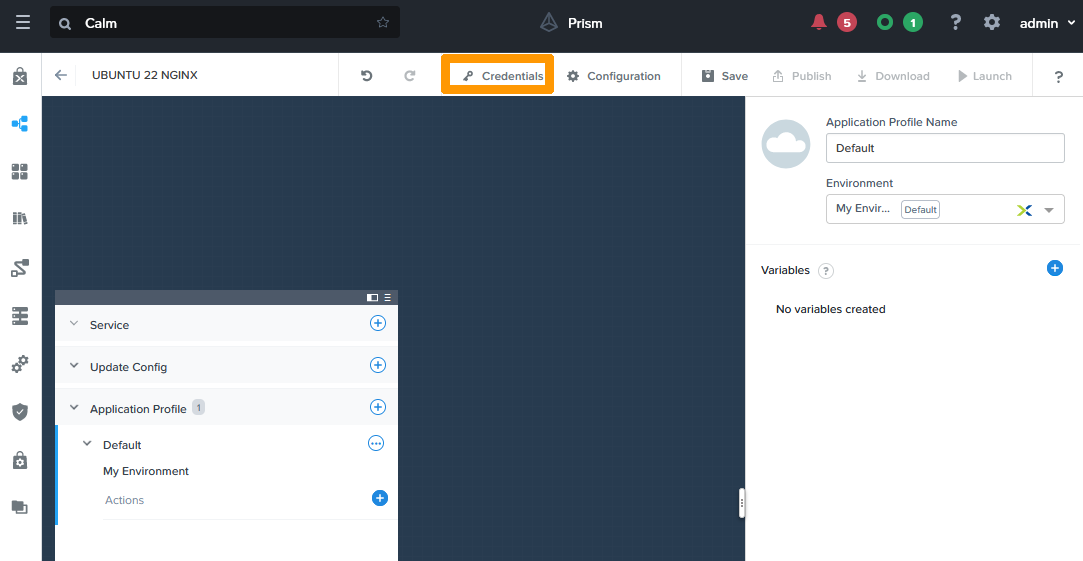
Click Credentials.

04 create Linux blueprint 03

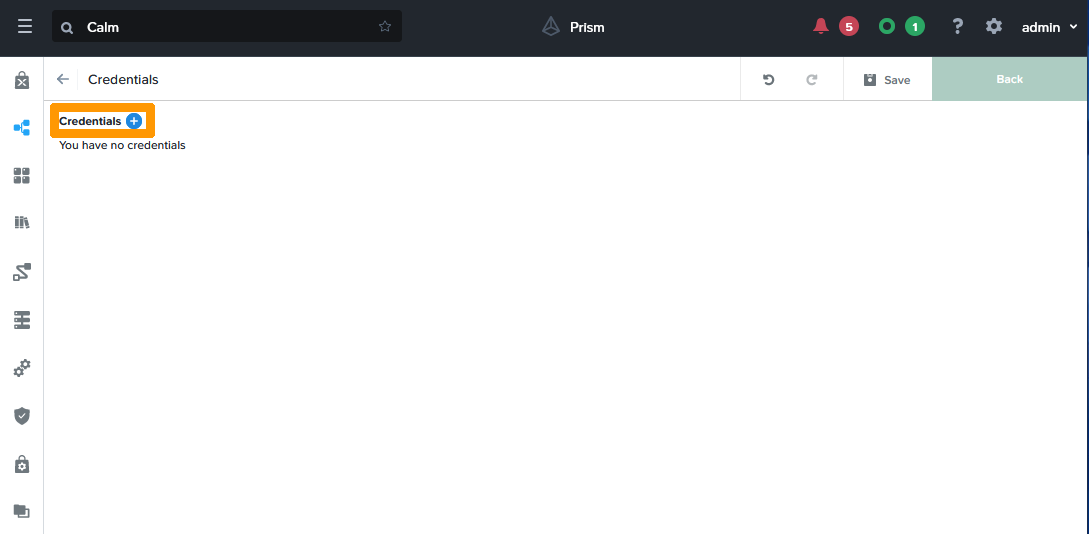
Click Credentials +.

04 create Linux blueprint 04

Enter this information for the Linux administration account:

  • Name: LinuxAccount
  • Username: administrator
  • Password: Administrator account password

Then click Done.
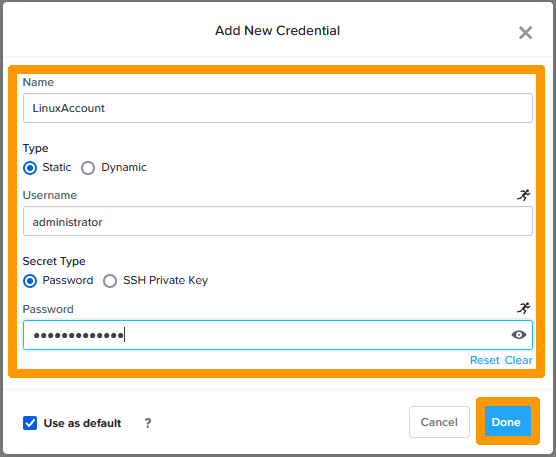
04 create Linux blueprint 05

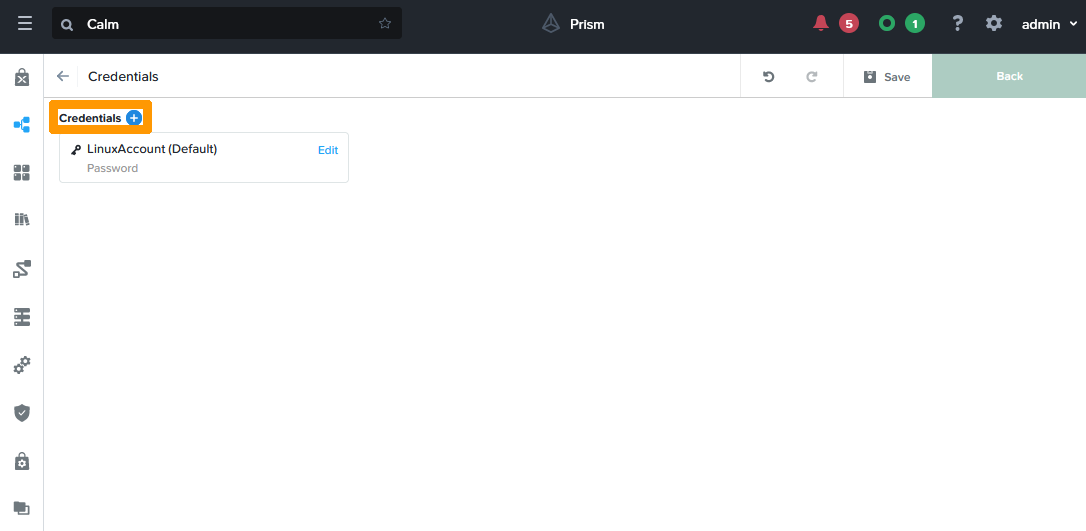
Click on Credentials +.

04 create Linux blueprint 06

Enter this information about the Prism Central administration account:

  • Name: PC_ADMIN
  • Username: admin
  • Password: Prism Central Password

This password is used if you use EScript (Python Scripts) in your deployment tasks, it will be used when using the Prism Central API. In this example, you will find an EScript that will resize the Ubuntu NGINX virtual machine storage.

Then click Done.
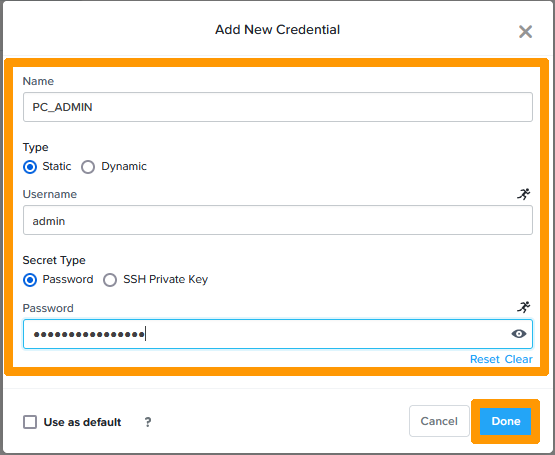
04 create Linux blueprint 07

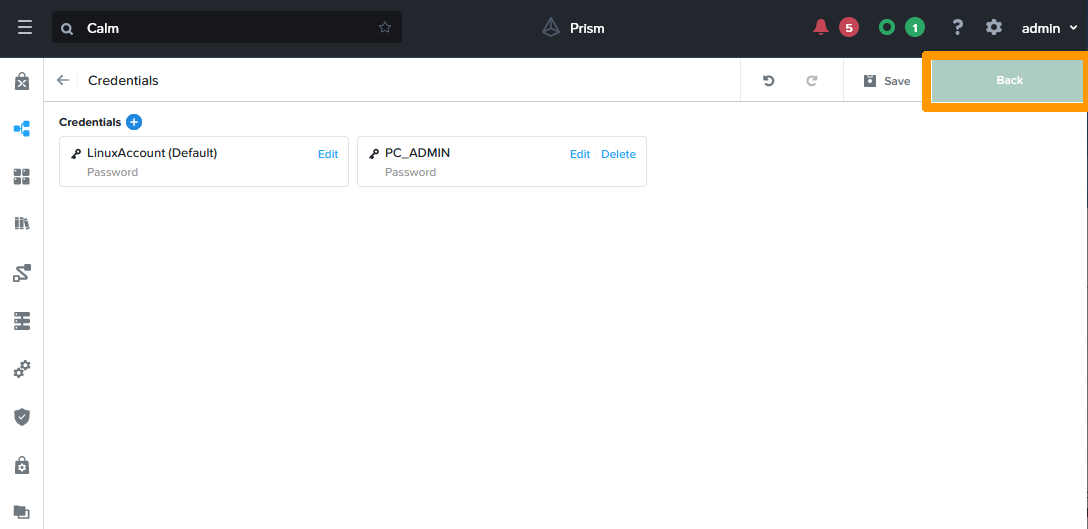
Click Back.

04 create Linux blueprint 08

Type Linux Application in Application Profile Name and click + in the left-to-right window of Service.
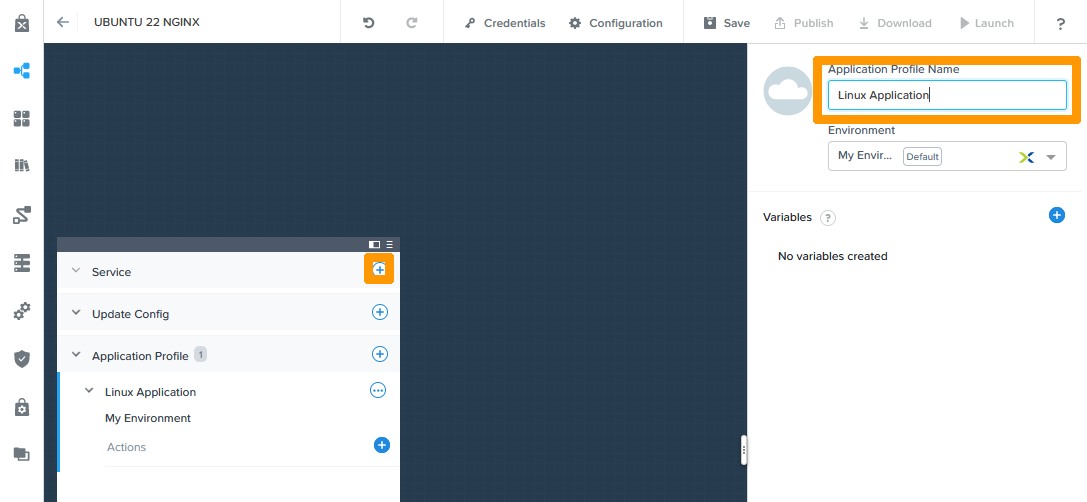
04 create Linux blueprint 09

Enter this information:

  • Service Name: Ubuntu
  • VM Name: Ubuntu NGINX

Then click on Clone from environment and scroll down the window on the right.
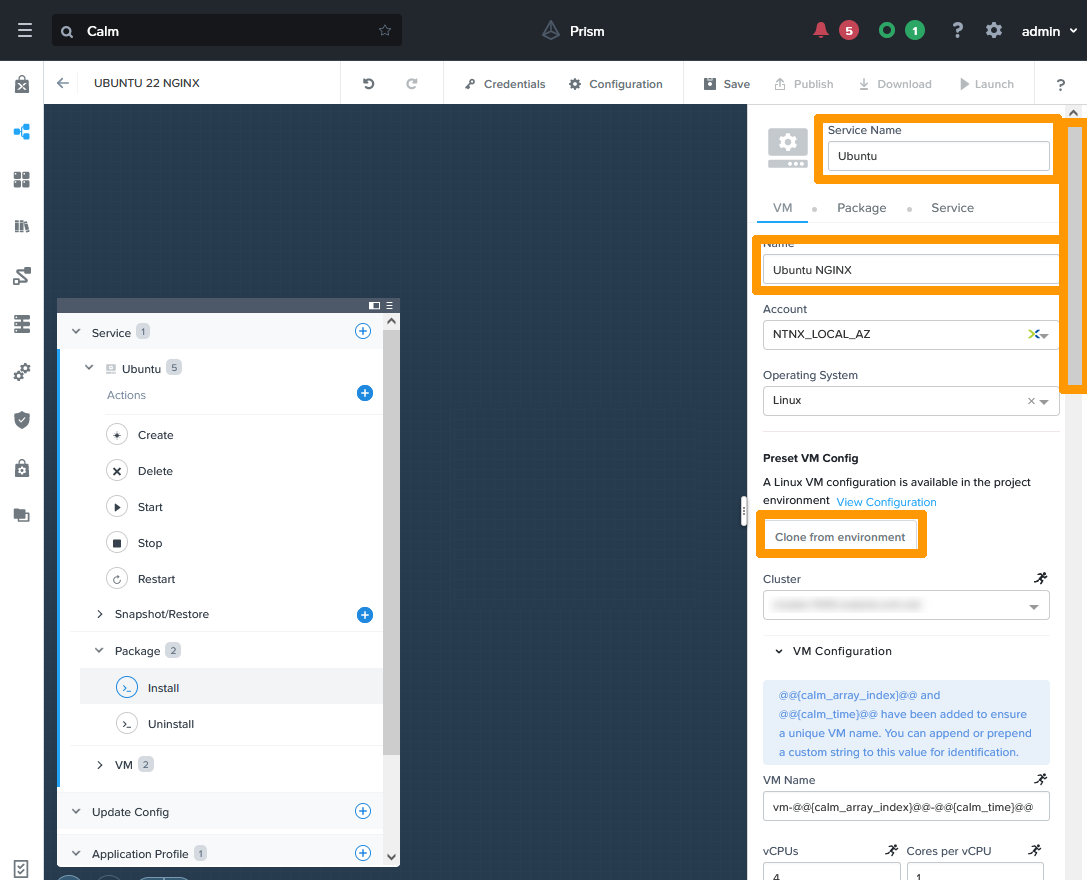
04 create Linux blueprint 10

Check Guest Customization and copy the content below in script.

#cloud-config
users:
- name: @@{LinuxAccount.username}@@
  groups: sudo
  sudo: ALL=(ALL) NOPASSWD:ALL
  shell: /bin/bash
  lock-passwd: false
chpasswd:
 list: |
   @@{LinuxAccount.username}@@:@@{LinuxAccount.secret}@@
 expire: False
ssh_pwauth: true

This file is the Linux initialisation file with cloud-init images, it uses the information from the LinuxAccount account that comes from CALM through macro-instructions that have this form: @@{LinuxAccount.username}@@ for the user account and @@{LinuxAccount.secret}@@ for the password.

Scroll down the window on the right.
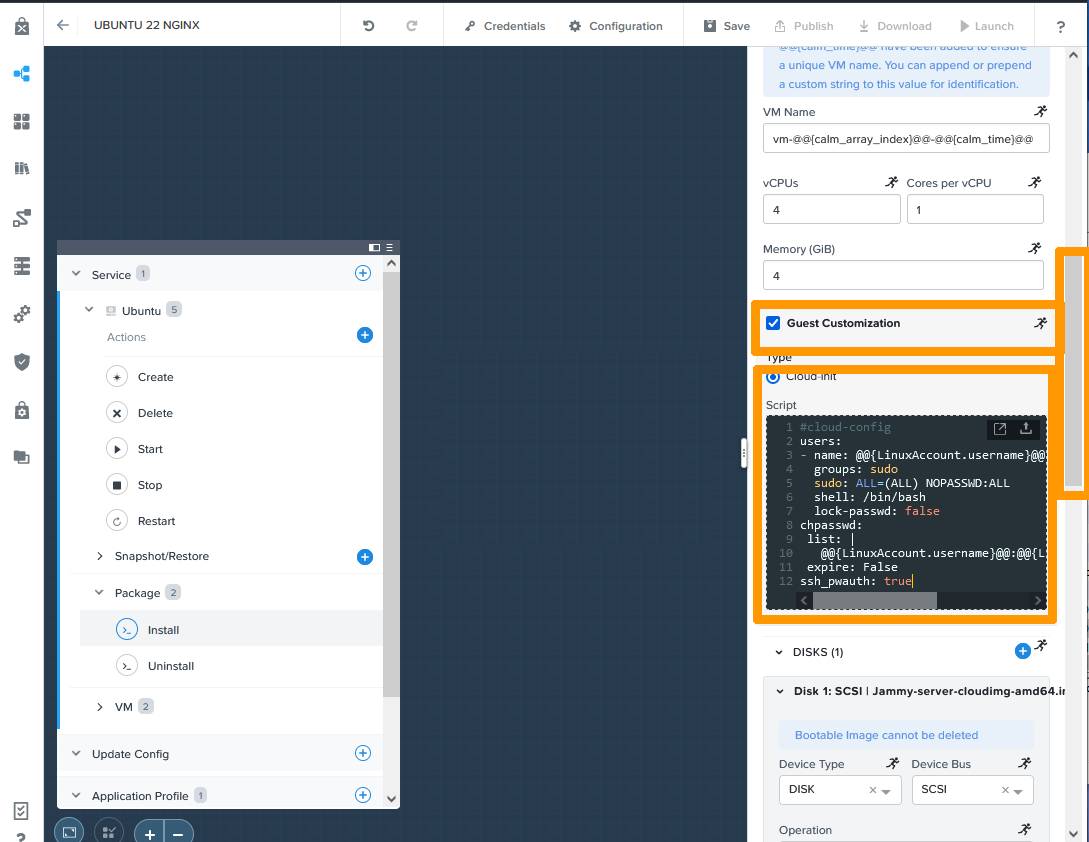
04 create Linux blueprint 11

Choose LinuxAccount from Check log-in upon create.
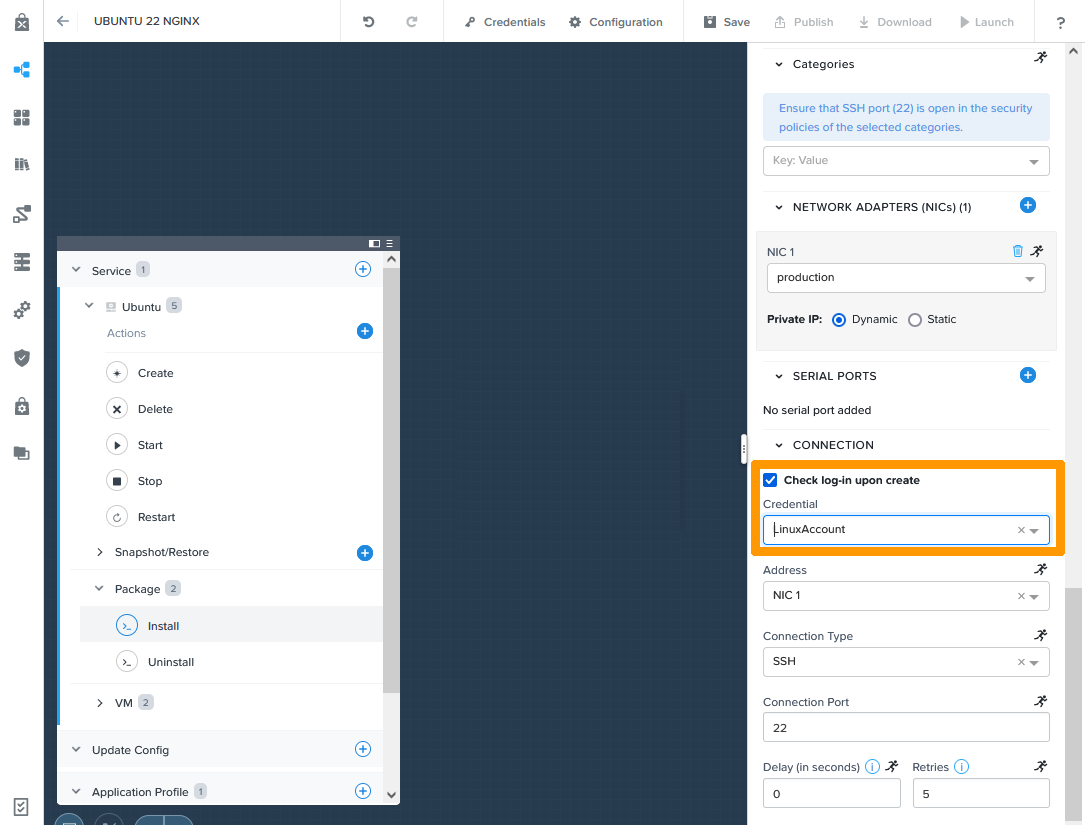
04 create Linux blueprint 12

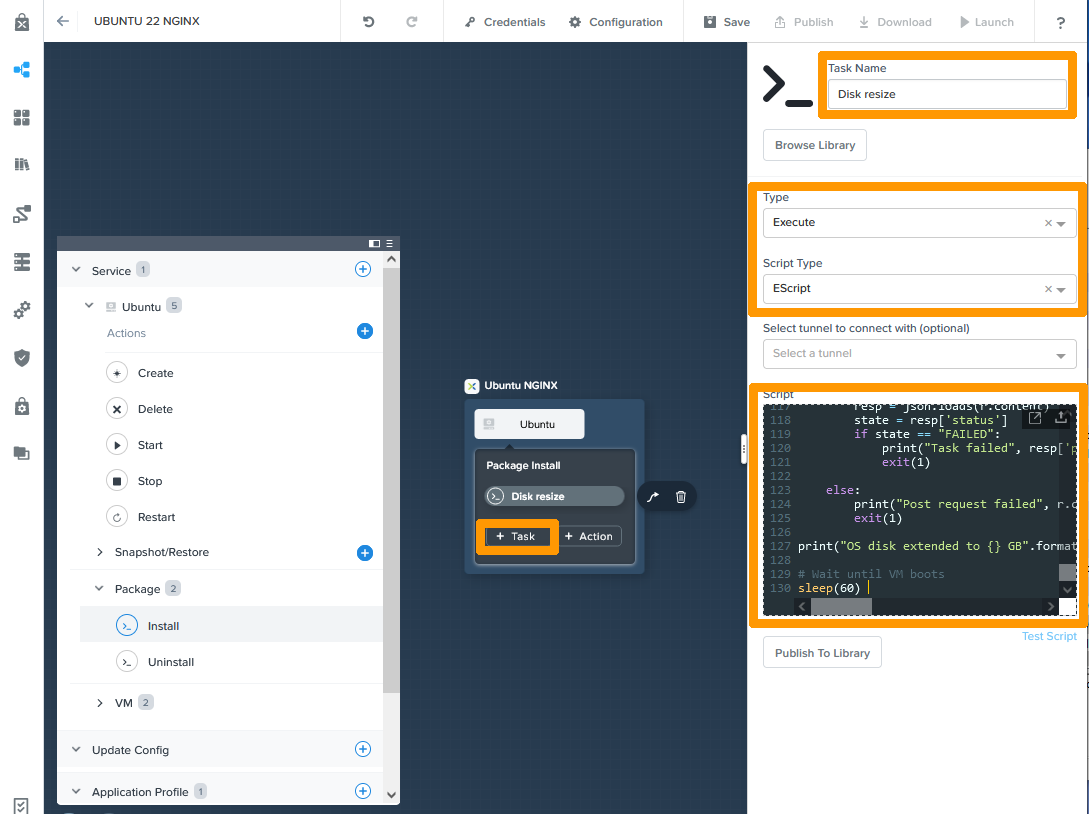
In the left window, go to Install below Package and click on + Task.
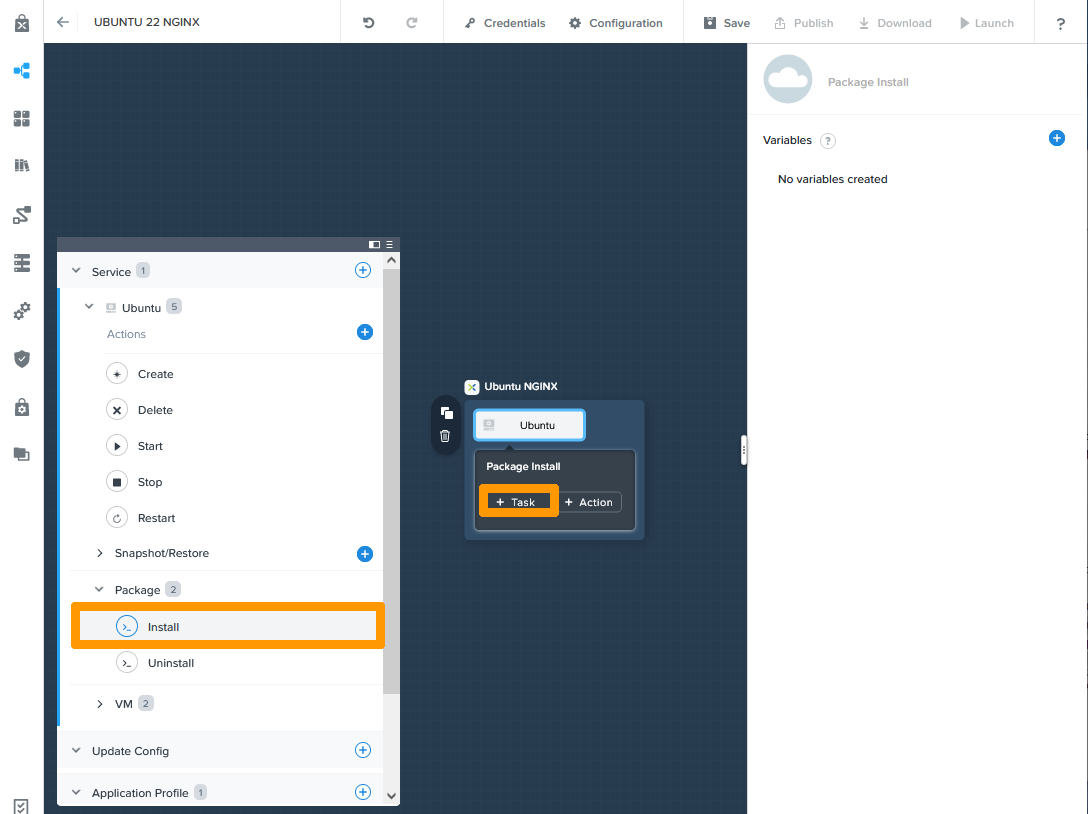
04 create Linux blueprint 13

Enter the information for your virtual machine's disk resize task.

  • Task Name: Disk resize
  • Type: Execute
  • Script Type: EScript

Then copy the content of this script:

This script uses the passwords that come from CALM through variables that have this form: @@{PC_ADMIN.username}@@ for the user account and @@{PC_ADMIN.secret}@@ for the password.

vmUuid = '@@{id}@@'
diskSize = 50 # GB
pcAddress = '127.0.0.1'
pcUsername = '@@{PC_ADMIN.username}@@'
pcPassword = '@@{PC_ADMIN.secret}@@'

# ============== DO NO CHANGE AFTER THIS ===============

usrPass = '{}:{}'.format(pcUsername,pcPassword)
b64Pass = base64.b64encode(usrPass)

# Get VM
api_url = 'https://{}:9440/api/nutanix/v3/vms/{}'.format(pcAddress,vmUuid)
headers = {'Content-Type': 'application/json', 'Accept': 'application/json', 'Authorization': 'Basic {}'.format(b64Pass)}

r = urlreq(api_url, verb='GET', headers=headers, verify=False)
if r.ok:
    resp = json.loads(r.content)

else:
    print("Post request failed", r.content)
    exit(1)

# Power off VM and extend disk
del resp['status']

disk_size_mib = diskSize * 1024
disk_size_bytes = disk_size_mib * 1024**2

resp['spec']['resources']['disk_list'][0]['disk_size_mib'] = disk_size_mib
resp['spec']['resources']['disk_list'][0]['disk_size_bytes'] = disk_size_bytes
resp['spec']['resources']['power_state'] = 'OFF'

payload = resp

r = urlreq(api_url, verb='PUT', params=json.dumps(payload), headers=headers, verify=False)
if r.ok:
    resp = json.loads(r.content)
    taskUuid = resp['status']['execution_context']['task_uuid']

else:
    print("Post request failed", r.content)
    exit(1)

# Monitor task
state = ""
while state != "SUCCEEDED":
    api_url = 'https://{}:9440/api/nutanix/v3/tasks/{}'.format(pcAddress,taskUuid)

    sleep(2)
    r = urlreq(api_url, verb='GET', headers=headers, verify=False)
    if r.ok:
        resp = json.loads(r.content)
        state = resp['status']
        if state == "FAILED":
            print("Task failed", resp['progress_message'])
            exit(1)

    else:
        print("Post request failed", r.content)
        exit(1)

# Wait for VM to power off
api_url = 'https://{}:9440/api/nutanix/v3/vms/{}'.format(pcAddress,vmUuid)
r = urlreq(api_url, verb='GET', headers=headers, verify=False)
if r.ok:
    resp = json.loads(r.content)
    power_state = resp['status']['resources']['power_state']

else:
    print("Post request failed", r.content)
    exit(1)

state = ""
while state != "OFF":
    api_url = 'https://{}:9440/api/nutanix/v3/vms/{}'.format(pcAddress,vmUuid)

    sleep(2)
    r = urlreq(api_url, verb='GET', headers=headers, verify=False)
    if r.ok:
        resp = json.loads(r.content)
        state = resp['status']['resources']['power_state']
        if state == "FAILED":
            print("Task failed", resp['progress_message'])
            exit(1)

    else:
        print("Post request failed", r.content)
        exit(1)

# Power on VM
del resp['status']

resp['spec']['resources']['power_state'] = 'ON'

api_url = 'https://{}:9440/api/nutanix/v3/vms/{}'.format(pcAddress,vmUuid)
payload = resp

r = urlreq(api_url, verb='PUT', params=json.dumps(payload), headers=headers, verify=False)
if r.ok:
    resp = json.loads(r.content)
    taskUuid = resp['status']['execution_context']['task_uuid']

else:
    print("Post request failed", r.content)
    exit(1)

# Monitor task
state = ""
while state != "SUCCEEDED":
    api_url = 'https://{}:9440/api/nutanix/v3/tasks/{}'.format(pcAddress,taskUuid)

    sleep(2)
    r = urlreq(api_url, verb='GET', headers=headers, verify=False)
    if r.ok:
        resp = json.loads(r.content)
        state = resp['status']
        if state == "FAILED":
            print("Task failed", resp['progress_message'])
            exit(1)

    else:
        print("Post request failed", r.content)
        exit(1)

print("OS disk extended to {} GB".format(diskSize))

# Wait until VM boots
sleep(60) 

Click + Task.

04 create Linux blueprint 14

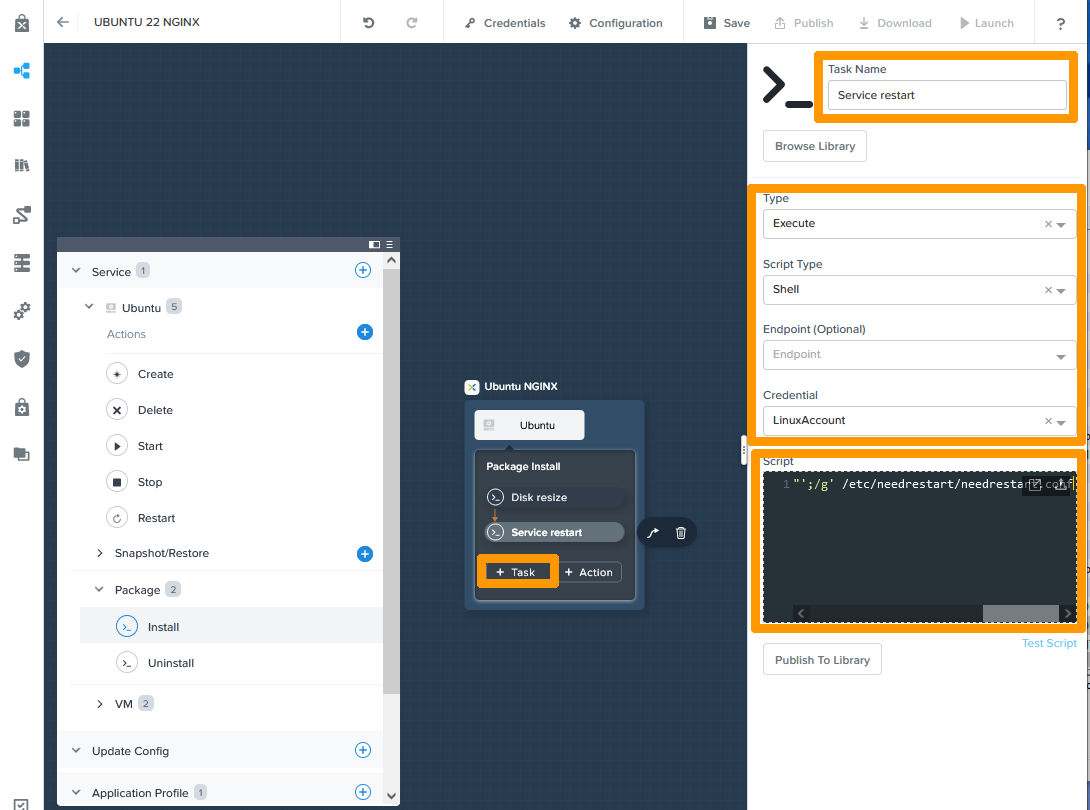
Enter this information about the Linux service verification task:

  • Task Name: Service restart
  • Type: Execute
  • Script Type: Shell
  • Credential: LinuxAccount

Then copy the content below to Script:

sudo sed 's/#$nrconf{restart} = '"'"'i'"'"';/$nrconf{restart} = '"'"'a'"'"';/g' /etc/needrestart/needrestart.conf

Click + Task to add a new task in sequence.
04 create Linux blueprint 15

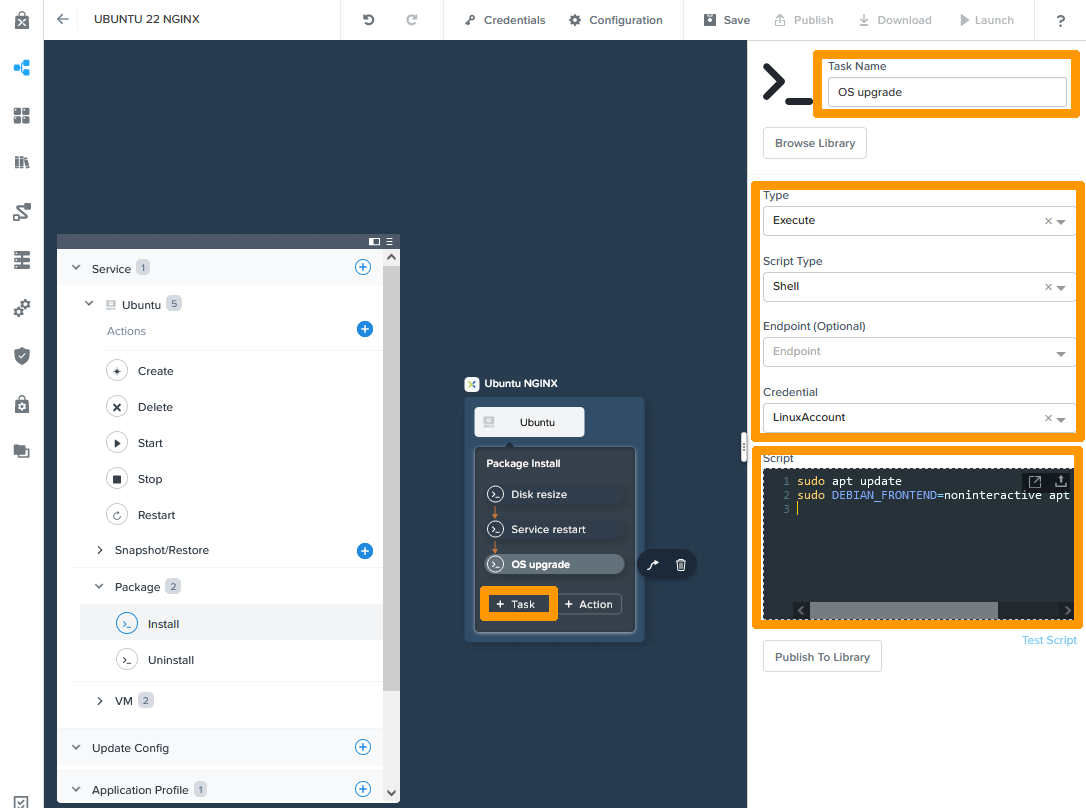
Enter this information about the UBUNTU update task:

  • Task Name: Service restart
  • Type: Execute
  • Script Type: Shell
  • Credential: LinuxAccount

Then copy the content below to Script:

sudo apt update
sudo DEBIAN_FRONTEND=noninteractive apt upgrade -y

And click + Task to add a new task in sequence.
04 create Linux blueprint 16

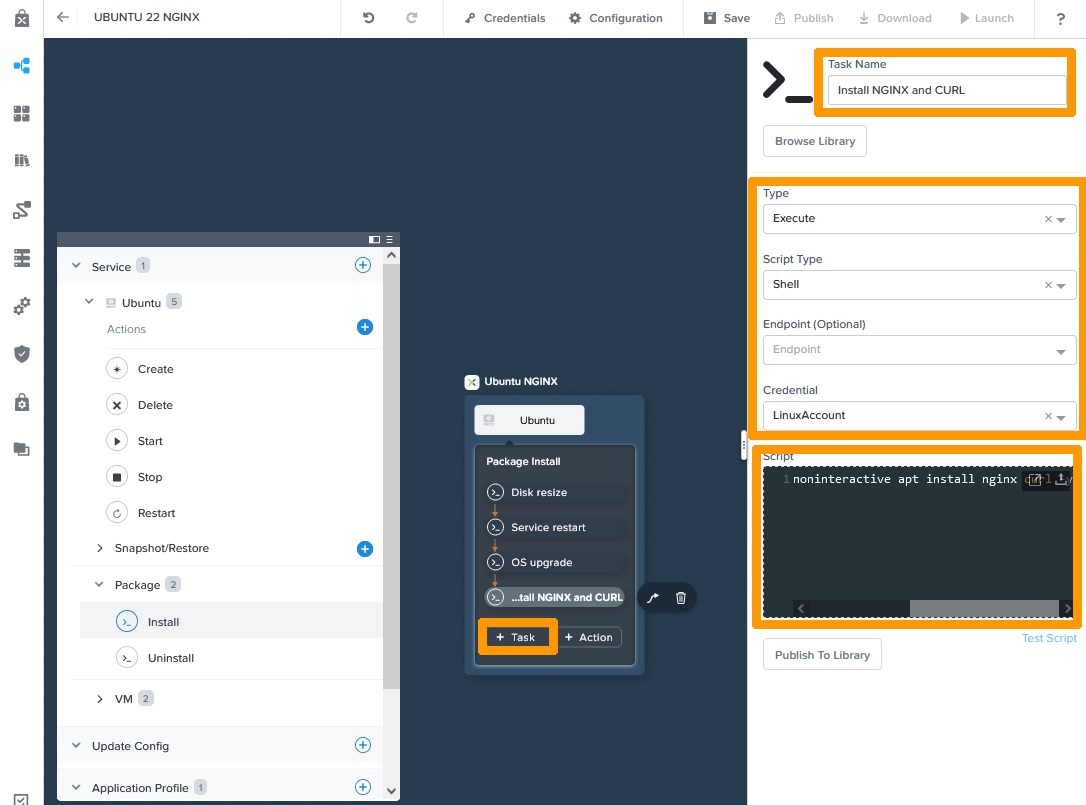
Enter this information about the NGINX and CURL installation task:

  • Task Name: Service restart
  • Type: Execute
  • Script Type: Shell
  • Credential: LinuxAccount

Then copy the content below to Script:

sudo DEBIAN_FRONTEND=noninteractive apt install nginx curl -y

Click + Task to add a new task in sequence.
04 create Linux blueprint 17

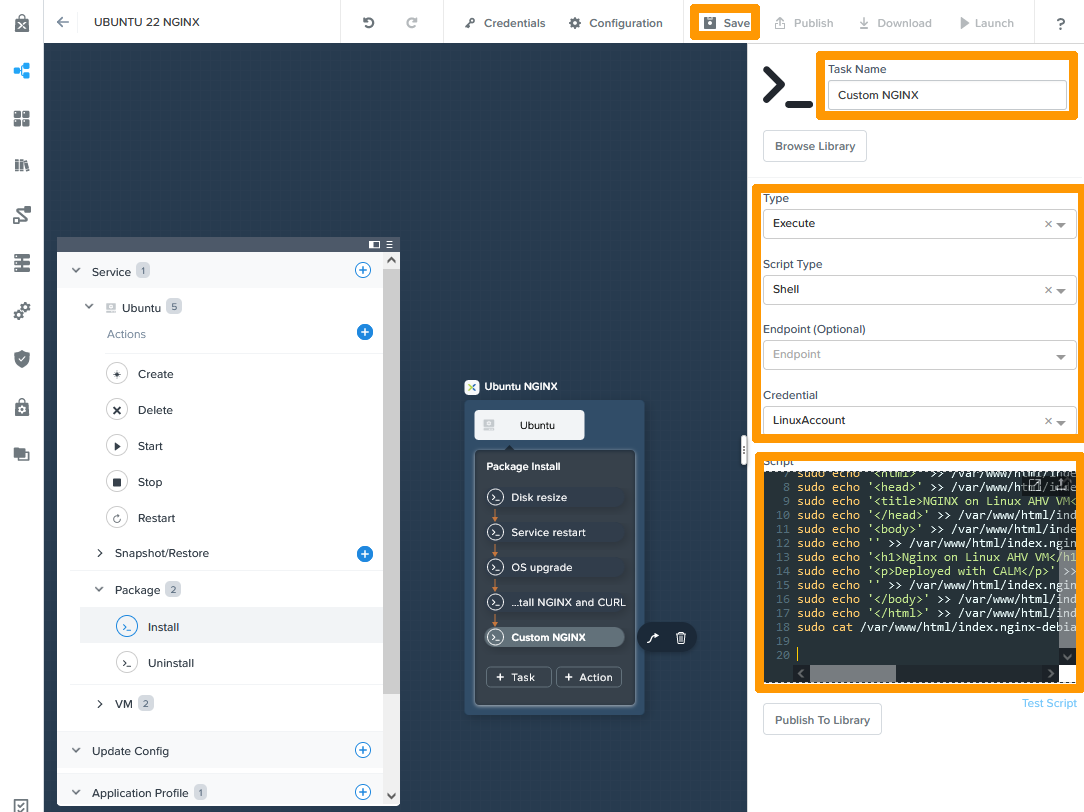
Enter this information about the last NGINX customisation task:

  • Task Name: Service restart
  • Type: Execute
  • Script Type: Shell
  • Credential: LinuxAccount

Then copy the content below to Script:

sudo ls -l /var/www/html/
sudo rm -rf /var/www/html/index.nginx-debian.html
sudo touch /var/www/html/index.nginx-debian.html
sudo chown $USER:$USER /var/www/html/index.nginx-debian.html
sudo ls -l /var/www/html/
sudo echo '<!DOCTYPE html>' > /var/www/html/index.nginx-debian.html
sudo echo '<html>' >> /var/www/html/index.nginx-debian.html
sudo echo '<head>' >> /var/www/html/index.nginx-debian.html
sudo echo '<title>NGINX on Linux AHV VM</title>' >> /var/www/html/index.nginx-debian.html
sudo echo '</head>' >> /var/www/html/index.nginx-debian.html
sudo echo '<body>' >> /var/www/html/index.nginx-debian.html
sudo echo '' >> /var/www/html/index.nginx-debian.html
sudo echo '<h1>Nginx on Linux AHV VM</h1>' >> /var/www/html/index.nginx-debian.html
sudo echo '<p>Deployed with CALM</p>' >> /var/www/html/index.nginx-debian.html
sudo echo '' >> /var/www/html/index.nginx-debian.html
sudo echo '</body>' >> /var/www/html/index.nginx-debian.html
sudo echo '</html>' >> /var/www/html/index.nginx-debian.html
sudo cat /var/www/html/index.nginx-debian.html

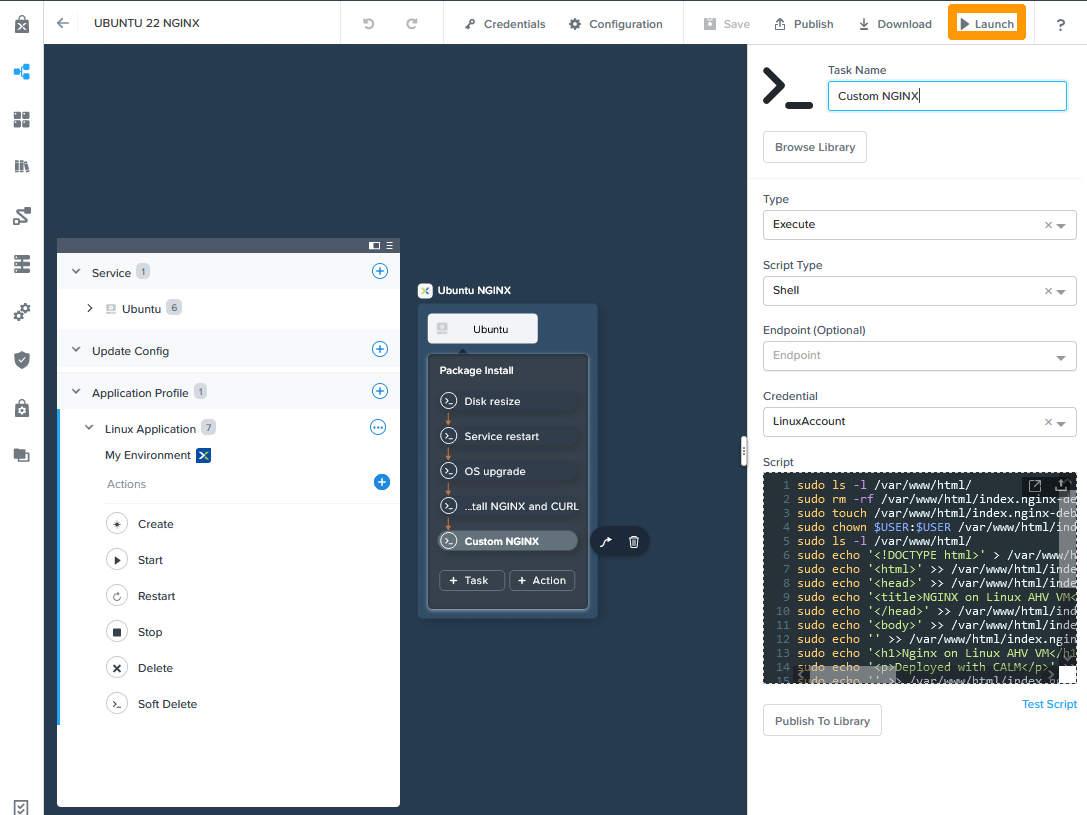
Click + Save to finish creating your blueprint.
04 create Linux blueprint 18

Click Launch to test your blueprint.

04 create Linux blueprint 19

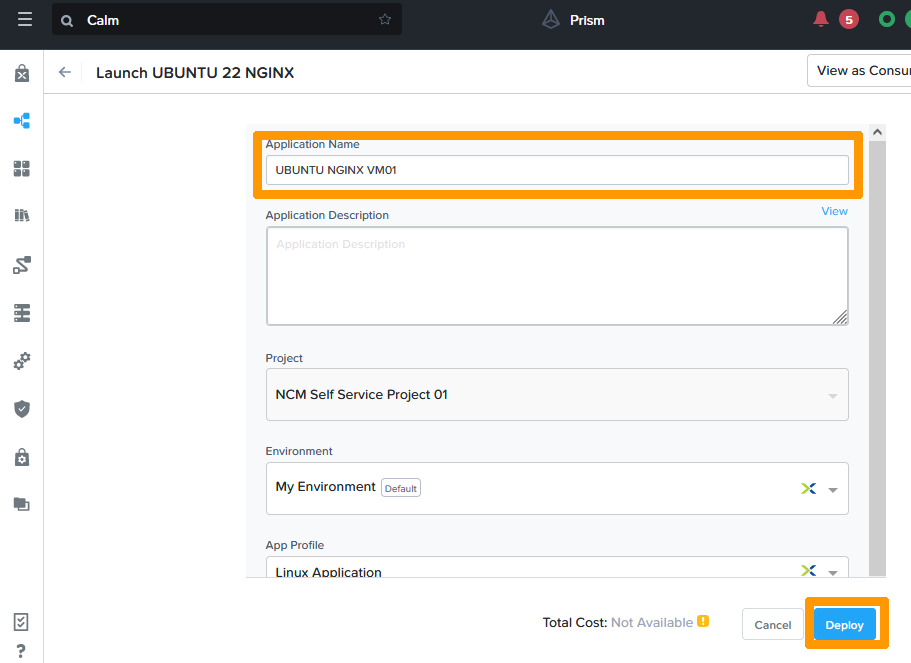
Type the name of your test deployment in Application Name and click Deploy.
04 create Linux blueprint 20

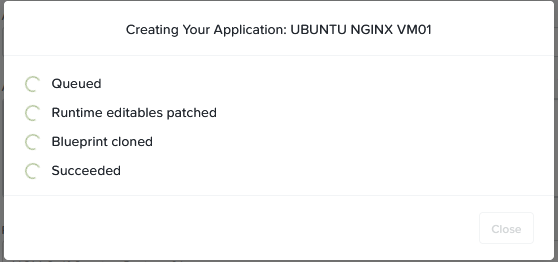
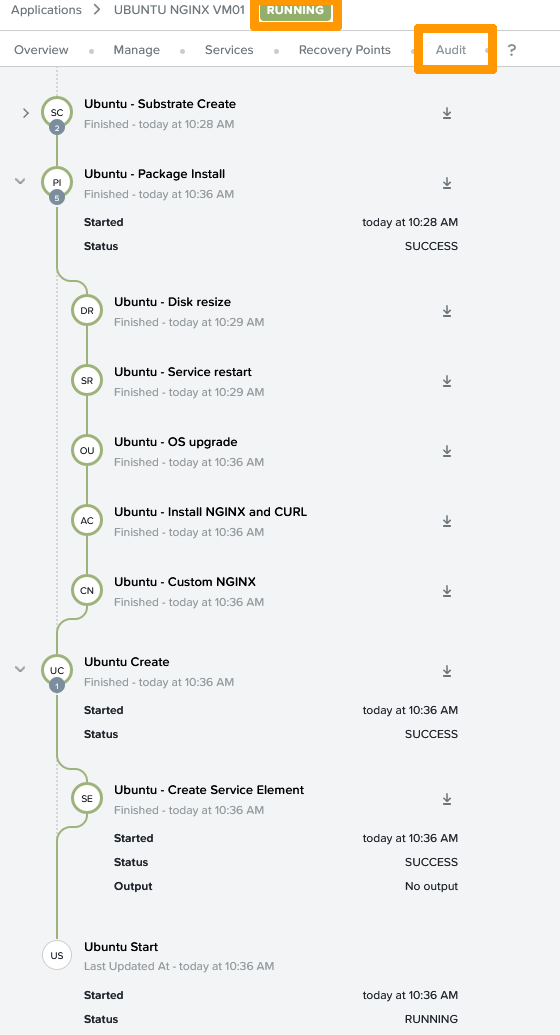
Deployment begins.

04 create Linux blueprint 21

Click Audit to view your deployment progress.
04 create Linux blueprint 22

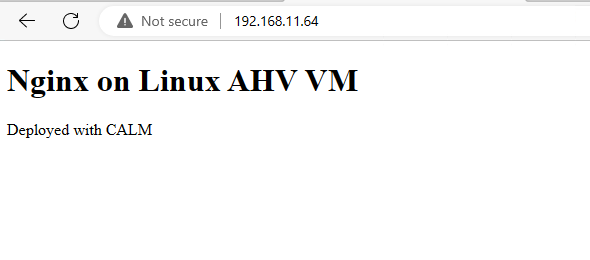
Once the deployment is complete, you can access the IP address of your NGINX VM via HTTP to view the welcome message.
04 create Linux blueprint 23

Publishing applications

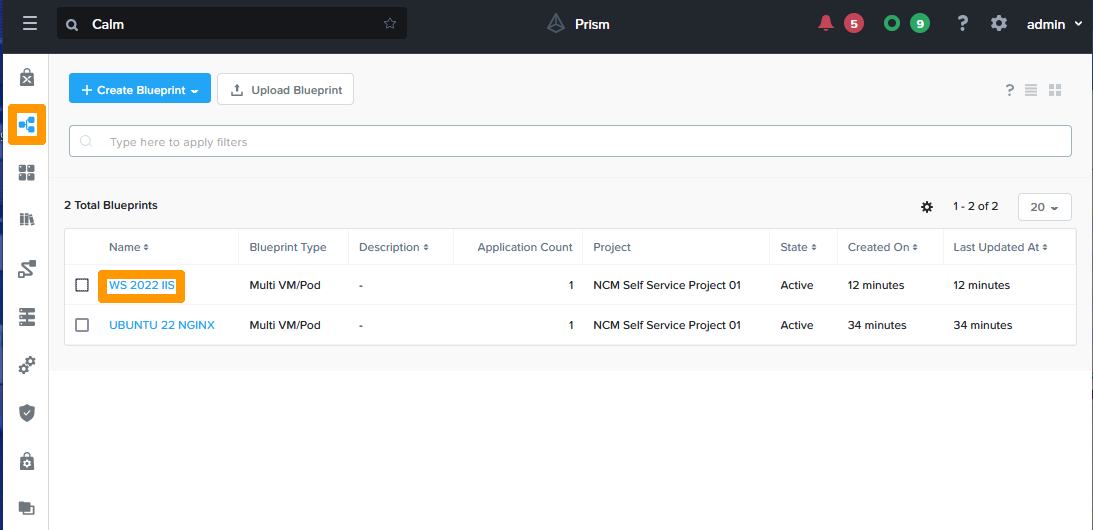
Go to the Blueprints icon in the CALM vertical bar on the left and click on the WS 2022 IIS map.
05 publish Windows Application 01

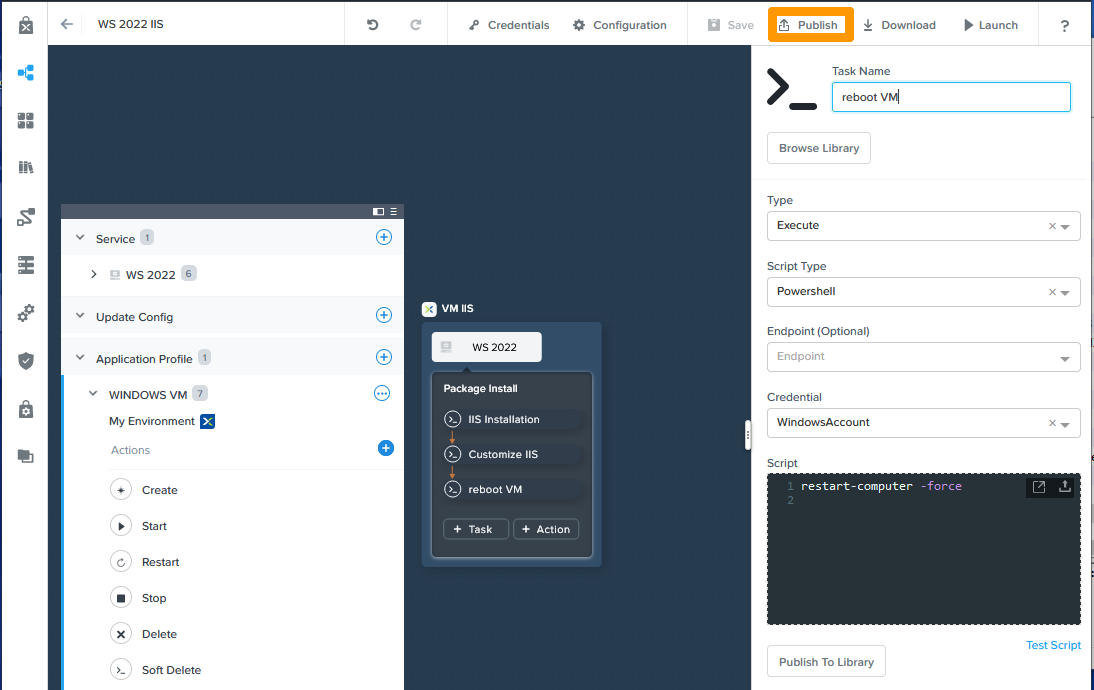
Click Publish.

05 publish Windows Application 02

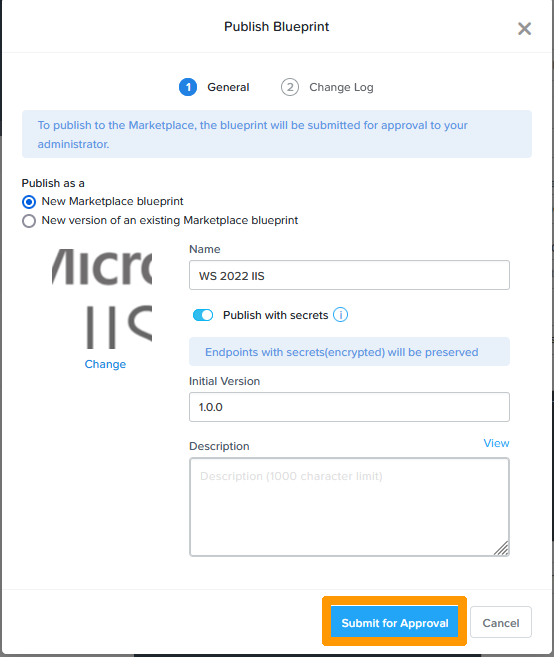
Apply these values:

  • Name: WS 2022 IIS
  • Publish with secrets: enabled
  • Initial Version: 1.0.0

Then click on Change on the left.
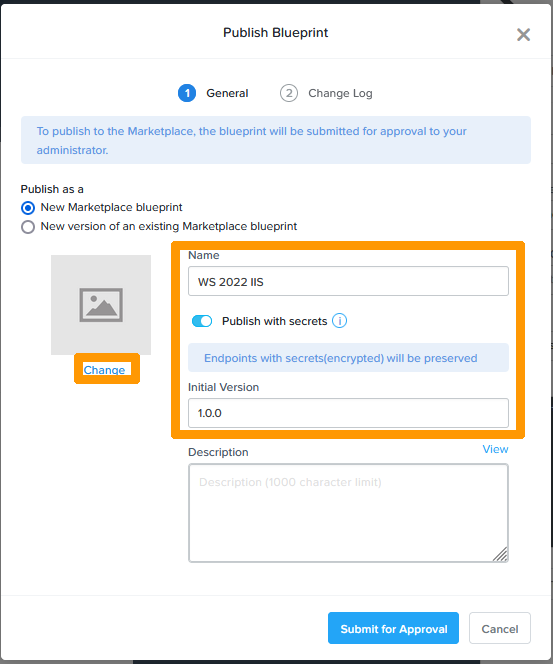
05 publish Windows Application 03

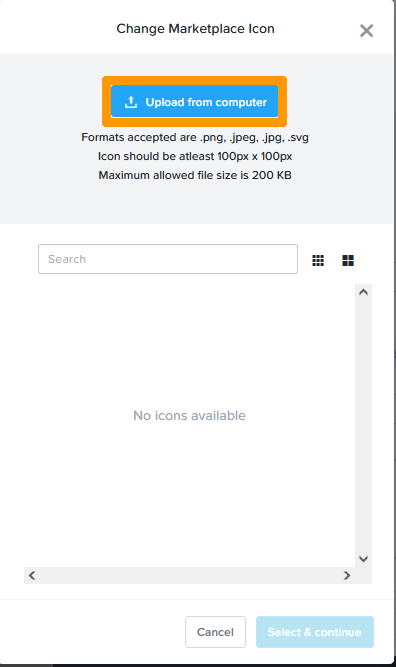
Click Upload from computer.

05 publish Windows Application 04

Choose the image on your computer and click Open.
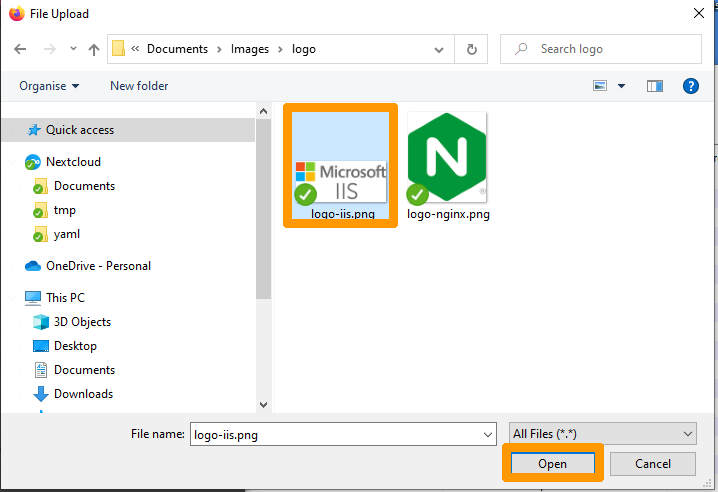
05 publish Windows Application 05

Name your Icon IIS and click on the blue validation button.
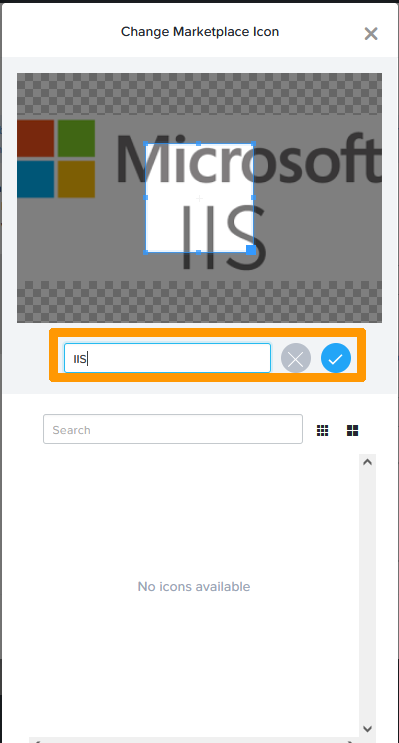
05 publish Windows Application 06

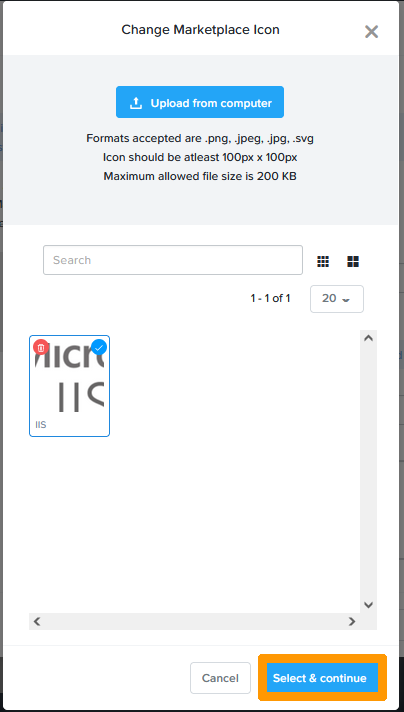
Click Select & continue.

05 publish Windows Application 07

Click Submit for approval.

05 publish Windows Application 08

The Windows application is in the marketplace awaiting approval.

Click the UBUNTU 22 NGINX blueprint.
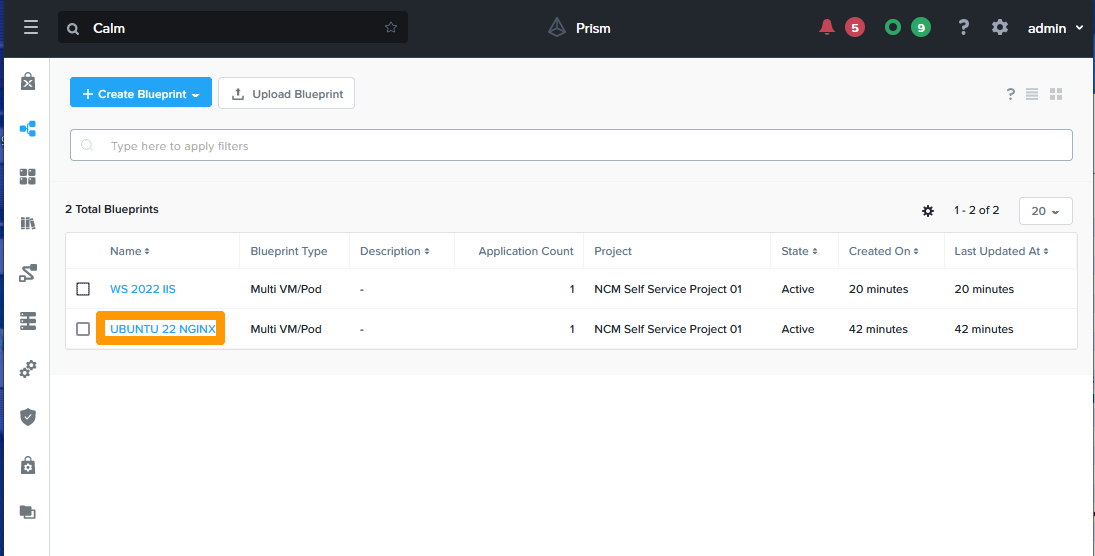
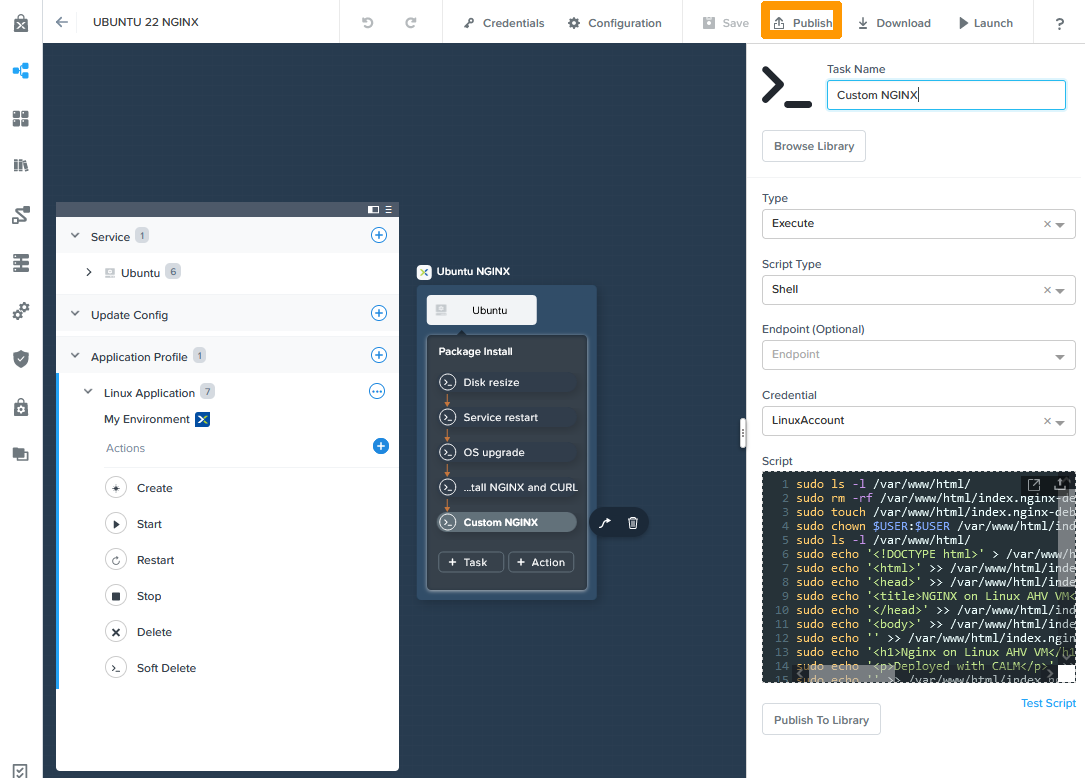
06 publish Windows Application 01

Click Publish.

06 publish Windows Application 02

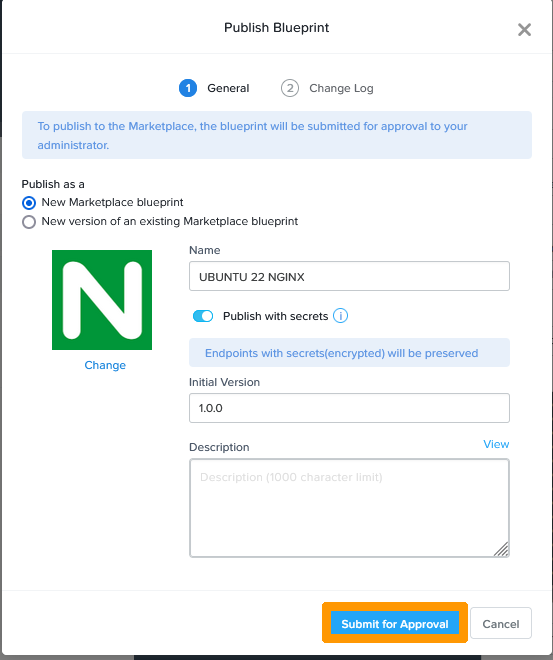
Apply these values:

  • Name: UBUNTU 22 NGINX
  • Publish with secrets: enabled
  • Initial Version: 1.0.0

Then click Change on the left.
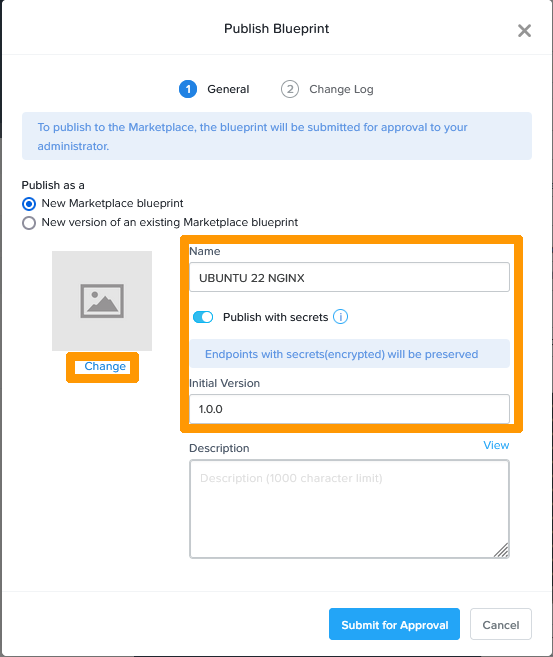
06 publish Windows Application 03

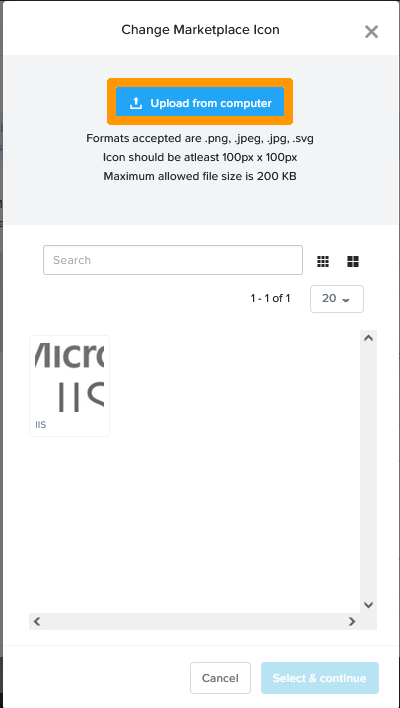
Click Upload from computer.

06 publish Windows Application 04

Choose the image on your computer and click Open.
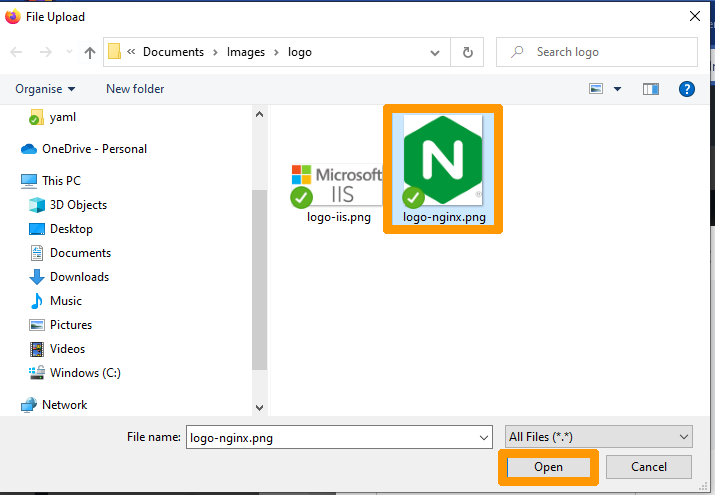
06 publish Windows Application 05

Name your icon NGINX and click the blue validation button.
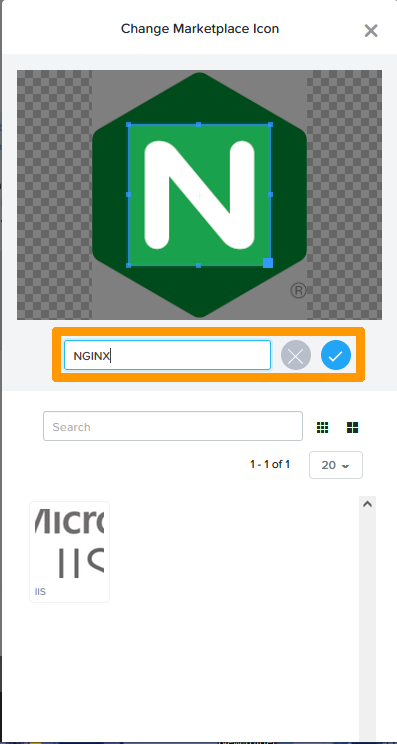
06 publish Windows Application 06

Select your icon and click Select & continue.
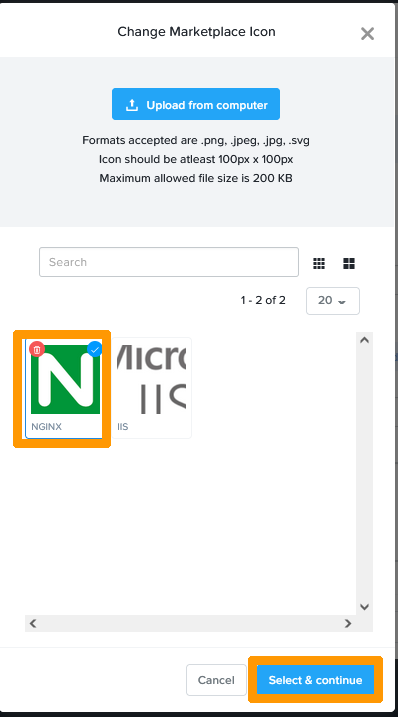
06 publish Windows Application 07

Click Submit for approval.

06 publish Windows Application 08

The Linux application is in the marketplace awaiting approval.

Adding applications published on the CALM portal

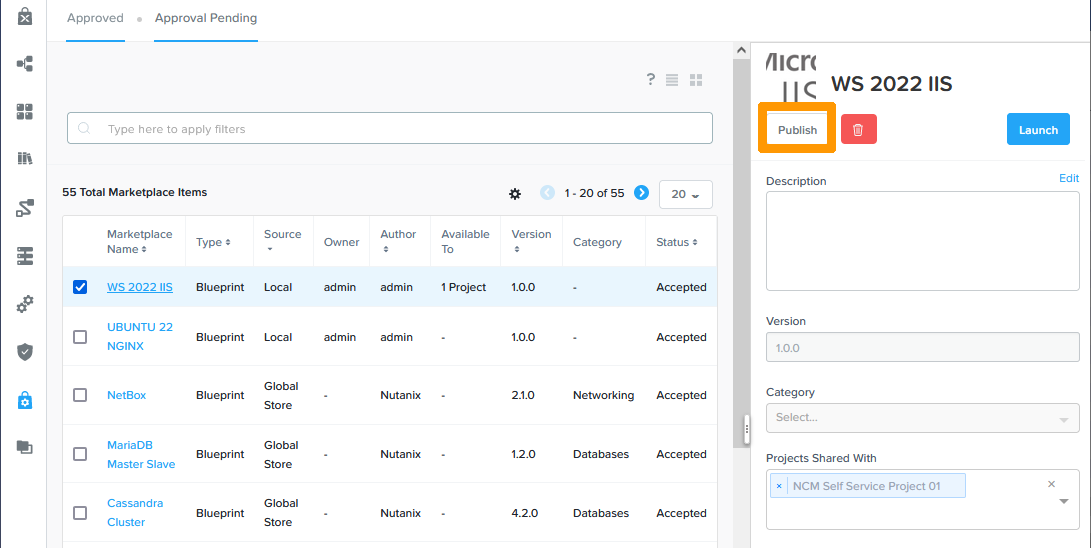
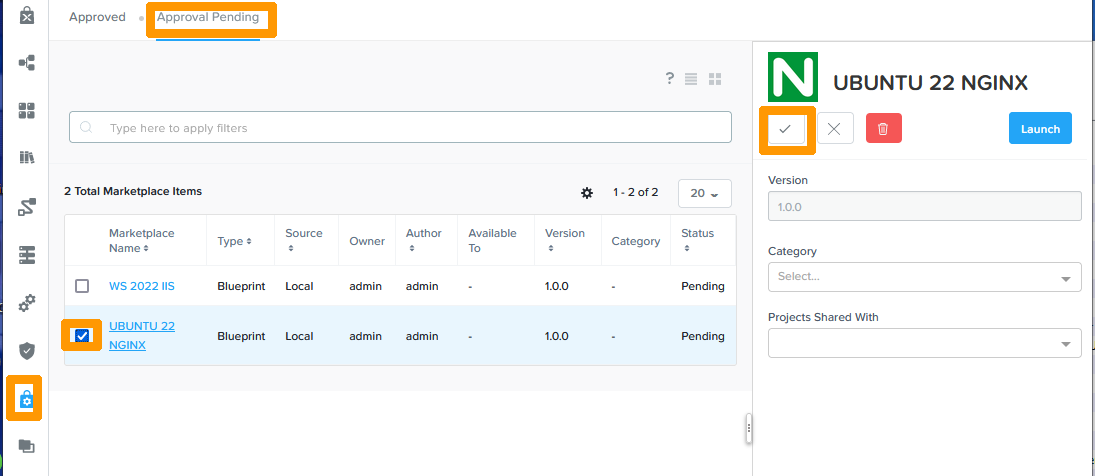
Click on the Marketplace Manager icon, go to the Approval Pending tab, check the UBUNTU 22 NGINX application, and click the validation icon on the right.
07 approve Application 02

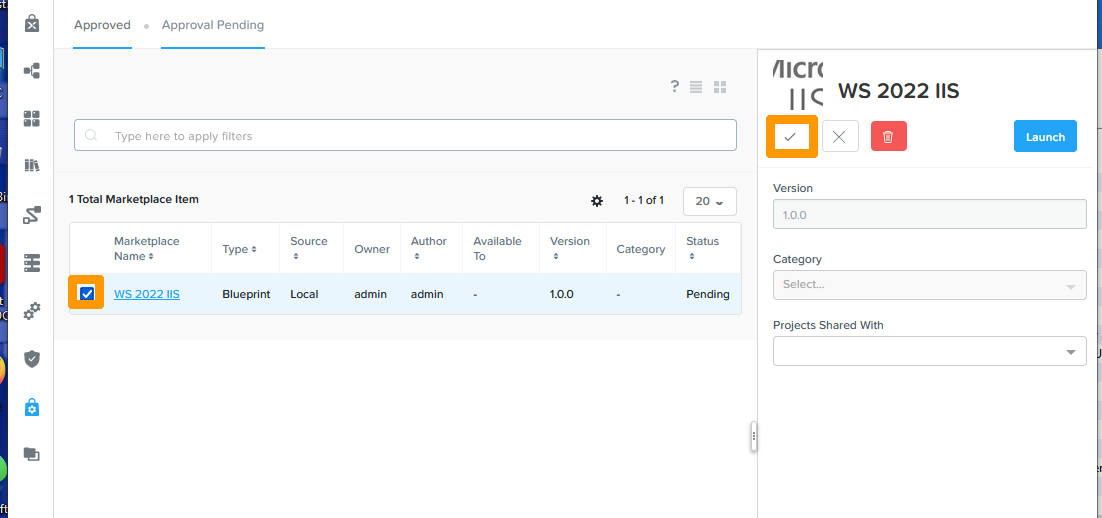
Check the WS 2022 IIS application and click the validation icon on the right.
07 approve Application 02

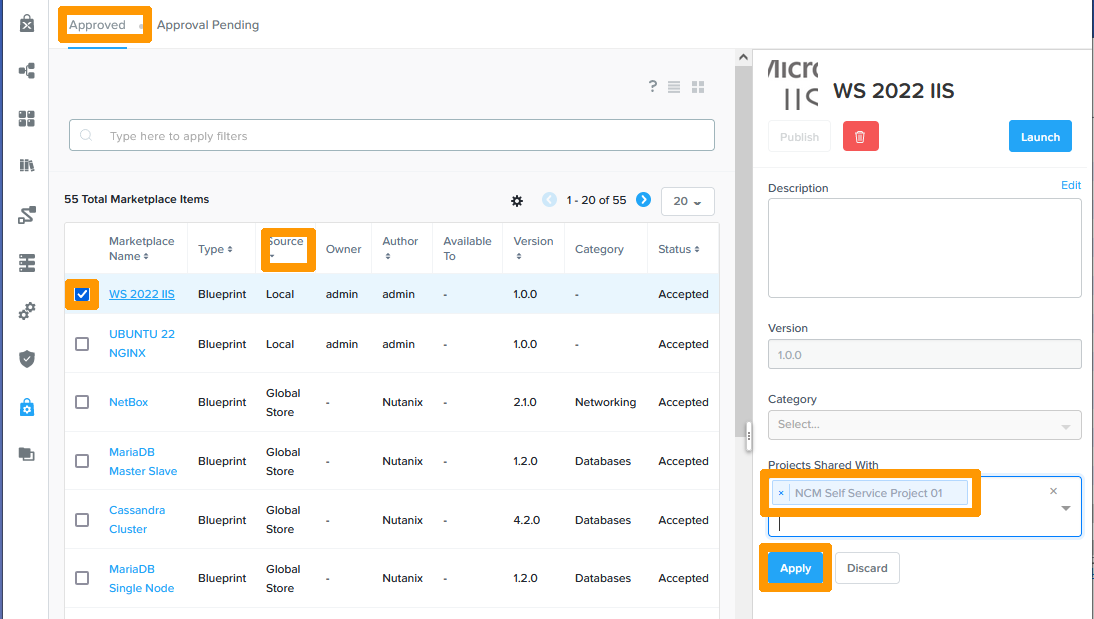
Go to the Approved tab, click on the Source column to display the local applications first, check WS 2022 IIS, select NCM Self Service Project 01 at the bottom right and click Apply.
08 ADD to market place 01

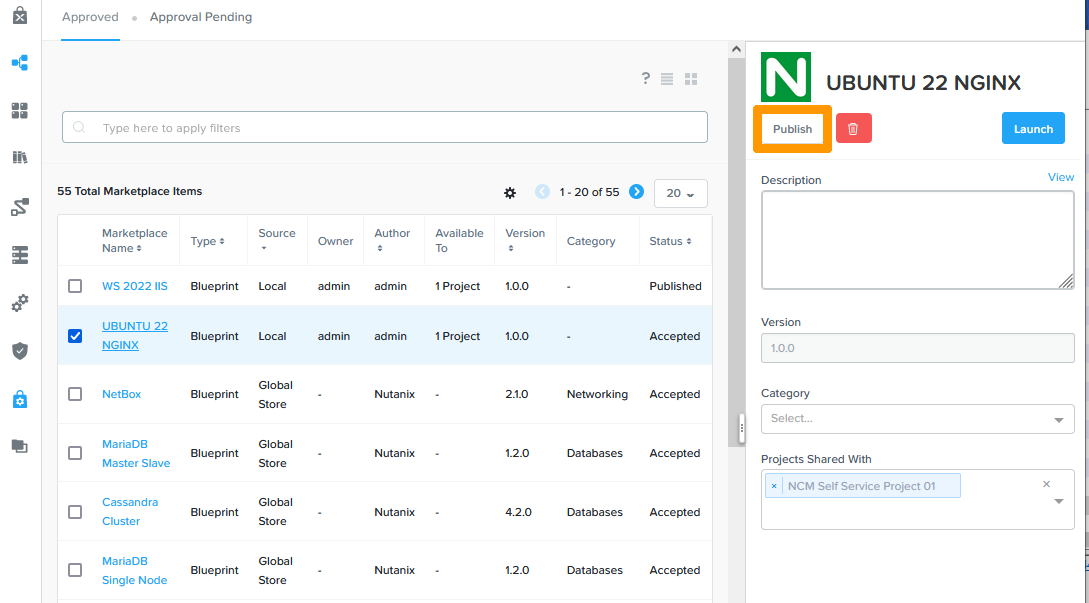
Click Publish.

08 ADD to market place 02

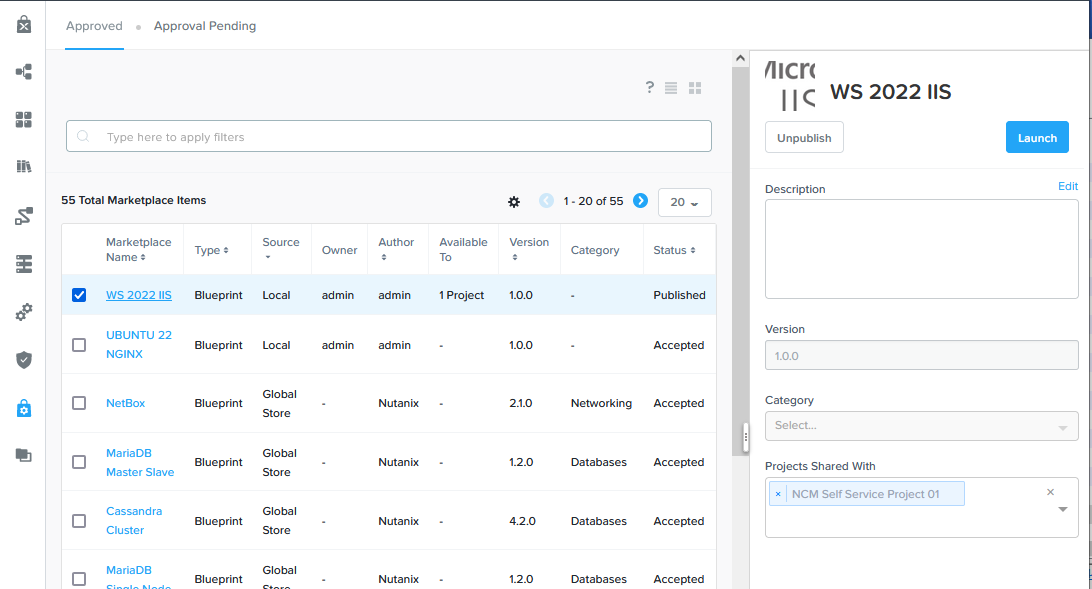
The Windows application is published.
08 ADD to market place 03

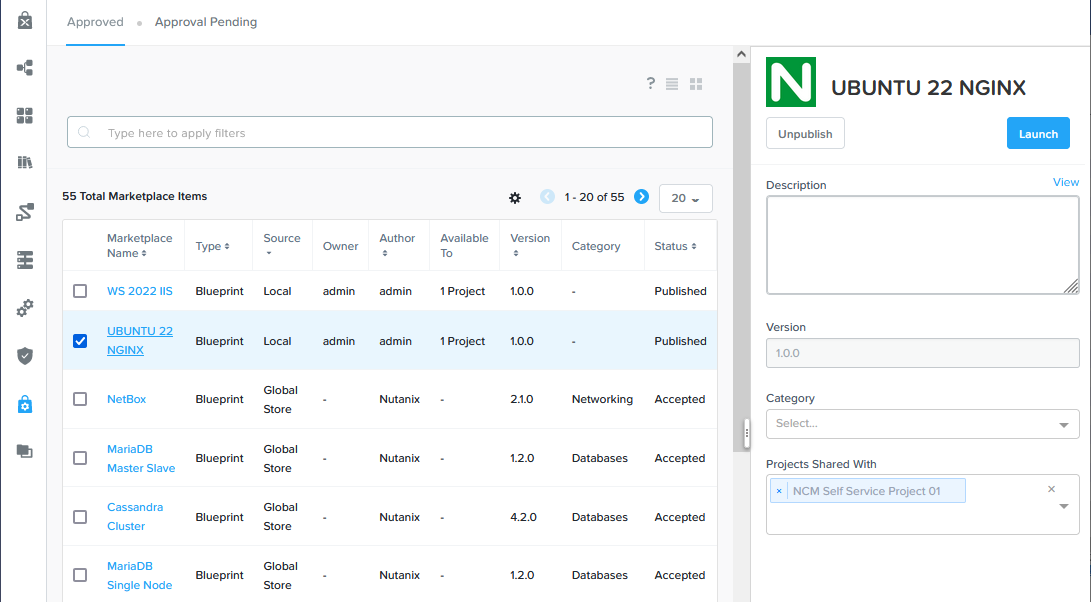
Check Ubuntu 22 NGINX, select NCM Self Service Project 01 on the right and click Apply.
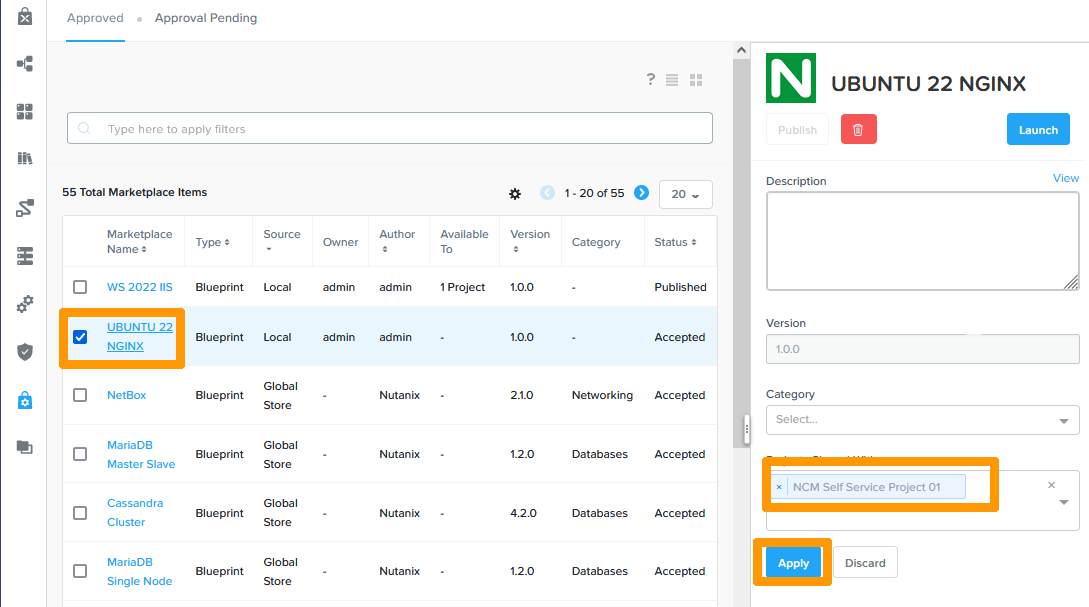
08 ADD to market place 04

Click Publish.

08 ADD to market place 05

The Ubuntu application is published.

08 ADD to market place 06

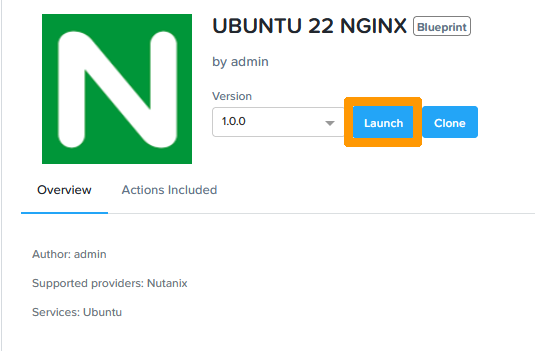
Click the Marketplace icon at the top of the vertical menu bar on the left and click Get below the UBUNTU 22 NGINX application.
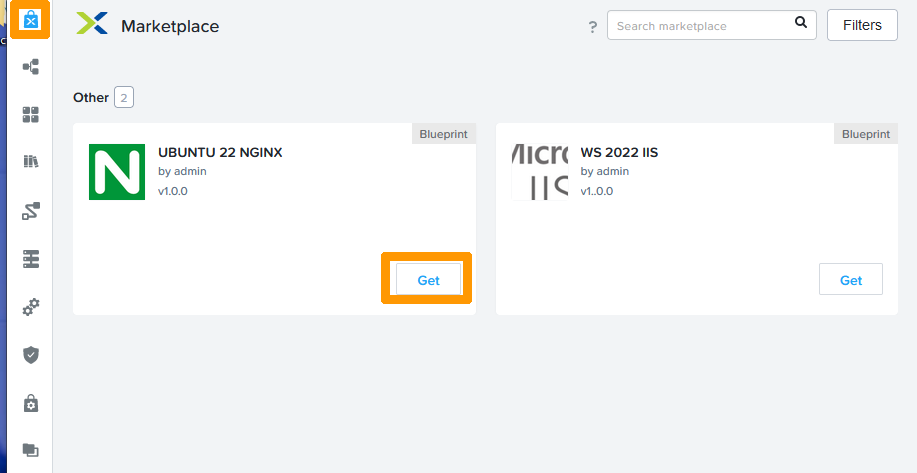
08 ADD to market place 07

Click Launch.

08 ADD to market place 08

Type a Name in Application Name and click Deploy to deploy an application.
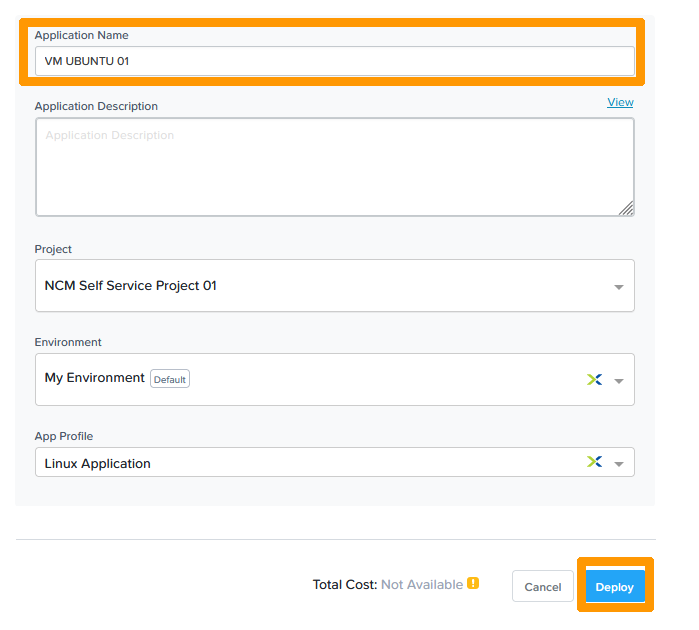
08 ADD to market place 09

Deleting a deployed application

Deleting a deployed application is as simple as deploying it.

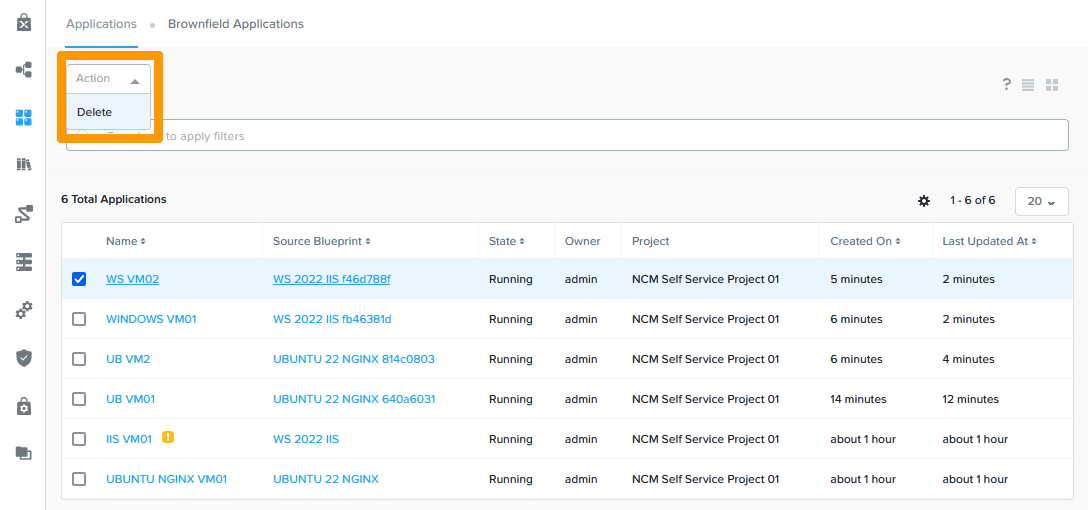
Click on the Blueprints icons on the left and check a deployed application.
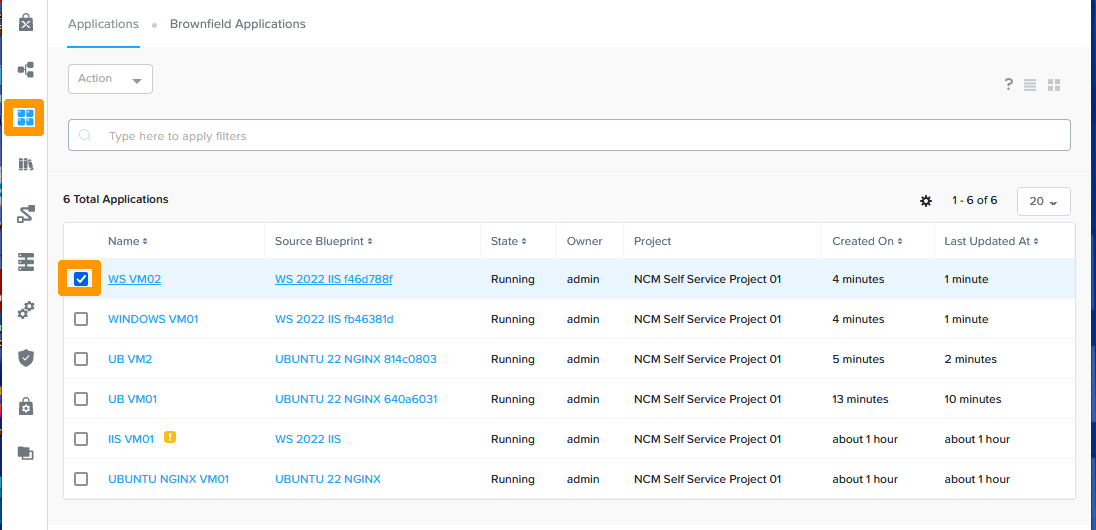
09 delete deployed APP 01

From the Action menu, click Delete.

09 delete deployed APP 02

Click Confirm.

09 delete deployed APP 03

You can view the progress of a deletion as you would for a deployment.
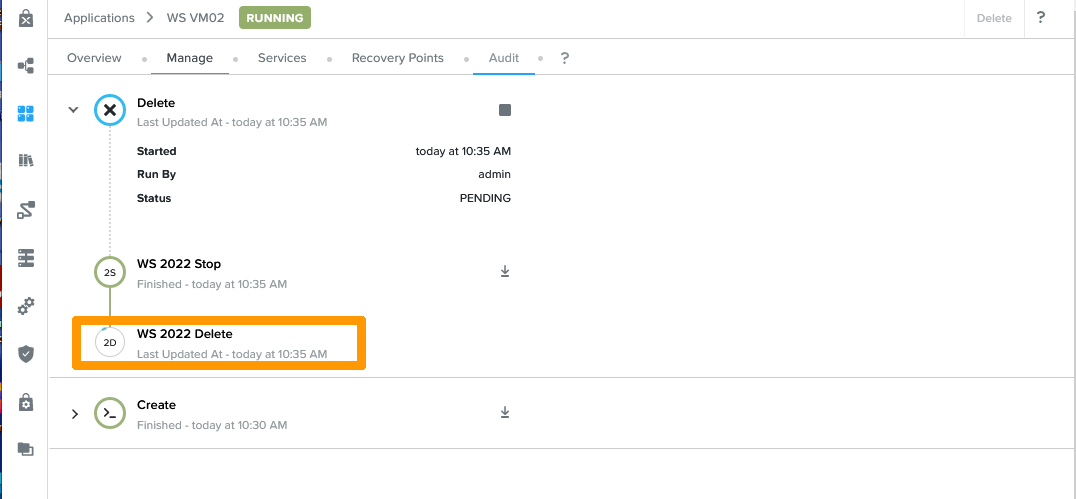
09 delete deployed APP 04

The application is completely deleted.
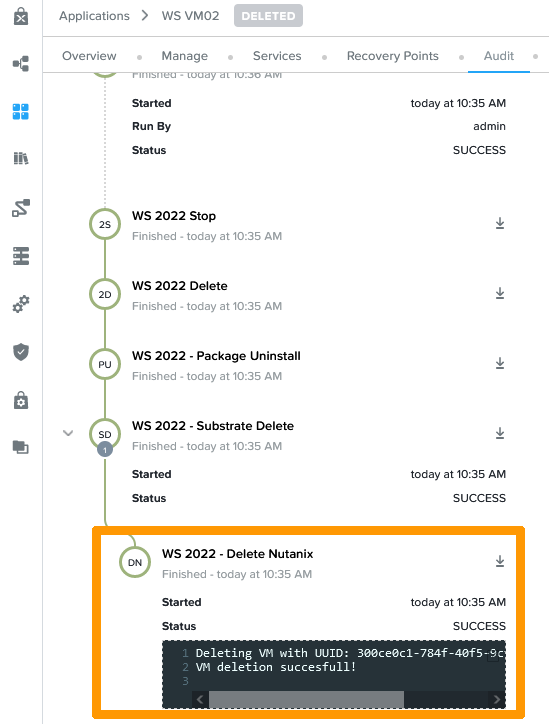
09 delete deployed APP 05

Go further

If you need training or technical assistance to implement our solutions, contact your sales representative or click on this link to get a quote and ask our Professional Services experts for assisting you on your specific use case of your project.

Join our community of users on https://community.ovh.com/en/.

Nutanix NCM Self Service (CALM).

Related articles