

MX Plan - How to create an automatic reply on an email address
1371 Views
 28.04.2025
  Web / MX Plan Email (legacy infrastructure)
Objective
This OVHcloud feature allows you to set up an automatic email responder (auto-reply) that sends a message to anyone trying to contact you by email in your absence.
This guide explains how to configure automatic replies for your email addresses.
Requirements
- An OVHcloud MX Plan, available as part of our web hosting plans, the 100M free hosting included with a domain name (activated in advance), or ordered separately as a standalone solution
OVHcloud Control Panel Access
- Direct link: MX Plan
- Navigation path:
Web Cloud>MX Plan> Select your MX Plan service
Instructions
If your email address is configured on Exchange or Email Pro, or if there is no Manage auto-replies section in your MX Plan interface, you will need to create an automatic reply from your webmail using the documentation on Setting up an automatic reply from the OWA interface.
Creating an auto-reply
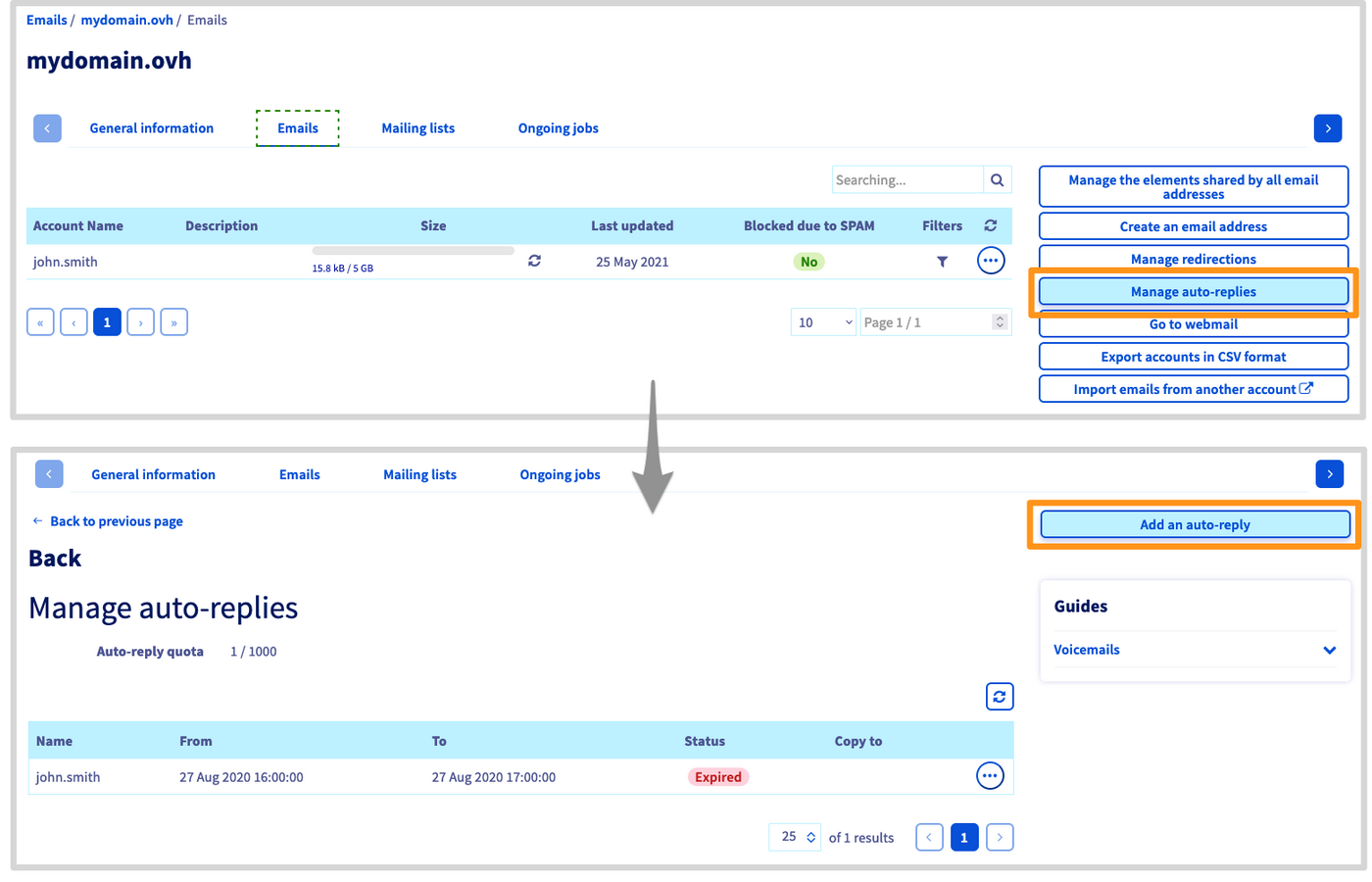
Open the tab Emails, then click on the button Manage auto-replies on the right.
You will be redirected to the Manage auto-replies section where all of the email responders for this domain name are listed.
To create a new one, click on Add an auto-reply.
The window Add an auto-reply appears. Fill out the form according to the information below:
-
Auto-replies type:- Associated with an email inbox: To use if it concerns an existing email account of your email solution.
- Free: To use in the case of an email alias address. It is not linked to an existing account.
-
MailboxorAuto-reply name: Select the email account or alias address concerned by the automatic reply. Auto-reply duration:- Temporary: Define a start and end date for the responder, for example if you are scheduling an absence.
- Permanent: The automatic replies stay active until you delete or modify the responder.
Send a copyorKeep messages on the server: Allows you to choose whether emails received during your absence will be deleted or stored in an account.
If you leave this box unchecked, messages received during your absence will be automatically deleted.
Address on copy(only in "free" mode): If the receiving address is an alias, you need to select the email account incoming messages will be stored in.Message: This will be the reply to incoming mails while the responder is active.
Then click Confirm to finish configuring your automatic reply.
If you would like to delegate the management of an automatic reply for an email address, please refer to our guide "Delegating the management of your email accounts to another person".
Modifying or deleting an automatic reply
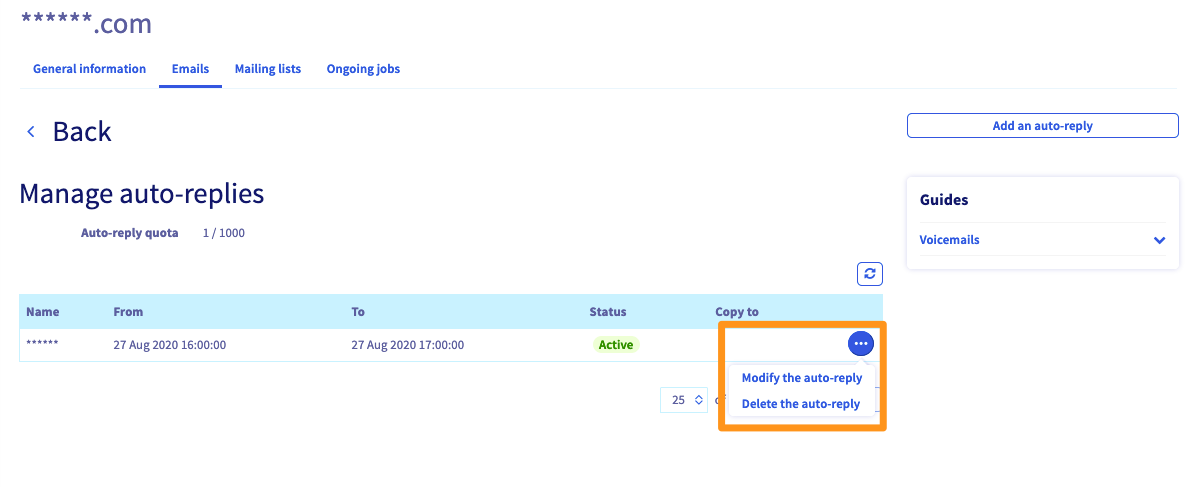
Once your automatic reply has been created, it will appear in the table in the Manage auto-replies section of your email service. You can delete or modify a responder by clicking on ... to the right of it.
Go further
Join our community of users.


 Creating filters for your email addresses
 3581
3581