

Using your email account via the Roundcube webmail interface
25403 Views
 12.11.2025
  Web / MX Plan Email (legacy infrastructure)
Objective
With the OVHcloud MX Plan, you can send and receive emails from third-party software or via webmail. OVHcloud provides an online email service called Roundcube that allows you to access an email account via a web browser.
Find out how to use the Roundcube webmail interface for your OVHcloud email addresses
Requirements
- An OVHcloud MX Plan email solution, included in our web hosting plans, included in a 100M free hosting hosting plan, or ordered separately as a standalone solution.
- Access to the MX Plan email account you would like to use; for more information, please refer to our guide Getting started with an MX Plan.
- Your OVHcloud email solution MX Plan must use the webmail technology Roundcube. To identify it, follow the instructions below.
How do I identify the technology used on my MX Plan solution?
The email technology used for your MX Plan solution is characterized by its webmail interface. To identify it via the OVHcloud Control Panel, follow this path:
- Log in to your OVHcloud Control Panel.
- Go to the
Web Cloudsection. - Click
MX Plan. - Select the domain concerned.
- From the
General Informationtab, select by default. - Note the technology used as Webmail.
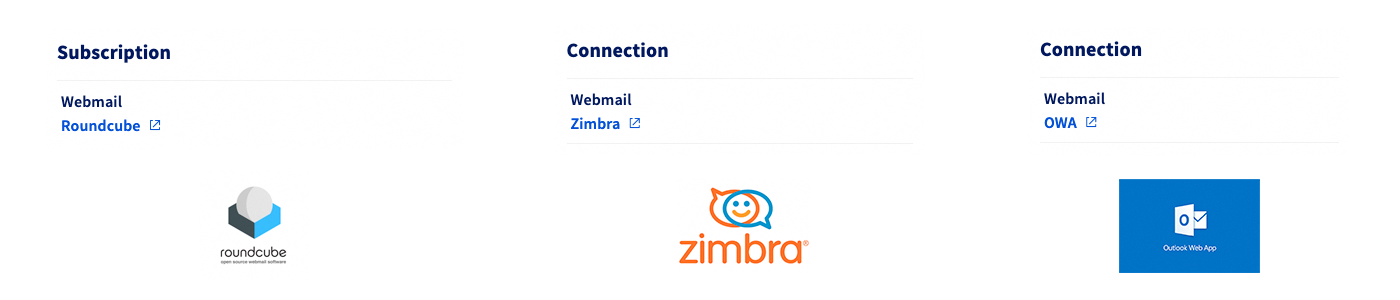
OVHcloud Control Panel Access
- Direct link: MX Plan
- Navigation path:
Web Cloud>MX Plan> Select your MX Plan service
Instructions
Summary
- Logging in to Roundcube
- Roundcube webmail main page
- Configuring Roundcube interface preferences
- Managing identities and their signatures
- Contact book
- Responses (templates)
- Adding an autoresponder
- Changing your email password
- Writing an email
- Use cases
Logging in to Roundcube
Go to the page Webmail. Enter your email address and password, then click Login.
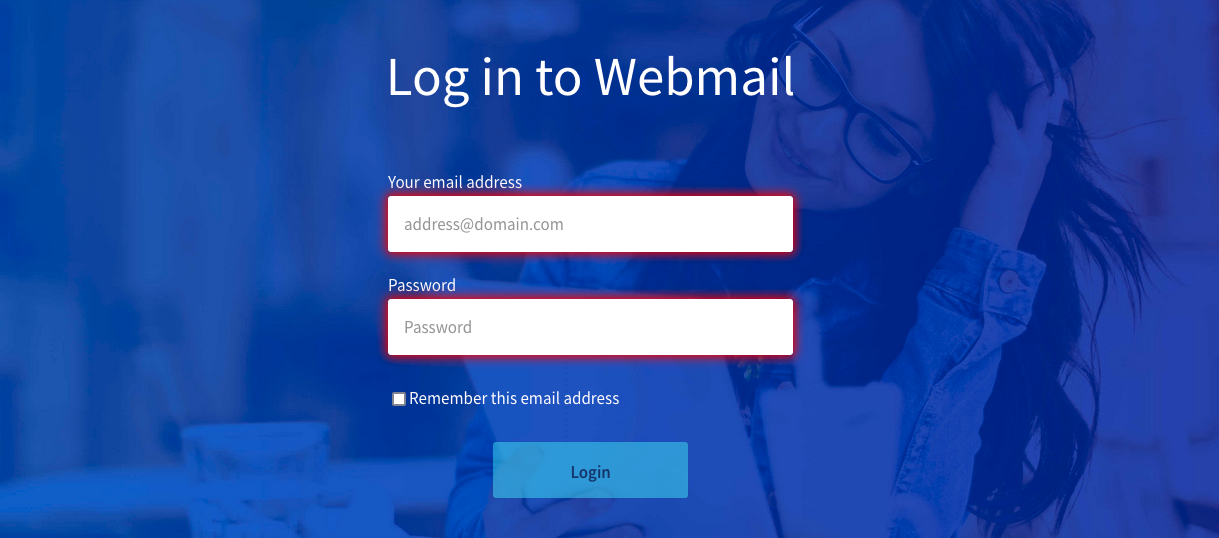
You will then be redirected to the Roundcube interface.
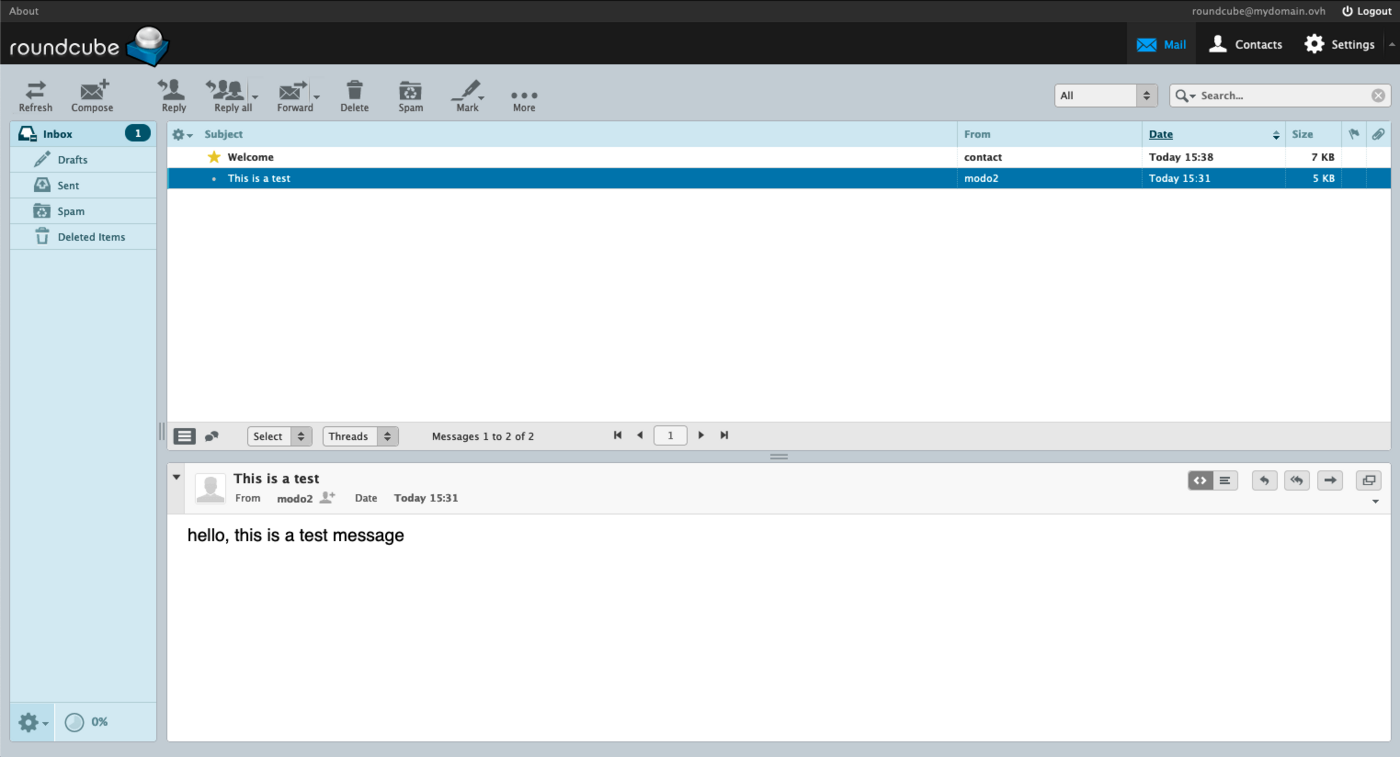
When you first log in to the Roundcube interface, the appearance may be different from what you will see in this documentation. This means that the "classic" appearance has been set on your interface. To change it, follow the steps to access the user interface settings and select the "Larry" view. The appearance of the interface will not affect the explanations in this documentation.
If you are redirected to an Outlook Web App (OWA) interface, this means that you are on the latest version of the MX Plan solution. To find out more about your MX Plan solution, go to our guide Getting started with an MX Plan solution.
To familiarise yourself with the OWA interface, please refer to our guide on Using an email account in the OWA interface.
Roundcube webmail main page
Once logged in to your email account, you have access to the main Roundcube interface, which consists of 3 zones:
-
Left column: Your email account tree, made up of folders and subfolders. The primary folder is the
Inbox. -
Top window: The list of emails in the folder selected in the left-hand column.
-
Lower window: The content of the email selected in the top window.
Folder management (left column)
In this zone, you will see the folders of your email account.
To manage folders more precisely, click on the cog at the bottom of the column, then Manage folders
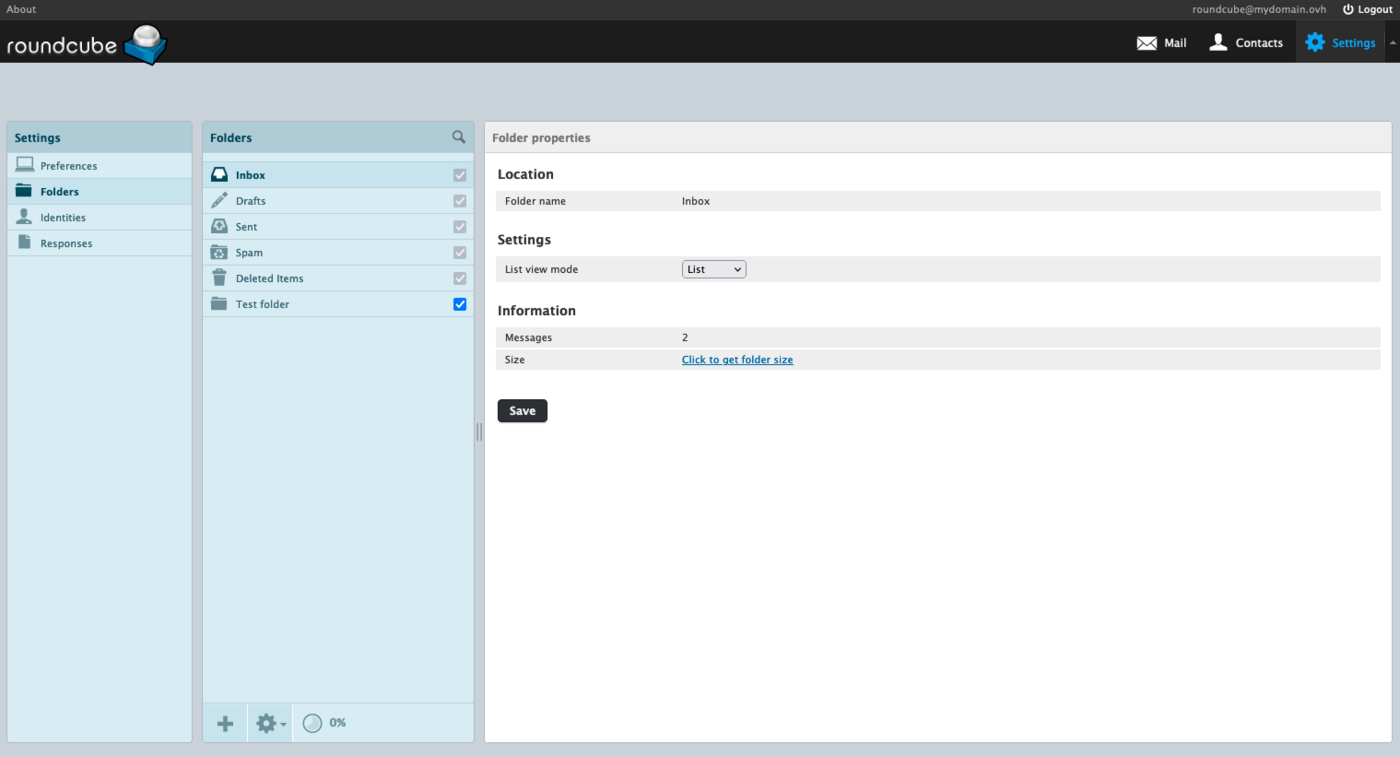
To create a folder, click the + button at the bottom of the Folders column.
To delete a folder, select it and click the cog at the bottom of the Folders column. Click on Delete. To clear the contents but keep the folder, click on Clear.
The check boxes at the folder level correspond to "subscriptions". The subscription determines whether the folder should be displayed at the webmail interface or the email software level while retaining the folder contents. The only purpose is to hide or display a folder on the email account.
Folders with a grey check box are special folders. You cannot delete them or remove them from subscriptions.
List of emails received/sent (top window)
This window displays the contents of the selected folder in the left column.
Display type
This window can be customised by clicking on the cogwheel icon in the top left-hand corner of the window.
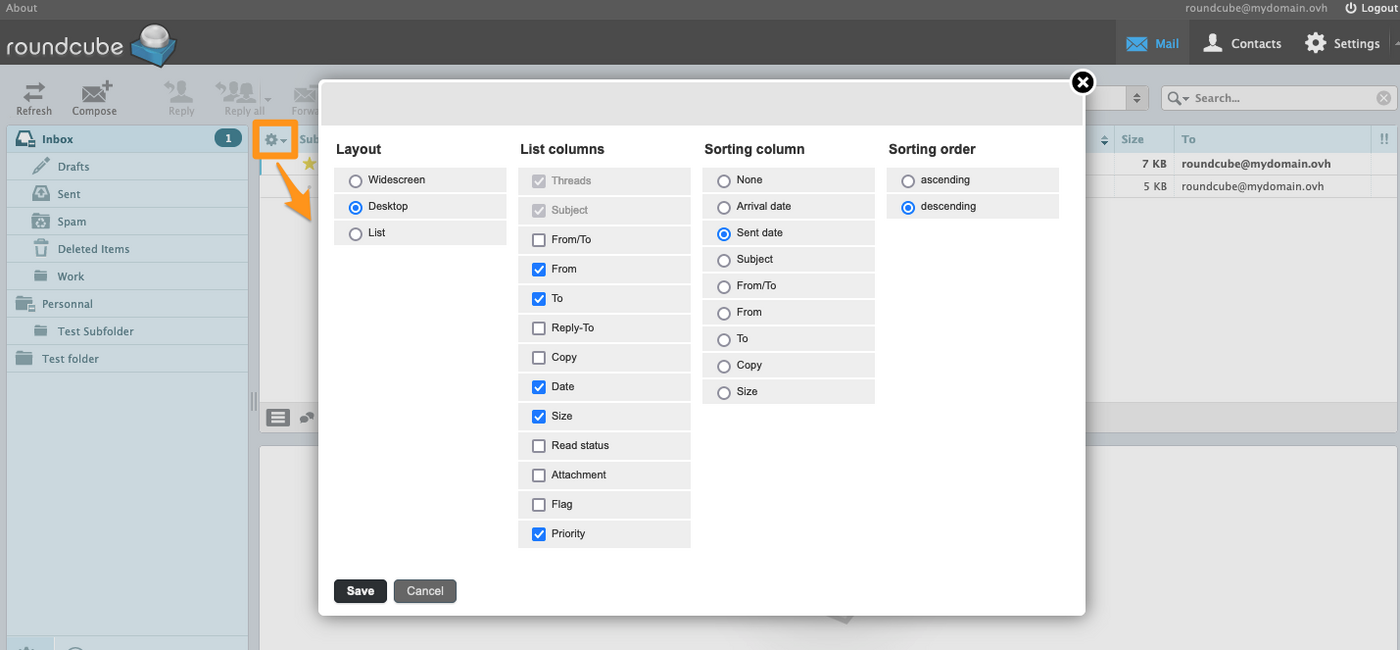
You can set the following:
- Layout: Allows you to determine the layout of the management windows for an email account.
- List columns: Allows you to add columns to display (email priorities, etc.).
- Sorting column: Allows you to choose the column by which messages are sorted.
- Sorting order: Allows you to choose the ascending or descending sort order, depending on the sorting column.
Actions on a selected email
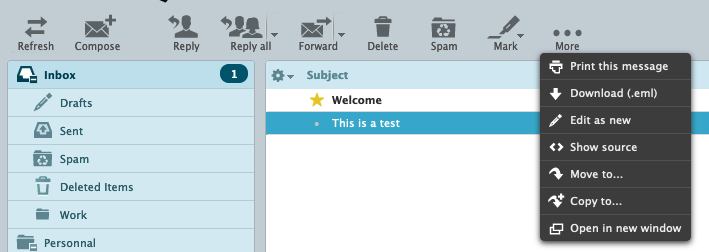
When an email is selected, you can choose an action it. Here are the possible actions:
Reply: Reply directly to the sender.Reply all: Reply directly to all recipients listed in the To and Copy fields.Forward: Forward the selected email to one or more recipients.Delete: Move the selected email into the “Trash”.Spam: Place the selected email directly in the Junk folder, labelling it as Spam.Mark: Determine the status of an email manually.MorePrint this message.Download (.eml): Retrieve the header and the content of the email as a file.Edit as new: Create a new email based on the selected email.Show source: Display the email in its raw format, including the header.Move to: Move the email to a folder.Copy to: Copy the email to a folder.Open in a new window.
If one of your contacts requests that an acknowledgement be sent back when you read their email, you will get the following message: The sender of this message has asked to be notified when you read this message. Do you want to notify the sender?.
Search for an email
A search tool is available in the upper right corner of the interface.
Click the arrow to the right of the magnifying glass to display the search filters.
Email content (bottom window)
When an email is selected in the list, it is displayed in the lower window.
On the right-hand side you can find shortcuts for the following functions:
- Display in HTML format (default)
- Display in plain text format
- Reply
- Reply all
- Forward
- Open in new window

Configuring Roundcube interface preferences
The following sections in this guide correspond to the tabs that make up the Preferences section of the Roundcube Settings. Their description is not exhaustive.
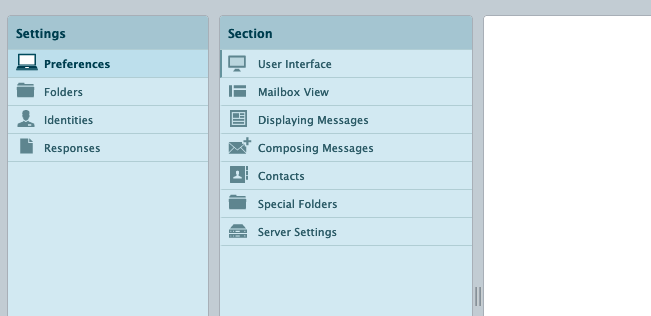
User Interface
Set here the Language of the Roundcube interface as well as the Time zone, the Time format and the Date format.
The Pretty Dates option allows you to display the received/sent date with relative terms such as Today, Yesterday, etc.
The Show next entry in the list after deletion or move check box means that after a delete or move action on an email, the item in the lower row will then always be selected, regardless of the sort order.
You can choose the display style of your interface. You can choose between the Classic display or the Larry display.
Mailbox View
Set here the usability to view and act on emails. The Layout option allows you to arrange the 3 windows described in the Roundcube webmail main interface section .
Displaying Messages
Define how emails are displayed.
We recommend that you tick the Display HTML box, to ensure that emails formatted by the sender are displayed correctly.
It is also advisable to keep the Allow remote resources (images, styles) option on never. This avoids loading elements of an email that seems malicious.
Composing Messages
Set the default shape when writing an email or reply.
It is recommended to pass the Compose HTML messages option on always, to benefit by default from HTML editing tools and not to alter an HTML signature.
Contacts
Customise the arrangement of information in your address book here.
Special Folders
Roundcube has 4 special folders: Drafts, Sent, Spam, Deleted Items.
We do not recommend changing them, but you can assign the behaviour of a special folder to another folder created later, using the drop-down menus.
You can assign the Drafts behaviour to another folder that you created by clicking the drop-down list and choosing that folder. If no folder is assigned, it will be automatically set to the "Drafts" option. The emails saved in there will be considered drafts until they are sent.
Example: Create a subfolder called "Drafts client emails". Open
My preferencesandSpecial foldersand choose the "Drafts" option. In the drop-down menu, select the "Drafts client emails" folder to replace "Drafts". Emails in this folder will be considered drafts.
Server Settings
In this tab, you can optimise the space occupied by an email account. The option Clear "Deleted Items" on logout prevents the messages that have been deleted from accumulating in this folder. The option Permanently delete messages in the spam folder will automatically delete all emails marked as spam.
It is not recommended to enable the Permanently delete messages in the spam folder option, in the event that false positives (emails falsely declared as "SPAM") are marked as SPAM for the receiving server. When emails are placed in the Spam folder, it is still possible to check for legitimate messages.
Encryption
If your browser allows it, you can install and activate the "Mailvelope" extension. This is a browser extension that integrates PGP (Pretty Good Pprivacy) into your web mail. The PGP encryption system and, therefore, the "Mailevelope" extension allow you to:
- Encrypt and decrypt emails in your browser.
- Keep the content of your emails private to your email provider.
This way, only you can read your emails. This extension is a way to secure your webmail if you receive confidential emails.
For more information, see the Mailvelope FAQ at https://mailvelope.com/faq.
Managing identities and their signatures
In Roundcube, click Settings in the top bar, then Identities in the left column. "Identity" allows you to customise information sent to recipients such as the display name or a signature.
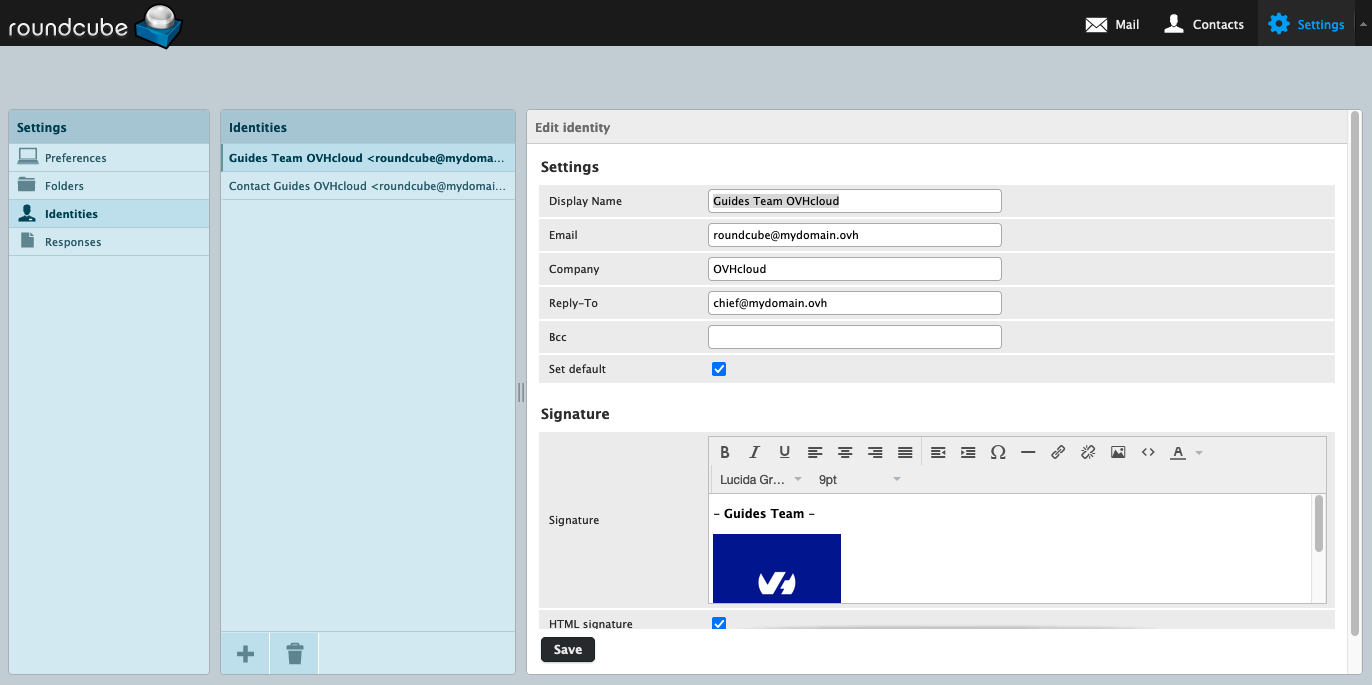
Setting attributes for an identity
- Display Name: This name will appear in the “sender” section of the recipient.
- Email: This will be displayed as the address from which the email is sent.
- Company: A field for a company name, association, or another entity.
- Reply-To: Assign a reply email address different from the sender.
- Bcc: Send a blind copy to an email address.
- Set default: If there are multiple identities (signatures), assign this one by default.
- Signature: Customise the footer of your emails (surname, first name, job title, sentences, images, etc.).
- HTML signature: Activates the HTML format on the signature.
Filling in the Email box with an email address different from the one you are logged in to is considered to be spoofing. The IP address used for sending may be banned and/or considered "SPAM" by your recipients.
Adding a signature
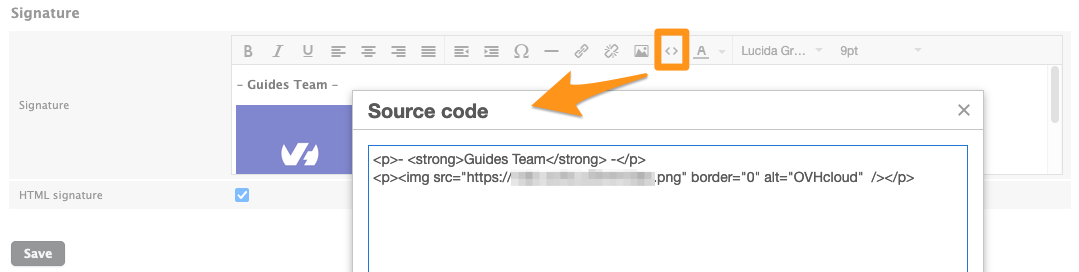
By default, the Signature box is set to plain text. This format does not allow advanced editing or inserting an image into your signature. For advanced editing options for a signature, it is recommended that you enable HTML mode by clicking HTML Signature under the text frame.
If the signature is in HTML format, it will be necessary to switch to HTML mode for writing an email. You can enable this option by default for each email editing session, in the Settings section of the Roundcube interface.
Click Preferences in the left-hand column, then click Composing Messages. At Compose HTML messages, select Always.
To insert an image into a signature, the image must be hosted on a server (OVHcloud hosting or another).
Uploading an image from your device will not display it.
Click the < > button in the HTML toolbar, then insert the following code, replacing your-image-url with the URL of the image, and text-if-image-is-not-displayed with text that replaces the image if it cannot be displayed.
Contact book
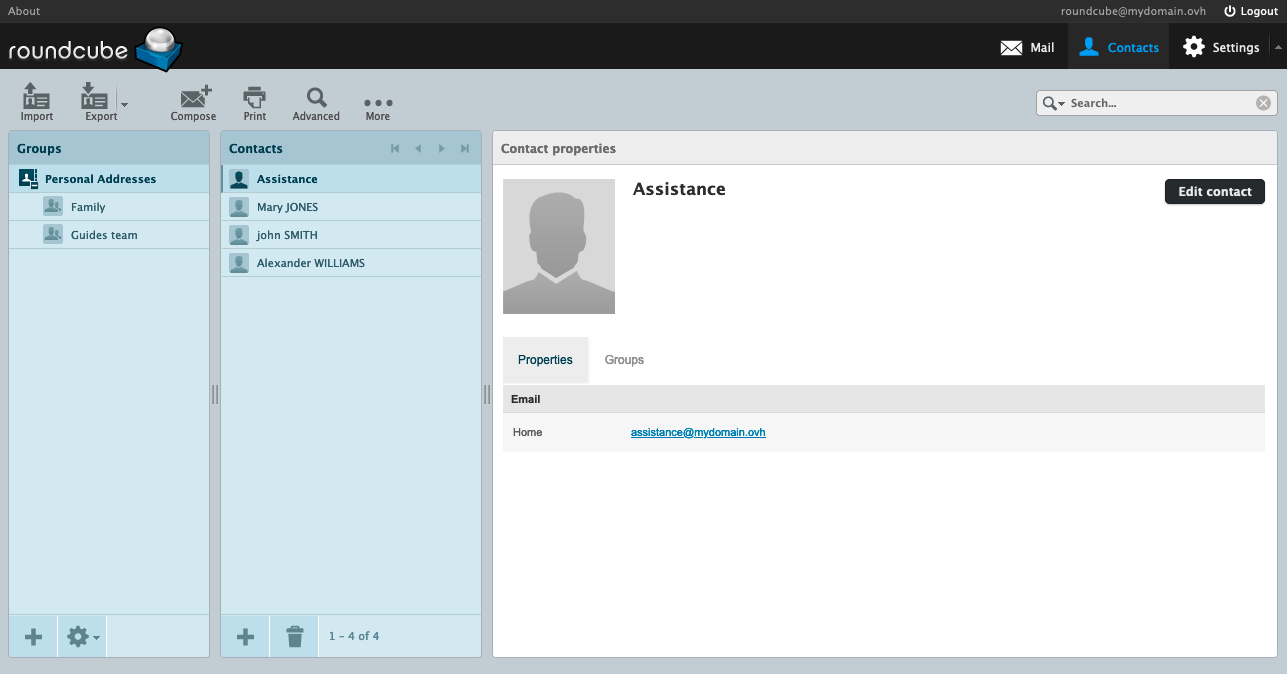
Click Contacts in the top bar to access the contact book. It is divided into 3 columns:
- Groups: In the address book, you can create groups to classify contacts.
- Contacts: View the contacts for the selected address book or group.
- Contact Properties or Add Contact: This window appears when a contact is selected or is being created. You can read or edit contact information.
Groups
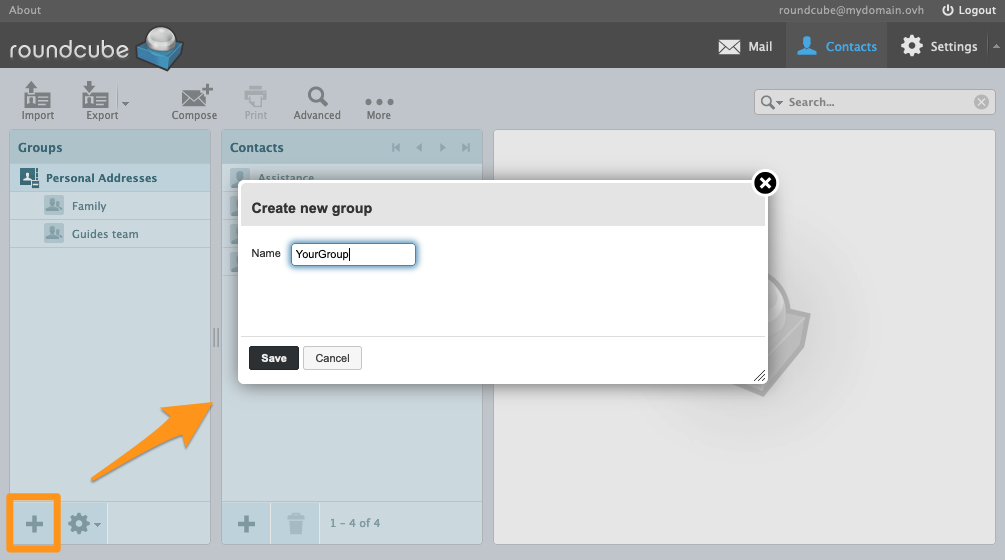
Groups are subcategories of the address book. They can be used to classify contacts into subsets. For example, it is easier to find a contact in a group you have created than in your entire address book. This also allows you to send an email by adding a group as a recipient, instead of adding the group contacts individually.
To create a group, click the + button at the bottom of the Groups column. Set the group name and click Save to validate.
To assign a contact to a group, select a contact in the Contacts column. In the window that appears, click on the Groups tab. Select the group you want to assign to the contact.
Contacts
In the Groups column, select the address book or one of the groups.
When you create a contact from a selected group, the contact will be automatically added to the group.
Click the + button at the bottom of the Contacts column to create a contact.
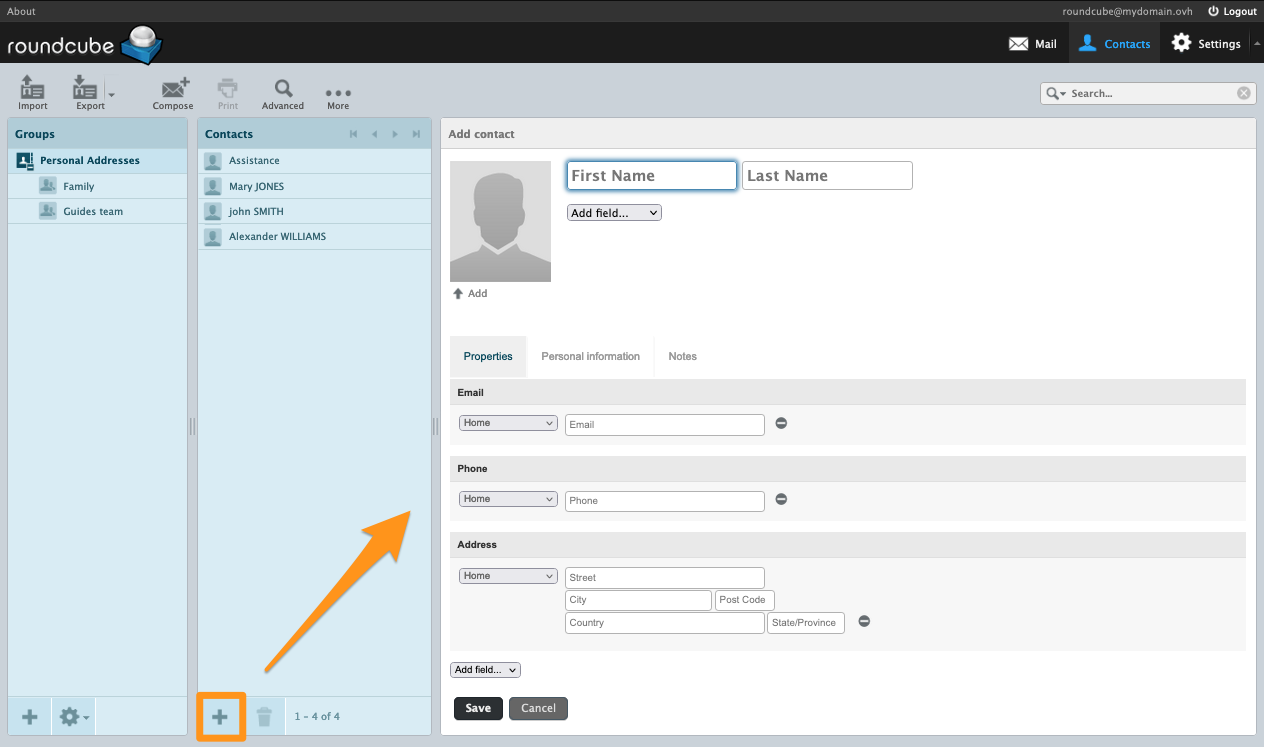
Then fill in the contact information.
You can add additional fields via the Add Field... drop-down menu, located under the First name and Address sections.
Importing Contacts
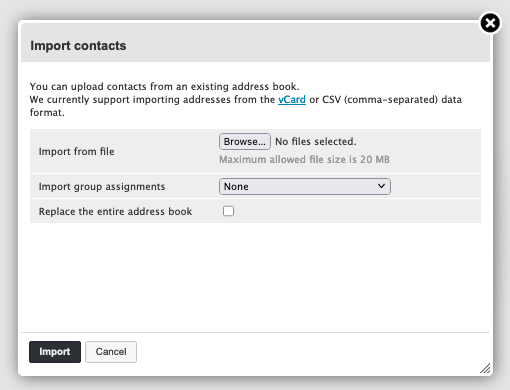
In the Contacts window in the top bar, click Import to open the import window.
Import from file: Select a CSV or vCard file on your computer. Contacts within a CSV file must be separated by commas. The file should not be larger than 20 MB.Import group assignments: If the contacts in your file are sorted by groups, you can enable this option to import this organisation. If you leave this option onNone, no groups are assigned to the contacts.Replace the entire address book: If you have already configured a contact book, we recommend exporting it before ticking this option, or ensuring that you want to replace it permanently.
Exporting Roundcube Contacts
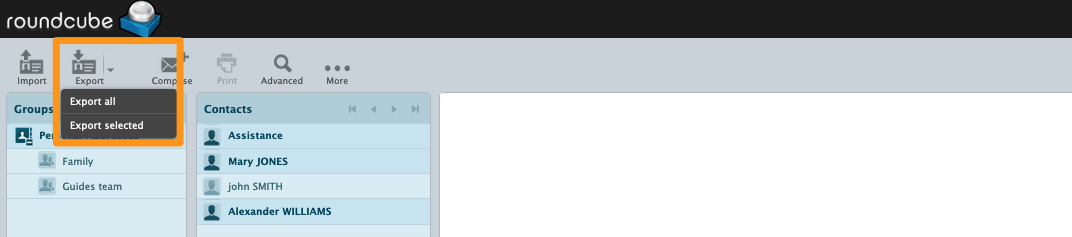
In the Contacts window in the top bar, click the down arrow to the right of the Export button.
You can choose between:
Export all: All contacts will be exported to a .vcf file.Export selected: Export only the items you have selected in theContactscolumn.
Responses (templates)
This feature allows you to create response templates for composing an email.
In Roundcube, click Settings in the top bar, then Responses in the left column.
To add a response, click the + button at the bottom of the Replies column.
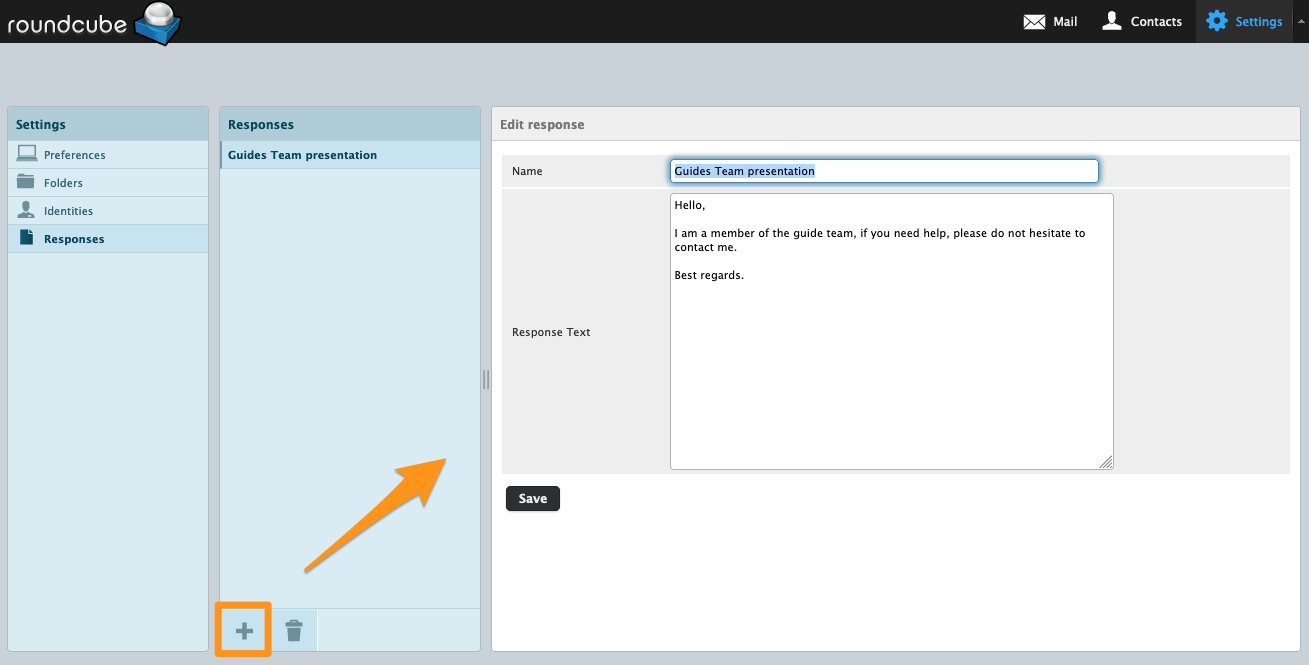
Responses are written in plain text format.
Adding an autoresponder
You want to add an automatic reply to your email account when you are absent or unavailable. This feature cannot be enabled via webmail, but via your OVHcloud Control Panel, in the management interface for your email accounts. Read our guide "Creating an autoresponder for your email addresses".
Changing your email password
To change your email password, you will need to log in to your OVHcloud Control Panel, in the interface for managing your email addresses. Read our guide "Changing an email password".
Writing an email
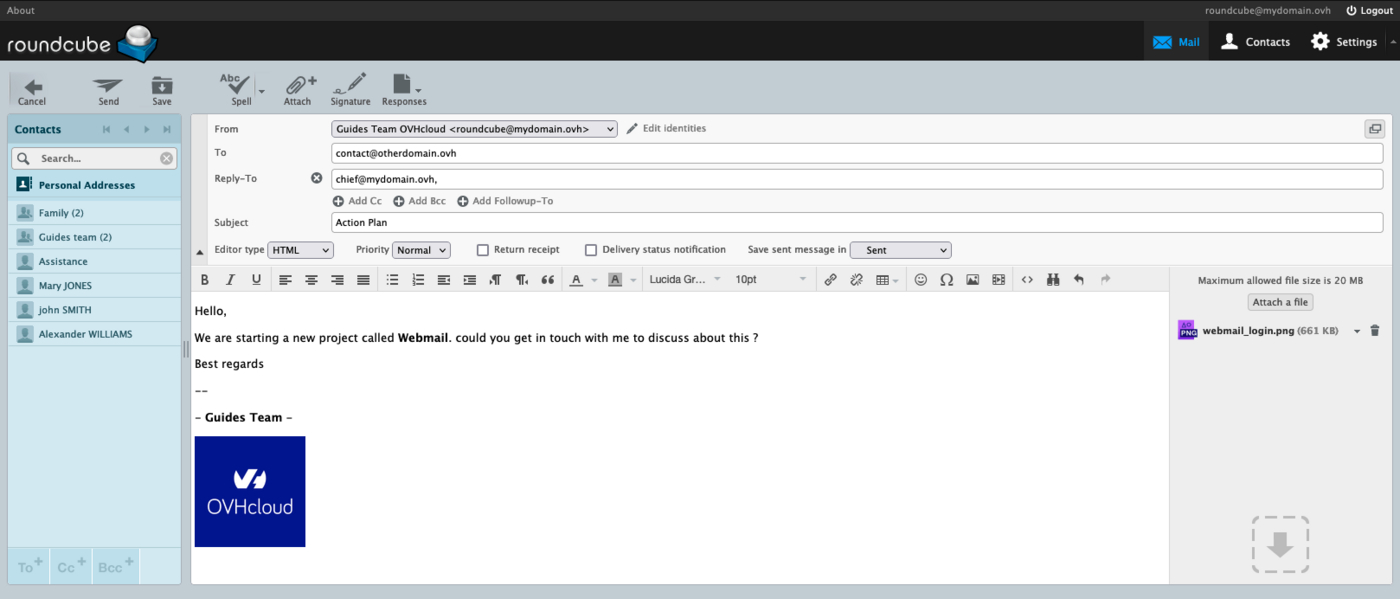
From the Email tab in the top bar, click Write.
In the email editing window, you will see the following fields:
The "To" field must not exceed 100 recipients, this includes contacts in a group.
- Add Cc+: Add single copy recipients.
- Add Bcc+: Add blind copy recipients. Other recipients of the email will not see addresses in BCC.
- Add Followup-To: Forward the email to recipients.
- Editor type:
Plain text: Text only, without formatting.HTML: Text with formatting. An HTML toolbar appears above the input window.
- Priority of the email.
- Return receipt: Acknowledgement of receipt is requested from the recipient.
- Delivery status notification Status notification when the email has been successfully sent to the recipient.
- Save sent message in: Choose the folder where a copy of the email will be stored.
In the top bar, the following actions are available:
Cancelwriting an email with a confirmation request.Sendan email.Savean email in the "Draft" special folder.Spellcheck the text, with a menu allowing the choice of language.Attacha file to an email.Signatureadds the signature attached to the selected identity.Responsesadds a pre-saved template from the Responses section.
Use cases
Request verification failed
When you try to access your Roundcube webmail, you will receive the following message:
As you will see in the email, your account will be considered as already logged in. This is called a session. It means that your email account is already being used by the email server, and that the previous session must be closed. Check that your email account has not already been opened on Roundcube. You can also clear cached data in your web browser.
Go further
Getting started with the MX Plan solution
Changing your password for an MX Plan email address
Creating an auto-reply for an email address
Creating filters for your email addresses
Join our community of users.


 Getting started with the MX Plan solution
 12495
12495