

Restoring backups via the OVHcloud API
285 Views
 29.03.2021
  Managed Bare Metal
Objective
This guide will explain how to identify and restore backups via the OVHcloud API
Requirements
- Access to the OVHcloud API
- Veeam Managed Backup enabled on your Managed Bare Metal solution
Instructions
If you are not familiar with OVHcloud APIs, please refer to our Getting started with OVHcloud APIs guide.
Step 1: Generating a backup report
First, you need to target the backups you want to restore.
Log in to https://api.ovh.com/ and use the following call:
Enter the variables:
- serviceName: the reference for your PCC as
pcc-XX-XX-XX-XX. - datacenterId: the ID of the data centre your Veeam Managed Backup solution is activated in.
This call will generate a backup report. It will be sent by email to the address listed on the Hosted Private Cloud service administrator account.
The email lists the following:
- VM name
- Backups performed (BackupJobName)
- Size of each backup
- Storage Folder (BackupRepository)
- Last restore point
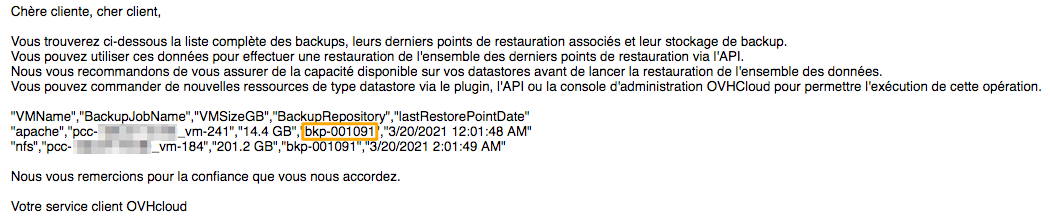
Take note of the BackupRepository reference, this will allow you to restore backups in the next step.
Step 2: Restoring backups
Before starting restoration on your datastore, ensure that it has enough storage capacity to accommodate all of the data to be restored.
If not, you will be notified by email and the operation will be cancelled.
The API call will restore the last valid restore points for each backup in the storage folder.
Log in to https://api.ovh.com/ and use the following call:
Enter the variables:
- serviceName: the reference for your PCC as
pcc-XX-XX-XX-XX. - datacenterId: the ID of the data centre your Veeam Managed Backup solution is activated in.
- backupJobName (optional): the name of a backup, obtained in step 1, as
pcc-XXX-XXX-XXX-XXX_vm-XXX, if you want to restore only one VM. - backupRepositoryName: the backupRepository name obtained in step 1.
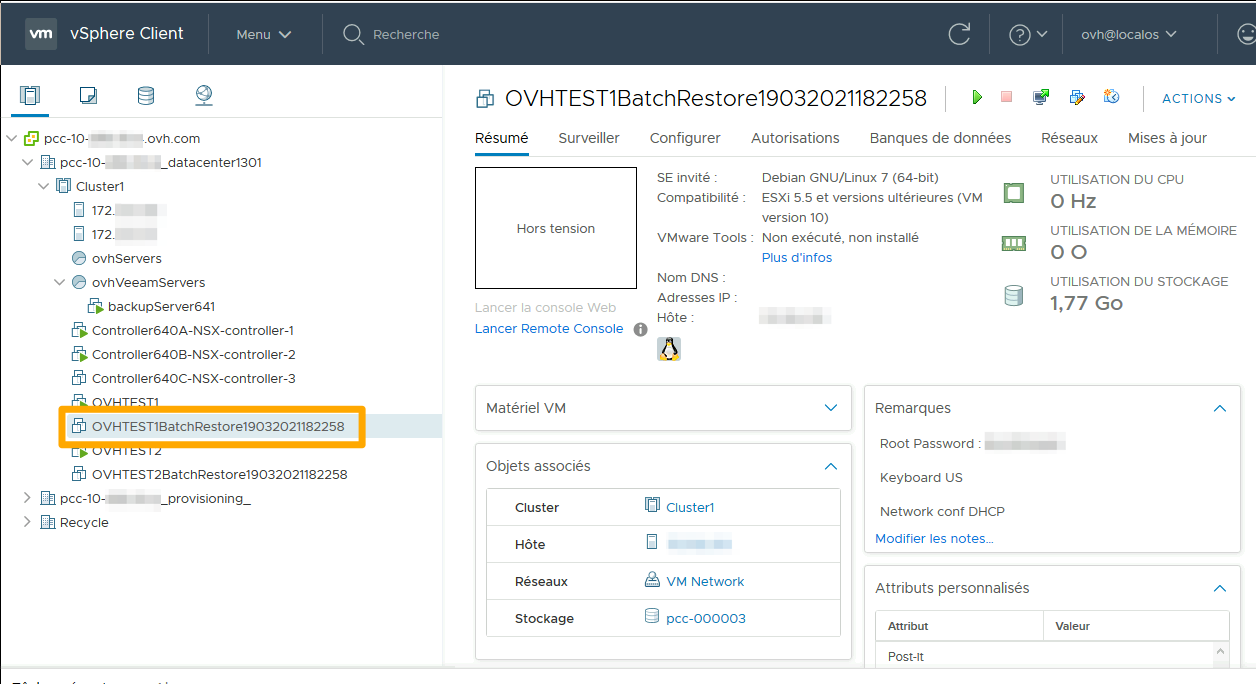
Once the restore is complete, you will find the VMs corresponding to the restored backups in your vSphere interface.
To identify them, their names contain the BatchRestore suffix and a restore timestamp.
VMs are restored and switched off. It is up to you to switch them back on.
Go further
Join our community of users on https://community.ovh.com/en/.


 Setting up a VPN for OVHcloud Zerto DRP
 399
399