

Encrypting your logs archives
437 Views
 10.03.2023
  Cloud / Logs Data Platform
Objective
With the Cold Storage feature you can generate daily archives for your log streams.
On top of that, you can secure these archives by encrypting them with one or more of your PGP public keys. Only the owner of the private keys will be able to decrypt and see the archives content.
Requirements
This is what you need to get started:
- A stream with cold storage enabled. You can follow this Cold Storage tutorial to set it up.
- An existing PGP keypair, or a machine with the
gpgbinary to generate a new PGP keypair.
Instructions
Get a PGP public key
First of all, you need a PGP keypair. You can use an existing keypair or create a new one. Both cases are documented below. The only restrictions we impose regarding this keypair are:
- using RSA 4096 or ECC with Curve 25519 as public key algorithms
- the key must not have any expiration date
Only your public key needs to be shared with OVHcloud. You should never share your private key, and no one at OVHcloud should ever ask you for your private key.
Get an existing PGP public key
If you already have some PGP keypairs, you can list them with the following command:
We have two keypairs here:
- One for
John Smith <john@smith.org>, which fingerprint is448940C5335D1D278788F4AF67336C97696A1BE0, which is an EdDSA/ECDH key (ed25519/cv25519), and which doesn't have any expiration date- This key is usable for Cold Storage Encryption
- One for
Robert Dupont <robert@dupont.org>, which fingerprint isA742F6D3566178F008066E252BE29904DDDA4BA1, which is an RSA 3072 key, and which expires on2025-03-06- This key is NOT usable for Cold Storage Encryption, as it uses RSA < 4096 and has an expiration date
Once you identified a key which matches our restrictions, you can export the public key in an ASCII armored format with the following command, using its fingerprint:
If none of your existing keypairs are compatible, simply generate a new one as explained below.
Generate a new PGP public key
Ensure you have GnuPG/gpg >= 2.1.x installed:
Now, let's generate your new keypair. An EdDSA/ECDH with Curve 25519 in this example:
When you are prompted to choose a passphrase, it's up to you to pick one or to leave it empty for no passphrase. If you choose to use a passphrase, be sure to store it in a password manager, it will be needed to decrypt your archives.
Congratulations, your key is now generated. You can now export the public key in an ASCII armored format with the following command:
Register your PGP public key in your Logs Data Platform account
In the home page of your Logs Data Platform service, in the bottom left you will find a Configuration panel. In this panel, in the PGP encryption keys line, click the ... button and then Edit:
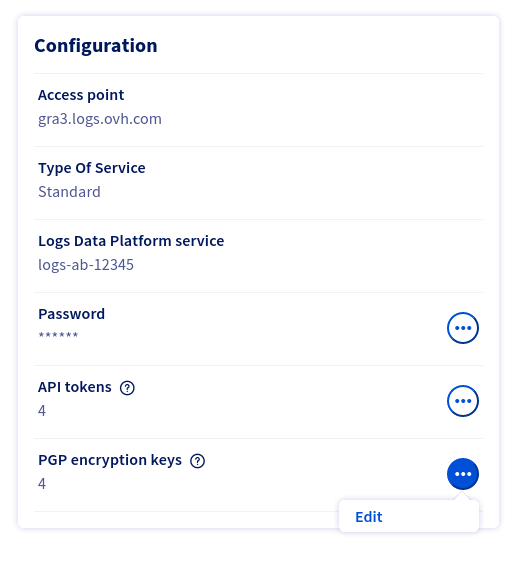
You will land on the PGP encryption keys page, where you can manage your keys.
It is from this page that you can add, delete, or view the details of your PGP encryption keys. You can also view there how many archives have been encrypted with a given key.
You will possibly view some keys named LDP Recovery key <cluster name>, that you did not add yourself. We will mention these LDP Recovery keys later in this documentation.
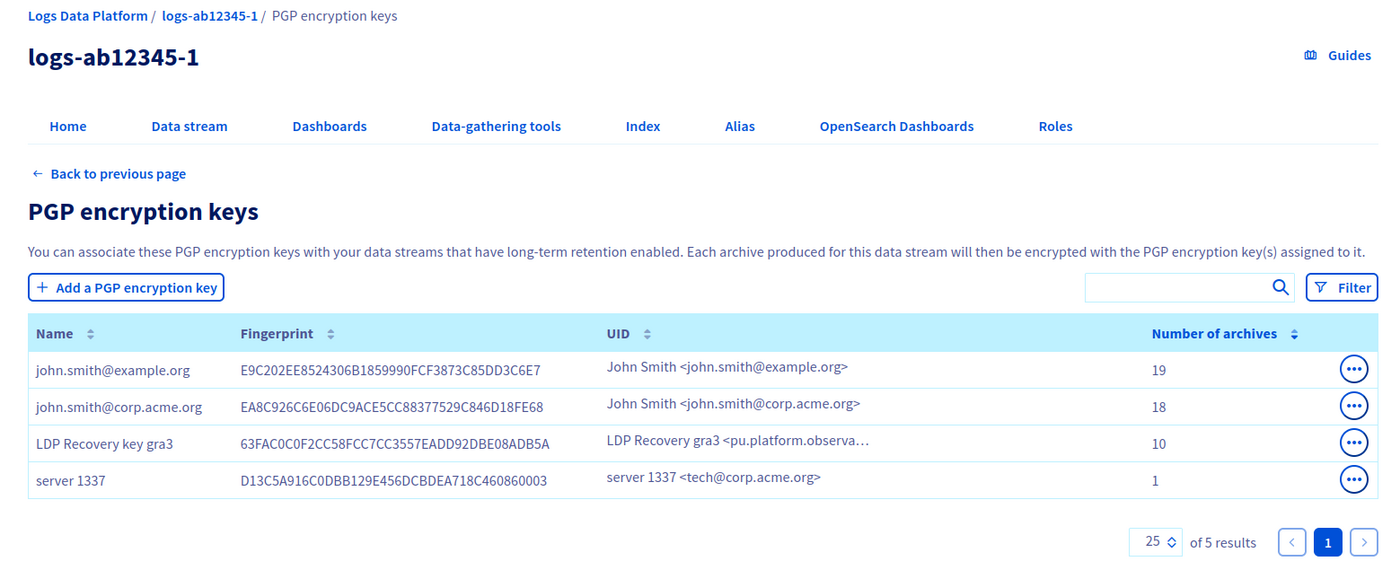
To register your PGP public key into your Logs Data Platform account, click on the Add a PGP encryption key button.
You will land on a form in which you have three fields to fill in:
- Name: it is the display name of this PGP public key inside OVHcloud systems. It can be the same as your PGP key UID (usually
First name Last name <email>), but it can also be something totally different. As it's only a display name, enter whatever is relevant for you. - Fingerprint: your PGP key fingerprint, in its 40 characters hexadecimal version. In the example above in which we generated a new key, it is
E9136DAF94BD3D708C855124A7109E653C115379. - Content: the ASCII armored content of your PGP public key. Copy paste here the full block beginning with
-----BEGIN PGP PUBLIC KEY BLOCK-----and ending by-----END PGP PUBLIC KEY BLOCK-----.
Even if the fingerprint can be deducted from the PGP public key content, we want you to specify both so that we are 100% sure you are adding the correct key.
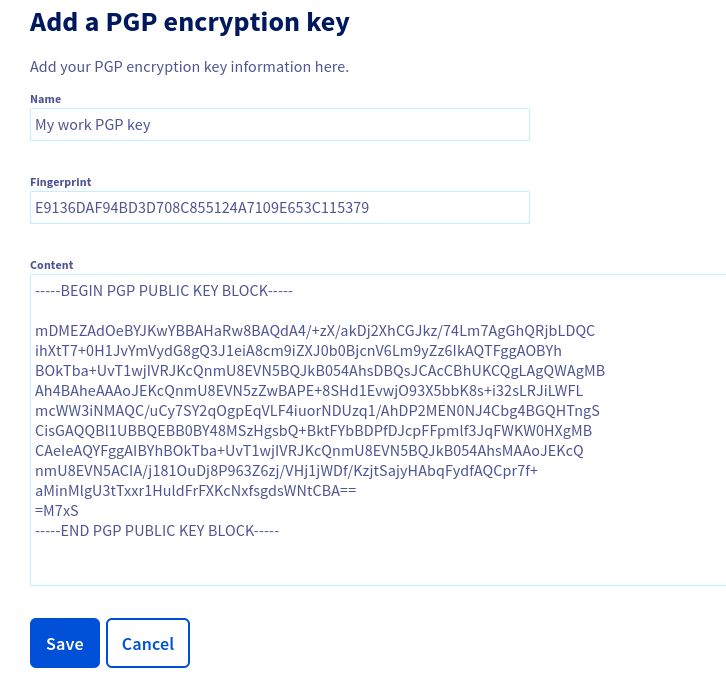
Then click Save.
If anything is wrong with your public key (unsupported algorithm, mismatch between fingerprint & key content, etc.) an explicit error message will be printed.
Update your stream Cold Storage configuration to use encryption
Now that you added your PGP public key to your Logs Data Platform account, you can use it in your streams cold storage configurations.
For this, go to the Data Stream tab, pick the stream for which you want cold storage encryption, click the ... button and then clickEdit.
- Ensure the
Enable long-term storageoption is checked. You can refer to the Cold Storage feature documentation to know about each of its fields. - Check the
Encrypt archives with my PGP encryption keysoption - Select each PGP encryption key you want your archive to be encrypted with
- Click on
Save
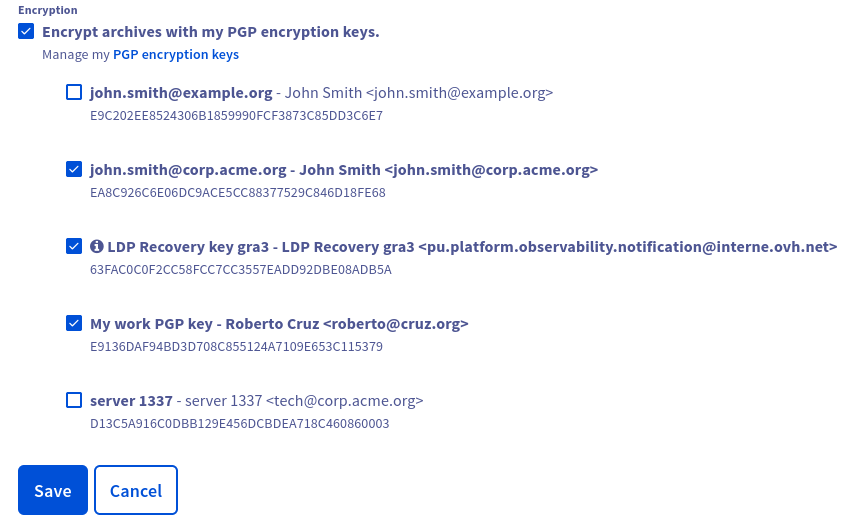
That's it: now each archive produced by this stream will be encrypted with the selected keys (don't forget that archives are produced 2 days after logs are sent).
For a given stream, you can select up to five of your encryption keys (the LDP Recovery Keys are not included in this five keys). A given encryption key can be used in several cold storage configurations.
Know which key was used to encrypt which archive
In the Data Stream tab, you can see how many archives exist for each stream. On a stream on which you have some archives, click the... button and then click Archives.
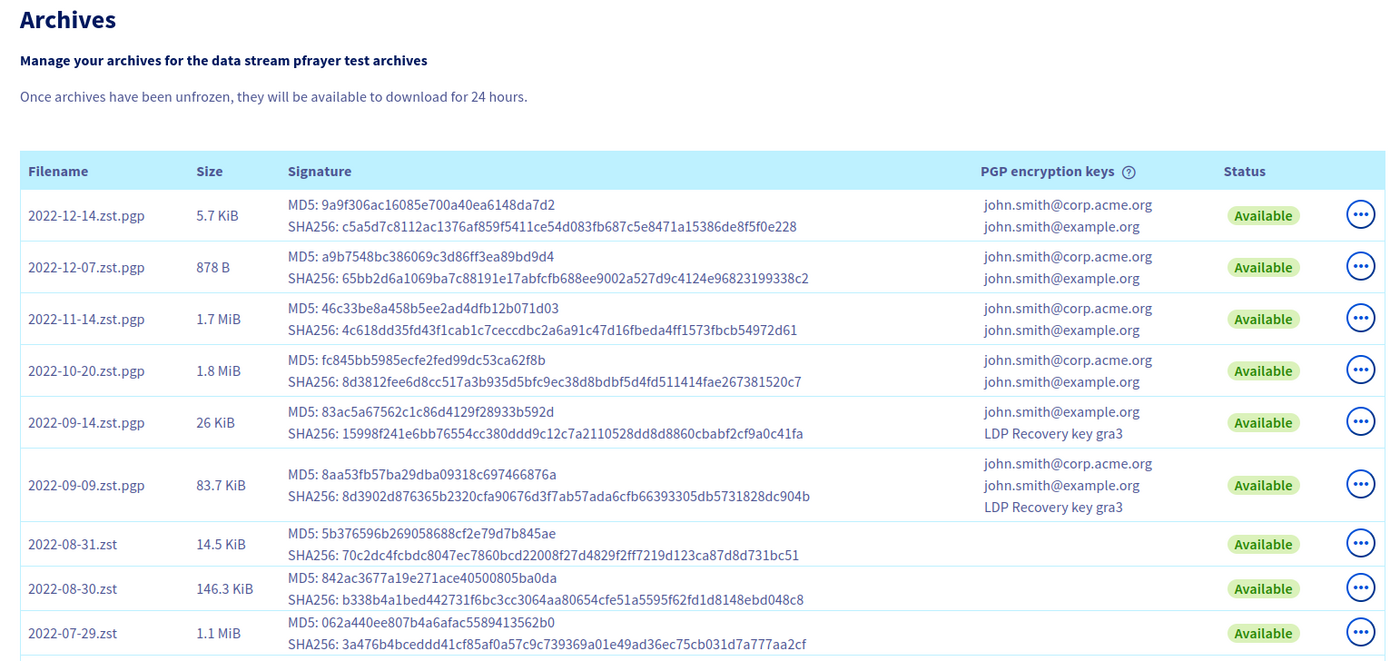
In this archives list, you can see a PGP encryption keys column.
- if some key names are present here, it means this archive is encrypted with these keys
- if no key names are present, it means this archive is not encrypted at all
Download and decrypt your archives
Once your encrypted archives are available, you can retrieve them following this tutorial.
To decrypt a given archive, you can use gpg on a machine on which your private key is present:
The LDP Recovery Key
Now your stream's archives are encrypted with your PGP public keys, and only the owner of the related private keys can decrypt the archives.
But what if you lose access to your private keys or to your passphrase? In such a case, you won't be able to decrypt your archives anymore, and won't be able to see the archives content.
To avoid such a situation, we provide the LDP Recovery Keys. These are also PGP public keys you can use in your cold storage configuration, but which private keys are owned by OVHcloud. Thus if you chose to use LDP Recovery Keys in addition to your own keys, and you lose access to your private keys, OVHcloud teams will still be able to decrypt your archives, re-encrypt it with your new keys and send you these re-encrypted archives.
Note that this feature is opt-in: you have to explicitly select the LDP Recovery Key in your stream's cold storage configuration to benefit from this feature.
Ask OVHcloud to recover your encrypted archive
If the situation described above happens (you lost your private key, but your archive is also encrypted with the LDP Recovery Key), you will have to contact OVHcloud support. Open a ticket and describe precisely the name of your Logs Data Platform service, the name of the stream and the name of the archive. You will also have to provide a new PGP encryption key (a key you already added to your Logs Data Platform account).
The Logs Data Platform team will then take care of your request.
Go further
- Getting Started: Quick Start
- Documentation: Guides
- Community hub: https://community.ovh.com
- Create an account: [Try it!](https://www.ovh.com/en/order/express/#/express/review?products=~(~(planCode~'logs-account~productId~'logs))


 Archiving your logs - Cold-storage
 5229
5229