

Retrieving server health status
532 Views
 27.11.2025
  Cloud / OVHcloud Load Balancer
Objective
The OVHcloud Load Balancer service acts by default as a proxy. It distributes the load (requests) it receives among all the servers in the desired farm.
Each server can be configured for the Load Balancer to check its status frequently.
As soon as a server is detected as "down", the Load Balancer stops sending it data and distributes the load among the remaining servers.
This functionality is useful in the event of scheduled maintenance: you may take the server out of the farm, perform maintenance, and then reintegrate it into the farm.
However, when a server is removed from the farm by the Load Balancer independently of your will, it is important to be informed and to know the reason.
This tutorial explains how to find out the health status of each server for each instance of your OVHcloud Load Balancer.
Requirements
- An OVHcloud Load Balancer offer in your OVHcloud account
- Access to the OVHcloud API
- A configured farm
- A configured front-end
OVHcloud Control Panel Access
- Direct link: Load Balancer
- Navigation path:
Network>Load Balancer> Select your service
Instructions
In order to have valid server status checks, you need to have a probe configured on your farm, and servers that allow access to that probe.
If you need to configure probes on your Load Balancer, please refer to this guide.
From the OVHcloud API
In the API, the server health status is available in the serverState table:
Result
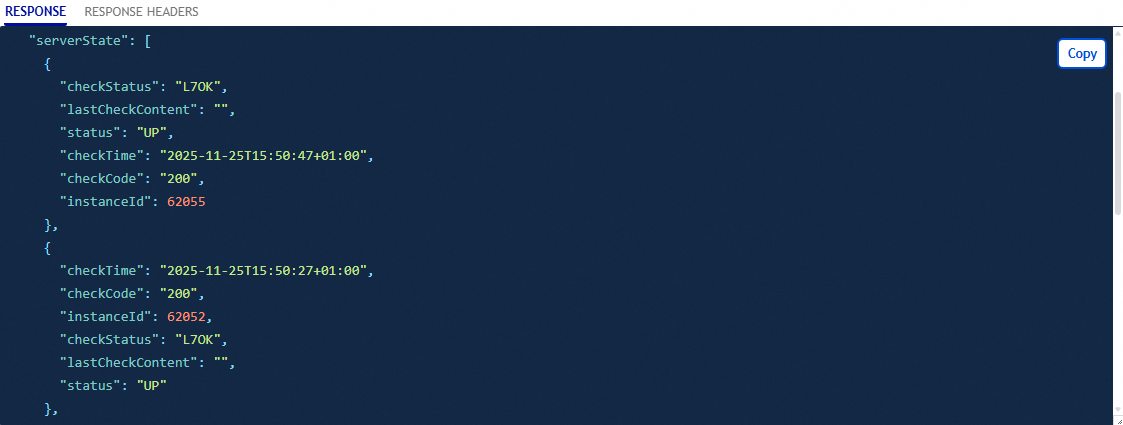
The image above illustrates the result of the command in the API.
From the OVHcloud Control Panel
In the Server clusters tab, after selecting one of them, the status of each of its servers is displayed on the corresponding line.
Result
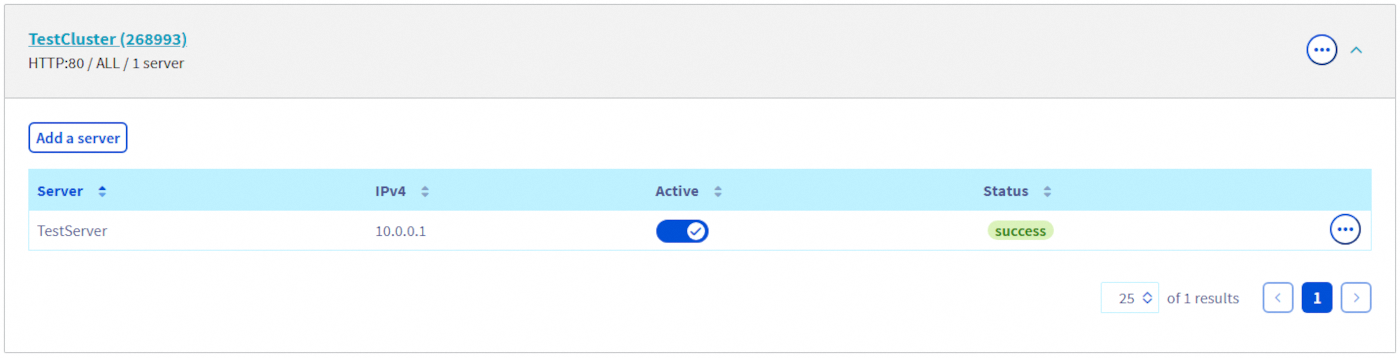
To obtain details on a server's health status, click on the text in the "Status" column, or click the ... button and select See status.
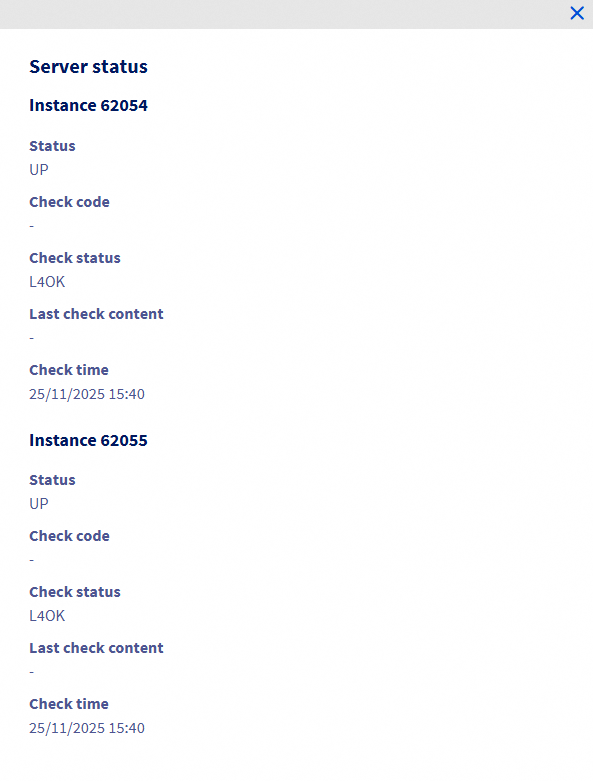
Explanation of the server status details
As explained previously, we have retrieved the server health status for each instance of your OVHcloud Load Balancer.
For each instance, we have the following information:
| Field | Description |
|---|---|
| Status | Server status |
| Check code | Return code of the health check probe |
| Check status | Status of the health check probe |
| Last check content | Content of the probe's return |
| Check time | Date and time the probe was executed |
Go further
Join our community of users.

