

Configuration of probes on an OVHcloud Load Balancer service
603 Views
 12.11.2025
  Cloud / OVHcloud Load Balancer
Objective
The OVHcloud Load Balancer allows you to distribute incoming traffic on a frontend to a set of servers in a destination farm.
It may happen that one of the servers in your farm is no longer available for various reasons, such as overload, an incident, or scheduled maintenance. When it encounters a connection error, your OVHcloud Load Balancer attempts to switch traffic to another server. The connection will be slowed down, but it will continue to function.
However, the causes of some unavailability are more subtle. For example, if a new version of the code is being deployed, the application may temporarily be in a transitional state and return 500 errors. In this specific case, one solution would be to mark the affected servers as unavailable in the API before the start of the maintenance, apply the configuration and update, and then mark the server as available again. This method is not ideal, but it works.
For more details on deploying a Blue-Green architecture with your OVHcloud Load Balancer, refer to this guide.
Probes are health checks. They periodically query each of your servers to ensure they are operational. If an error is detected, the server is automatically disabled until the situation is resolved.
This guide will present the general principles, as well as usage scenarios for probes, drawn from real-world use cases.
Requirements
- Have an OVHcloud Load Balancer offer in your OVHcloud account. The service must be properly configured, with farms and servers set up.
OVHcloud Control Panel Access
- Direct link: Load Balancer
- Navigation path:
Network>Load Balancer> Select your service
Instructions
Table of contents
Probe API overview
The probe API of your OVHcloud Load Balancer has been designed to be flexible and scalable.
Probes are configured directly on the farms. All servers in the same farm thus apply exactly the same probe. However, enabling or disabling a probe is specific to each server. It is therefore possible to "monitor" only certain servers in the same farm.
The list of available probes and their parameters can be consulted with the API call :
For more information on this call, we invite you to consult the Available probes section at the bottom of this guide.
The probes returned by this list can be configured on http and tcp farms via the following calls :
For more information on these calls, you can refer to the Probe handling section of this guide.
Examples
Check if the server accepts TCP connections
This is the simplest probe to set up. It is compatible with tcp and http farms. If no other probe is configured, you can activate this one to start. It works by periodically trying to open a connection on each of your servers. If the connection fails twice in a row, the server is put aside until it responds again.
In practice, this gives a probe :
| Field | Value and description |
|---|---|
| serviceName | Identifier of your OVHcloud Load Balancer |
| farmId | Identifier of your TCP or HTTP farm |
| probe.type | "tcp" |
All other probe fields can remain at their default values. You just need to apply the configuration in the relevant area.
Test a specific HTTP page
By default, the HTTP probe sends an OPTIONS request on / in HTTP/1.0, without a domain name. This is sufficient in many cases, but some servers do not handle this method.
It is possible to perform much more powerful tests with the HTTP probe. For example, a good practice when exposing an HTTP service is to add a dedicated route for probes. It is common to find /status, /health, /check which return a summary of the service's status.
In practice, if you want to configure the probe to send a GET request to http://api.example.com/status, this gives :
| Field | Value and description |
|---|---|
| serviceName | Identifier of your OVHcloud Load Balancer |
| farmId | Identifier of your TCP or HTTP farm |
| probe.type | http |
| probe.method | GET |
| probe.url | http://api.example.com/status |
| probe.match | status |
| probe.pattern | 200 (several status codes can be added, separated by commas) |
All other probe fields can remain at their default values. It is then sufficient to apply the configuration in the relevant area.
Use an external HTTP test
What if your service is, for example, an IMAP server that relies on an LDAP server for authentication ?
It is possible that the server accepts connections, but has a temporary connection issue with the LDAP server. If this happens, clients who are directed to this server could connect but not authenticate. The server should therefore be removed from the farm.
If a tcp type probe is used, it will be able to connect and consider the service available even though it is not the case.
In this scenario, the ideal would be for the health check to confirm that the base service is working. It is possible to indicate a specific port to use in the tests. This allows arbitrary tests to be set up for a service and exposed in HTTP, on a dedicated port.
For example, in this scenario, it would be possible to have an HTTP server on port 8080 that tests the IMAP server via the url /service/imap/status and returns OK when everything is fine. This would give in practice :
| Field | Value and description |
|---|---|
| serviceName | Identifier of your OVHcloud Load Balancer |
| farmId | Identifier of your TCP or HTTP farm |
| probe.type | http |
| probe.port | 8080 |
| probe.method | GET |
| probe.url | /service/imap/status |
| probe.match | contains |
| probe.pattern | OK |
It is then sufficient to apply the configuration in the relevant area.
If the HTTP service dedicated to monitoring your IMAP service itself fails, the IMAP service will also be considered as failed, even if it is in perfect working condition.
Reference
Probe handling
Configure a probe
Probes can be configured on a new farm (POST) or an existing farm (PUT). The two methods being equivalent, only the second one (PUT) will be presented here.
| Parameter | Description |
|---|---|
serviceName | The identifier of your OVHcloud Load Balancer. |
farmId | The numeric identifier of your farm. |
probe.type | The type of probe to enable. The probe types handled are : |
probe.interval | The interval in seconds between two probe attempts. It must be at least 30 seconds. |
probe.port | The port that the probe should use, if it is different from the one configured on the farm. |
probe.method | The HTTP method to use if the probe is of type "http". |
probe.url | The URL to use for the tests, if the probe is of type "http". |
probe.match | The type of comparator to use to check that the server is healthy. |
probe.pattern | The value to use as an argument for the comparator if it is different from "default". |
probe.forceSsl | Defines whether the probe should work in SSL/TLS even if the farm is configured to connect in classic TCP. |
Other parameters can be edited via this call. As this guide focuses on probes, they are not documented here.
If a port other than the base port of the farm is configured on the probe, the proxyprotocol and ssl parameters are reset. Take the example of a farm configured to use proxyprotocol on port 4242 and a probe associated with port 8080: the latter will not send the proxyprotocol header when connecting to port 8080. The same applies to ssl, which can nevertheless be forced.
When a probe is configured on a farm, it must also be enabled on the servers.
Enable probes on a server
For a probe to be active, it must have been configured on the farm and enabled on the relevant servers. This call allows you to enable the probe :
| Parameter | Description |
|---|---|
serviceName | The identifier of your OVHcloud Load Balancer. |
farmId | The numeric identifier of your farm. |
serverId | The numeric identifier of your server. |
probe | Indicates whether probe should be taken into account or not. |
Other parameters can be edited via this call. As this guide focuses on probes, they are not documented here.
Available comparators
Four comparators are available to validate the result of a probe :
| Comparator | Description |
|---|---|
| default | Runs a basic test, without parameters. |
| status | Comma-separated list of valid HTTP return codes. |
| contains | Checks that the pattern is in the response. |
| matches | Checks that the response matches the pattern regular expression. |
The contains and matches comparators look for a match in the first 16 KB of the response. If it is longer, the part beyond will be ignored during the search. Note that for better performance, we recommend returning as little information as possible in your probes.
Available probes
The list of available probes can be obtained with the API call :
| Parameter | Description |
|---|---|
type | The type of probe to configure in the probe.type field of the farms. |
port | Indicates whether the port can be configured for this probe. |
method | The list of HTTP methods handled or null if none exist. |
url | Indicates whether the probe URL can be configured. |
matches | The list of available comparators for this probe. |
TCP
This probe attempts to establish a TCP connection with the server. If the latter sends a "banner", it is possible to check that it matches a pattern. The default test simply ensures that the connection can be established.
| Fields | Description |
|---|---|
| type | tcp |
| port | Configurable |
| method | Not supported |
| URL | Not supported |
| matches | default, contains or matches |
HTTP
This probe attempts to establish an HTTP connection with the server. If the latter responds, it is possible to check its HTTP status code or that the response body matches a pattern. The default test sends an OPTIONS request to the '/' page in HTTP/1.0, without the Host field.
| Fields | Description |
|---|---|
| type | http |
| port | Configurable |
| method | GET, HEAD or OPTIONS |
| URL | URL of the form [[https?://]www.example.com]/path/to/check |
| matches | default, contains or matches |
If a URL is specified, the domain name and protocol are operational. If a domain name is specified, the "Host" field of the request will be filled in and the request will be sent in HTTP/1.1. If the protocol is specified, it must be consistent with the SSL configuration of the farm.
It is recommended to configure at least the method with GET. Indeed, some servers -including Nginx- do not handle the OPTIONS method without prior configuration.
SMTP
This probe attempts to establish an SMTP connection with the server and sends the "HELLO localhost" command. If the latter responds, the probe checks that the return code starts with a "2" (success). This probe has no specific configuration options.
| Fields | Description |
|---|---|
| type | smtp |
| port | Configurable |
| method | Not supported |
| URL | Not supported |
| matches | default |
MySQL
This probe attempts to establish a MySQL connection with the server and analyses the server's response. This probe has no specific configuration options.
| Fields | Description |
|---|---|
| type | mysql |
| port | Configurable |
| method | Not supported |
| URL | Not supported |
| matches | default |
PostgreSQL
This probe attempts to establish a PostgreSQL connection with the server and analyses the server's response. This probe has no specific configuration options.
| Fields | Description |
|---|---|
| type | pgsql |
| port | Configurable |
| method | Not supported |
| URL | Not supported |
| matches | default |
oco
This probe attempts to establish a TCP connection on port 79 of your server and checks that the response starts with a "2" (success). This probe has no specific configuration options.
| Fields | Description |
|---|---|
| type | oco |
| port | Not configurable |
| method | Not supported |
| URL | Not supported |
| matches | default |
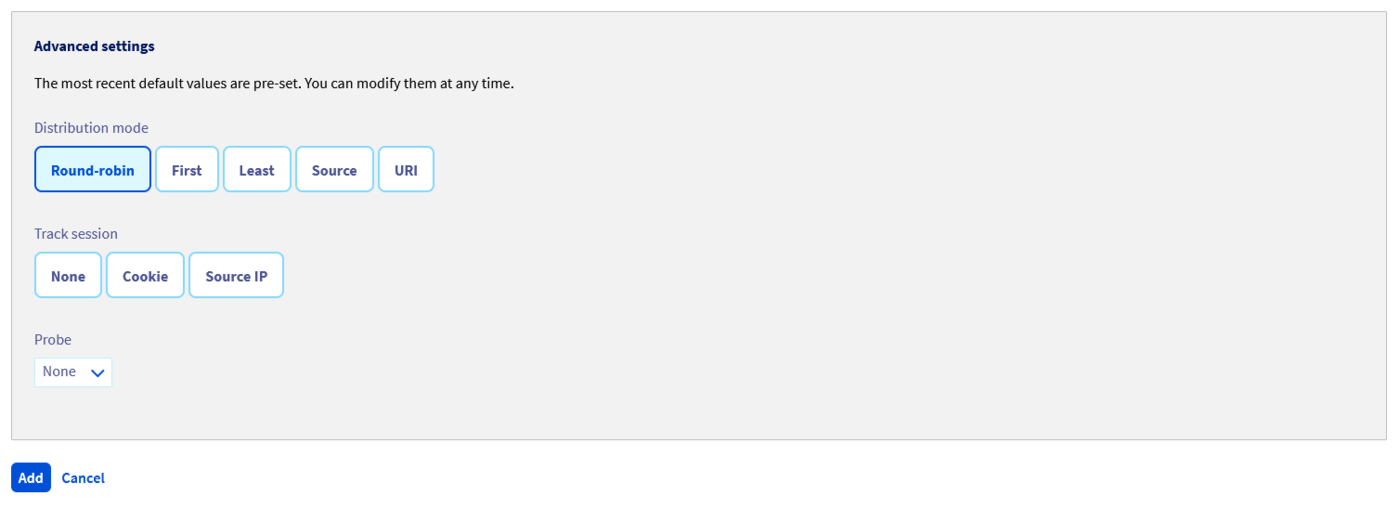
From the OVHcloud Control Panel
You can configure probes when you add or modify a server farm, in advanced settings.

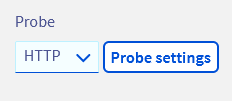
You will then have access to the configuration for the probe type.
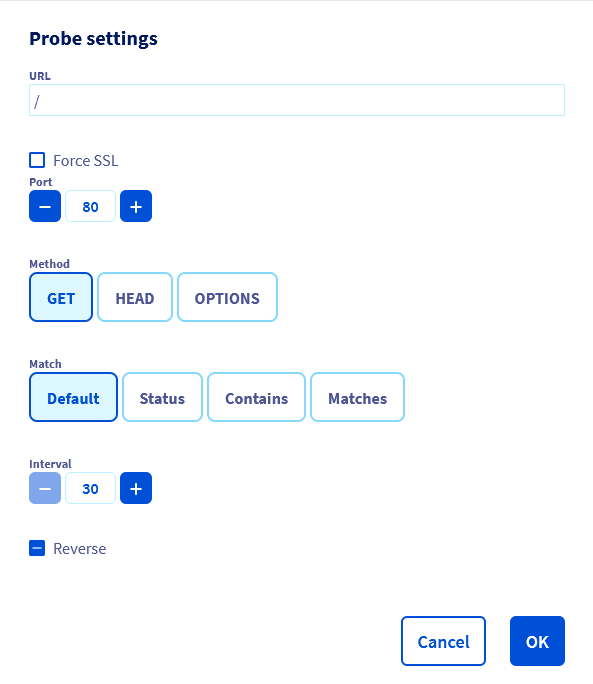
If the probe type you have selected allows it, you can configure advanced settings that are specific to that probe.
A new configuration window will appear, with the probe’s settings.
Go further
Join our community of users.


 Configuring an OVHcloud Load Balancer service with redirects
 1466
1466