

Exchange - How to create contact groups
516 Views
 28.04.2025
  Web / Microsoft Hosted Exchange
Objective
Exchange groups enable multiple participants to communicate by sending emails to a unique group address. With this collaborative feature you can create and manage mailing lists that include Exchange users as well as external contacts.
This guide explains how to use Exchange groups via the OVHcloud Control Panel and Outlook Web App (OWA).
Requirements
- an OVHcloud Exchange solution already set up
OVHcloud Control Panel Access
- Direct link: Exchange
- Navigation path:
Web Cloud>Exchange> Select your platform
Instructions
Creating a new group
Click on the Groups tab in the horizontal menu.
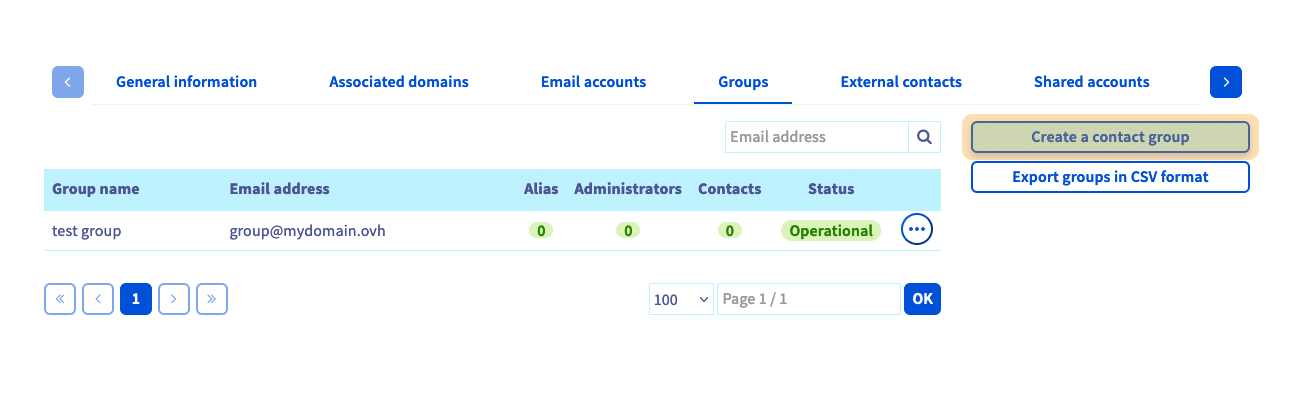
Clicking on Create a contact group will open a new window where you can define the group's settings:
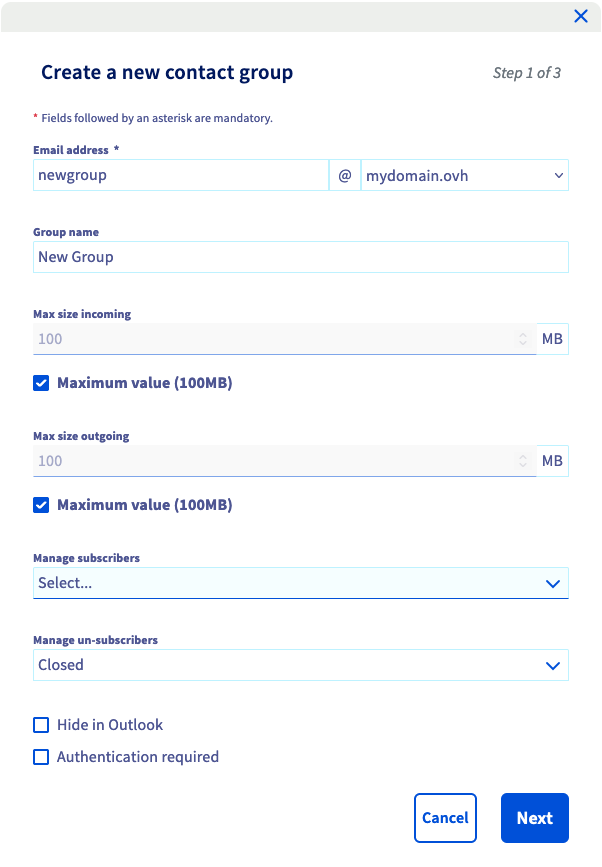
- Email address: Set a new address that will send messages to the mailing list. Please note that you cannot enter an existing email address.
- Group name: The display name that appears in your OVHcloud Control Panel and in your OVHcloud webmail (OWA).
- Max size incoming / outgoing: You can specify the maximum size of incoming and outgoing emails.
- Hide in Outlook: If this box is ticked, the group address will not appear in the Exchange service's list of addresses.
- Authentication required: If this box is ticked, only users on the same platform will be able to send a message using the group address.
Click Next to continue.
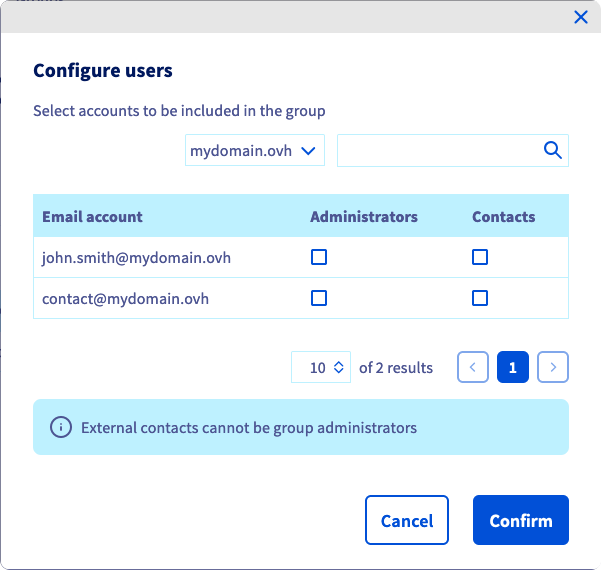
On the second page, select the Contacts for the group and designate the Administrators. The choices will only include email addresses and external contacts that are already created on the service
- Administrators: Email accounts authorized to send an email to all group contacts.
- Contacts: Email accounts that will receive emails sent to the group by administrators.
Please note that administrators must be configured as Contacts in order to receive group emails.
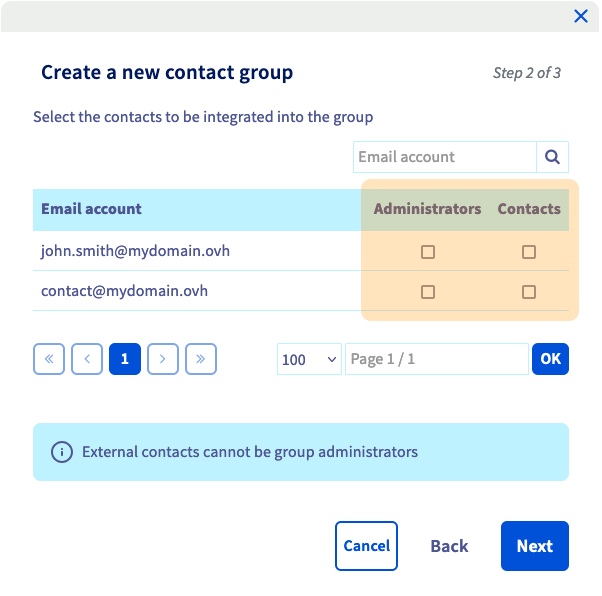
Click Next to continue and click Confirm to finalize your choices.
Managing groups
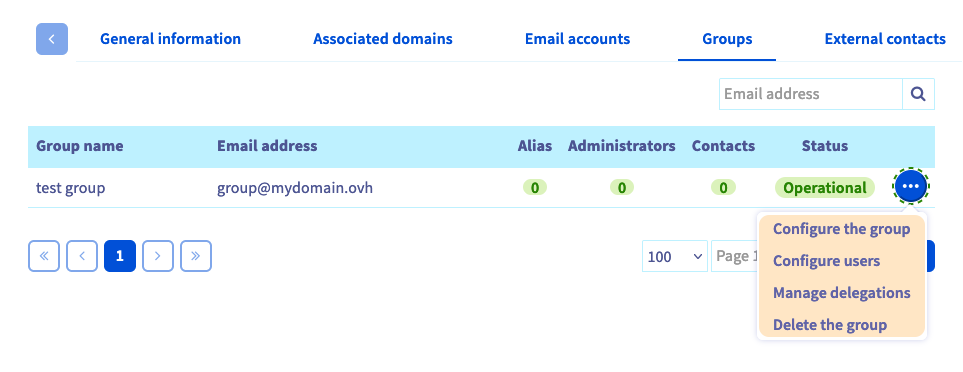
After your group is created, you can adjust the settings described above by clicking ... to the right of the group in the table.
Managing users in a group
To add Contacts to your group or define Administrators, click the ... button, then Configure users. Select the attributes that you want to attach to the email addresses in the Email account column.
A group can contain a maximum number of 10,000 contacts.
Managing group delegations
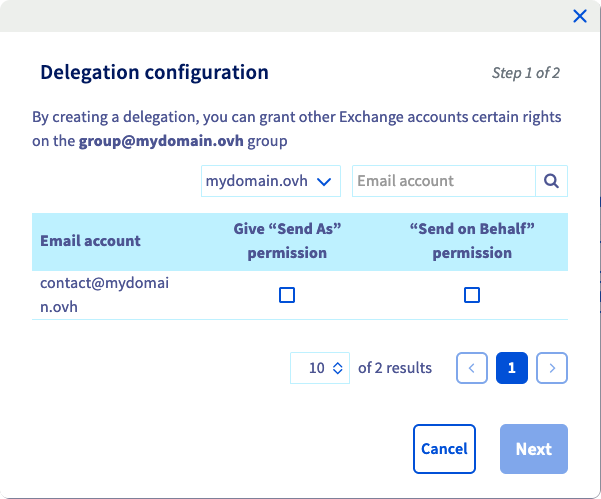
Additionally, the menu item Manage delegations will be displayed. This option allows you to delegate access in the same way as for an Exchange account. Find all the details in this guide.
Please note that any changes to this service may take a few minutes to be applied. You can check the status of most operations by selecting the More and Recent tasks options from the horizontal menu.
Messaging a group in OWA
You can now test your mailing list via OVHcloud webmail (OWA): simply send an email to the group address.
Go further
Delegating permissions on an Exchange account
Using the Outlook Web App with an Exchange account
For specialised services (SEO, development, etc.), contact OVHcloud partners.
If you would like assistance using and configuring your OVHcloud solutions, please refer to our support offers.
Join our community of users.


 Configuring two-factor authentication on an Exchange account
 4310
4310