

Email Pro - Configure your email account on Thunderbird for macOS
831 Views
 19.09.2025
  Web / Email Pro
Objective
Email Pro accounts can be configured on different compatible email clients. This allows you to use your email address from the device of your choice. Thunderbird is a free and open-source email client.
This guide explains how to configure your Email Pro address on Thunderbird for macOS.
Requirements
- An Email Pro account
- The Thunderbird software installed on your Mac device
- The credentials for the email account you want to configure
OVHcloud Control Panel Access
- Direct link: Email Pro
- Navigation path:
Web Cloud>Email Pro> Select your platform
Information regarding the administration and configuration of OVHcloud services
This guide will show you how to use OVHcloud solutions with external tools, and the changes you need to make in specific contexts. You may need to adapt the instructions according to your situation.
If you experience any difficulties carrying out these operations, we recommend that you contact a specialist service provider or discuss the issue with our community. OVHcloud cannot provide you with technical support in this regard. You can find more information in the Go further section of this guide.
Instructions
In our examples, we will use as the server name: pro?.mail.ovh.net. You will need to replace the "?" with the number designating the server of your Email Pro service.
Click this link to access the Email Pro section. The server name is visible in the Connection section of the General information tab.
Add the account
-
When starting the application for the first time: A configuration wizard will appear and prompt you to enter your email address.
-
If an account is already configured on the application:
- Click on the menu
☰in the top horizontal bar. - Click on
New Account. - Click on
Email Address.
- Click on the menu
Follow the configuration steps by clicking successively on the 5 tabs:
In the window that appears, enter the following two pieces of information:
- Your full name (display name).
- The email address you want to configure.
Click on Continue to complete the settings.
When Thunderbird detects an OVHcloud domain name, an automatic configuration related to the MX Plan offer is proposed. Click on Modify Configuration.
Reception server settings:
- Protocol: IMAP
- Server name: pro?.mail.ovh.net (replace the "?" with the number of your server)
- Port: 993
- Connection security: SSL/TLS
- Authentication method: Normal password
- Username: Your full email address
Sending server settings:
- Protocol: SMTP
- Server name: pro?.mail.ovh.net (replace the "?" with the number of your server)
- Port: 587
- Connection security: STARTTLS
- Authentication method: Normal password
-
Username: Your full email address
-
Click on
Testto verify the settings entered. - Click on
Continueto validate these settings.
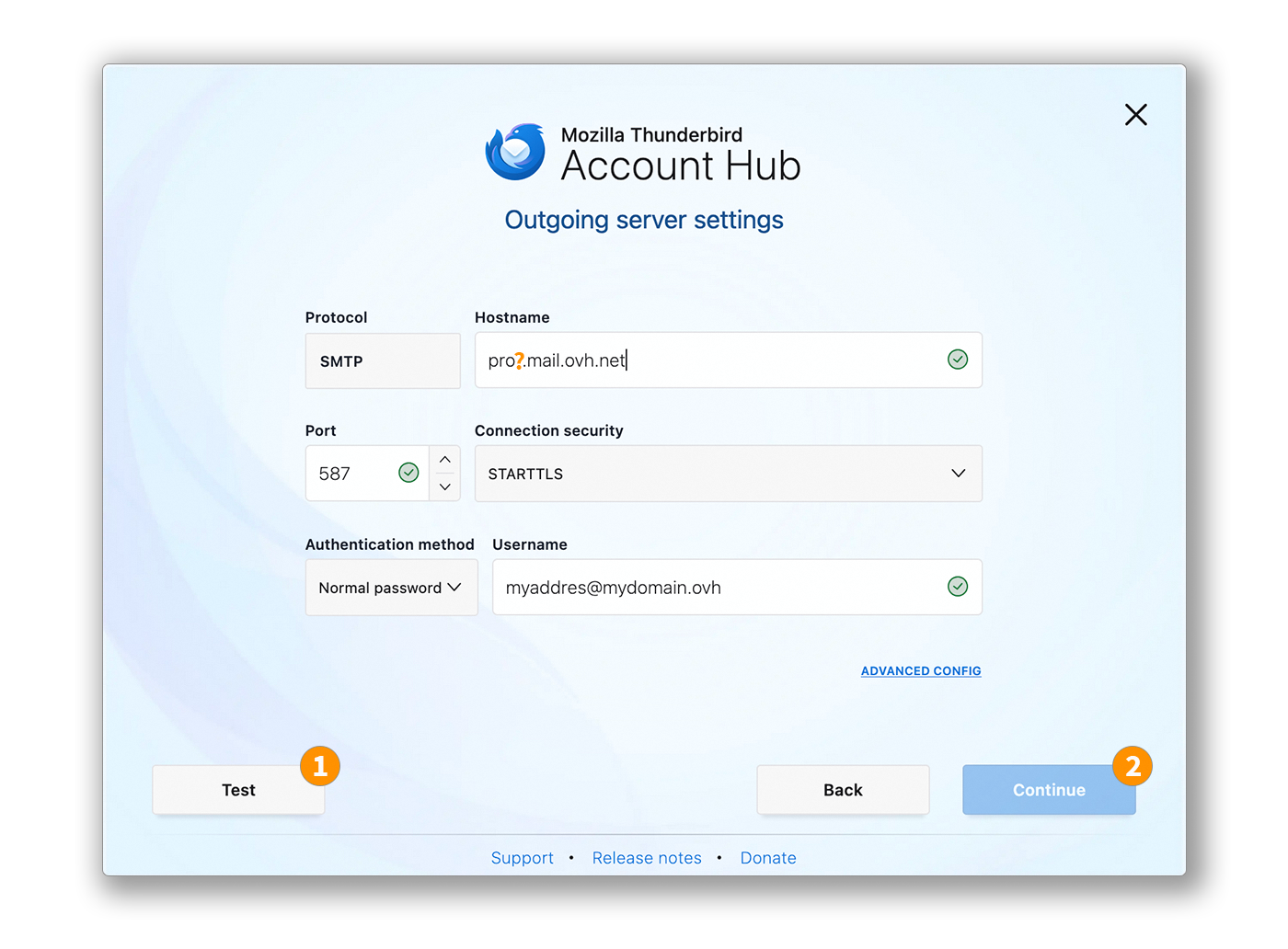
Enter the password associated with the email account, then click on Continue to finalize the configuration.

POP configuration
If you want a POP configuration for your email address, replace the settings of Step 3 with the following:
Reception server settings:
- Protocol: POP3
- Server name: pro?.mail.ovh.net (replace the "?" with the number of your server)
- Port: 995
- Connection security: SSL/TLS
- Authentication method: Normal password
- Username: Your full email address
Use your email address
Once your email address is configured, you can start using it! You can now send and receive emails.
OVHcloud also offers a web application that allows you to access your email account from a web browser. To access the OVHcloud Webmail, click on this link. You can log in using your email account credentials.
Retrieve a backup of your email account
If you need to perform an operation that may result in the loss of data from your email account, we recommend that you create a backup of the email account concerned beforehand. To do this, refer to the "Export" section in the "Thunderbird" part of our guide "Manually migrate your email address".
Modify existing settings
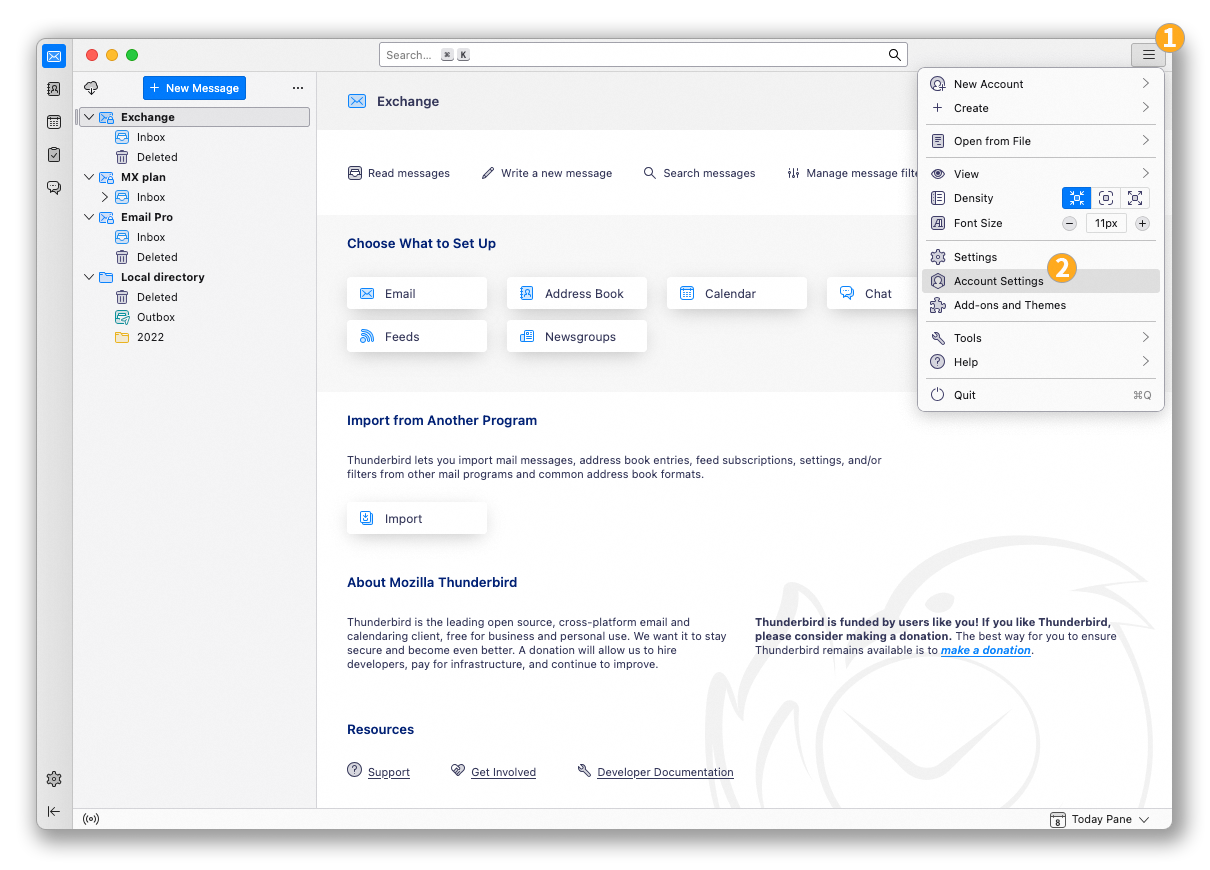
If your email account is already configured and you need to access the account settings to modify them:
- Click on the menu
☰in the top horizontal bar. - Click on
Account Settings.
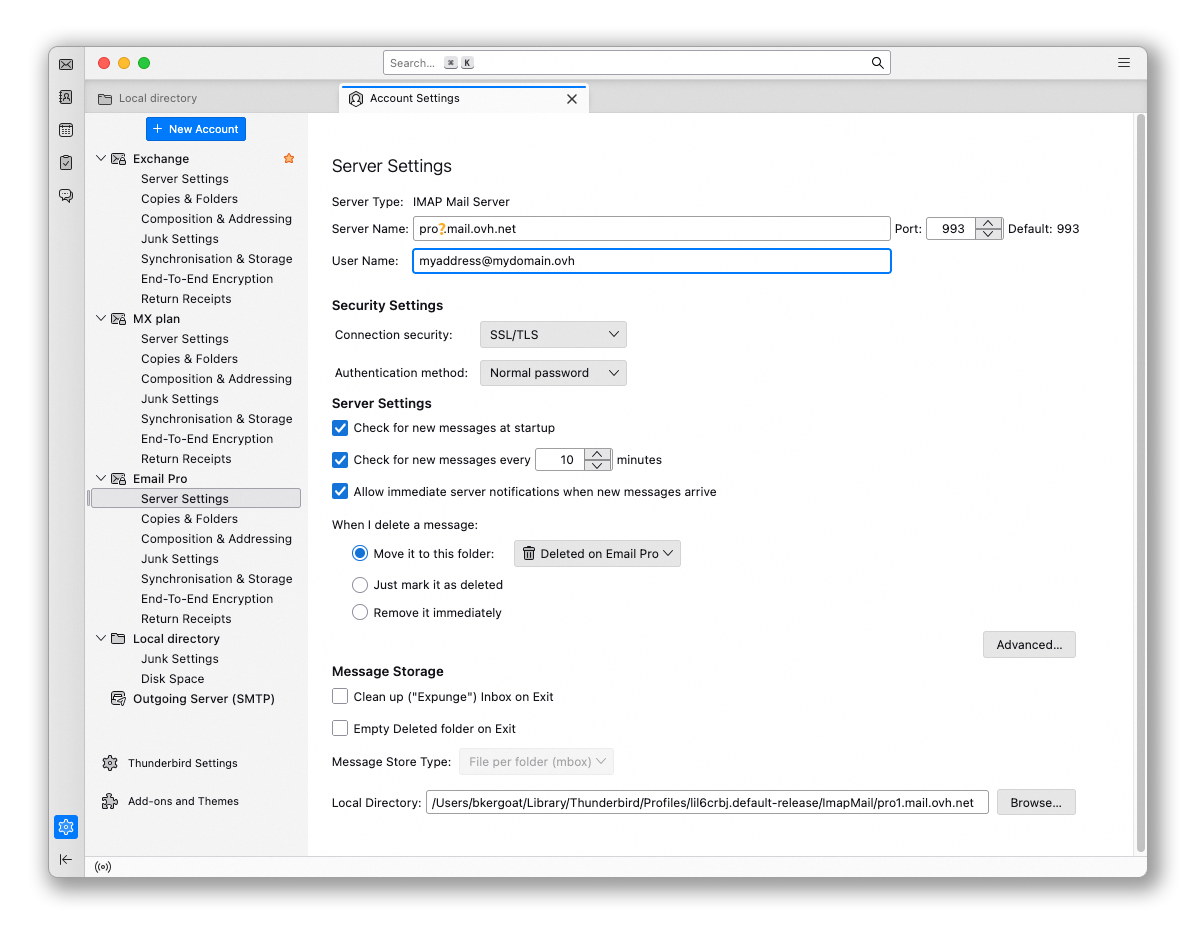
- To modify the settings related to receiving emails, click on
Server Settingsin the left column under your email address.
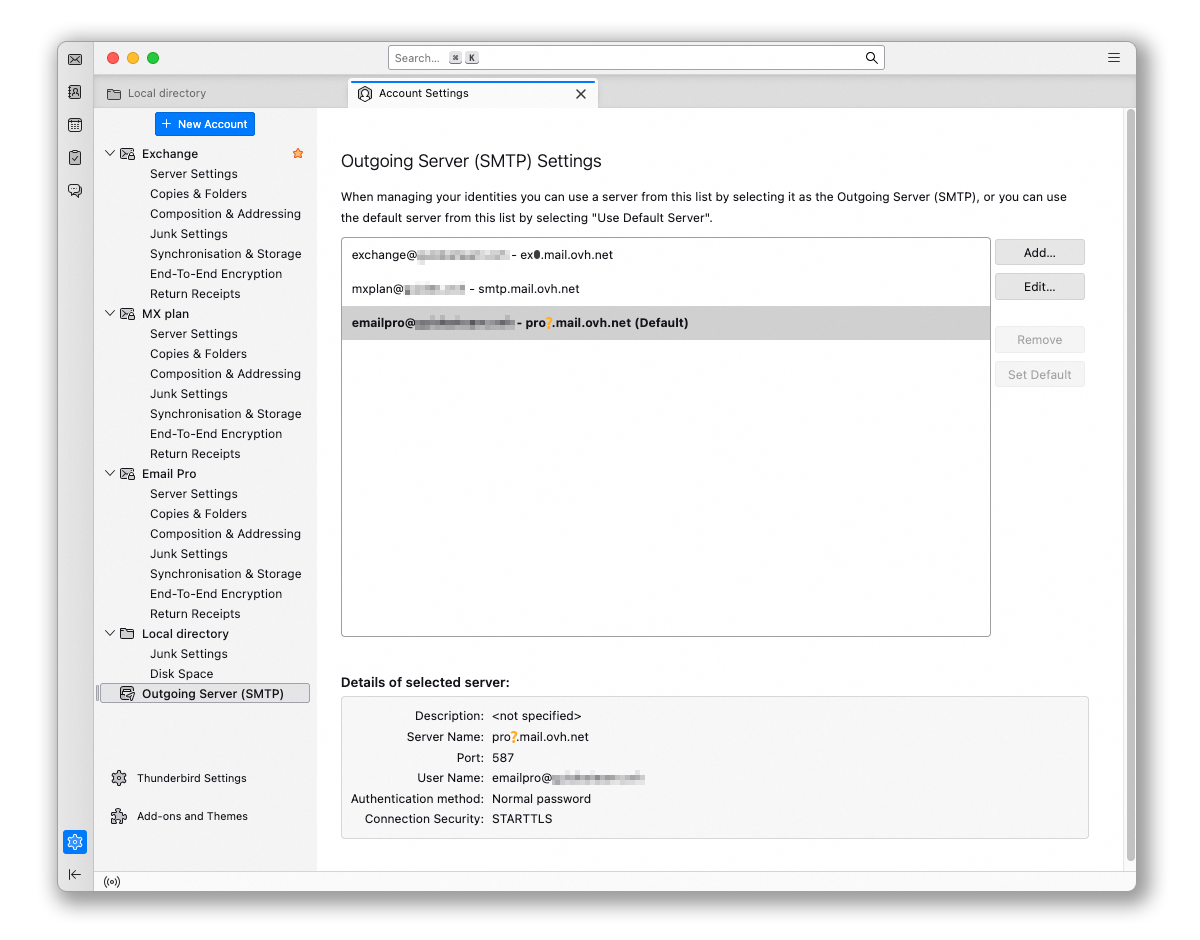
- To modify the settings related to sending emails, click on
Outgoing Server (SMTP)at the bottom of the left column. - Click on the email address concerned in the list, then click on
Edit.
Go further
For more information on configuring an email address in the Thunderbird client, please visit the Mozilla Support Center.
Getting started with Email Pro
For specialised services (SEO, development, etc.), contact OVHcloud partners.
If you would like assistance using and configuring your OVHcloud solutions, please refer to our support offers.
Join our community of users.


 Email Pro - Configuring an email account in Outlook Classic for Windows
 10313
10313