

Migrate email accounts via OVHcloud Mail Migrator
8811 Views
 30.03.2026
  Email and Collaborative Solutions
Objective
OVHcloud Mail Migrator is a tool created by OVHcloud to meet the need for reversibility. It allows you to migrate your email accounts to OVHcloud email addresses or an external email service. The process supports different types of content, such as emails, contacts, calendars and tasks, as long as these are compatible with your email addresses.
Find out how to migrate your email accounts to OVHcloud using our OVHcloud Mail Migrator tool.
Requirements
- An external email service or one from OVHcloud, such as a Zimbra, Exchange, Email Pro offer, or MX Plan (via the MX Plan offer alone or included in a OVHcloud web hosting offer).
- Login details for the email accounts you want to migrate (the source accounts).
- Login details for the destination email accounts.
Instructions
To access OMM, go to https://omm.ovhcloud.com/.
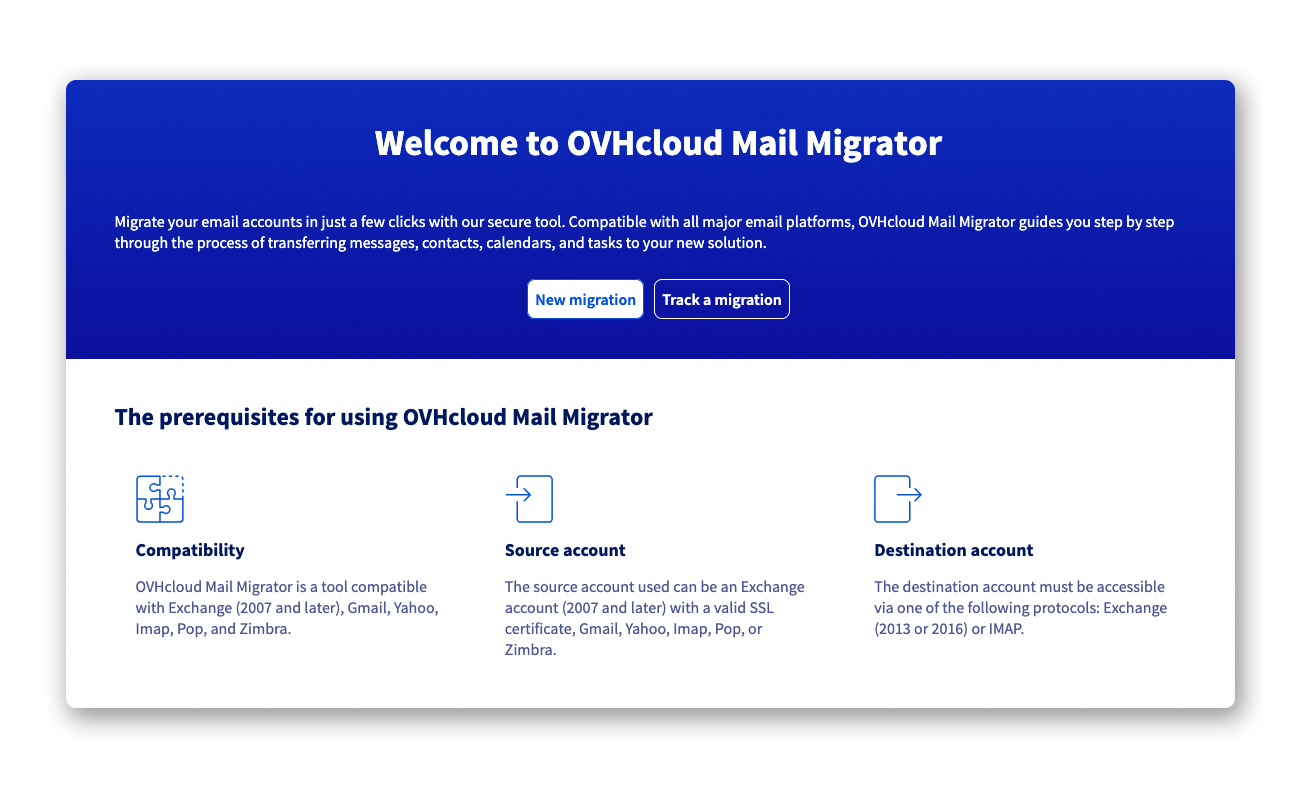
Create a migration project
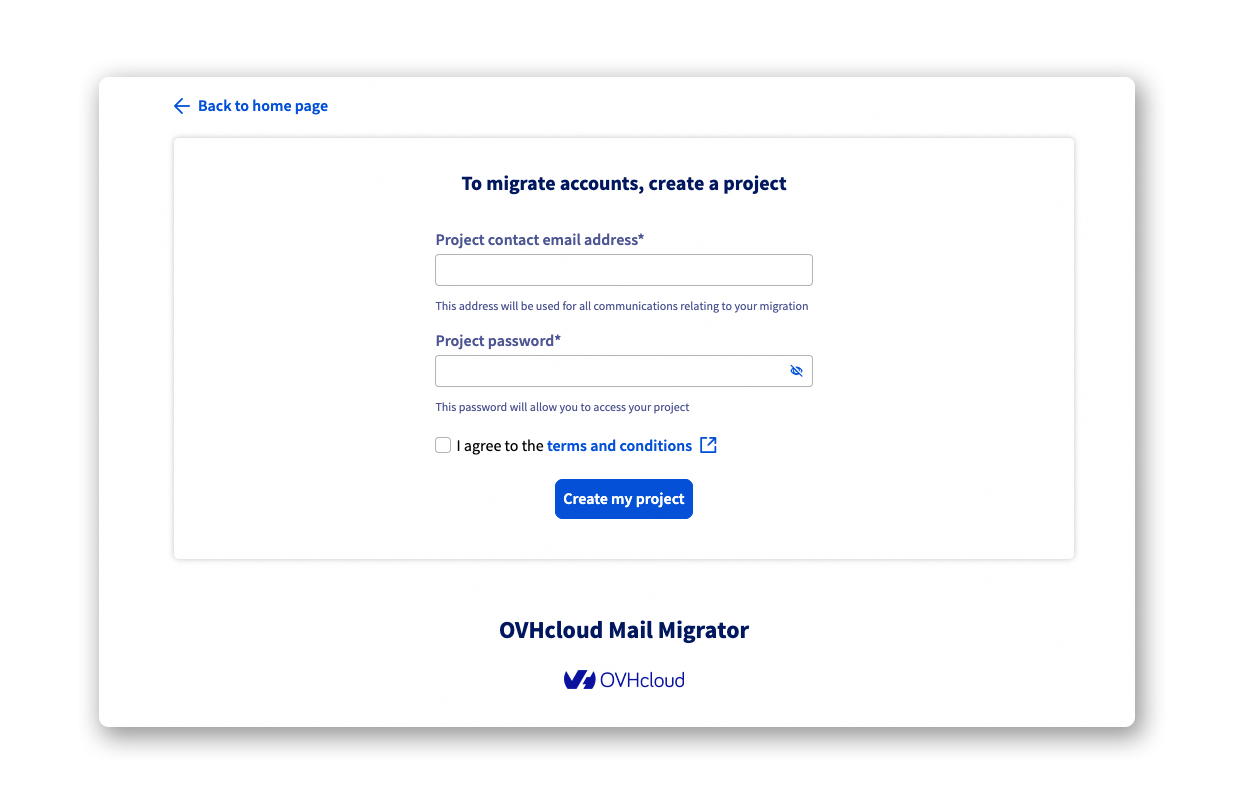
Before starting a migration, it is necessary to create a project. This project will allow you to start one or more migrations and to follow them.
Click on New migration to begin creating your project.
Project contact email: Enter an email address that will be used to receive the credentials and the tracking notifications of your migrations. It is not recommended to enter one of the email addresses that will be migrated in your project. Project password: Enter a password that will be used to connect to your project. It must contain at least 10 characters and include at least 1 special character, 1 digit, 1 uppercase and 1 lowercase letter.
Click on Create my project to start creating the project.
On the project contact email address, you will receive a confirmation email containing the unique project identifier and a link to access it.
If there is no activity for 60 days, the migration project and all associated data will be automatically deleted.
Create a new migration
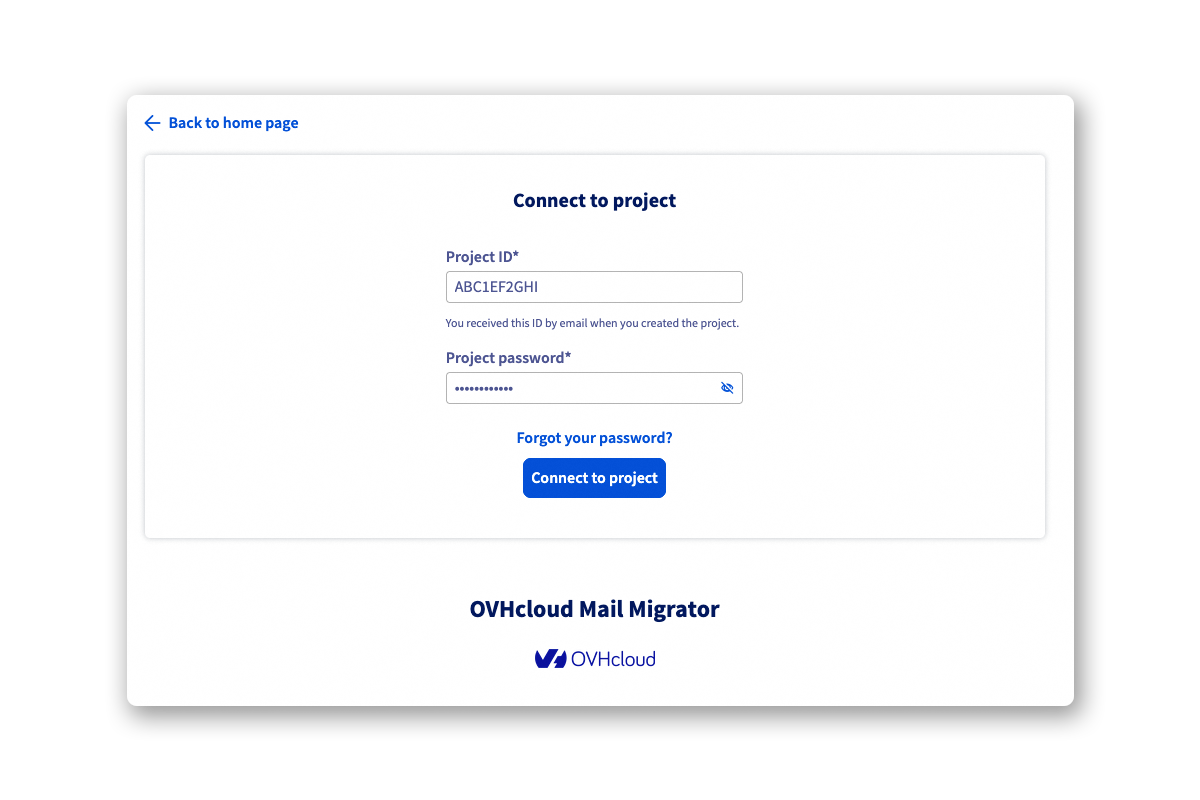
Once your project is created, log in to it from the OMM homepage:
- Click on
Track a migration. - Enter the
Project IDreceived by email. - Enter the
Project passwordyou set at its creation. - Click on
Connect to projectto complete.
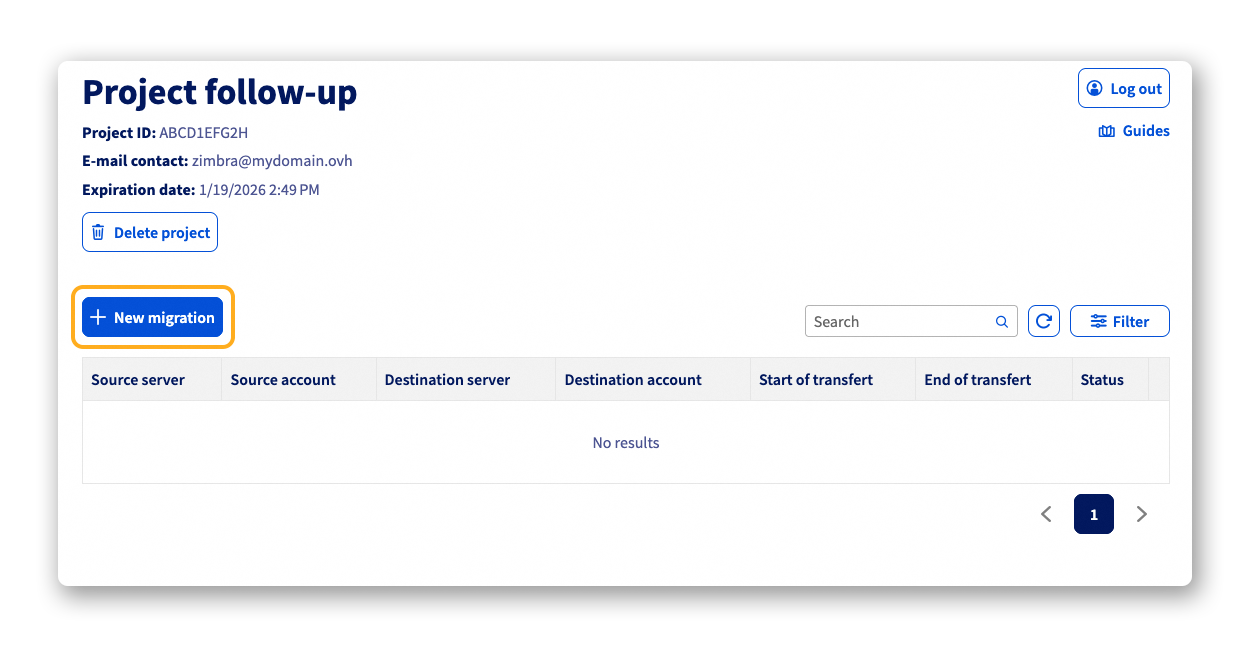
You are now on the project homepage, which will allow you to start your first migration.
- Click on
New migrationin the top left of the table.
On the new page that appears, enter the connection information of the source account and the destination account to schedule the migration or to start it immediately. To recall, the content of the source account will be migrated to the destination account.
Before starting your migration, it is important to know the 3 types of accounts that can be migrated and where you can migrate to:
- OVHcloud: The
Autodetectoption is recommended if you need to migrate an account hosted on one of the OVHcloud email offers. If you have a large number of OVHcloud email accounts, select one of the following offers:MX plan,Email Pro,ExchangeorZimbra. You will be asked to connect to the OVHcloud account associated with the offer concerned by the migration. For more information, see the section "Migrate via a connection to the OVHcloud customer account". - Others: They refer to email services outside of OVHcloud. You will find a non-exhaustive list of email services supported by OMM. If the type of service of your email account is not listed, use the
IMAPorPOPprotocols, which are compatible with most email servers. - Importing files: It is possible to migrate the content of PST, ICS, CSV, and XML rules files via OMM to a destination email account. When this function is selected, simply drag and drop your document into the designated area or browse your files using the
Browse your filesbutton.
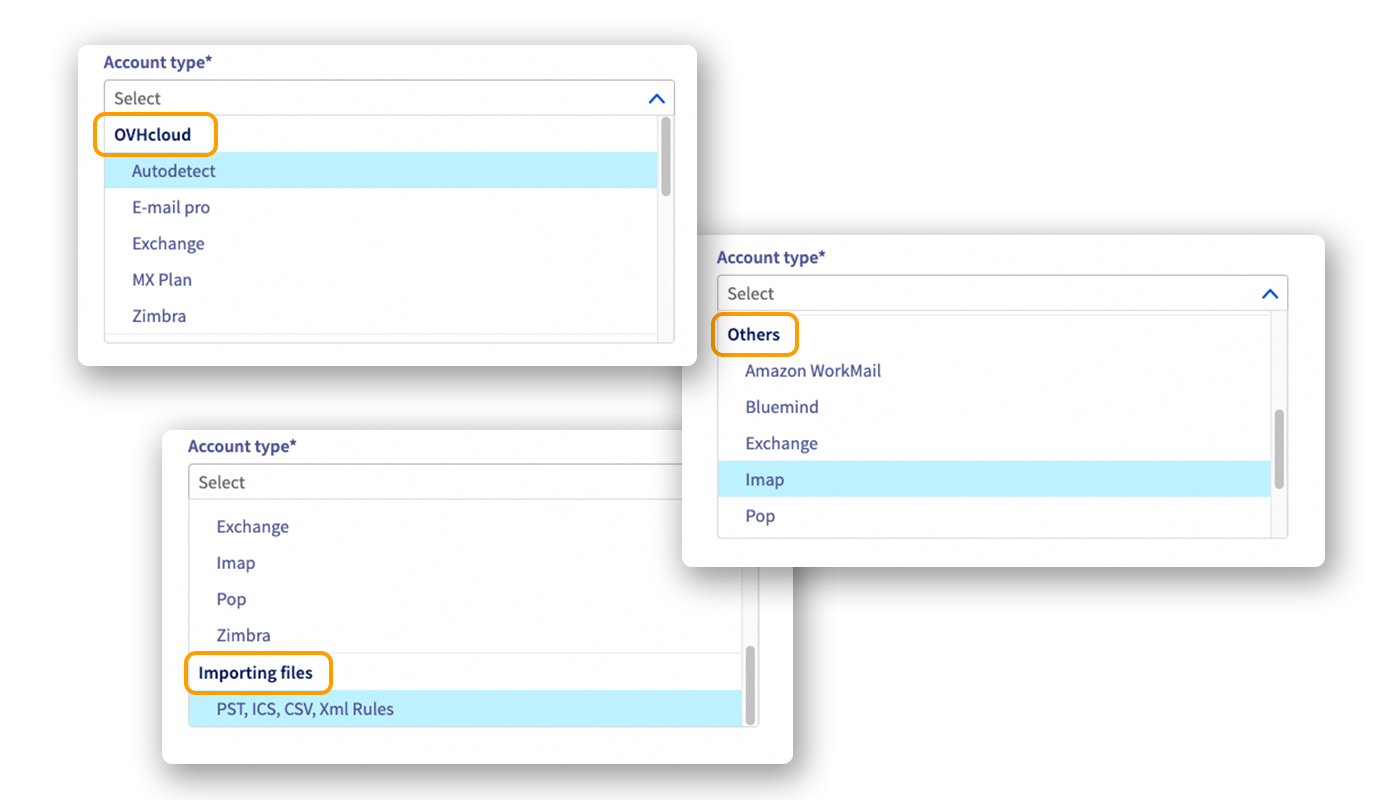
Complete the information according to the type of account:
-
Source account
- Account type: Select the type of source account.
- E-mail: Enter the source account email address.
- Password: Enter the source account password.
- Server URL / Server domain (depending on the type): Enter the hostname of the email server associated with the email account you want to migrate.
- OVHcloud Account ID (depending on the type): This field is automatically filled in when you are connected to an OVHcloud account. For more information, see the section "Migrate via a connection to the OVHcloud customer account".
- Organization (depending on the type): Select the organization associated with the source email account.
- Platform (depending on the type): Select the platform associated with the source email account.
- Service (depending on the type): Select the service associated with the source email account.
- Advanced settings > Delegation account ID (depending on the type): When the email account you are migrating is a shared account, you must enter the email address of the administrator account on this delegation account.
-
Destination account
- Account type: Select the type of destination account.
- E-mail: Enter the destination email address.
- Password: Enter the password associated with the destination account.
- Server URL / Server domain (depending on the type): Enter the hostname of the email server associated with the destination email account.
- OVHcloud Account ID (depending on the type): This field is automatically filled in when you are connected to an OVHcloud account. For more information, see the section "Migrate via a connection to the OVHcloud customer account".
- Organization (depending on the type): Select the organization associated with the destination email account.
- Platform (depending on the type): Select the platform associated with the destination email account.
- Service (depending on the type): Select the service associated with the destination email account.
- Advanced settings > Delegation account ID (depending on the type): When the destination email account is a shared account, you must enter the email address of the administrator account on this delegation account.
-
Start of transfer: You can start the migration
Immediatelyor checkLaterto postpone it. The deferred migration allows you to start it automatically at a date and time you define. - Data to transfer: Depending on the type of email account you are migrating and the destination account, this section will indicate the different types of data that are supported during the migration. This depends on the source account and the destination account.
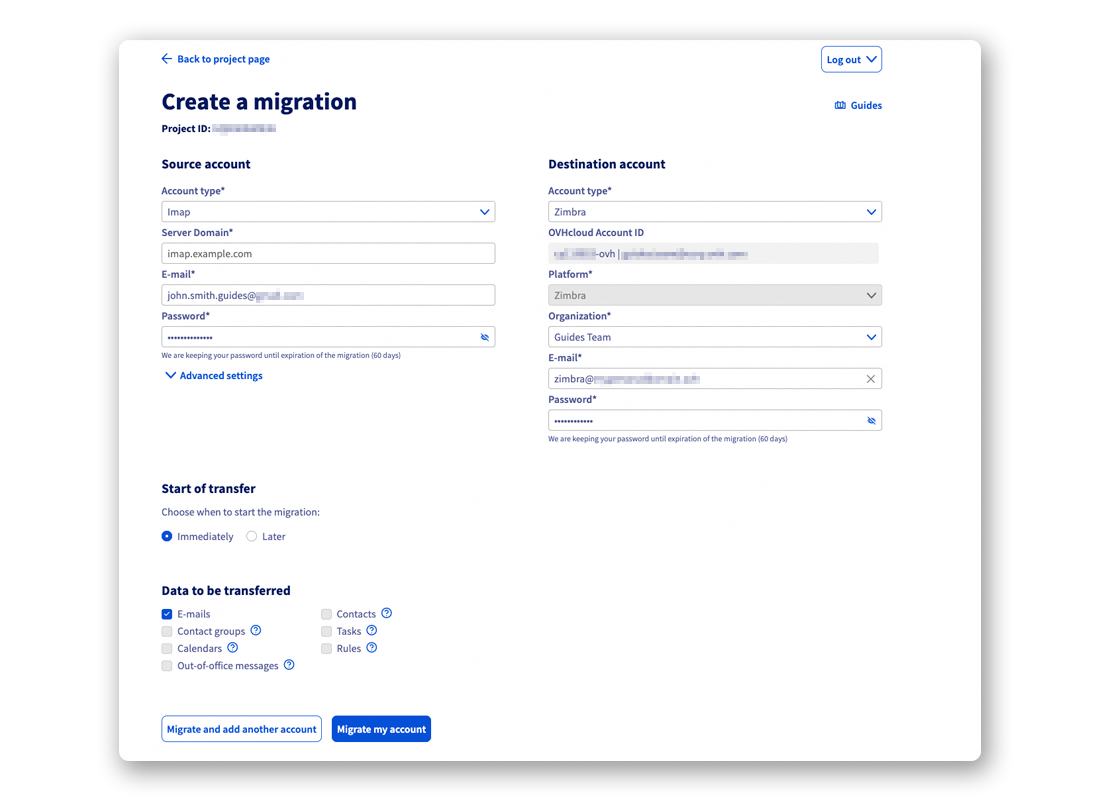
If you are migrating an account that has features the destination account does not have, you will need to save by your means the items that cannot be migrated by OMM. To help you, refer to our guide "Manually migrate your email address".
Once the source and destination account settings are completed, click on:
Migrate and add another accountif you want to add another migration to your project's list.Migrate my accountto start the configured migration and return to the project homepage.
Migrate via a connection to the OVHcloud customer account
When migrating to or from an OVHcloud account, you can select one of our offers MX plan, Email Pro, Exchange or Zimbra.
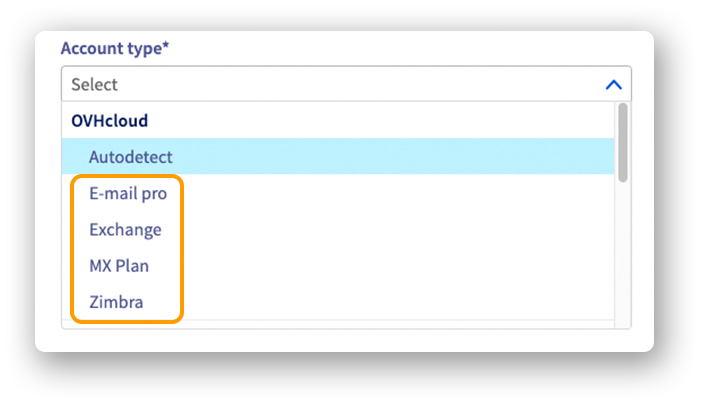
When you select one of these offers, follow the steps below:
- Click on
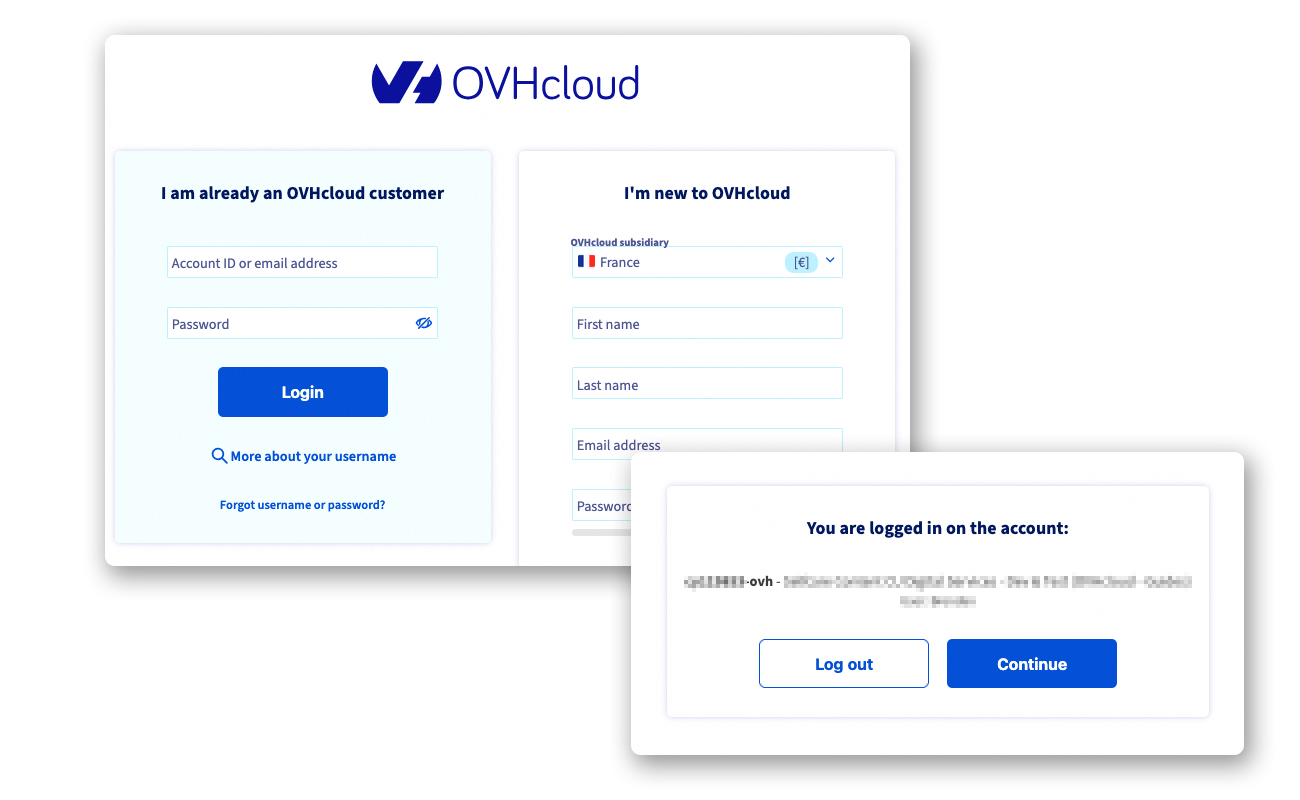
Loginto display the OVHcloud Control Panel login window.
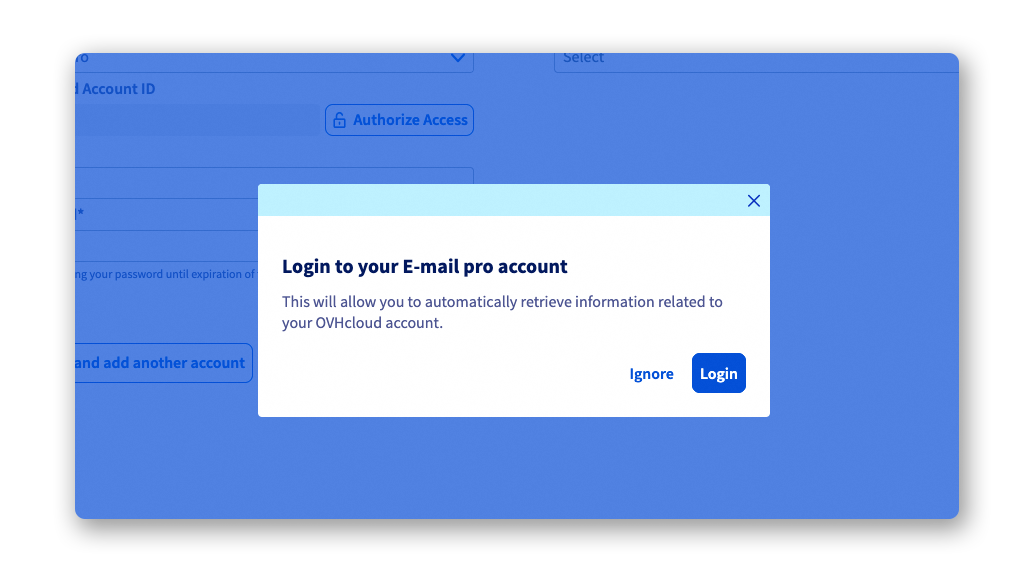
Log in to the OVHcloud customer account:
- Enter the identifier or email address associated with the OVHcloud account, enter the corresponding password and click on
Login; - or click on
Continueif you were already identified.
The OVHcloud customer account must be associated with the email offer that is the subject of the migration.
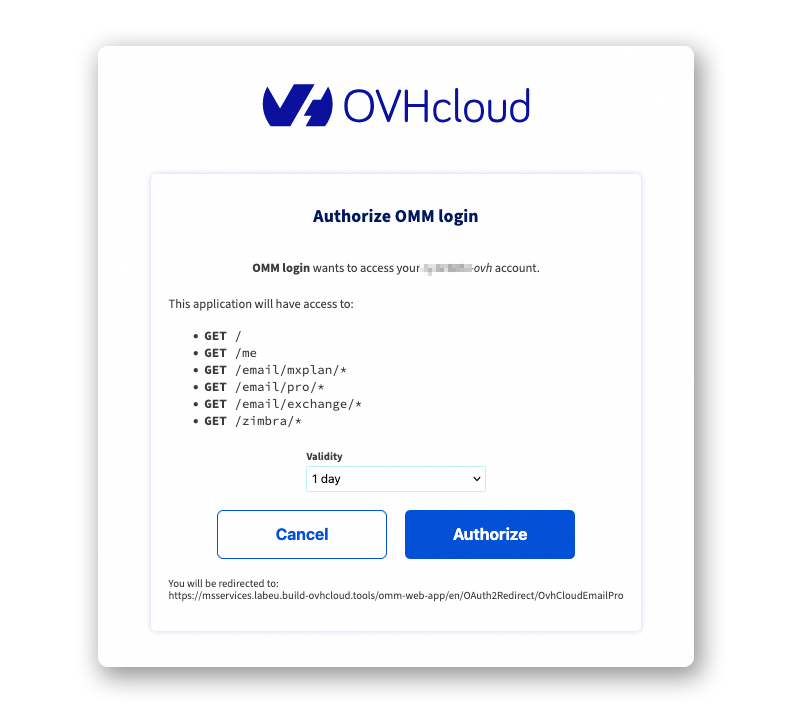
- A new window appears. It allows you to authorize OMM to access the functions of your customer area, and to list the offers and email accounts present. By default, the validity of these rights is 24 hours. Set the validity period that suits you, then click on
Authorize.
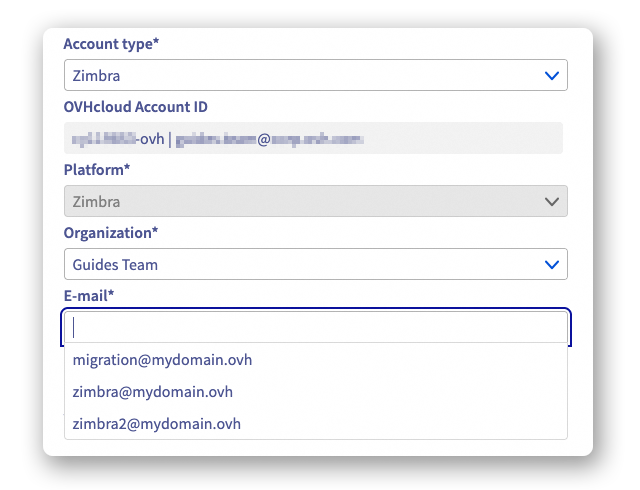
- You will now be able to select your services and accounts using drop-down menus. This facilitates the search for items and avoids typing errors. It is nevertheless necessary to enter the password associated with the selected email account.
Example with a Zimbra service:
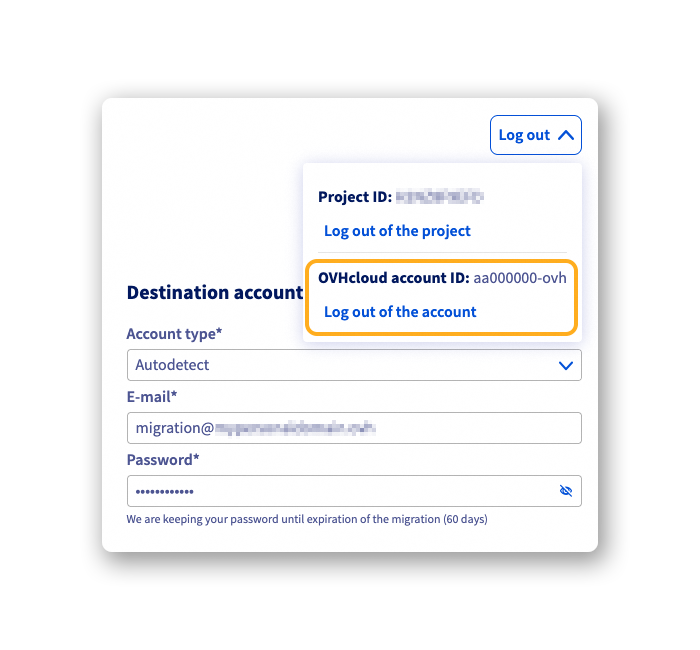
It is possible to disconnect current accesses from an OVHcloud Control Panel by clicking on Log out, then under OVHcloud account ID, click on Log out of the account.
Follow a migration project
There are two ways to access the migration project tracking:
- In the email received when you created your project, you will find a link that allows you to access the project login page with the
Project IDpre-filled. Only theProject passwordneeds to be entered. - From the OMM homepage, click on
Track a migration. Then enter yourProject IDand yourProject password.
Click on Connect to project to access the project homepage and follow your migrations.
From this page, you will find the list of ongoing or scheduled migrations. The project status also appears on the right.
Click on the ⋮ button to the right of a migration line to display the Options:
See more details: You are redirected to a page allowing you to follow the progress of a migration and read the report once the migration is completed.Cancel migration: Allows you to cancel the ongoing migration. The items already migrated will remain on the destination account.Delete migration data (GDPR): This option triggers the deletion of all data related to the migration of the account. You will still keep the information concerning the events that occurred during the migration.
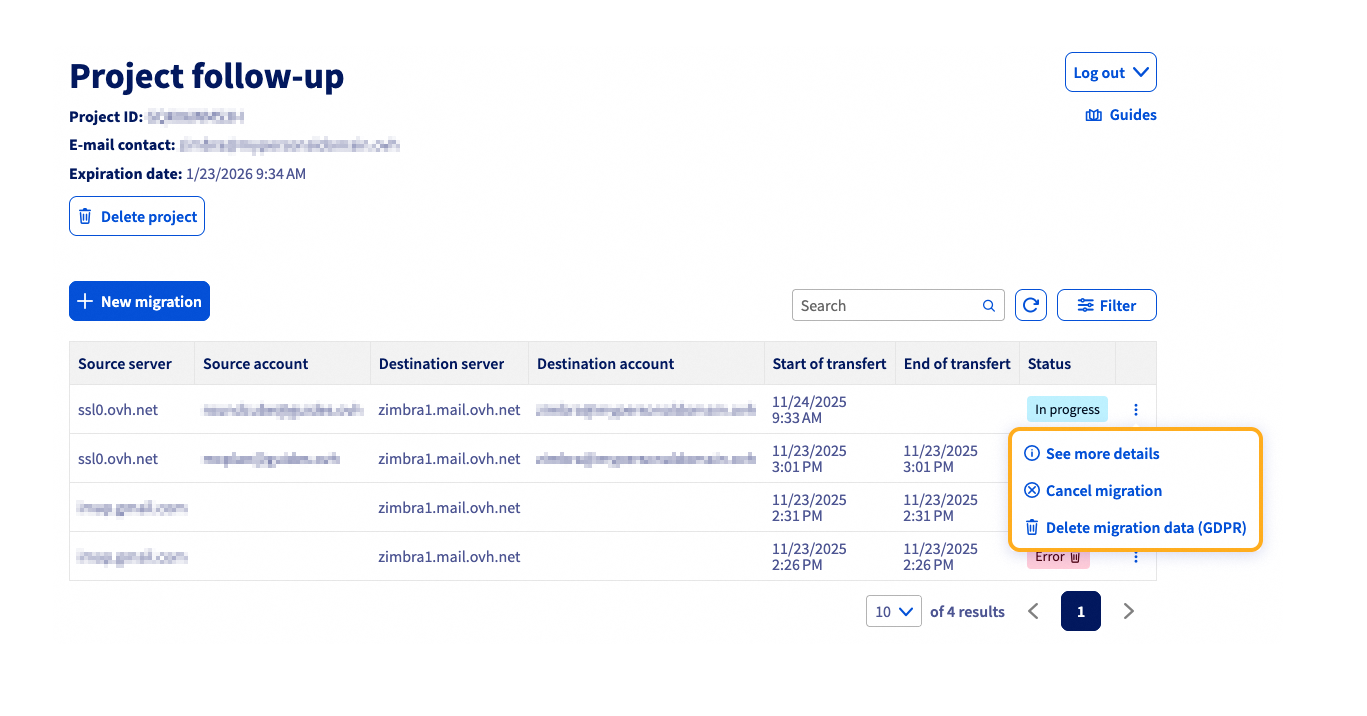
Example of migration tracking:
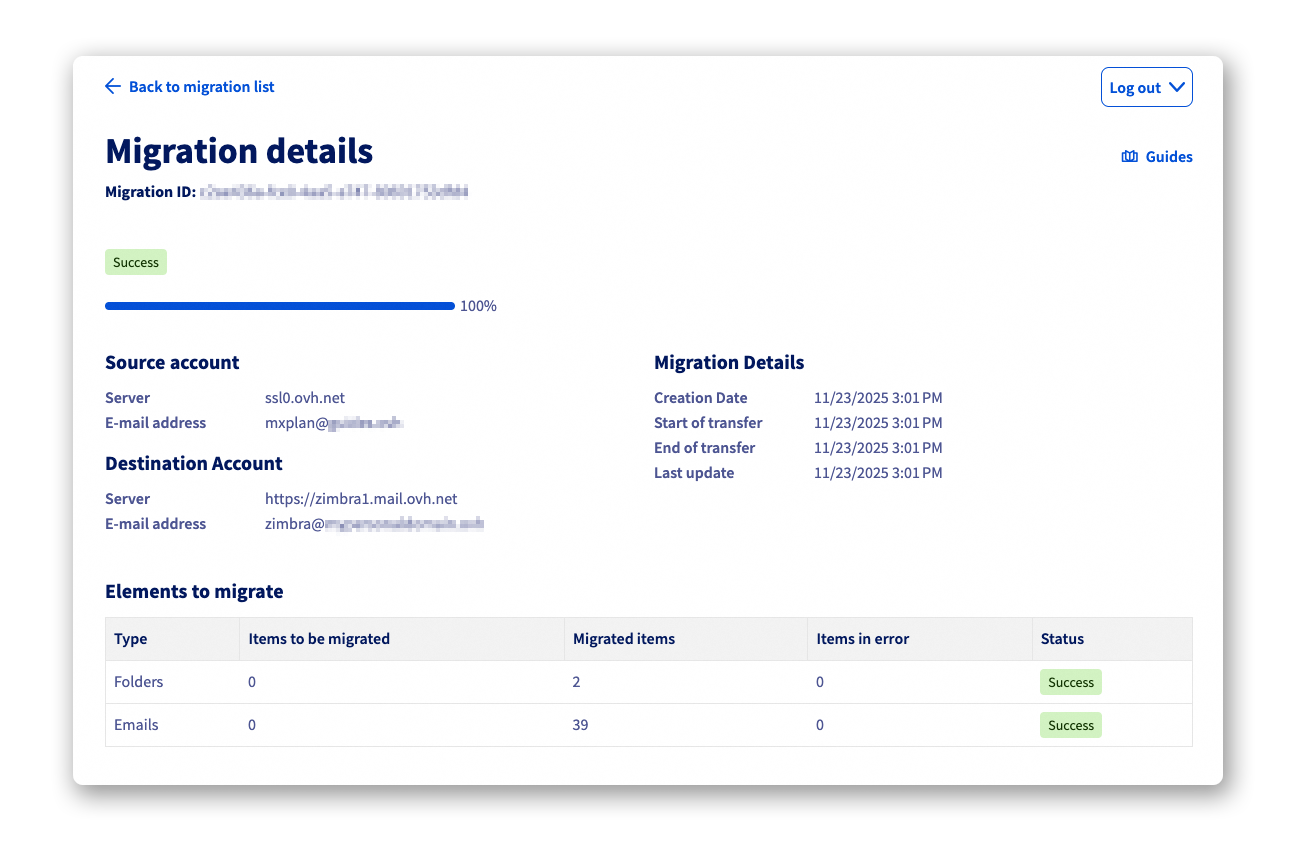
If an error occurs during the migration, a link to the error log will be provided in the See more details window.
Go further
Manually migrate your email address
Migrating an MX Plan email account to an Email Pro or Exchange account
For specialised services (SEO, development, etc.), contact OVHcloud partners.
If you would like assistance using and configuring your OVHcloud solutions, please refer to our support offers.
Join our community of users.


 Migrating an MX Plan email account to an Email Pro, Exchange or Zimbra account
 4165
4165