

Domain name & DNS FAQ
2414 Views
 27.03.2026
  Web / Domain Names
Click on the questions below to view the explanations.
Subscribing to a domain name
How can I subscribe to a domain name with OVHcloud?
Follow these steps:
- Go to the OVHcloud website.
- On the displayed page and in the designated field, enter the domain name you wish to reserve (e.g.,
domain.tld), then click theSearchbutton. - On the new page that appears, our interface will indicate whether the chosen domain name is available for purchase. If it is already reserved with the syntax you entered, modify it and initiate a new availability search.
- Once you find an available domain name, click the
Buybutton, then click theContinue Orderbutton in the right column. - Select any additional options or services you wish to subscribe to alongside your domain name, then click
Nextuntil the order process prompts you to authenticate or create an OVHcloud customer account. - Once authenticated with your OVHcloud customer account, you can customise the contact information (holder/registrant, administrator, technical) for your domain name. Click the
Continuebutton to access the order summary. - On the
Order Summarypage and if necessary, you can modify the DNS configuration that will apply to your domain name by clicking theModify Configurationlink. Once your changes are complete, click thePaybutton to proceed to the final step of your order.
Pay for your order to initiate the reservation of your domain name and the installation of the services and options you have subscribed to.
A few moments later, you will receive a confirmation email for your order. You can then manage your domain name by logging into your OVHcloud Control Panel.
Do not hesitate to create a support ticket from the Help Centre if needed.
How can I purchase a domain name on the secondary market?
Purchasing a domain name on the secondary market follows the same process as subscribing to a domain name.
Follow these steps:
- Go to the OVHcloud website.
- On the displayed page and in the designated field, enter the domain name you wish to reserve (e.g.,
domain.tld), then click theSearchbutton. - On the new page that appears, our interface will indicate whether the chosen domain name is available for purchase. If it is already reserved with the syntax you entered, modify it and initiate a new availability search.
- Once you find an available domain name, click the
Buybutton, then click theContinue Orderbutton in the right column. - Select any additional options or services you wish to subscribe to alongside your domain name, then click
Nextuntil the order process prompts you to authenticate or create an OVHcloud customer account. - Once authenticated with your OVHcloud customer account, you can customise the contact information (holder/registrant, administrator, technical) for your domain name. Click the
Continuebutton to access the order summary. - On the
Order Summarypage and if necessary, you can modify the DNS configuration that will apply to your domain name by clicking theModify Configurationlink. Once your changes are complete, click thePaybutton to proceed to the final step of your order.
Pay for your order to initiate the reservation of your domain name and the installation of the services and options you have subscribed to.
A few moments later, you will receive a confirmation email for your order. You can then manage your domain name by logging into your OVHcloud Control Panel.
Do not hesitate to create a support ticket from the Help Centre if needed.
Managing a domain name
How can I know if my domain name is registered with OVHcloud?
To do this, you can perform a WHOIS query to find out where your domain name is registered and to verify that you are indeed declared as the holder of the domain name.
Each registrar (such as OVHcloud) has the option to choose how to display information related to a domain name in the WHOIS.
Once the WHOIS query is performed, look in the result for at least one of the following lines:
- Domain Name: ovhcloud.com
- Registrar WHOIS Server: whois.ovh.com
- Registrar URL: https://ovh.com
- Registrar: OVH sas
If you see at least one of these lines in the result, your domain name is indeed registered with OVHcloud.
Otherwise, your domain name is registered with another registrar. Then look for the lines related to the Registrar to identify the registrar where your domain name is registered.
How can I find out the expiration date of a domain name?
The fastest solution is to perform a WHOIS query on the domain name. Once the query is performed, look in the result for the line corresponding to the expiration date (e.g., Expiry Date: 2025-09-22T08:00:00Z, Registry Expiry Date: 2025-09-22T08:00:00Z, etc.).
If your domain name is registered with OVHcloud, click the tabs below to view each of the 2 steps in succession.
Go to the My offers and services page.
In the table that appears, find the line corresponding to your domain name, then note the date in the Date of effect column. This date corresponds to the expiration date of your domain name.
How can I change the annual expiration date of a domain name?
The annual expiration date of a domain name (e.g., September 24) is pre-set based on the registration (creation) date of the domain name.
Typically, the annual expiration date of a domain name is the same as the date you registered the domain name.
Therefore, it is not possible to change the annual expiration date of a domain name.
How can I correct a typo in my domain name?
Once a domain name is subscribed, it is registered based on the characters you defined during your order. The registration is processed by the registry for your domain name's extension (e.g., the .com registry), and reservation fees apply on the side of the registrar (such as OVHcloud).
A domain name is a unique address on the Internet, for example: ovhcloud.com.
Every change to this name, whether a character or an extension (.com, .fr, .net, etc.), makes it a completely different domain name.
Therefore, if you made a typo during your order, it cannot be modified or corrected. You will need to order a new domain name independently of the previous one (provided the new desired spelling is not already reserved by someone else).
Domain names are considered custom products because they are registered specifically for a registrant and blocked for others from the moment of the order. This is why, once registered, they cannot be refunded.
How can I modify an already subscribed domain name?
Once a domain name is subscribed, it is registered based on the characters you defined during your order. The registration is processed by the registry for your domain name's extension (e.g., the .com registry), and reservation fees apply on the side of the registrar (such as OVHcloud).
A domain name is a unique address on the Internet, for example: ovhcloud.com.
Every change to this name, whether a character or an extension (.com, .fr, .net, etc.), makes it a completely different domain name.
Therefore, if you made a typo during your order, it cannot be modified or corrected. You will need to order a new domain name independently of the previous one (provided the new desired spelling is not already reserved by someone else).
Domain names are considered custom products because they are registered specifically for a registrant and blocked for others from the moment of the order. This is why, once registered, they cannot be refunded.
How can I delete a domain name?
Click the tabs below to view each of the 3 steps in succession.
Go to the My offers and services page.
In the table that appears, locate the line corresponding to your domain name, click the ... button on the right, then click Cancel my subscription.
On the page that appears, select the cancellation mode (immediately or at the service's expiration date) then click the Yes, cancel button at the bottom.
Your domain name will then be suspended on its expiration date. After this date, it will be permanently deleted within a maximum of 60 days. This delay is defined by the Internet Corporation for Assigned Names and Numbers (ICANN) to ensure the domain name is fully deleted and becomes available for registration by another holder/registrant.
Once cancellation is requested, you can expedite the deletion by creating a support ticket from the Help Centre. Supporting documents will need to be provided to accelerate this deletion.
Find all the details in our guide "How to cancel my OVHcloud services".
I received an email about validating the information associated with my domain name's registrant. What should I do?
First, if you have doubts about the legitimacy of the received email, consult our guide "Beware of scams - recognising fraudulent emails and phishing".
According to a directive from the Internet Corporation for Assigned Names and Numbers (ICANN) dated 01/09/2014, domain name registrars (e.g., OVHcloud) are required to verify the validity of the contact details of domain name registrants/holders. OVHcloud then sends an email to the registrant/holder of the domain name at the contact email address declared with OVHcloud.
You will receive this email when you perform one of the following actions:
- Registration of a new domain name.
- Transfer of a domain name.
- Modification of the contact details associated with your domain name.
This email contains a link to quickly verify your contact details as the legal holder/registrant of the domain name.
Important: This verification must be completed within 15 days. If not, the domain name will be technically suspended. It will remain contractually under your name but will no longer be accessible on the Internet. An error message will appear for visitors to your website.
You may receive the following emails during the first 15 days:
- Day 0: Immediately after ordering the domain name or modifying its contact details, you (or the person registered as the holder/registrant of the domain name) will receive the first email with a verification link.
- Days 4, 9, and 13 (reminder emails): If you have not yet verified the domain name, you will receive the email again.
- Day 14: If you still have not verified the domain name, the email is sent once more. Additionally, an email is also sent to the administrator/registrant's email address to inform them that their contact details have not been confirmed.
- Day 15: If the holder/registrant of the domain name has not yet responded, we send an email to the domain name administrator to inform them of the situation and the deactivation of the domain name.
Beyond these 15 days, the system sends additional emails (up to 9 emails) before deleting your domain name. This deletion will occur 60 days after Day 0.
Depending on the domain name extension (e.g., .com, .net, etc.), some of the deadlines mentioned above may vary. We strongly recommend completing the verification process for contact control with the registry of your domain name's extension.
I did not receive the email to validate the information associated with my domain name and it is suspended. What should I do?
If you did not receive the validation email for your domain name's holder, check the following points:
- The email address declared for the domain name holder is valid and operational.
- The validation email is not in your spam/junk folder.
After confirming the two points above, if you still cannot retrieve the holder validation email, we recommend opening a support ticket from the Help Centre to request the email to be resent.
What is an IDN (Internationalized Domain Name)?
Initially, domain names could only contain specific ASCII characters (such as the 26 Latin alphabet letters). An Internationalized Domain Name (IDN) allows the use of special or accented characters, as well as other alphabets (e.g., Cyrillic).
With OVHcloud, it is entirely possible to order IDNs and use them as regular domain names with our other services (web hosting, DNS zones, etc.1).
Once subscribed, IDNs appear in your OVHcloud Control Panel in the xn-- format.
Even though your domain name is displayed in internationalized notation (IDN) in your OVHcloud Control Panel, it will function and display normally elsewhere. Your website address will appear as requested. Your email addresses will also display as intended to your contacts.
1: It is not recommended to use an email address with an IDN domain from an email client (Outlook, macOS Mail, etc.). Some email clients do not yet support domain names with accented characters, which blocks email transmission. When a sender tries to email you, they receive an automatic message stating that your email address does not exist.
We recommend reserving the same domain name without accented characters in addition to your accented domain name to avoid email compatibility issues.
How can I correct an IDN (Internationalized Domain Name)?
Like regular domain names, once a domain name or IDN is subscribed, it is registered based on the characters you defined during your order.
Therefore, if you made a typo during your order, it cannot be corrected. You will need to order a new domain name independently of the previous one (provided the new desired spelling is not already reserved by someone else).
How can I renew a single domain name in an Alldom pack?
To do this, you must be at least declared as the "Billing" contact for the concerned domain name. You will then need to change the renewal mode of the domain name to automatic renewal.
To do this, click the tabs below to view each of the 2 steps in succession.
Go to the My offers and services page.
In the table that appears and to the right of the concerned domain name, click the ... button in the Actions column, then click Configure renewal. You can then configure the renewal of this domain name to automatic renewal mode.
If you have an old web hosting plan that includes a free domain name and you modify this hosting plan, this may cancel the domain name's free status in some cases.
If in doubt, we recommend opening a support ticket from the Help Centre specifying the domain name and the concerned web hosting.
Find all the details in our guide "How to renew OVHcloud services".
Transferring a domain name
Is my domain name transferable after a change of holder?
The Internet Corporation for Assigned Names and Numbers (ICANN) has implemented security measures to prevent unauthorised or abusive transfers or changes of holder of domain names.
ICANN has defined an incompressible period of 60 days between each operation that can occur on a domain name (creation, change of holder, transfer).
The rules defined by ICANN must be strictly respected by registrars (such as OVHcloud).
You will therefore have no choice but to wait until the end of the 60-day period to transfer your domain name after changing its holder.
My domain name is locked against transfer for 60 days. What should I do?
The Internet Corporation for Assigned Names and Numbers (ICANN) has implemented security measures to prevent unauthorised or abusive transfers or changes of holder of domain names.
ICANN has defined an incompressible period of 60 days between each operation that can occur on a domain name (creation, change of holder, transfer).
The rules defined by ICANN must be strictly respected by registrars (such as OVHcloud).
You will therefore have no choice but to wait until the end of the 60-day period to perform a new operation (change of holder or transfer) on your domain name.
I cannot find my domain name in my Control Panel. What should I do?
First, perform a WHOIS query to find out where your domain name is registered and to verify that you are declared as the holder of the domain name.
Case #1.A - Your domain name is registered with OVHcloud and you are declared as the holder of the domain name:
Perform a contact recovery procedure to have your domain name fully managed in your OVHcloud Control Panel. This way, you will no longer need to contact the person who previously managed your domain name.
Case #1.B - Your domain name is registered with OVHcloud and you are not declared as the holder of the domain name:
In accordance with the General Data Protection Regulation (GDPR), OVHcloud cannot provide information about the person or organisation managing the domain name with OVHcloud.
However, you can try to contact the person or organisation managing it by following the instructions in this form.
Case #2 - Your domain name is not registered with OVHcloud:
Contact the registrar (specified in the lines starting with the term Registrar) of your domain name directly to continue your search. If the domain name is not registered with OVHcloud, we will not be able to assist you on this topic.
I cannot contact the person managing my domain name. What should I do?
First, perform a WHOIS query to verify that you are declared as the holder of the domain name.
Case #1 - You are declared as the holder of the domain name:
Perform a contact recovery procedure to have your domain name fully managed in your OVHcloud Control Panel. This way, you will no longer need to contact the person who previously managed your domain name.
Case #2 - You are not declared as the holder of the domain name:
In accordance with the General Data Protection Regulation (GDPR), OVHcloud cannot provide information about the person or organisation managing the domain name with OVHcloud.
However, you can try to contact the person or organisation managing it by following the instructions in this form.
Can I sell my domain name?
Currently, OVHcloud does not directly support the sale of already registered domain names. We do not offer this type of service.
However, if you wish to put your domain name up for sale on a secondary market, contact one of our partners:
If you wish to sell your domain name, you can add it to these platforms. Once added, the authorised providers will offer your domain name at the price you set on one of the platforms above.
DNS zone
Modifying a DNS zone is a sensitive operation and can cause interruptions to services associated with your domain name (web hosting, email, etc.). If in doubt, do not hesitate to contact a specialised provider.
What is a DNS zone?
A DNS zone for a domain name contains a configuration applicable to it. It consists of technical information called DNS records. The DNS zone acts as a routing centre, directing traffic to the correct services associated with the domain.
For example, you can specify:
- The IP address (DNS records of type A and AAAA) of your web hosting to display your website using your domain name.
- The email servers (DNS records of type MX) to which your domain name should redirect the emails it receives.
- Information related to the security/authentication of your services (web hosting, web server, email server, etc.) associated with your domain name (DNS records of type SPF, DKIM, DMARC, etc.).
A DNS zone is hosted/registered on DNS servers. These DNS servers must be declared to the domain name registrar to use the DNS zone they host.
Find all the details in our guide "Everything you need to know about DNS zones".
What is a DNS record?
DNS records are used, for example, to:
- Associate a domain name with an IP address, allowing users to access a website or remote server.
- Associate a domain name with other online resources using a domain name (easier to remember) instead of an IP address.
- Validate configurations for association or security, particularly for email services and shared hosting.
Many DNS records exist. They all have a specific purpose in DNS resolution. At OVHcloud, they are categorised into three parts:
- Pointer records:
A,AAAA,NS,CNAME, andDNAME. - Extended records:
CAA,TXT,NAPTR,SRV,LOC,SSHFP,TLSA,RP,SVCB, andHTTPS. - Email records:
MX,SPF,DKIM, andDMARC.
Find more details in the following guides:
- General information:
- DNS pointer records:
- Extended DNS records:
- Email DNS records:
What DNS records are available in an OVHcloud DNS zone?
Click the tabs below to view each of the 2 steps in succession.
Go to the DNS zones page, then choose the domain name concerned.
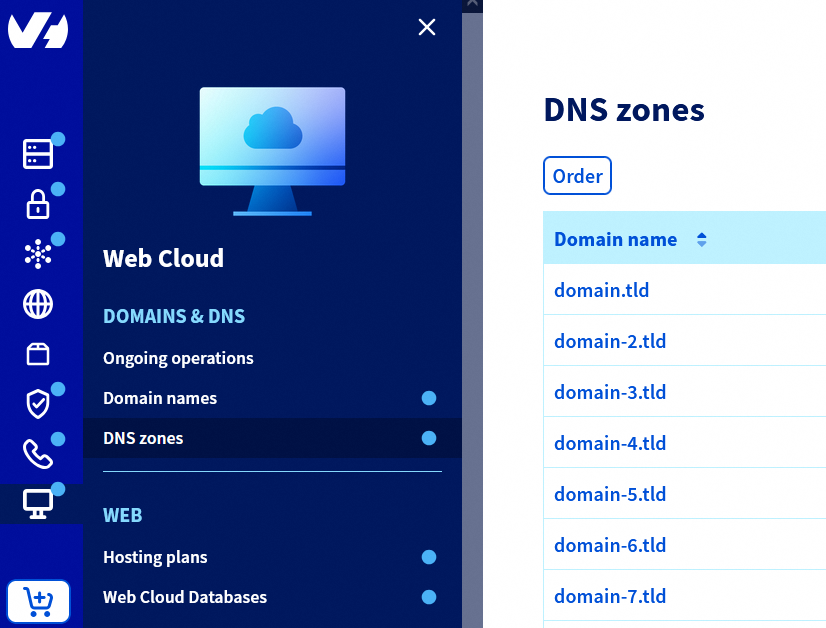
On the right or below the table, click Add an entry.
You will see all the DNS records you can add via the OVHcloud configuration assistant:
- Pointer records:
A,AAAA,NS,CNAME, andDNAME. - Extended records:
CAA,TXT,NAPTR,SRV,LOC,SSHFP,TLSA,RP,SVCB, andHTTPS. - Email records:
MX,SPF,DKIM, andDMARC.
If you want to add a DNS record not listed, close the window that opened after clicking the Add an entry button and click the Change to text mode button on the right or below the table.
You can then manually add your chosen DNS record.
Find more details in the following guides:
- General information:
- DNS pointer records:
- Extended DNS records:
- Email DNS records:
Can I change the DNS servers declared in my OVHcloud DNS zone?
Manually modifying NS-type DNS records for a domain name in an OVHcloud DNS zone is not recommended, as this would prevent the corresponding DNS zone from resolving.
If you want to modify the configuration of NS-type DNS records for your domain name, it is likely because you want to change the declared DNS servers for it.
To change the DNS servers for your domain name at OVHcloud, a DNS zone must already exist on the desired new DNS servers. Additionally, you must verify in this same DNS zone that the NS-type DNS records correspond to the appropriate DNS servers.
To do this, click the tabs below to view each of the 3 steps in succession.
Go to the Domain names page, then choose the domain name concerned.
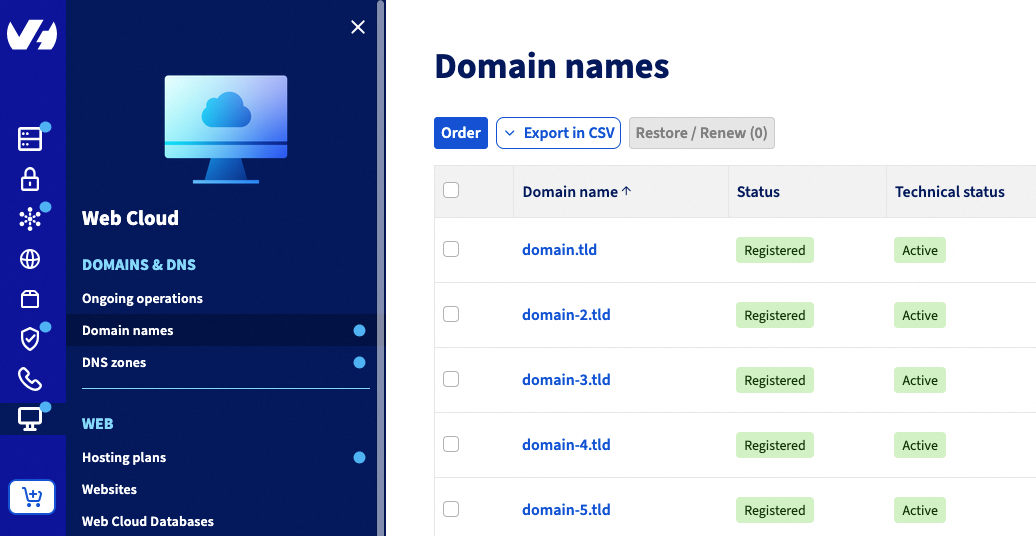
Select the DNS Servers tab once positioned on the concerned domain name.
Click the Modify DNS servers button located to the right of the "DNS servers" table. Depending on your screen resolution, the button may be located below the table.
You can modify the DNS servers for your domain name on the page that appears.
The propagation of changes to the DNS servers declared for a domain name can take up to 48 hours.
If you encounter an error, we recommend opening a support ticket from the Help Centre, specifying the following information:
- The names of the DNS servers you want to configure.
- The error message encountered.
Find all the details in our guide "How to modify the DNS servers of an OVHcloud domain name".
What is the difference between an A (IPv4) and AAAA (IPv6) DNS record?
The Internet has operated since the early 1990s using the IPv4 standard. This standard assigns an IP address in the format X.X.X.X (where each "X" is a number between 0 and 255) to every device connected to the Internet (servers, computers, smartphones, tablets, etc.). However, this standard limits the number of connected devices to approximately 4 billion.
To address this limitation, the IPv6 protocol was introduced, allowing up to 340 sextillion devices to connect to the Internet.
IPv4 addresses are now less available, making it harder to add new devices to the Internet using IPv4. However, IPv6 connections are only useful if, for example, your website is also accessible via this protocol.
A and AAAA DNS records are two types of resource records used to associate a domain name with an IP address.
Their main differences lie in the type of IP address they use:
- A Record (also called a "host record"): Associates a domain name with an IPv4 address (e.g., 213.0.113.0). IPv4 addresses are 32-bit addresses, typically written in dotted decimal notation.
- AAAA Record (also called a "quad A record"): Associates a domain name with an IPv6 address (e.g., 2001:db8:1:1b00:213:0:113:0). IPv6 addresses are 128-bit addresses, typically written in hexadecimal notation.
In other words, A records are used for IPv4 addresses, while AAAA records are used for IPv6 addresses. Both types of records direct traffic to a specific IP address, but they are used for different versions of the Internet protocol.
Note that a domain name can have both A and AAAA records, allowing it to be accessible on both IPv4 and IPv6 networks. This is known as "dual stack", a common practice for websites and services aiming to be accessible to users on both IPv4 and IPv6 networks.
Find more details in the following guides:
How can I configure a PTR record for my external IP at OVHcloud?
At OVHcloud, PoinTer Record (PTR) configurations cannot be managed directly within our DNS zones.
To configure a reverse/PTR record for an external IP address, contact your Internet Service Provider (ISP), as they are responsible for managing reverse DNS records for the IP addresses they allocate.
Find all the details in our guide "Everything you need to know about DNS records".
How can I change the default TTL in my OVHcloud DNS zone?
Click the tabs below to view each of the 3 steps in succession.
Go to the DNS zones page, then choose the domain name concerned.
On the right or below the table, click Modify default TTL.
In the window that opens, adjust the value under the Default TTL label according to your needs, then click Modify.
DNS zone modification propagation can take up to 24 hours.
What is an SOA DNS record?
The Start Of Authority (SOA) DNS record provides a set of elements related to the DNS configuration of a domain name.
Below is the result of an SOA query for the domain name domain.tld.
| Element in the result | Description | Correspondence in the example above |
|---|---|---|
| NS (Name Server) | Primary DNS server declared for the domain name domain.tld. | dns200.anycast.me. |
| Email address | Email address of the DNS zone administrator. | tech.ovh.net. (the dot between tech and ovh must be replaced by an @). |
| Serial number | Unique number that increments with each DNS zone modification. It is typically composed of the update date in YYYYMMDD format followed by the number of updates made that day. | 2025091801: Here, 2 updates (00 for 1, 01 for 2, etc.) were made on 18/09/2025. |
| Refresh time | Interval (in seconds) between each refresh of secondary DNS servers (part of the DNS network) with the primary DNS server. | 86400 (24 hours). |
| Retry time | Interval (in seconds) between each retry to refresh the settings of secondary DNS servers (part of the DNS network) with the primary DNS server if it does not respond or is unavailable. | 3600 (1 hour). |
| Expire time | Time (in seconds) after which secondary DNS servers (part of the DNS network) stop responding to DNS queries if the primary DNS server no longer updates them. | 3600000 (1000 hours, 41.67 days). |
| Minimum TTL | Minimum time-to-live (in seconds) during which DNS records in the zone are cached on secondary DNS servers (part of the DNS network). | 300 (5 minutes). |
How can I verify my DNS zone configuration?
Here are several methods to verify your DNS zone configuration:
-
An online verification tool: Several online tools can verify your DNS zone configuration. Use a web browser (Chrome, Edge, Firefox, Safari, etc.) to search for appropriate keywords (e.g., "verify DNS propagation") in a search engine.
-
The "dig" command: If you have access to a terminal on a Linux or macOS system, you can use the
digcommand to verify your DNS zone configuration on the DNS network. -
The "nslookup" command: The
nslookupcommand is available on most operating systems and can also be used to verify your DNS zone configuration. -
From your OVHcloud Control Panel: If the active DNS zone for your domain name is managed by OVHcloud, go to the DNS zones page to view all the DNS records declared for your domain name.
Find all the details in our guide "Editing an OVHcloud DNS zone".
How can I check the propagation of changes made in my DNS zone?
Before proceeding, note that:
- The propagation of a change made in a DNS zone can take up to 24 hours.
- The propagation of a DNS server change for a domain name can take up to 48 hours.
You can verify that DNS propagation is occurring correctly using the Start Of Authority (SOA) DNS record.
First, open a compatible terminal on your computer and execute the following command (replace domain.tld with your own domain name):
Linux and macOS operating systems natively support a compatible terminal for executing this command. If you are using another operating system, such as Windows, you will need to install a compatible terminal beforehand to execute the command.
Additionally, note that there are also online tools available to verify DNS propagation.
After executing the command, you will receive a result similar to the following:
In this result, retrieve the serial number (in our example: 2025091801).
It follows the format YYYYMMDDRR where:
YYYYMMDD: Represents the date (year, month, and day) of the last propagated DNS update for the domain name.RR: Represents the number of updates made on the indicated date. For example, if only one update was made in a day, it will have the value00. If two updates were made on the same day, it will have the value01, and so on.
Once the serial number is retrieved, click the tabs below to view each of the 4 steps in succession.
Go to the DNS zones page, then choose the domain name concerned.
On the right or below the table, click Change to text mode.
In the window that opens, locate the second line, which in our example would be equivalent to: @ IN SOA dns200.anycast.me. tech.ovh.net. (2025091801 86400 3600 3600000 60).
Compare the serial number retrieved via the terminal with the one displayed in your OVHcloud Control Panel.
Case #1 - The two serial numbers match:
This means DNS propagation is occurring correctly. You have nothing further to do.
Case #2 - The two serial numbers are different:
This means either:
- DNS propagation of your changes is not yet complete (you are still within the standard propagation time frame). In this case, wait until DNS propagation is fully completed (24 hours for a DNS zone change and 48 hours for a DNS server change), then repeat the process.
- DNS propagation is not occurring correctly. In this case, from the
Change to text modewindow opened in step 3, click directly without making any changes on theNextbutton, then onConfirm. A new DNS propagation will then be initiated.
How can I restore a DNS zone?
Click the tabs below to view each of the 3 steps in succession.
Go to the DNS zones page, then choose the domain name concerned.
On the right or below the table, click View your DNS zone history.
In the table on the displayed page, identify the line corresponding to the DNS zone backup you want to restore, then click the icon in the Restore column. The current configuration of the DNS zone will be replaced by the selected backup.
DNS zone modification propagation can take up to 24 hours.
Find all the details in our guide "Managing the history of a DNS zone".
How can I retrieve a copy of my DNS zone?
Click the tabs below to view each of the 3 steps in succession.
Go to the DNS zones page, then choose the domain name concerned.
On the right or below the table, click View your DNS zone history.
In the table on the displayed page, identify the line corresponding to the DNS zone backup you want to retrieve, then click the icon in the Download column. The DNS zone copy will be downloaded in .txt format.
Find all the details in our guide "Managing the history of a DNS zone".
Can I create a DNS zone for a subdomain?
You can create a DNS zone for a subdomain.
To do this, click the tabs below to view each of the 4 steps in succession.
Go to the DNS zones page, then click the Order button in the top right corner of the displayed table.
On the page that appears, enter the subdomain (e.g., www.domain.tld) for which you want to create an OVHcloud DNS zone. Wait a few moments while the tool checks the subdomain.
Once the verification succeeds, choose whether to activate the minimal entries for the DNS zone you are about to create. This choice is not final, as you can always edit the DNS zone records later.
Once your choice is made, proceed through the steps until the DNS zone is created.
This DNS zone will be installed on 2 OVHcloud DNS servers. You must declare the names of these two servers in the active DNS zone of the domain name from which your subdomain originates (e.g., www.domain.tld is a subdomain of the domain name domain.tld).
To retrieve the names of the 2 DNS servers, click the tabs below to view each of the 2 steps in succession.
Go to the DNS zones page, then choose the subdomain concerned.
In the top left corner of the displayed page, retrieve the 2 DNS server names listed under the Name Servers label. These have one of the following two formats:
dnsXXX.ovh.netandnsXXX.ovh.netordnsXXX.ovh.caandnsXXX.ovh.ca(where eachXrepresents a digit between0and9).dns200.ovh.meandns200.anycast.me.
Once you have the 2 DNS servers, declare them using two NS-type DNS records in the active DNS zone of the domain name from which your subdomain originates.
Case #1 - The active DNS zone of the domain name from which your subdomain originates is with OVHcloud:
Click the tabs below to view each of the 4 steps in succession.
Go to the DNS zones page, then choose the domain name concerned.
On the right or below the table, click Add an entry, then select the NS DNS record type to declare a DNS server.
In the window that opens, enter the subdomain in the Sub-domain * field (e.g., write only www if your domain name is domain.tld and your full subdomain is www.domain.tld). In the Target * field, enter one of the 2 DNS servers.
Click Next, then Confirm.
Repeat the process for the second DNS server to declare.
Case #2 - The active DNS zone of the domain name from which your subdomain originates is not with OVHcloud:
You must declare the 2 DNS servers for your subdomain directly with your domain name's DNS provider (from which your subdomain originates).
In both cases, DNS zone modification propagation can take up to 24 hours.
Find more details in the following guides:
How can I redirect all subdomains of the same domain name to the same IP address?
Click the tabs below to view each of the 4 steps in succession.
Go to the DNS zones page, then choose the domain name concerned.
On the right or below the table, click Add an entry, then select the A DNS record type for an IPv4 (e.g., 203.0.113.0) or the AAAA DNS record type for an IPv6 (e.g., 2001:db8:1:1b00:203:0:113:0).
In the window that opens and in the Sub-domain * field, enter the value *. The asterisk * will represent all subdomains (e.g., www.domain.tld or ovhcloud.domain.tld) of your domain name. Complete the Target * field with the desired IP address.
Click Next, then Confirm.
DNS zone modification propagation can take up to 24 hours.
Find all the details in our guide "Editing an OVHcloud DNS zone".
Can I set up a wildcard in my DNS zone?
It is possible to set up a wildcard in an OVHcloud DNS zone.
To do this, click the tabs below to view each of the 4 steps in succession.
Go to the DNS zones page, then choose the domain name concerned.
On the right or below the table, click Add an entry, then select the DNS record type for which you want to set up a wildcard.
In the window that opens and in the Sub-domain * field, enter the value *. The asterisk * will represent all subdomains (e.g., www.domain.tld or ovhcloud.domain.tld) of your domain name. Complete the other fields with the desired values.
Click Next, then Confirm.
DNS zone modification propagation can take up to 24 hours.
Find all the details in our guide "Editing an OVHcloud DNS zone".
I accidentally deleted my DNS zone and want to restore it. What should I do?
OVHcloud sends an email containing a text copy of the DNS zone once your DNS zone is deleted, so you can restore it later if needed. This email is sent to the email address associated with your OVHcloud customer account.
If you did not receive this email, check your spam folder or go to the My account page, then click the Emails received tab.
To restore your DNS zone, download the file containing the DNS zone from the received email.
Click the tabs below to view each of the 4 steps in succession.
Go to the Domain names page, then choose the domain name concerned.
Select the DNS Zone tab once positioned on the concerned domain name. If the DNS zone is inactive, activate it from this tab.
On the right or below the table, click Change to text mode.
In the window that opens, replace all the displayed content with the copy of the deleted DNS zone. Click Next, then Confirm.
DNS zone modification propagation can take up to 24 hours.
Find more details in the following guides:
How can I cancel a DNS zone deletion request?
For each service deletion request, an email requesting confirmation of deletion is sent to the email address associated with your OVHcloud customer account.
If you have not clicked on the confirmation link in this email, your DNS zone will not be deleted.
Otherwise, the deletion is initiated and cannot be cancelled anymore. The deletion process may take up to 3 days before you can recreate an OVHcloud DNS zone for your domain name.
I cannot activate a DNS zone for my domain name. What should I do?
This situation occurs when a DNS zone already exists for your domain name with OVHcloud.
Click the tabs below to view each of the 2 steps in succession.
Go to the DNS zones page, then check if the concerned domain name appears.
Case #1 - The concerned domain name appears in the list:
This means the DNS zone for the domain name already exists in your OVHcloud Control Panel. You can manage it directly from there.
Case #2 - The concerned domain name does not appear in the list:
This means the DNS zone for the domain name is managed by another OVHcloud customer account.
In accordance with the General Data Protection Regulation (GDPR), the customer account ID where the DNS zone is located will remain confidential.
In this situation and if you do not know this other customer account ID, we recommend opening a support ticket from the Help Centre to regain management of the DNS zone.
Why can't I find the "GLUE" tab in my OVHcloud Control Panel?
This feature is not available for all domain name extensions. If the tab does not appear in your OVHcloud Control Panel, it means the "GLUE" option is unavailable for your domain name.
Find all the details in our guide "Customising a domain name's DNS servers (Glue Records)".
DNS servers
Modifying DNS servers is a sensitive operation and can cause interruptions to services associated with your domain name (web hosting, email, etc.). If in doubt, do not hesitate to contact a specialised provider.
How can I modify my DNS servers?
Click the tabs below to view each of the 3 steps in succession.
Go to the Domain names page, then choose the domain name concerned.
Select the DNS Servers tab once positioned on the concerned domain name.
Click the Modify DNS servers button located to the right of the "DNS servers" table. Depending on your screen resolution, the button may be located below the table.
You can modify the DNS servers for your domain name on the page that appears.
The propagation of changes to the DNS servers declared for a domain name can take up to 48 hours.
Find all the details in our guide "How to modify the DNS servers of an OVHcloud domain name".
How can I customise my DNS servers?
Click the tabs below to view each of the 3 steps in succession.
Go to the Domain names page, then choose the domain name concerned.
Select the DNS Servers tab once positioned on the concerned domain name.
Click the Modify DNS servers button located to the right of the "DNS servers" table. Depending on your screen resolution, the button may be located below the table.
You can customise the DNS servers for your domain name on the page that appears.
The propagation of changes to the DNS servers declared for a domain name can take up to 48 hours.
Find all the details in our guide "How to modify the DNS servers of an OVHcloud domain name".
How can I replace my DNS servers with those provided by OVHcloud?
Click the tabs below to view each of the 3 steps in succession.
Go to the Domain names page, then choose the domain name concerned.
Select the DNS Servers tab once positioned on the concerned domain name.
Click the Modify DNS servers button located to the right of the "DNS servers" table. Depending on your screen resolution, the button may be located below the table.
You can replace the DNS servers for your domain name with those provided by OVHcloud on the page that appears.
The propagation of changes to the DNS servers declared for a domain name can take up to 48 hours.
Find all the details in our guide "How to modify the DNS servers of an OVHcloud domain name".
In my Control Panel, I have an error message indicating that I am not using OVHcloud's DNS servers for my domain name. What should I do?
In your OVHcloud Control Panel, this message simply indicates that the DNS zone created for your domain name is not its active DNS zone.
In other words, this means that the configuration present in this DNS zone is not the one currently applied to your domain name.
However, make sure that the DNS servers mentioned in the error message are indeed the ones you want to apply to your domain name. Then check the configuration of the DNS zone declared on these same DNS servers with your DNS provider.
If you want to use OVHcloud's DNS servers for your domain name, you can prepare the DNS configuration of the DNS zone present at OVHcloud so that it matches your needs, and then activate it for your domain name.
Find more details in the following guides:
I cannot modify the DNS servers of a domain name from my OVHcloud Control Panel. What should I do?
This means that you only have management of the DNS zone of the domain name but not the domain name itself.
To verify this, click the tabs below to view each of the 2 steps in succession.
Go to the Domain names page, then check if the concerned domain name appears.
Case #1 - The domain name does not appear in the list:
This means that the domain name is not managed from your OVHcloud Control Panel. Perform a WHOIS query to find out where it is registered.
You can then perform one of the following actions (if you are the registrant declared in the WHOIS of the domain name):
- The domain name is registered with OVHcloud: You can perform a contact recovery procedure so that your domain name is managed in your OVHcloud Control Panel.
- The domain name is not registered with OVHcloud: You can perform an incoming transfer to OVHcloud so that your domain name is managed in your OVHcloud Control Panel.
Case #2 - The domain name appears in the list:
This means that you do not have sufficient rights to manage the domain name from your OVHcloud Control Panel. Perform a WHOIS query to verify that you are indeed declared as the holder of the domain name.
You can then perform a contact recovery procedure so that your domain name is fully managed in your OVHcloud Control Panel.
Go further
For specialised services (SEO, development, etc.), contact OVHcloud partners.
If you would like assistance using and configuring your OVHcloud solutions, please refer to our support offers.
Join our community of users.


 Redirecting a domain name managed by OVHcloud
 13755
13755