

How to add a DNS A record for a domain name
315 Views
 24.03.2026
  DNS (Domain Name System)
Objective
Want your website to be accessible via your domain name? To do this, your domain name must point to the IP address of the service your website is located on (web hosting plan, dedicated server, VPS, etc.). You will then need to configure your domain name’s active DNS zone using a type A DNS record.
Find out how to add a DNS A record to an OVHcloud DNS zone for your domain name.
To modify or delete an A record of an OVHcloud DNS zone, follow this guide.
Requirements
- A domain name
- A DNS zone associated with this domain name at OVHcloud
OVHcloud Control Panel Access
- Direct link: DNS zones
- Navigation path:
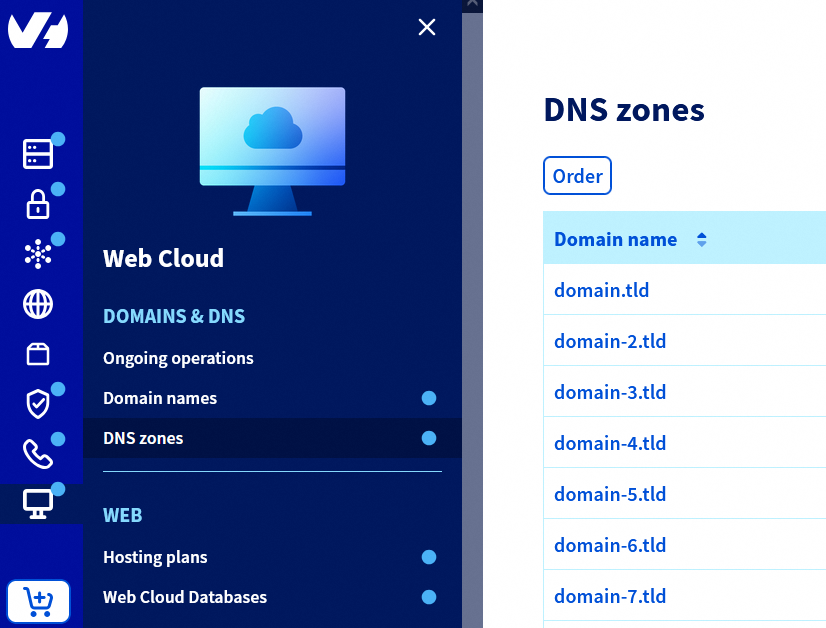
Web Cloud>DNS zones> Select your domain name
Instructions
Adding, modifying or deleting DNS records in an active DNS zone can cause service interruptions. If in doubt, contact a specialist provider.
Add a DNS A record for a domain name
Click on the tabs below to view each of the 5 steps.
Go to the DNS zones page, then choose the domain name concerned.
Click the Add an entry button.
In the window that opens, select the A record type.
Enter the IP address (e.g.: 203.0.113.0) of the service your website is hosted on (web hosting plan, dedicated server, VPS, etc.) in the Target * field, then click Next.
Check the summary, then click Confirm. It takes up to 24 hours for the change to propagate fully over the DNS network.
Click here for more information.
See our detailed guides:
Add a DNS A record for a domain name subdomain
Click on the tabs below to view each of the 5 steps.
Go to the DNS zones page, then choose the domain name concerned.
Click the Add an entry button.
In the window that opens, select the A record type.
Enter the subdomain in the Sub-domain field (e.g.: www for the subdomain www.domain.tld), and the IP address (e.g.: 203.0.113.0) of the service your website is hosted on (web hosting plan, dedicated server, VPS, etc.) in the Target * field. Click Next.
Check the summary, then click Confirm. It takes up to 24 hours for the change to propagate fully over the DNS network.
Click here for more information.
See our detailed guides:
Go further
Everything you need to know about DNS zones.
Everything you need to know about DNS records
For specialised services (SEO, development, etc.), contact OVHcloud partners.
If you would like assistance using and configuring your OVHcloud solutions, please refer to our support offers.
Join our community of users.


 Configure an MX record for email management
 6239
6239