

Configure IP Aliasing on a Dedicated Server
32805 Views
 04.12.2025
  Cloud / Dedicated Server (bare metal)
This article is about Additional IPv4 configuration on a public interface. You can also configure Primary IPv6 addresses on your dedicated servers using this guide.
Please note that Additional IP addresses can also be configured in a vRack (private network), which allows interconnection over a wide range of OVHcloud services, offering more flexibility.
Learn how to configure Additional IP addresses in a vRack with our guides for IPv4 and IPv6.
Objective
IP aliasing is a special network configuration for your OVHcloud dedicated servers, which allows you to associate multiple IP addresses with a single network interface.
This guide explains how to add Additional IP addresses to your network configuration.
OVHcloud is providing you with services for which you are responsible, with regard to their configuration and management. You are therefore responsible for ensuring they function correctly.
This guide is designed to assist you in common tasks as much as possible. Nevertheless, we recommend that you contact a specialist service provider if you have difficulties or doubts concerning the administration, usage or implementation of services on a server.
Requirements
- A dedicated server in your OVHcloud account
- An Additional IP address or an Additional IP block (RIPE or ARIN)
- Access via SSH or remote desktop connection for Windows
- Basic networking and administration knowledge
This feature might be unavailable or limited on servers of the Eco product line.
Please visit our comparison page for more information.
Instructions
The following sections contain configurations for the distributions we currently offer and the most commonly used distributions/operating systems. The first step is always to log in to your server via SSH or a GUI login session (RDP for a Windows server).
Concerning different distribution releases, the procedure for configuring your network interface and file names may have changed. We recommend consulting the manuals and knowledge resources of the respective OS versions if you experience any issues.
Please take note of the following terminology that will be used in code examples and instructions of the guide sections below:
| Term | Description | Examples |
|---|---|---|
| ADDITIONAL_IP | An Additional IP address assigned to your service | 203.0.113.1 |
| NETWORK_INTERFACE | The name of the network interface | eth0, ens3 |
| ID | ID of the IP alias, starting with 0 (depending on the number of additional IPs there are to configure) | 0, 1 |
In the examples below, we will use the nano text editor. With some operating systems, you will need to install it first. If this is the case, you will be prompted to do so. You can, of course, use the text editor of your choice.
Select the tab corresponding to your operating system.
Debian 11
By default, the configuration files are located in /etc/network/interfaces.d/. We recommend that you start by backing up the relevant configuration file.
Step 1: Create a backup
In our example, our file is called 50-cloud-init, so we make a copy of the 50-cloud-init file using the following command:
In case of a mistake, you will be able to revert the changes, using the commands below:
Step 2: Edit the configuration file
Note that the names of the network interfaces in our examples may differ from your own. Please adjust to your appropriate interface names.
You can now modify the configuration file:
Next, you need to add a virtual interface or ethernet alias. In our example, our interface is called eth0, so our alias is eth0:0. Do this for each additional IP you wish to configure.
Do not modify the existing lines in the configuration file, simply add your Additional IP to the file as follows, replacing ADDITIONAL_IP/32 as well as the virtual interface (if your server is not using eth0:0) with your own values:
Alternatively, you can configure your Additional IP by adding the following lines in the configuration file:
With the configuration above, the virtual interface is enabled or disabled whenever the eth0 interface is enabled or disabled.
If you have two Additional IPs to configure, the /etc/network/interfaces.d/50-cloud-init file should look like this:
Or like this:
Configuration example
Or:
Step 3: Restart the interface
To restart the interface, use the following command:
Fedora 42 and following, AlmaLinux & Rocky Linux (10)
Fedora now uses keyfiles. NetworkManager previously stored network profiles in ifcfg format in this directory: /etc/sysconfig/network-scripts/. However, the ifcfg format is now deprecated. By default, NetworkManager no longer creates new profiles in this format. The configuration file is now found in /etc/NetworkManager/system-connections/.
Step 1: Create a backup
Note that the name of the network file in our example may differ from your own. Please adjust to your appropriate name.
First, make a copy of the configuration file, so that you can revert at any time. In our example, our configuration file is called cloud-init-eno1.nmconnection.
Step 2: Edit the config file
Please note that the name of the network file in our example may differ from yours. Please adapt the commands to your file name.
To obtain the name of your network interface in order to edit the appropriate network file, you can run one of the following commands:
Do not modify the existing lines in the configuration file, add your Additional IP to the file as follows, replacing ADDITIONAL_IP/32 with your own values:
If you have two Additional IPs to configure, the configuration should look like this:
Configuration example
Step 3: Restart the interface
You now need to restart your interface:
Debian 12, Ubuntu 20.04 and following
By default, the configuration files are located in the /etc/netplan directory.
The best practice approach is to create a separate configuration file to set up Additional IP addresses. This way, you can easily revert the changes in case of an error.
Step 1: Determine the interface
Note the name of the interface (the one on which your server's main IP address is configured).
Step 2: Create and edit the configuration file
Next, create a configuration file with a .yaml extension. In our example, our file is called 51-cloud-init.yaml.
Edit the file with the content below, replacing INTERFACE_NAME and ADDITIONAL_IP with your own values:
If you have two Additional IPs to configure, the configuration file should look like this:
It is important to respect the alignment of each element in this file as represented in the example above. Do not use the tab key to create your spacing. Only the space key is needed.
Configuration example
Save and close the file. You can test the configuration with the following command:
Step 3: Apply the change
If it is correct, apply it using the following command:
When using the netplan try command, it is possible that the system returns a warning message such as Permissions for /etc/netplan/xx-cloud-init.yaml are too open. Netplan configuration should NOT be accessible by others. This simply means that the file does not have restrictive permissions. This does not affect the configuration of your Additional IP. For more information about file permissions, consult the official documentation of ubuntu.
AlmaLinux (8/9) & Rocky Linux (8/9)
The main configuration file is located in /etc/sysconfig/network-scripts/. In this example it is called ifcfg-eth0. Before making changes, verify the actual file name in this folder.
For each Additional IP to be configured, we create a separate configuration file with the following parameters: ifcfg-NETWORK_INTERFACE:ID. Where NETWORK_INTERFACE is the physical interface and ID is the virtual network interface or ethernet alias starting with a value of 0. For example, for our interface named eth0 the first alias is eth0:0, the second alias is eth0:1, etc...
Step 1: Determine the interface
Note the name of the interface (the one on which your server's main IP address is configured).
Step 2: Create the configuration file
First, create the configuration file. Replace NETWORK_INTERFACE:ID with your own values.
Next, edit the file with the content below, replacing NETWORK_INTERFACE:ID, and ADDITIONAL_IP with your own values:
Configuration example
Step 3: Restart the interface
Next, restart the network interface with the following command:
cPanel
Step 1: Access the WHM IP management section
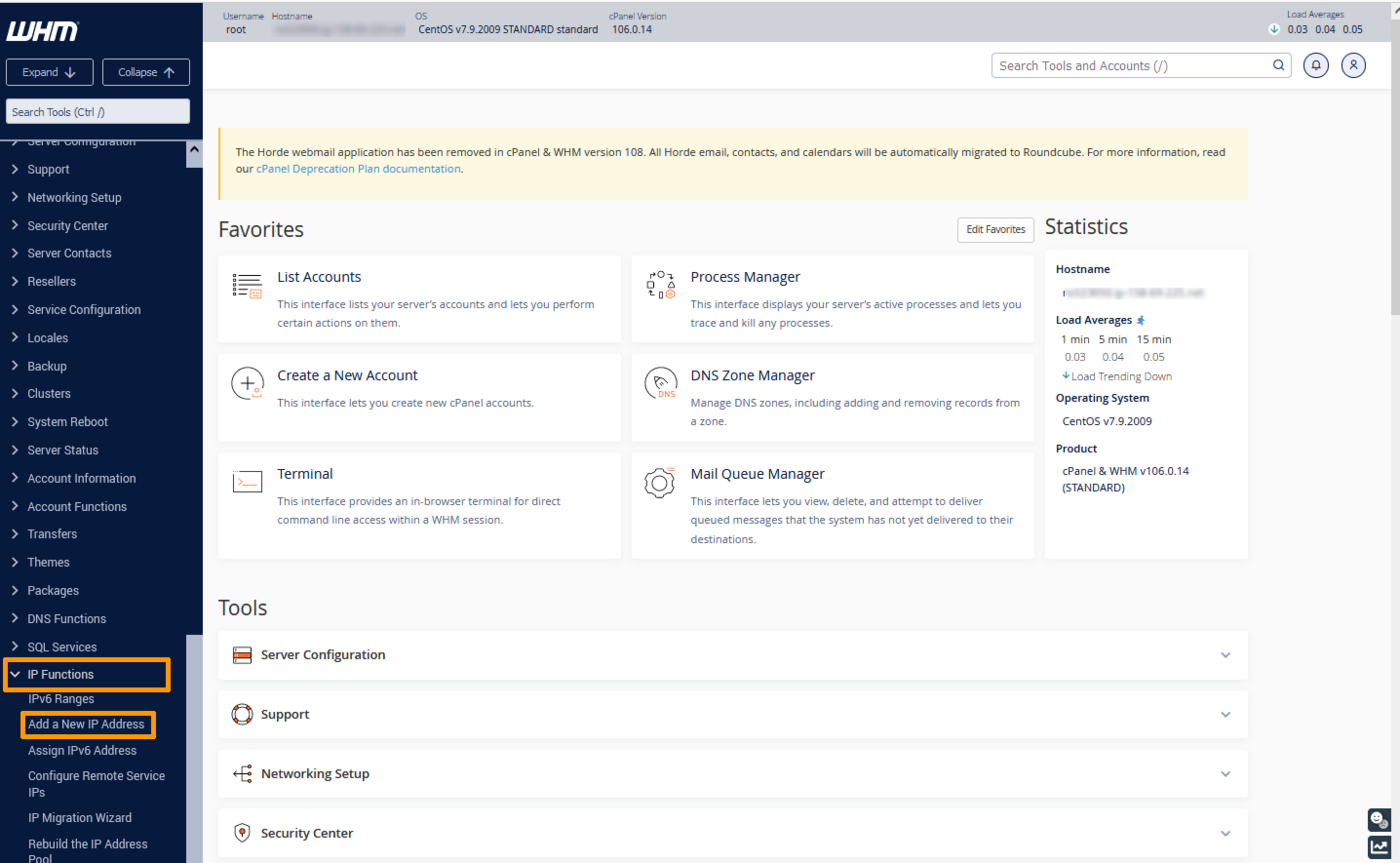
In the WHM control panel, click on IP Functions and select Add a New IP Address in the left-hand sidebar.
Step 2: Add the Additional IP information
Enter your Additional IP in the form xxx.xxx.xxx.xxx into the field “New IP or IP range to add”.
Select 255.255.255.255 as your subnet mask, then click on Submit.
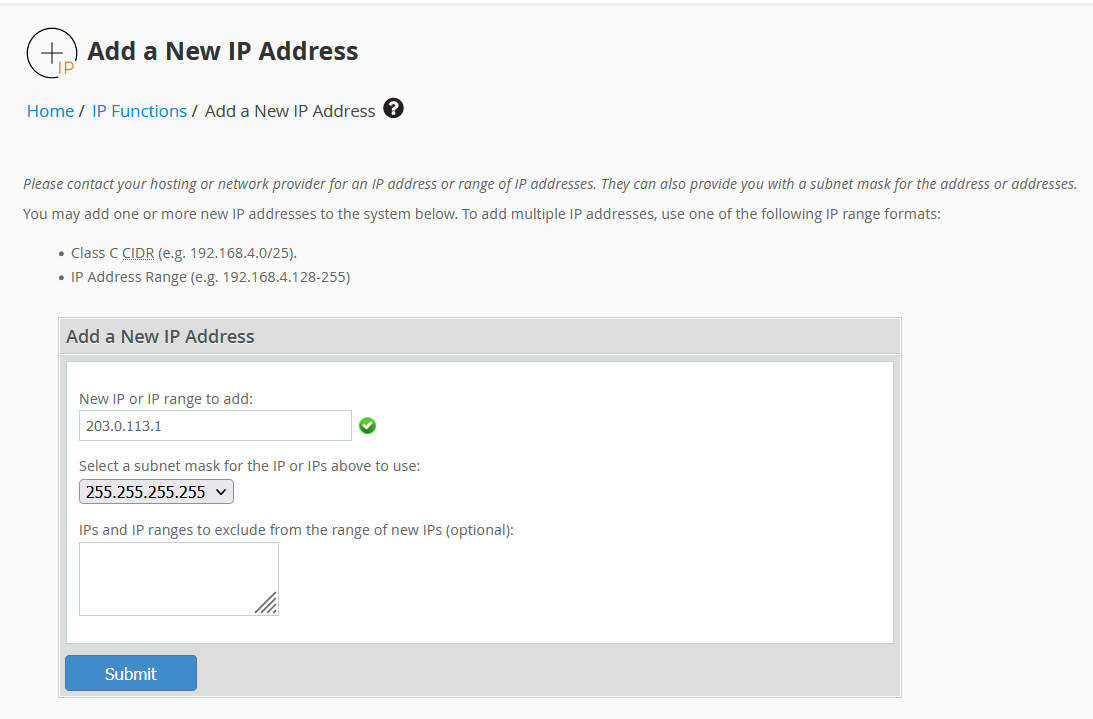
Please note that if you have more than one IP to configure on the same block and you add them all at once, the WHM system will force you to use the subnet mask 255.255.255.0. We do not recommend using this configuration. Instead, you need to add each IP individually in order to use the proper subnet mask 255.255.255.255.
Step 3: Check the current IP configuration
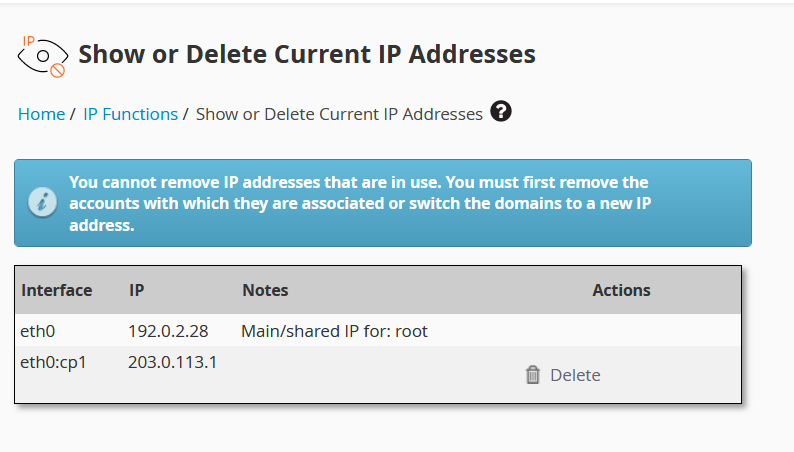
Back in the section IP Functions, click on Show or Delete Current IP Addresses to verify that the Additional IP address was added correctly.
Windows Servers
Windows servers are often DHCP-enabled in the network configuration. If you have already set up an Additional IP or switched your configuration to a fixed IP, go directly to the next step.
Otherwise, you need to first switch from a network-level DHCP configuration to a fixed IP configuration.
Open the command prompt cmd or powershell, then type the following command:
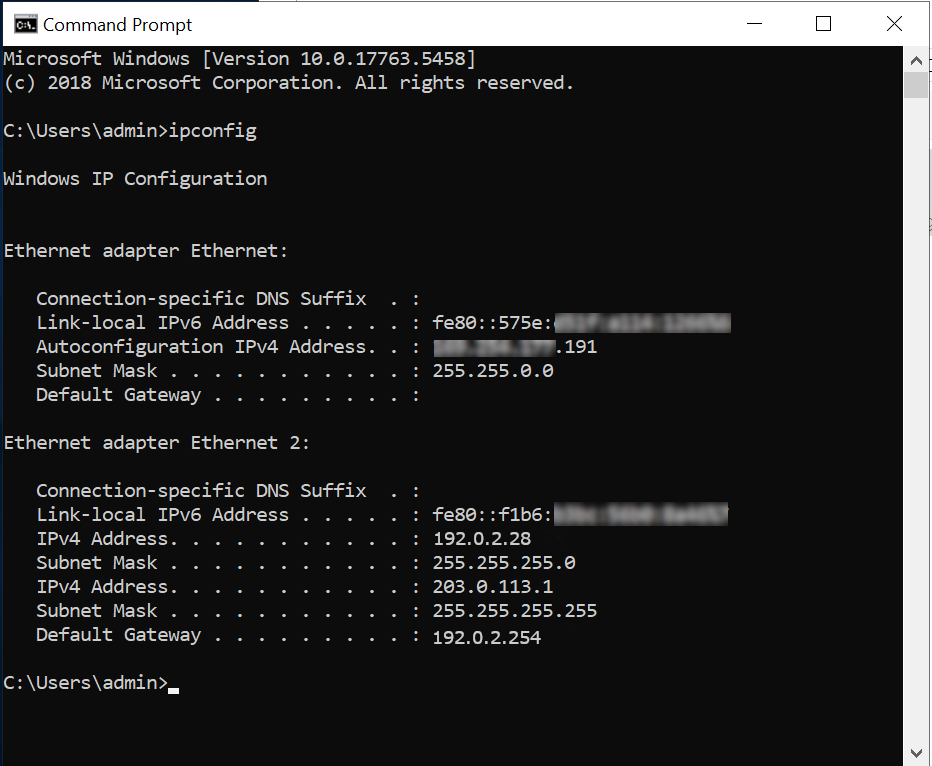
This will return a result similar to the following example:
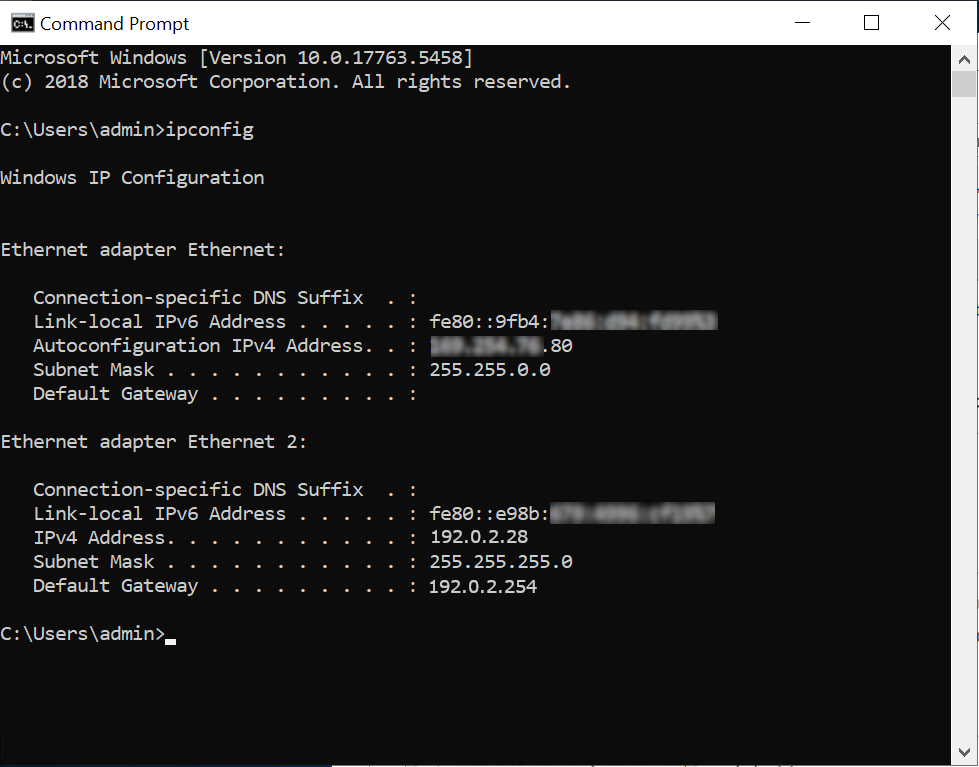
Identify and write down your IPv4, subnet mask, default gateway and the name of the network interface controller (network adapter).
In our example, the server IP is 192.0.2.28.
You can perform the next steps via either a command-line interface or the graphical user interface.
Via a command-line interface (recommended)
In the commands below, you need to replace:
| Command | Value |
|---|---|
| NETWORK_ADAPTER | Name of the network adapter (in our example: Ethernet 2) |
| IP_ADDRESS | Server IP address (in our example: 192.0.2.28) |
| SUBNET_MASK | Subnet mask (in our example: 255.255.255.0) |
| GATEWAY | Default gateway (in our example: 192.0.2.254) |
| ADDITIONAL_IP | Address of Additional IP you want to add (in our example 203.0.113.1) |
Be careful – the server will no longer be accessible if you enter incorrect information. You will then have to make the corrections in Winrescue mode or via the IPMI.
In the command prompt:
1. Switch to a fixed IP
2. Set the DNS server
3. Add an Additional IP
Your Additional IP is now functional.
Via the graphical user interface
- Go to
Start>Control Panel>Network and Internet>Network and Sharing Centre>Change Adapter Settings(in the left-hand menu). - Right-click on your network connection, in our example
Ethernet 2. - Click on
Properties. - Select
Internet Protocol Version 4 (TCP/IPv4), then click onProperties. - Click on
Use the following IP addressand type in your server’s primary IP, subnet mask and default gateway information obtained by using theipconfigcommand above. In the "Preferred DNS Server" box, type 213.186.33.99.
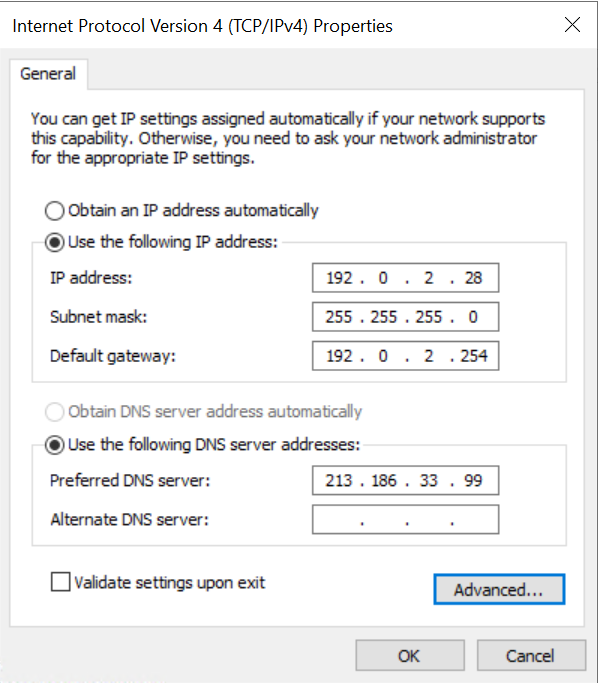
Be careful – the server will no longer be accessible if you enter incorrect information. You will then have to make the corrections in Winrescue mode or via the IPMI.
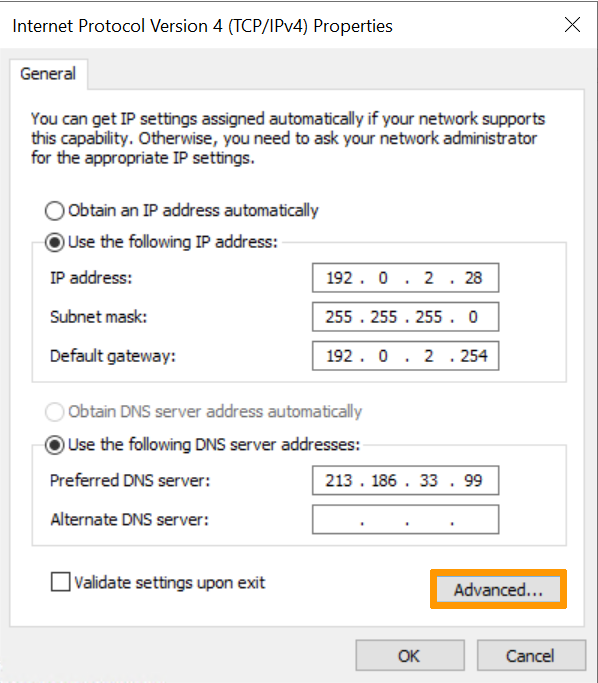
Then click on Advanced (still in the TCP/IP Settings).
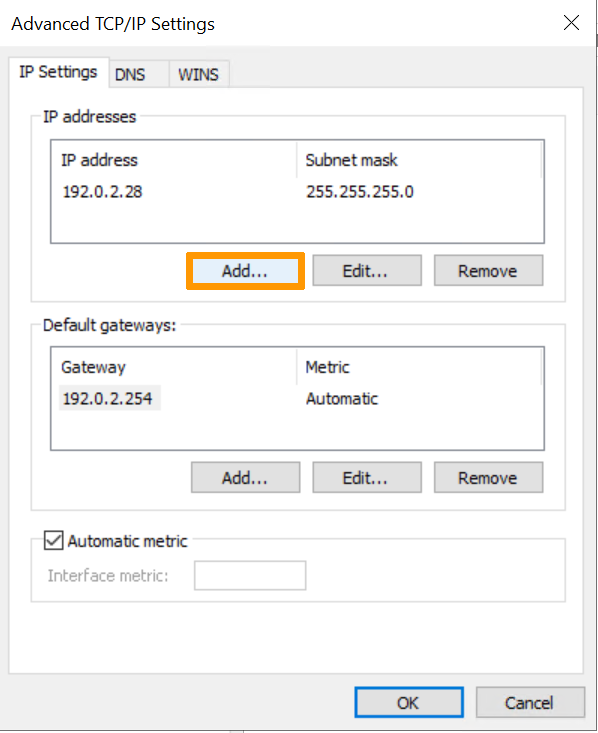
In the IP Address section, click Add:
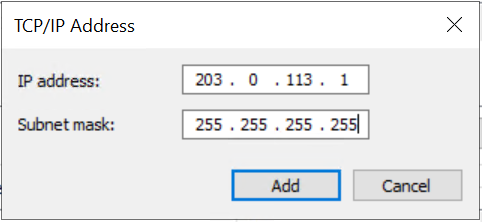
Type in your Additional IP and the subnet mask 255.255.255.255. Then click on Add
Click on OK to apply your configuration.
Your Additional IP is now functional, you can verify the configuration with the following command:
This will return a result similar to the following example:
Plesk
Step 1: Access the Plesk IP management section
In the Plesk control panel, choose Tools & Settings from the left-hand sidebar.
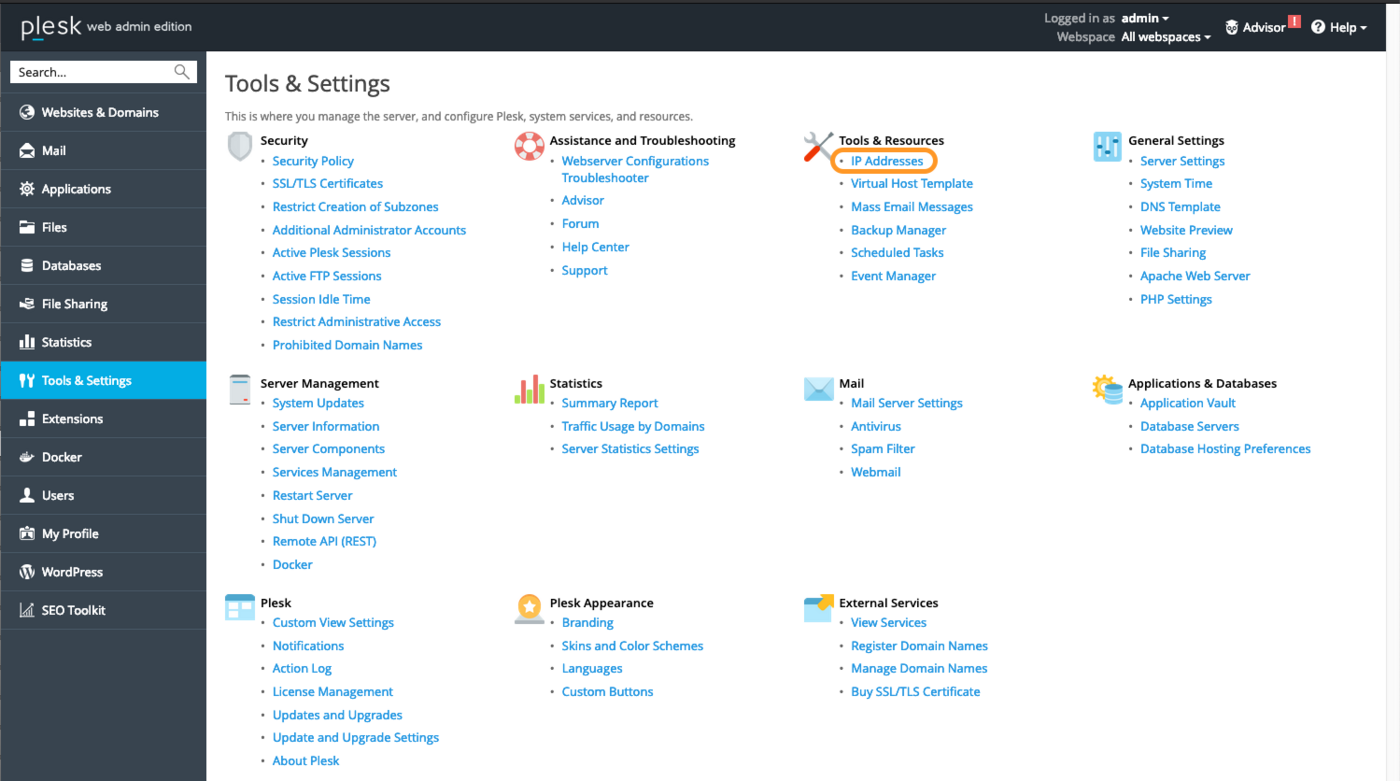
Click on IP Addresses under Tools & Resources.
Step 2: Add the Additional IP information
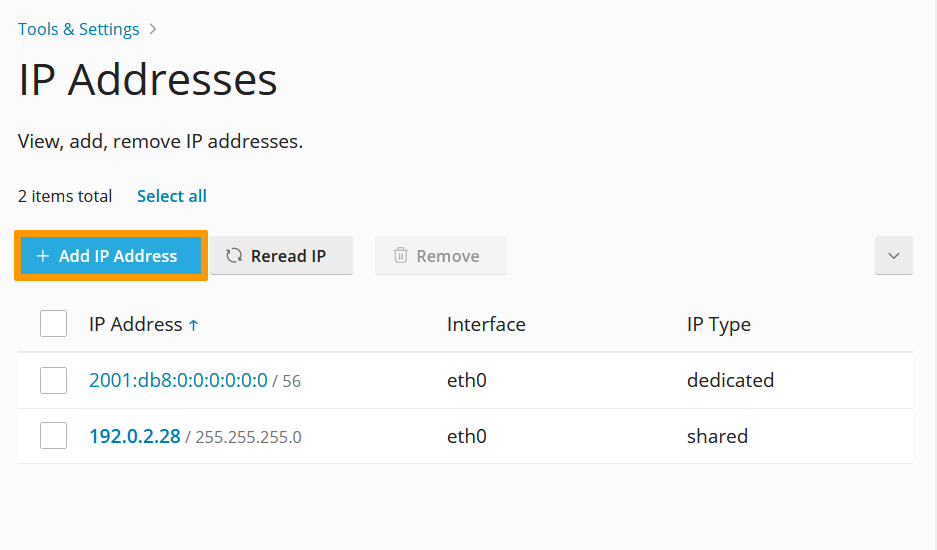
In this section, click on the button Add IP Address.
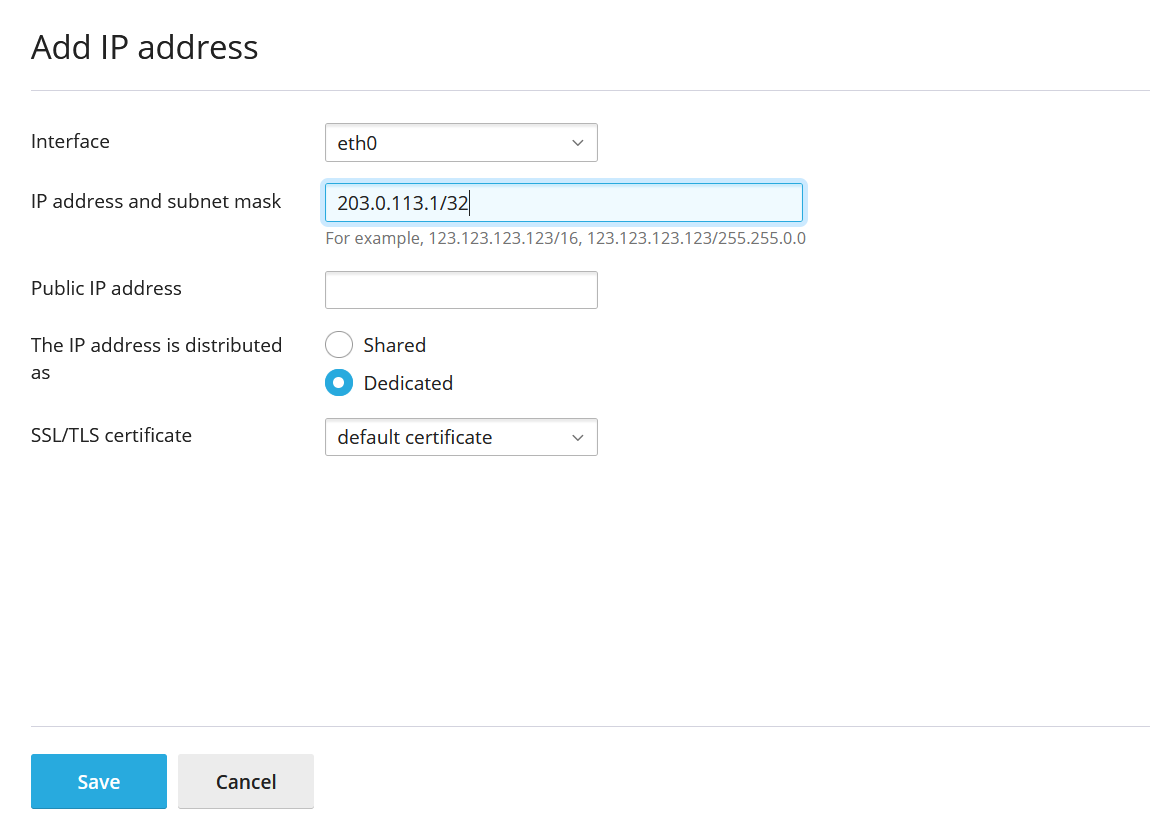
Enter your Additional IP in the form xxx.xxx.xxx.xxx/32 into the field "IP address and subnet mask", then click on OK.
Step 3: Check the current IP configuration
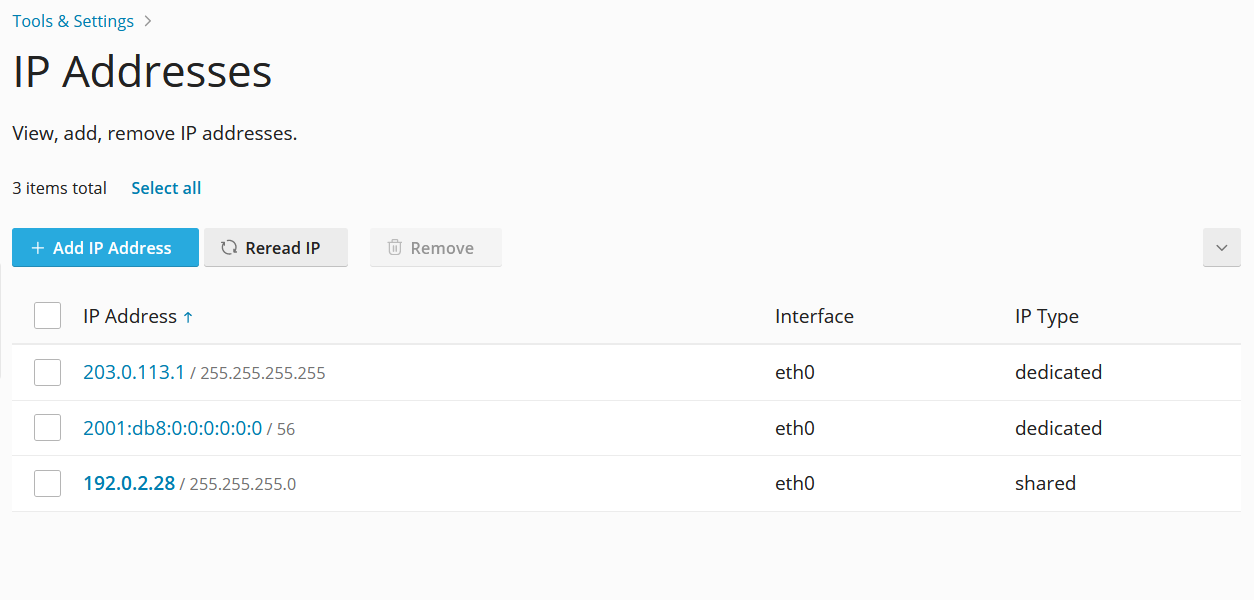
Back in the section "IP Addresses", verify that the Additional IP address was added correctly.
Troubleshooting
If restarting the interface does not work, reboot your server from the command line or its GUI. If you are still unable to establish a connection from the public network to your Additional IP and suspect a network problem, you need to reboot the server in rescue mode. Then you can set up the Additional IP address directly on the server.
Once you are connected to your server via SSH, enter the following command:
To test the connection, ping your Additional IP from outside. If it responds in rescue mode, this indicates a configuration error. If, however, the IP is still not working, please open a ticket with the support team via the OVHcloud Help Center with the following information:
- The operating system name and version you are using on your server.
- The name and directory of the network configuration file.
- The content of that file.
Go further
Moving an Additional IP on a Dedicated Server
Join our community of users.


 Configure Additional IPs in Bridge Mode on a Dedicated Server
 20948
20948