

How to configure Link Aggregation with LACP in Debian 12 or Ubuntu 24.04
852 Views
 09.01.2026
  Cloud / Dedicated Server (bare metal)
Objective
Link Aggregation Control Protocol (LACP) technology is designed to increase your server’s availability, and boost the efficiency of your network connections. You can aggregate your network cards and make your network links redundant. This means that if one link goes down, traffic is automatically redirected to another available link. The available bandwidth is also doubled thanks to aggregation.
This guide explains how to bond your interfaces to use them for link aggregation in Debian 12 (or newer) / Ubuntu 24.04 (Netplan configuration).
While Debian 12 and newer images provided by OVHcloud utilize Netplan by default, there are two key exceptions where ifupdown (/etc/network/interfaces) is used instead:
- Rescue mode: Although based on Debian 12, the rescue environment relies on the
ifupdownutility. - Custom images: Debian installations performed using your own image may still use
ifupdownfor networking.
If you wish to configure link aggregation in rescue mode, or on a custom OS relying on ifupdown, please refer to this guide instead.
Requirements
OVHcloud Control Panel Access
- Direct link: Dedicated Servers
- Navigation path:
Bare Metal Cloud>Dedicated servers> Select your server
Instructions
The values (MAC addresses, IP addresses, etc.) shown in the configurations and examples below are provided as examples. Of course, you must replace these values with your own.
Retrieving MAC addresses
Switch to the tab Network Interfaces and take note of the MAC addresses for each interface (public/private) which are displayed at the bottom of the menu.
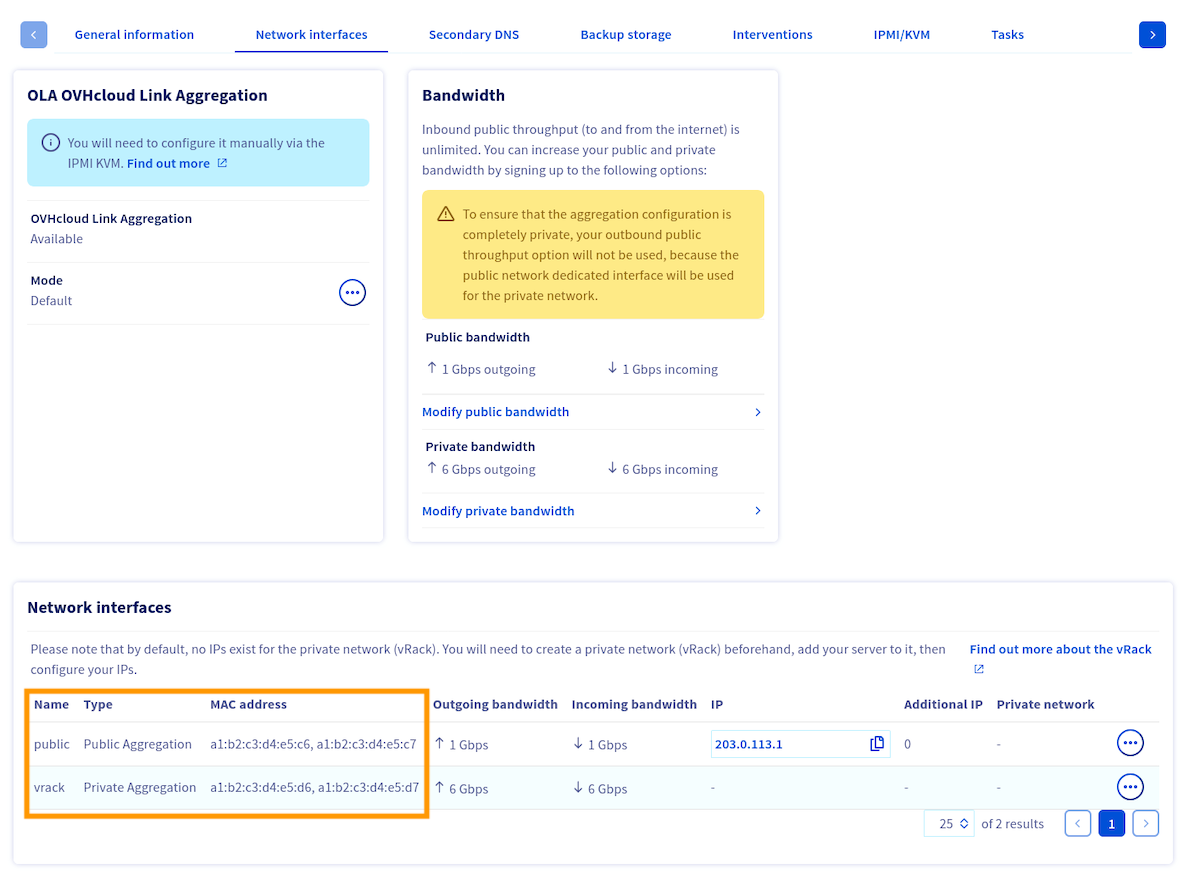
Please note that the MAC address of the main public interface is the one receiving DHCP offers, both in the server's operating system and in rescue mode. This interface handles public connectivity in the default configuration.
Additionally, the MAC address of the main private interface is the one with the lowest value. In the example image above, this is the address a1:b2:c3:d4:e5:d6.
Now that you know which MAC addresses are associated to each type (public/private) of interface, you need to retrieve the interfaces names.
Retrieving interfaces names
If you lose network connection to your server, follow the "Open KVM" steps from this guide.
To retrieve the names of the interfaces, execute the following command:
This command will yield numerous interfaces. If you are having trouble determining which ones are your physical interfaces, the first interface will still have the server's public IP address attached to it by default.
Here's an output example:
Once you have determined the names of your interfaces, you can configure interfaces bonding in the OS.
Static IP configuration
Replace the content of /etc/netplan/50-cloud-init.yaml with the following:
DHCP configuration
Replace the content of /etc/netplan/50-cloud-init.yaml with the following:
Applying the configuration
The netplan try command can't be used when configuring bonds.
Apply the configuration using the following command:
It may take several seconds for the bond interfaces to come up.
Go further
Join our community of users.


 Configuring IP aliasing
 32345
32345