

Purchase Order (PO)
1944 Views
 28.04.2025
  Managing billing, payments and services
Objective
This guide explains the Purchase Order (PO) number applied to OVHcloud billing.
OVHcloud Control Panel Access
- Direct link: My orders
- Navigation path: Click your name in the top right >
My orders
Instructions
Purchase Order (PO) number
When purchasing goods or services, companies are required to validate purchase orders. Most of the time, this validation is done by returning a document (paper or digital format) on the company's letterhead that recalls the goods or services purchased while specifying an order number. This document is usually called Purchase Order and is abbreviated to PO.
For the company issuing the PO, the purpose of this document is to control purchases of goods and services from its suppliers, including by requiring that all invoices issued include a PO Number.
There are essentially two types of orders, described below.
Closed order / Purchase Order (PO)
This is a document confirming the order of goods or services for a fixed quantity and for a fixed duration.
For OVHcloud, the document must contain at least the following information:
- Company name of the contractor
- Order number
- Type(s) of services ordered
- Quantities
- Unit prices
- Effective date
- End date
Open order / Blanket Purchase Order (BPO)
This is a document confirming the order of goods or services for a variable quantity with a maximum amount and for a fixed duration.
For OVHcloud, the document must contain at least the following information:
- Company name of the contractor
- Order number
- Type(s) of services ordered
- Unit prices
- Total order amount
- Effective date
- End date
How to enter a Purchase Order (PO) reference in your OVHcloud Control Panel
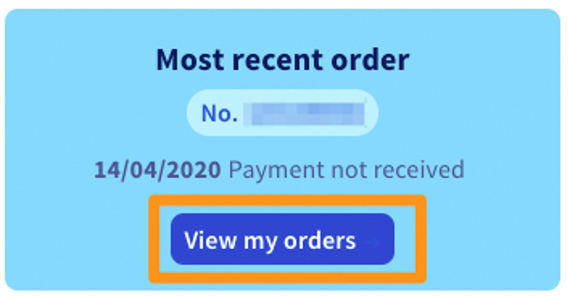
Open the My orders page.
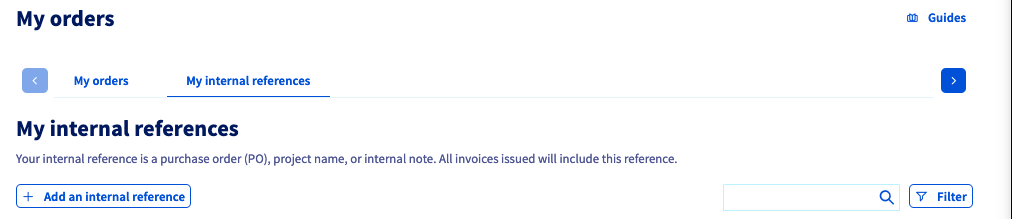
Click the My Internal References tab and then click the + Add an internal reference button.
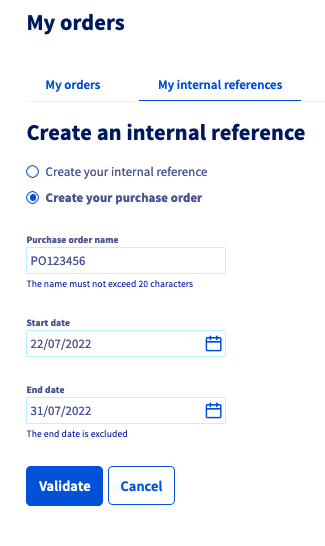
You can use two different wordings, depending on whether you wish to display the notation Internal reference or the notation Purchase order on your invoices.
Select either Create your internal reference or Create your purchase order.
Give your internal reference / purchase order a name in the field provided, enter a start date and an end date (the end date is excluded) then click on Validate.
You cannot create 2 internal references / Purchase Orders over the same time period.
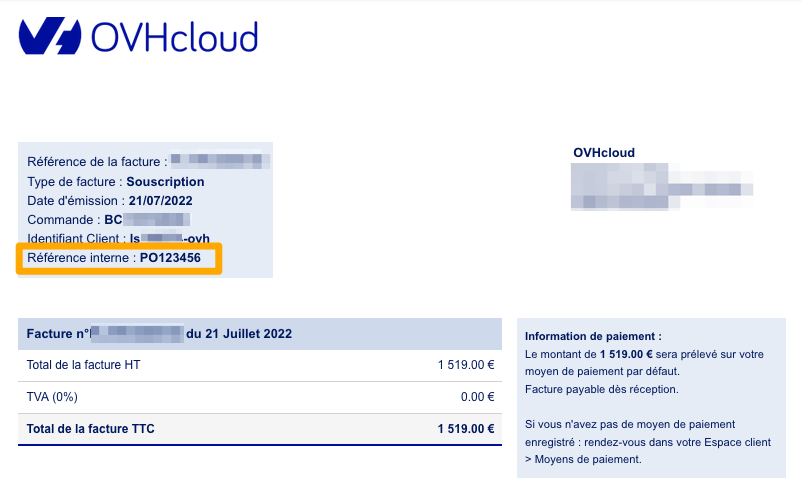
This reference will then appear on your next invoices, for the time period that you have set.
From the My internal references tab, you can edit or deactivate a reference that has already been created by clicking the ... to the right of the reference concerned.
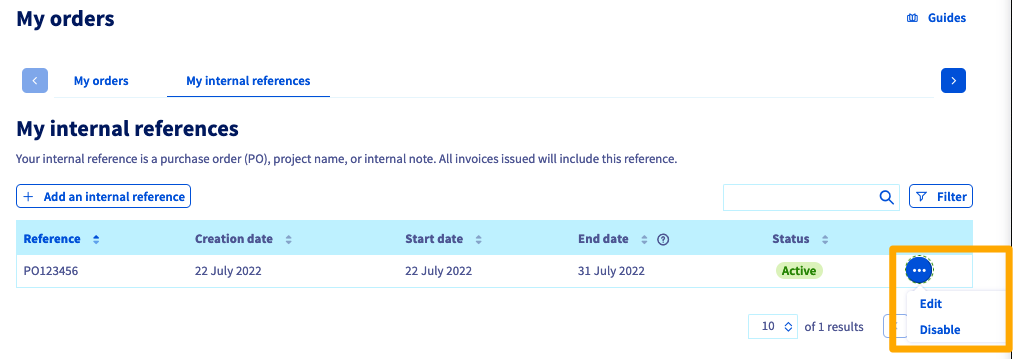
If you want to disable/modify one reference for another on the same time interval, you must use the Edit option to change the time interval of the first reference.
Go further
Join our community of users.


 Managing payment methods
 15315
15315