

How to obtain an Outlook licence for Exchange
248 Ansichten
 28.04.2025
  Web / Microsoft Hosted Exchange
Objective
With an Outlook licence you can use the Outlook email client to view and manage the emails in your Exchange account.
OVHcloud offers the Outlook licence for a monthly cost of €2 ex VAT. It will be linked to an OVHcloud Exchange account that you manage.
After subscribing, you can download the Outlook client as one of the following 3 versions:
- Outlook for Windows 32 bit
- Outlook for Windows 64 bit
- Outlook for MAC 64 bit
This guide explains how to order an Outlook licence from your OVHcloud Exchange platform and how to activate it.
OVHcloud Control Panel Access
- Direct link: Exchange
- Navigation path:
Web Cloud>Exchange> Select your platform
Instructions
Ordering an Outlook licence
For a Hosted Exchange account
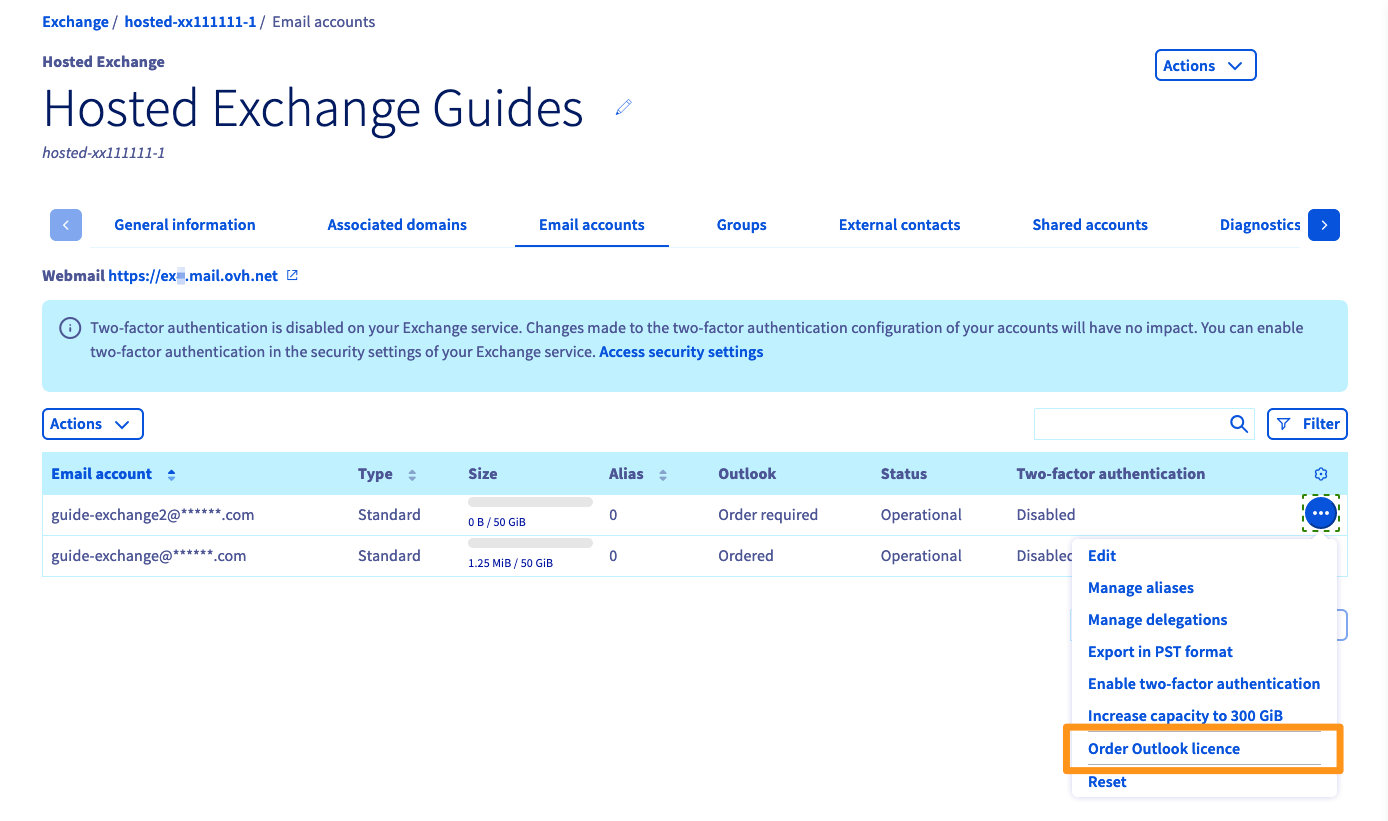
Click on the ... icon to the right of the account concerned, then on Order an Outlook licence.
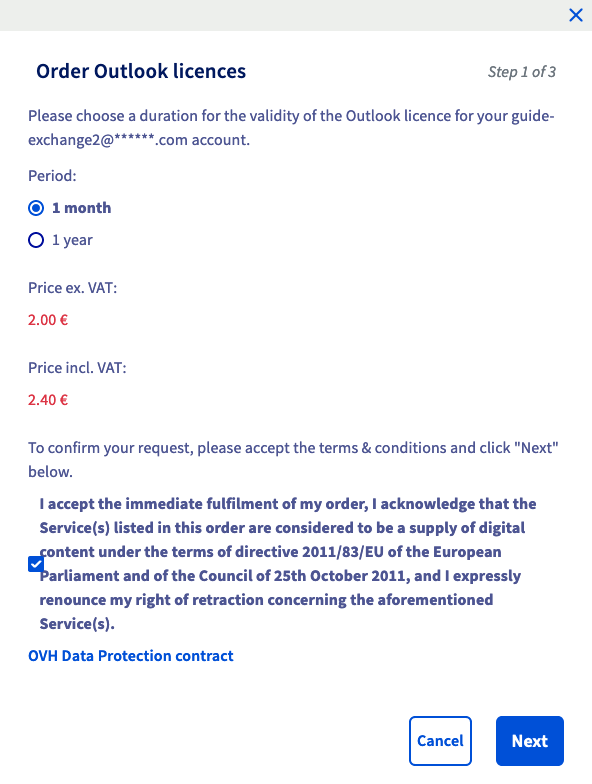
Set the renewal frequency for your Outlook licence, and confirm the conditions. Then click Next.
Once you have verified your order summary, use the Pay button to generate the purchase order. You will be redirected to a new page where you can pay for your order using the payment methods available to you.
You will need to wait a few moments for your Outlook licence to become available in the OVHcloud Control Panel.
For a Private Exchange account
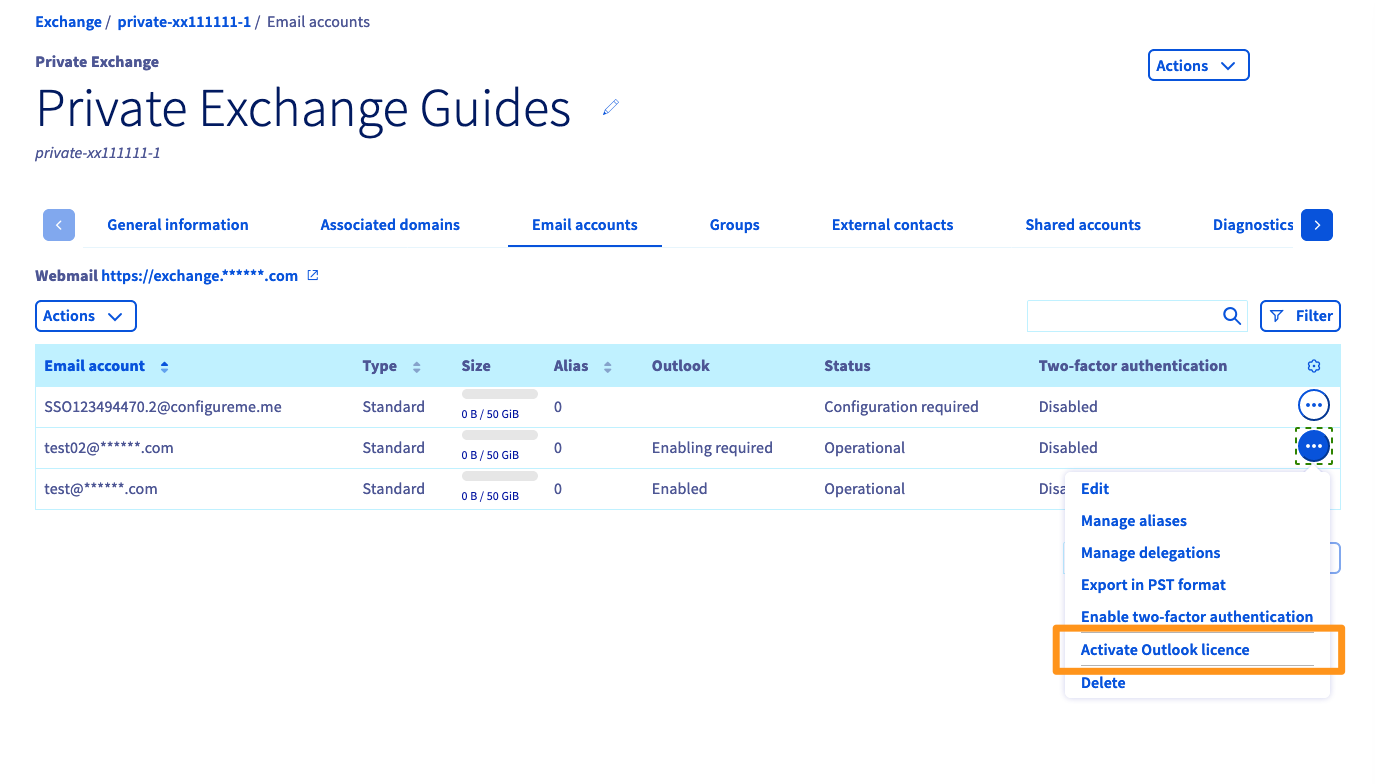
Click on the ... icon to the right of the account concerned, then on Activate Outlook licence.
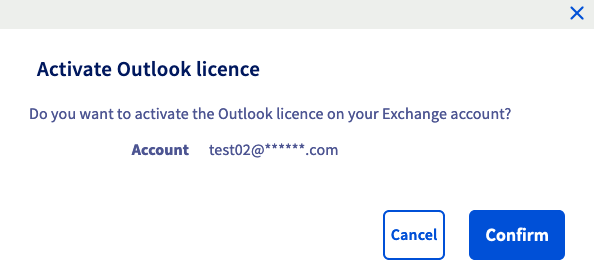
A window will appear, asking you if you want to activate the Outlook licence on your Exchange account. Click Confirm to activate the licence for the account concerned.
You will need to wait a few moments for your Outlook licence to become available in the OVHcloud Control Panel.
Your Outlook licence will be billed on your Private Exchange platform every month.
Downloading and installing Outlook
You now need to download the appropriate Outlook installation file for your device.
In the management interface for your Exchange platform, click on the ... icon to the right of the account concerned, then on Use Outlook licence.
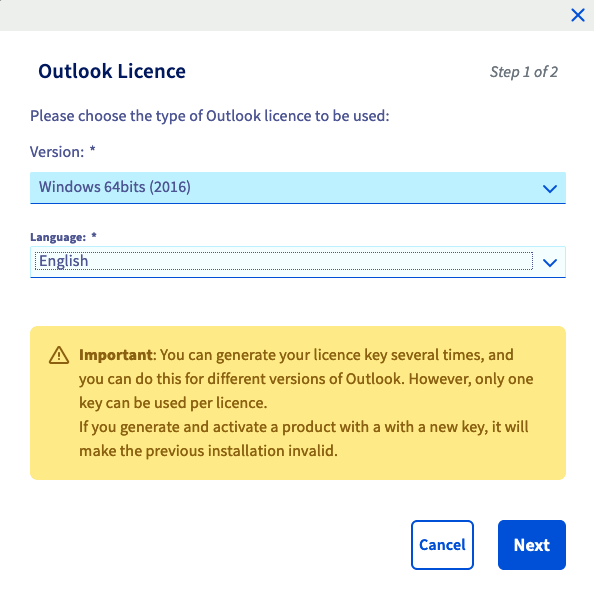
Choose the version from the drop-down menu based on your operating system and language, then click Next.
After a few moments, a download link is generated, along with a licence key needed to activate your Outlook installation.
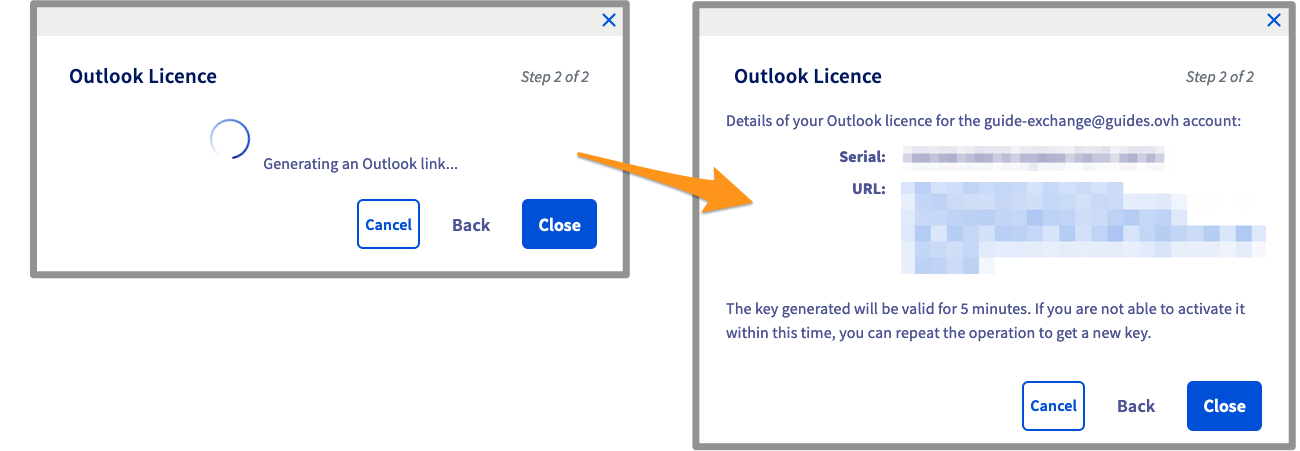
The downloaded file is in the .ISO format, i.e. a disk image. Start the installation and enter the licence key when prompted.
Deleting the Outlook licence from your account
Click on the ... icon to the right of the account concerned, then on Delete Outlook licence.
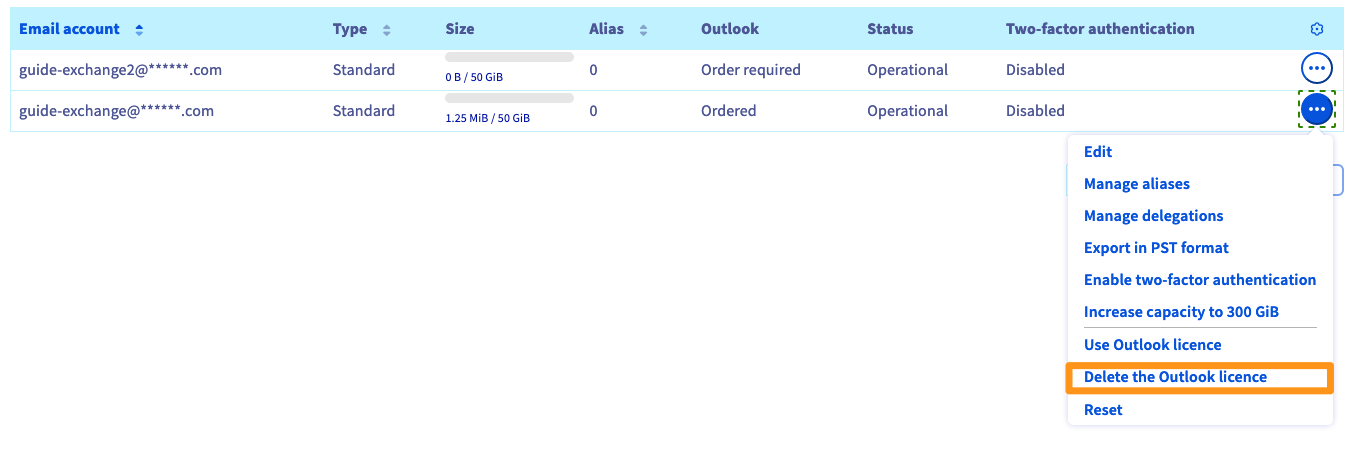
Once you have confirmed, you are reminded that the licence will be permanently deleted on its expiry date.
Go further
Join our community of users.


 Freigegebenes Postfach erstellen und verwenden
 2549
2549