

What are the IP addresses of the OVHcloud monitoring?
9193 Ansichten
 04.06.2025
  Cloud / Dedicated Server (Bare Metal)
Objective
The monitoring service allows OVHcloud to monitor the status of your machine and automatically trigger the intervention of a technician in the datacenter.
All the servers of our customers and the entire network are monitored 24/7 by OVHcloud technical teams.
OVHcloud intervenes as soon as an alert (non-response to the pings) is triggered in order to minimize the downtime of the servers and the network.
To implement a restrictive firewall, especially on ICMP, and continue to benefit from OVHcloud monitoring, it is necessary to authorize the IPs that you will find below.
Requirements
- An OVHcloud service on which you have installed a firewall
- Access to the firewall rules
OVHcloud Control Panel Access
- Direct link: Dedicated Servers
- Navigation path:
Bare Metal Cloud>Dedicated servers> Select your server
Instructions
IP addresses to be authorised
| Reverse | IP | Protocol |
|---|---|---|
| netmon-rbx-probe | 92.222.184.0/24 | icmp |
| netmon-sbg-probe | 92.222.185.0/24 | icmp |
| netmon-gra-probe | 92.222.186.0/24 | icmp |
| netmon-bhs-probe | 167.114.37.0/24 | icmp |
| netmon-sgp-probe | 139.99.1.144/28 | icmp |
| netmon-waw-probe | 193.70.125.118/32 | icmp |
| netmon-mum-probe | 148.113.25.1/32 | icmp |
| netmon-syd-probe | 139.99.187.247/32 | icmp |
| netmon-tor-probe | 72.251.7.222/32 | icmp |
| netmon-eri-probe | 51.195.135.163/32 | icmp |
| netmon-lim-probe | 51.38.117.56 | icmp |
| netmon-sbg-probe | 51.38.25.100 | icmp |
| netmon-par-probe | 57.130.4.212 | icmp |
| ping.ovh.net | 213.186.33.13 | icmp |
| --- | --- | --- |
| xxx.xxx.xxx.250 (xxx.xxx.xxx.aaa is the server ip) | icmp | |
| xxx.xxx.xxx.251 (xxx.xxx.xxx.aaa is the server ip) | icmp + Port monitored by the monitoring service |
Communication between the RTM service and your server also requires that you allow inbound and outbound connections on UDP ports 6100 through 6200.
If your server is located in Roubaix 3, you have to retrieve the last IP via tcpdump:
Server monitoring
Log in to the OVHcloud Control Panel and select the Bare Metal Cloud tab. Select the server concerned in the Dedicated servers menu.
You can set the monitoring status for a dedicated server from the General information tab (section Service status).
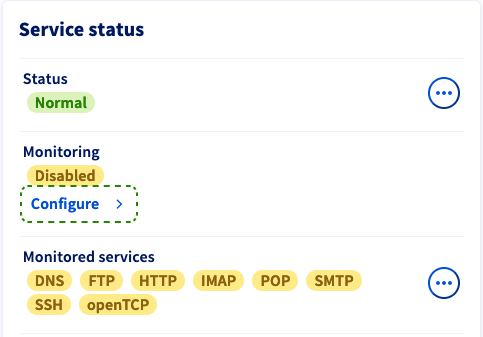
Click on the button Configure. In the popup window, you have three options for the monitoring behaviour:
- Disabled: This option stops alert messages and interventions by OVHcloud. Choose this if you are executing pertinent administrative actions on the server which prevent an ICMP response.
- Enabled with proactive intervention: If the server stops responding, an alert email is sent to you and the server will be checked by a technician.
- Enabled without proactive intervention: You will receive an alert message by email in case the server stops responding. To initiate an intervention, you will need to create a support request.
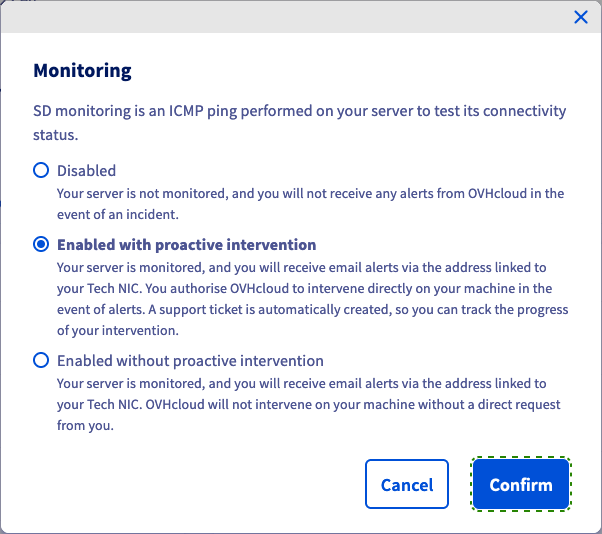
Click on Confirm to update your monitoring configuration.
Go further
Configure the Network Firewall.
Join our community of users.
-
Secure Shell (SSH) : un protocole de réseau sécurisé utilisé pour établir des connexions entre un client et un serveur. Il permet d'exécuter des commandes à distance de manière sécurisée. ↩


 Konfiguration von Additional IPs im Bridge-Modus auf Ihren virtuellen Maschinen
 3173
3173