

Connect using the CLI for Analytics with Kafka
116 Views
 25.08.2025
  Kafka
Kafka
Objective
Apache Kafka is an open-source, distributed event streaming platform designed for real-time, large-scale data processing with high scalability, durability, and low latency.
This guide explains how to connect to a Kafka cluster using the CLI.
Requirements
- Access to the OVHcloud Control Panel
- A Public Cloud project in your OVHcloud account
- A Kafka cluster running on OVHcloud Public Cloud accepting incoming connections
Instructions
First CLI connection
Verify that the IP address visible from your browser application is part of the "Authorised IPs" defined for this Kafka service.
Check also that the user has granted ACLs for the target topics.
Download server and user certificates
In order to connect to the Apache Kafka service, it is required to use server and user certificates.
Server certificate
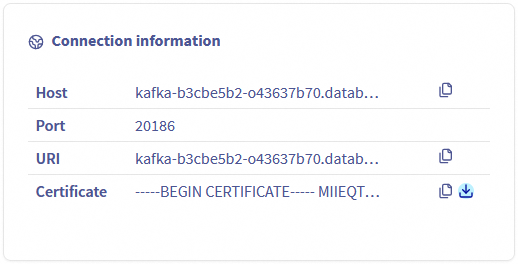
The server CA (Certificate Authority) certificate can be downloaded from the Dashboard tab:
User certificate and access key
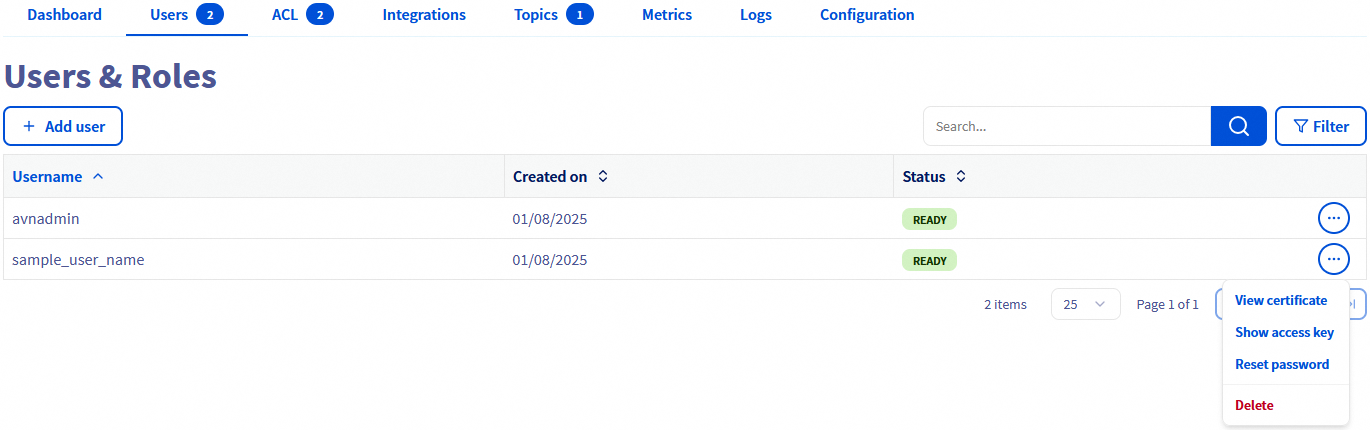
The user certificate and the user access key can be downloaded from the Users tab:
Install an Apache Kafka CLI
As part of the Apache Kafka official installation, you will get different scripts that will also allow you to connect to Kafka in a Java 8+ environment: Apache Kafka Official Quickstart.
We propose to use a generic and more lightweight (does not require a JVM) producer and consumer client instead: Kcat (formerly known as kafkacat).
Install Kcat
For this client installation, please follow the instructions available at: Kafkacat Official Github.
Kcat configuration file
Let's create a configuration file to simplify the CLI commands to act as Kafka Producer and Consumer:
kafkacat.conf:
In our example, the cluster address and port are kafka-f411d2ae-f411d2ae.database.cloud.ovh.net:20186 and the previously downloaded CA certificates are in the /home/user/kafkacat/ folder.
Change theses values according to your own configuration.
Kafka producer
For this first example let's push the "test-message-key" and its "test-message-content" to the "my-topic" topic.
Note: depending on the installed binary, the CLI command can be either kcat or kafkacat.
Kafka consumer
The data can be retrieved from "my-topic".
Note: depending on the installed binary, the CLI command can be either kcat or kafkacat.
We want your feedback!
We would love to help answer questions and appreciate any feedback you may have.
If you need training or technical assistance to implement our solutions, contact your sales representative or click on this link to get a quote and ask our Professional Services experts for a custom analysis of your project.
Are you on Discord? Connect to our channel at https://discord.gg/ovhcloud and interact directly with the team that builds our Analytics service!
Join our community of users.


 Getting started with Analytics with Kafka
 713
713