

How do I geolocate a website in a specific country?
310 Views
 22.08.2025
  Web / Web Hosting
Objective
Search engines (Google, Bing, Yahoo, etc.) use robots in order to index and rank websites. They prioritise geolocated sites in the country you are searching from.
Example: If you search through a search engine and are located in England, geolocated websites in England will show up higher in search results than other websites.
This geolocation is based on the IP address of the hosting plan where your website is located.
The geolocation option on your hosting can be useful for SEO if your website is mainly visited in a country different from where your shared hosting is located.
This guide explains how to geolocate your website using our geolocated IP addresses.
Requirements
- An OVHcloud Web Hosting plan
- One or more domain names
OVHcloud Control Panel Access
- Direct link: Web hosting
- Navigation path:
Web Cloud>Hosting plans> Select your web hosting plan
Instructions
For websites hosted on the OVHcloud shared hosting infrastructure which are mainly accessed by international visitors, we offer a geolocation by IP address option. It allows for a better search ranking in the country where the IP address you have selected is located.
To use the IP geolocation option, click on the tabs below to view each of the 5 steps.
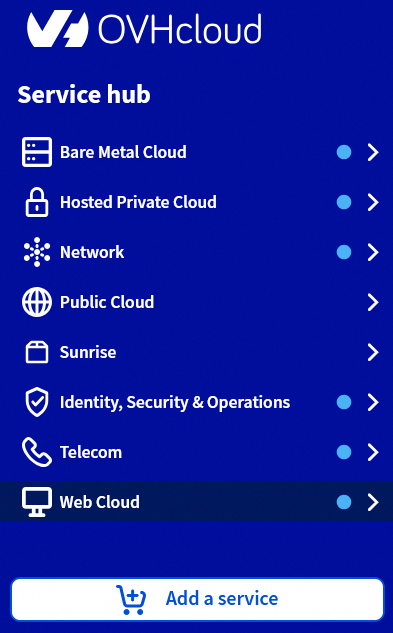
Log in to the OVHcloud Control Panel, then go to the Web Cloud section.
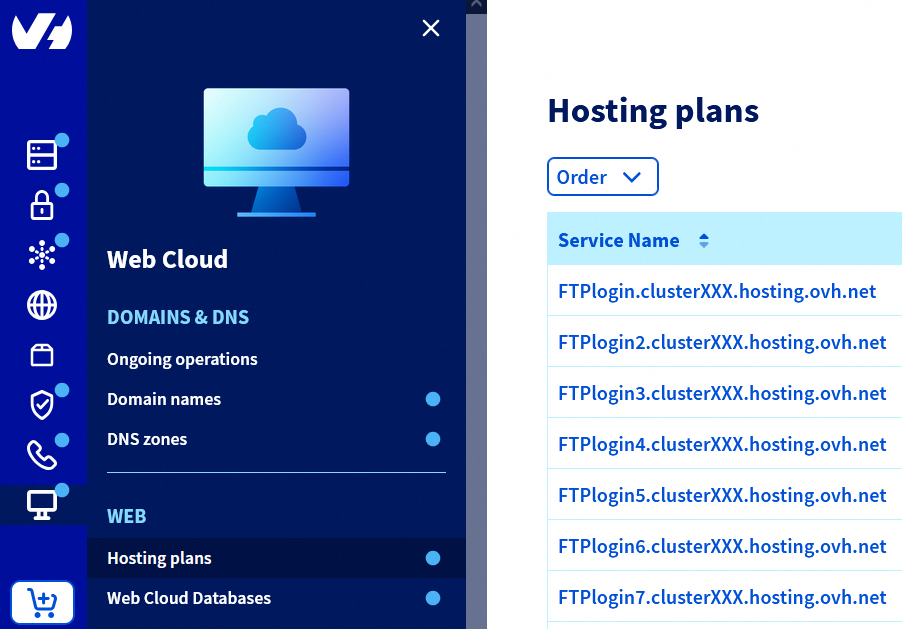
Click the Hosting plans menu, then select the web hosting plan concerned.
On the page that pops up, click on the Multisite tab.
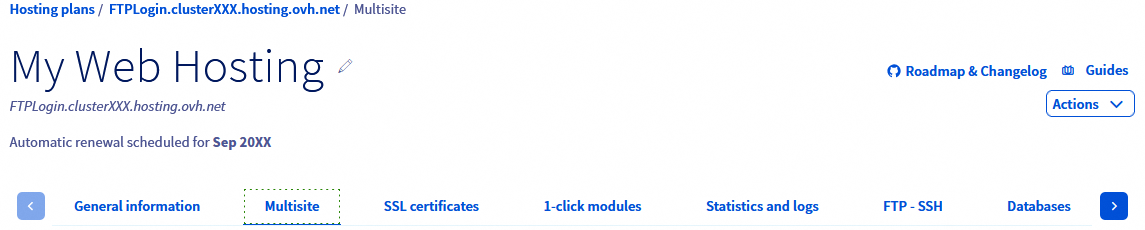
On the new page, a table will appear containing your associated domain names.

Click the ... button to the right of your domain name in the table. Finally, click Modify domain.
In the window that pops up, tick the Country IP box to open the drop-down menu.
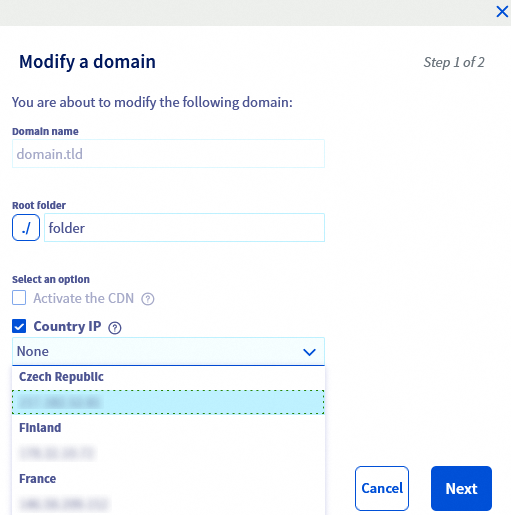
Choose the IP address of the country for which you want to geolocate your site, from the 12 countries offered: Czech Republic, Finland, France, Germany, Ireland, Italy, Lithuania, Netherlands, Poland, Portugal, Spain, United Kingdom.
Click Next and then click Confirm from the summary window.
Once you have carried out the steps above, and if your domain name’s active DNS zone is fully managed in your OVHcloud Control Panel, the A record in your domain name’s DNS zone will be automatically changed. You can check that the IP address has been updated using our guide on Editing an OVHcloud DNS zone.
Otherwise, you will need to make the change manually with the provider that manages your domain name’s active DNS zone. Find here the documentation that lists all the IP addresses in our OVHcloud shared hosting infrastructure.
In both cases, you will need to wait between 4 and 24 hours for the changes to propagate fully, and be visible on the internet.
Go further
For specialised services (SEO, development, etc.), contact OVHcloud partners.
If you would like assistance using and configuring your OVHcloud solutions, please refer to our support offers.
Join our community of users.


 Hosting multiple websites on your Web Hosting plan
 2284
2284