

Web Cloud Databases - How to authorize an IP address?
84 Views
 24.03.2026
  Web / Web Cloud Databases
Objective
Web Cloud Databases solutions can be used with OVHcloud services, or external to OVHcloud.
By default, and for security reasons, on these solutions:
- Only IP addresses linked to our shared hosting infrastructure are authorized to access the contents of the databases.
- Access to the solution logs is not restricted depending on the IP addresses. You can access them via a computer, for example.
Need to change these permissions/restrictions?
Find out how to authorize one or more IP addresses to access your Web Cloud Databases solution.
Requirements
- A Web Cloud Databases solution
- The IP address (or IP address range) to authorize on your solution
OVHcloud Control Panel Access
- Direct link: Web Cloud Databases
- Navigation path:
Web Cloud>Web Cloud Databases> Select your database service
Instructions
Authorize an IP address or IP address range
As a reminder, if you have just activated your Web Cloud Databases solution, and you only want to use its databases for an OVHcloud web hosting solution, the IP addresses of these solutions are already authorized by default.
Click on the tabs below to view each of the 4 steps.
Go to the Web Cloud Databases page, then select the solution concerned.
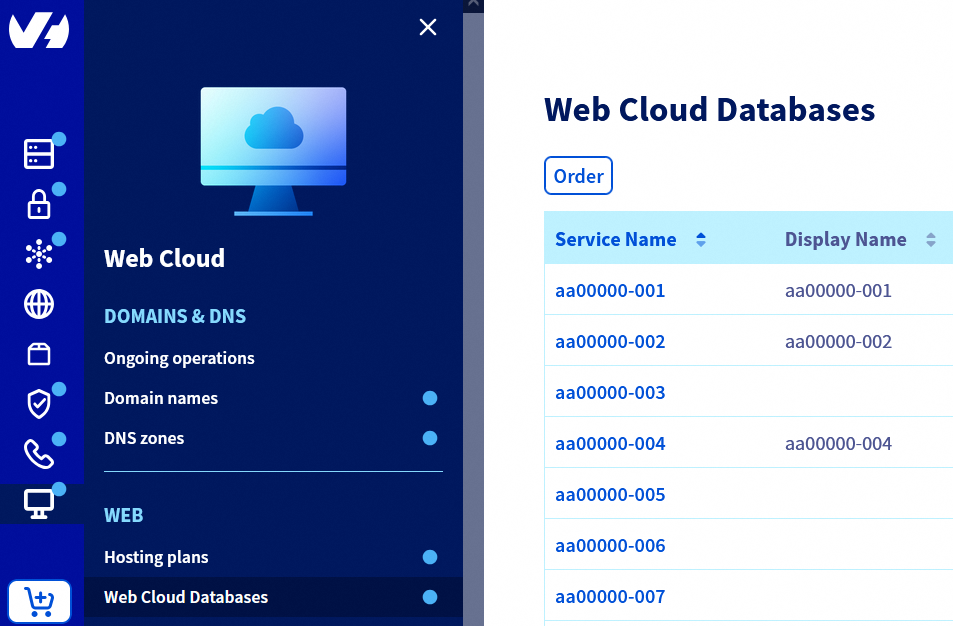
On the page that opens, click on the Authorised IPs tab.

On the page that appears, click the Add an IP address/mask button above the table.
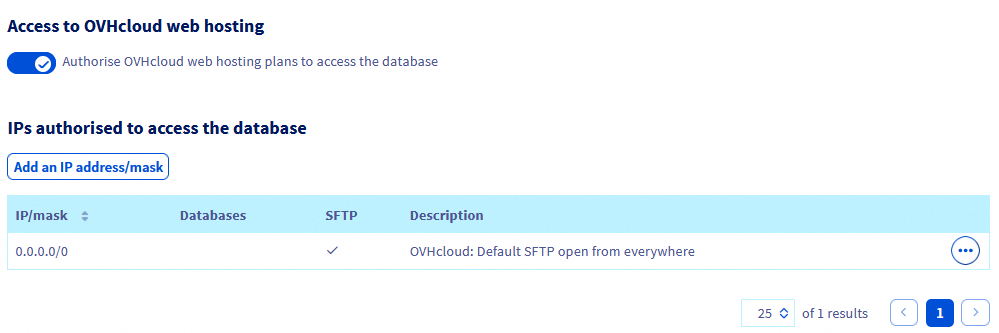
If you want to modify an IP address or an IP address range that is already authorized, click the ... button in the line corresponding to the IP address or IP address range you want to modify, then click Edit the whitelist.
In the window that opens, you will need to enter the following information:
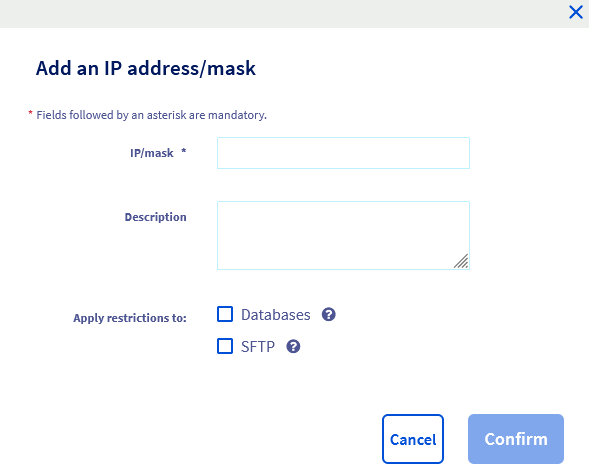
IP/mask *: Enter here the IP address (e.g.:203.0.113.44) or IP address range (e.g.:203.0.113.0/24representing all IP addresses from203.0.113.0to203.0.113.255) that you would like to authorize on your Web Cloud Databases solution.Description(optional): For example, you can add information about the role of the IP address or IP address range concerned.Databases: Tick this box if you want the IP address or IP address range to be authorized to access the databases on your Web Cloud Databases solution.SFTP: Tick this box to authorize the IP address or IP address range to access the logs of your Web Cloud Databases solution.
It is strongly recommended not to tick the Databases box to authorize the IP address range 0.0.0.0/0 to access your databases.
This would grant access to your databases to all IPv4 addresses.
Once you have entered the information, click Confirm.
Special cases
Click on the cases below to view the information.
IP address range 0.0.0.0/0
When you activate your Web Cloud Databases solution, a line for the IP address range 0.0.0.0/0 is already present by default, to authorize SFTP access to the solution.
This authorization is voluntarily set up to allow you to access the log files of your Web Cloud Databases solution without having to declare the IP address of your Internet access point.
This IP address can change regularly, depending on the ISP.
In addition, we recommend that you do not modify this authorization, and do not authorize blanket access to the databases on your Web Cloud Databases solution.
Effectively, this would allow all existing IPv4 addresses to have access to your databases, which represents a risk for your data security.
Authorizing access to OVHcloud web hosting plans
When you activate your Web Cloud Databases solution, authorization to access OVHcloud web hosting plans is activated by default.
If you would like to disable this authorization because you are not using a web hosting plan with your Web Cloud Databases solution, click on the tabs below to view each of the 3 steps.
Go to the Web Cloud Databases page, then select the solution concerned.
On the page that pops up, click on the Authorised IPs tab.
On the page that appears, untick the box Authorise OVHcloud web hosting plans to access the database.
Go further
For specialised services (SEO, development, etc.), contact OVHcloud partners.
If you would like assistance using and configuring your OVHcloud solutions, please refer to our support offers.
Join our community of users.


 Web Cloud Databases - Connecting to a database
 840
840