

How to upgrade the resources of a VPS
144 Views
 08.09.2025
  Cloud / Virtual private servers
Objective
Our VPS services offer flexibility, reliability, and performance for a variety of hosting needs. You can proceed with upgrading your RAM, vCPU, or storage in the OVHcloud Control Panel.
Learn how to add vCores, memory, and storage to your VPS service.
Requirements
- A Virtual Private Server in your OVHcloud account
OVHcloud Control Panel Access
- Direct link: VPS management
- Navigation path:
Bare Metal Cloud>Virtual private servers> Select your VPS
Instructions
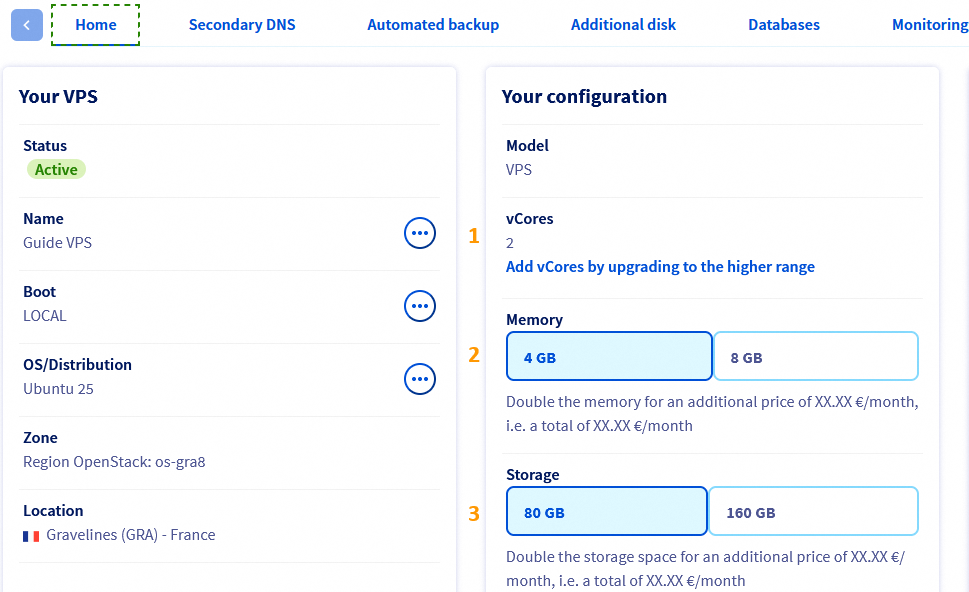
The upgrade options available in your Control Panel depend on the range and model of the selected VPS. The screenshots below are for the purpose of illustration and do not refer to a concrete VPS upgrade scenario.
From here you can upgrade your vCores (1), memory (2), or storage (3).
1. To add vCores
Under the Home tab in the Your configuration panel, click Add vCores by upgrading to the higher range.
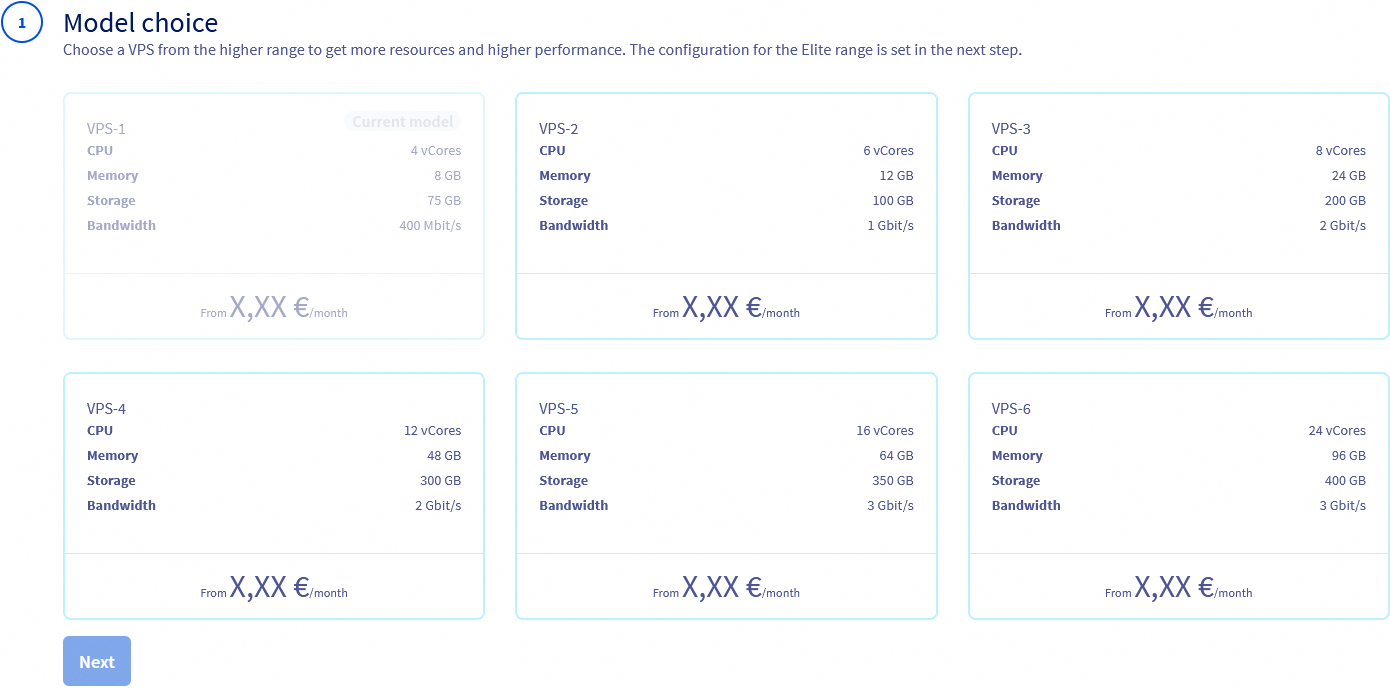
Choose a new model and click Next.
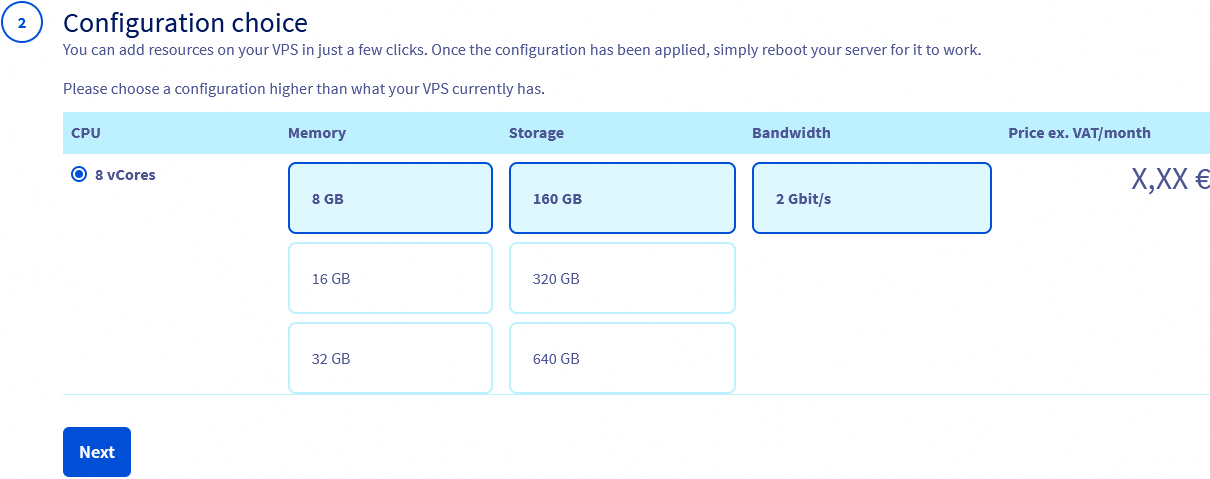
Choose your memory and storage options and click Next.
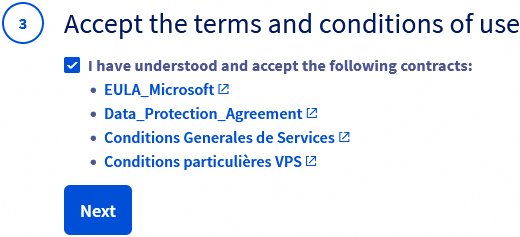
Accept (☑) the Terms & conditions and click Next.
Review your changes and click Order.
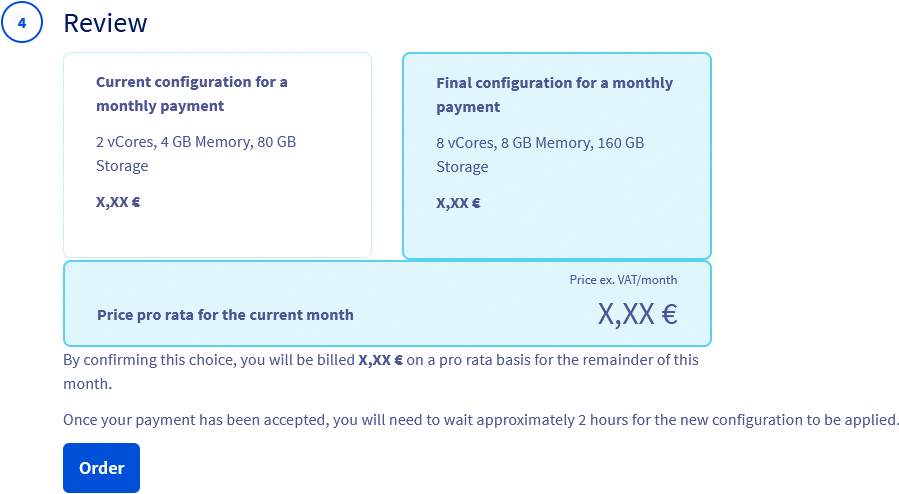
2. To upgrade Memory
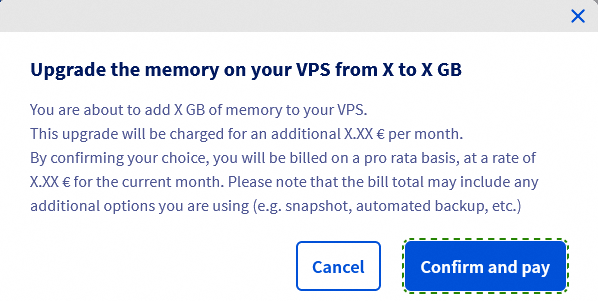
Under the Home tab in the Your configuration panel, click on the amount of memory you want. The options available depend on the VPS range you currently have.
In the pop‑up window, click Confirm and pay to finalize your order.
3. To upgrade Storage
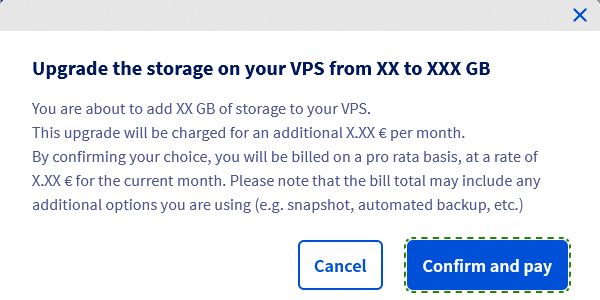
Under the Home tab in the Your configuration panel, click on the amount of storage you want. The options available depend on the VPS range you currently have.
In the pop‑up window, click Confirm and pay to finalize your order.
See our dedicated guide for the next steps: How to repartition a VPS after a storage upgrade
FAQ
Will I have the same IP address?
Yes, you will keep the same IP address after upgrading your VPS.
Do I keep my data on the server?
Yes, after an upgrade you will still have your data. When upgrading your drive you may have to expand the partitions.
What happens to the backup/snapshot? Can I use it on the new VPS?
Yes. After upgrades you will still have access to your backups and snapshots.
What happens to the software license on the old VPS? Can they be automatically moved over to the new VPS?
If you have an active license, it will remain attached to the VPS. The pricing may change based on the license agreement or requirements with the provider.
If there are any changes to the license, they will be explained before upgrading the VPS.
Would the bandwidth change?
In some cases the bandwidth may change, specifically when moving from a lower‑tier VPS to the next tier.
Would this upgrade be immediate, or would I have time to use both at the same time (configure, transfer data, etc.)?
The upgrade will be effective immediately, keeping all of your data. Upgrading will allocate more resources to your existing VPS.
Go further
Join our community of users.


 Getting started with a VPS
 14397
14397