

First steps with pre-installed applications
719 Views
 25.08.2022
  Cloud / Virtual private servers
Objective
OVHcloud offers VPS customers pre-installed application images for quick and easy deployment of applications in just a few clicks.
This guide will provide the first steps for each pre-installed application image on our VPS.
Requirements
- A VPS in your OVHcloud account
Instructions
Install your chosen pre-installed application
Using the OVHcloud Control Panel / API, install your chosen application on your VPS.
cPanel
This feature is currently unavailable for Virtual Private Servers in Local Zones.
This section will explain the first steps specifically for the cPanel pre-installed image. Steps marked with * will have FAQ at the end of the steps.
- Open the email from us which contains your application login details.
- Click on the URL for cPanel in the email.
If the link has expired already, please connect to your VPS via SSH using the CentOS user and execute the sudo whmlogin command to generate a new link.
- Read and accept the terms of cPanel.
- Provide your email and nameservers you wish to set on the server *.
- Set your root password which you will use the next time you log in to WHM *.
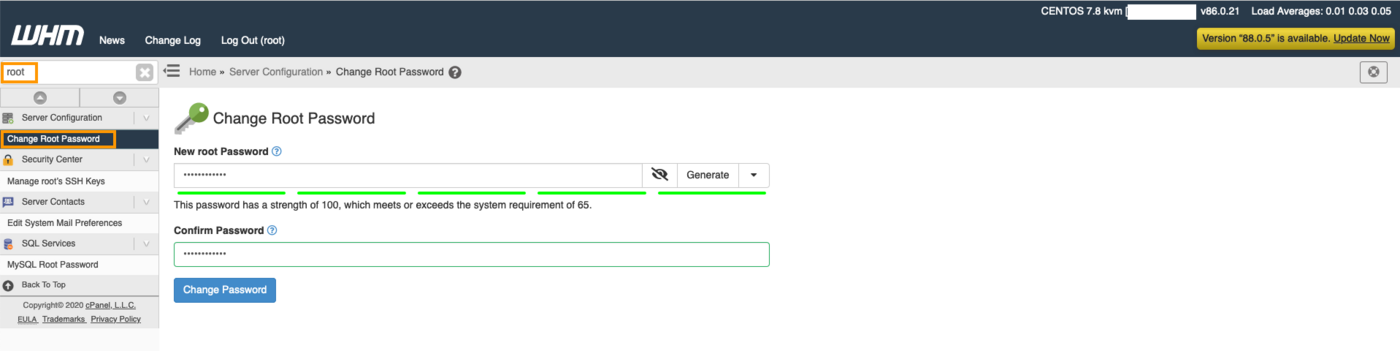
No further steps are necessary to complete the first configuration of this application.
Can I use my own nameservers?
Yes, you can. But you need to make sure you create glue records with your domain registrar. For example if you want "ns1.mydomain.com" and "ns2.mydomain.com", you must set up glue records for both which must point to the IP of your server. If your domain is registered with OVHcloud, you can follow this guide. Please note that this can take 24 hours to create.
Why set root password?
WHM by default uses the root user for authentication and the one time link allows access to complete first setup and change root password. Next time you log in to WHM you must use the root user and the password you have set.
Where is my licence for cPanel?
You can purchase a licence from OVHcloud for your VPS via the OVHcloud Control Panel.
Plesk
This feature is currently unavailable for Virtual Private Servers in Local Zones.
This section will explain the first steps specifically for the Plesk pre-installed image. Steps marked with * will have FAQ at the end of the steps.
- Open the email from OVHcloud which contains your application login details.
- Click on the URL for Plesk in the email.
- Log in using the username and password provided in the email.
- Once logged in, Plesk will ask you to provide:
a) Your contact information
b) A new password for the "admin" user which you will use for login on the Plesk panel
c) Licence information*
d) Read and accept their end-user licence agreement
No further steps are necessary to complete the first configuration of this application.
Where is my licence for Plesk?
You can purchase a licence from OVHcloud for your VPS via the OVHcloud Control Panel.
Docker
This feature is currently unavailable for Virtual Private Servers in Local Zones.
This section will explain the first steps specifically for the Docker pre-installed image.
- SSH into the server using the login details sent in the email to you.
- Check that Docker is working using the
docker run hello-worldcommand.
No further steps are necessary to complete the first configuration of this application.
Let's Encrypt SSL
This section only applies to WordPress, Drupal, Joomla! and PrestaShop installations. It will not work for other installations.
- You must create or edit two
Arecords in the OVHcloud Control Panel which point to the IP address of your server. For example if your domain name is "personaldomain.ovh" then you need to createArecords for:- personaldomain.ovh
- www.personaldomain.ovh
If your domain is registered with OVHcloud you can follow this guide.
If your domain is registered with another company you will need to contact them for assistance to set up your A records.
- You may need to wait 24 hours before the two records propagate fully. You can always check it with mxtoolbox. If the IP for your domain is showing on mxtoolbox the same as your server's IP address then you can proceed to the next step.
- SSH into your server with the CentOS user and execute the following commands to install Certbot.
Replace personaldomain.ovh in the commands with your own domain name.
- Generate your SSL using Certbot (follow the on screen instructions).
When asked about "Input the webroot", you need to enter something like "/var/www/wordpress". If you are installing Joomla!, you need to replace "wordpress" with "joomla".
Now you need to get Certbot to also place it into the ssl.conf file. To trigger this, enter:
When prompted, answer the first prompt with "1" and also the second prompt with "1".
You should get the following output if your SSL has been generated:
Go further
Join our community of users.
-
Secure Shell (SSH) : un protocole de réseau sécurisé utilisé pour établir des connexions entre un client et un serveur. Il permet d'exécuter des commandes à distance de manière sécurisée. ↩


 Getting started with a VPS
 14036
14036