

Activating and using Veeam Managed Backup
541 Views
 18.10.2024
  Cloud / Hosted Private Cloud
Objective
The purpose of this guide is to explain how to deploy and use the Veeam Managed Backup option within just a few minutes.
Requirements
- A Hosted Private Cloud infrastructure.
- A user account with access to vSphere and the permission "Add resources" for the pertinent data centre granted from the OVHcloud Control Panel.
- You must be logged in to the managed vSphere web client.
- vSphere High Availability (HA) enabled.
- Distributed Resource Scheduler (DRS) enabled. -Windows SPLA Licensing enabled on the VMware on OVHcloud environment.
Instructions
Protecting and backing up your VMs is an essential part of ensuring long-term stability for your infrastructure. This is why we offer a managed backup solution based on Veeam Backup & Replication technology. You can use it to restore your data simply, by enabling automatic backup for your VMs.
Backups are performed using a virtual machine (VM) within your Hosted Private Cloud infrastructure. The backup data is outsourced to an independent storage space at OVHcloud. Backups are performed during night-time, with a retention time depending on the solution level you choose.
Activating the backup option
The first step is to order the service from the OVHcloud Control Panel. To do this, go to the Hosted Private Cloud section of the Hosted Private Cloud tab. Click on the relevant vSphere infrastructure, then select the data centre. Click on the Backup tab.
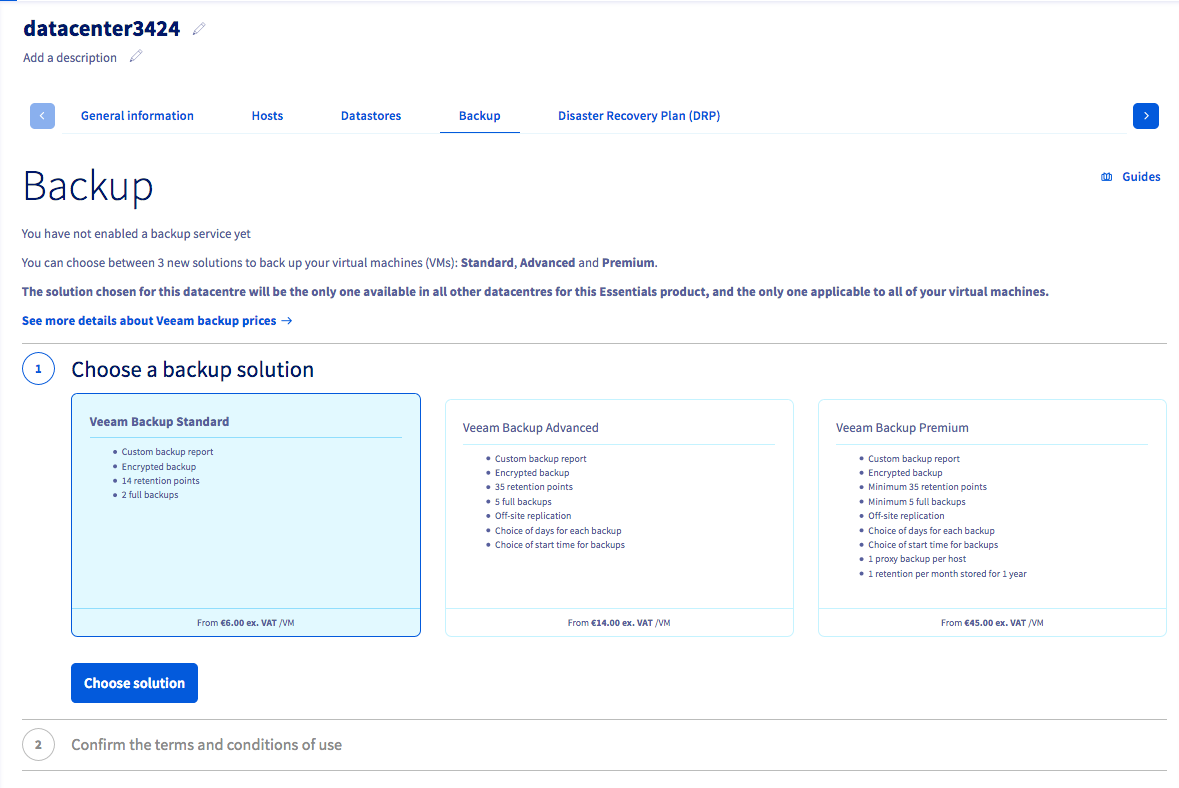
Choose the appropriate plan and continue by clicking Choose solution.
Validate the contracts by clicking Enable backup.
Once the service is ready, a confirmation email will be sent and the active backup solution will be indicated in the Control Panel.
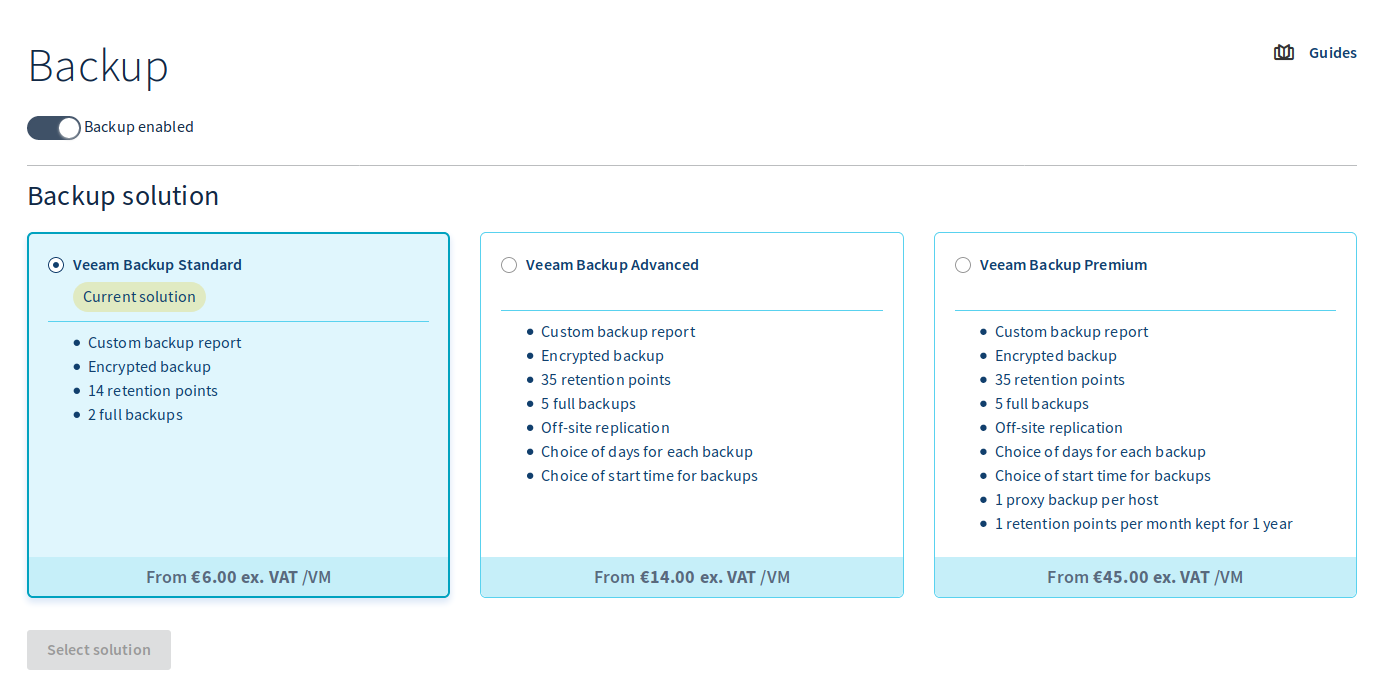
The service can be used directly from vSphere.
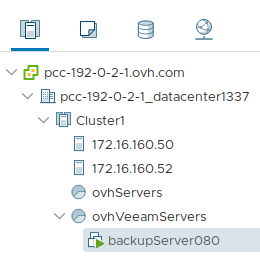
On your vSphere infrastructure, you will see a virtual machine corresponding to the backup server as shown in the screenshot below.
Enabling backups for virtual machines
After the service is activated, you will need to complete the backup requests for each virtual machine identified as critical from the vSphere client.
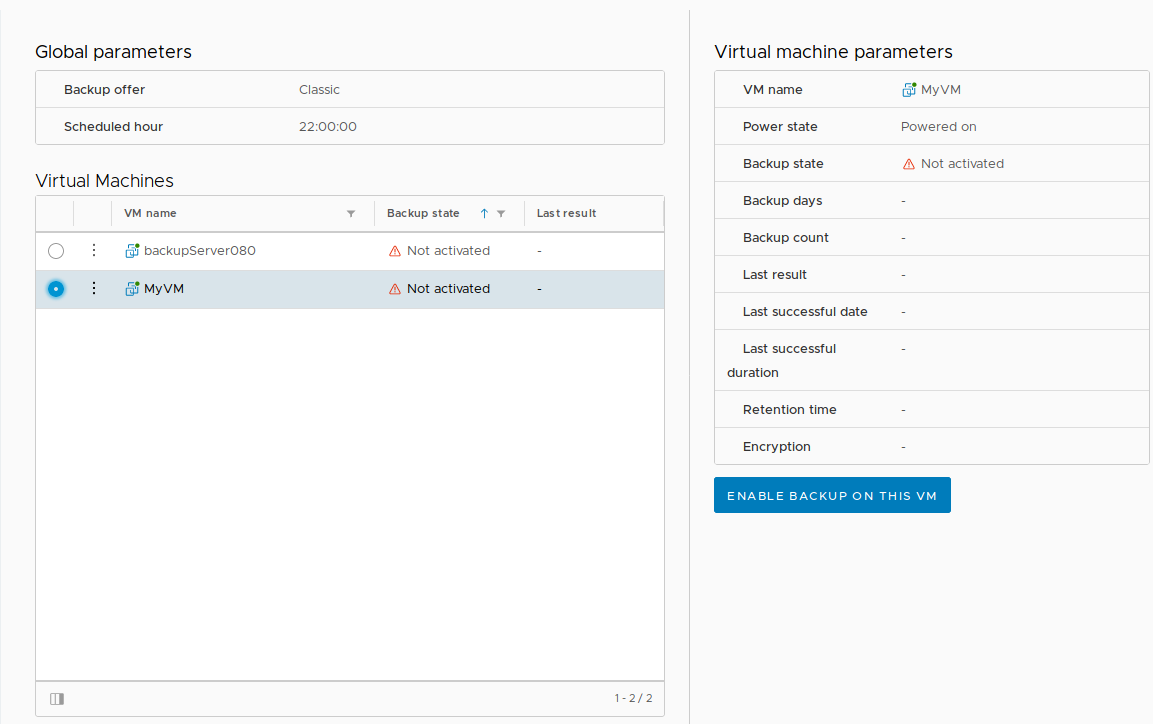
Select the VMware data centre, then the Configure tab and click Backup Management from the OVHcloud section of the menu.
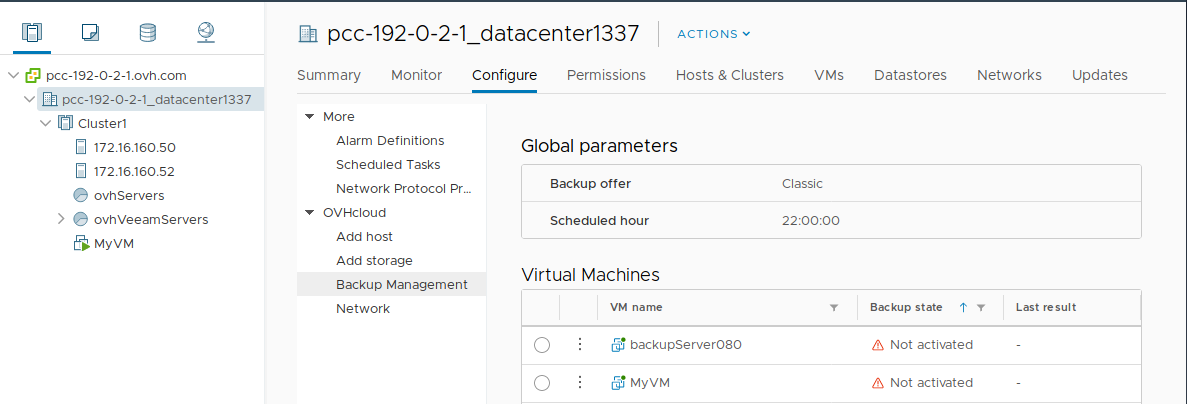
Select the VM for which you want to enable backups from the list. On the right panel, click Enable backup on this VM to start the activation request.
In the confirmation window, click OK.
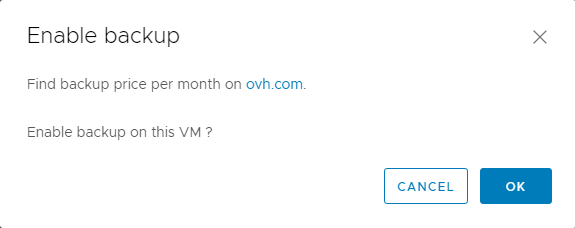
Veeam is informed of this new request and creates the virtual machine backup job. Every night, starting at 10 p.m. (default), a backup task will be scheduled according to the backup scheme defined by the chosen solution.
Every day, an email containing the status of all the performed actions is sent to the OVHcloud account's email address.
Removing a VM from your inventory or disk does not disable the backup job for that machine, regardless of the information in the report.
Warning: The limit on VMs must be 2 TB in order to enable backup.
For the Advanced and Premium offerings, Veeam Managed Backup region-to-region replication follows the diagrams below.
Here is a diagram of the regions from which the regions of zone 1 are or are not replicated to zone 2:
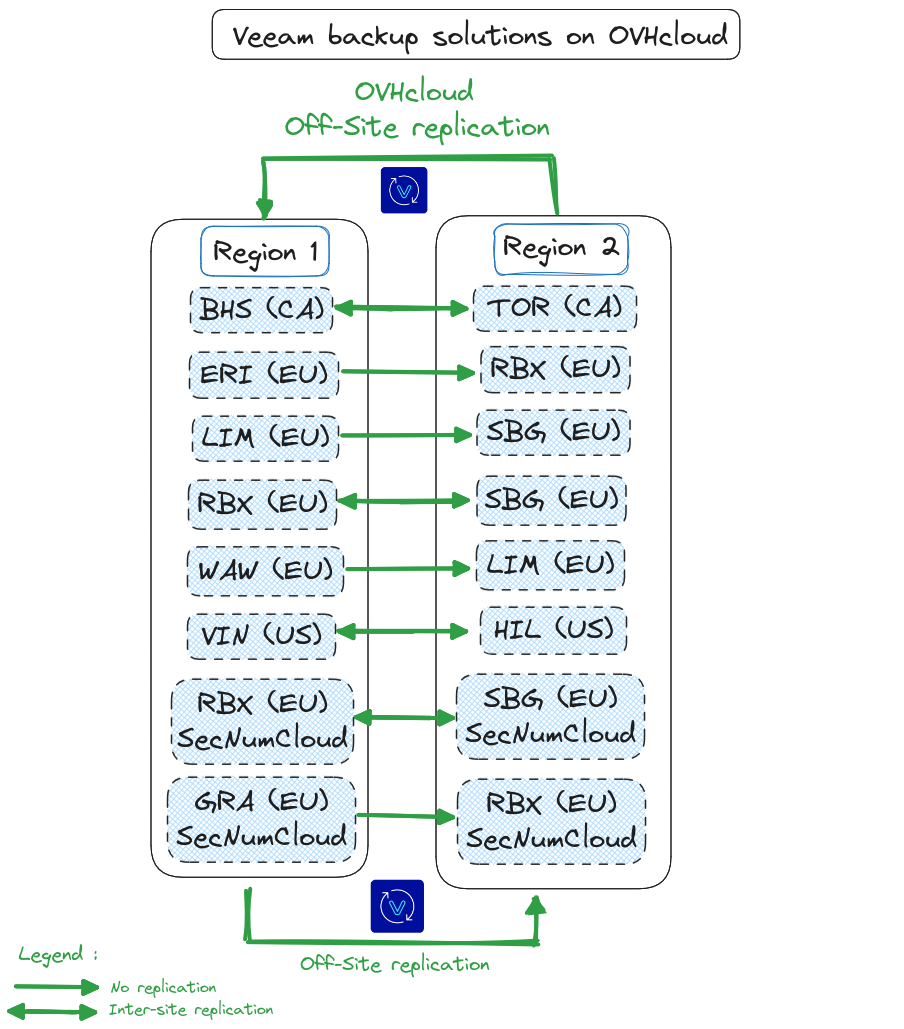
The following table details a mapping of the replicated zones, with additional information:
| SecNumCloud | Zone 1 | Zone 2 | Cross-site replication | Offers | Comments |
|---|---|---|---|---|---|
| ❌ | BHS | TOR | ✅️ | Advanced Premium | - The Canadian regions of Montreal Beauharnois (BHS) and Toronto Cambridge (TOR) are replicated with the Veeam Managed Backup Advanced and Premium offers. |
| ❌ | ERI | RBX | ❌ | Advanced Premium | - The Great Britain regions of London Erith (ERI) and FR region France Roubaix (RBX) are not replicated with the Veeam Managed Backup Advanced and Premium offers. |
| ❌ | LIM | SBG | ❌ | Advanced Premium | - The French regions of Germany Limburg (LIM) and FR region of France Strasbourg (SBG) are not replicated with the Veeam Managed Backup Advanced and Premium offers. |
| ❌ | RBX | SBG | ✅️ | Advanced Premium | - The French regions of Roubaix (RBX) and Strasbourg (SBG) are replicated with the Veeam Managed Backup Advanced and Premium offers. |
| ✅️ | RBX | SBG | ✅️ | Advanced Premium | - The French regions of Roubaix (RBX) and Strasbourg (SBG) are replicated with the Veeam Managed Backup Advanced and Premium offers. |
| ✅️ | GRA | RBX | ❌ | Advanced Premium | - The French regions of Gravelines (RBX) and Roubaix (RBX) are not replicated with each other with the Veeam Managed Backup Advanced and Premium offers. |
| ❌ | VIN | HIL | ✅️ | Advanced Premium | - The United States regions of Washington DC Vint Hill (VIN) and Seattle Hillsboro Oregon (HIL) are replicated with the Veeam Managed Backup Advanced and Premium offers. |
Restoring a backup
Select the VMware data centre, then the Configure tab and choose Backup Management from the OVHcloud section of the menu.
From the list, select the VM for which you want to restore a backup (its Backup state must be Enabled).
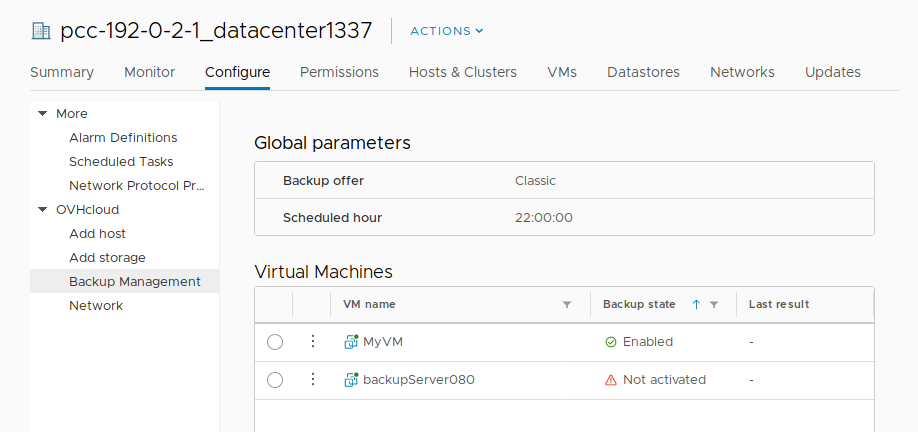
On the right-hand panel, click Restore Backup to open the restore request.
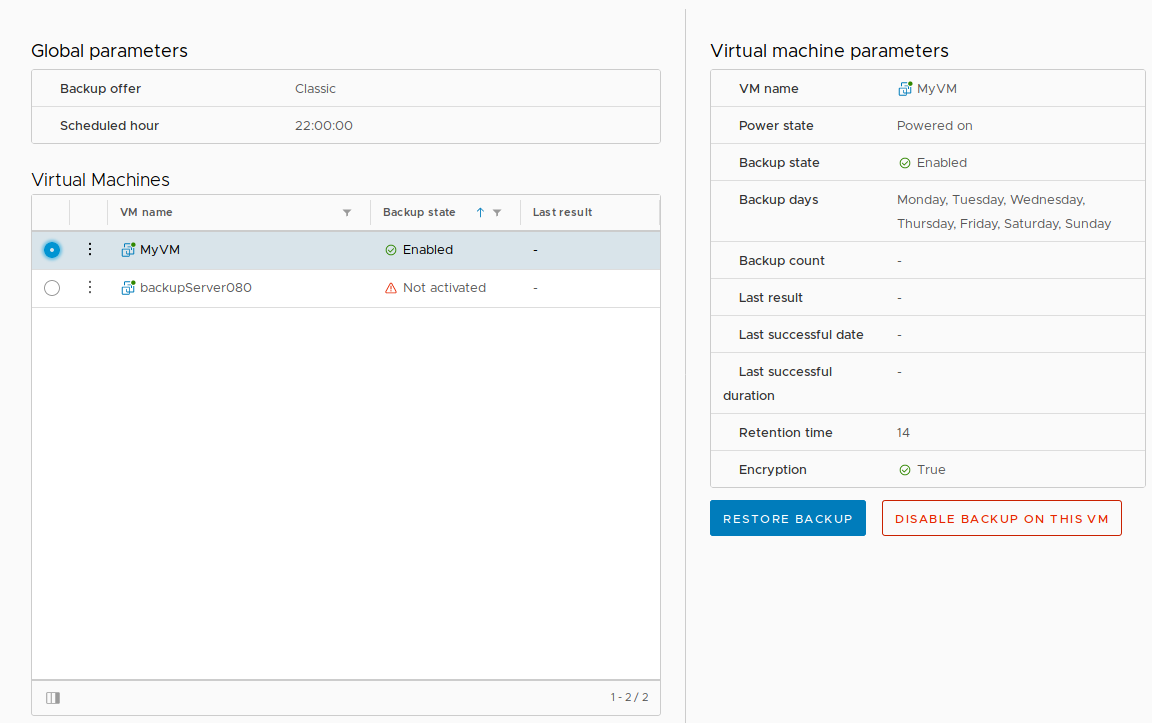
A new window opens to create the restore job. Check the VM name, select the backup date to restore, and choose the datastore (storage space used as the restore target). Click Restore Backup to start the process.
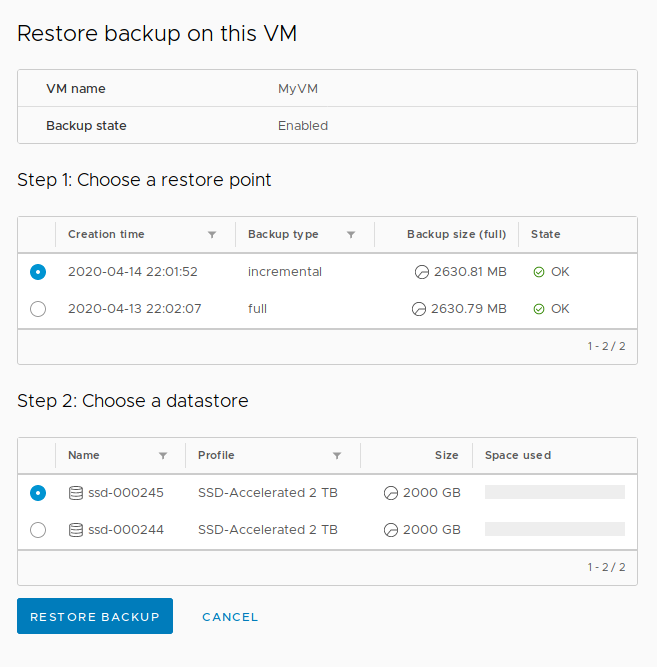
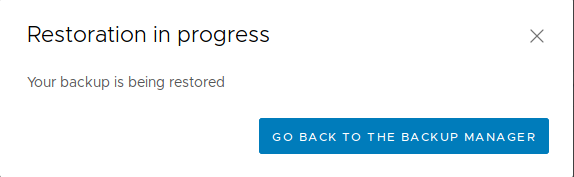
A window then confirms that the Veeam server is notified of this new request and that the virtual machine restore job has been created.
The VM is restored next to the source machine.
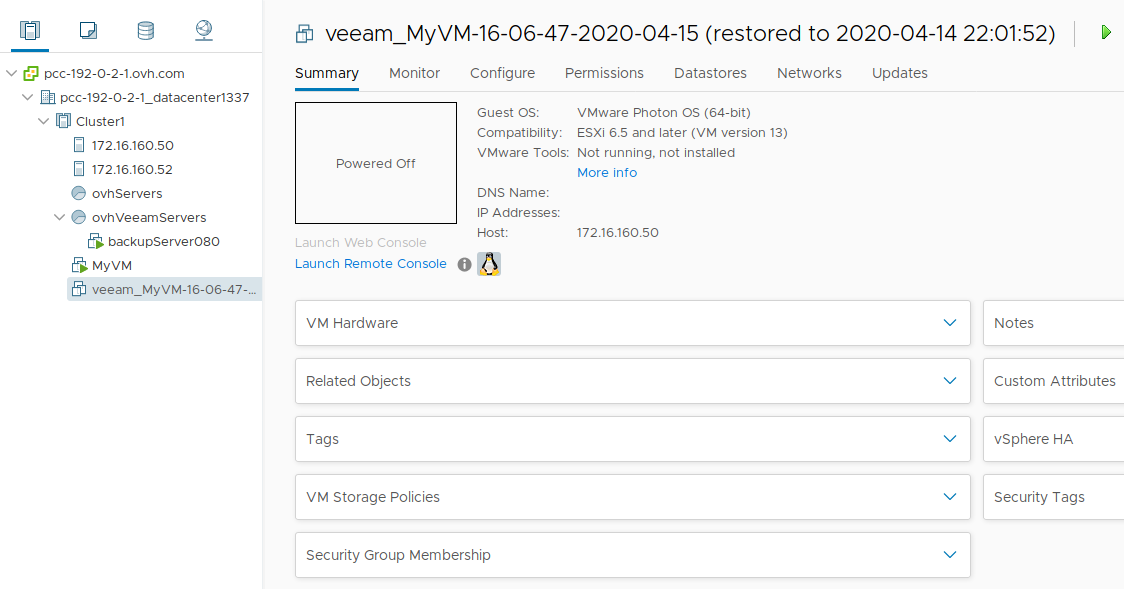
Note that the restored machine is connected to the network. If you start the VM without turning off the source VM, there may be an IP address conflict.
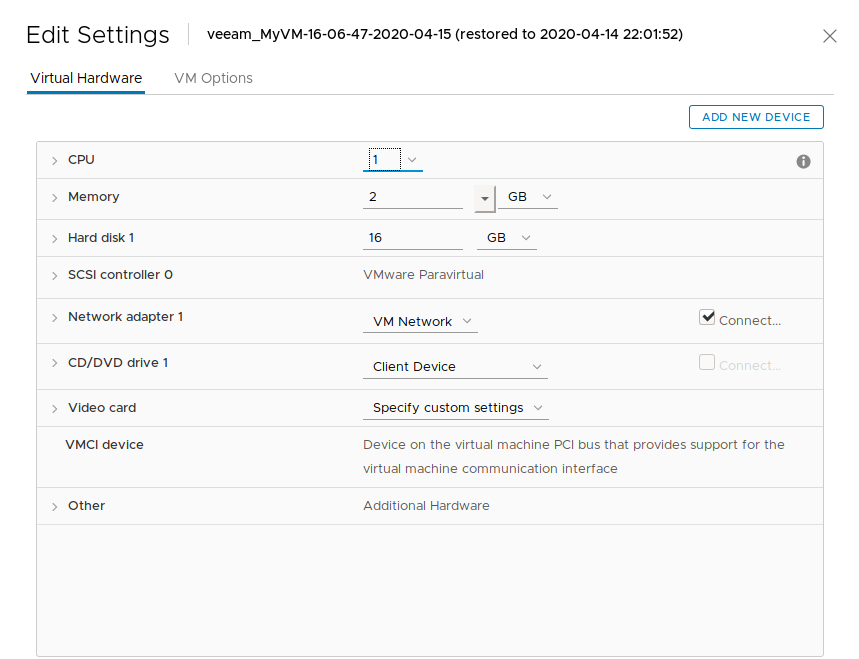
To edit these settings, select the data centre in your inventory, click the tab Configure, then choose OVH Backup Management. On this page, you have access to the list of your backup jobs, with the number of backups and the last status of the job.
Disabling backups for a VM
Select the VMware data centre, then the Configure tab and choose Backup Management from the OVHcloud section of the menu.
Select the VM for which you want to disable backups from the list.
On the right-hand panel, click Disable Backup on this VM.
Then confirm the deactivation by clicking OK.
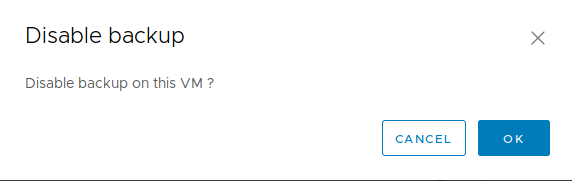
Backups can be reactivated at any time from the moment the VM is present in the infrastructure.
Please note that the backups remain available for recovery only until the retention period expires.
Follow the same instructions to disable the backup of a deleted VM. It is also possible to disable the backup temporarily and reactivate it afterwards.
Go further
Join our community of users.


 Using Zerto between OVHcloud and a third-party platform
 508
508