

Sign OCI artifacts with Cosign on OVHcloud Managed Private Registry
269 Views
 25.02.2026
  Cloud / Managed Private Registry
Objective
OVHcloud Managed Private Registry service, a cloud-native registry built on Harbor, allows you to store, manage and access your container images (OCI artifacts) and Helm charts.
Security is an important topic and through artifact signing and signature verification you can increase the security of your OVHcloud Managed Private Registries by verifying the integrity of an artifact.
Since v2.5+ Harbor supports Cosign, an OCI (Open Container Initiative) artifact signing and verification solution that is part of the Sigstore project.
Harbor has started the deprecation of Notary in Harbor 2.6, it will be removed in Harbor v2.8, so you must use Cosign to sign container images and Helm charts.
Compared to Notary, Cosign is really easy to use and one advantage to use it is the ability to use Harbor’s replication capabilities to replicate signatures with their associated signed artifact.
This guide will explain how to sign artifacts with Cosign in an OVHcloud Managed Private Registry service.
Requirements
- An OVHcloud Managed Private Registry
- The URL and login/password of your private registry
- An image stored in your registry
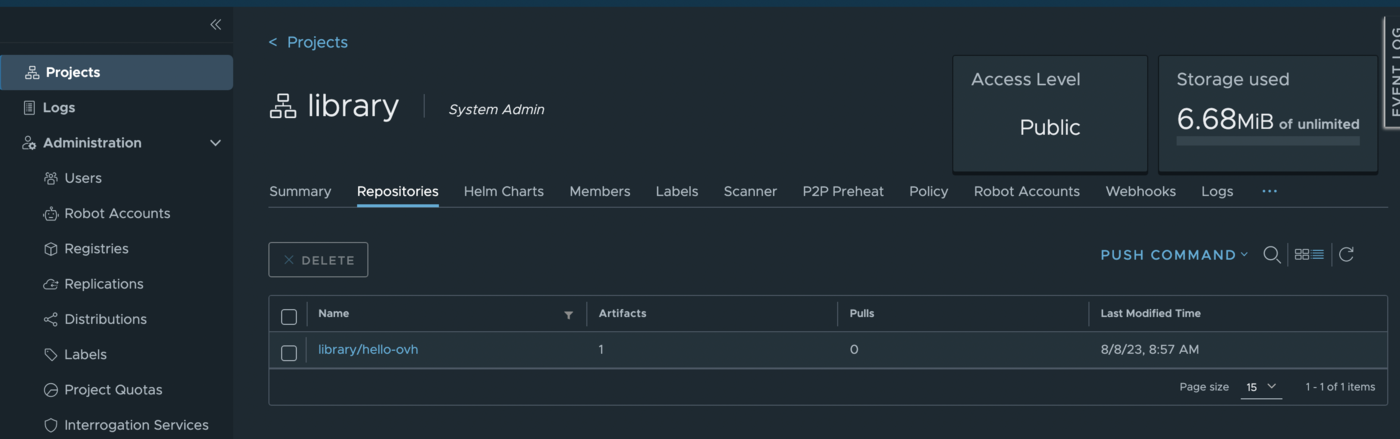
This tutorial presupposes that you already have a working OVHcloud Managed Private Registry and you have followed the guides on creating a private registry, connecting to the UI, managing users and projects and creating and using private images.
You should also have a running Private Registry in version 2.5 minimum, with a stored image and access to your private registry.
Instructions
Installing Cosign CLI
You can install Cosign CLI on your computer from the binaries, a rpm package, HomeBrew and even use it directly in a Github Action.
For this tutorial you will install it via HomeBrew:
Verify Cosign is successfully installed in your machine:
The output should be like this:
Generate a private key
Cosign allows to generate a private key that you can use later to sign your images. You'll be interactively prompted to provide a password.
Generate a private key:
The output should be like this:
In this guide we generated a private key locally. In a production environment, you can obviously generate the private key and store it in a key management storage such as a Vault or KMS.
Sign your OCI artifact (container image)
Sign your image and push the signature to your OVHcloud Managed Private Registry instance.
The output should be like this:
Verify the image is signed with Cosign
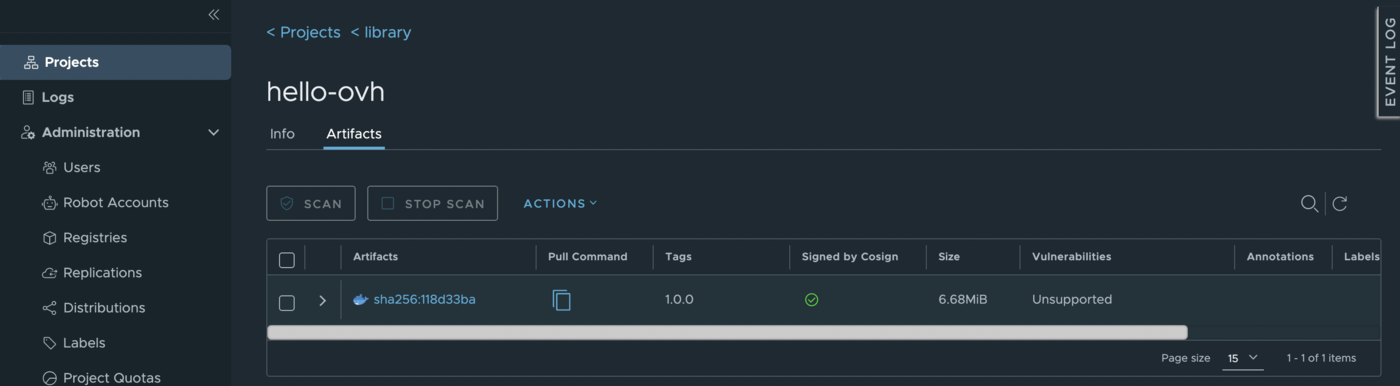
In order to verify if your image is well signed, log in to your private registry (in the Harbor UI), click in Projects, your project, your image and then you will see a new green check mark:
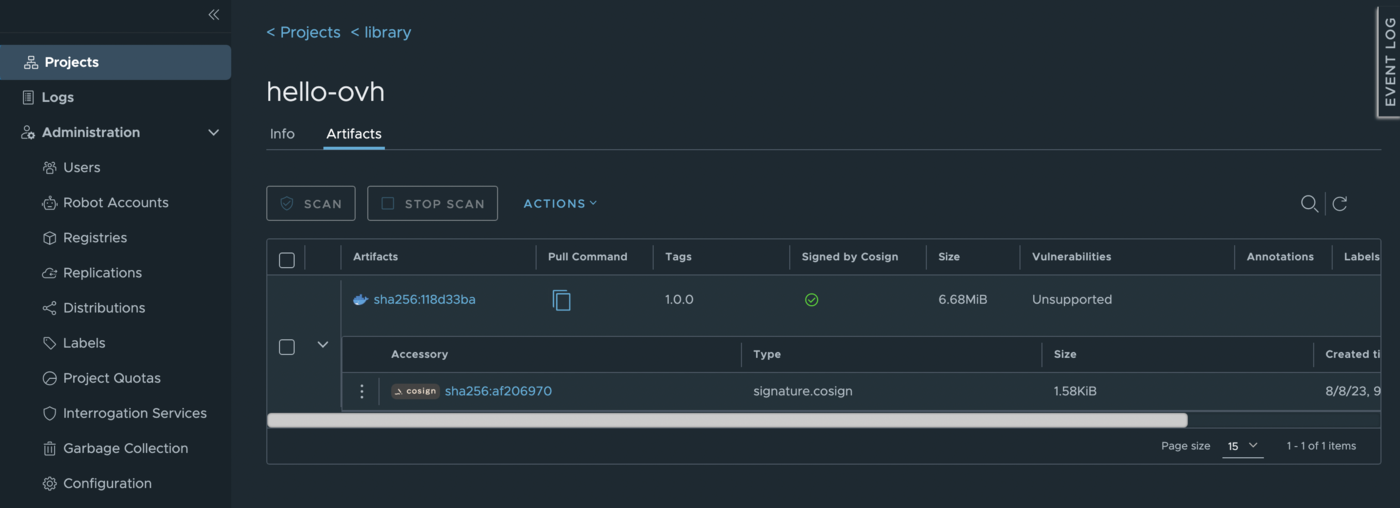
Clicking in the > icon displays the associated cosign signature information:
Go further
To have an overview of OVHcloud Managed Private Registry service, read the OVHcloud Managed Private Registry documentation.
Join our community of users on https://community.ovh.com/en/.


 Configure the authentication via an OIDC provider on an OVHcloud Managed Private Registry
 331
331