

L3 services SNAT configuration
338 Views
 02.11.2022
  Cloud / Network Gateway for Public Cloud
Objective
The purpose of this guide is to describe the Secure Network Address Translation (SNAT) service delivered by L3 services, i.e. the Distributed Virtual Router service for Public Cloud.
The guide explains how to configure SNAT and presents use cases.
Requirements
- A Public Cloud project in your OVHcloud account
- The Openstack Command Line Interface tool installed on your working environment
- A Public Cloud Floating IP
Concepts
What is the SNAT service?
SNAT is one of the services delivered by OpenStack DVR (Distributed Virtual Router) services on an OVHCloud Public Cloud service.
The main function of SNAT service is to enable outbound connections for VMs inside a private network.
Why do I need the SNAT service?
It is safe to keep instances inside a private network if they do not need to expose services to external networks (Internet). However, such instances may need to access the Internet for upgrade purposes (or have other connectivity needs) that are initiated from inside the private network. For these purposes, Gateway in SNAT mode (outbound) is the best to use.
For example: You have an Ubuntu based VM linked to a private network only. Thanks to the SNAT service you can update your Ubuntu packages directly using apt update, since your VM is able to access external and official Ubuntu repository servers on the Internet.
How to configure L3 services SNAT
To enable the SNAT service, you need to:
- Create a router.
- Set an external gateway for a router.
- Add the needed subnet to the router.
This allows any VM created within this private network to access the Internet.
This scenario is covered by the guide Attaching a Floating IP to an instance.
Target configuration architecture
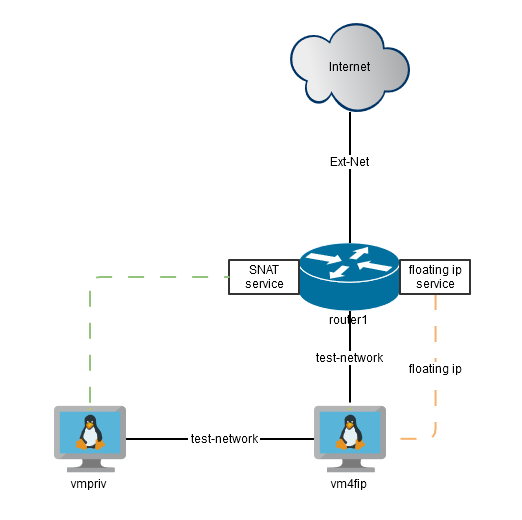
The goal of this exercise is to have a VM (vmpriv) with only a private network (test-network), and to configure our deployment in such a way that vmpriv has external access to the Internet.
To do so, we need to configure the private network (test-network) with a subnet (test-subnet), and create a router (router1) for the SNAT service.
To perform the test, we need a "jump host" VM (vm4fip) through which we will connect to our VM (vmpriv). Since the jump host (vm4fip) will need access to external networks, we will attach a Floating IP to it.
To test the configuration, we will access the VM vm4fip from an external network via SSH, then connect from vm4fip to vmpriv using a private network and eventually check the Internet availability.
Instructions
Step 1
Create a VM with a Floating IP as explained in this guide.
Step 2
Create a VM with a private network only. In our example, our VM is called vmpriv:
Step 3
Copy your SSH private key to your previously created VM with a Floating IP (vm4fip):
Step 4
Log into your vm4fip (169.254.10.250 is the Floating IP):
Step 5
Check if your VM (vmpriv) is available from vm4fip (192.168.0.26 is a private IP address attached to vmpriv):
Step 6
Connect from vm4fip to vmpriv via SSH:
Step 7
Verify that the VM vmpriv has an external access to the Internet:
The result shows that VM vmpriv has external access to the Internet while being connected to a private network.
Go further
If you need training or technical assistance to implement our solutions, contact your sales representative or click on this link to get a quote and ask our Professional Services experts for assisting you on your specific use case of your project.
Join our community of users on https://community.ovh.com/en/.


 Configuring IPv6 on a Public Cloud instance
 680
680