

Attaching a Floating IP to a Public Cloud instance
902 Views
 17.07.2025
  Cloud / Network Gateway for Public Cloud
Objective
Floating IPs are public IP addresses for Public Cloud, used to expose a private instance or a private network service to the public network. You can read more about it on our dedicated concepts page.
This guide explains how to attach Floating IP addresses to your instances.
Requirements
- A Public Cloud project in your OVHcloud account
- Access to the OVHcloud API or the OpenStack command line environment (Tutorial)
- The OpenStack Command Line Interface tool installed on your working environment (optional)
Understanding the Floating IP service
Floating IP is one of the services delivered by the OpenStack DVR (Distributed Virtual Router) services of the OVHcloud Public Cloud.
Floating IP lets you create a public IP address for your private-network-based VMs, handling both incoming and outgoing traffic. Floating IP addresses can be attached and detached from your VMs at any time.
You can hold Floating IP addresses without attaching them to any service. They remain available for your resources until they are manually deleted.
Target configuration architecture
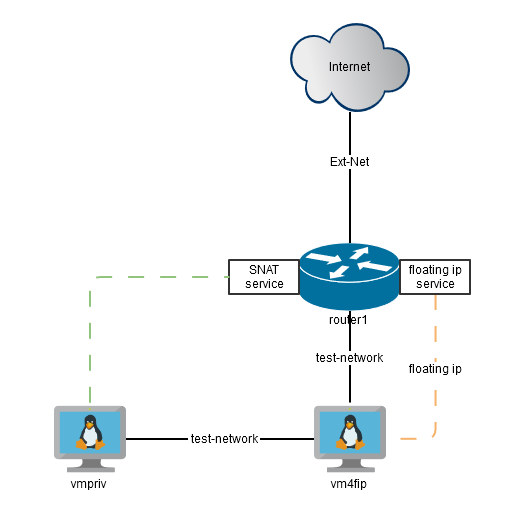
The goal of this exercise is to create a VM (vm4fip) with a private local network (test-network) only, and use a router (router1) to set up a Floating IP.
Next, we will use this Floating IP to connect to the instance (VM) from the outside and check its access to the Internet.
Instructions
OVHcloud Control Panel Access
- Direct link: Public Cloud Projects
- Navigation path:
Public Cloud> Select your project
Attaching a Floating IP to an instance
Via the OVHcloud Control Panel
Click one of the two tabs below depending on whether you want to attach a Floating IP to a new instance (Option 1) or an existing instance (Option 2).
In case of a new instance
If you wish to attach a Floating IP to an existing instance, please skip to Option 2 (second tab above).
Before creating your instance, make sure you have created a private network with Gateway.
To create a new instance, follow this guide if necessary.
Not all regions support this feature. Make sure to create an instance in a valid region. For more information, please refer to our regions availability page.
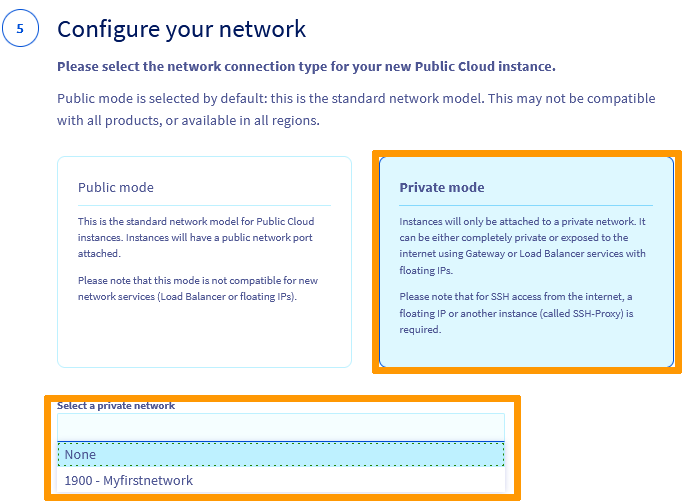
In Step 5, you can choose a networking mode for your instance: Public or Private.
By default, the public mode is selected, but since we are creating an instance to which we will attach a Floating IP, we need to create an instance with a private network ONLY.
Select the Private mode and click on the drop down list to select a private network of your choice (the network must have been previously created with a Gateway or linked to a Gateway).
If you select a private network that is not linked to a Gateway, the system will automatically create a Gateway of size "S" by default and attach it to your network.
In the next step, check the box next to Attach a Floating IP to this Instance, and select Create a new Floating IP.
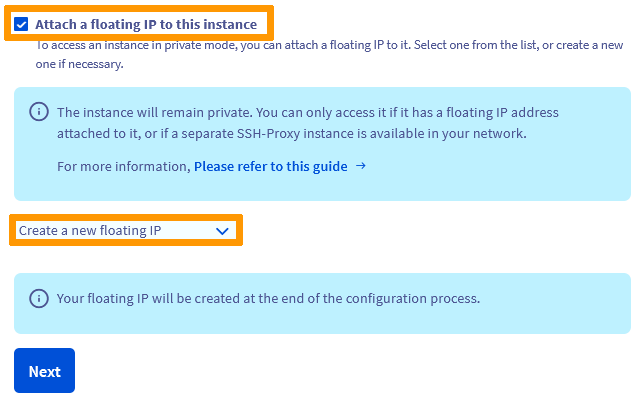
When you have applied your choices, click Next to proceed to the final step and decide on a billing method.
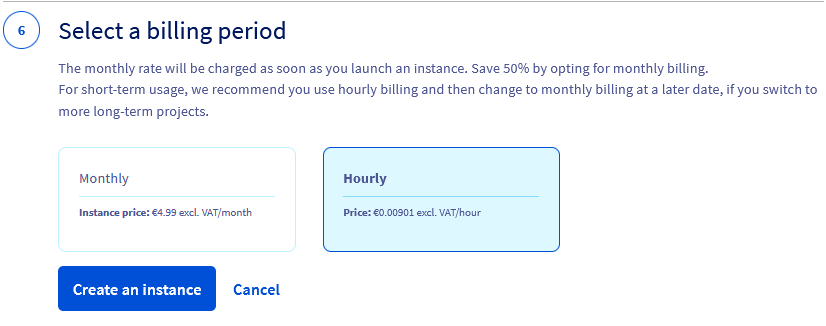
Choose hourly billing if you are unsure about the usage period — you cannot switch to it after delivery. You will have the option to switch to a monthly subscription as soon as the instance is available on the “Instances” page.
If you choose to be billed hourly, you will continue to be billed as long as the instance is not deleted. It does not matter if the instance is not actually used during this time.
Verify your configuration, then click Create an instance. It may take a few minutes until your service is delivered.
In case of an existing instance (created with a private network only).
Please note that the private network must be linked to a gateway. For more information, consult this guide: Creating a private network with Gateway.
Click on Public IPs in the left-hand menu under Network.
Click on Floating IP, then on Add a new IP.
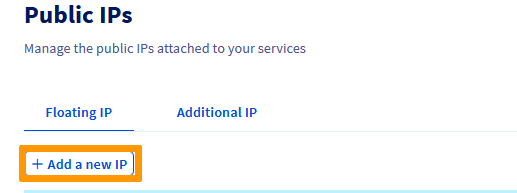
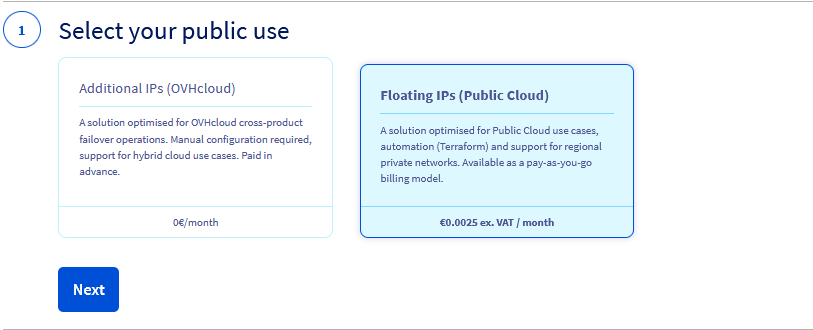
Underneath "Select your public use", select the Floating IPs (Public Cloud).
In the next step, choose a region for your Floating IPs. The region must be the same as that of the instance you wish to attach the Floating IP to.
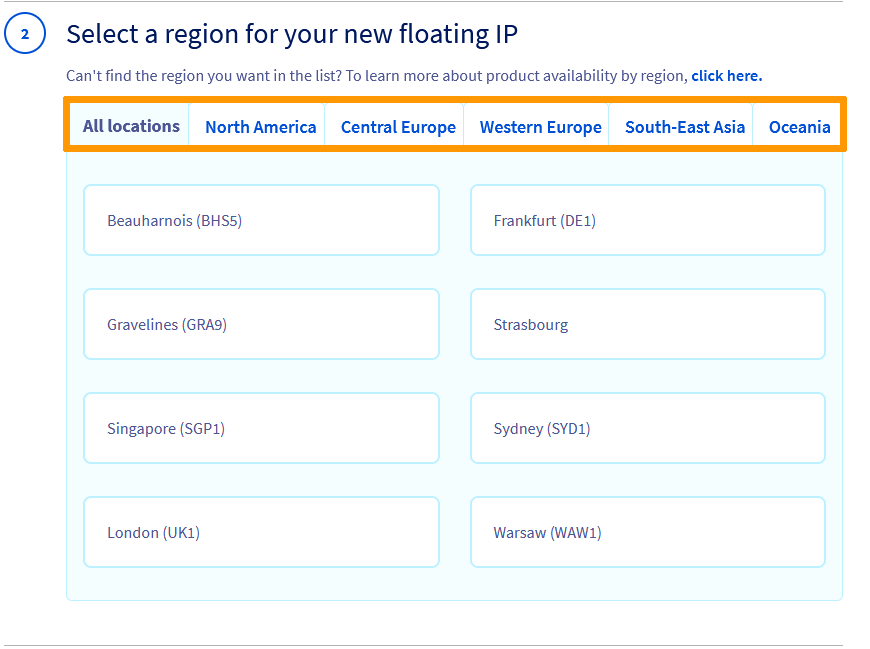
Please note that only regions in which this service is available will be displayed.
Next, click on the drop down list to select the instance to attach the Floating IP to, then select the network/IP (this will be in the default range selected when creating the private network of the instance).
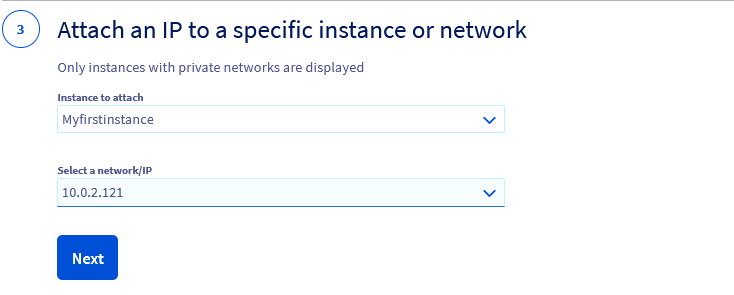
In case your instance is attached to two or more private networks, you will be presented with an equal amount of private IPs to select from, select the private IP of your choice.
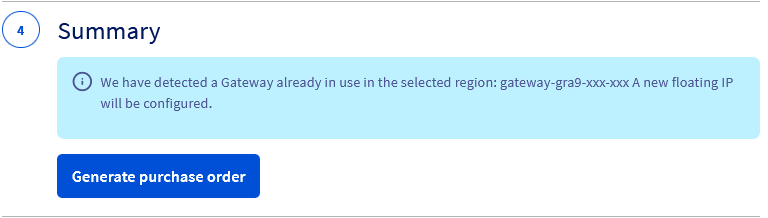
Once done, click on Generate purchase order. It may take a few minutes until your service is delivered.
Detaching a Floating IP
This feature is available via the OpenStack API and the Horizon interface.
Deleting a Floating IP
Click on Public IPs in the left-hand menu under Network.
In the Floating IP tab, click on the ... next to the corresponding IP and select Delete.
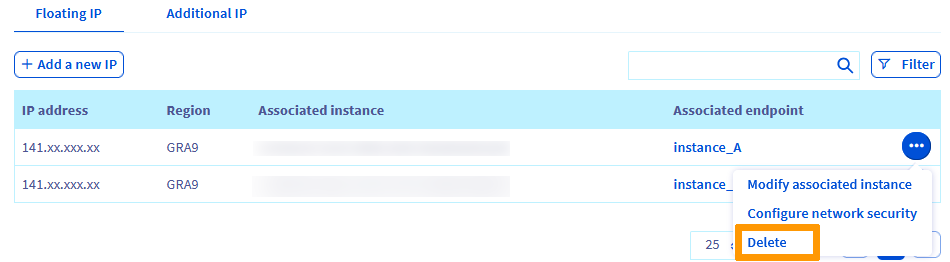
In the pop-up window, proceed with the deletion of the IP by clicking on Confirm.
Via the OpenStack API
Unfold this section
Click on the tabs below to view each of the 9 steps in turn.
Create a router
Create a private network if needed.
If you have one already, you can skip this step.
Create a subnet for your test-network.
If you have one already, you can skip this step.
The subnet should have the DHCP service enabled and a gateway IP configured.
Add subnet to the router1.
Add a gateway to router1 from the public shared network Ext-Net.
Create a test-keypair for SSH connection to your VM (do not forget to limit accesses to the private key file using the chmod command).
Spawn a VM with the test-network interface only.
Now we have a VM named vm4fip with a private interface only. This VM has no access outside test-network.
Create a Floating IP from Ext-Net network.
Attach the Floating IP to VM vm4fip.
Your VM now pings via the Floating IP:
You can connect to the vm4fip VM:
As you can see, the VM only has a private IP but it is available from the Internet via the Floating IP.
Once a Floating IP is attached to a VM, it is exposed to the Internet. Always ensure that your VM and its services are properly protected by security groups or a VM firewall.
Adding a DNS to a Floating IP
Complete the 9 steps above before starting this procedure.
To add a DNS to a Floating IP, run the following command from the command line.
Detaching a Floating IP
You can detach a Floating IP from your VM at any time.
Once a Floating IP is detached, it goes back to your pool of Floating IPs. The Floating IP can be reattached to the same VM or any other VMs in your VMs pool. Detaching a Floating IP does not delete it.
Deleting a Floating IP
To delete a Floating IP, you must do it explicitly:
Via the Horizon interface
Unfold this section
The following steps describe how to attach a Floating IP to an existing instance.
Before you proceed, make sure your instance is linked to a private network only and that the private network is linked to a Gateway.
Detaching a Floating IP
You can detach a Floating IP from your instance at any time.
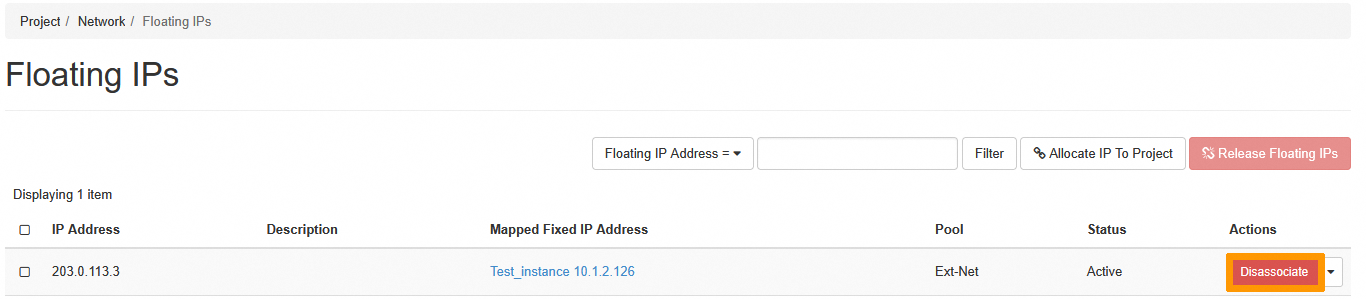
Once you are connected to the Horizon interface, click on Network, then on Floating IPs.
Click on Disassociate next to the corresponding IP.
A pop-up window will appear prompting you to confirm the selection. Click on Disassociate.
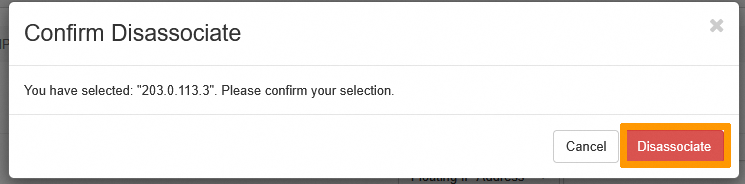
Once done, the Floating IP will be detached from the instance and returned to the pool of Floating IPs.
Deleting a Floating IP
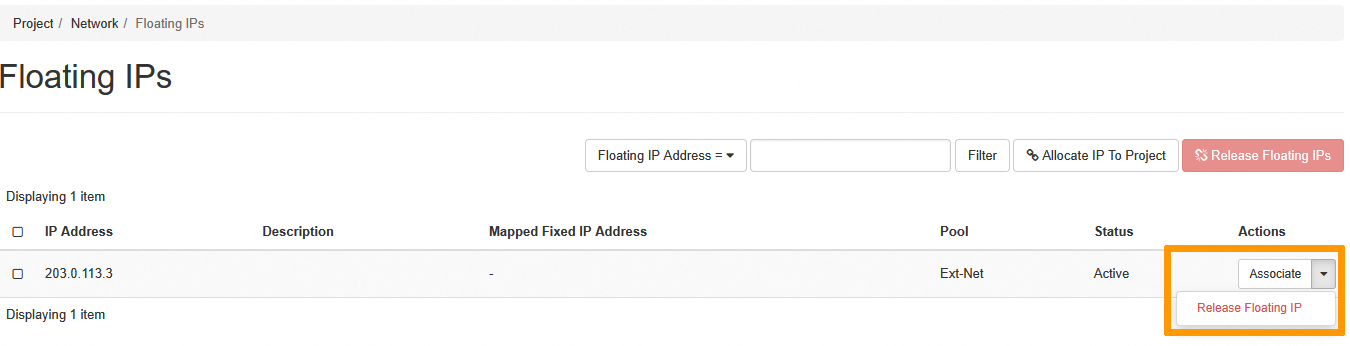
To delete a Floating IP, click on the drop-down arrow next to the corresponding instance, then click on Release Floating IP.
Via the OVHcloud API
Unfold this section
With the OVHcloud API, you can only attach a Floating IP to an existing instance.
To begin, retrieve all the information you will need.
For the project ID, the calls below allow you to retrieve it.
This call retrieves the list of projects.
This call identifies the project via the "description" field.
For the instance ID, the call below allows you to retrieve it.
Fill in the fields with the information previously obtained: serviceName: The project ID
region: You can specify the region for quicker results
Once you have gathered all the information, you can now create a Floating IP and attach it to an instance using the following call.
Fill in the fields according to the following table.
| Field | Description |
|---|---|
| serviceName | ID of the project |
| regionName | Name of the region in which the instance is located |
| instanceId | ID of the instance |
| name | Define a name for your Gateway |
| ip | The private IP of the instance |
The "gateway" property field should be left empty because you are attaching a Floating IP to an instance initially created with a private network only and already linked to a Gateway. Please note that for now, the Floating IP will not be created if the instance is linked to a private network that is not attached to a Gateway.
The creation will take a few moments.
Detaching a Floating IP
This feature is available via the OpenStack API and the Horizon interface.
Deleting a Floating IP
To delete a Floating IP, use the following API calls.
First, retrieve the necessary information.
For the project ID, the calls below allow you to retrieve it.
This call retrieves the list of projects.
This call identifies the project via the "description" field.
For the Floating IP ID, the call below allows you to retrieve it.
Fill in the fields with the information previously obtained:
- serviceName: The project ID
- regionName: The name of the region
Once the information has been retrieved, use the following call to delete the Floating IP.
Fill in the fields with the information previously obtained:
- serviceName: The project ID
- regionName: The name of the region in which the Floating IP is located
- floatingIpId: The ID of the Floating IP
Go further
If you need training or technical assistance to implement our solutions, contact your sales representative or click on this link to get a quote and ask our Professional Services experts for assisting you on your specific use case of your project.
Join our community of users.

