

AI Notebooks - Tutorial - Fine-Tune and export an AI model to ONNX
187 Views
 08.09.2023
  Cloud / AI Notebooks
Objective
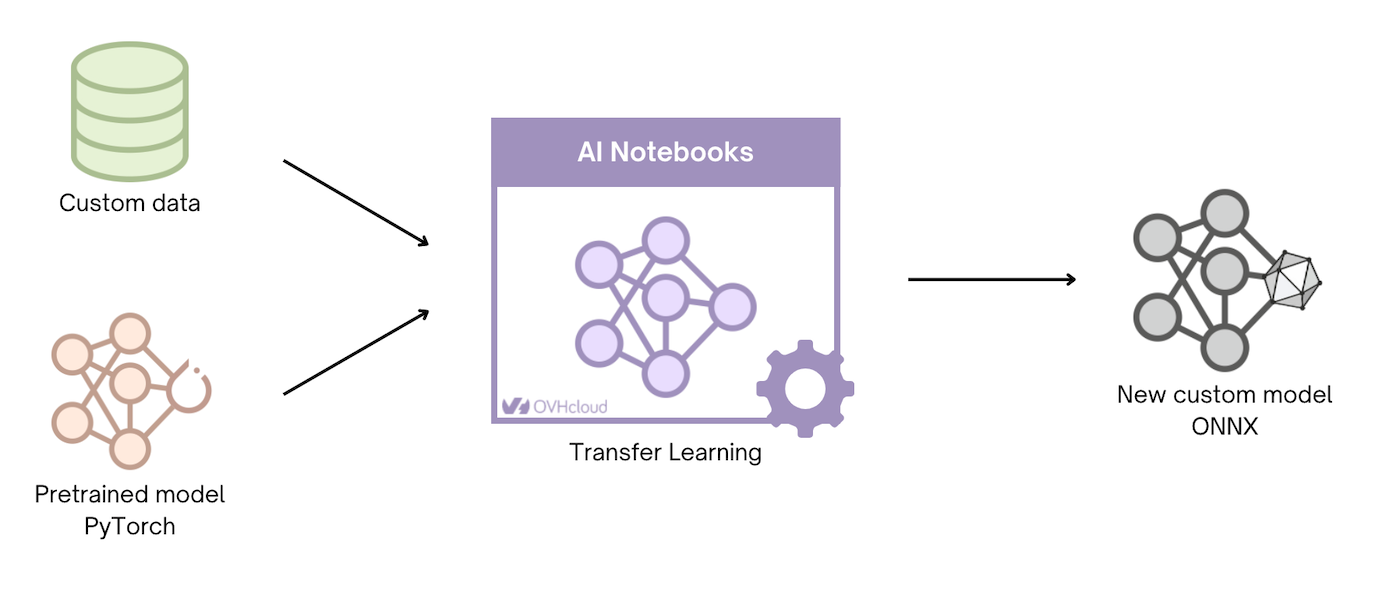
The aim of this tutorial is to show you how to Fine-Tune a PyTorch model and export it in ONNX (Open Neural Network Exchange) format.
For this purpose, we use an image classification model: DenseNet.
DenseNet models are pre-trained on ImageNet dataset.
The goal is to Fine-Tune a DenseNet121 model to classify daily life images with the CIFAR-10 dataset. It is composed of 10 classes:
- airplane
- automobile
- bird
- cat
- deer
- dog
- frog
- horse
- ship
- truck
Find out more information about CIFAR-10 dataset on the following link.
At the end of training, the DenseNet model is saved in PyTorch format (.pth). It will then be transformed into ONNX.
Exporting your model in ONNX format allows you to optimize the inference of a Machine Learning model.
Requirements
- An AI Notebooks project created inside a Public Cloud project in your OVHcloud account
- A user for AI Notebooks
- A Kaggle account to download the dataset
OVHcloud Control Panel Access
- Direct link: Public Cloud Projects
- Navigation path:
Public Cloud> Select your project
Instructions
You can launch the notebook from the OVHcloud Control Panel or via the ovhai CLI.
Launching a Jupyter notebook with "Conda" via UI (Control Panel)
To launch your notebook from the OVHcloud Control Panel, refer to the following steps.
Code editor
Choose the Jupyterlab code editor.
Framework
In this tutorial, the conda framework is used.
Resources
Using GPUs is recommended to train the image classification model: densenet121.
Here, using 1 GPU is sufficient.
Launching a Jupyter notebook with "conda" via CLI
If you do not use our CLI yet, follow this guide to install it.
If you want to launch your notebook with the OVHcloud AI CLI, choose the jupyterlab editor and the conda framework.
To access the different versions of conda available, run the following command:
You will also need to choose the number of GPUs to use in your notebook, using <nb-gpus>.
To launch your notebook, run the following command:
You can then reach your notebook’s URL once the notebook is running.
Accessing the notebooks
Once our AI examples repository has been cloned in your environment, find the fine-tuning notebook tutorial by following this path: ai-training-examples > notebooks > go-further > onnx > notebook_finetune_densenet_export_onnx.ipynb.
A preview of this notebook can be found on GitHub here.
Go further
There are many other tasks that exist in the computer vision field. Check our other tutorials to learn how to:
If you need training or technical assistance to implement our solutions, contact your sales representative or click on this link to get a quote and ask our Professional Services experts for a custom analysis of your project.
Feedback
Please send us your questions, feedback and suggestions to improve the service:
- On the OVHcloud Discord server


 AI Notebooks - Tutorial - Create and train a Rasa chatbot
 420
420