AI Endpoints - Integration in Python with LiteLLM

Knowledge Base

AI Endpoints - Integration in Python with LiteLLM


Icons/System/eye-open Created with Sketch. 58 Views 05.01.2026 AI Endpoints

🎉 New Integration Available! We're excited to announce a new integration for AI Endpoints with LiteLLM. It will significantly simplify the use of our AI models in your Python applications, and continues our commitment to integrating AI Endpoints into as many open-source tools as possible to simplify its usage.

Objective

OVHcloud AI Endpoints allows developers to easily add AI features to their day to day developments.

In this guide, we will show how to use LiteLLM to integrate OVHcloud AI Endpoints directly into your Python applications.

With LiteLLM’s unified interface and OVHcloud’s scalable AI infrastructure, you can quickly experiment, switch between models, and streamline the development of your AI-powered applications.

LiteLLM Blog Thumbnail

Definition

  • LiteLLM: A Python library that simplifies using Large Language Model (LLM) by providing a unified interface for different AI providers. Instead of managing the specifics of each API, LiteLLM gives you access to over 100 different models using OpenAI format.
  • AI Endpoints: A serverless platform by OVHcloud providing easy access to a variety of world-renowned AI models including Mistral, LLaMA, and more. This platform is designed to be simple, secure, and intuitive with data privacy as a top priority.

Why is this integration important?

This new integration offers you several advantages:

  • Simplicity: A unified interface for all your AI models
  • Flexibility: Switch between models without rewriting your code
  • Compatibility: OpenAI-compatible syntax for easy migration
  • Robustness: Automatic error handling and retry mechanisms
  • Observability: Built-in logging and monitoring capabilities
  • Models: All of our models are available in LiteLLM!

Requirements

Before getting started, make sure you have:

  1. An OVHcloud account with access to AI Endpoints
  2. Python 3.8 or higher installed
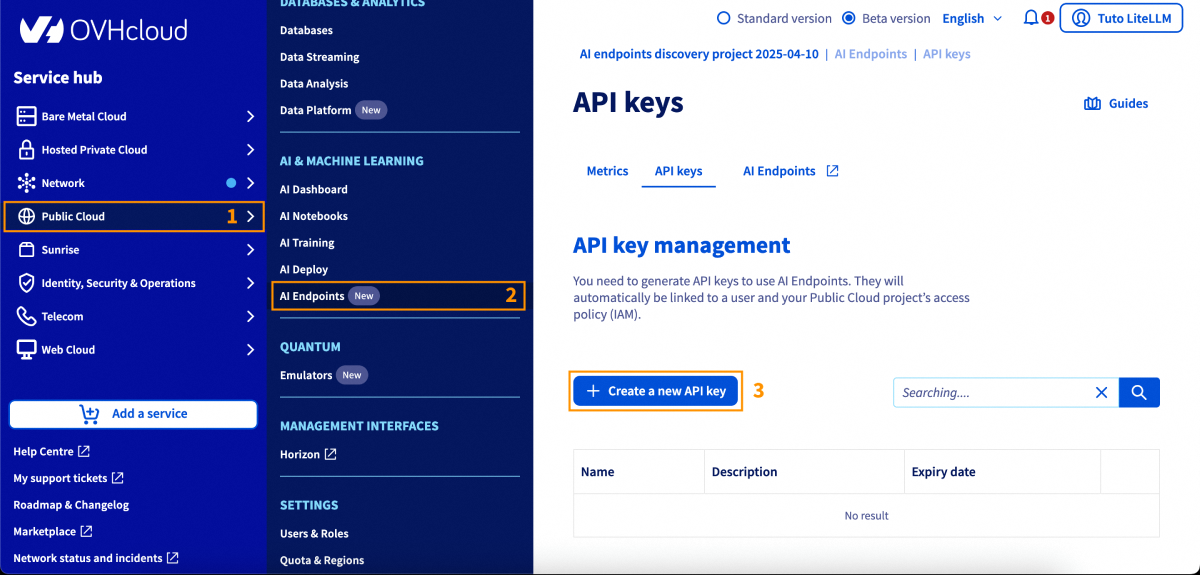
  3. An API key generated from the OVHcloud Control Panel, in Public Cloud > AI Endpoints > API keys

Generate an API key

Instructions

Installation

Install LiteLLM via pip:

pip install litellm

And that's all, you are ready to go! 🎉

Basic Configuration

Environment Variables

The recommended method to configure your API key is using environment variables:

import os

# Set your API key via environment variable
os.environ['OVHCLOUD_API_KEY'] = "your-api-key"

Basic Usage

Here's a simple usage example:
from litellm import completion

response = completion(
    model="ovhcloud/Meta-Llama-3_3-70B-Instruct",
    messages=[
        {
            "role": "user",
            "content": "What's the capital of France?"
        }
    ],
    max_tokens=100,
    temperature=0.7
)

print(response.choices[0].message.content)

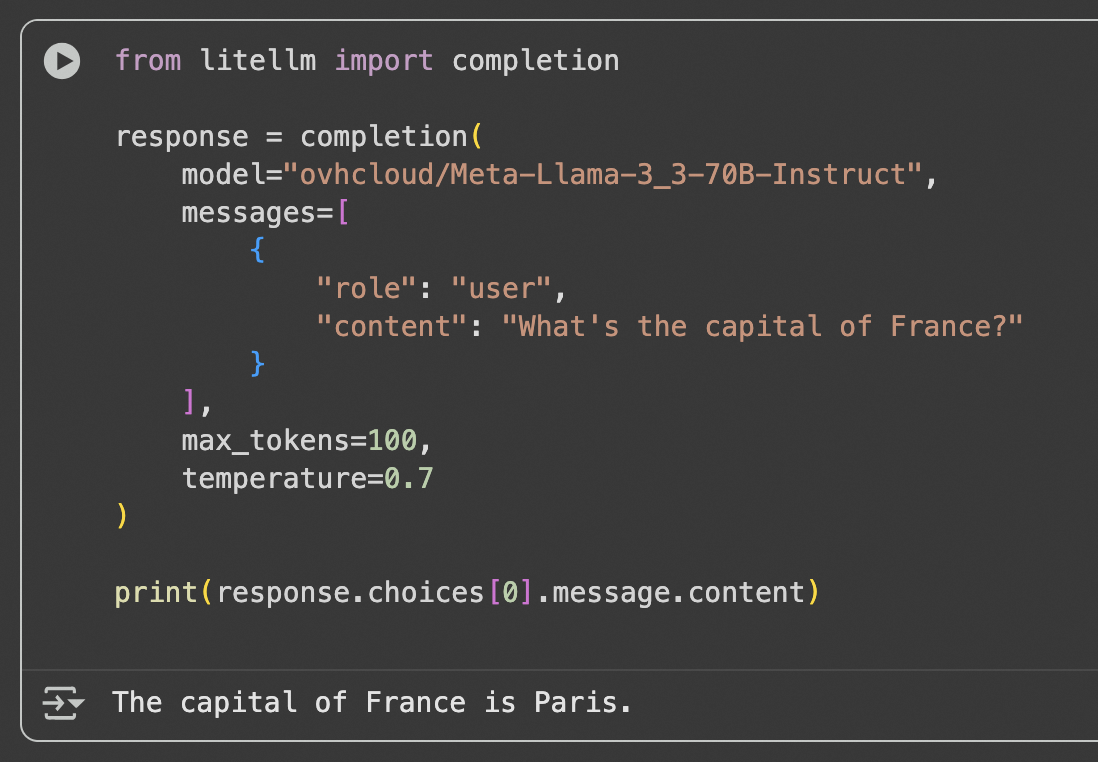
Output of the code

Advanced Features

Response Streaming

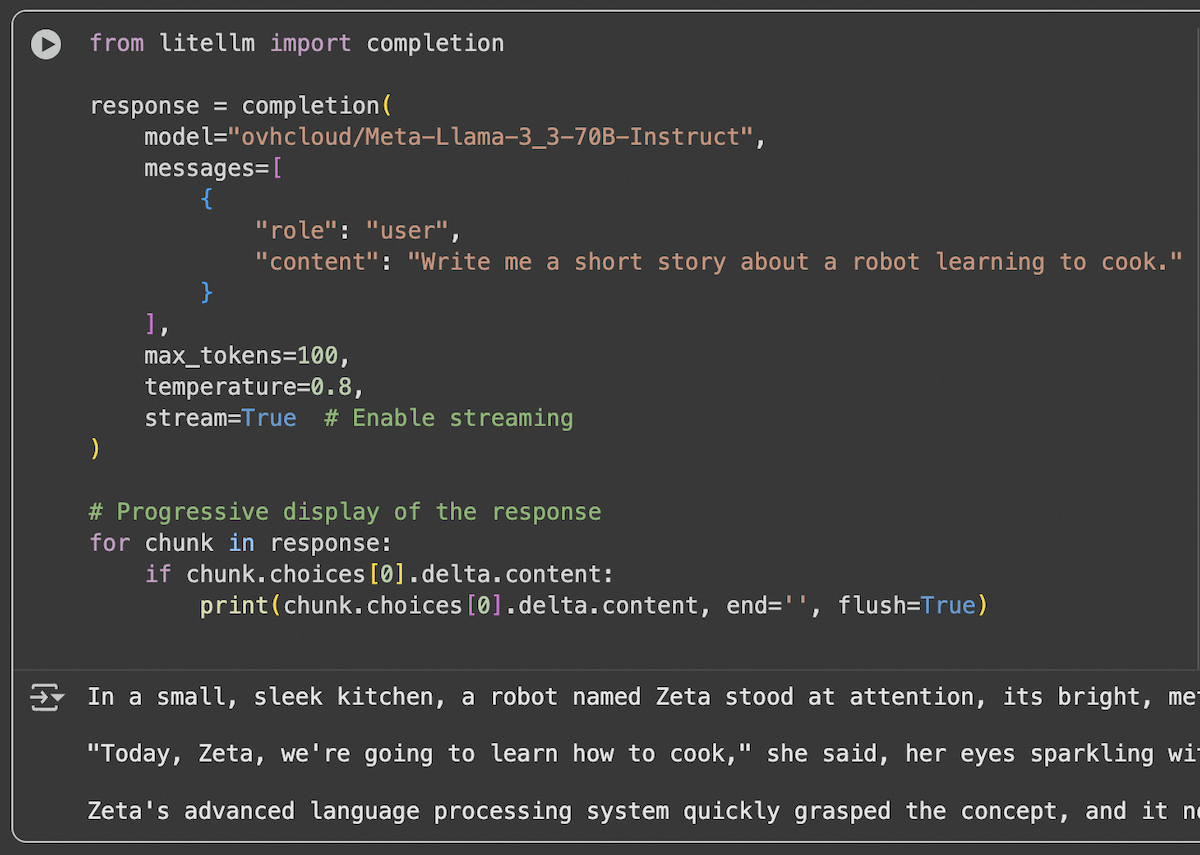
For applications requiring real-time responses, use streaming:
from litellm import completion

response = completion(
    model="ovhcloud/Meta-Llama-3_3-70B-Instruct",
    messages=[
        {
            "role": "user",
            "content": "Write me a short story about a robot learning to cook."
        }
    ],
    max_tokens=500,
    temperature=0.8,
    stream=True  # Enable streaming
)

# Progressive display of the response
for chunk in response:
    if chunk.choices[0].delta.content:
        print(chunk.choices[0].delta.content, end='', flush=True)

Output of the code

Function Calling (or Tool Calling)

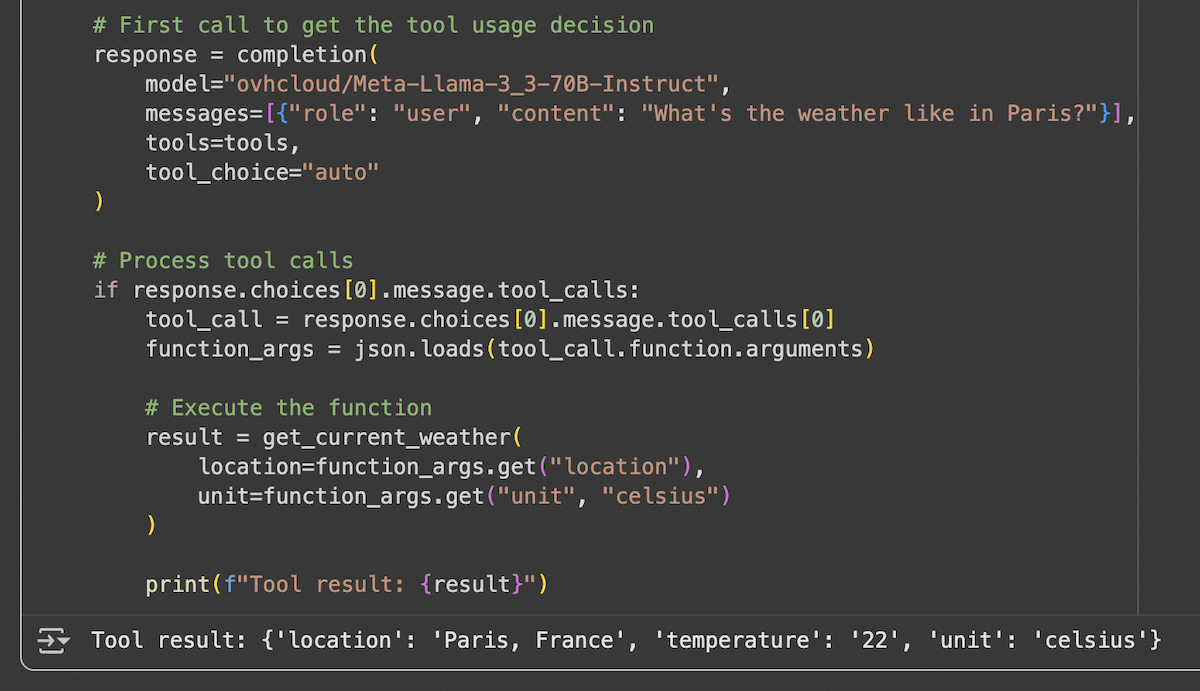
LiteLLM supports function calling with AI Endpoints compatible models:
from litellm import completion
import json

def get_current_weather(location, unit="celsius"):
    """Simulated function to get the weather"""
    if unit == "celsius":
        return {"location": location, "temperature": "22", "unit": "celsius"}
    else:
        return {"location": location, "temperature": "72", "unit": "fahrenheit"}

# Define available tools
tools = [
    {
        "type": "function",
        "function": {
            "name": "get_current_weather",
            "description": "Get the current weather in a given location",
            "parameters": {
                "type": "object",
                "properties": {
                    "location": {
                        "type": "string",
                        "description": "The city and country, e.g. Paris, France"
                    },
                    "unit": {
                        "type": "string", 
                        "enum": ["celsius", "fahrenheit"]
                    }
                },
                "required": ["location"]
            }
        }
    }
]

# First call to get the tool usage decision
response = completion(
    model="ovhcloud/Meta-Llama-3_3-70B-Instruct",
    messages=[{"role": "user", "content": "What's the weather like in Paris?"}],
    tools=tools,
    tool_choice="auto"
)

# Process tool calls
if response.choices[0].message.tool_calls:
    tool_call = response.choices[0].message.tool_calls[0]
    function_args = json.loads(tool_call.function.arguments)

    # Execute the function
    result = get_current_weather(
        location=function_args.get("location"),
        unit=function_args.get("unit", "celsius")
    )

    print(f"Tool result: {result}")

Output of the code

Vision and Image Analysis

For models supporting vision capabilities:

from base64 import b64encode
from mimetypes import guess_type
import litellm

def encode_image(file_path):
    """Encode an image to base64 for the API"""
    mime_type, _ = guess_type(file_path)
    if mime_type is None:
        raise ValueError("Could not determine MIME type of the file")

    with open(file_path, "rb") as image_file:
        encoded_string = b64encode(image_file.read()).decode("utf-8")
        data_url = f"data:{mime_type};base64,{encoded_string}"
        return data_url

# Image analysis
response = litellm.completion(
    model="ovhcloud/Mistral-Small-3.2-24B-Instruct-2506",
    messages=[
        {
            "role": "user",
            "content": [
                {
                    "type": "text",
                    "text": "What do you see in this image?"
                },
                {
                    "type": "image_url",
                    "image_url": {
                        "url": encode_image("my_image.jpg"),
                        "format": "image/jpeg"
                    }
                }
            ]
        }
    ],
    stream=False
)

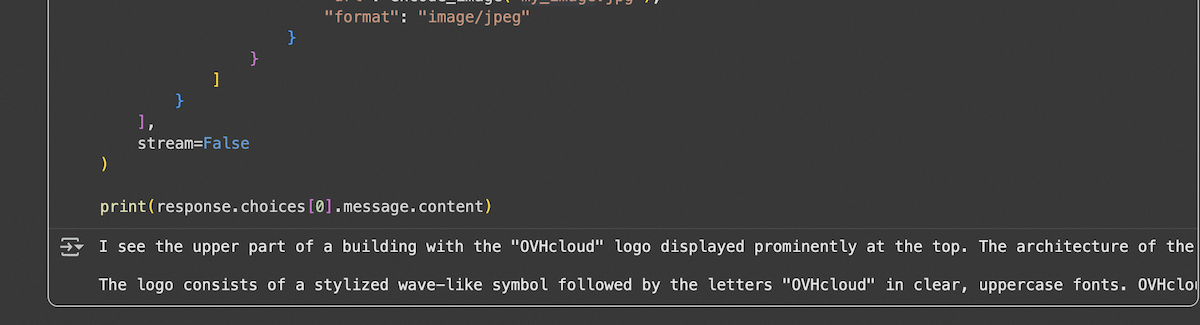
print(response.choices[0].message.content)
Reference PhotoOutput
Reference PhotoOutput of the code

Structured Output (JSON Schema)

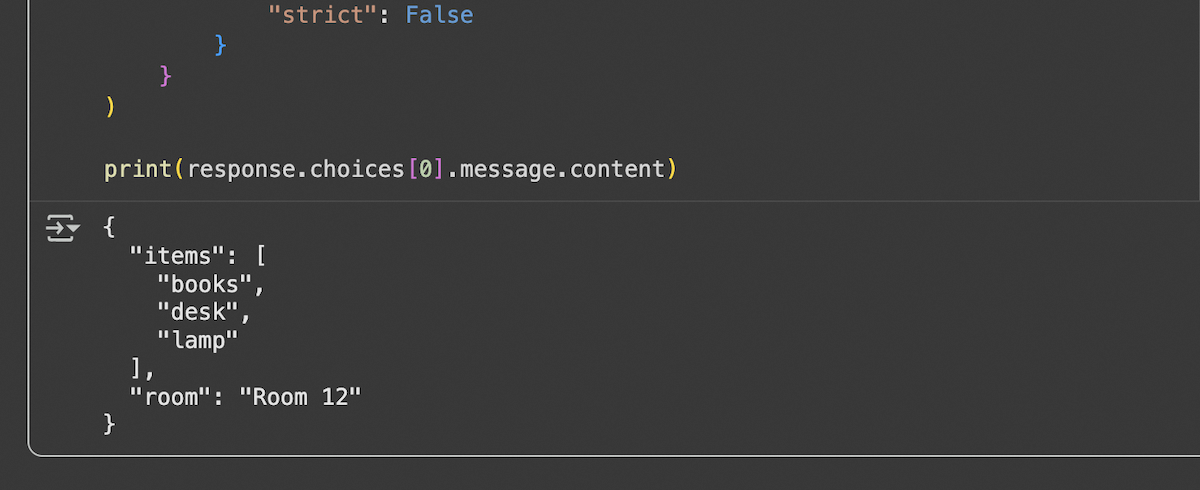
To get responses in a structured format:
from litellm import completion

response = completion(
    model="ovhcloud/Meta-Llama-3_3-70B-Instruct",
    messages=[
        {
            "role": "system",
            "content": "You are a specialist in extracting structured data from unstructured text."
        },
        {
            "role": "user",
            "content": "Room 12 contains books, a desk, and a lamp."
        }
    ],
    response_format={
        "type": "json_schema",
        "json_schema": {
            "title": "extracted_data",
            "name": "data_extraction",
            "schema": {
                "type": "object",
                "properties": {
                    "room": {"type": "string"},
                    "items": {
                        "type": "array",
                        "items": {"type": "string"}
                    }
                },
                "required": ["room", "items"],
                "additionalProperties": False
            },
            "strict": False
        }
    }
)

print(response.choices[0].message.content)

Output of the code

Embeddings

To generate embeddings with compatible models:

from litellm import embedding

response = embedding(
    model="ovhcloud/BGE-M3",
    input=["sample text to embed", "another sample text to embed"]
)

print(response.data)

Output of the code

Using LiteLLM Proxy Server

Proxy Server Configuration

For production deployments, you can use the LiteLLM proxy server:

1. Install LiteLLM proxy:

pip install 'litellm[proxy]'

2. Create a config.yaml file:

model_list:
  - model_name: my-llama
    litellm_params:
      model: ovhcloud/Meta-Llama-3_3-70B-Instruct
      api_key: your-ovh-api-key

  - model_name: my-mistral
    litellm_params:
      model: ovhcloud/Mistral-Small-3.2-24B-Instruct-2506
      api_key: your-ovh-api-key

  - model_name: my-embedding
    litellm_params:
      model: ovhcloud/BGE-M3
      api_key: your-ovh-api-key

3. Start the proxy server:

litellm --config /path/to/config.yaml --port 4000

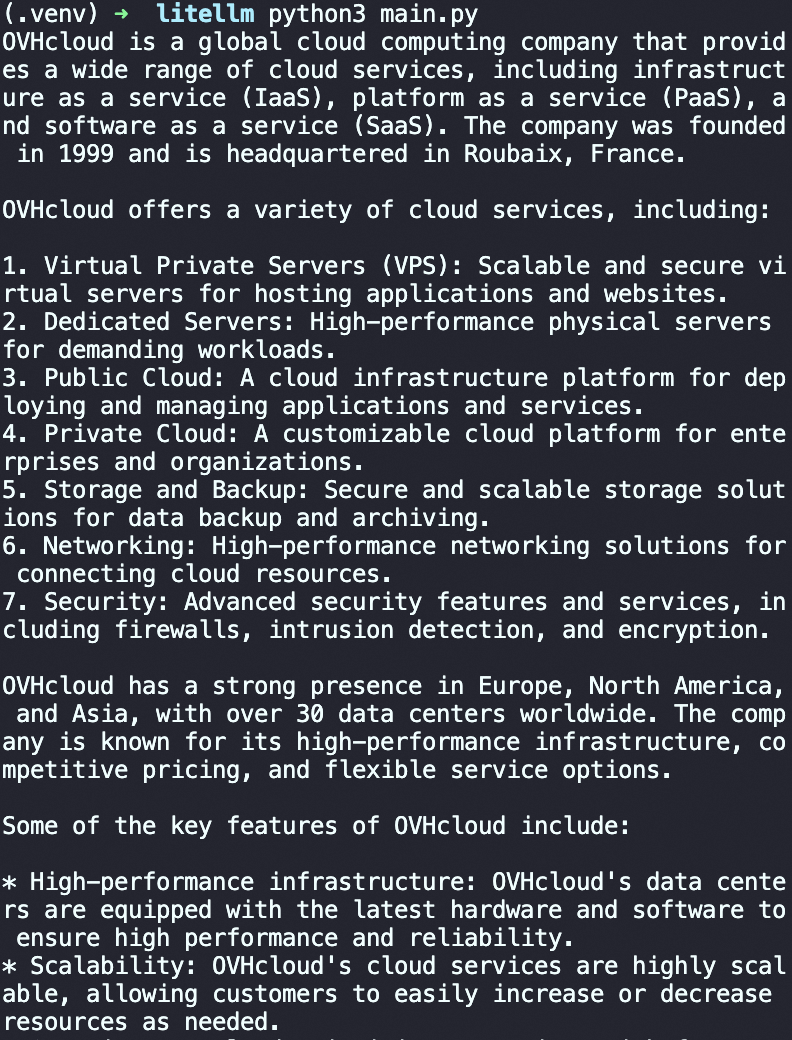
The proxy server is live with our models!
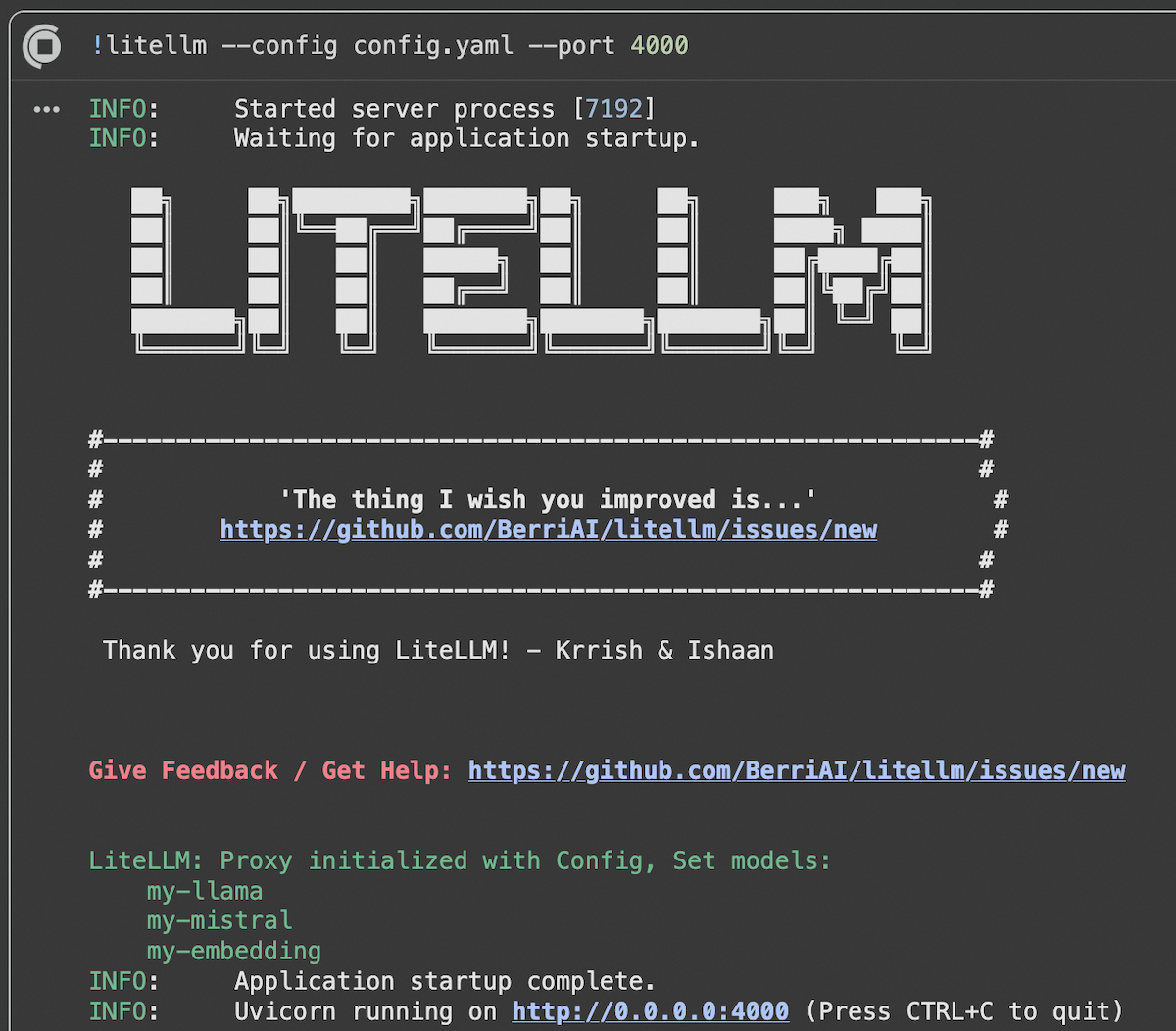
Output of the code

Using the Proxy

Once the proxy is running, use it like a standard OpenAI API:
import openai

client = openai.OpenAI(
    api_key="sk-1234",  # LiteLLM proxy key
    base_url="http://localhost:4000"  # Proxy URL
)

response = client.chat.completions.create(
    model="my-llama",
    messages=[
        {
            "role": "user",
            "content": "What is OVHcloud?"
        }
    ]
)

print(response.choices[0].message.content)

Output of the code

Available Models

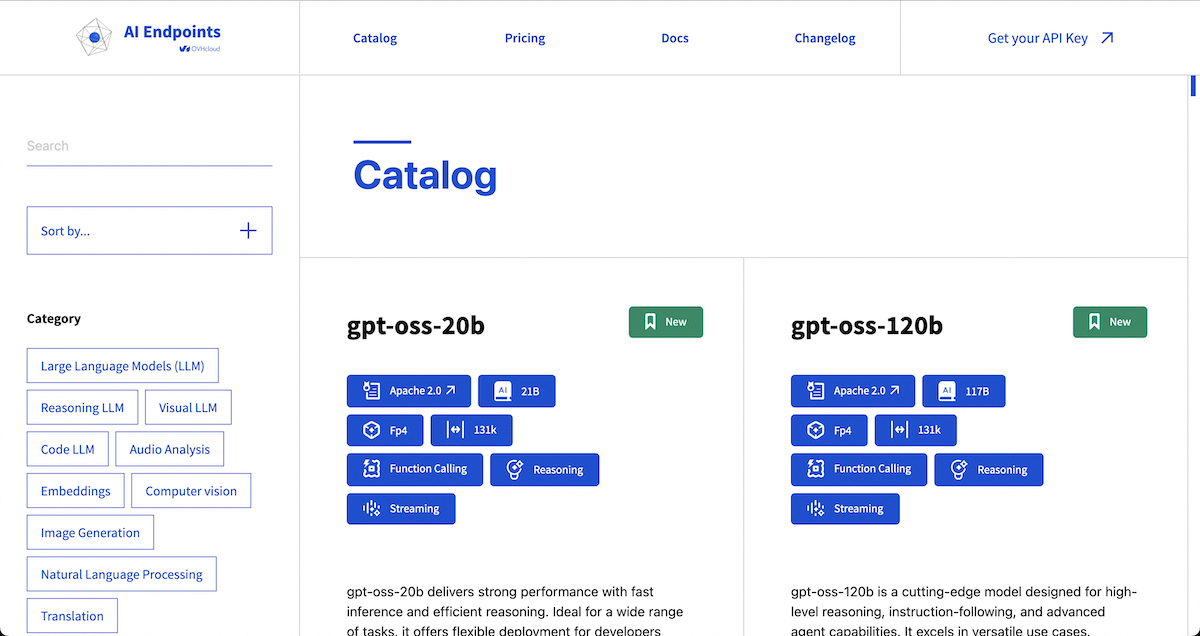
OVHcloud AI Endpoints offers a wide range of models accessible via LiteLLM. For the complete and up-to-date list, visit our model catalog.

  • Llama 3.3 70B Instruct: ovhcloud/Meta-Llama-3_3-70B-Instruct
  • Mistral Small: ovhcloud/Mistral-Small-3.2-24B-Instruct-2506
  • GPT-OSS-120B: ovhcloud/gpt-oss-120b
  • BGE-M3 (Embeddings): ovhcloud/BGE-M3

AI Endpoints Catalog

Best Practices

1. API Key Management

  • Always use environment variables for API keys.
  • Never commit keys to source code.
  • Implement regular key rotation. You can set an expiry date to your key in the OVHcloud Control Panel.

2. Performance Optimization

  • Use streaming for long responses.
  • Cache frequent responses.
  • Adjust max_tokens parameters according to your needs.

Conclusion

In this article, we explored how to integrate OVHcloud AI Endpoints with LiteLLM to seamlessly use a wide range of AI models in your Python applications. Thanks to LiteLLM’s unified interface, switching between models and providers becomes straightforward, while OVHcloud AI Endpoints ensures secure, scalable, and production-ready AI infrastructure.

Go further

You can find more informations about LiteLLM on their official documentation. You can also navigate in the AI Endpoints catalog to explore the models that are available through LiteLLM.

To take your use of LiteLLM even further and get the most out of OVHcloud AI Endpoints, you can easily implement intelligent request routing. LiteLLM allows you to manage the routing and load balancing of incoming requests. Refer to this tutorial.

Browse the full AI Endpoints documentation to further understand the main concepts and get started.

If you need training or technical assistance to implement our solutions, contact your sales representative or click on this link to get a quote and ask our Professional Services experts for a custom analysis of your project.

Feedback

Please feel free to send us your questions, feedback, and suggestions regarding AI Endpoints and its features:

  • In the #ai-endpoints channel of the OVHcloud Discord server, where you can engage with the community and OVHcloud team members.