

Getting started with a POWER web hosting plan
82 Views
 04.02.2021
  POWER Web Hosting
Objective
You've subscribed to a Web POWER web hosting plan to deploy Node.js, Python or Ruby applications, and you want to begin developing your project.
This guide will explain how to manage your POWER web hosting using the OVHcloud Control Panel and the OVHcloud APIs.
Find out how to get started with a POWER web hosting plan.
Requirements
- one of the 3 POWER web hosting plans: Node.js, Python or Ruby
- access to the OVHcloud Control Panel
Instructions
From the OVHcloud Control Panel
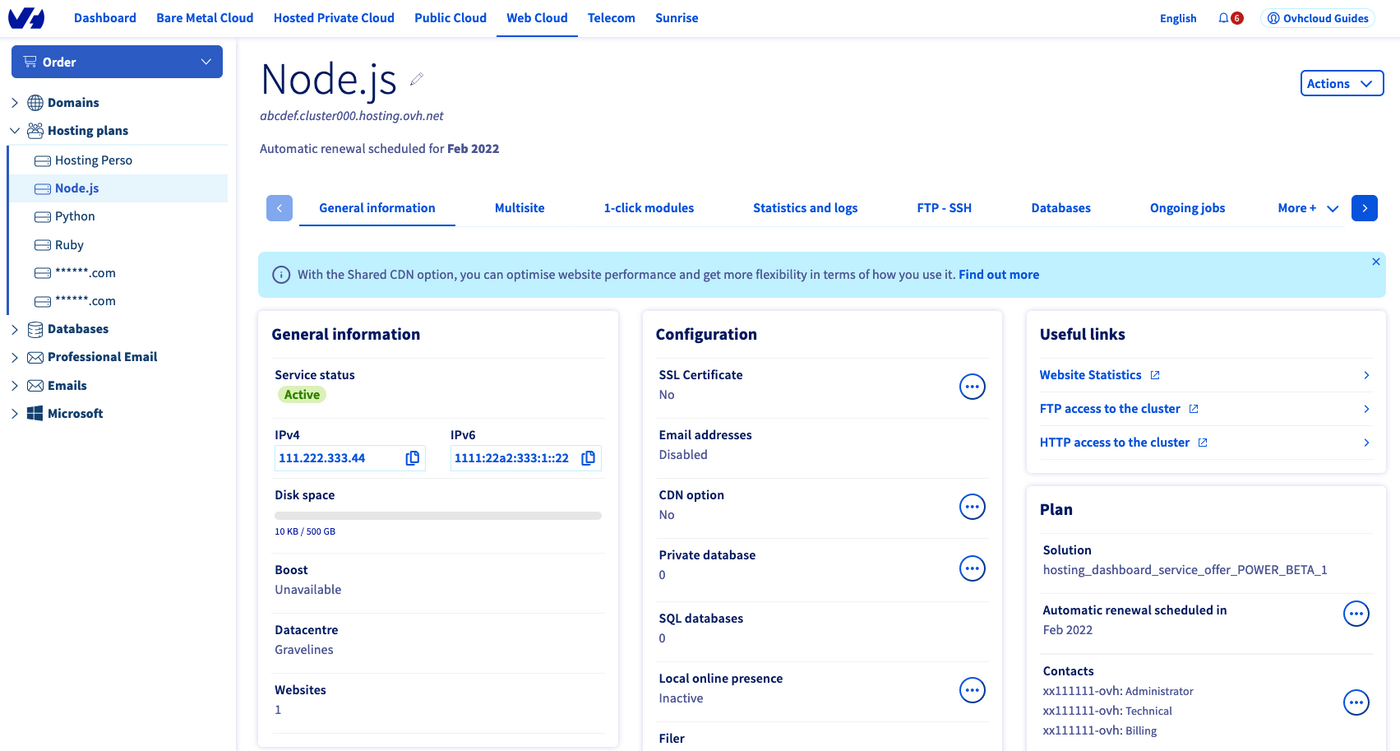
The POWER web hosting management UI is in the Web Cloud section, under Hosting plans in the sidebar.
FTP - SSH access
At the activation of your POWER web hosting plan, we have sent you an email with the SSH and FTP credentials. You can also manage them from the FTP - SSH tab.
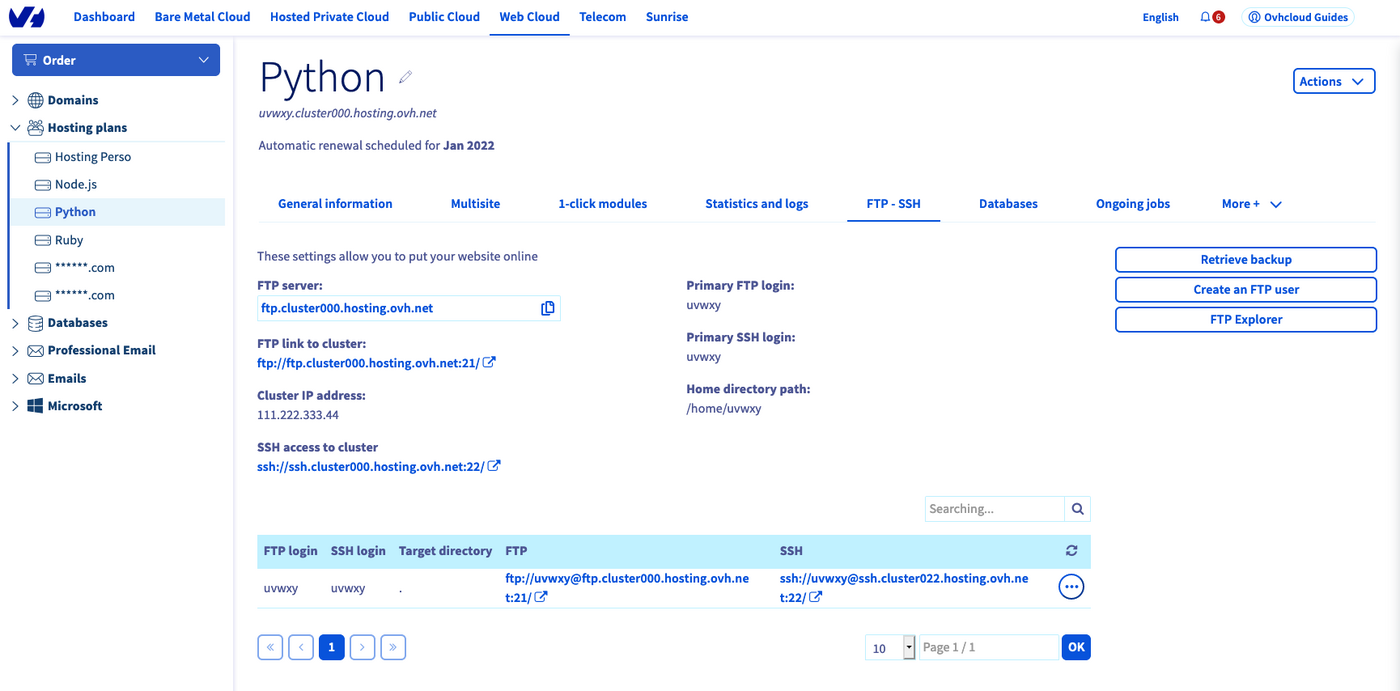
You will find detailed information on this topic in our SSH guide.
Adding a domain name
For default, your POWER web hosting plan is attached to a generated URL. In order to use your own domain name, you can add it in the Multisite tab.
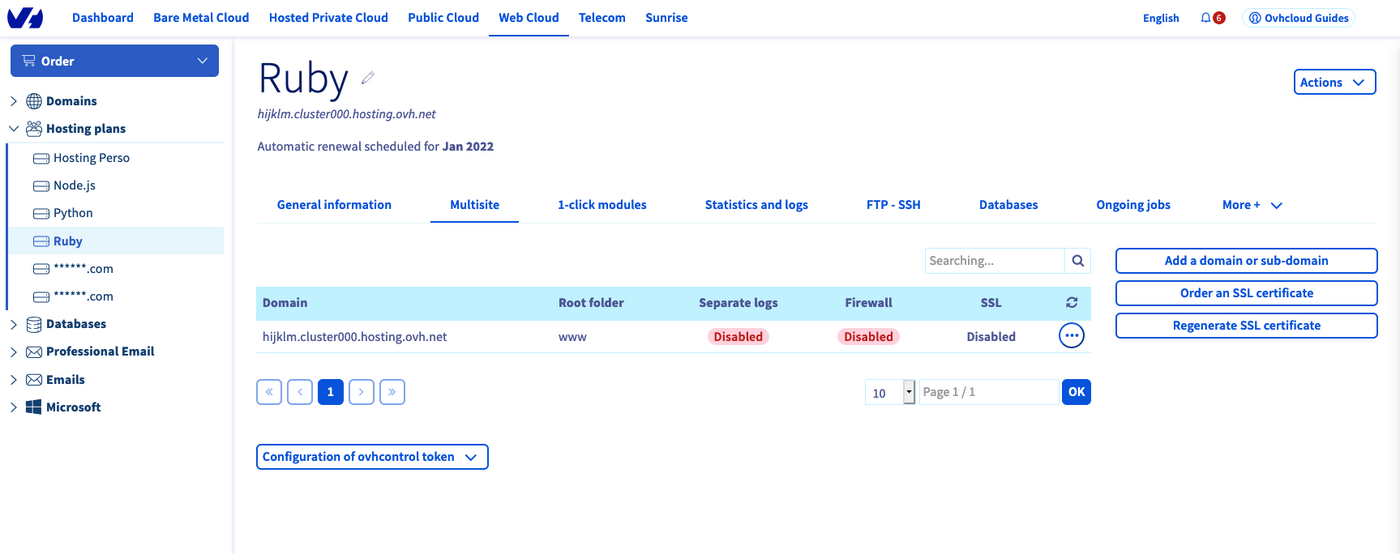
You will find detailed information on this topic in our Hosting multiple websites on your Web Hosting plan guide.
Using a database
Your POWER web hosting plan includes databases. They can be accessed from the Databases tab.
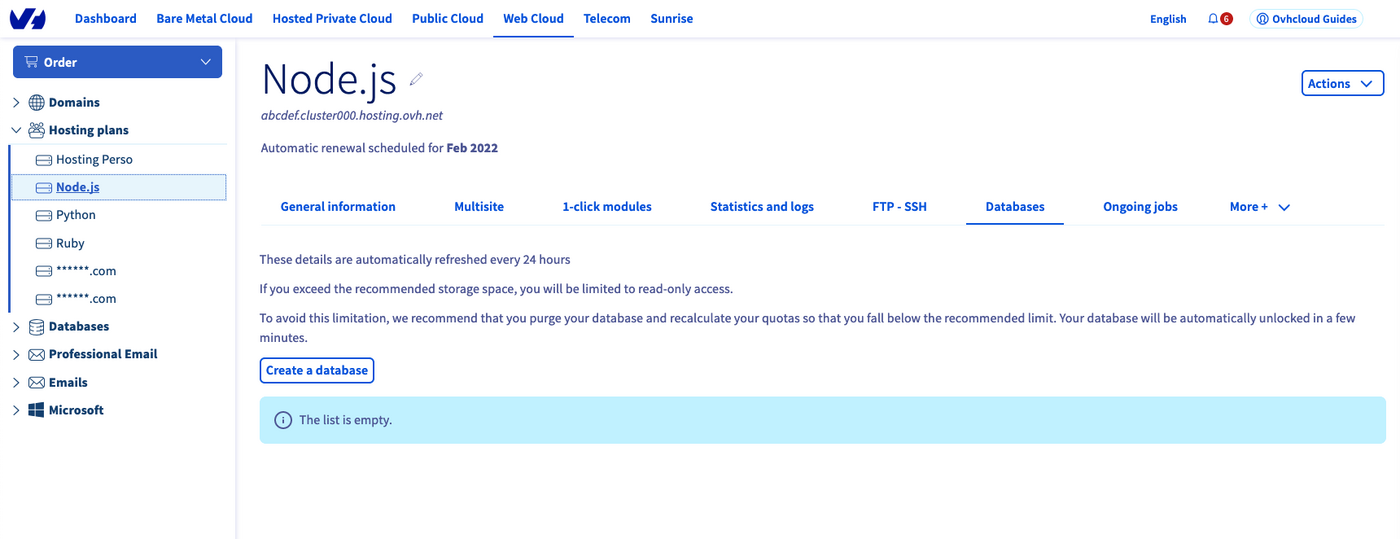
You will find detailed information on this topic in our Creating and managing a database in your Web Hosting plan guide.
Accessing logs and statistics
Web server logs and website statistics are included in your POWER web hosting plan,under the Statistics and logs tab.
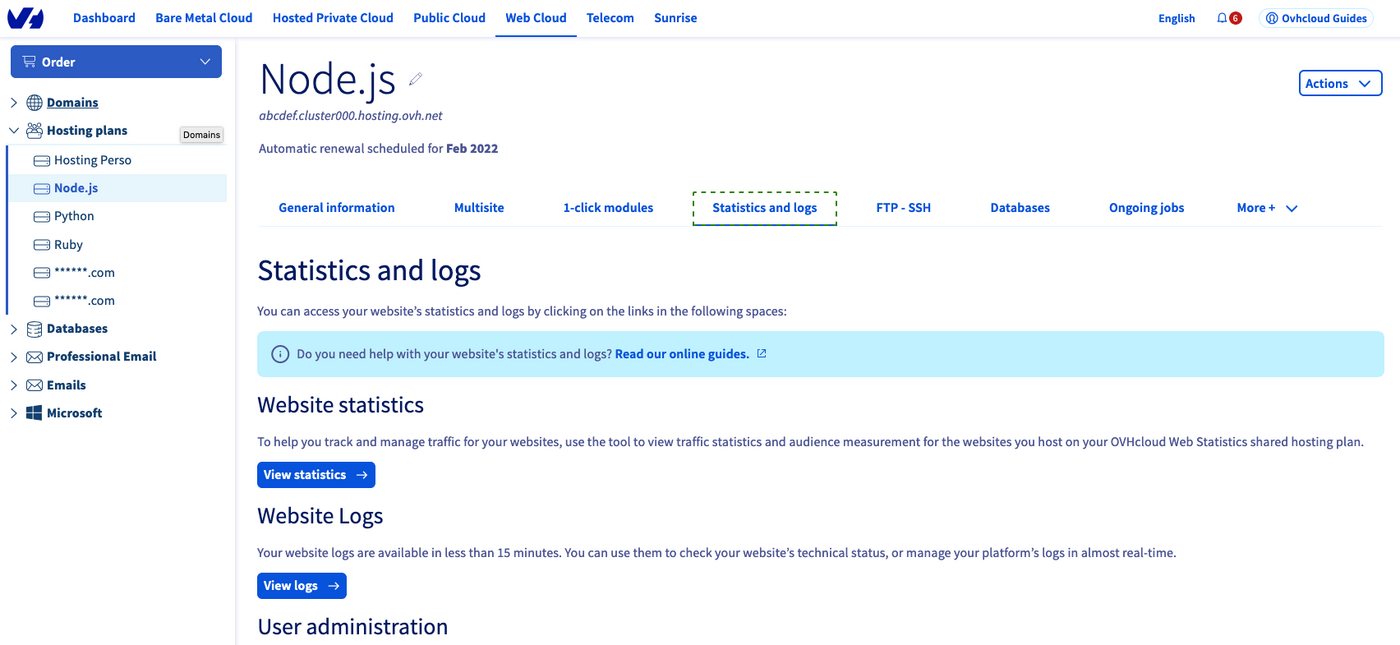
You will find detailed information on this topic in our Accessing a website’s logs and statistics on a Web Hosting guide.
Node.js
Hello World in Node.js
Let's suppose you have the default configuration for Node.js hosting:
- Runtime: nodejs 14
- Entrypoint: index.js
- DocumentRoot: www
To verify your configuration, you can use the Retrieve active configuration API endpoint.
Connect via SSH to your POWER web hosting, go to the www folder and create an index.js file there:
index.js
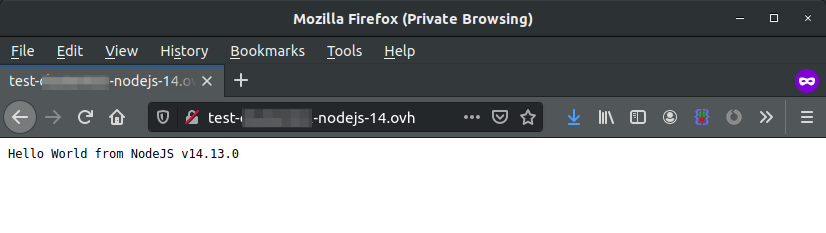
Then restart your instance.
Python
Hello World in Python
Let's suppose you have the default configuration for Python hosting:
- Runtime: Python 3.7
- Entrypoint: app.py
- DocumentRoot: www
To verify your configuration, you can use the Retrieve active configuration API endpoint.
Connect via SSH to your POWER web hosting, go to the www folder and create an app.py file there:
app.py
Then restart your instance.

Ruby
Hello World in Ruby
Let's suppose you have the default configuration for Ruby hosting:
- Runtime: Ruby 2.6
- Entrypoint: config.ru
- DocumentRoot: www
To verify your configuration, you can use the Retrieve active configuration API endpoint.
Connect via SSH to your POWER web hosting, go to the www folder and create a config.ru file there:
config.ru
Then restart your instance.

From the API
This tutorial presupposes that you already have some familiarity with the OVHcloud APIs. If you want to know more on this topic, please look at the First Steps with the OVHcloud APIs guide.
The OVHcloud APIs currently available for POWER hosting plans are:
List available configurations
Retrieve active configuration
Modify active configuration
This endpoint allows you to modify your configuration parameters, for example your entry point.
Restart the service
Setting up a redirection from HTTP to HTTPS
You can create an .htaccess file in your POWER web hosting root folder (usually www) to set up a redirection from HTTP to HTTPS:
RewriteCond %{ENV:HTTPS} !on
RewriteRule (.*) https://%{HTTP_HOST}%{REQUEST_URI} [L,R=301]Restart your instance
Each time you modify your application, you should tell the server to restart it.
In your document root you should touch the file tmp/restart.txt.
As this operation is performed on SSH server, you may need to wait before the web server notices your changes (max. 30 seconds).
Go further
Accessing a web hosting plan via SSH
Hosting multiple websites on your Web Hosting plan
Creating and managing a database in your Web Hosting plan
Accessing a website’s logs and statistics on a Web Hosting
Join our community of users on https://community.ovh.com/en/.
Join our Discord on our web-hosting-power channel to discuss directly with the team and other users of this lab.

