

Configuring Prism Central Point-in-Time Backup to OVHcloud S3-compatible Object Storage
12 Views
 28.01.2026
  Cloud / Nutanix on OVHcloud
Objective
This documentation describes how to protect, back up, and restore a Prism Central instance using the Point-in-Time Backup feature to OVHcloud S3-compatible Object Storage.
The solution relies on:
- A secure OVHcloud S31 bucket (Object Lock, versioning, lifecycle).
- An automated periodic backup of the Prism Central configuration.
- A full restoration possible in case of major incident.
Overview & Benefits
Main features
- Point-in-Time backup of Prism Central to an OVHcloud S3 bucket.
- Automatic creation of periodic restore points (RPO).
- Full restoration from Prism Element.
- Centralized management from Prism Central.
Benefits
- Strong protection of critical Nutanix management data.
- Backup externalization outside the cluster.
- Data compliance and immutability.
- Simplicity of operation and administration.
Prerequisites
- Access to the OVHcloud Control Panel.
- Prism Central version pc.7.5 or later.
- Prism Element must be operational.
Instructions
Preparing the environment
Creating the Object Storage container (bucket)
To create the container, you must first create a Public Cloud project. Refer to our guide: Creating your first OVHcloud Public Cloud project.
In the Public Cloud universe, select Object Storage and create an object container.
Specify a name for your container:

Choose S3-compatible API and 3-AZ (for more resilience) or 1-AZ:
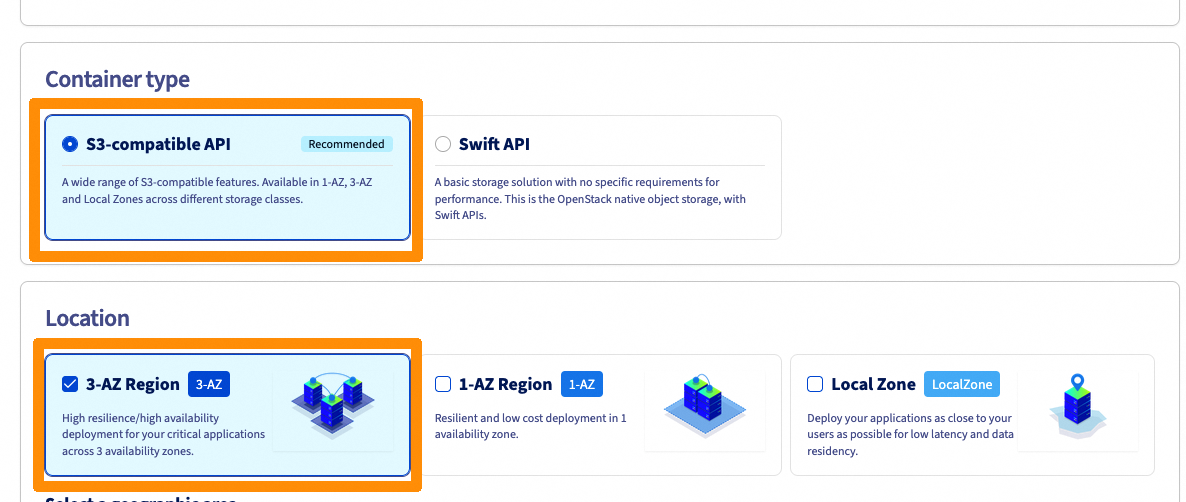
Then select the region:
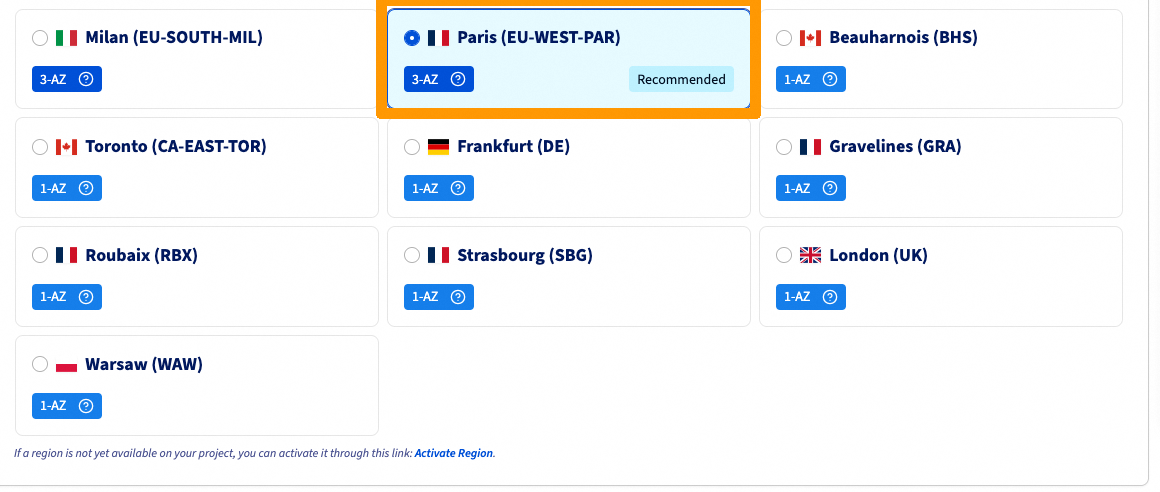
Select a region different from that of your cluster.
Enable the following features:
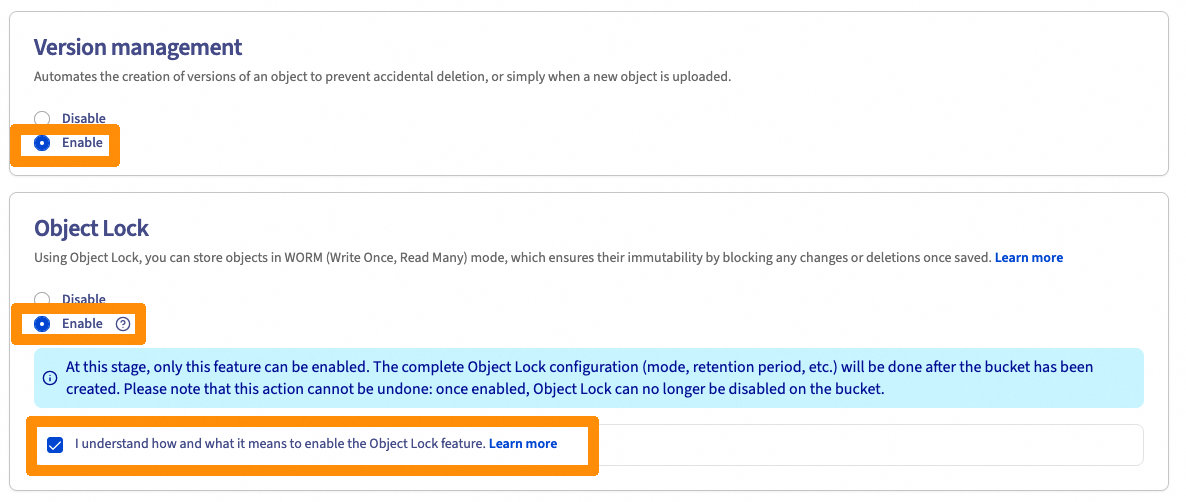
Disable encryption:

Add an existing user or create a user, for example admin-mst-gra:
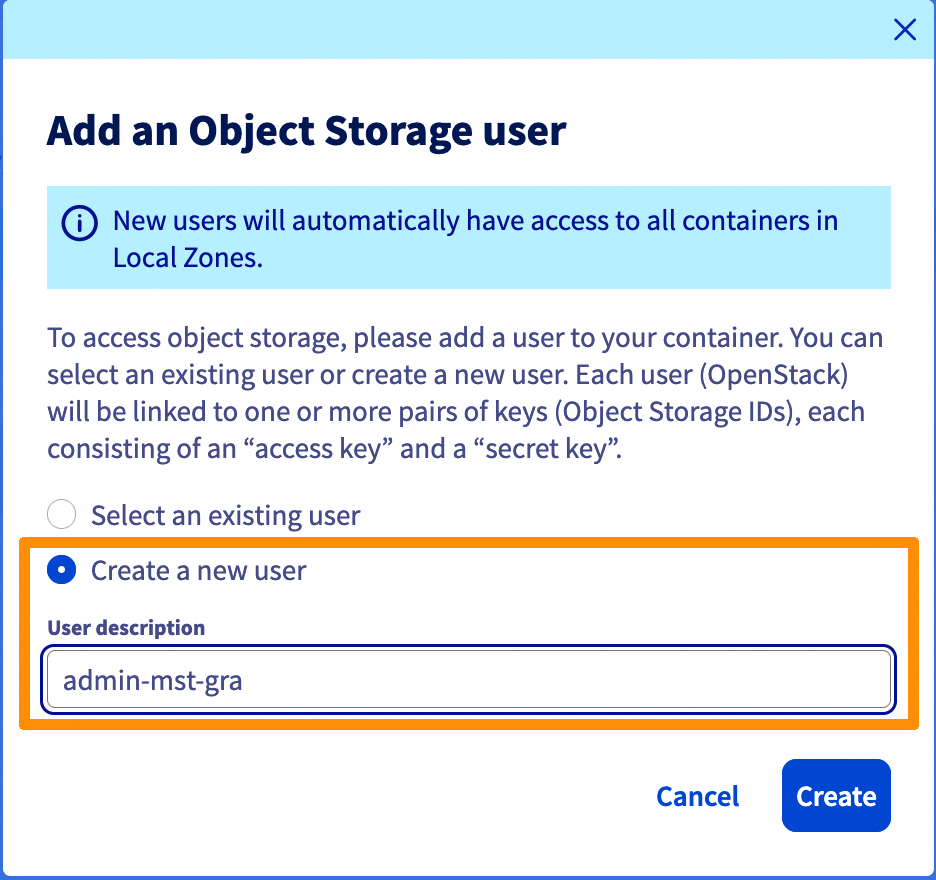
Note the following information:

Once the container is created, go to the dashboard and configure the retention:
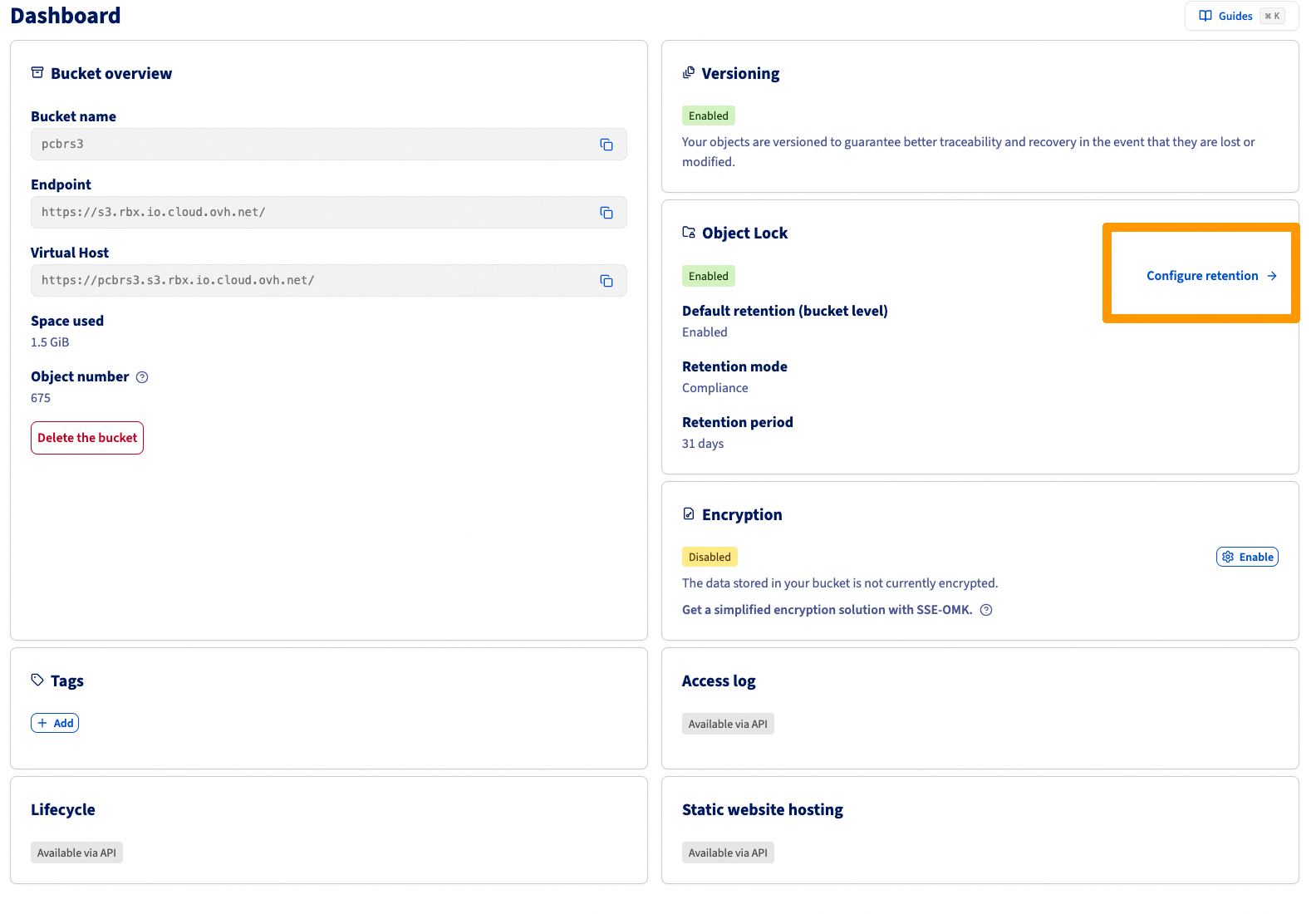
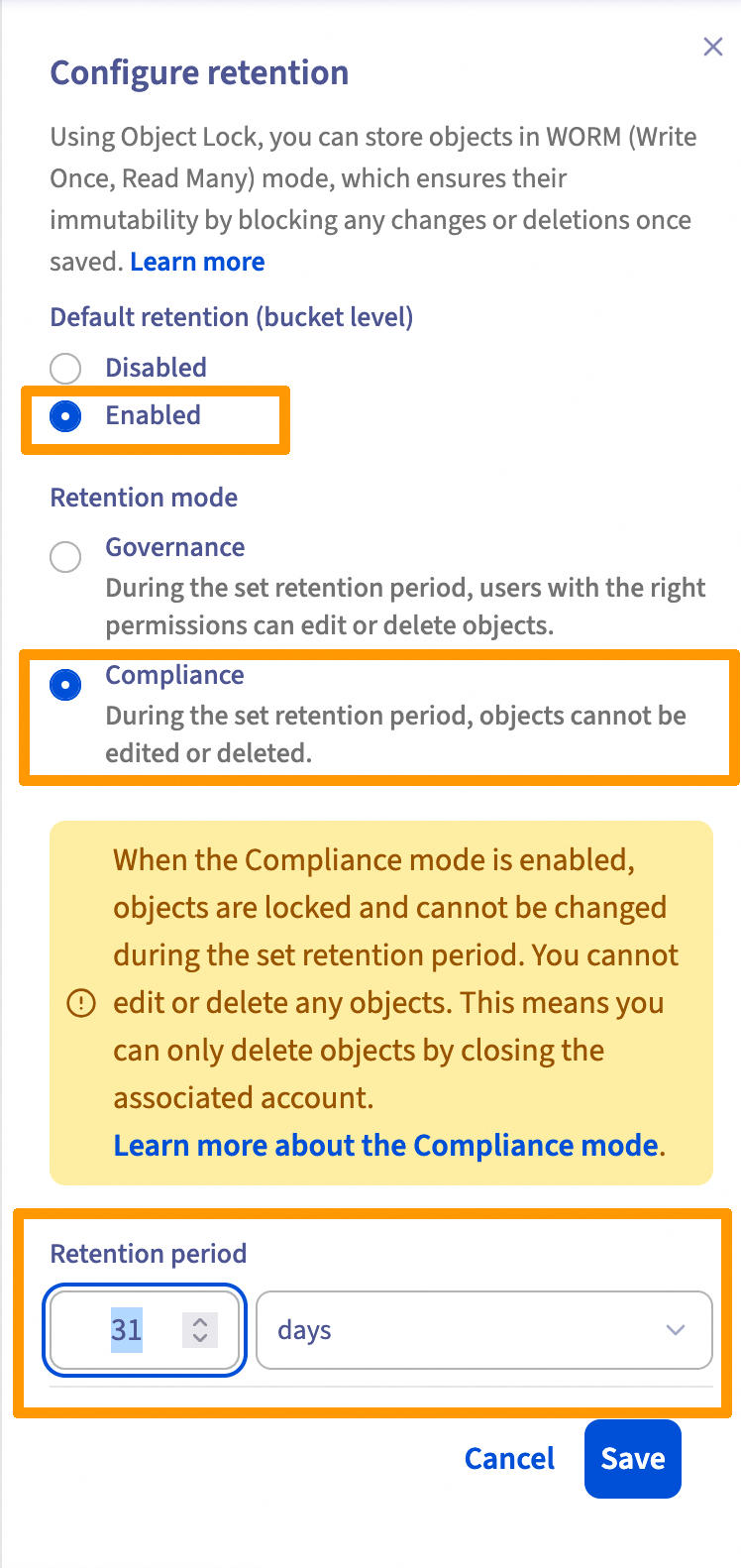
Configuring the "bucket lifecycle"
- Expire current objects version after: 31 days.
- Expire previous/noncurrent objects version after: 1 day.
- Delete expired delete markers: 1 day.
- Delete expired failed/incomplete multipart uploads: 1 day.
Install and configure the AWS CLI client, refer to our guide: Getting Started with Object Storage.
Run this command by customizing the variables BUCKET_NAME, ENDPOINT_URL and PROFILE:
Procedure – Configuring Prism Central Point-in-Time Backup
Accessing the configuration
1. Log in to the Prism Central web console. 2. From the Application Switcher, select the Infrastructure application, then click the Settings icon. 3. Click on Prism Central Settings, then navigate to General > Prism Central Backups. 4. Click on Go to Point-in-Time Backup > Protect Now.

The system supports only one Point-in-Time backup target at a time.
If a Point-in-Time backup is already configured, the Protect Now button does not appear.
Configuring the backup target
5. The Protect Prism Central window appears and indicates:
- The services whose data is backed up.
- The services not backed up.
For the detailed list, refer to:
- Supported Services for PCBR.
- Unsupported Services for PCBR – Implementation Considerations and Limitations.
6. Click on Continue, then fill in the following parameters:
- Endpoint Type:
Other S3-Compliant Object Store. - IP Address or Host Name (HTTPS Only): IP address or hostname of the Object Storage "Endpoint" on the container dashboard (without https://).
- Bucket Name: Name of the bucket.
- Access Key: Access key.
- Secret Access Key: Secret key.
- Restore Point Objects (RPO): Frequency of creation of restore points (in hours).
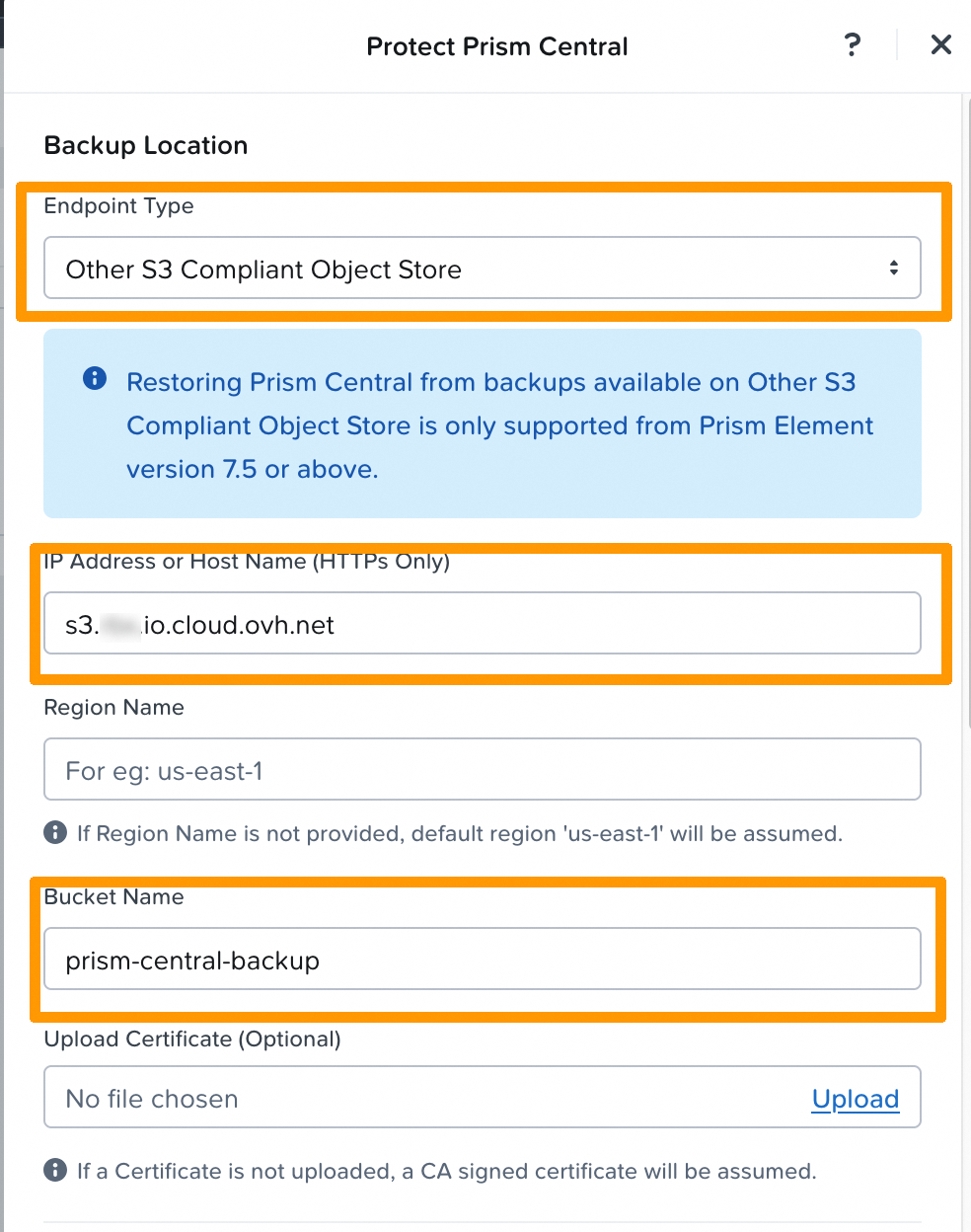
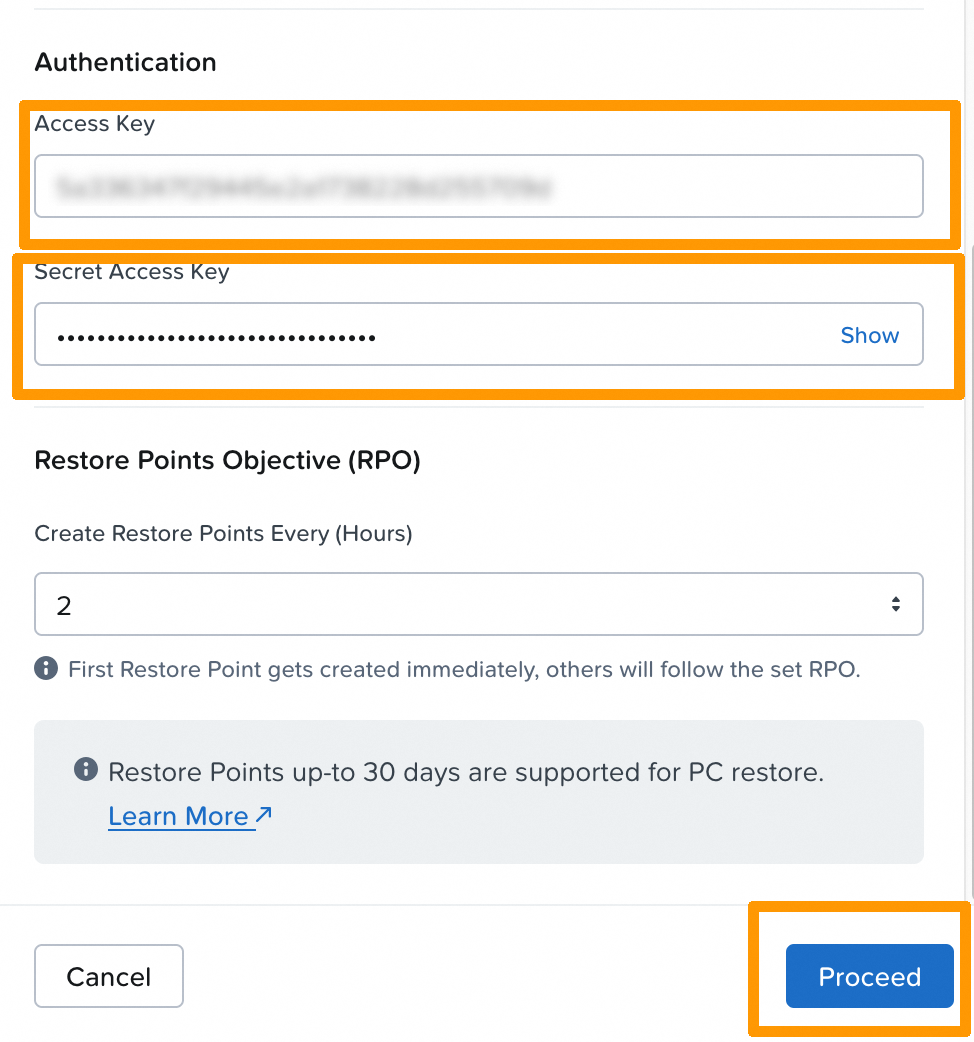
Details on RPO
- The RPO corresponds to the frequency of creation of restore points.
- The first restore point is created immediately.
- Supported values are:
1, 2, 4, 6, 8, 12 or 24 hours. - Up to 30 days of restore points are retained for Prism Central restoration.
7. Click on Proceed.
Synchronization and backup status
The system synchronizes Prism Central configuration data to the S3 bucket.
- During synchronization:
- The displayed status is Sync in Progress in the Prism Central Backups dashboard.
- Once synchronization is complete:
- The status changes to Synced.
- The date and time of the last synchronization are displayed.
The first backup starts immediately after validating the S3 target and lasts at least 15 minutes.
- After the first backup:
- Synchronizations continue automatically
- Restore points are created according to the configured RPO cycle
Go Further
If you need training or technical assistance for the implementation of our solutions, contact your sales representative or click on this link to get a quote and request a personalized analysis of your project by our Professional Services team experts.
Join our community of users.
1: S3 is a trademark owned by Amazon Technologies, Inc. OVHcloud services are not sponsored, approved, or affiliated in any way.


 Configuring Disaster Recovery with Metro
 360
360