

MX Plan - Configure your email account on Mail for iPhone and iPad
876 Views
 01.10.2024
  Web / MX Plan Email (legacy infrastructure)
Objective
You can configure MX Plan email addresses on email clients and applications, if they are compatible. By doing so, you can use your email address through your preferred device.
This guide explains how to configure an MX Plan email address on iPhone and iPad, via the Mail app.
OVHcloud provides services which you are responsible for with regard to their configuration and management. You are therefore responsible for ensuring they function correctly.
This guide is designed to assist you in common tasks as much as possible. If you encounter any difficulties performing these actions, please contact a specialist service provider and/or discuss the issue with our community of users. OVHcloud cannot provide you with technical support in this regard.
Requirements
- an MX Plan email address included in OVHcloud Web Hosting plans
- being up-to-date in the payments and renewals of related services (domain name and web hosting plan)
- the Mail app installed on your iOS device
- login credentials for the email account to be configured
Instructions
Adding an account
On your device’s home screen, go to Settings (cogwheel icon). There are several ways you can add an account, depending on your iOS version:
-
For iOS 7, 8, 9 and 10: Go to
Mail, Contacts, Calendar, thenAdd account. ChooseOther, thenAdd Mail Account. Then proceed to step 5 of the table below. -
For iOS 11, 12 and 13: Go to
Accounts and passwords, thenAdd account. ChooseOther, thenAdd Mail Account. Then proceed to step 5 of the table below. -
For iOS versions 14 and above: follow the instructions in the table below.
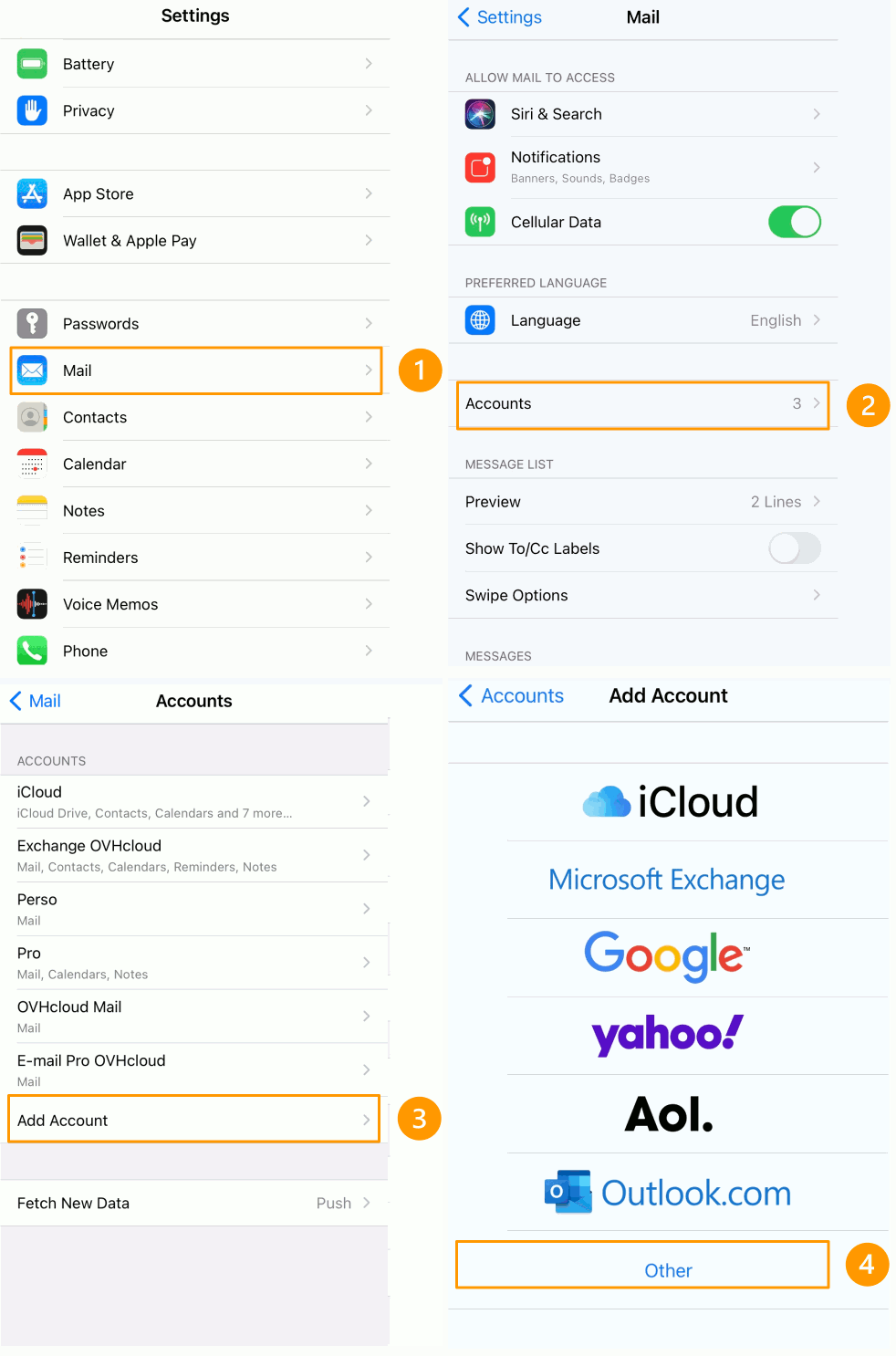 | 1. In Settings, go to Mail. 2. Tap Accounts.3. Tap Add Account.4. Choose Other at the bottom. |
5. Tap Add Mail Account.6. Enter your name, email address, password and account description. 7. Press Next. | 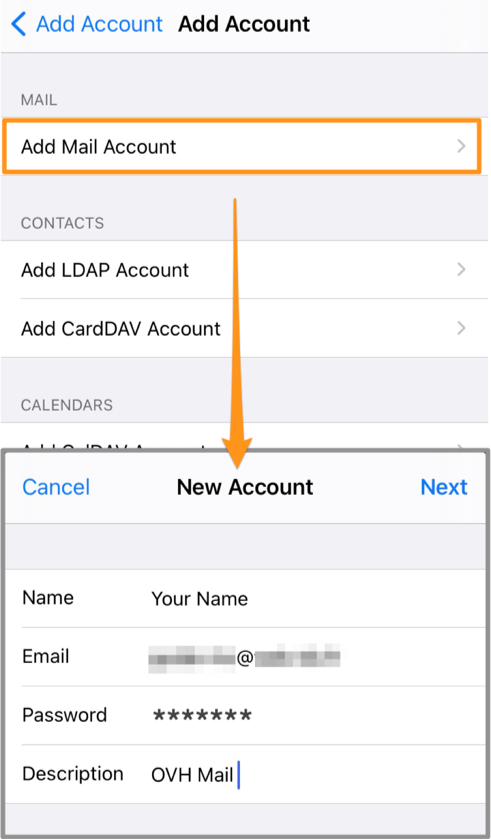 |
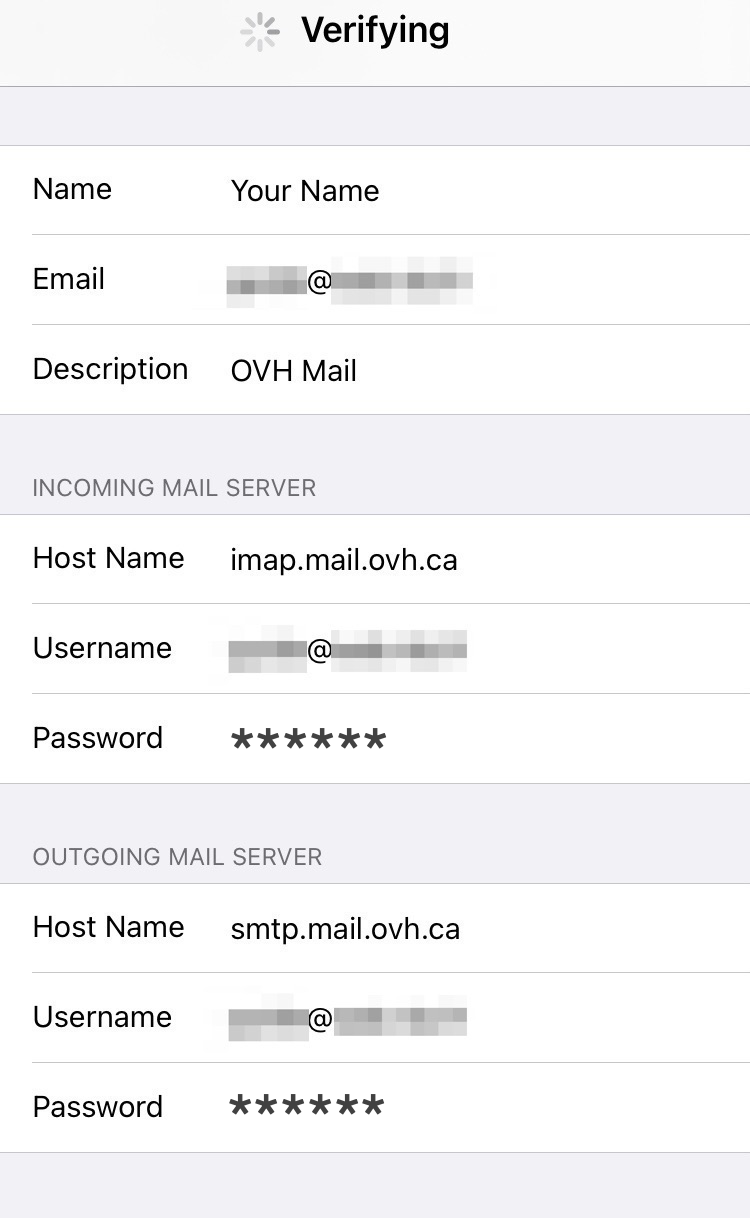 | 8. Select IMAP (recommended) or POP.In the INCOMING MAIL SERVER and OUTGOING MAIL SERVER sections, despite the word "optional", enter: - the hostnames imap.mail.ovh.ca (IN) / smtp.mail.ovh.ca (OUT) - your full email address as username - your email password |
At the end of the configuration process, ensure that you leave Mail ticked, so that the application can use this account, then click Save.
To check that the account has been correctly configured, you can send a test email using the Mail app on your device.
If you need to enter any settings manually in your account preferences, the technical settings you will need to use with our MX Plan solution are listed below:
- for IMAP configuration
| Server type | Server name | SSL | Port |
|---|---|---|---|
| Incoming | imap.mail.ovh.ca | Yes | 993 |
| Outgoing | smtp.mail.ovh.ca | Yes | 465 |
- for POP configuration
| Server type | Server name | SSL | Port |
|---|---|---|---|
| Incoming | pop.mail.ovh.ca | Yes | 995 |
| Outgoing | smtp.mail.ovh.ca | Yes | 465 |
Using your email address
Once you have configured your email address, you can start using it! You can now send and receive emails.
OVHcloud also offers a web application you can use to access your email account from your browser, accessible via Webmail. You can log in using your email credentials.
If you experience any difficulties receiving or sending emails, please read our FAQ about OVHcloud email services.
Go further
For more information on configuring an email address from the Mail app on iOS, see Apple Help Center.
Configuring an Exchange account on iPhone and iPad
Join our community of users.


 MX Plan - Configuring an email address in Gmail for Android
 631
631