

Logging in to the vSphere interface
387 Views
 18.11.2020
  Managed Bare Metal
Objective
This guide explains the different ways to connect to the vSphere client.
Requirements
- a Managed Bare Metal infrastructure of which you are an administrative contact (to receive login credentials)
- a user account with access to vSphere (created in the OVHcloud Control Panel)
Instructions
Retrieving credentials
Login credentials are sent out by email when the Managed Bare Metal service is created, when a password is changed or when a user profile is created.
Name/IP address: pcc-xxx-xxx-xxx-xxx.ovh.com Username: admin password: xxxxxxTo ensure access, please refer to the VMware documentation, in which the different ports to be opened in your firewall are listed: Client access.
Using the HTML5 web client
The HTML5 web client is available on the Managed Bare Metal web interface at this URL: https://pcc-xxx-xxx-xxx-xxx.ovh.com/ui (replace pcc-xxx-xxx-xxx-xxx.ovh.com with your Managed Bare Metal address).
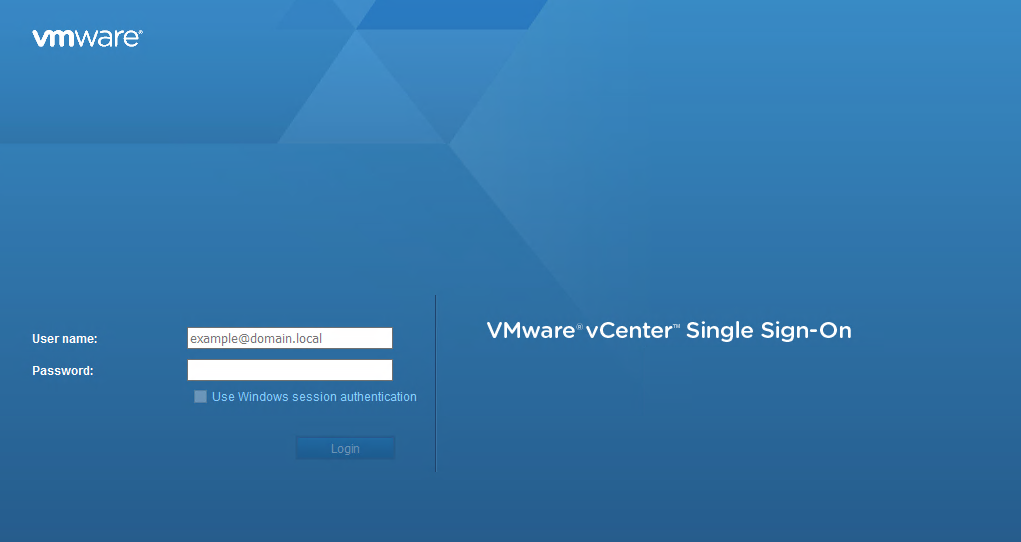
You will arrive at this interface:
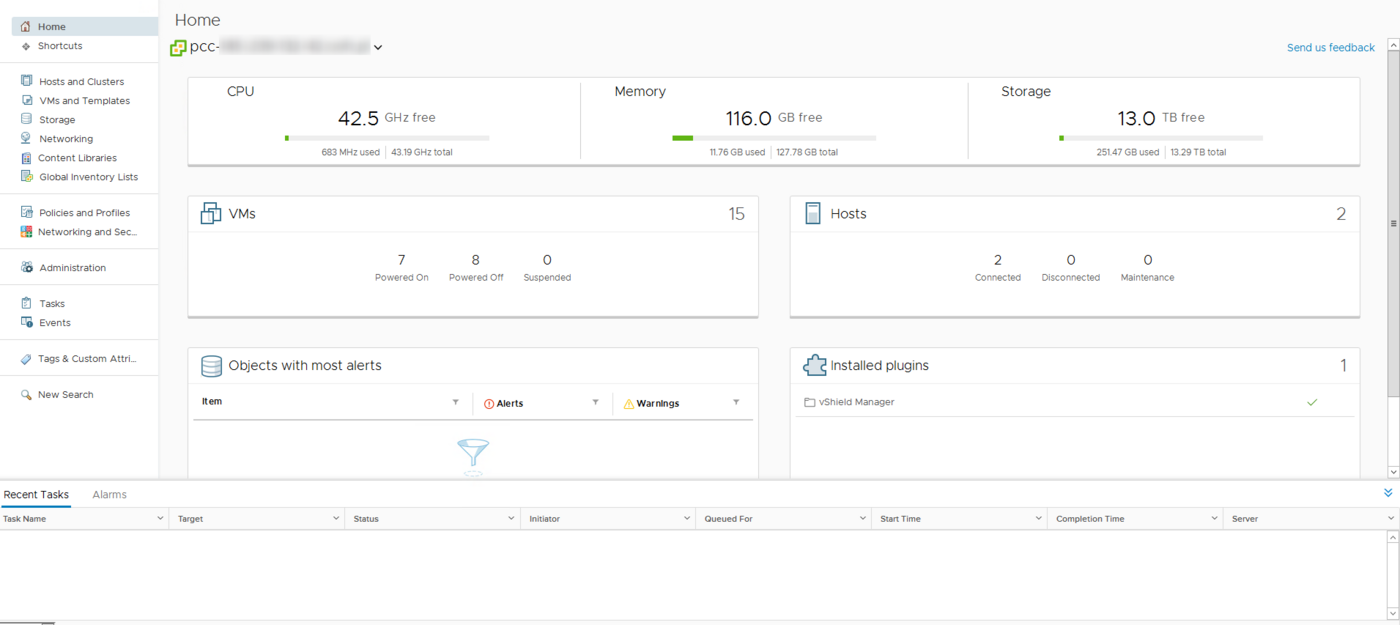
The Home page provides accces to the main menus of your vCenter. You will be able to perform various actions, such as:
- deploying a virtual machine by going to
Hosts and Clusters - browsing your datastores.
Using the Flash web client
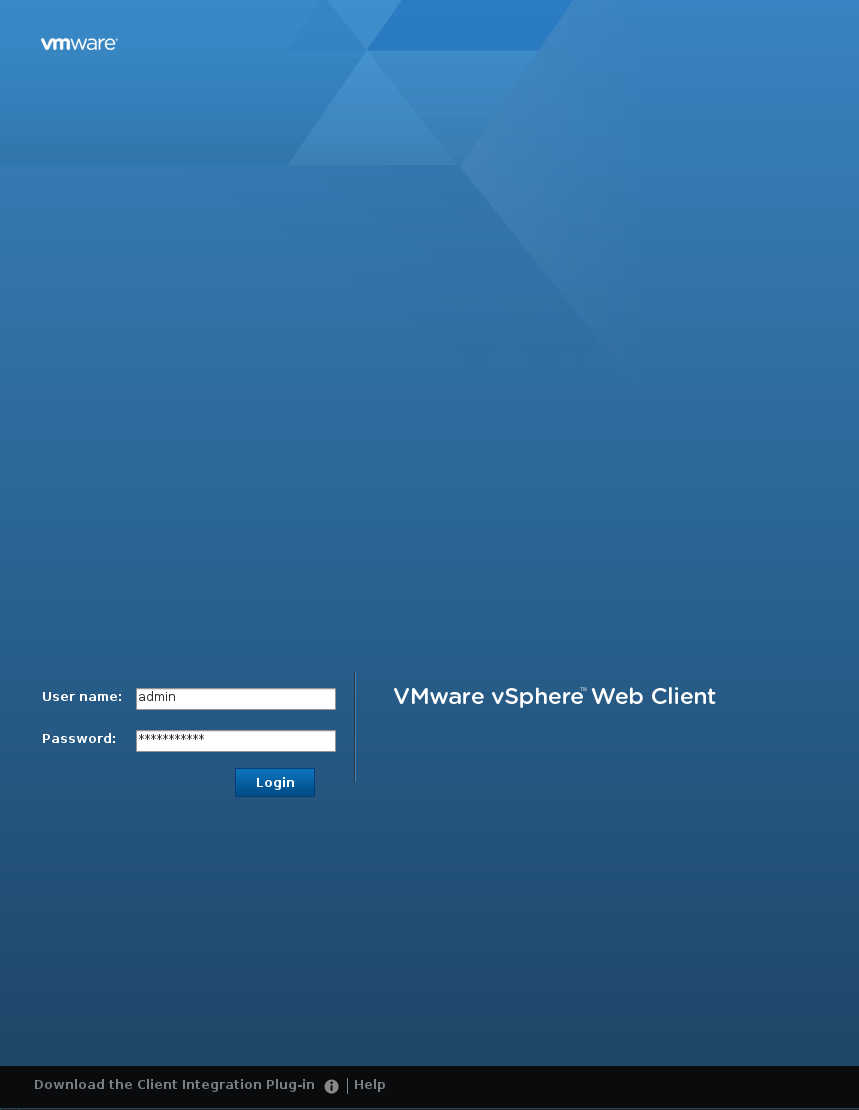
The Flash web client is available on the Managed Bare Metal web interface at this URL: https://pcc-xxx-xxx-xxx-xxx.ovh.com/vsphere-client (replace pcc-xxx-xxx-xxx-xxx.ovh.com with your Managed Bare Metal address).
Log in using the credentials that were sent to you:
You can then access this interface:
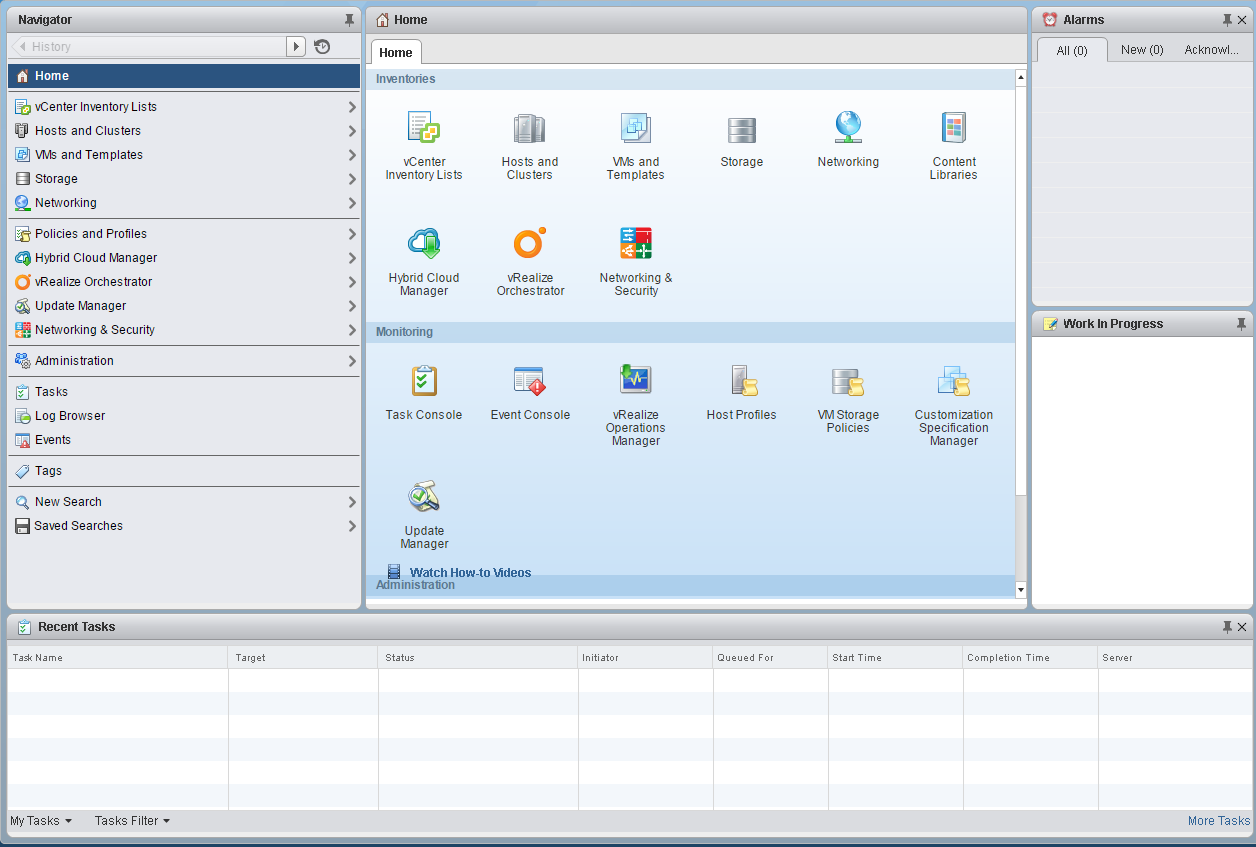
On the Home page you can find your vCenter main menus. You will be able to perform a number of actions, such as:
- deploying a virtual machine by going to
Hosts and Clusters - browsing your data stores.
Go further
Join our community of users on https://community.ovh.com/en/.


 Configure an IP address on a virtual machine
 492
492