

Pushing logs from software - Apache
352 Views
 30.07.2024
  Cloud / Logs Data Platform
Objective
Apache access logs are very valuable. They show the activity of your visitors, the page delivery time, the code results, the user agent that accessed your websites, etc. Logs Data Platform helps you to fully analyze this key information.
The default Apache log line looks like this:
This line already gives a lot of information but it can be difficult to extract really useful data from plain text logs. You might know that there is already lot of ways to export your Apache logs: logstash, beats, graylog-collector, syslog-ng, rsyslog, gelf apache module. But as we still have a lot to explore in the Logs Data Platform, let's start with something simple.
This guide will present you with three non-intrusive ways to send logs to the Logs Data platform:
- ask Apache to pipe log entries directly to the platform.
- use syslog-ng to parse and send all of your logs
- setup filebeat with apache module
Requirements
In order to follow this guide you will need:
- The openssl package: as we are using it to send the logs securely.
- Activated your Logs Data Platform account.
- To create at least one Stream and get its token.
Instructions
Use Apache to send logs directly
The following procedure has the advantage of a quick setup but is NOT recommended at all in production as it can block the Apache process in the case of heavy traffic. In production, please use a non-blocking solution like the second solution in this guide, or this one: Shipping logs to Logs Data platform with Filebeat
Global Apache configuration
We will first configure Apache2 to send all Virtual Hosts logs to one stream.
If you have any log related configuration in your virtual hosts, you must remove them or head to the next section to add a specific virtual host configuration.
We use the CustomLog format directive to transform Apache logs in LTSV format and ship them to the Logs Data Platform with the proper OVHcloud token. Note that 3 fields are mandatory with the LTSV format; host, message and time (in the RFC 3339 format). Refer to the examples below to learn how to fill in these fields. Please create the file /etc/httpd/conf-enabled/ldp.conf or /etc/apache2/conf-enabled/ldp.conf (the location of the file depends on your distribution and on your Apache version) and insert the following:
If you need to send your logs to an additional stream, you would need to repeat this snippet and change the LogFormat name combined_ltsv of your new snippet to a new name.
Note that you will have to replace the address and the port of <your_cluster>.logs.ovh.com with the one you have been assigned to (Check the Home page to retrieve it). Ensure that the full path of openssl is correct for your system or it won't work. Also ensure that your X-OVH-TOKEN is properly written. This tutorial covers only how to send your access logs to the Logs Data platform. To send your Error logs, you should configure your syslog template to send logs to Logs Data platform. Finally, check that you don't use any CustomLog option in your VirtualHost configuration since the VirtualHost configuration has precedence over global configuration.
VirtualHost configuration
If you want to only send logs from a specific VirtualHost, or send specific information about one VirtualHost, use this configuration to send logs to Logs Data platform:
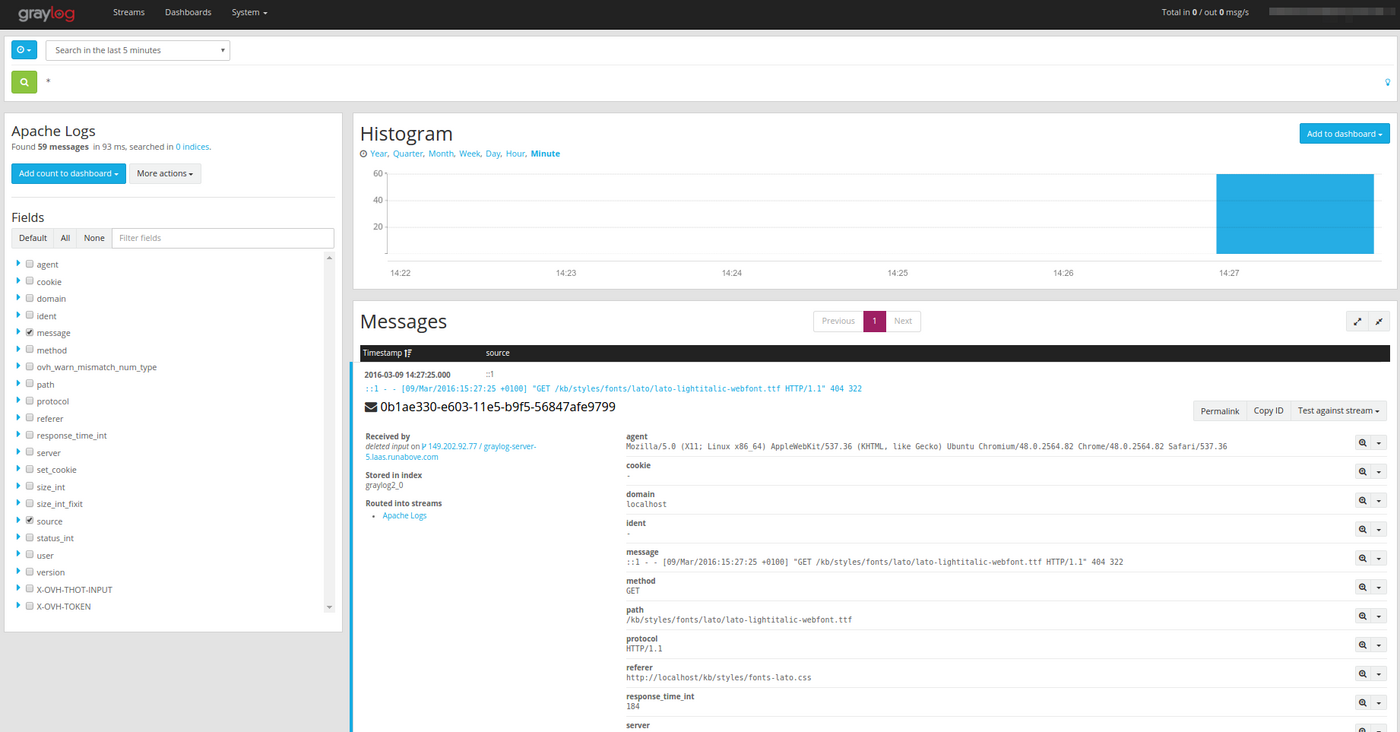
This is what you see on Graylog when you send your logs. The logs are already nicely parsed and you can immediately launch specific searches on them:
Using a syslog-ng template
If you already have syslog-ng on your host and you want to leverage its features (log rotation, automatic reconnection, multiple destinations). Here are the configuration snippets allowing you to use this software.
Apache configuration
The configuration is pretty similar to the one used in the first part of this document. The only change is the path of the log file.
Syslog-ng configuration
To keep things brief, this extract has only the parts relevant to the access log file. The syslog-ng tutorial covers the configuration for any syslog file (like the error log file). This configuration is only valid for syslog-ng 3.8+.
Apache logs format
If you want to use your own log format and include some useful information here is a cheat sheet for you (Note that the labels follow the field naming conventions).
| Recommended Label | About | Format String of Apache mod_log_config | Format String of nginx log format |
|---|---|---|---|
| time | Time the request was received | %t | $time_local |
| host | Remote host | %h | $remote_addr |
| forwardedfor | X-Forwarded-For header | %{X-Forwarded-For}i | $http_x_forwarded_for |
| ident | Remote logname | %l | |
| user | Remote user | %u | $remote_user |
| req | First line of request | %r | $request |
| method | Request method | %m | $request_method |
| uri | Request URI | %U%q | $request_uri |
| protocol | Requested Protocol (usually "HTTP/1.0" or "HTTP/1.1") | %H | $server_protocol |
| status | Status code | %>s | $status |
| size_int | Size of response in bytes, excluding HTTP headers. | %B (or '%b' for compatibility with combined format) | $body_bytes_sent |
| reqsize_int | Bytes received, including request and headers. | %I (mod_log_io required) | $request_length |
| referer | Referer header | %{Referer}i | $http_referer |
| ua | User-Agent header | %{User-agent}i | $http_user_agent |
| vhost | Host header | %{Host}i | $host |
| reqtime_microsec_int | The time taken to serve the request, in microseconds | %D | |
| reqtime_int | The time taken to serve the request, in seconds | %T | $request_time |
| cache | X-Cache header | %{X-Cache}o | $upstream_http_x_cache |
| runtime_num | Execution time for processing some request, e.g. X-Runtime header for application server or processing time of SQL for DB server. | %{X-Runtime}o | $upstream_http_x_runtime |
| apptime_num | Response time from the upstream server | - | $upstream_response_time |
The full list of logs formats that can be used in Apache are described here mod_log_config.html
Using Filebeat
The latest releases of Filebeat have a dedicated module for Apache2. This solution is ready-to-use to configure and is more production-ready. The complete procedure of its installation is described on this page in the Apache logs use case.
Go further
- Getting Started: Quick Start
- Documentation: Guides
- Community hub: https://community.ovh.com
- Create an account: Try it!


 Pushing logs with a forwarder - Filebeat (Linux)
 631
631