

Managing the billing for Exchange accounts
354 Views
 24.03.2026
  Web / Microsoft Hosted Exchange
Objective
The Hosted Exchange service offers flexible management for account billing. This guide details how to configure it.
This guide explains how to manage subscriptions for your Exchange accounts.
Requirements
- a subscription to an Exchange solution.
OVHcloud Control Panel Access
- Direct link: Exchange
- Navigation path:
Web Cloud>Exchange> Select your platform
Instructions
Hosted Exchange
Ordering additional accounts
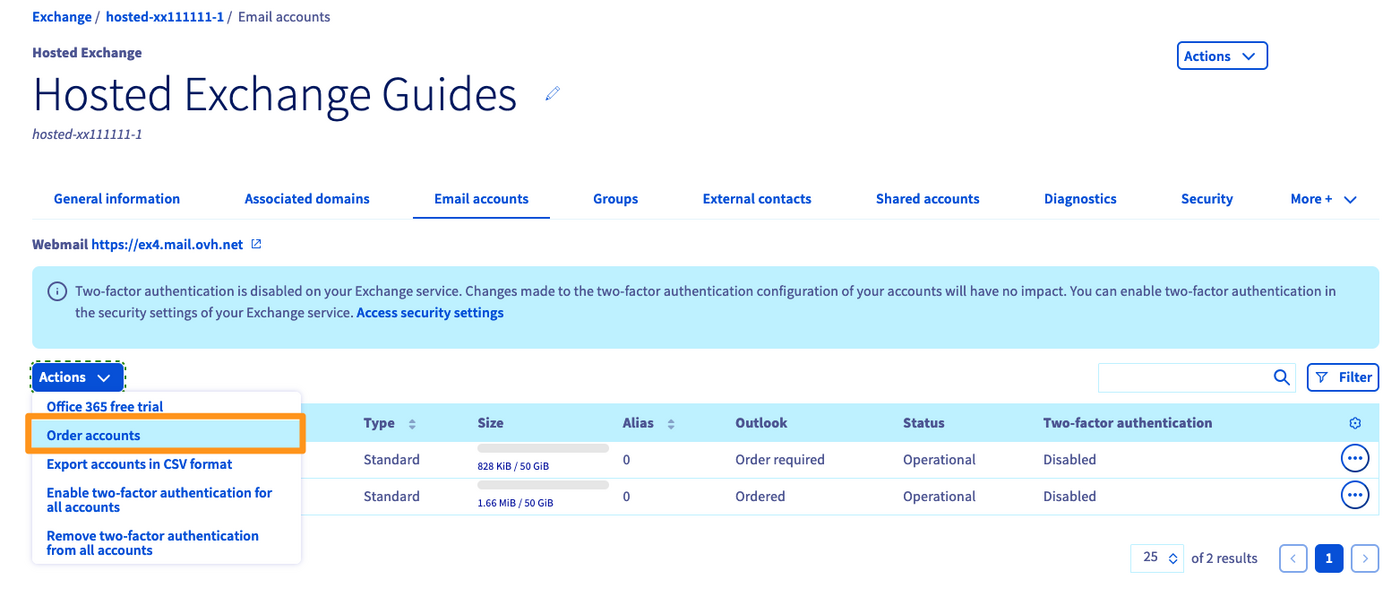
Go to the Email accounts tab, then click on the Actions button in the top left-hand corner. Next, click Order accounts.
Changing the renewal frequency for your accounts
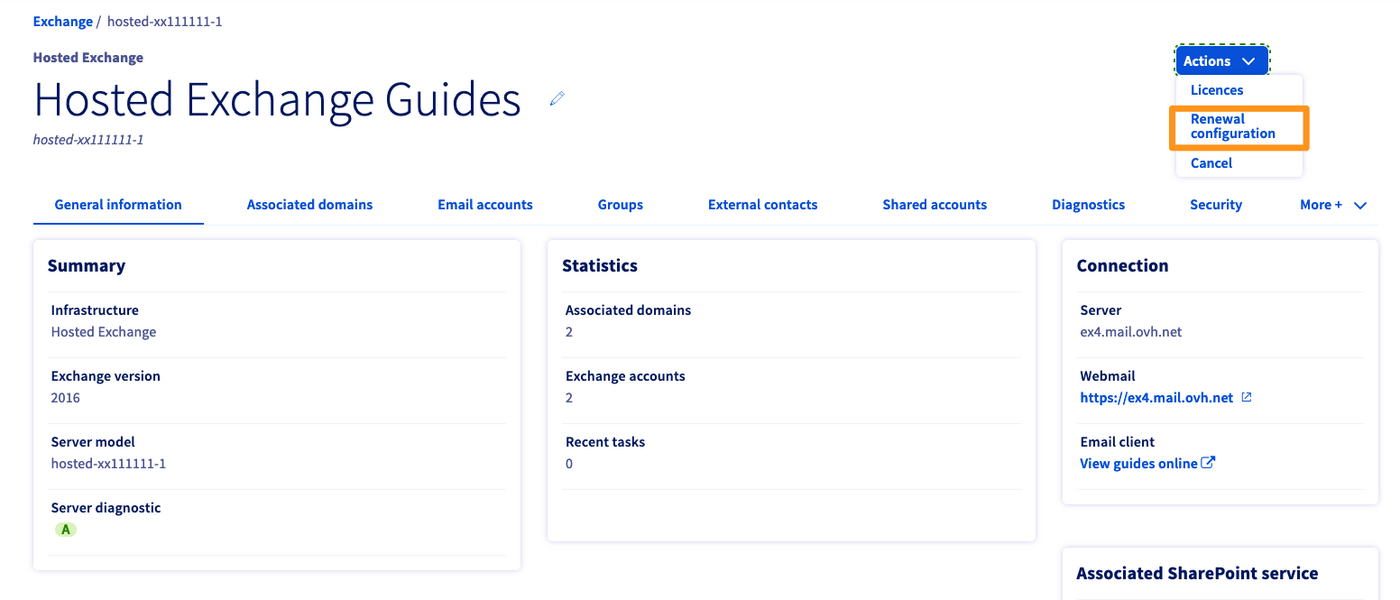
In the window for managing your Exchange platform, click on the Actions button in the top right-hand corner, then click Renewal configuration.
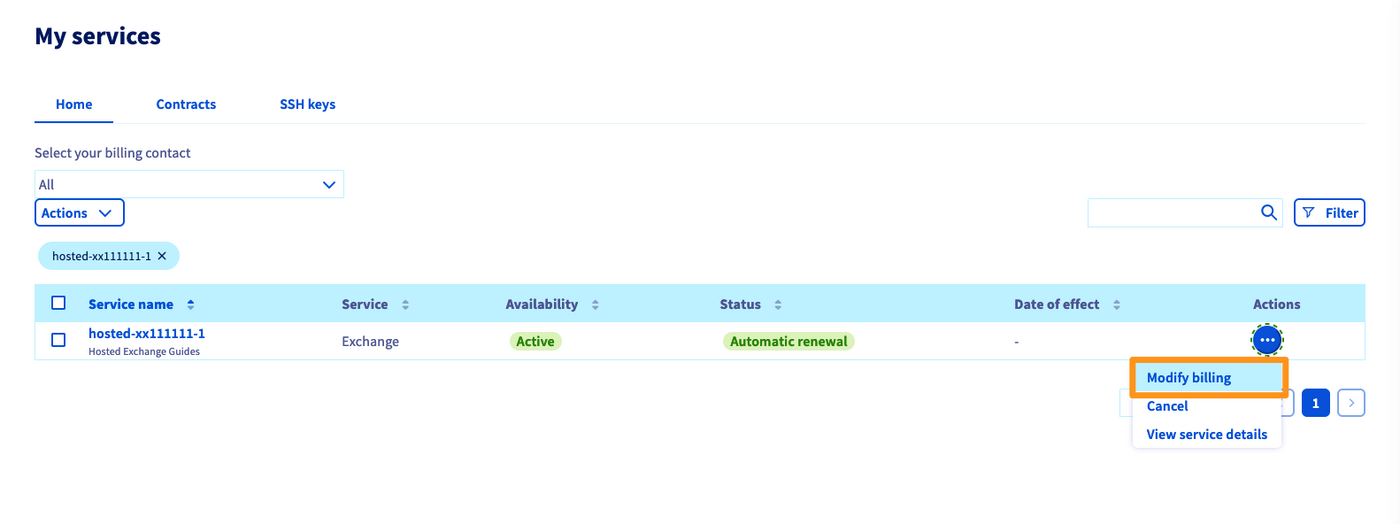
You will be redirected to the “My services” section of the OVHcloud Control Panel. You will notice that a filter has been applied, to only display the Exchange platform you are modifying.
Click ... to the right of the Exchange platform, then Modify billing.
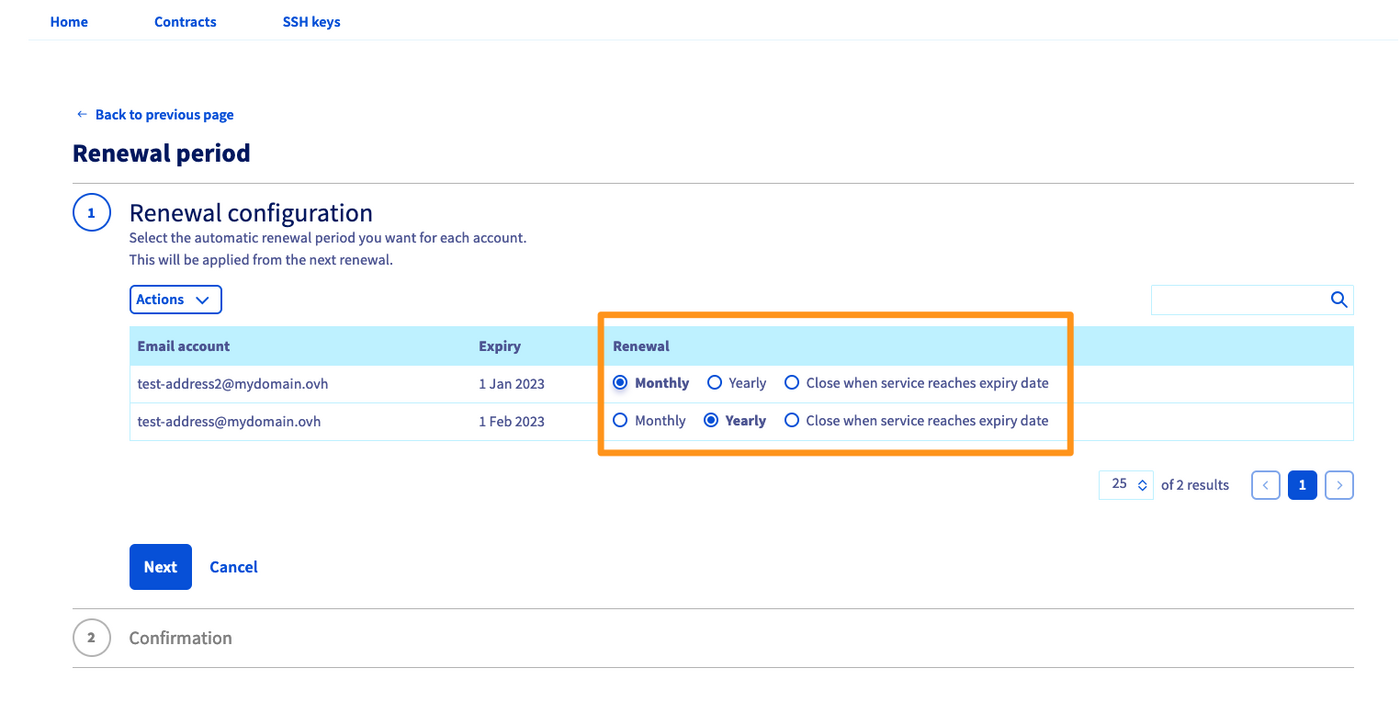
In this new window, you can view and modify the billing for each of your accounts. You can make changes via the Renewal column for one or more accounts at once. Each modification on an account will be applied on the date listed in the Expiry column.
In the example below, you will see the actions you need to take in order to set an account to monthly renewal:
In the first step, click Monthly to the right of the account, then click
Next.In the second step, you will see a summary listing the change that has been applied. Click
Sendon the bottom left.
Deleting accounts
To delete an account on your Hosted Exchange platform, you will need to cancel it by setting its renewal configuration to Cancel on expiry. To do this, refer to the step on changing the renewal frequency for your accounts.
Once you have cancelled it, the account will be suspended on its expiry date. If you would like to delete the email address hosted by the account before its expiry date, you can reset it.
Go to the Email accounts tab for your platform, then click ... next to the account concerned. Finally, click Reset. Once you have reset the account, it will remain empty until its expiry date.
Cancel the platform
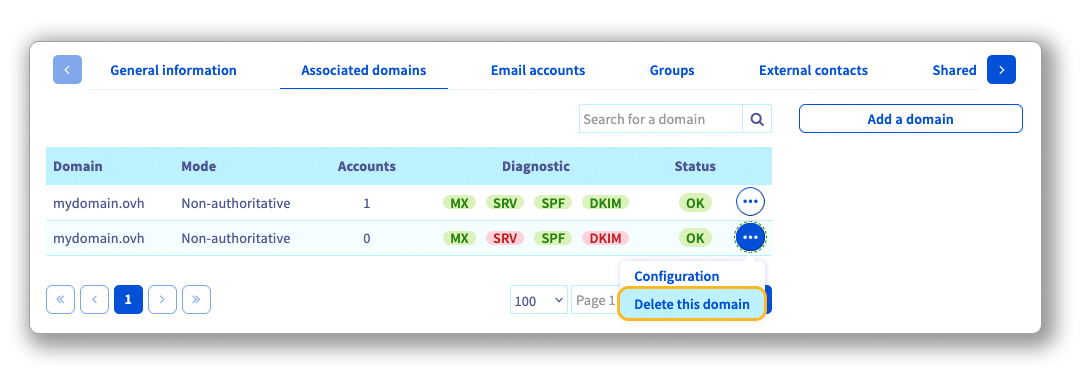
Once you have deleted the email accounts, you will need to delete the domain name(s) associated with your Exchange platform before cancelling it. To do this, go to the Associated domains tab. Click the ... button on the line for the domain name you want to delete, then click Delete this domain.
In the window for managing your Exchange platform, click on the Actions button in the top right-hand corner, then Cancel.
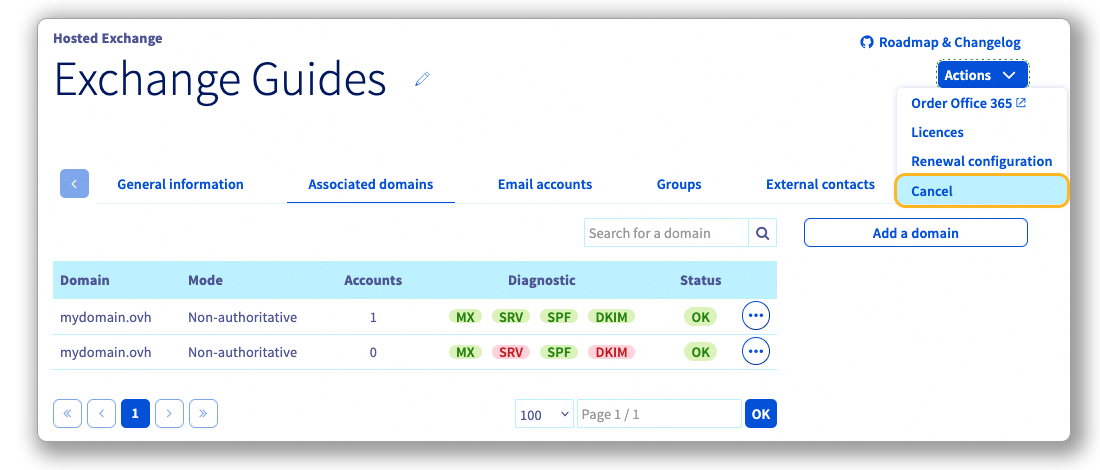
This action suspends and then deletes all of the accounts on the Exchange platform on their expiry date.
Go further
For specialised services (SEO, development, etc.), contact OVHcloud partners.
If you would like assistance using and configuring your OVHcloud solutions, please refer to our support offers.
Join our community of users.


 Getting started with the Hosted Exchange service
 1523
1523