

Exchange - Configure an email address in Gmail for Android
1144 Views
 22.01.2026
  Web / Microsoft Hosted Exchange
Objective
Email accounts of the Exchange solution can be configured on various compatible email clients. By doing so, you can use your email account on your preferred device. In this guide, you can find out how to configure an Exchange email account via the Gmail app on Android devices.
This guide explains how to configure an Exchange account on Android, via the Gmail app.
This tutorial will show you how to use one or more OVHcloud solutions with external tools, and the changes you need to make in specific contexts. You may need to adapt the instructions according to your situation.
If you experience any difficulties carrying out these operations, we recommend that you contact a specialist service provider and/or discuss the issue with our community. OVHcloud cannot provide you with technical support in this regard. You can find more information in the Go further section of this guide.
Requirements
- You have an OVHcloud Exchange solution.
- You have the Gmail app installed on your device. You can install the app from the Google Play Store.
- You have the login credentials for the Exchange account to be configured.
The instructions in this guide are based on a device that uses Android version 13.
Instructions
How to add your email account
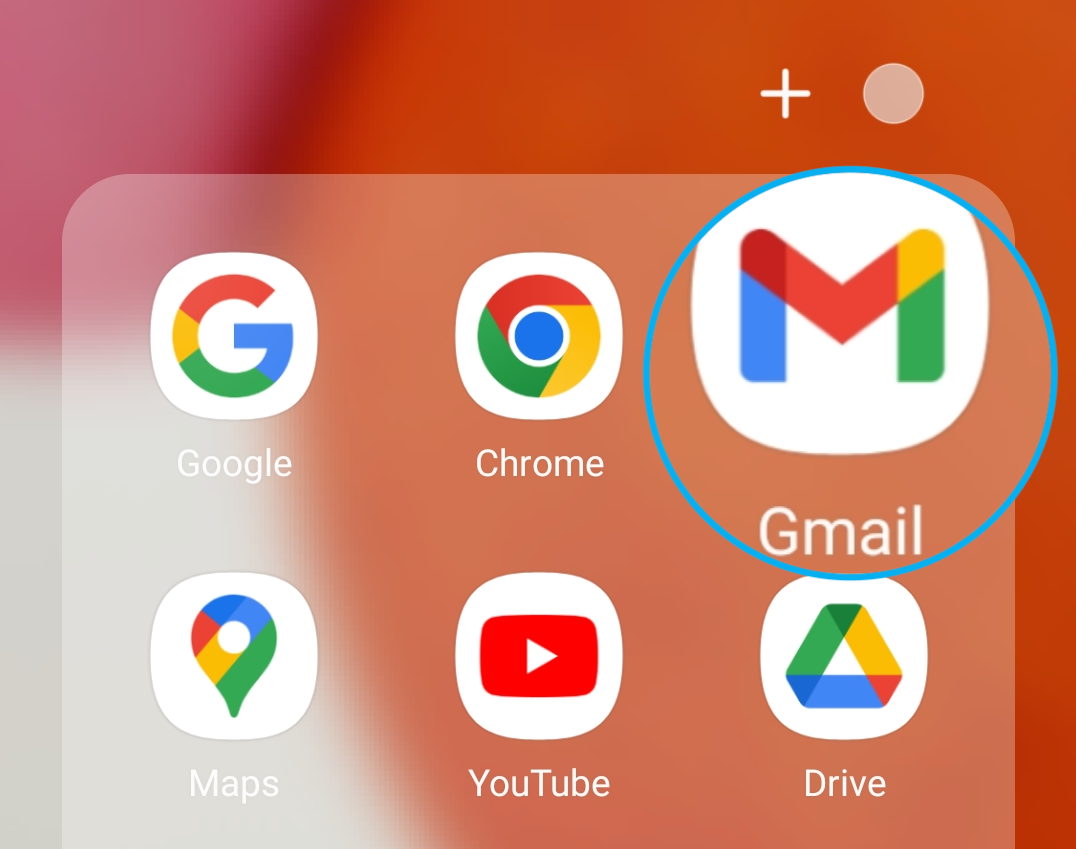
On your device’s homepage, open the Gmail app.
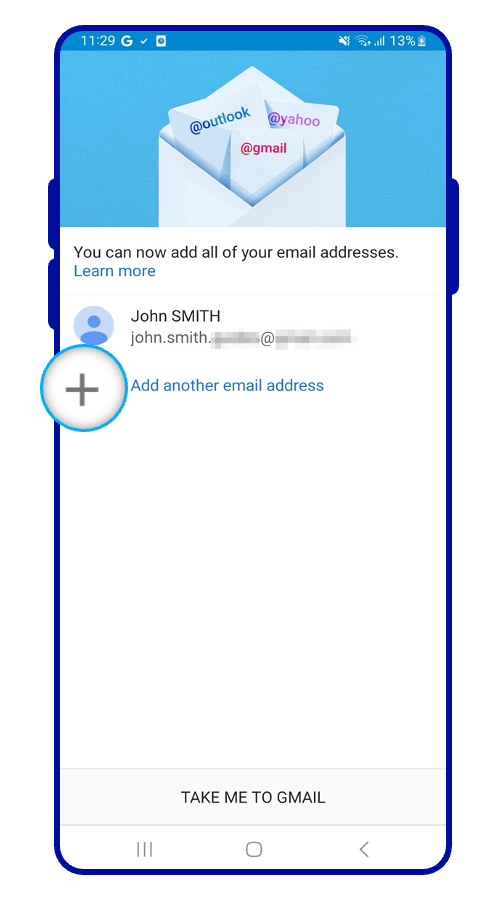
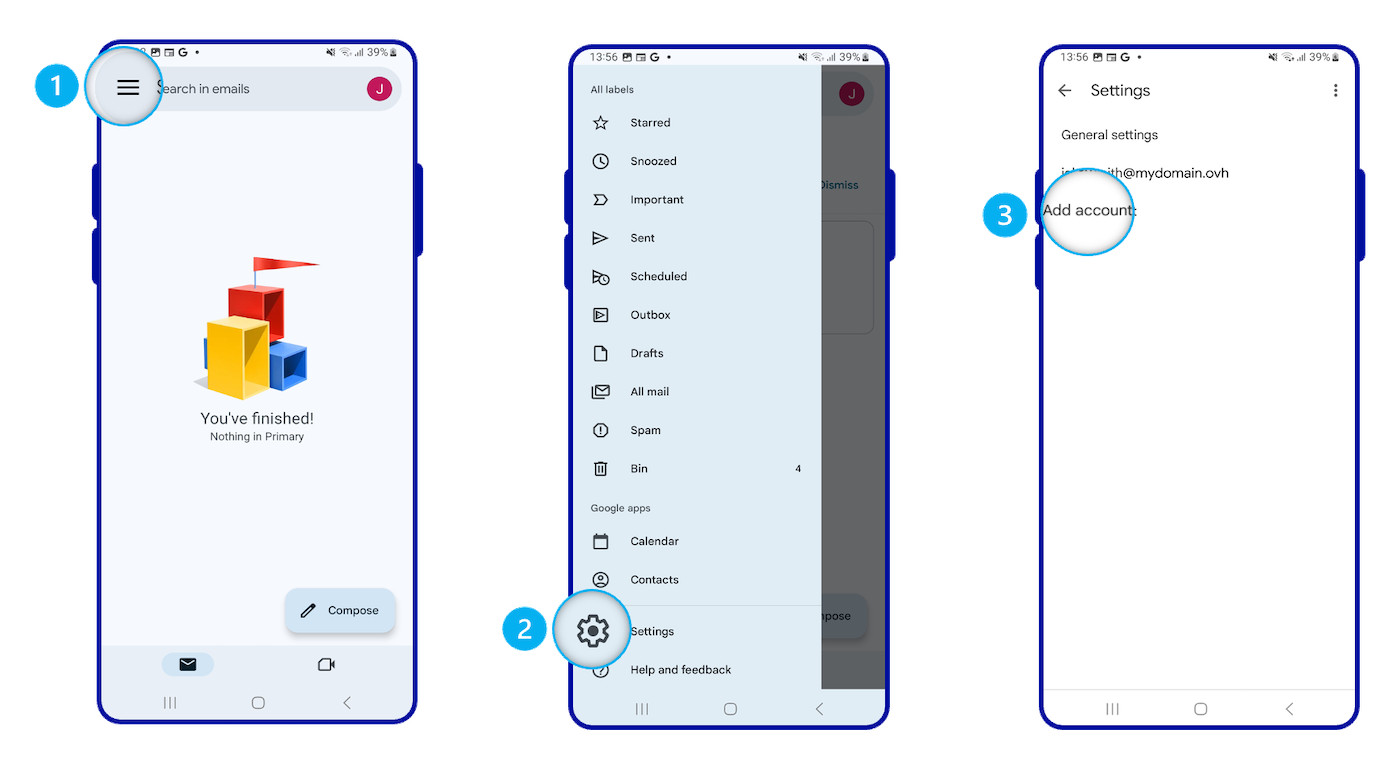
Adding an account will be done differently if no account is set up, or if an account has already been set up. Select the tab corresponding to one of the two situations mentioned:
Select Add email address.
- Go to the menu at the top left of the screen.
- Select
Settings. - Select
Add Account.
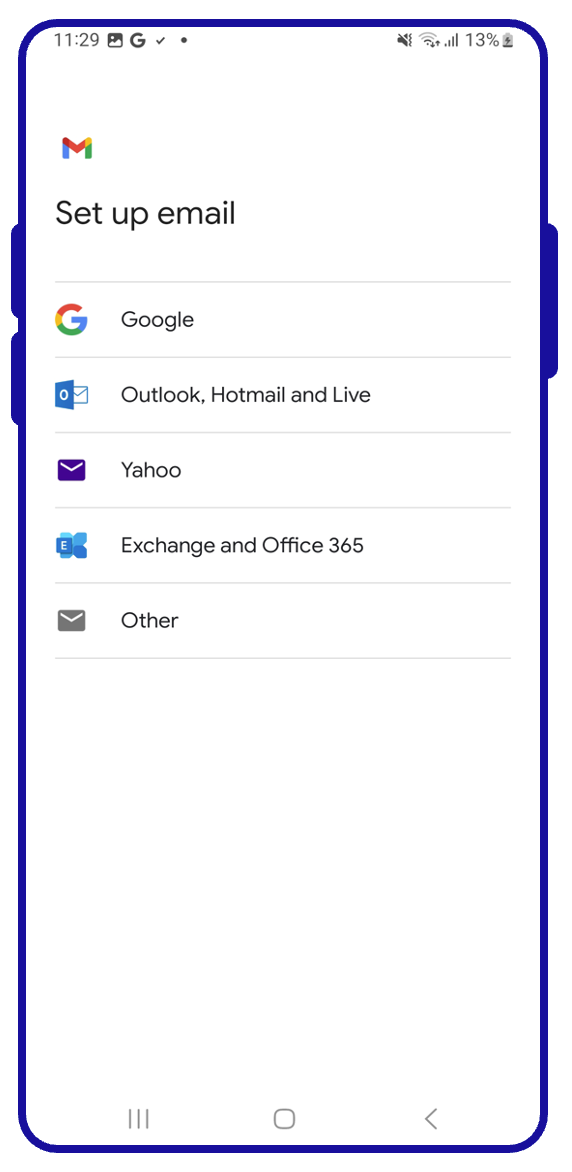
Follow the next steps in the configuration process by clicking on the tabs below:
From the menu of email account types, select Exchange and Office.
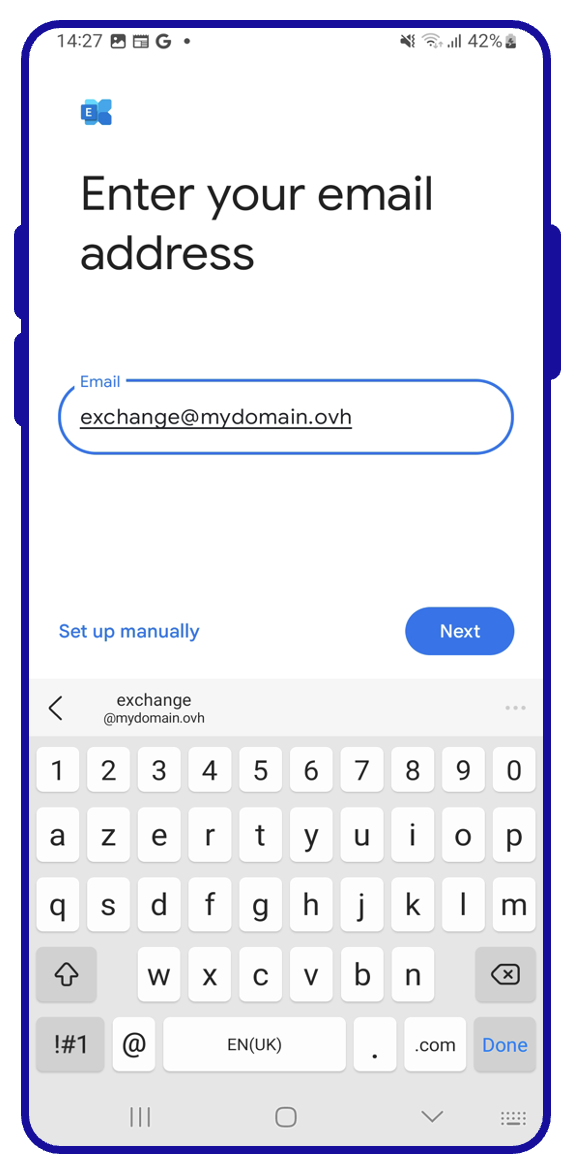
Enter your email address, then tap Next.
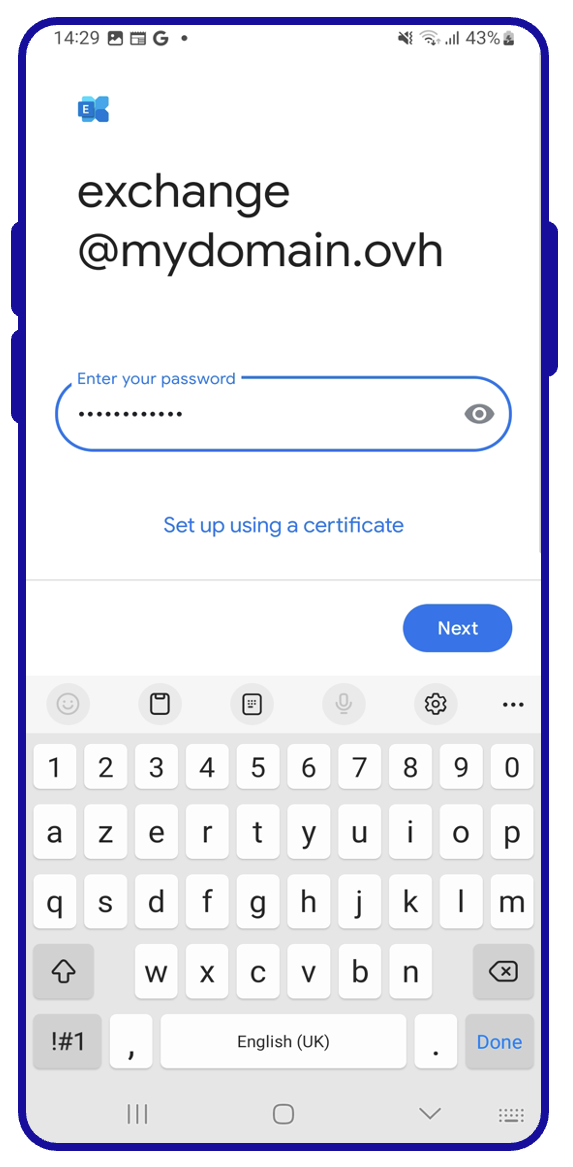
Enter the password for your email account, then tap Next.
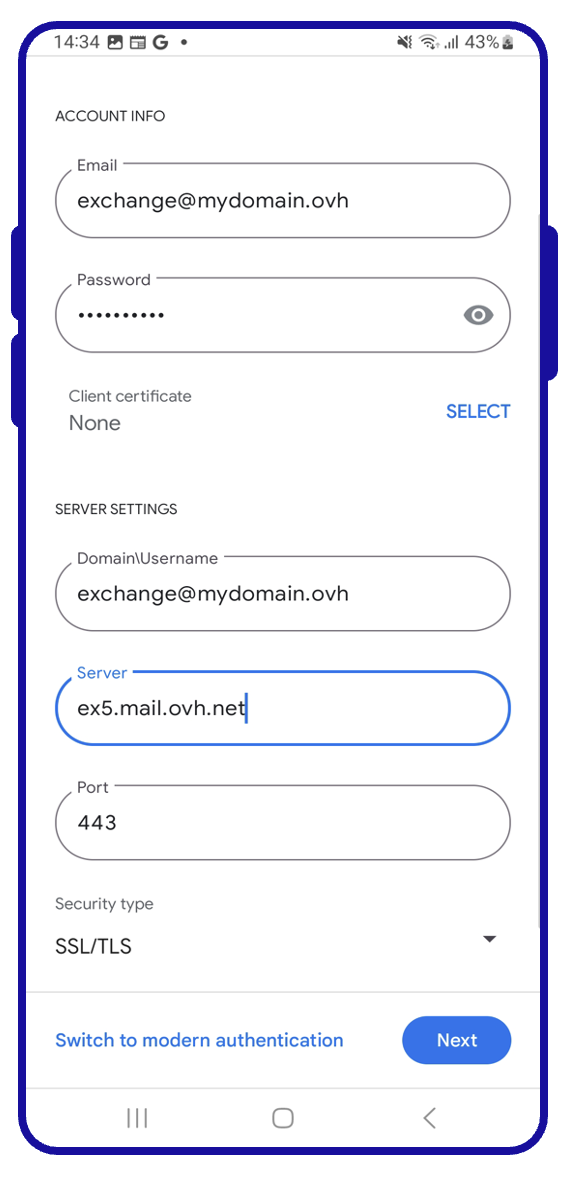
Complete the "Address configuration" page.
- Email: Your full email address
- Password: Your email password
- Certificate: Leave "None"
- Domain\Username: Your full email address
- Server: ex.mail.ovh.ca
- Port: 443
- Security type: SSL/TLS
Press Next to confirm the configuration.
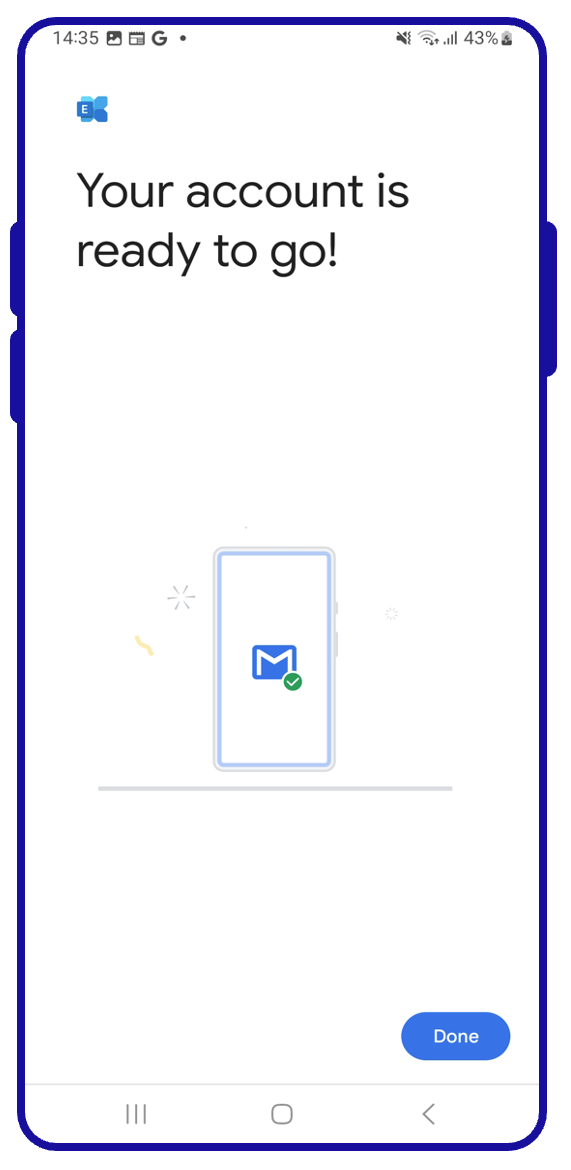
The message "You can now use your account" should appear. Tap OK to finish configuring your account.
Once you have configured your email account, you can start using it! You can now send and receive messages from your Gmail application.
OVHcloud offers a web application that allows you to access your email account from a web browser, at Webmail. You can log in using your email account credentials.
Go further
For more information on setting up an email address from the Gmail app on Android, see the Google Help Center.
MX Plan - Configuring an email address in Gmail for Android.
For specialised services (SEO, development, etc.), contact OVHcloud partners.
If you would like assistance using and configuring your OVHcloud solutions, please refer to our support offers.
Join our community of users.


 Exchange - Configure your email account on Mail for iPhone and iPad
 522
522