

Migrating an MX Plan email address to an Exchange account
515 Views
 30.03.2026
  Email and Collaborative Solutions
Objective
OVHcloud offers several email solutions: MX Plan (included in a Web Hosting plan) and Exchange. They have their own features, and can be adapted to suit a number of uses. Are your needs changing? OVHcloud offers a migration tool you can use to switch from one solution to another.
Find out how to migrate an MX Plan email address to an Exchange account.
Requirements
- an MX Plan email address (included in an OVHcloud Web Hosting plan)
- an Exchange service with at least one unconfigured account (which will appear as “@configureme.me”).
- no redirections set on the MX Plan email address you want to migrate
OVHcloud Control Panel Access
MX Plan:
- Direct link: MX Plan
- Navigation path:
Web Cloud>MX Plan> Select your MX Plan service
Exchange:
- Direct link: Exchange
- Navigation path:
Web Cloud>Exchange> Select your platform
Instructions
Step 1: Defining your project
With an Exchange address, you can use collaborative features, such as calendars and contact synchronisation. Please consult the product page for a detailed list of features.
If you need to migrate multiple accounts, we recommend that you set up a migration plan.
Step 2: Ordering your Exchange accounts
This step is optional if you already have an Exchange service to which you are migrating.
Order the Exchange service you want. Follow the steps, then wait for the service to be installed. You will receive a confirmation email once it is complete.
Once an account has been delivered, it is essential to keep it in the “@configureme.me” state. It will be renamed during the migration.
Step 3: Carrying out the migration
Before starting your migration, you will need to identify the version of the MX Plan you are migrating from.
Please refer to the table below.
| MX Plan legacy version | MX Plan new version |
|---|---|
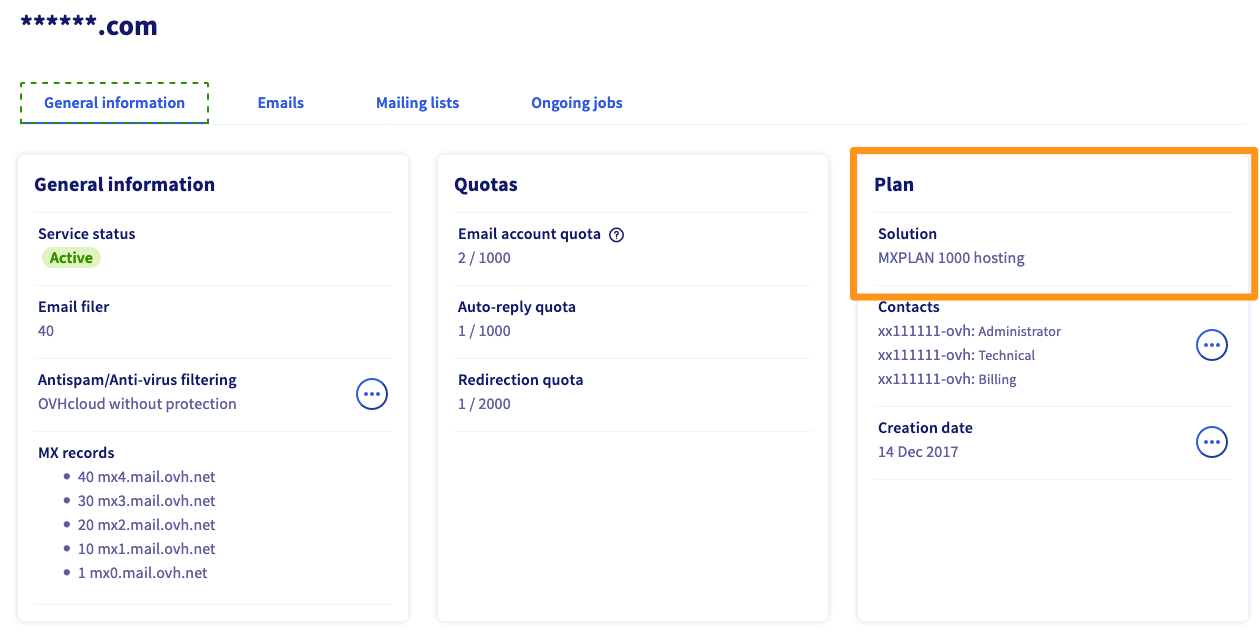 Your solution is specified the "Plan" box. | 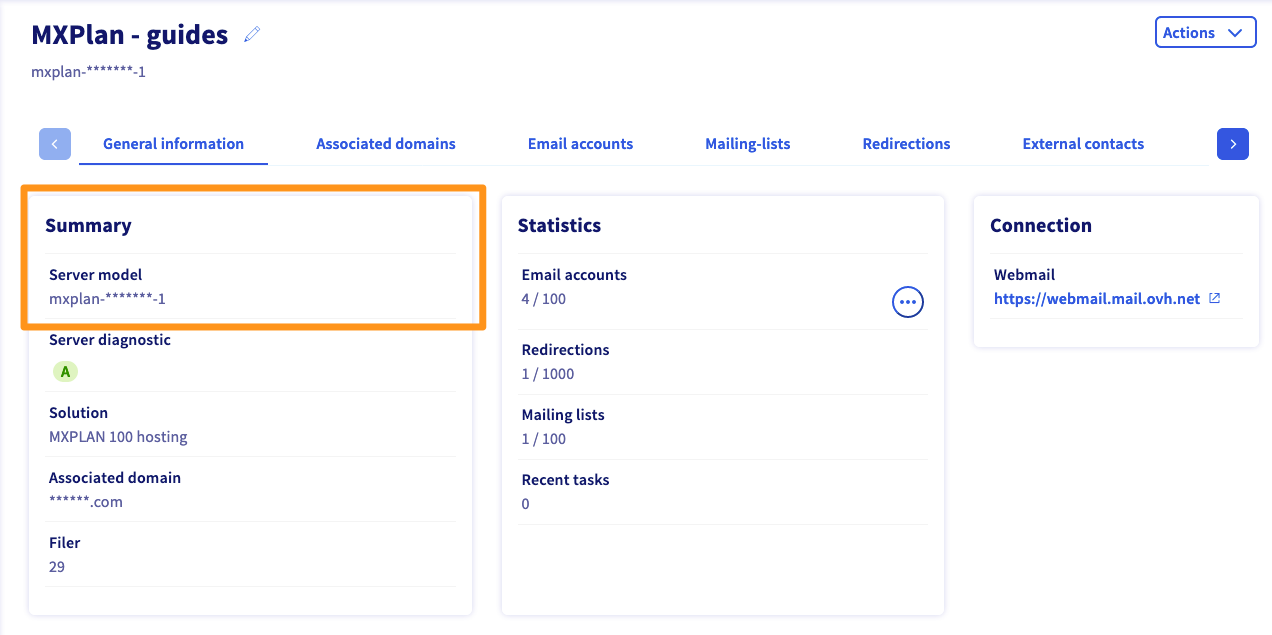 You will find a Server model in the “Summary” box, starting with “mxplan-”. |
| Continue with Legacy version of the MX Plan solution | Continue with New version of the MX Plan solution |
3.1 Migrating a legacy MX Plan solution
Your OVHcloud account must first be an administrative contact and technical contact for the MX plan service to be migrated, as well as for the Exchange service you are migrating to.
For more information on editing contacts, please refer to our guide on managing contacts for your services.
You can migrate from two interfaces:
- the configuration wizard for Hosted Exchange, only if you have just ordered a Hosted Exchange service and have not yet set up anything on it.
- the MX Plan solution, as soon as you have an Exchange service (already configured or not) and an MX Plan address that you want to migrate.
As a reminder, before starting the migration, make sure that no redirection or auto-replies are configured on your MX Plan.
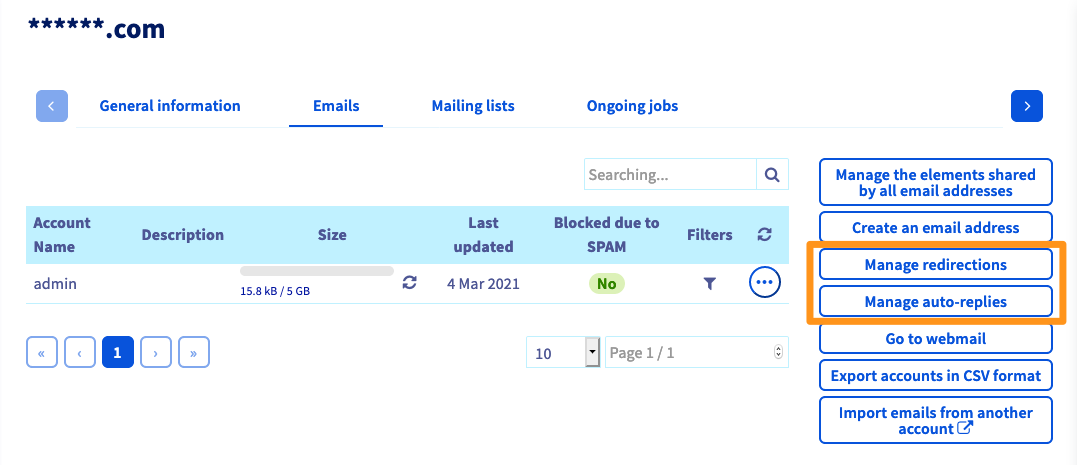
Once you are ready, follow the steps below, depending on the interface you have selected. Please note that the migration time depends on the quantity of content to be migrated to your new account. This may vary from a few minutes to several hours.
Once the migration is confirmed, you will no longer be able to access your old MX Plan email address, or cancel the migration process. We strongly advise you to carry out this operation at a favourable time.
Even if you can no longer access your current email address, messages that have already been received and those that have been received will not be lost. All will be immediately accessible from your new account.
Migration with the Exchange configuration assistant
A wizard will guide you through configuring your new Exchange service. During this process, you can select the MX Plan email accounts to migrate.
If the configuration wizard does not appear, the general information for the Exchange service will appear instead. In this case, you will need to migrate your accounts via the MX Plan interface.
Migration from the MX Plan interface
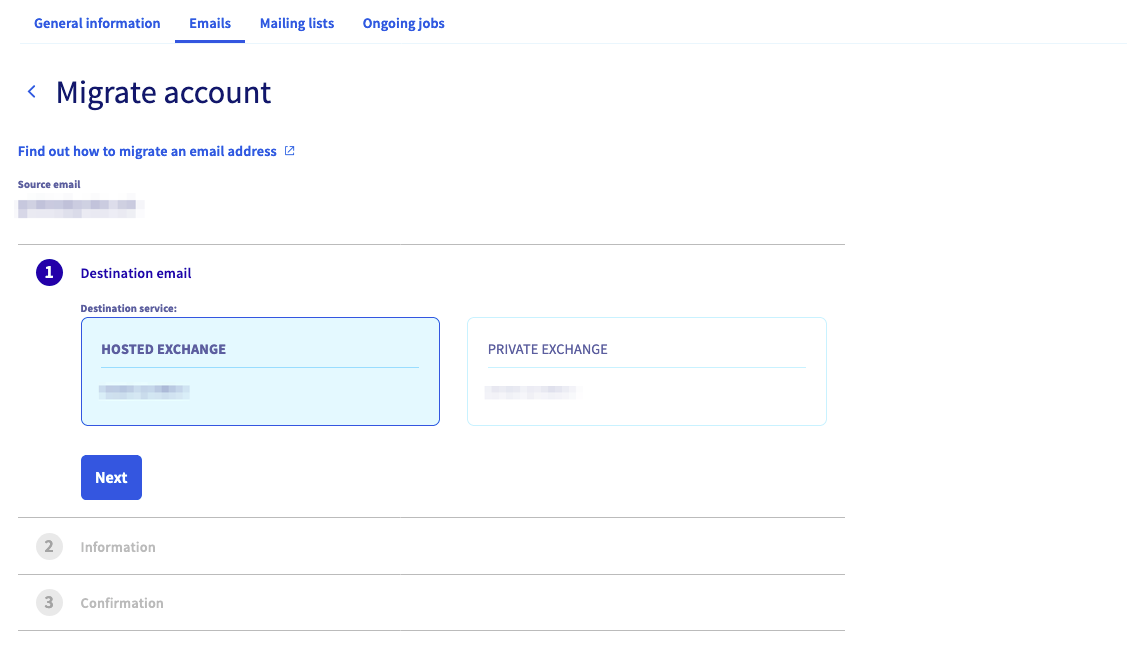
To carry out the migration from this interface, go to the MX Plan section of your OVHcloud Control Panel and select the relevant domain. In the Emails tab, click on ... next to the relevant email account (also called the source account), then Migrate account.
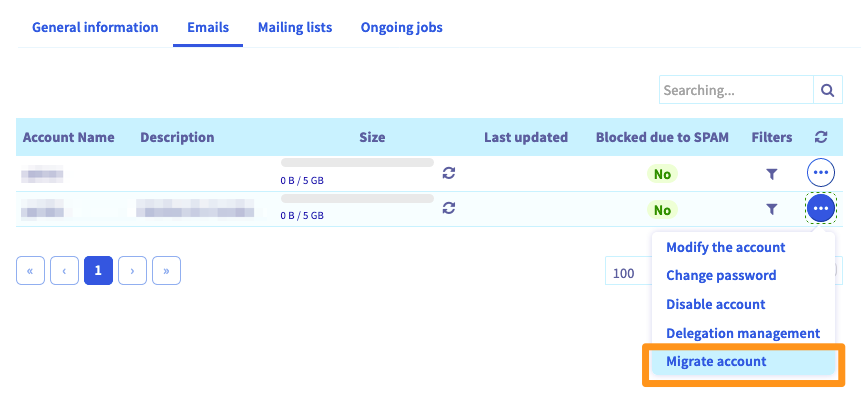
In the window that pops up, select the destination service (the one you want to migrate the address to), then click Next. If the user has at least one "empty" account (i.e. one that has not yet been set up), the migration will be carried out to one of these accounts. Once you have done this, read the information listed, confirm it, then click Next to continue editing.
If you do not have one "empty" account, an Order accounts button will appear. Follow the steps, then wait until the accounts are installed to start the migration.
Finally, confirm the password for the source email address (the one you want to migrate), then click Migrate. You will need to repeat this process as many times as you need to for migrating other accounts.
3.2 Migrating the new version of MX Plan
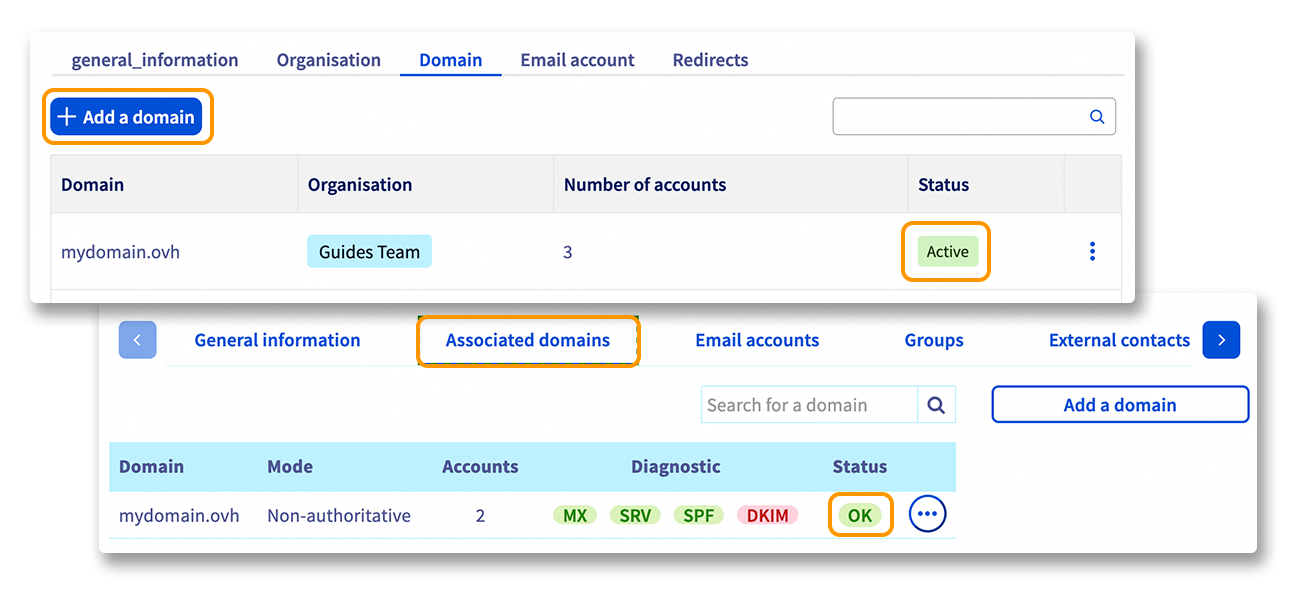
If you have just ordered your new email solution, first add the domain name to your email platform, then start your migration.
- For example, to migrate the "myemail@mydomain.ovh" account, you need to add the mydomain.ovh domain name to your platform.
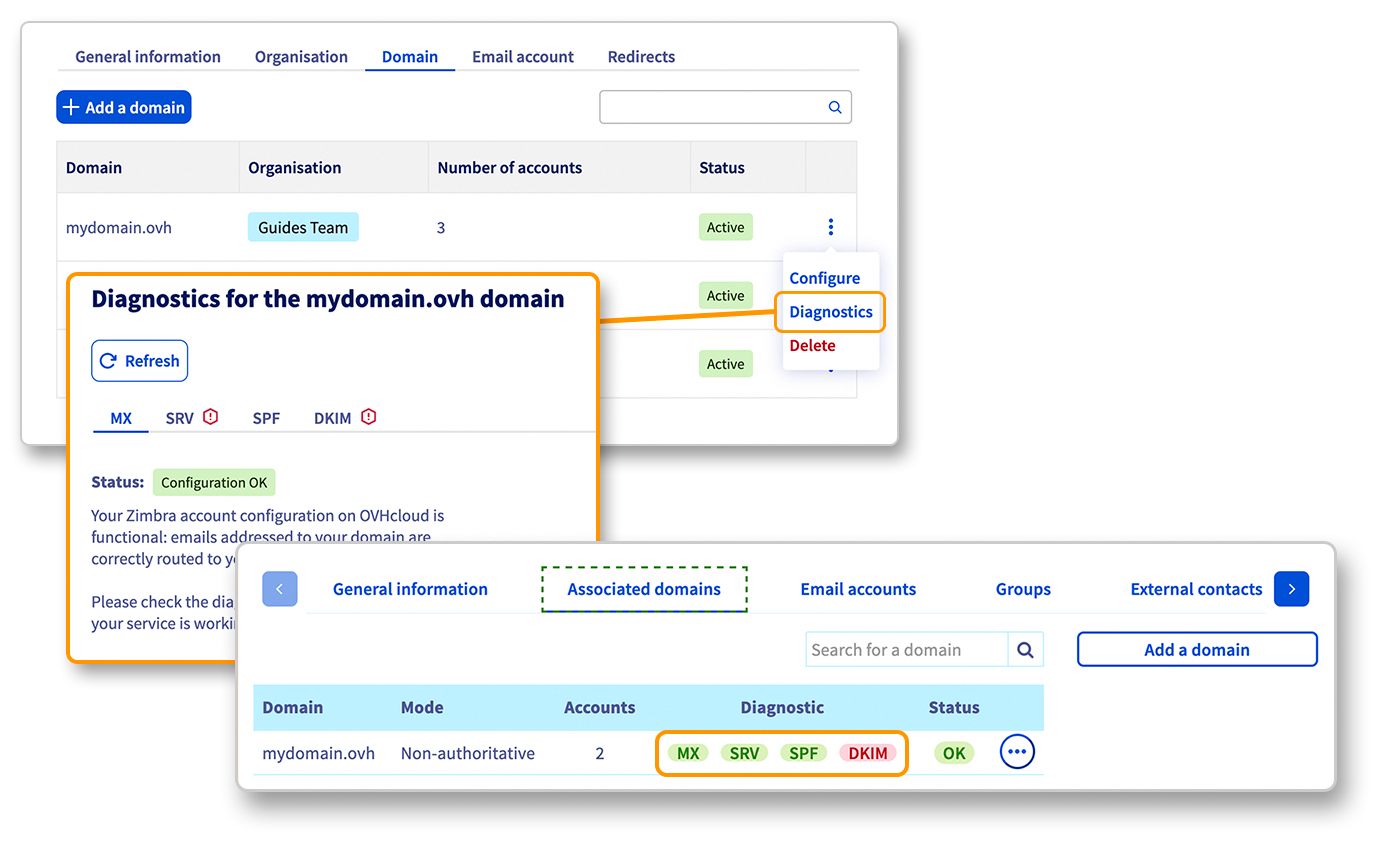
Select the Associated domains tab on your platform, then click Add a domain. Once you have added your domain name, ensure that the word OK is in the Status column.
To find out more about adding a domain name, follow the Exchange guide.
Your MX Plan migration will be done in 3 main steps: Renaming, Creating and Migrating.
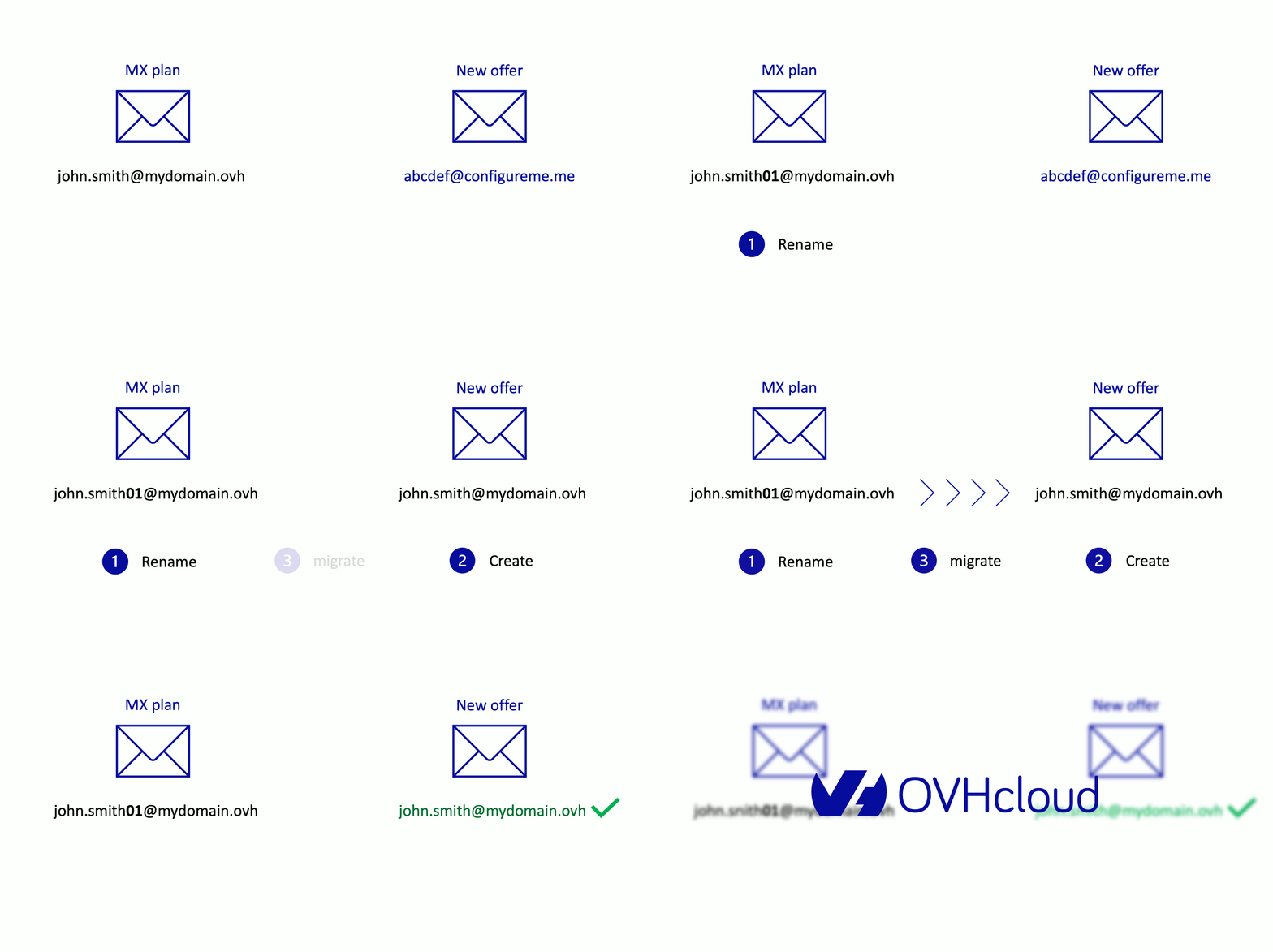
1. Rename the MX Plan account to be migrated with a temporary name (example: to migrate the MX plan account john.smith@mydomain.ovh, rename it to john.smith01@mydomain.ovh).
In the Email accounts tab for your MX Plan platform, click the ... button, then Edit.
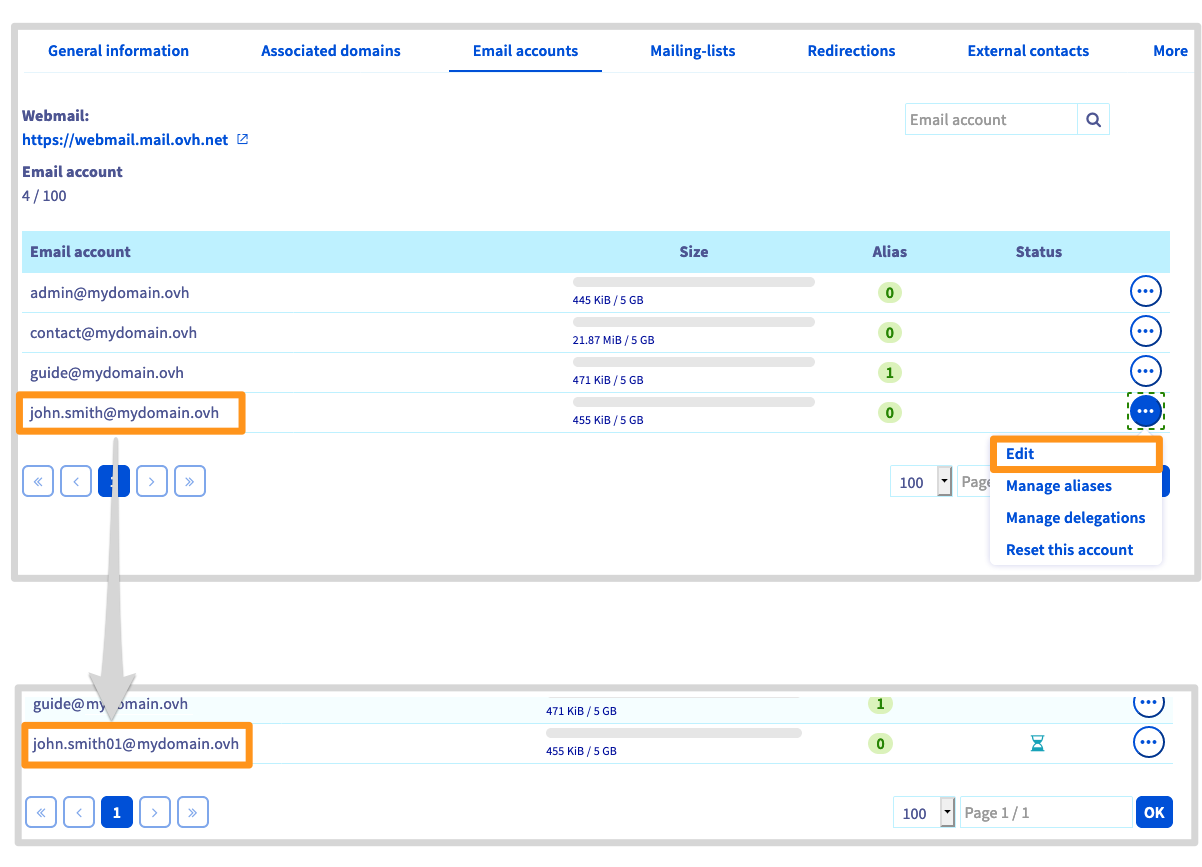
Account modification is not immediate, please wait until the operation is complete before proceeding to the next step.
2. Create your email address on the new account on your Exchange platform (using the previous example, you will create john.smith@mydomain.ovh on your new platform).
In the Email accounts tab for your Exchange platform, click the ... button, then Edit.
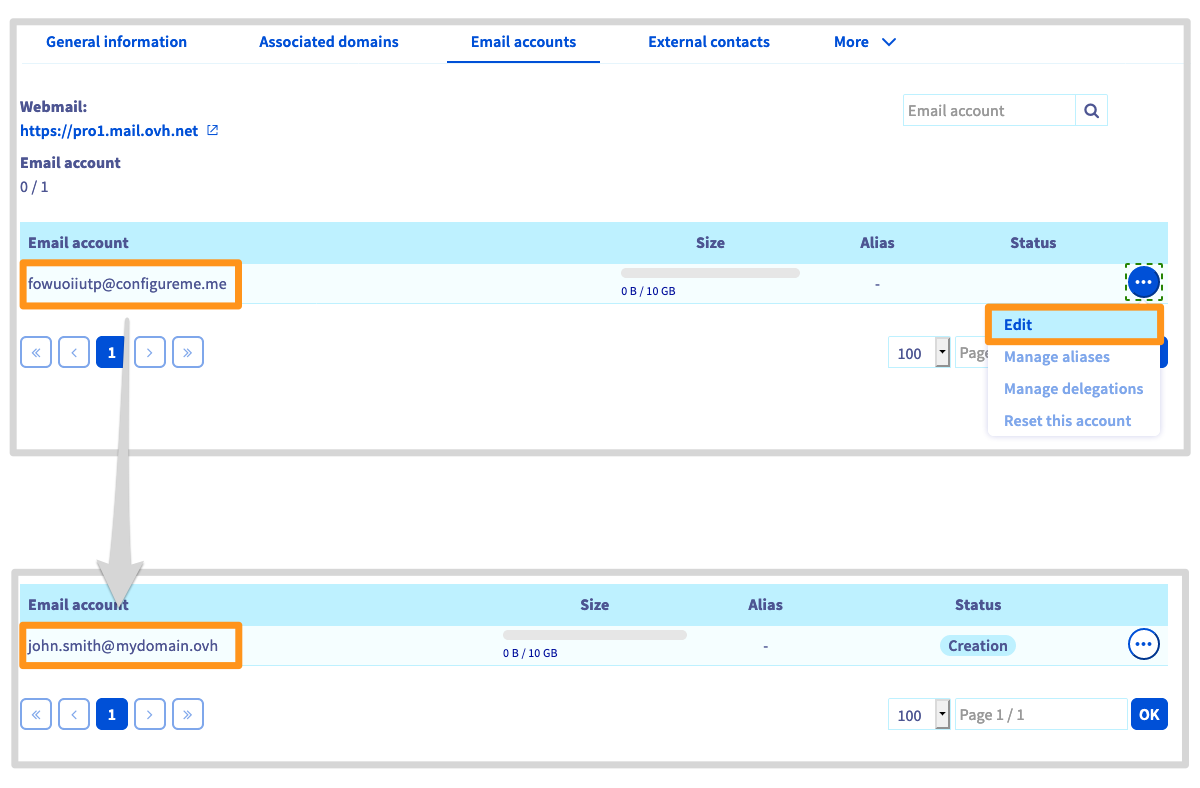
3. Migrate the MX Plan account to your new platform account using our OMM (OVHcloud Mail Migrator) tool.
For more information on OMM, please read our guide on Migrating email accounts via the OVHcloud Mail Migrator.
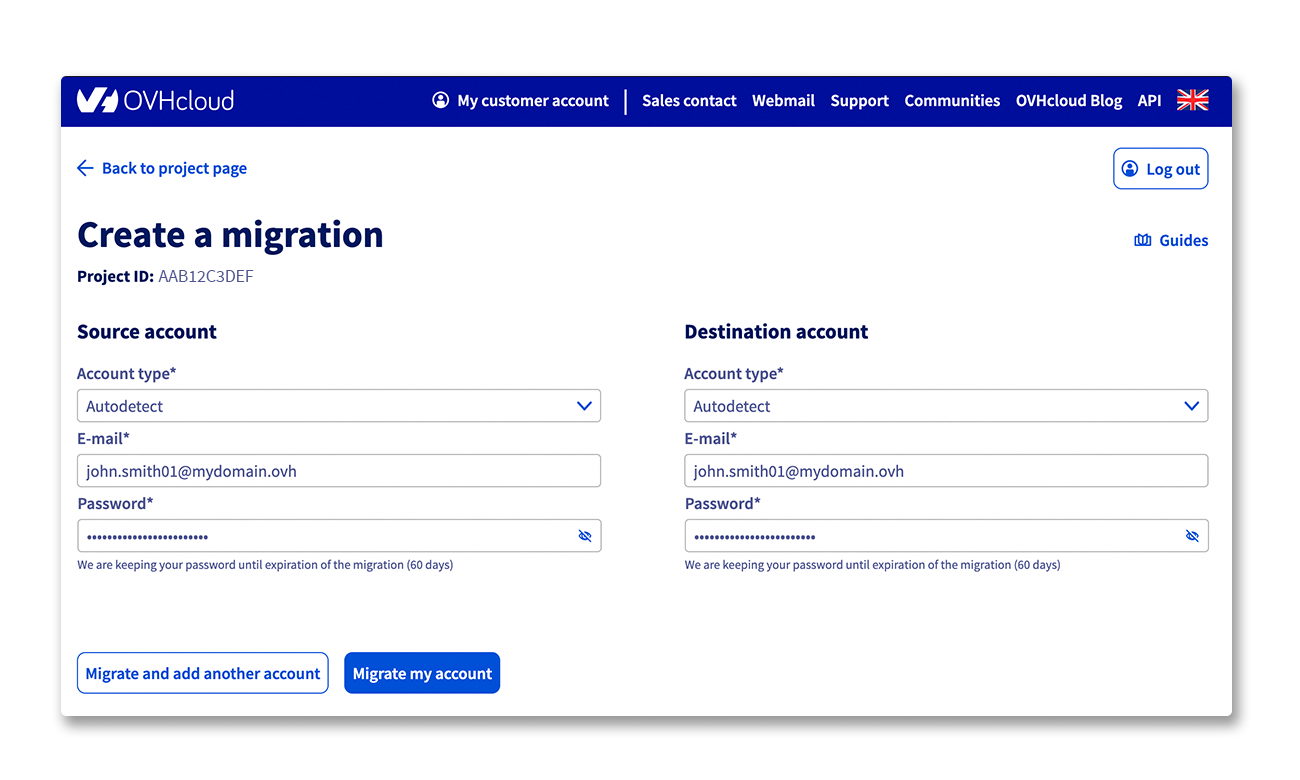
The migration time depends on the amount of content to migrate to your new account. This may vary from a few minutes to several hours.
Check that you can find your items after the migration by logging into the OVHcloud webmail.
You can keep or delete the original account with the temporary name after this migration.
If you want to delete it, go to the Email accounts tab in your MX Plan, click on the ... button, then Disable account.
Step 4: Verifying your domain configuration
At this stage, your email addresses must already be migrated and functional. For security reasons, please ensure that your domain is correctly configured in your Control Panel.
To do this, select the Exchange service concerned, then go to the Associated domains tab. In the table shown, you can use the "Diagnostic" column to check if the DNS configuration is correct: a red box appears if the configuration needs to be modified.
If you have just migrated or modified a DNS record for your domain, it may take a few hours to be updated in your OVHcloud Control Panel.
To modify the configuration, click on the red box and carry out the requested operation. It can take between 4 and a maximum of 24 hours to propagate fully.
Step 5: Using your migrated email addresses
Now, you can start using your migrated email addresses. To do this, OVHcloud offers an online interface (web app), available here: Webmail. You will need to enter your email credentials.
If you have configured one of the migrated accounts on an email client (such as Outlook), you must set it up again. The login details for the OVHcloud server have changed following the migration. To help you make changes, please read the relevant guides in the Hosted Exchange guide section. Even if you are unable to reconfigure the account immediately, access via the online application is still possible.
Organise the content of your email addresses following a migration
When you first log in to your new email account, the migrated content may be partially hidden. To view all items, from the webmail, click on the chevron next to the Inbox to reveal the subfolders. The migrated content of your old email account should appear.
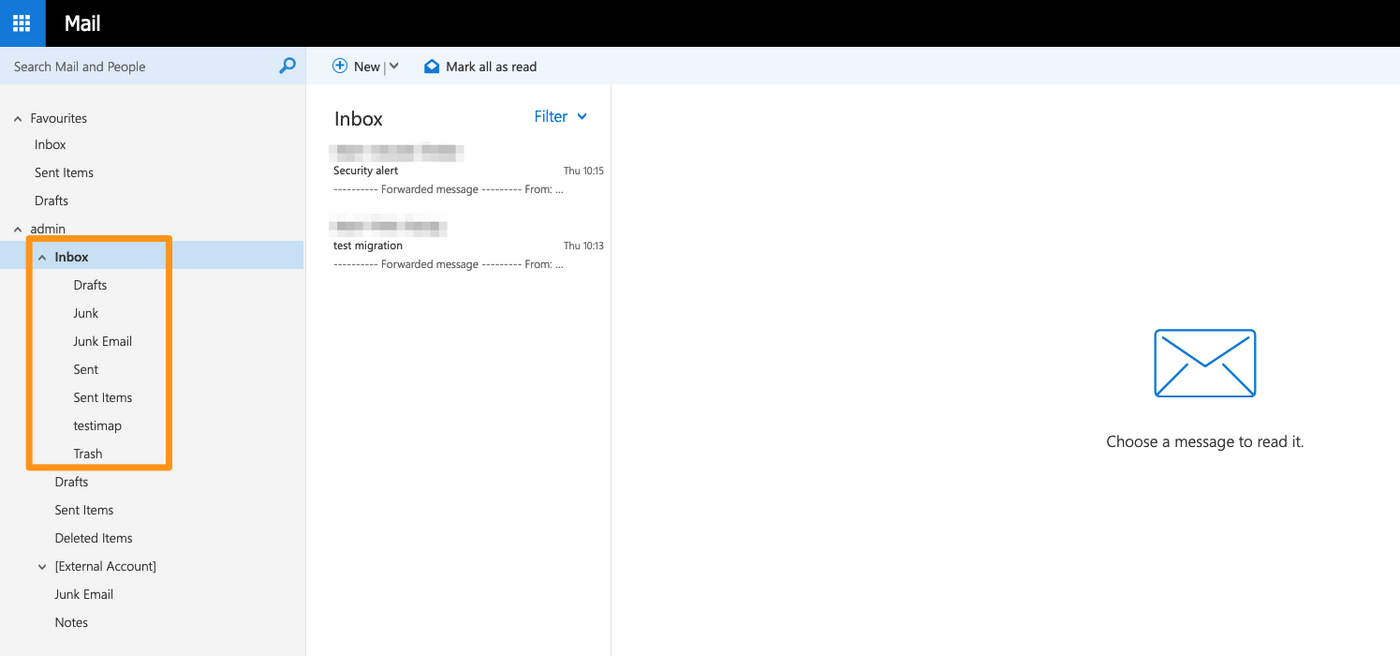
After a migration, please check all of the folders and sub-folders in your account to ensure that all of the elements are present.
Migrating manually
You can also manually migrate your email addresses to your new OVHcloud email solution using only your email software. Please refer to our guide on Migrating your email address manually. However, we recommend that you use this method only when the main methods are not possible.
Go further
Join our community of users.


 Migrate email accounts via OVHcloud Mail Migrator
 715
715