

Change the announcement of an IP block in vRack
329 Views
 14.05.2025
  Cloud / Dedicated Server (bare metal)
Objective
The vRack is a private network that allows you to configure the address between two or more OVHcloud dedicated servers.
Learn how to set the announcement zone of an IP block in vRack.
Requirements:
- A vRack
- A configured block of IP addresses in the vRack
- Basic network knowledge
This feature might be unavailable or limited on servers of the Eco product line.
Please visit our comparison page for more information.
Instructions
Step 1: Verify the current announcement zone
Begin by checking the current announcement zone of the applicable IP block. To do this, perform a 'traceroute' on an IP of your choice from the block.
In this example, the tested IP address is currently announced to Roubaix. This is visible in the last completed hop: 'vl1247.rbx-g1-a75.fr.eu (37.187.231.234) 1.816 ms.'
Step 2: Change the announcement zone of the IP block
Go to https://ca.api.ovh.com/console/, then sign in with your OVHcloud customer ID. Use the API call below to change the announcement of the IP block.
This API allows you to retrieve the list of vRack services. If you can't identify the service concerned with these references, they can be found in the OVHcloud Control Panel. To do this, go to the Bare Metal Cloud section, click on Network then “vRack”.
This API call makes it possible to change the announcement of an IP block. Fill in the requested fields:
| Field | Description |
|---|---|
| serviceName | Fill in the name of the concerned vRack service. For example: pn-12345. |
| block | Fill in the name of the concerned IP block. Be sure to fill in the IP block, not the IP address that you tested in the previous step. For example: 192.0.2.0/24. |
| region | Select the new announcement zone (region) of the IP block. Be sure this is not the same zone as retrieved in the previous step. For example: bexxx.gra-d1-a75.fr.eu |
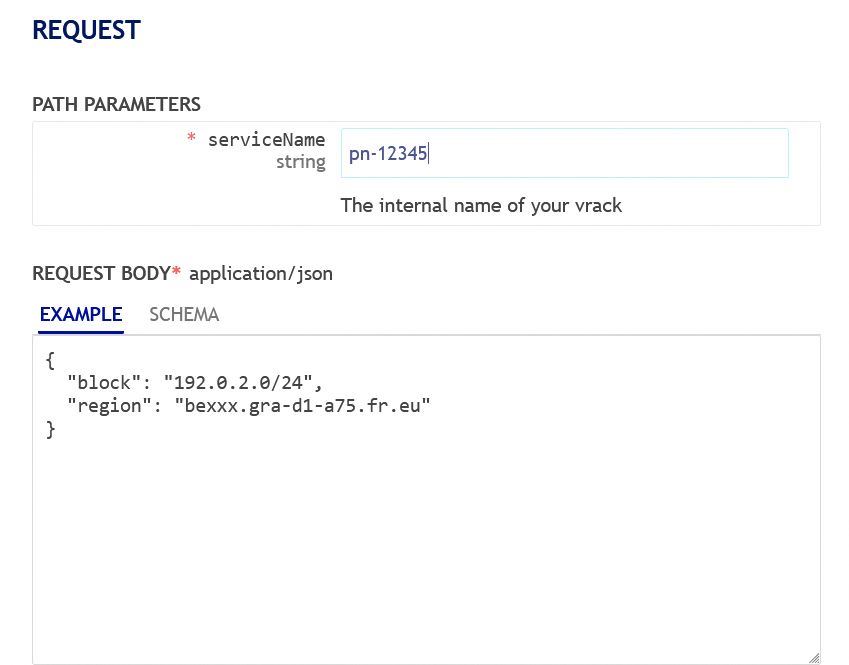
Finally, run the API to change the announcement.
Step 3: Test the new announcement zone
Now that the announcement zone is changed, do a 'traceroute' for the IP address used in step 1 to verify it.
In this example, the tested IP address is now announced to Gravelines. This is visible in the last hop: 'be120.gra-d1-a75.fr.eu (37.187.232.74) 0.351 ms.’
Go further
Join our community of users.


 Configuring the vRack on your dedicated servers
 3661
3661