

What should I do if the page “Your request has been blocked” appears?
73 Views
 16.07.2025
  Web / Web Hosting
Objective
The shared infrastructure where OVHcloud web hosting plans are located has several security systems.
If your website displays a “Your request has been blocked” page, this means that one of the requests you are trying to execute to your website has been blocked by our security systems.
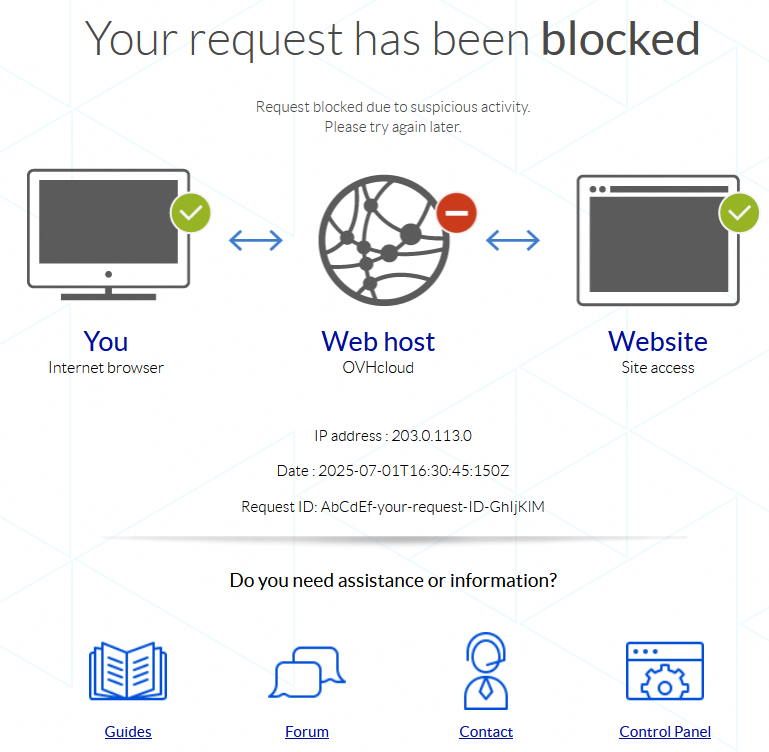
Find out what to do if your website displays a “Your request has been blocked” page.
Requirements
- An OVHcloud web hosting plan
- The login details to access your web hosting plan’s FTP storage space
Instructions
The “Your request has been blocked” page may appear for a number of reasons (non-exhaustive list):
- The request is made from an unupdated web browser (Firefox, Chrome, Safari, Edge, etc.).
- A very large number of requests, similar or not, are made in an extremely short time.
- The request attempts to perform unauthorized actions on the shared infrastructure where your web hosting plan is located.
1 - Check that your web browser is up to date
Go to your web browser settings and check if an update is available.
Click here for more information about updating your web browser
Below are the procedures for updating the most popular web browsers (documentation provided by their publishers):
If your Internet browser is not present in the list above, refer to your browser's online documentation or contact the publisher's support.
Once your web browser is up to date, try accessing your website again. If the situation persists, continue with step 2.
2 - Retrieve the information on the “Your request has been blocked” page and contact support
The security system that blocks your requests is located upstream of your web hosting plan. As a result, you will not be able to access logs for this security system from your OVHcloud Control Panel.
2.1 - Retrieve the information on the page “Your request has been blocked”
First, retrieve the information below that appears on the “Your request has been blocked” page:
IP address(for example: 203.0.113.0)Date(for example: 2025-07-01T16:30:45:150Z)Request ID(for example: AbCdEf-your-request-ID-GhIjKlM)
2.2 - Contact support
Once this data is collected, create a support ticket from the OVHcloud Help Center, specifying:
- The message found on the page (“Your request has been blocked”).
- The three elements retrieved earlier (
IP address,DateandRequest ID). - The URL from which the page is displayed (for example:
https://www.domain.tld/index.php). - The Internet browser used.
The support team will get back to you as soon as possible to confirm the origin of this blockage.
Go further
Use cases - What to do if your Website is hacked
For specialised services (SEO, development, etc.), contact OVHcloud partners.
If you would like assistance using and configuring your OVHcloud solutions, please refer to our support offers.
Join our community of users.


 Troubleshooting an "Index of" page
 636
636