

Web Hosting - View CDN statistics and logs
82 Views
 09.10.2025
  Web / Web Hosting
Objective
This guide will show you how to view the statistics and logs generated by the CDN option available with your web hosting plan.
Find out how to view your website's statistics and CDN logs with your web hosting plan.
Requirements
- A web hosting plan with the CDN option enabled on at least one domain name.
OVHcloud Control Panel Access
- Direct link: Hosting plans
- Navigation path:
Web Cloud>Hosting plans> Select your web hosting plan
Instructions
Viewing CDN statistics
Click on the tabs below to view each of the 4 steps.
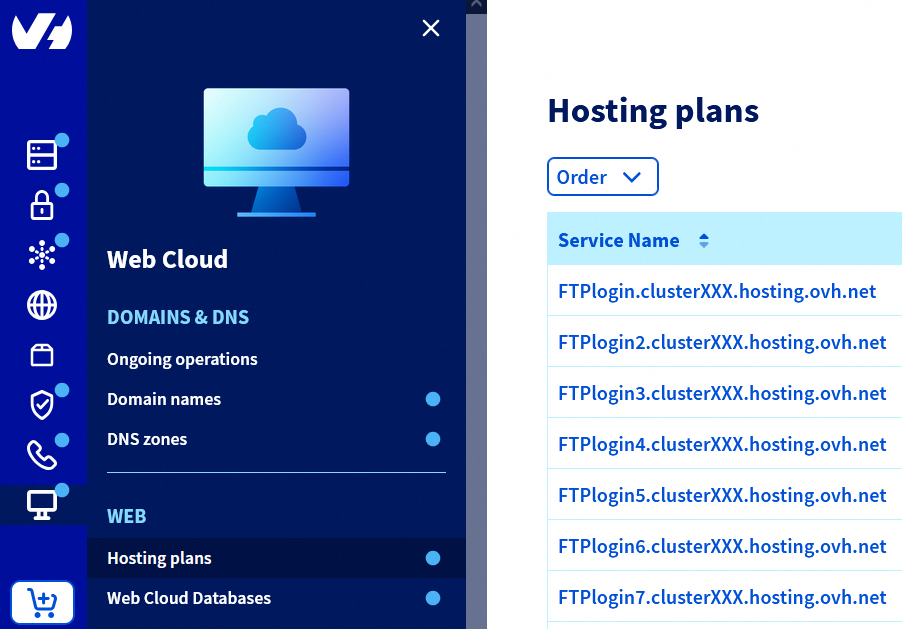
Go to the Hosting plans page, then select the web hosting plan concerned.
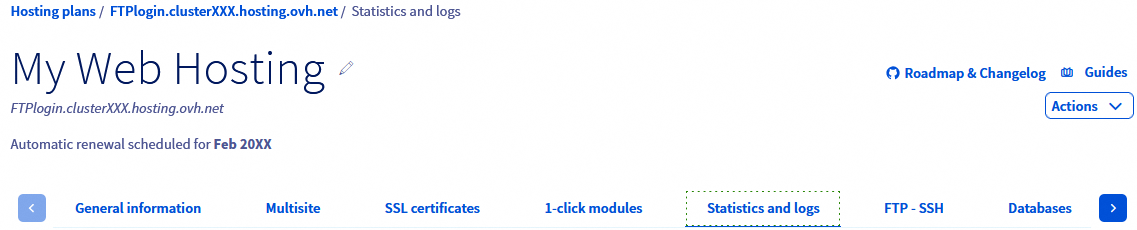
On the page that pops up, click on the Statistics and logs tab.
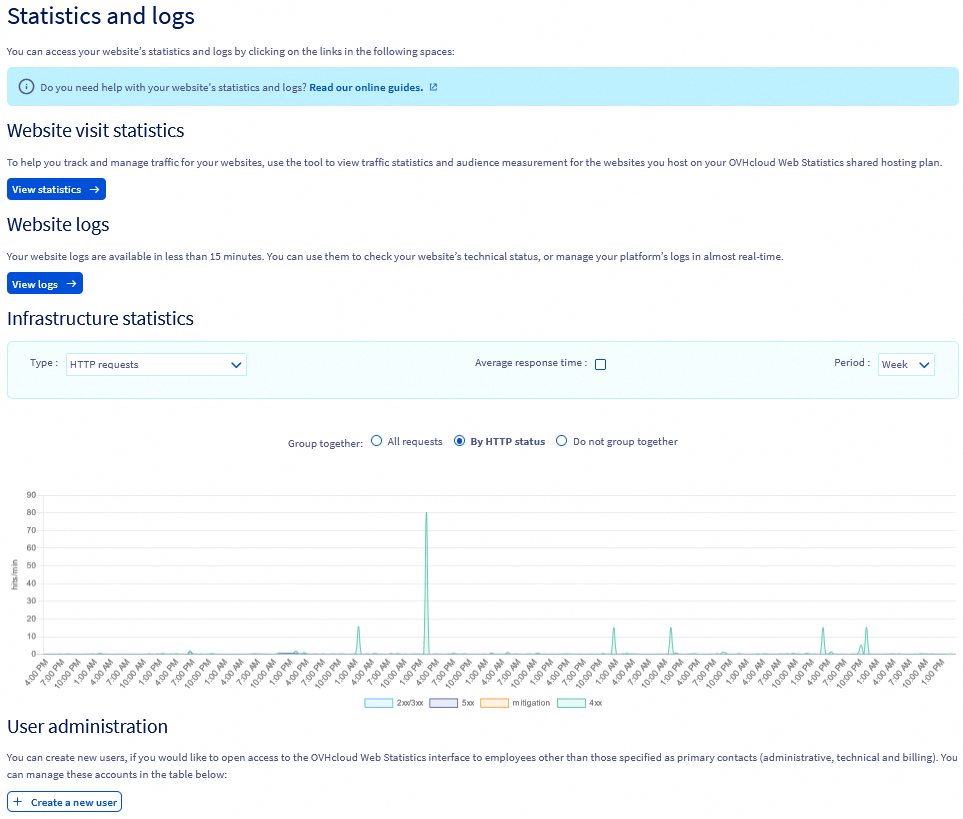
In the Website visit statistics section, click the View statistics button.
You are redirected to the tool OVHcloud Web Statistics. In this tool, click on the form labelled Select domain located at the top of the page, then choose a domain name for which the CDN is active.
In the left column, click on the Cache tab.
You will now see the CDN statistics for your domain name.
If you need further information, please refer to our guide on "Web hosting - View website statistics and logs".
View the CDN logs
Click on the tabs below to view each of the 4 steps.
Go to the Hosting plans page, then select the web hosting plan concerned.
On the page that pops up, click on the Statistics and logs tab.
In the Website logs section, click the View logs button.
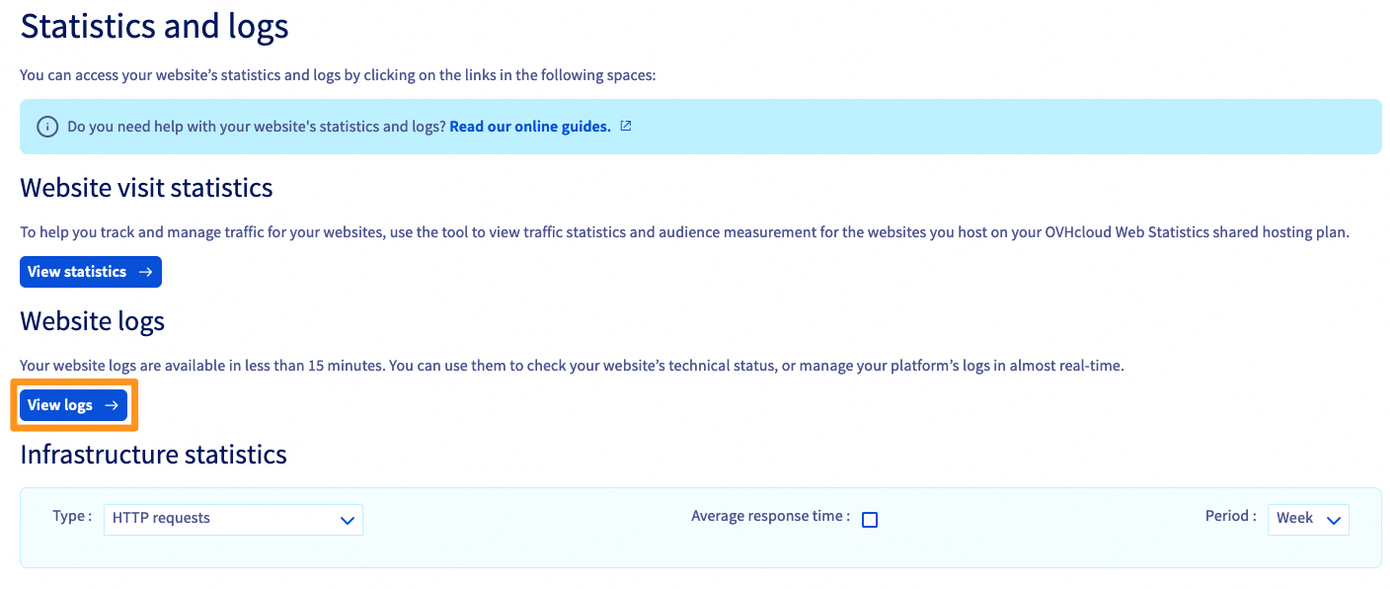
On the new page that pops up, click the CDN button in the banner at the top of the page.
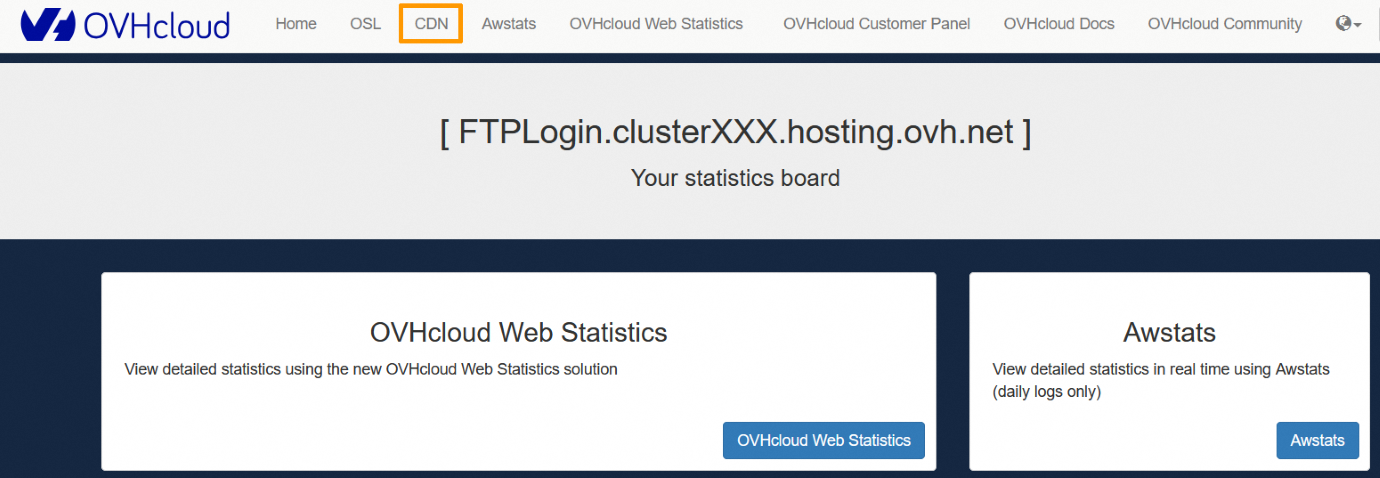
On the new page that appears:
- Select the domain or subdomain concerned via the
Subdomaindropdown menu. - Enter the date for which you want to view the CDN logs in the
Datefield. - Then click the
Generatebutton.
CDN logs are unavailable the same day they are generated, so you will need to wait for the next day to view them.
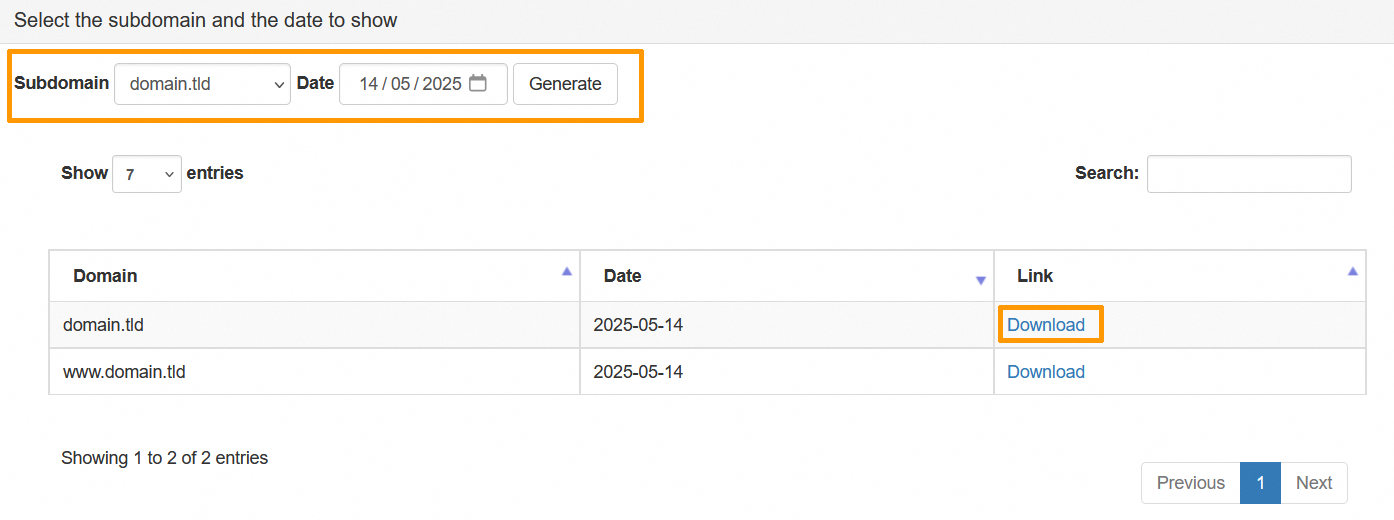
In the table that pops up, click the Download button to the right of the domain or subdomain concerned to retrieve the CDN logs.
If you need further information, please refer to our guide on "Web hosting - View website statistics and logs".
Go further
Speeding up your website with CDN
Web hosting - View website statistics and logs
For specialised services (SEO, development, etc.), contact OVHcloud partners.
If you would like assistance using and configuring your OVHcloud solutions, please refer to our support offers.
Join our community of users.


 Hosting multiple websites on your Web Hosting plan
 742
742