

How to deploy the 3CX IPBX automatically on OVHcloud Public Cloud
71 Views
 28.07.2023
  VoIP
VoIP
Objective
This guide details how to automatically deploy your 3CX instance on a Public Cloud instance.
At the end of this guide, you will have the basics to manage the deployment of your instance and its configuration automatically.
This guide explains how to automatically deploy your 3CX IPBX on an OVHcloud Public Cloud instance using an XML template.
Requirements
- A Public Cloud project in your OVHcloud account. You can find more information in our guide Creating your first Public Cloud project.
- The 3CX IPBX requires a valid license to be used. Ensure that you have a valid license during deployment. You can find all the information on https://www.3cx.com/.
OVHcloud Control Panel Access
- Direct link: Public Cloud Projects
- Navigation path:
Public Cloud> Select your project
Instructions
OVHcloud provides services that you are responsible for with regard to their configuration and management. It is therefore your responsibility to ensure that they function properly.
This tutorial is designed to help you with common tasks. Nevertheless, we recommend contacting a specialist provider and/or the service’s publisher if you encounter any difficulties. We will not be able to assist you. You can find more information in the "Go further" section of this guide.
We will use a template in XML format so that we can automatically configure the 3CX instance.
This XML file can be very simple, to simply install 3CX and your license.
It can also be very complete, allowing you not only to install the license but also to create your users, trunks and other 3CX features.
In this tutorial, we will use a very simple XML template. For a more complete template, please refer to the 3CX documentation.
Step 1: Complete the template
We will attach a user-data to the instance. When the instance is booted, this file will allow the cloud-init tool to:
- Create the 3CX configuration XML file.
- Launch the installation of 3CX packages.
The XML file is included in the template that we will attach to the instance when we create it.
Here is the file to use to follow this tutorial:
In this template, there are two elements to modify for a first deployment test:
- Replace
YourLicenseKeywith your 3CX license key.
- Replace
YourStrongAdminPasswordwith your admin account password. This password must be at least 10 characters long, contain numbers and lower-case and upper-case letters:
Once your template is complete, you can deploy it using the instructions in step 2.
Step 2: Deploy the instance with the template
Depending on the version and sizing of your 3CX instance, the instance flavor to use will be different. Please refer to the following link to choose the right instance: https://www.3cx.com/docs/recommended-hardware-specifications-for-3cx/
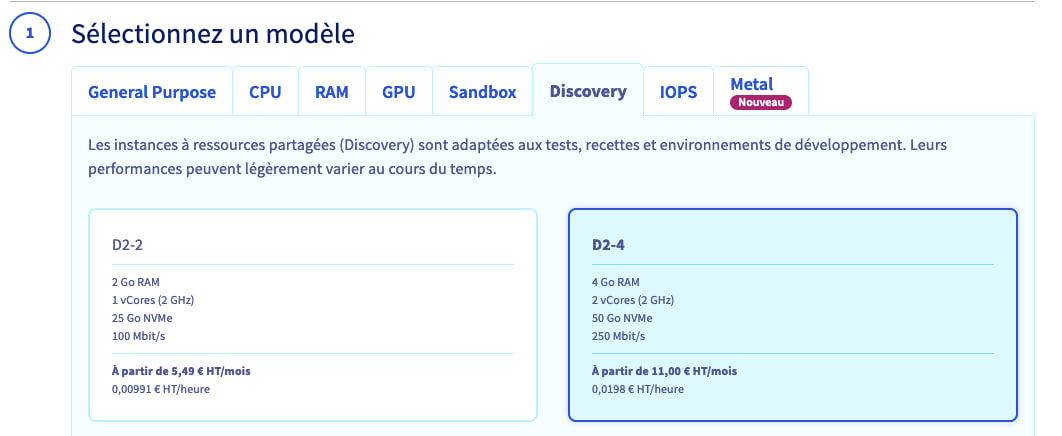
For our guide, we will use a Discovery D2-4 instance.
Deployment via the OVHcloud Control Panel
Go to the Public Cloud section, then select your project.
On the homepage, click Create an instance. Select your instance flavor and the region you want.
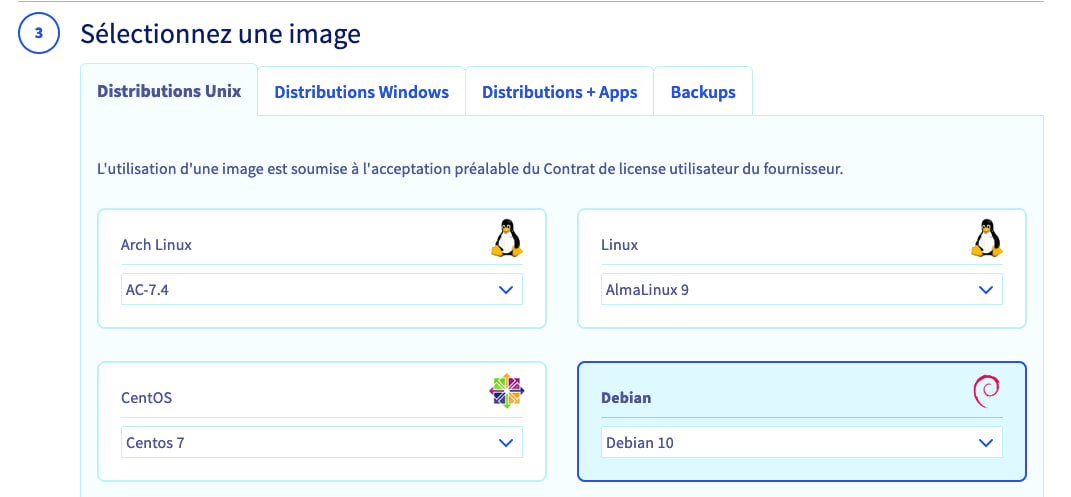
Then select the operating system. To date, 3CX uses Debian 10.
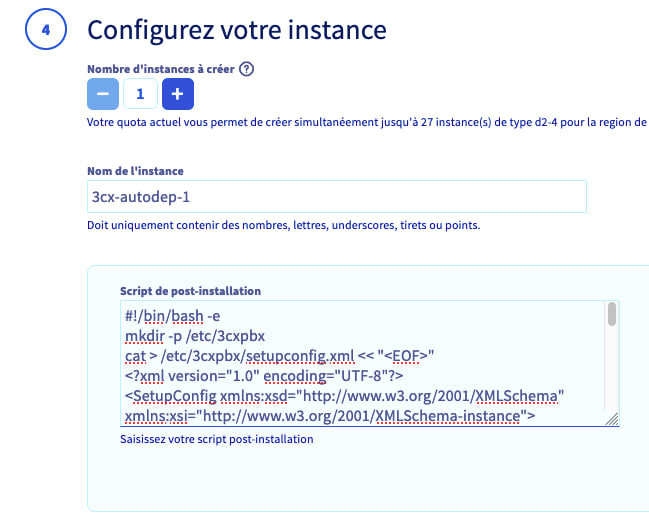
In the next step, called “Configure your instance”, you will be able to attach your template.
Name your instance, then click Add in the Post-installation script box.
In the text box that appears, paste the installation script that was generated earlier.
Click Next to confirm this step. Finally, choose your network configuration and billing method.
Once the instance has booted, the installation will be launched directly, this will take a few minutes.
You can log in to the machine to check that the logs are correct:
Once the deployment is complete, the administration interface will be accessible via the FQDN given when you subscribe to your 3CX license, or via the IP address of your instance: https://instance_public_ip:5001/
Deployment via API
You can also deploy your instance via API, using the following call:
- Example with a D2-4 flavor, Debian 10 and hourly billing:
In this JSON, insert the template into userData. Warning: line breaks must be escaped by \n.
Go further
All you need to know to get started with Public Cloud
How to use the Public Cloud interface
Create your first OVHcloud Public Cloud project
Creating and connecting to your first Public Cloud instance
For specialized services (SEO, development, etc.), contact OVHcloud partners.
If you would like assistance with using and configuring your OVHcloud solutions, we recommend referring to our range of support solutions.
Join our community of users.

