

Setting up Zerto multi-site replication on OVHcloud Managed vSphere
34 Views
 16.12.2025
  Cloud / Hosted Private Cloud
Objective
The purpose of this guide is to provide step-by-step instructions to connect multiple on-premises Zerto deployments to a Managed vSphere instance. By following this guide, users will be able to establish secure multi-site replication, ensure disaster recovery readiness, and manage data protection across different sites.
Find out how to set up Zerto Virtual Replication between your Hosted Private Cloud platforms.
Requirements
- Managed vSphere Setup: A Managed vSphere environment with Zerto already deployed.
- On-Premises Zerto: Zerto is installed and configured on your local infrastructure.
- VPN Information: All necessary VPN credentials, IP addresses, and keys for both on-premises and Managed vSphere environments.
Appropriate administrative access to Zerto Manager on both Managed vSphere and on-premises sites.
OVHcloud Control Panel Access
- Direct link: VMware vSphere
- Navigation path:
Hosted Private Cloud>Managed VMware vSphere> Select your vSphere service
Instructions
1 - Access Zerto Manager on Managed vSphere
- Click this link to access the
VMware vSpheresection, then navigate to theDatacenterstab and select the datacenter. - Navigate to the
Zertotab.
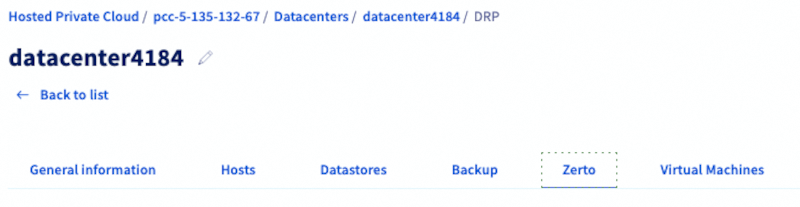
2 - Add your On-Premises Zerto Site
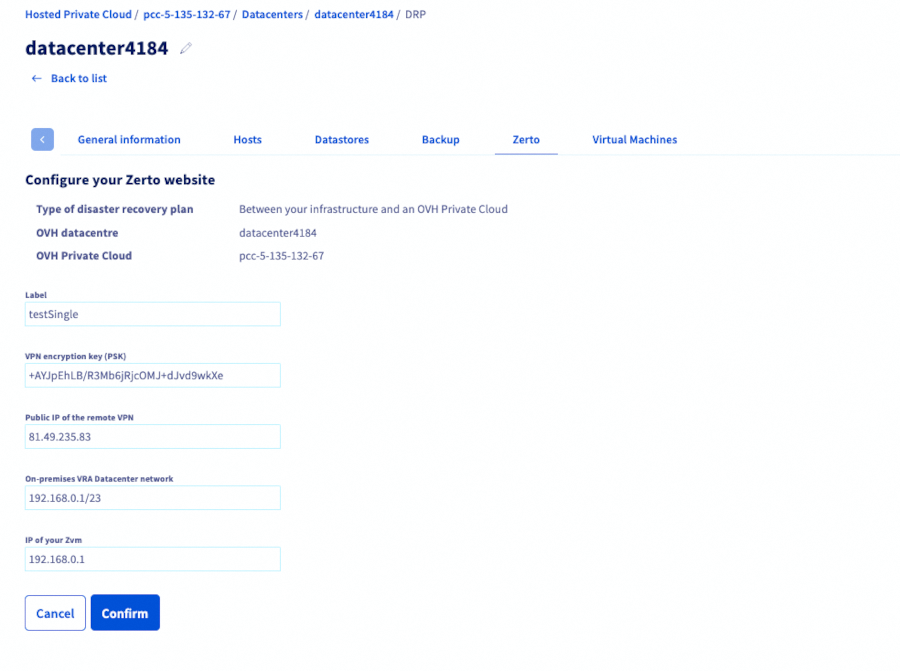
Click the Add a site button, enter your VPN information (IP address and encryption key), and enter the details of your on-premises Zerto deployment. Refer to our example screenshot for guidance:
3 - Start VPN Configuration
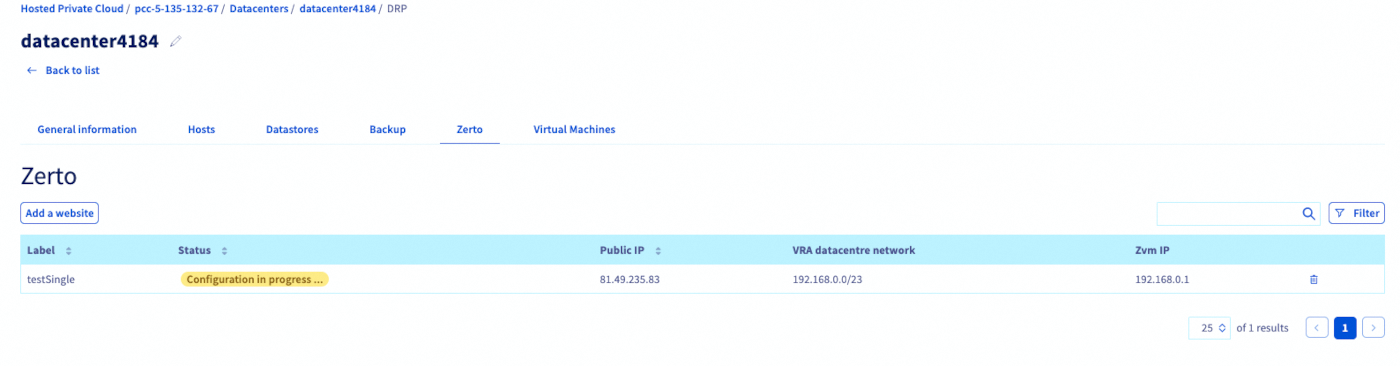
Submit your information. The Managed vSphere will automatically start the VPN setup, allowing secure access to your on-premises Zerto site.
4 - Let Automated Processes Run
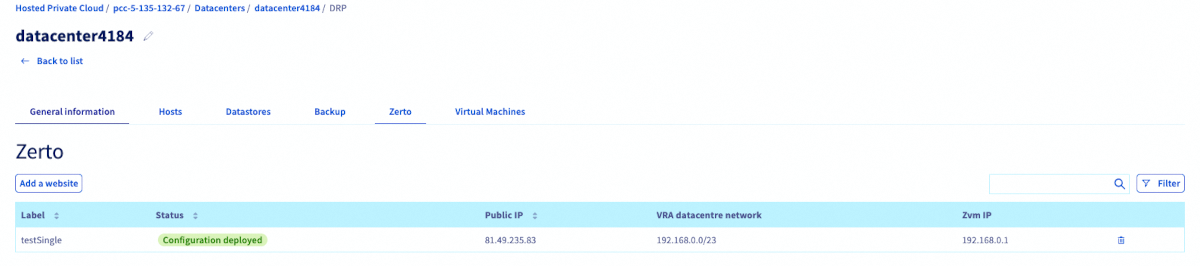
Managed vSphere will run automated tasks to configure multi-site connectivity.
Wait until the status shows Configuration deployed.
5 - Connect the VPN
Connect your on-premises VPN to the Managed vSphere’s Zerto VPN and verify that the connection is active.
6 - Pair the Zerto Sites
-
On Managed vSphere Zerto, go to
Sitestab and get the token:
-
On your on-premises Zerto, choose
Pair to a siteand enter the Managed vSphere Zerto IP and token: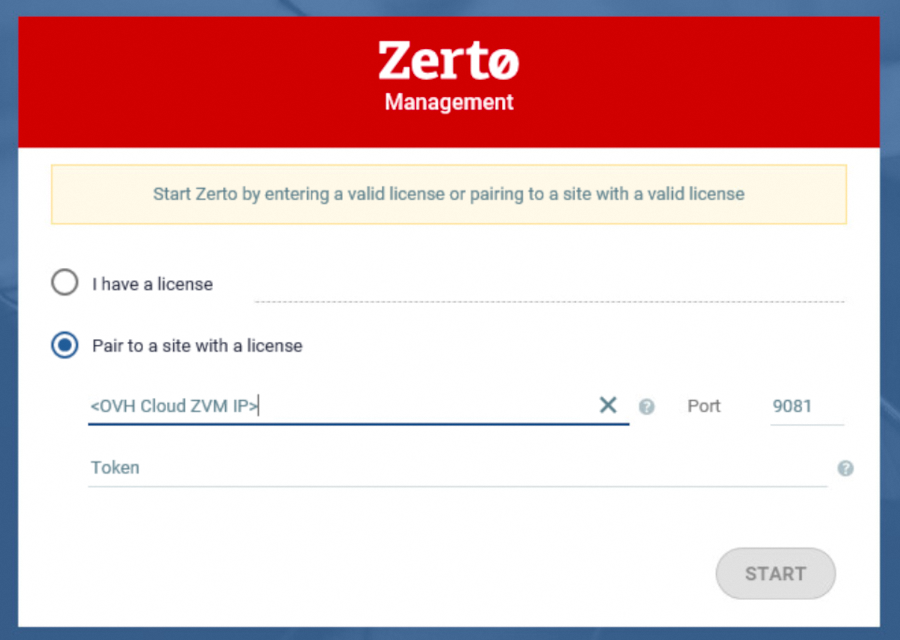
Once paired, your multi-site replication setup is complete.
Network Diagram
The following diagram illustrates the connectivity setup for multi-site Zerto replication between the customer site and Managed vSphere:
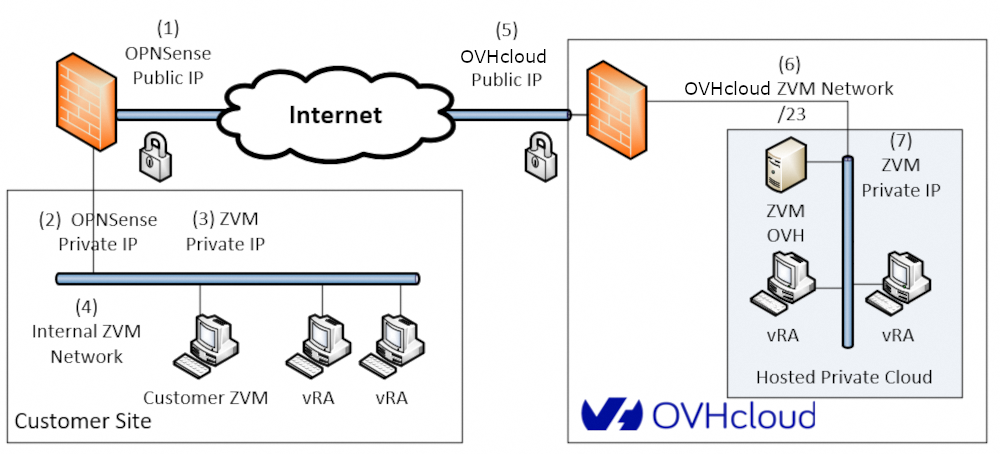
Diagram Explanation:
- OPNSense Public IP: The public IP of the customer firewall/router.
- OPNSense Private IP: The internal IP address of the customer firewall.
- ZVM Private IP: The internal IP of the customer Zerto Virtual Manager.
- Internal ZVM Network: The LAN connecting customer ZVM and vRAs.
- OVHcloud Public IP: The public-facing IP for the Managed vSphere.
- OVHcloud ZVM Network /23: The private network within the hosted Managed vSphere.
- ZVM Private IP (Managed vSphere): The private IP addresses of Zerto VMs (ZVM and vRAs) hosted in Managed vSphere.
This setup ensures secure VPN connectivity between on-premises Zerto and OVHcloud Managed vSphere, allowing multi-site replication and disaster recovery.
Troubleshooting Tips
- VPN issues: Check credentials, firewall and network settings.
- Token/site pairing: Verify the token, ZVM IP and Zerto license.
Security Considerations
- Use strong encryption for all VPN connections.
- Ensure secure authentication methods are in place.
- Limit access to Zerto and Managed vSphere management interfaces.
- Regularly review logs and monitor for suspicious activity.
- Keep Zerto and Managed vSphere software up to date with security patches.
Go further
If you need training or technical assistance to implement our solutions, contact your sales representative or click on this link to get a quote and ask our Professional Services experts for a custom analysis of your project.
Ask questions, give your feedback and interact directly with the team building our Hosted Private Cloud services on the dedicated Discord channel.
Join our community of users.


 Activating and using Veeam Managed Backup
 380
380