

Managing OpenStack users
340 Views
 28.04.2025
  Tutorials
Objective
Access to Horizon and the OpenStack APIs is established via username/password pairs called "OpenStack users". You can create as many OpenStack users as needed and assign them various access permissions.
Using the Horizon interface, you can also set passwords for each individual user. Please note that when you change a user password, the previous password will be immediately cancelled.
This guide explains how to manage OpenStack users from the OVHcloud Control Panel and the Horizon interface.
Requirements
- A Public Cloud project in your OVHcloud account
OVHcloud Control Panel Access
- Direct link: Public Cloud Projects
- Navigation path:
Public Cloud> Select your project
Instructions
Creating an OpenStack user
Click on Users & Roles the left-hand menu under Settings.
Click on the button Create User.
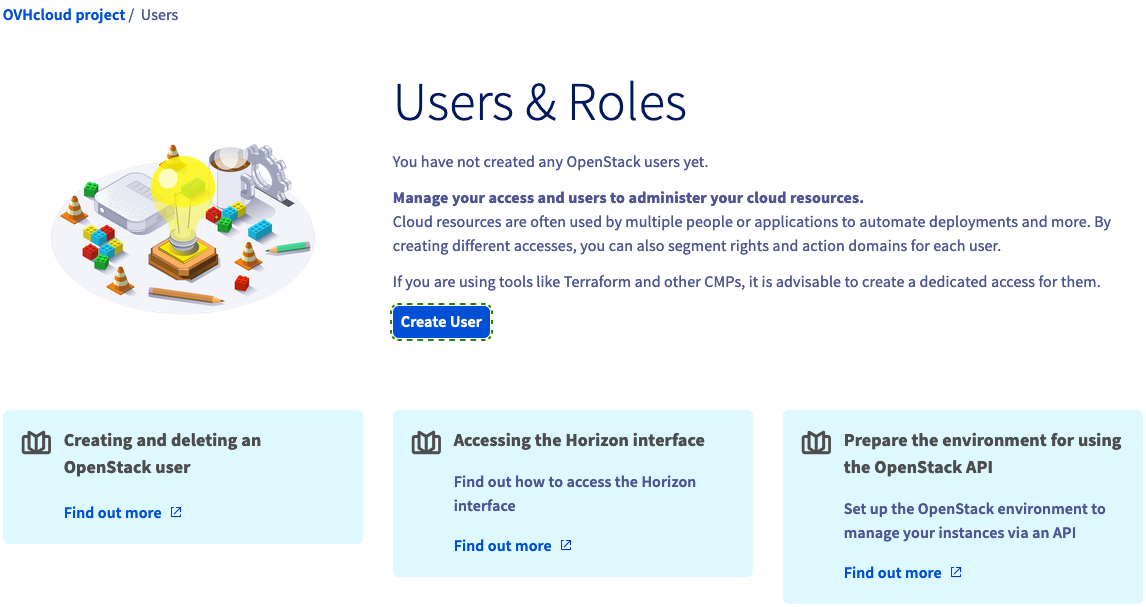
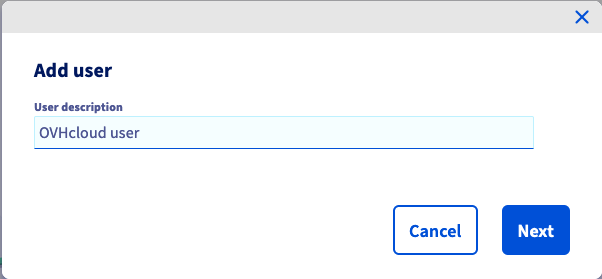
The user description is not the username for the OpenStack user but a descriptive term to help you organise users and their permissions. Enter a description and click on Next.
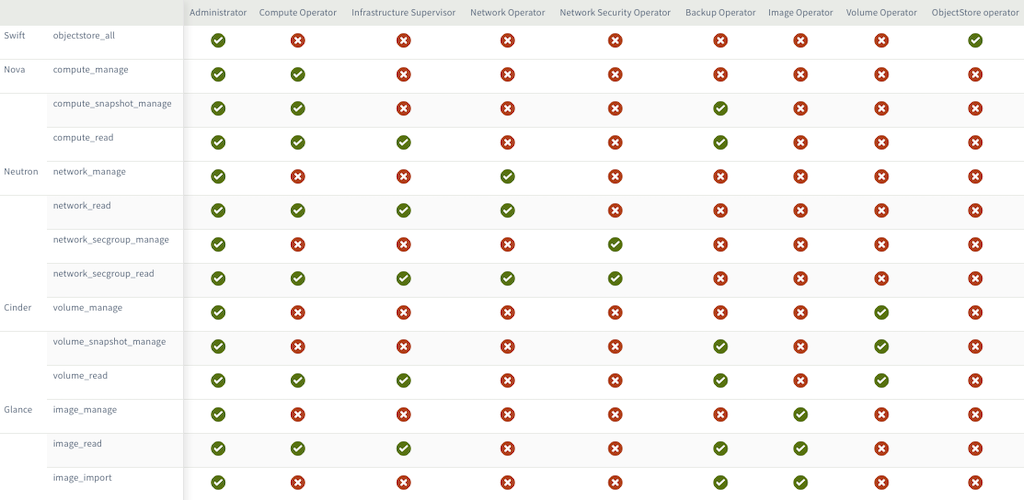
Now you can select user roles representing the permissions the user shall have. For each box checked, the user will gain access privileges according to the table below.
Click on Confirm to create the OpenStack user. Username and password will be automatically generated and displayed in your Control Panel.
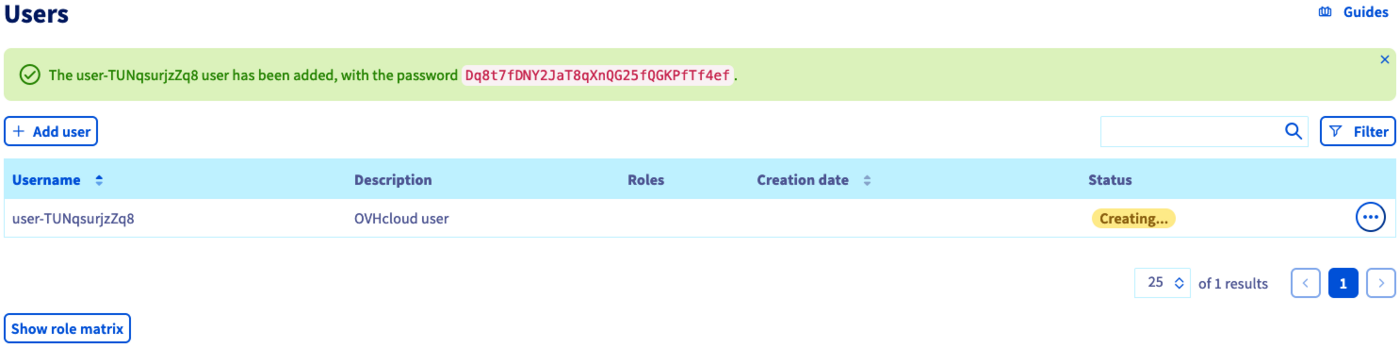
Be sure to save the password shown in the green message box to a password manager at this time. The password cannot be recovered afterwards. However, you can always create a new password by clicking on ... and selecting Generate a password.
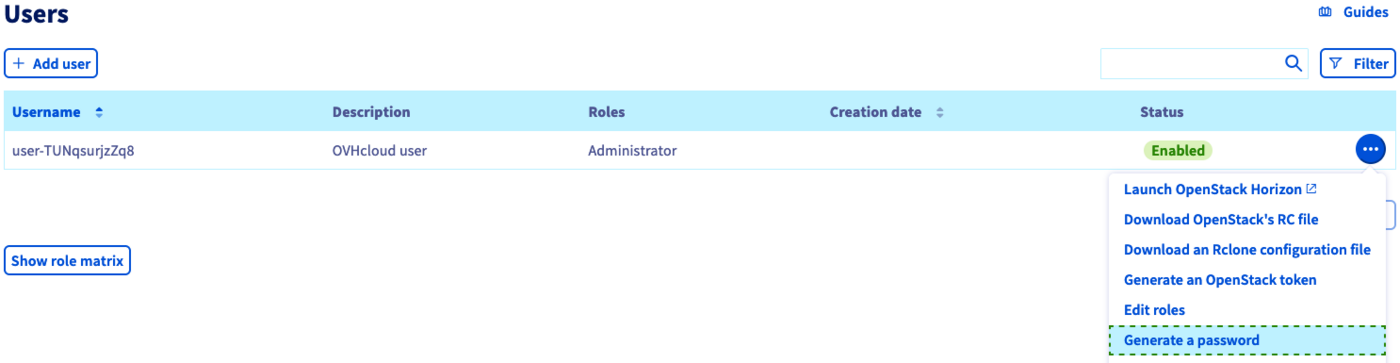
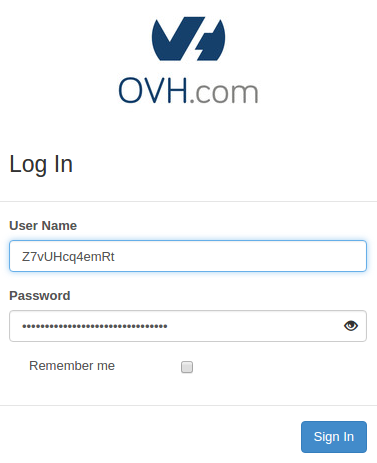
With the OpenStack user created, you can use its credentials to log into the Horizon interface by clicking on the link Horizon in the left-hand menu.
Change an OpenStack user password
You can create an OpenStack password once you have logged in to your OpenStack Horizon interface:
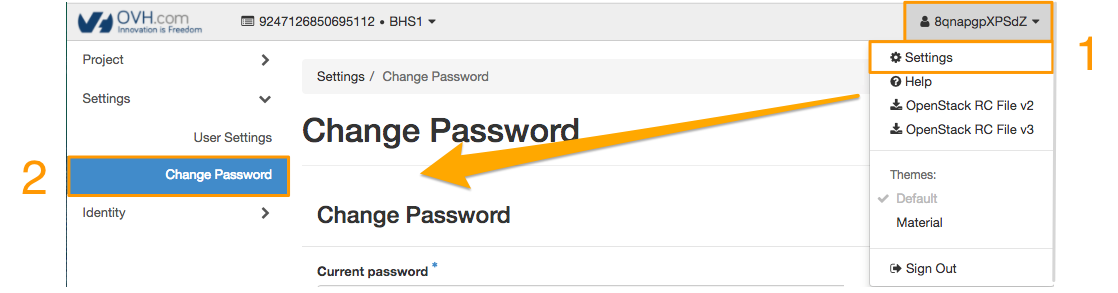
Your user profile is visible in the top right-hand corner of the Horizon interface. Click on your profile to open a menu with various options, select Settings, then Change password on the left-hand side:
Enter your current password into the first field, then re-enter and confirm your new password in the next two fields.
When you change your password, please ensure that it meets the following criteria:
- The password must contain a minimum of eight characters.
- The password must contain a maximum of 30 characters.
- The password must contain at least one upper-case letter.
- The password must contain at least one lower-case letter.
- The password must contain at least one number.
- The password must only contain letters and numbers.
To confirm your new password, click Change.
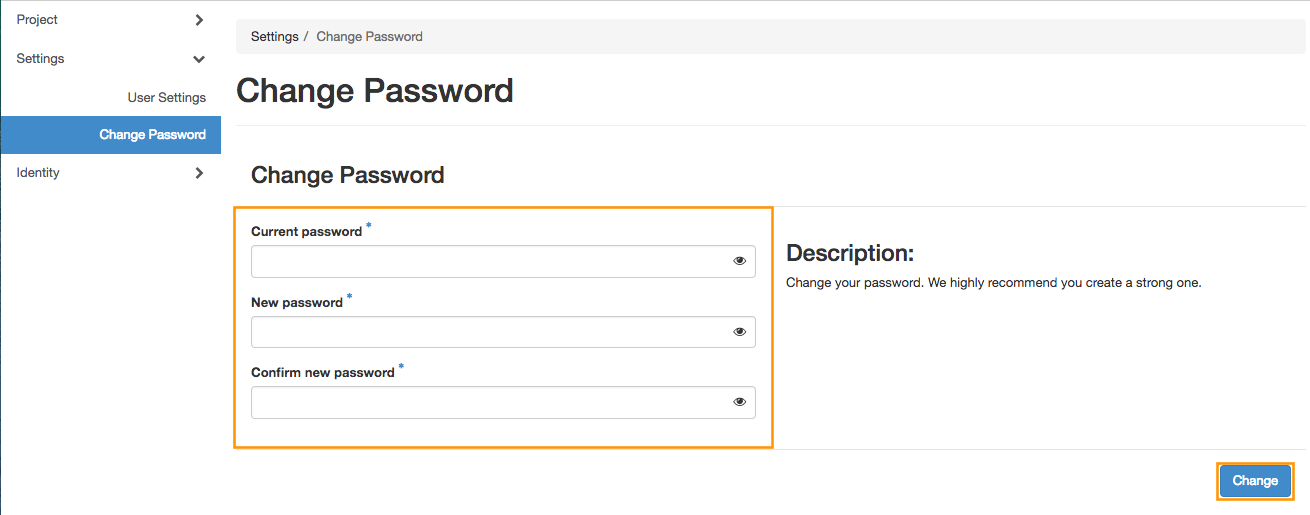
Please note that when you change your user password, your previous password is immediately cancelled.
Deleting an OpenStack user
Click on Users & Roles the left-hand menu under Settings.
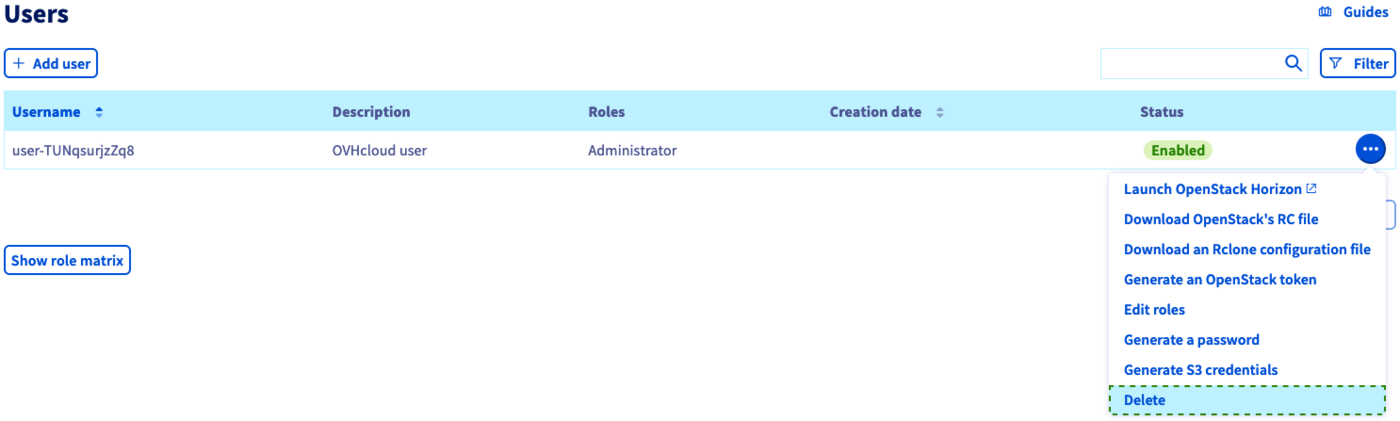
Click on ... and select Delete.
Deleting a user is permanent and will invalidate all associated tokens, even those with an expiry date not yet exceeded.
Go further
Join our community of users.


 Preparing an environment for using the OpenStack API
 484
484